Fonts
The Fonts page keeps the font files that your text uses. A font file gives your text its letter shapes.
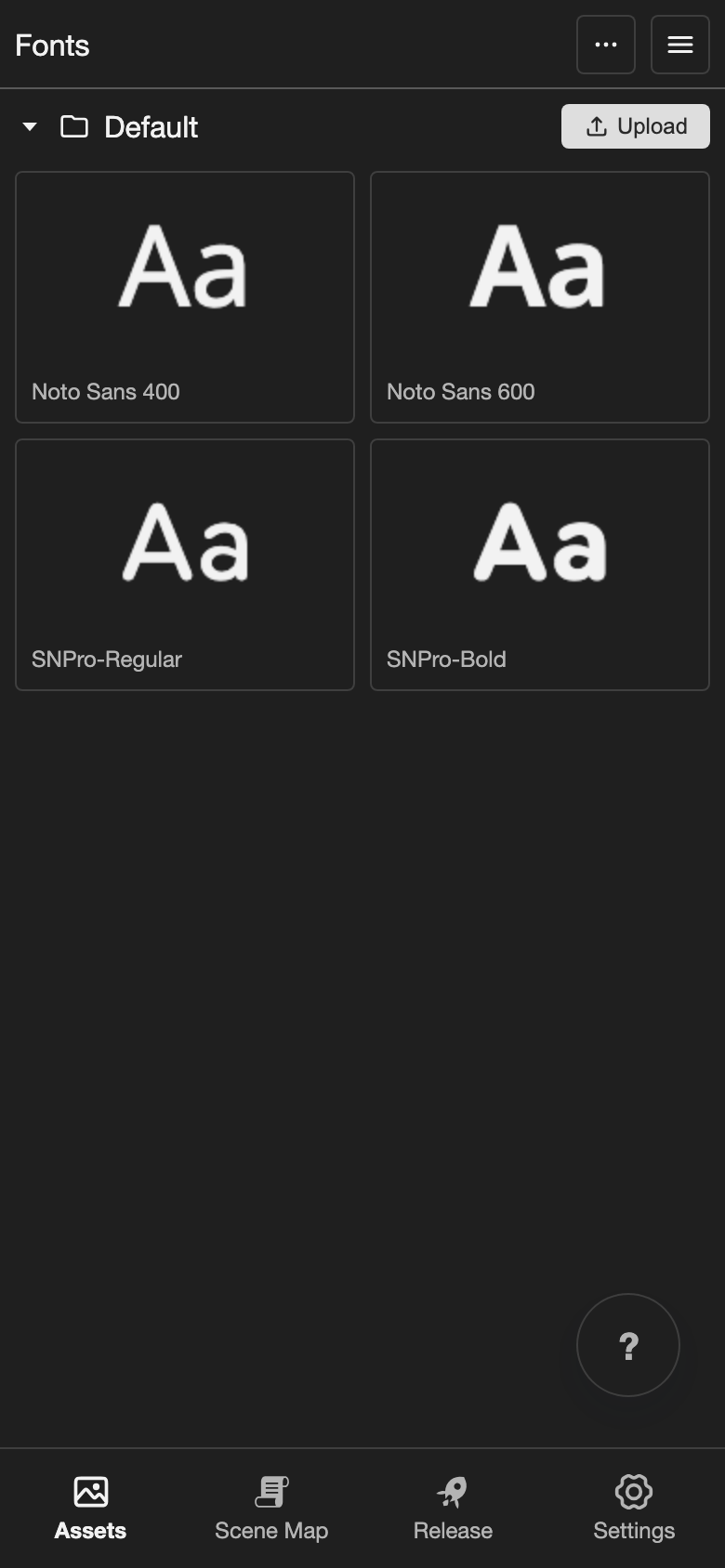
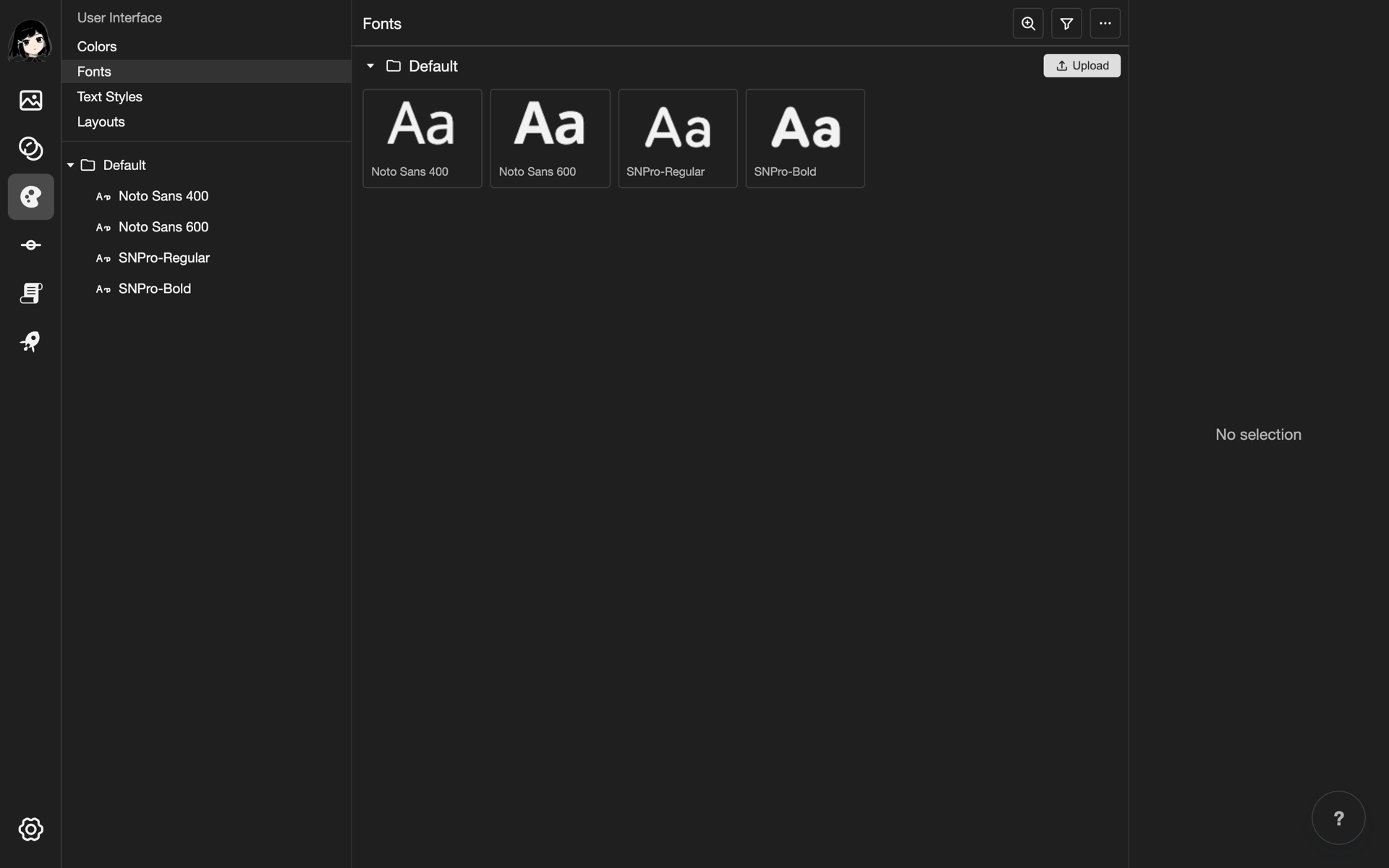
How colors, fonts, and text styles work together
- Colors: The colors your text can use. See Colors.
- Fonts: The font files for your text. This page.
- Text styles: A saved look that uses one font and one color. See Text Styles.
- Layouts: The screens of your visual novel. Layouts use text styles for their text.
Supported font files
Upload these file types:
.ttf.otf.woff2
Other file types, such as .woff, are not accepted.
Open the Fonts page
-
Open the Fonts page.
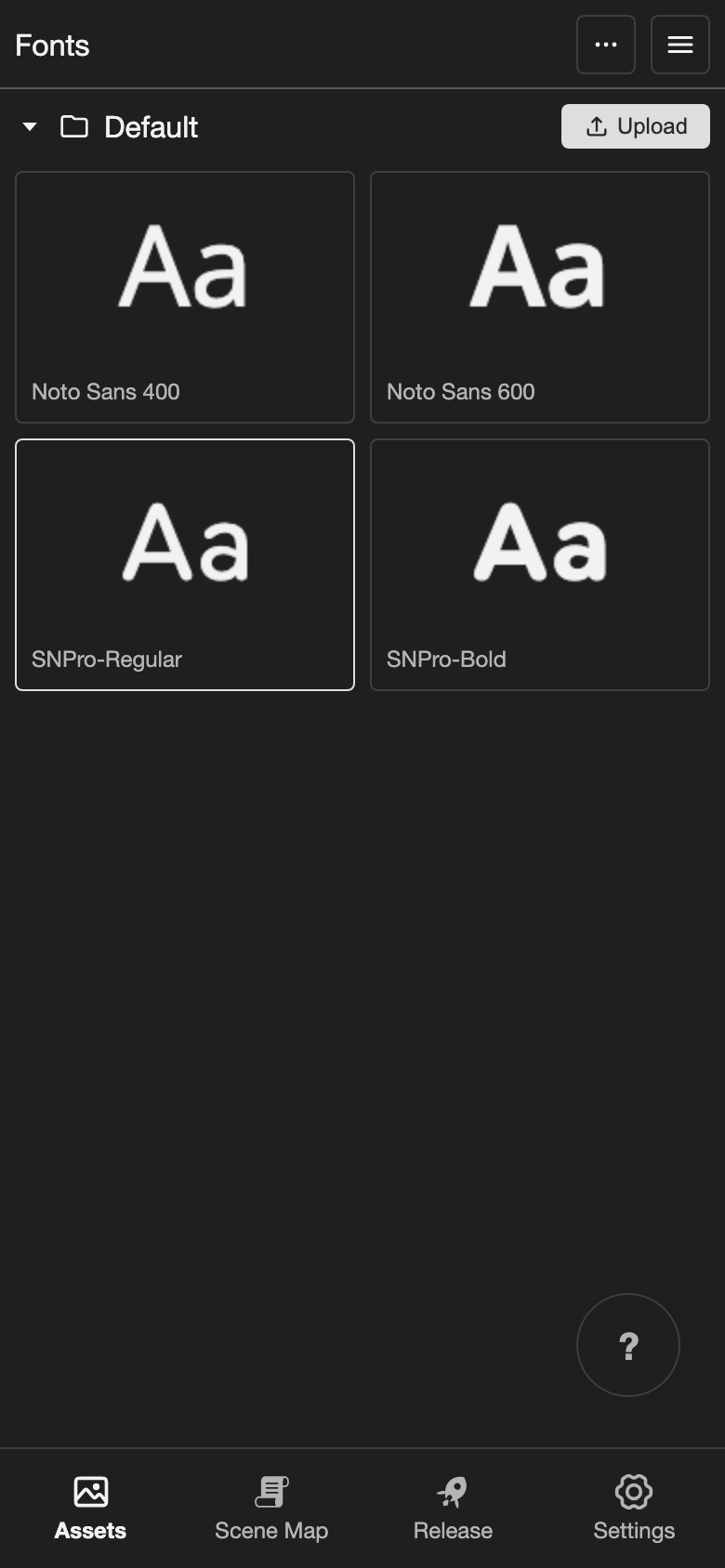
- Phone or tablet: Tap Assets at the bottom of the screen. Then tap Fonts under User Interface.
- Desktop: On the far left, click the User Interface button, which looks like a palette. Then click Fonts in the list.
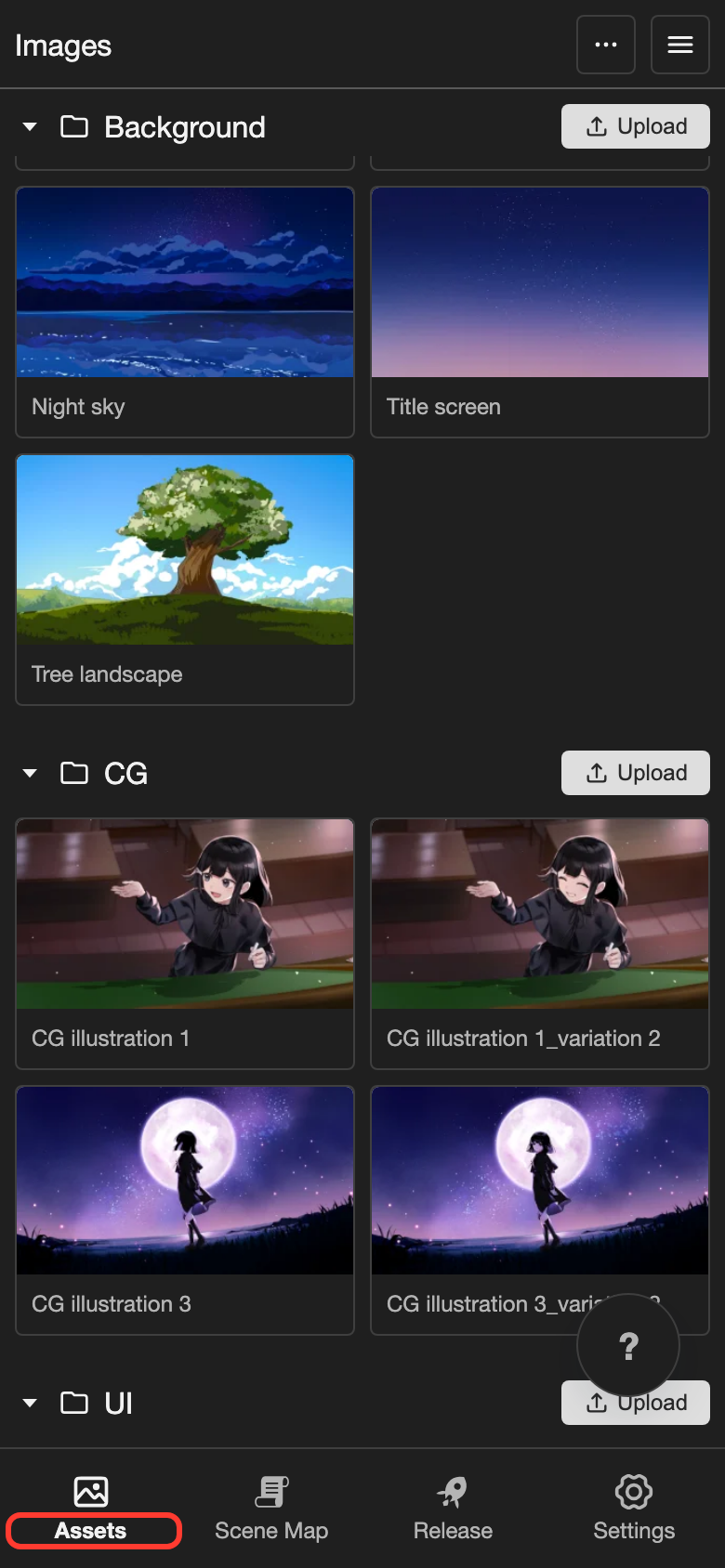
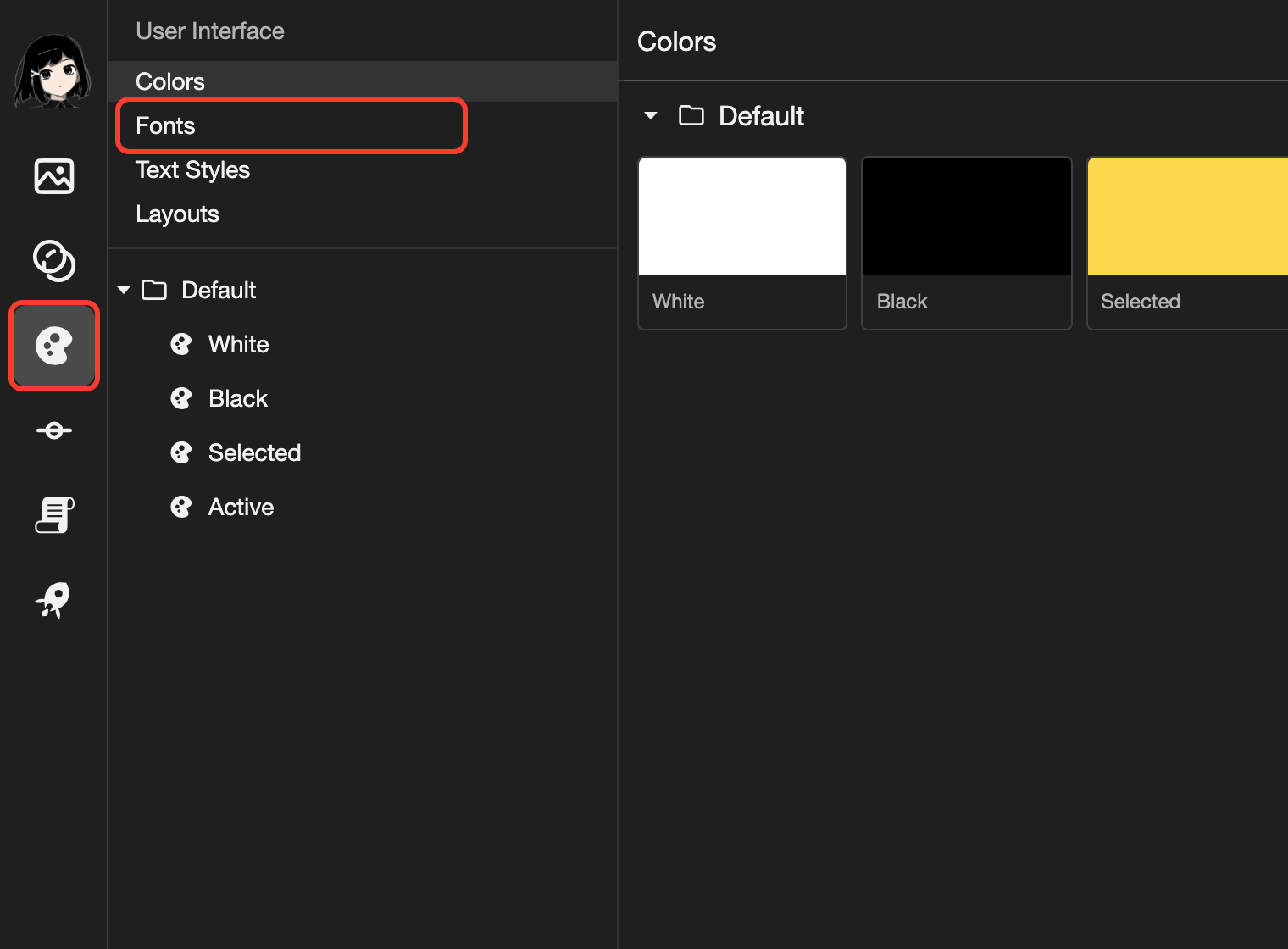
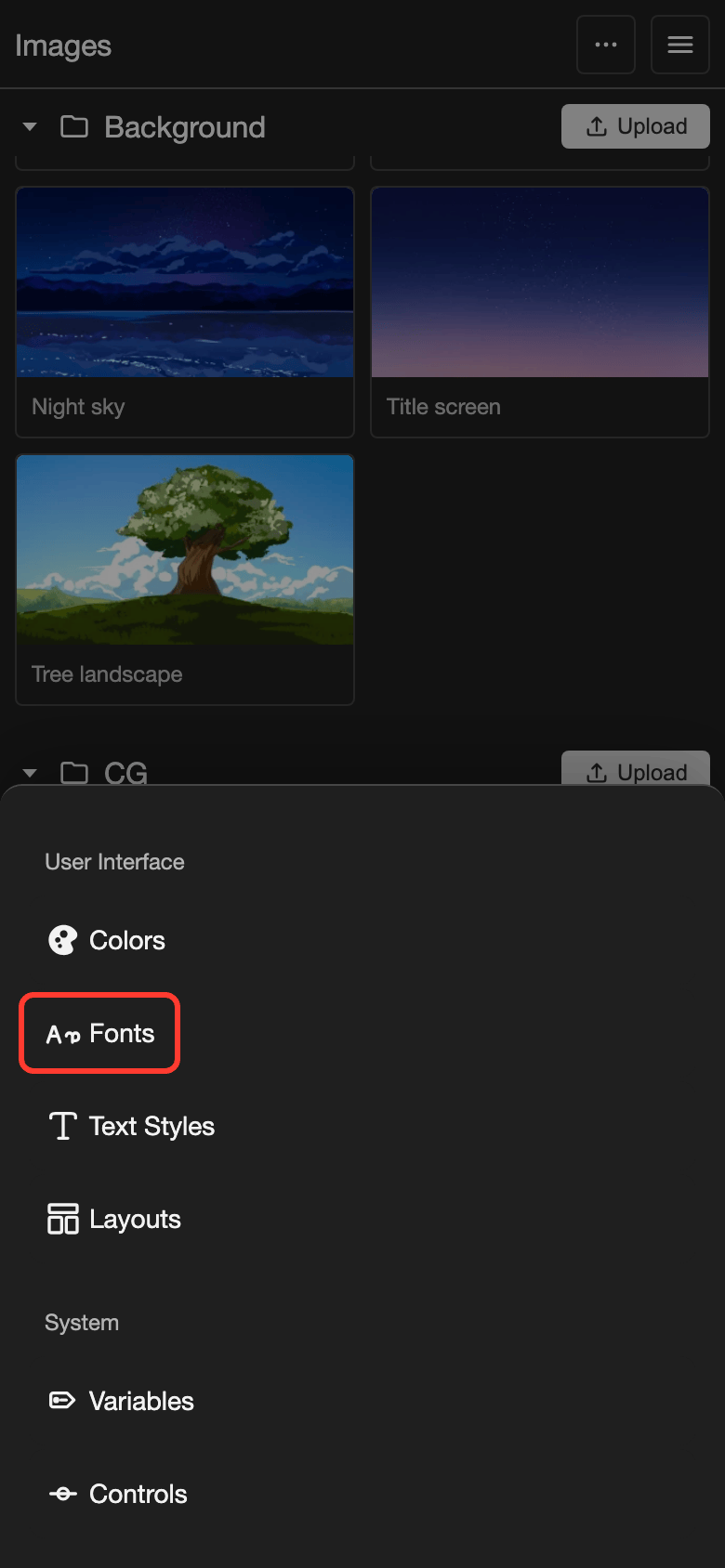
The Fonts page opens.
Upload a font
-
Tap Upload.
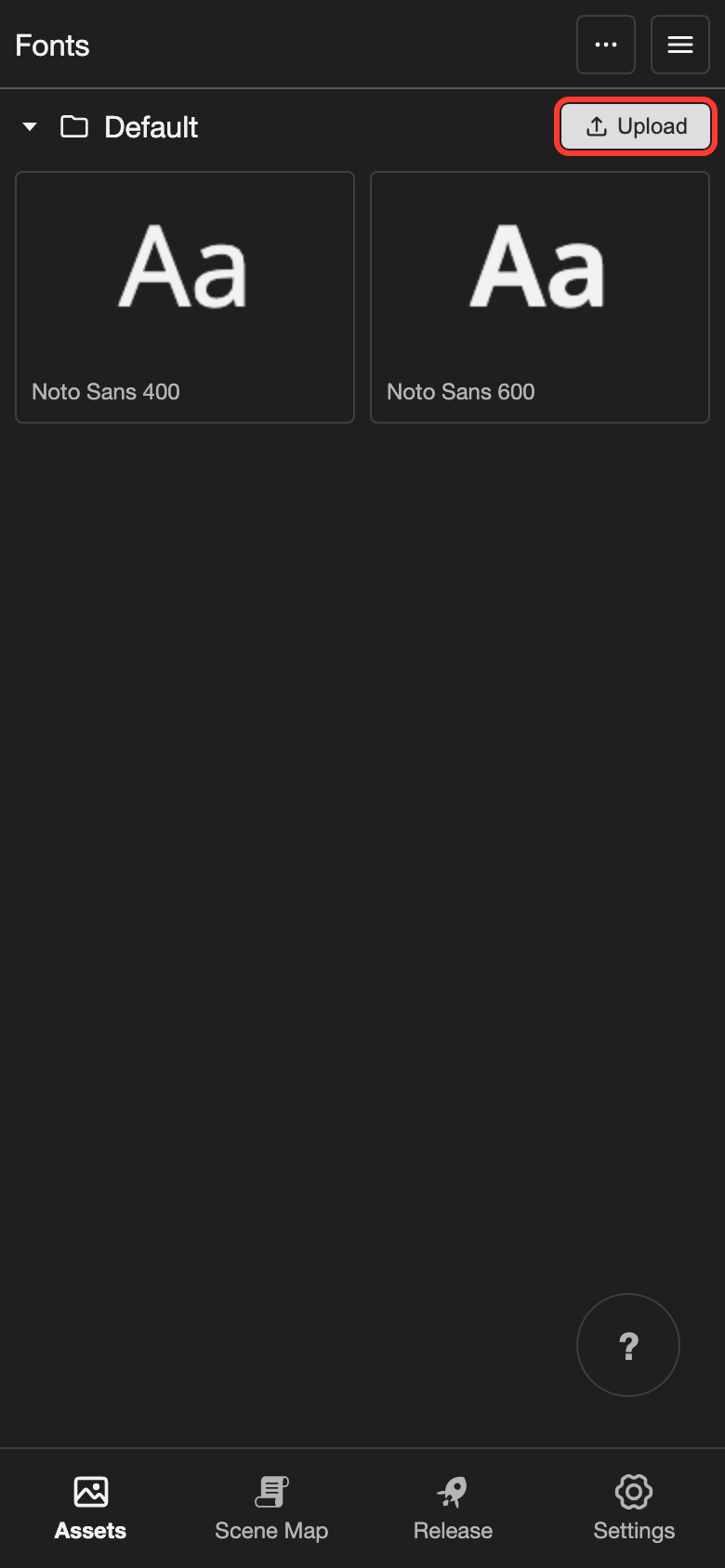
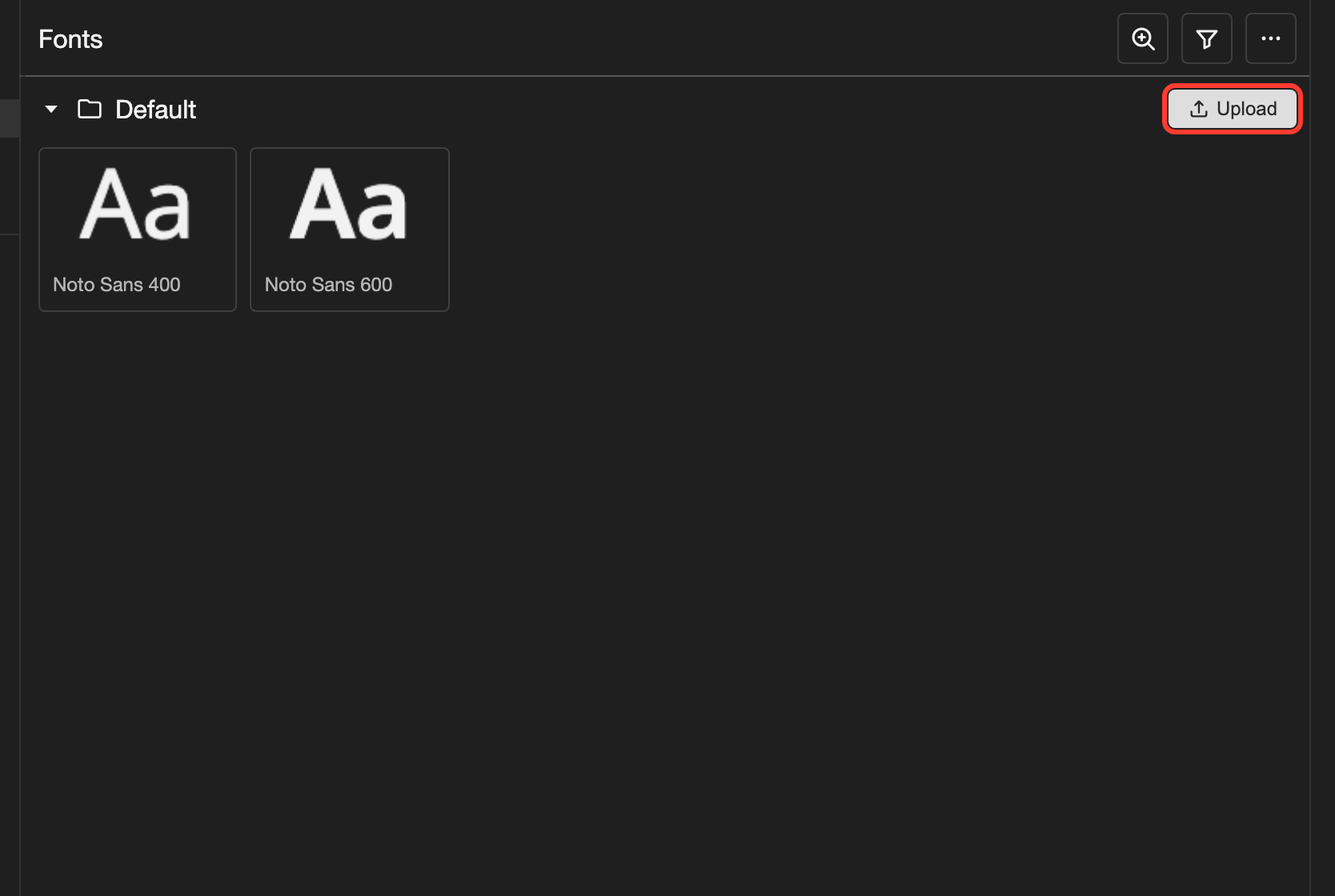
A file picker opens.
-
Select one or more font files, and confirm.
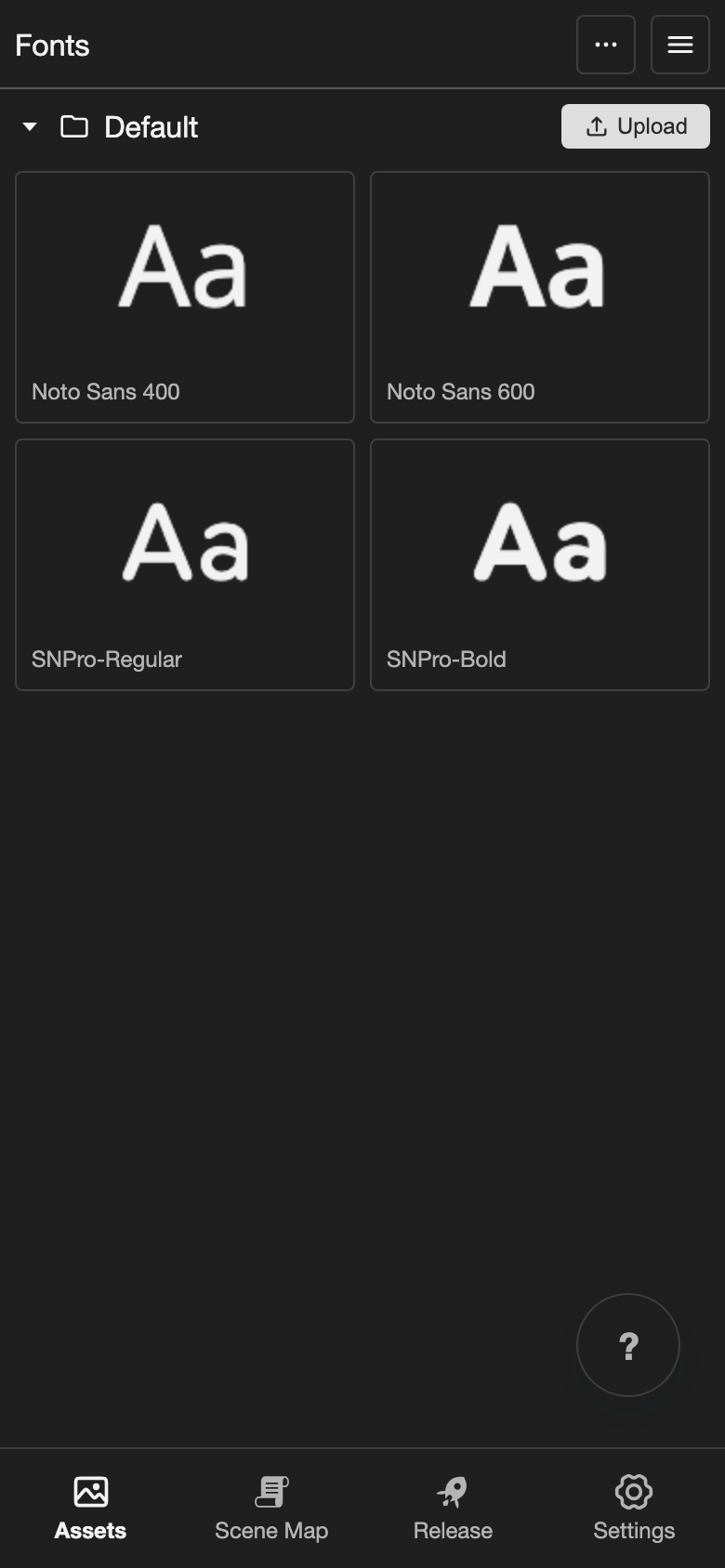
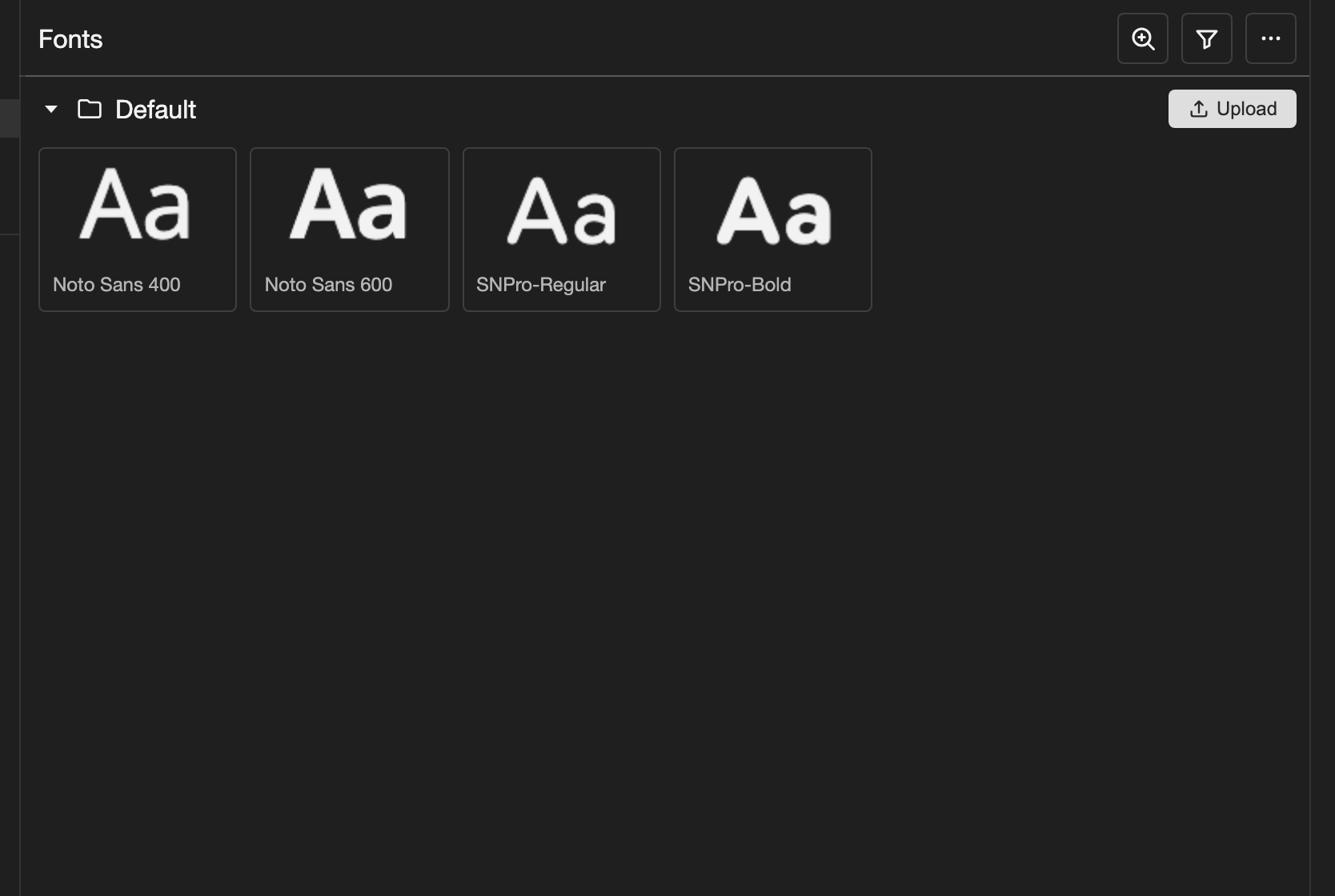
Each font file appears in the list.
The name of a font is its file name, without the extension. For example, SNPro-Regular.ttf shows as SNPro-Regular.
Want bold or italic text? Upload a separate font file for each style. See Bold, italic, and other styles.
Preview a font
-
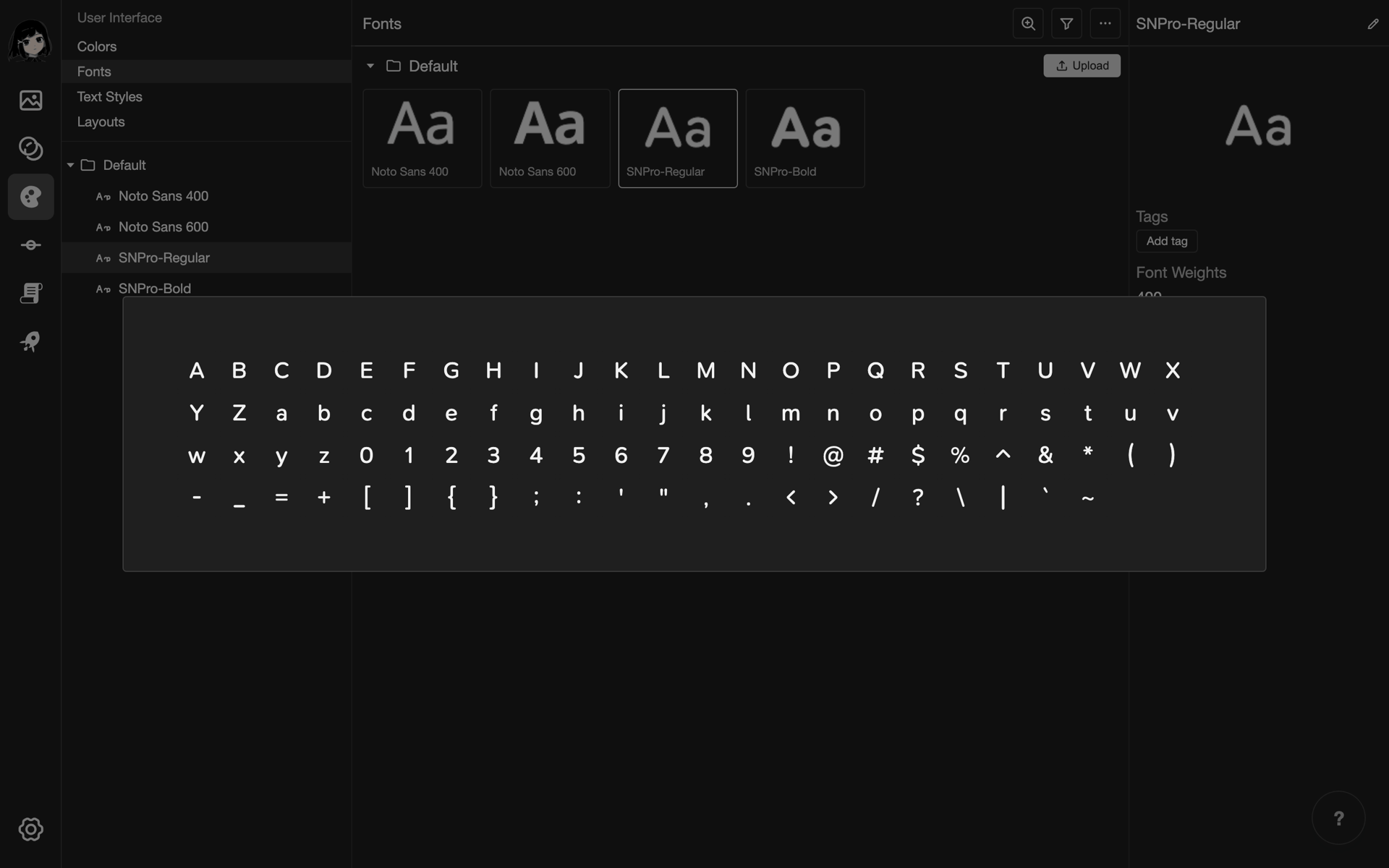
Open the preview of a font.
- Phone or tablet: Long press (touch and hold) the font. You can also tap the font, then tap Preview in its panel.
- Desktop: Double-click the font.
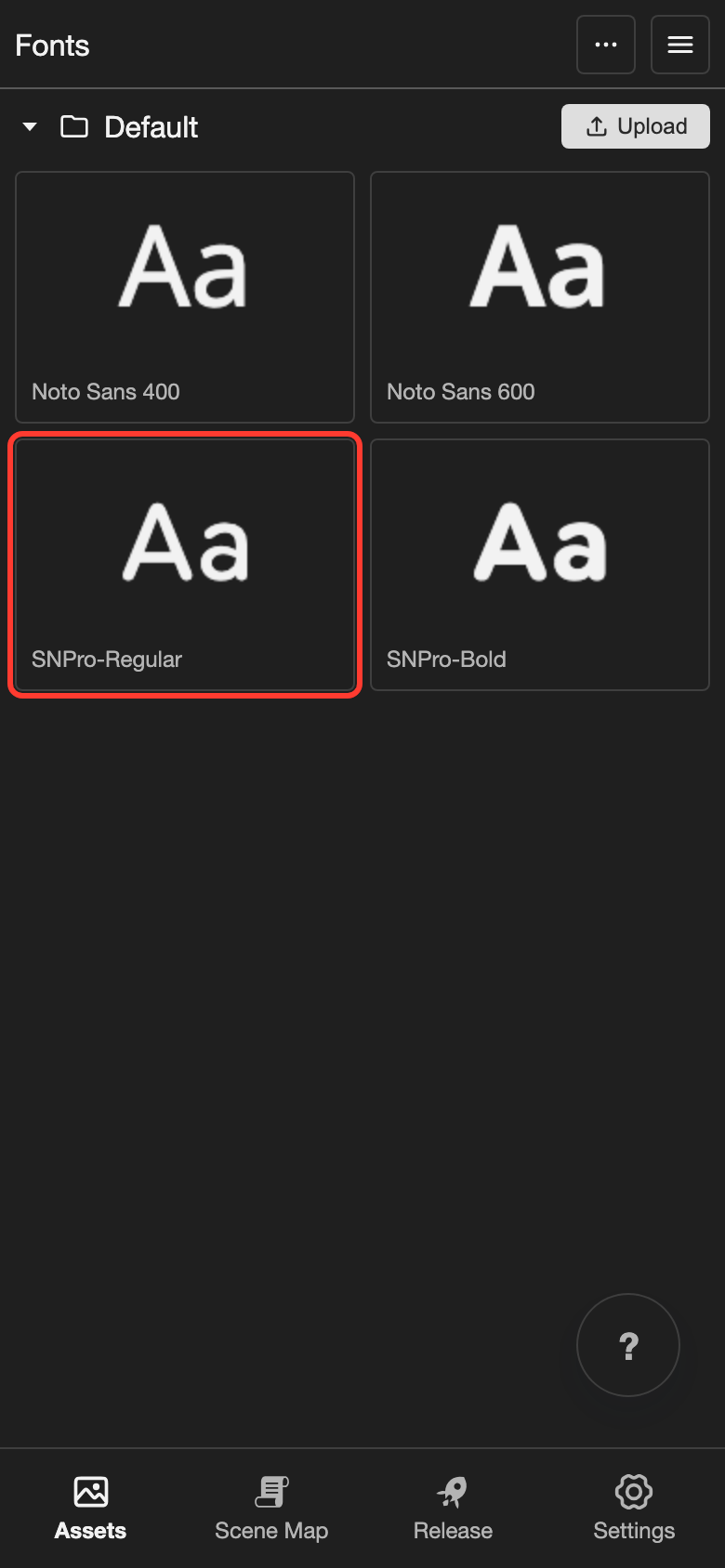
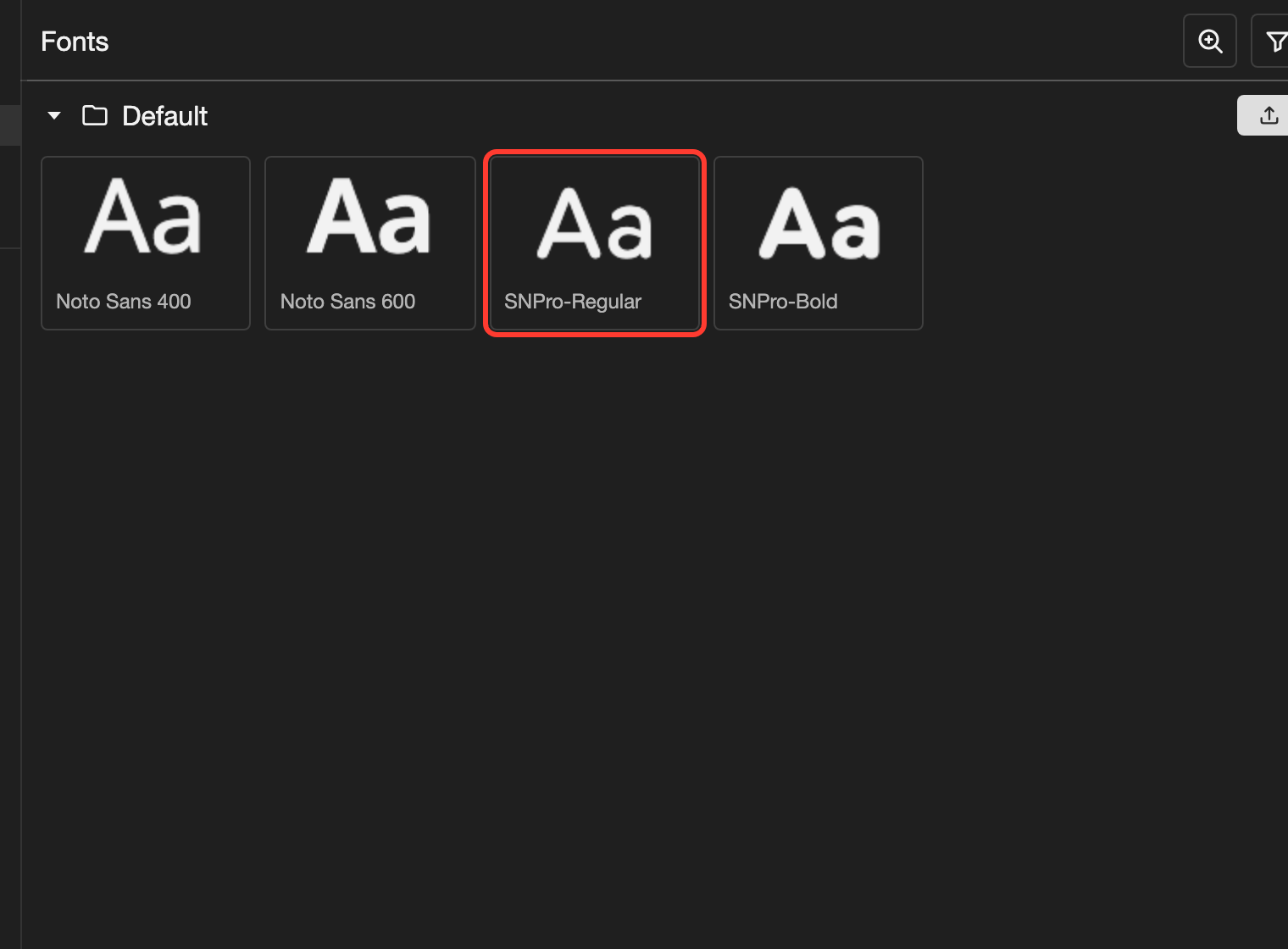
The preview opens. It shows the letters, numbers, and symbols of the font.
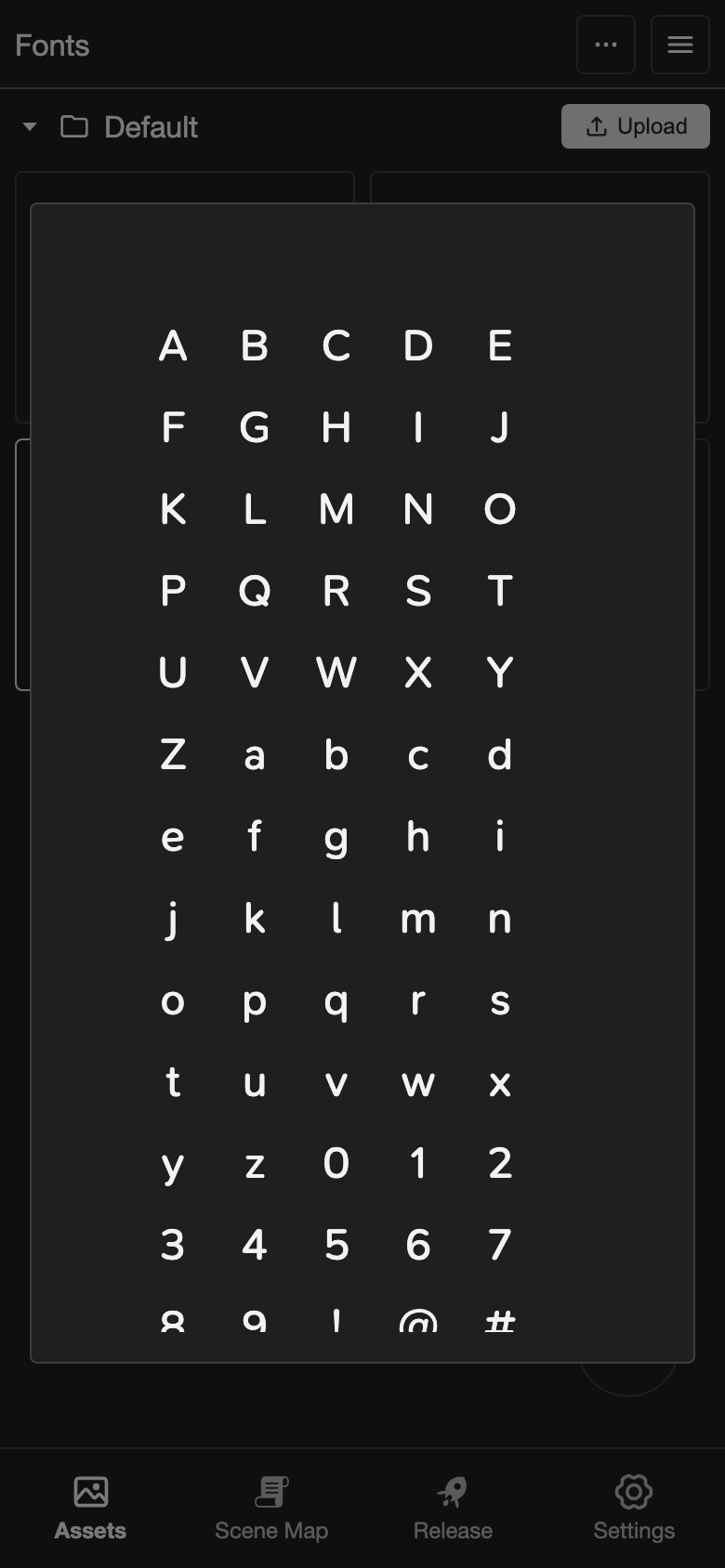
-
Close the preview.
- Phone or tablet: Tap outside the preview box.
- Desktop: Press the Escape key.
Font weights
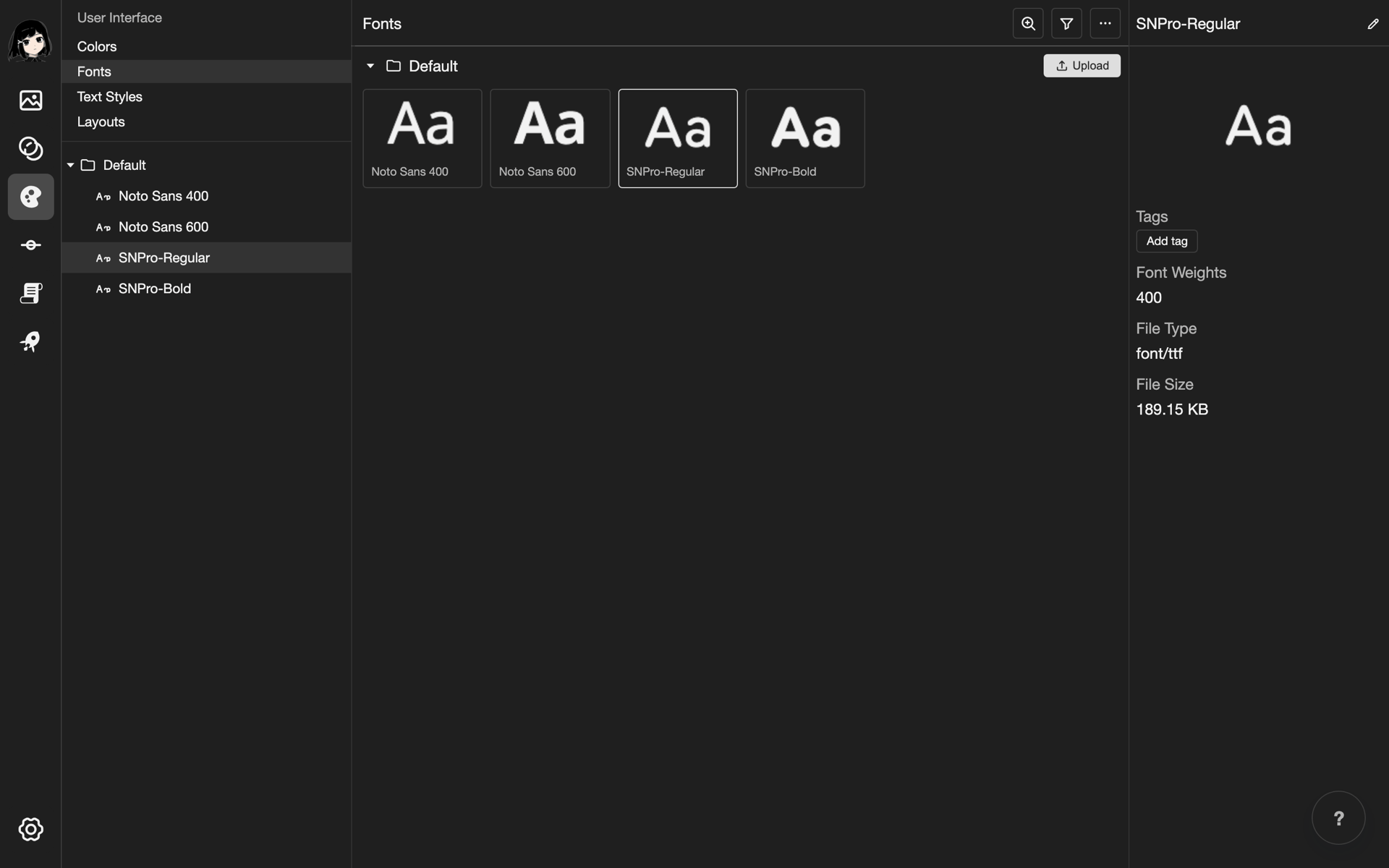
A font file can hold one or more font weights. A weight is how thick the letters are. For example, 400 is normal and 700 is bold.
To check the weight of a font:
-
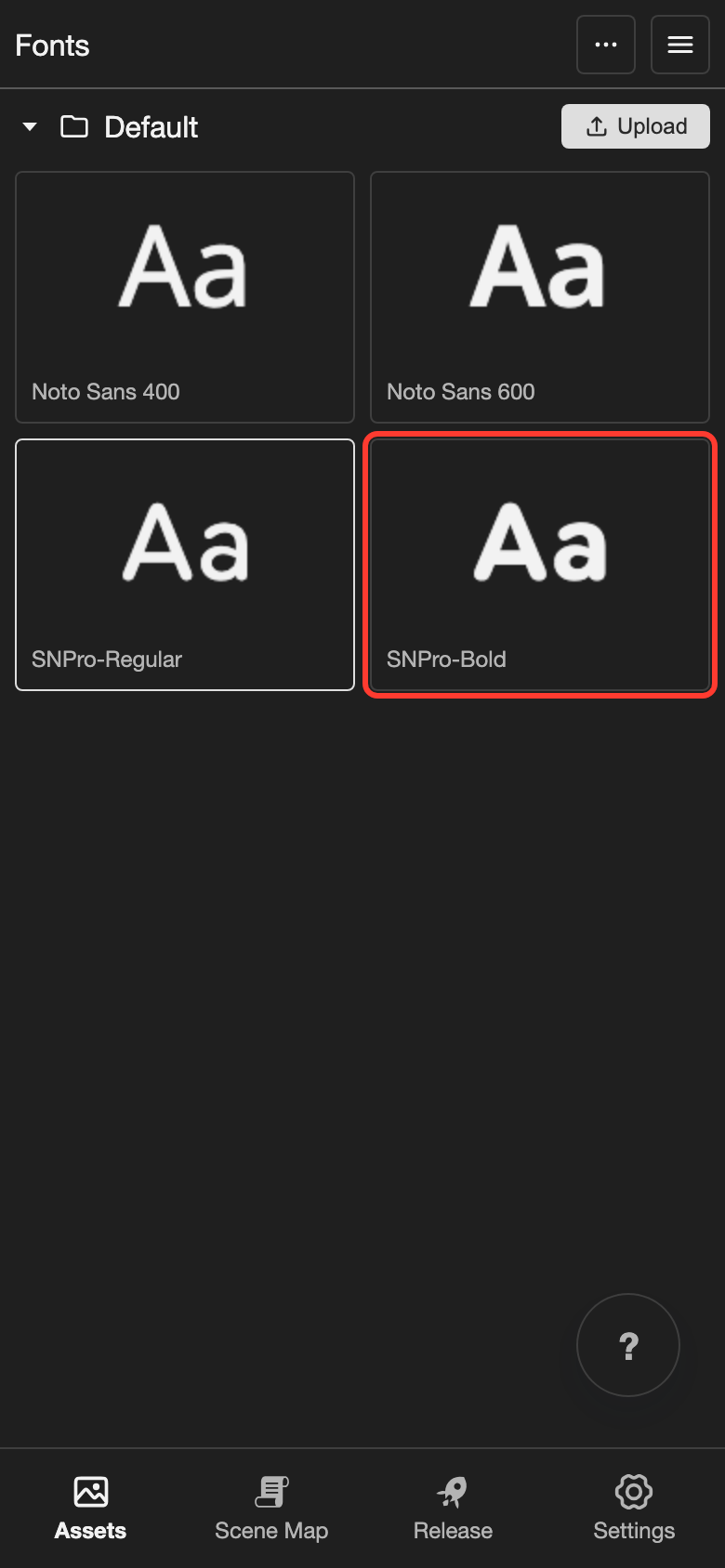
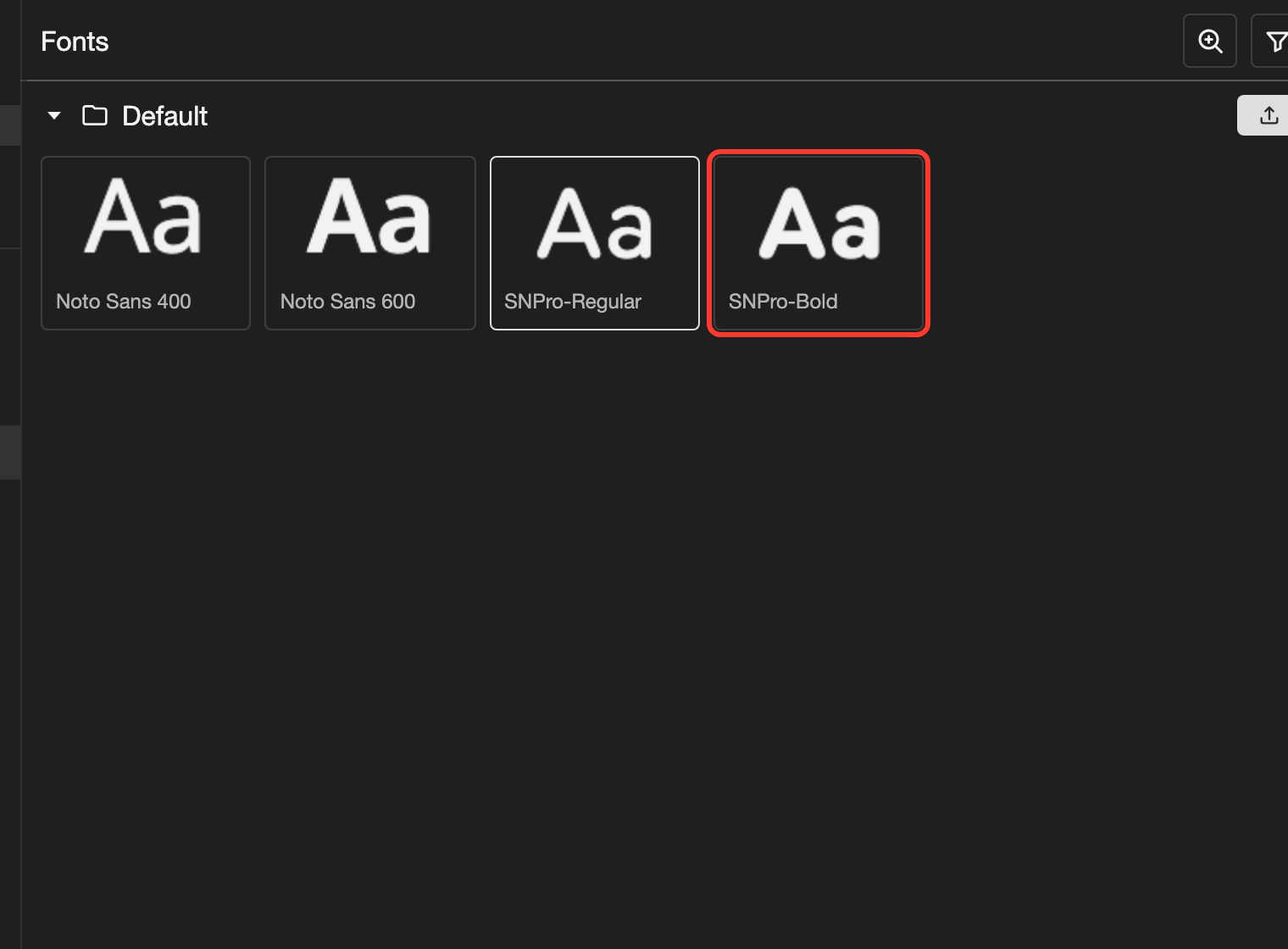
Tap the font once. A panel opens with its details.
-
Look at Font Weights. On a phone, it is in the panel at the bottom.
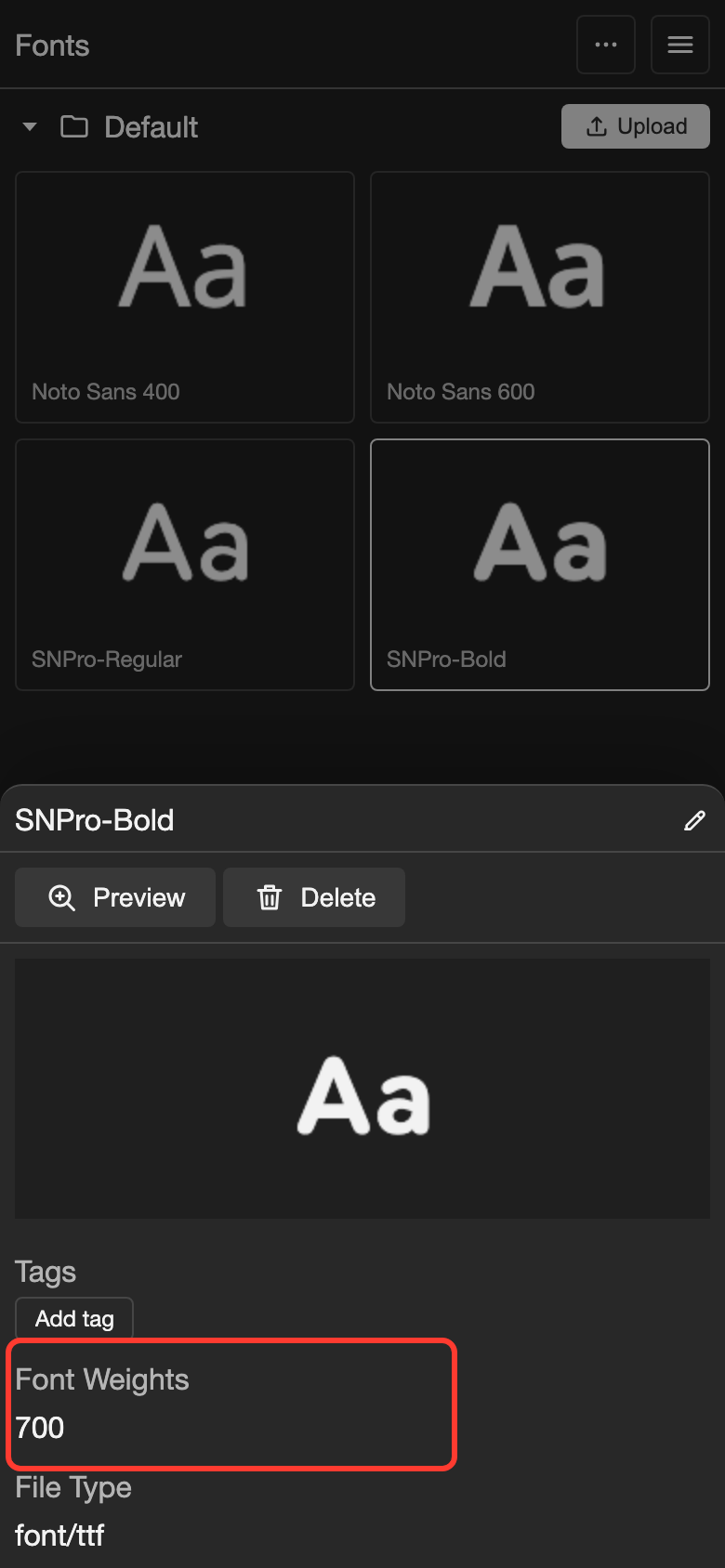
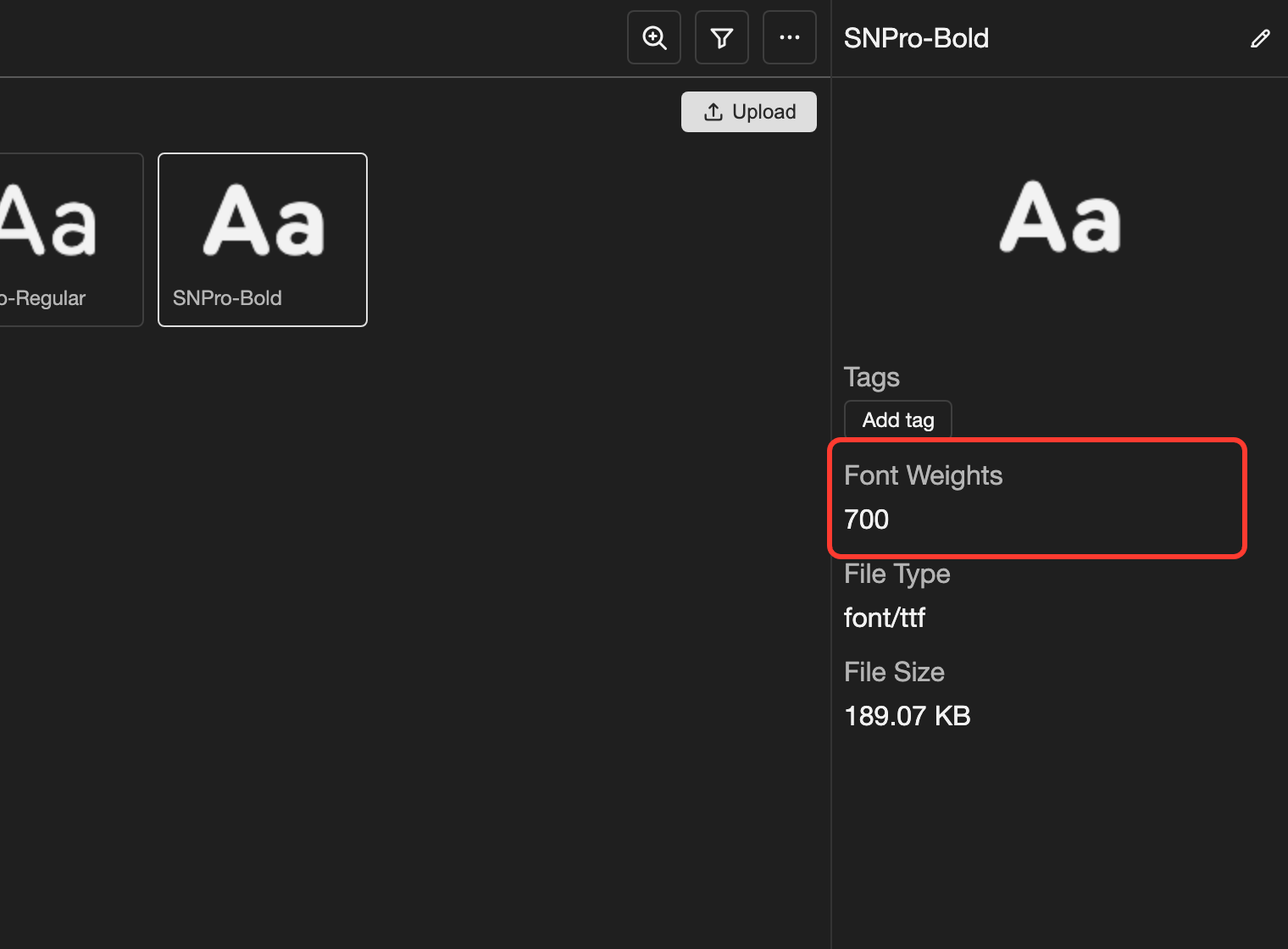
SNPro-Bold holds the weight 700.
Bold, italic, and other styles
Upload a separate font file for each style that you want to use. This is the recommended way to get bold, italic, light, or other styles.
A text style uses one font file. It can only use the weights that this file holds. So a regular font file cannot give you bold text.
For example, to use SN Pro for normal, bold, and italic text, upload 3 files:
SNPro-Regular.ttffor normal textSNPro-Bold.ttffor bold textSNPro-RegularItalic.ttffor italic text
Then make one text style for each file. See Text Styles.
Most fonts come with one file for each style. Look for words such as Bold, Italic, or Light in the file names.
Good to know
- Text styles pick a font from this page. The font you choose must be in your project before you make a text style.
- A text style can only use the font weights that its font file holds. See Text Styles.
- Your project already has the fonts Noto Sans 400 and Noto Sans 600. You can use them, or upload your own.
Problems and fixes
- I see "Invalid file format." Upload a
.ttf,.otf, or.woff2file. - I see "Could not read the font's supported weights." The file may be damaged. Choose a different file.
- I see "Font unavailable." Open Fonts and upload the font file again.