Storage and Backups
RouteVN Creator saves your projects on your device. Where they go depends on the device.
Where your projects are saved
| Device | Location | If you delete the app |
|---|---|---|
| Desktop | In a folder that you choose when you make the project | Your projects stay |
| iPhone and iPad | In a projects folder that you choose in the Files app | Your projects stay |
| Android | Inside the app | You lose all your projects |
On Android, you also lose all your projects if you clear the app's data. Set up local backups to protect them.
Each project has its own folder. It holds all the data of that project. To use a project on another device, copy the whole folder to that device. Then import it. See Import a project.
RouteVN Creator does not sync your projects to the cloud. If you lose your device, you may lose them. Copy your project folders to another computer, a USB drive, or cloud storage from time to time.
Choose a project folder on desktop
On desktop, you choose a folder each time you make a project. The folder must be empty. RouteVN Creator saves all the data of that project in it. See Project Location.
To back up a project, copy its folder to another place.
App settings folder
RouteVN Creator saves its own settings in this folder:
- Windows:
C:\Users\<your-user>\AppData\Roaming\com.routevn.creator - macOS:
~/Library/Application Support/com.routevn.creator - Linux:
~/.config/com.routevn.creator
Choose a projects folder on iPhone and iPad
RouteVN Creator asks for a projects folder the first time you open it.
-
Tap Setup.
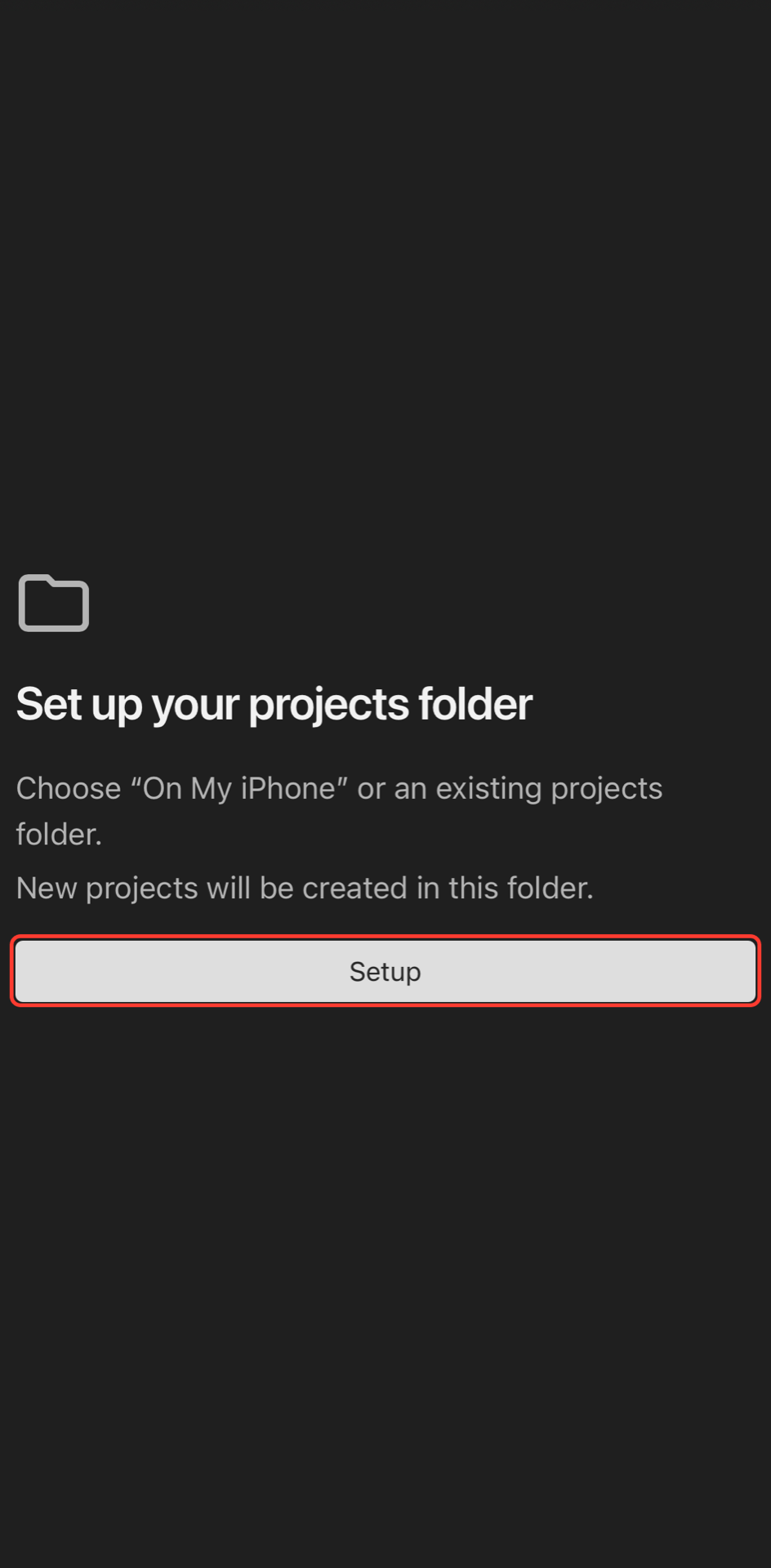
The first screen on an iPhone or iPad. The Files app opens.
-
Go to On My iPhone or On My iPad. Then tap Open.
-
Tap Continue.
RouteVN Creator saves each project in its own folder. If you chose On My iPhone or On My iPad, it first makes a RouteVN Projects folder there.
Folder permission
iOS gives RouteVN Creator access to the whole folder that you choose, and everything inside it.
- On My iPhone and On My iPad are the top level of your device. If you choose one, RouteVN Creator can access all of it.
- It is better to choose your own folder, such as RouteVN. Make it in the Files app under On My iPhone. RouteVN Creator can then access only that folder.
- Do not choose iCloud Drive, another cloud folder, or a folder that belongs to another app.
- If you move, rename, or delete the projects folder, RouteVN Creator loses access. It asks you to choose the folder again.
- If you change the folder, your projects are not moved. Move their folders to the new folder in the Files app.
Set up local backups on Android
Do this before you make a big project.
-
On the Projects page, tap Set up backup folder on the card at the bottom.
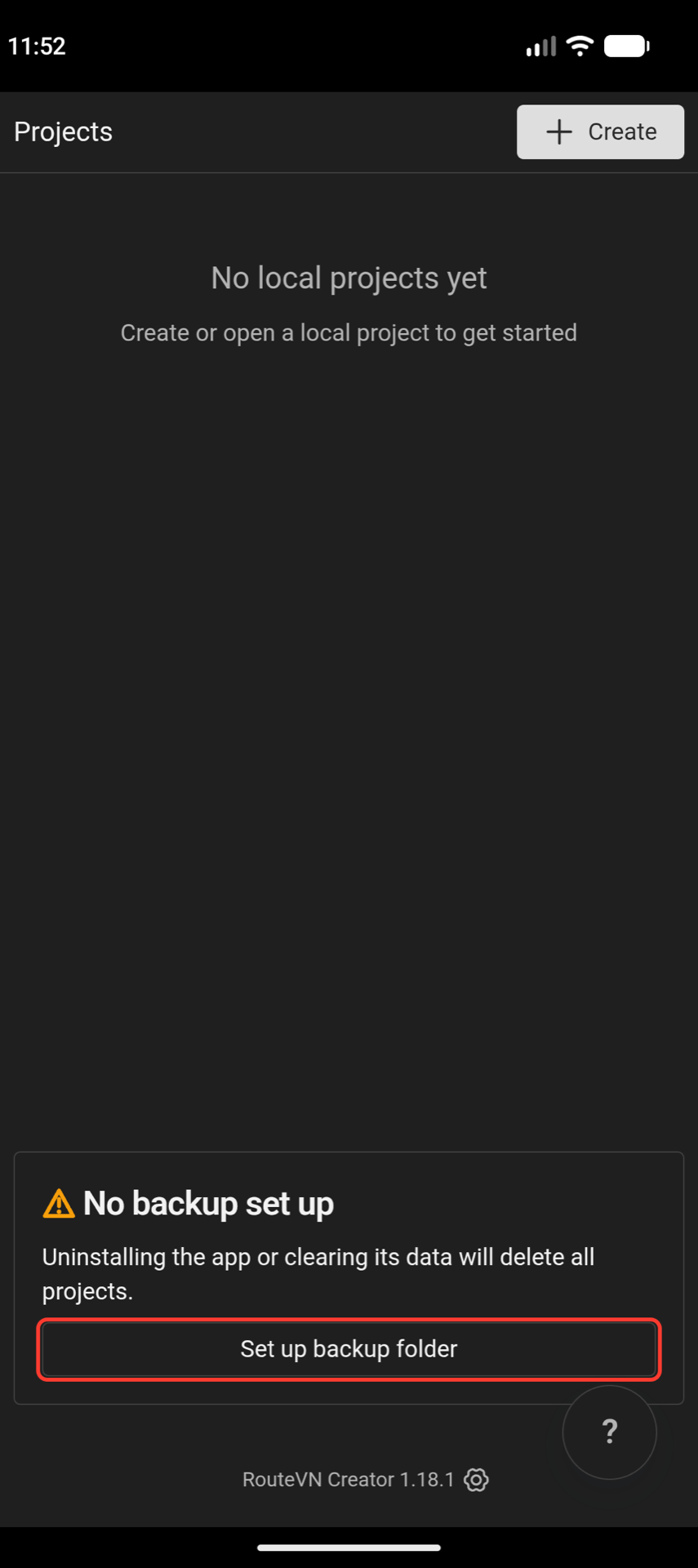
The card tells you if local backups are off. -
Tap Choose backup folder. Select a folder, such as Documents. Then tap Use this folder.
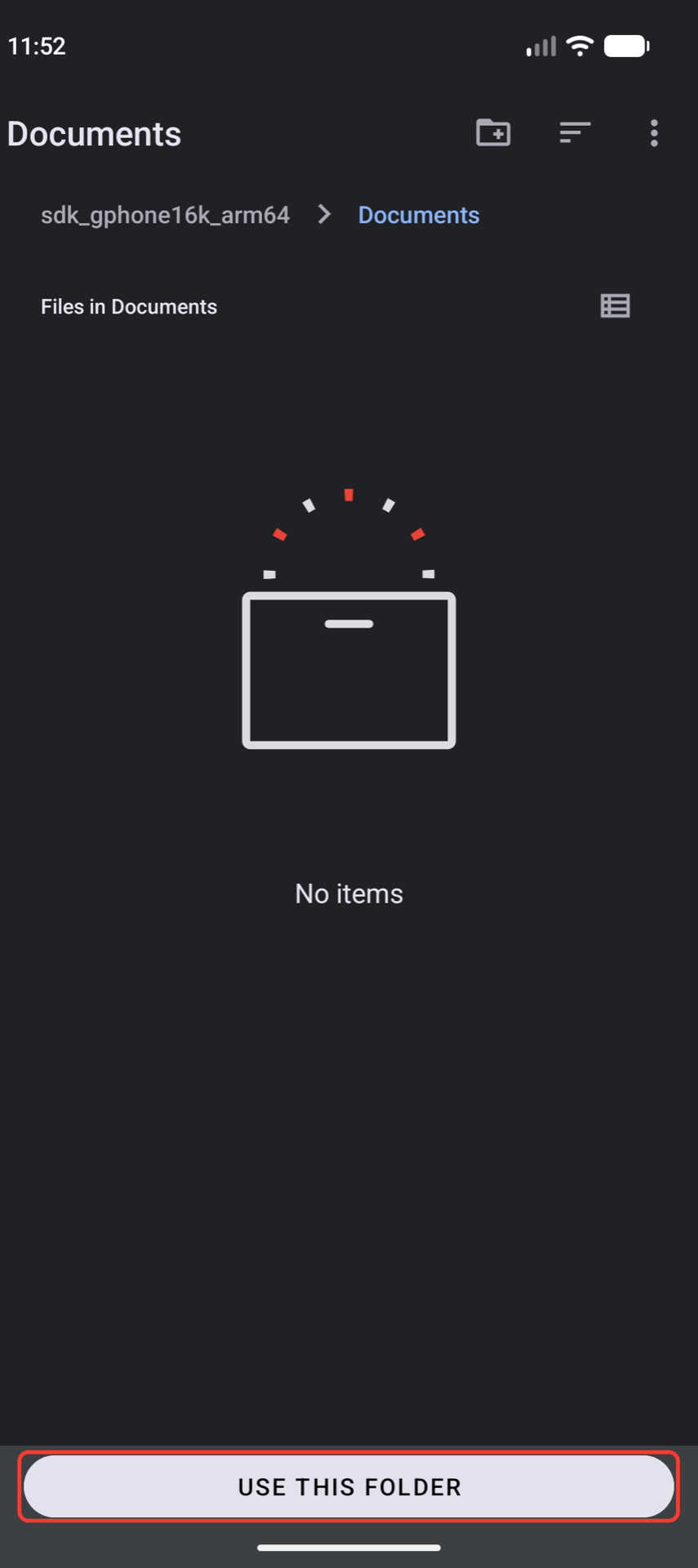
This screen is part of Android. It can look different on your device. -
Android asks if RouteVN Creator can access the folder. Tap Allow.
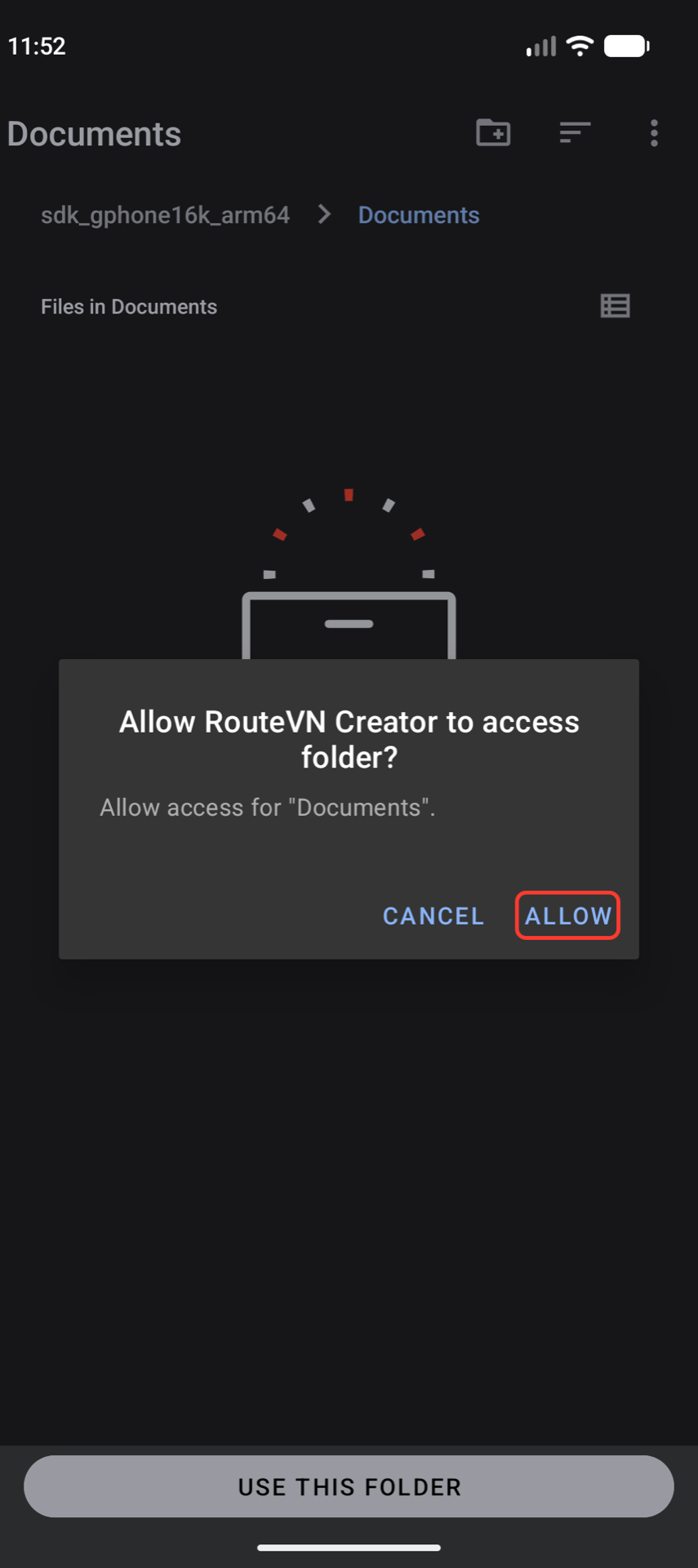
RouteVN Creator writes local backups only in the folder you allow. -
Tap Continue.
Use a folder on your device or SD card. Cloud folders do not work. If you tap Skip for now, your projects are not protected.
How local backups work
- All projects are backed up right after setup.
- While the app is open, changes are backed up about every 5 minutes.
- Local backups do not run when the app is closed. Open the app to back up your last changes.
- Local backups need at least 1 GB of free space. If space is low, they pause.
- The card on the Projects page shows a warning if something is wrong.
Limits of local backups
Local backups are on the same device. They protect you if you uninstall the app or clear its data. They do not protect you if you lose the device, reset it, or delete the backup folder. Copy the RouteVN Backups folder to a computer from time to time.
If you stop local backups, new changes are not backed up. Android's own cloud backup does not include your projects.
Restore a project
- On the Projects page, tap Create > Import Project.
- Select the project folder inside RouteVN Backups.
- Repeat for each project. Then set up local backups again.
Problems and fixes
- RouteVN Creator asks for the projects folder again (iPhone and iPad). You moved, renamed, or deleted the folder. Choose it again.
- The local backups card shows a warning (Android). Read the message. Reconnect your SD card, choose the folder again, or free up space.