Tags
A tag is a label that you add to an item, such as "night" or "happy". Tags help you group and find items without moving them out of their folders.
An item is one file, such as one image or one sound. One item can have many tags. One tag can be on many items.
For example, on the Images page you can add the tag "night" to every night background. Then you can show only those images.
Where tags work
- Every resource page has tags. Resource pages are the pages that hold your files, such as Images, Sounds, and Layouts.
- Each resource page has its own tag list. For example, image tags are separate from sound tags.
- Each character has its own list of sprite tags. You also use sprite tags to make sprite groups.
- You can add tags to items, but not to folders. To learn about folders and items, see File Explorer.
Add a tag to an item
These steps use the Images page. Tags work the same way on the other resource pages.
-
Select the item.
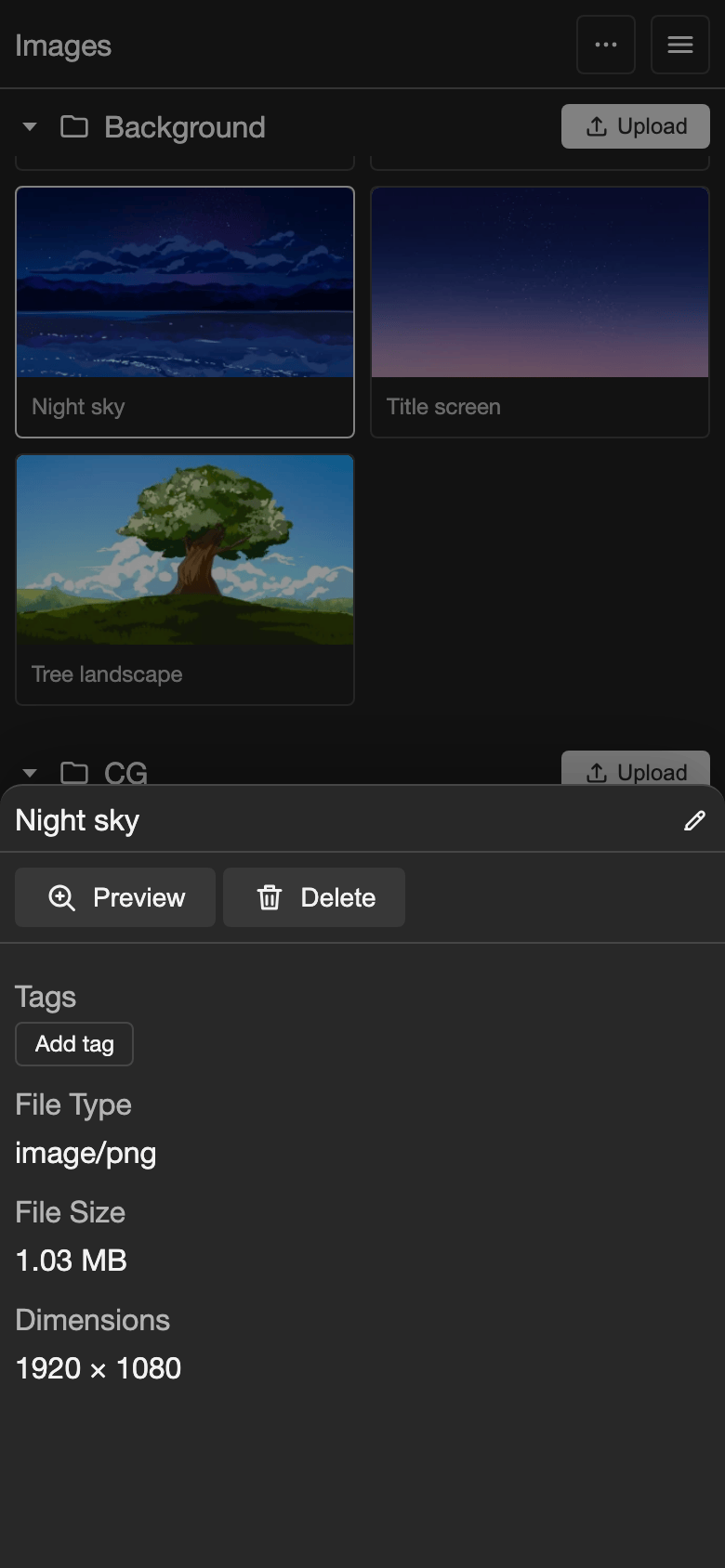
- Phone or tablet: Tap the item in the middle of the page. A panel opens at the bottom of the screen.
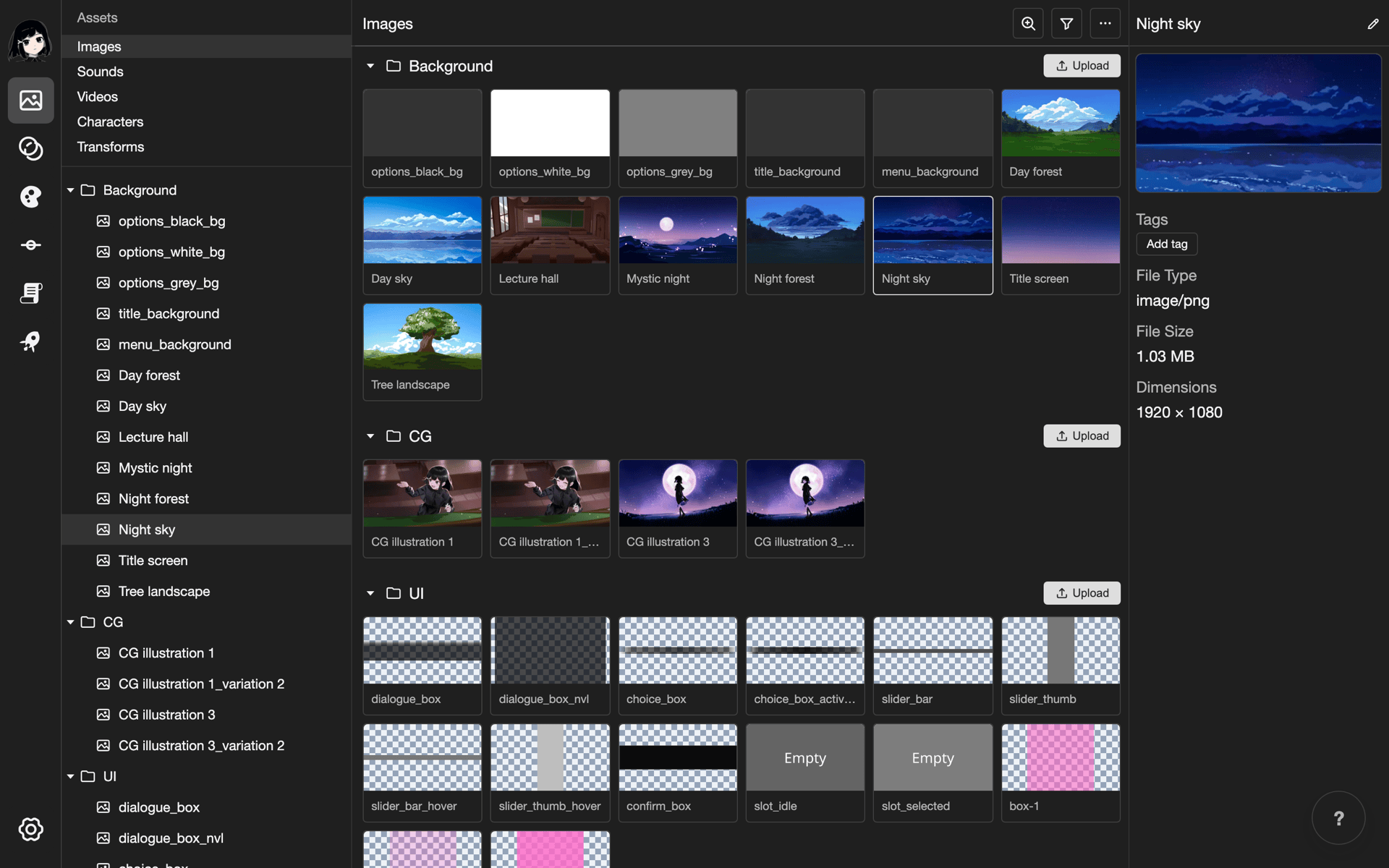
- Desktop: Click the item. Its details show on the right.
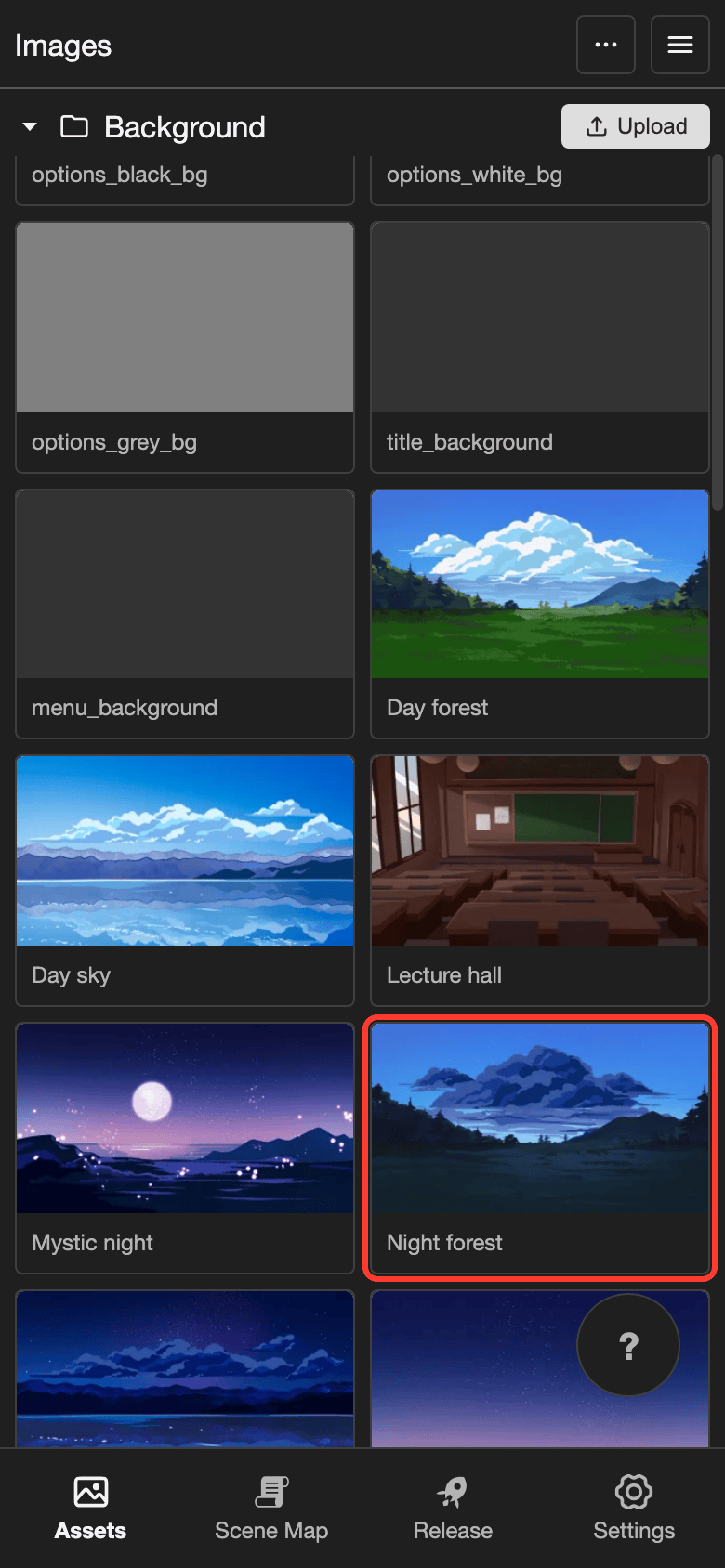
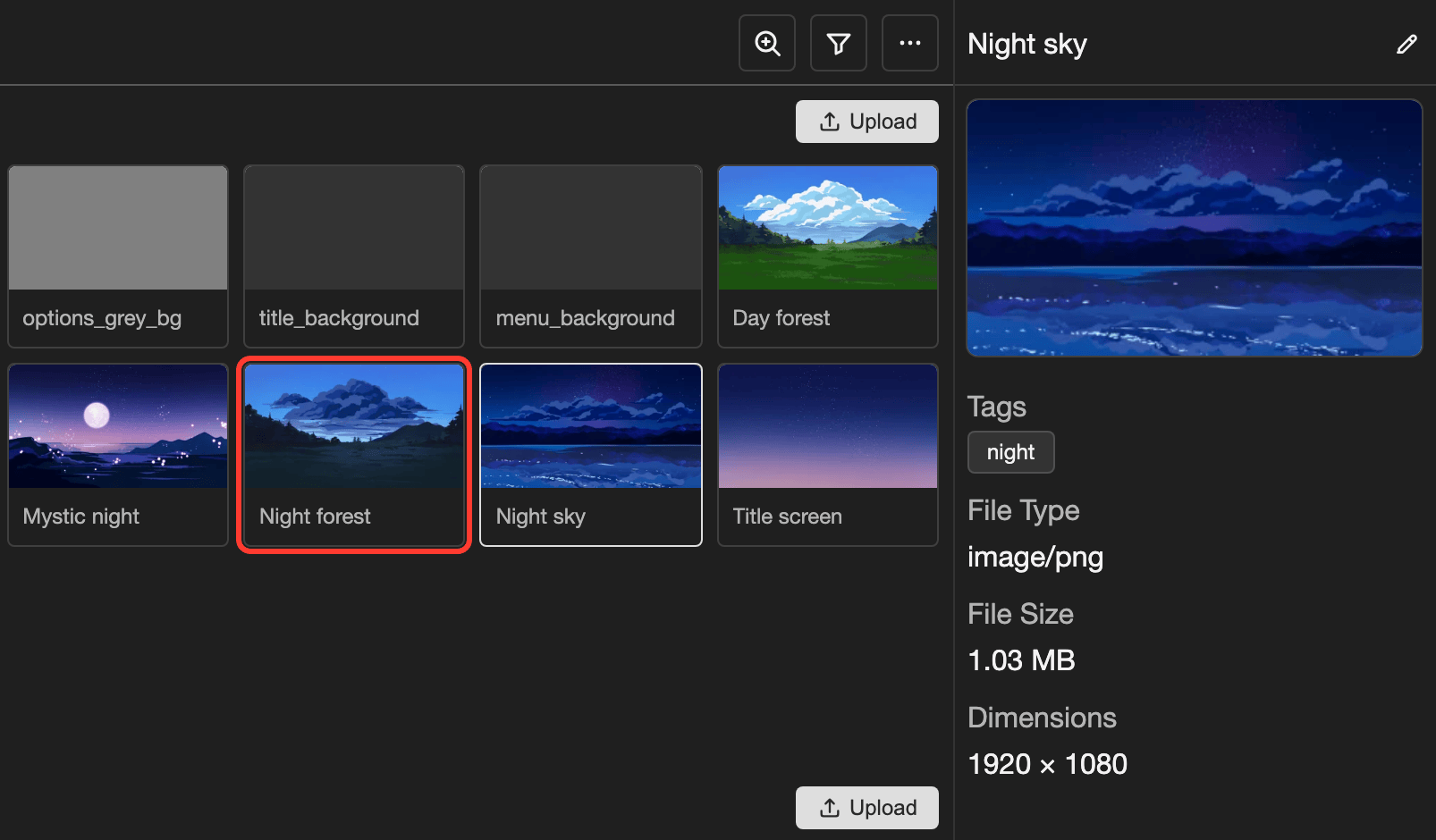
Tap the item. -
Under Tags, tap Add tag. If the item already has tags, tap one of its tags instead.
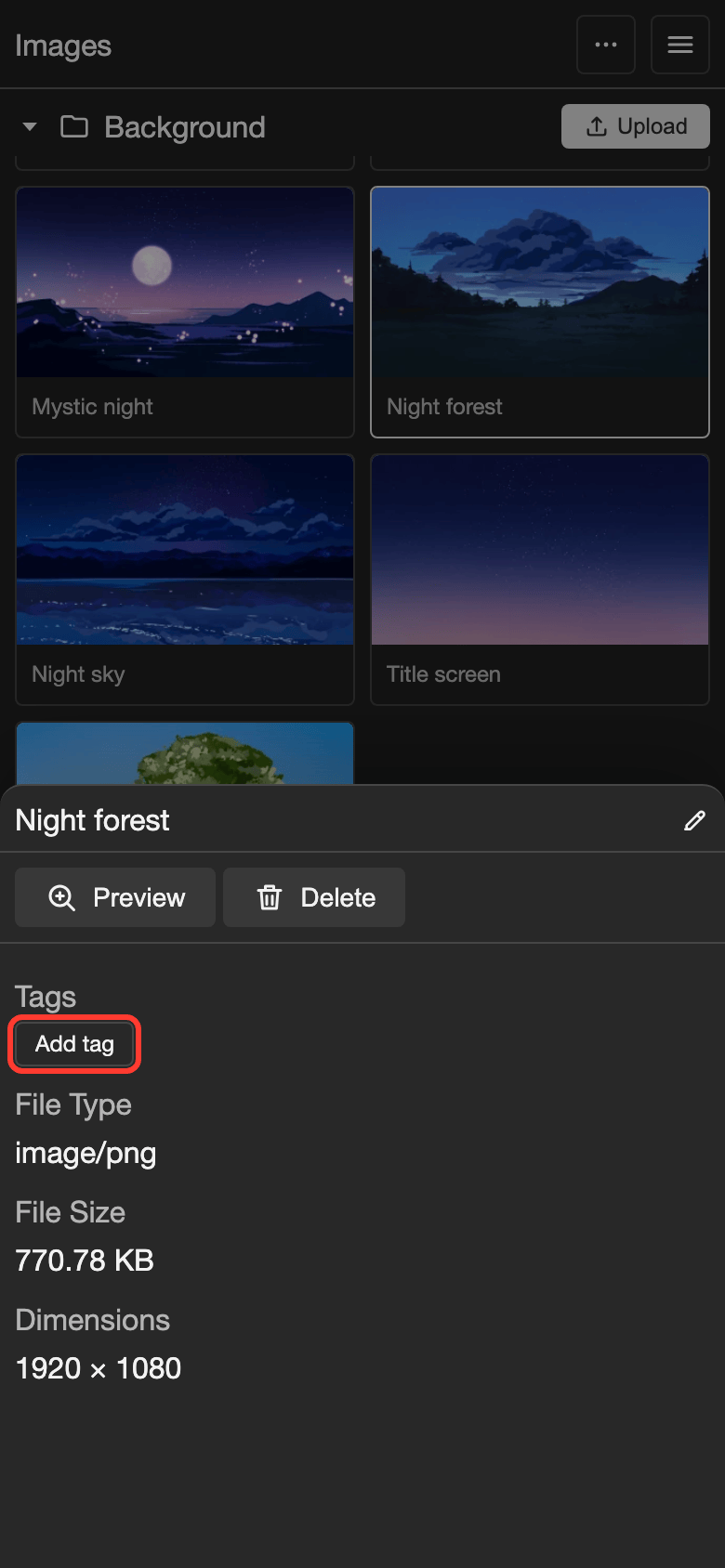
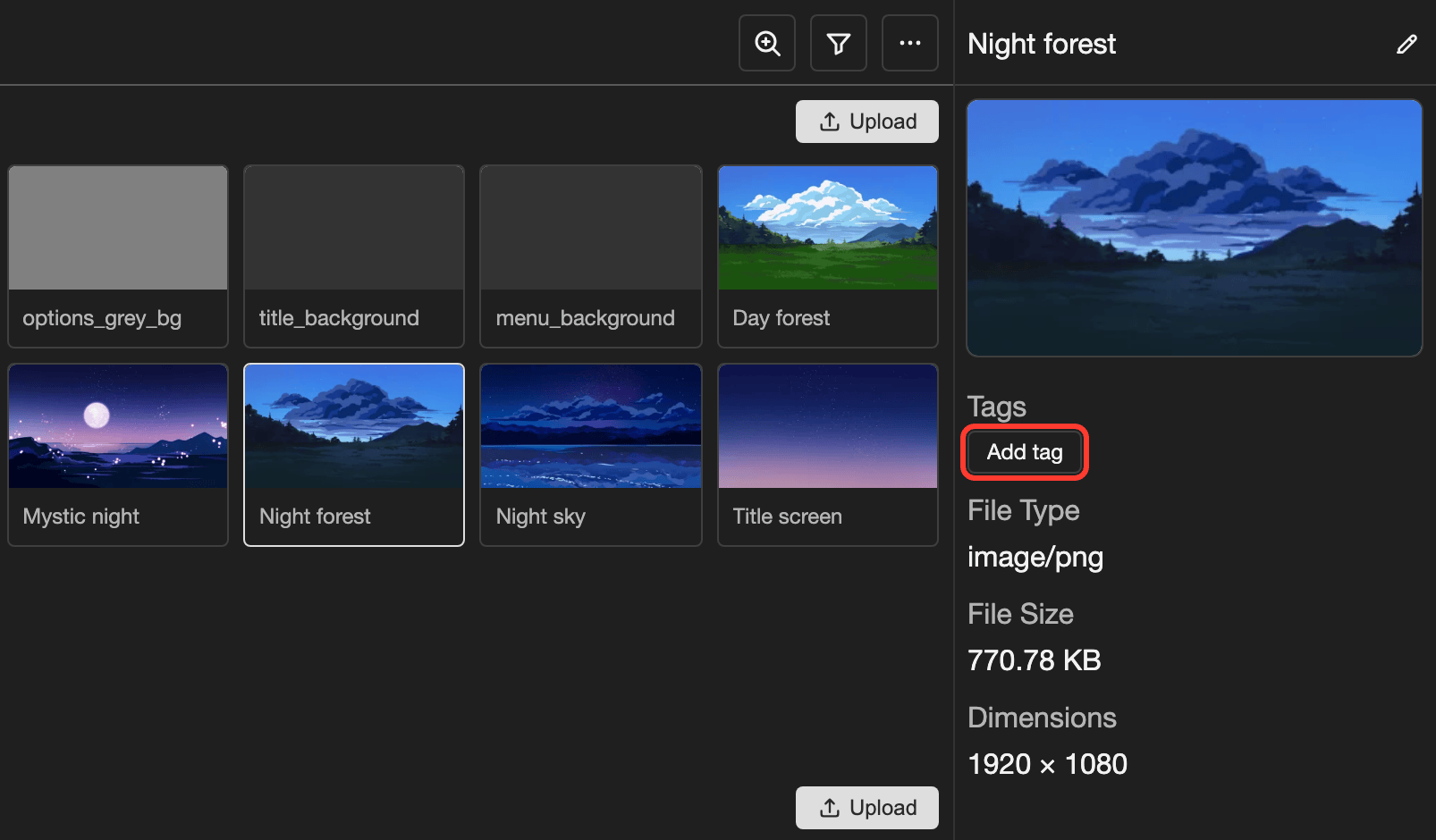
Tap Add tag. A box with the tags of this page opens. This is the tag box.
-
Tap the tag you want.
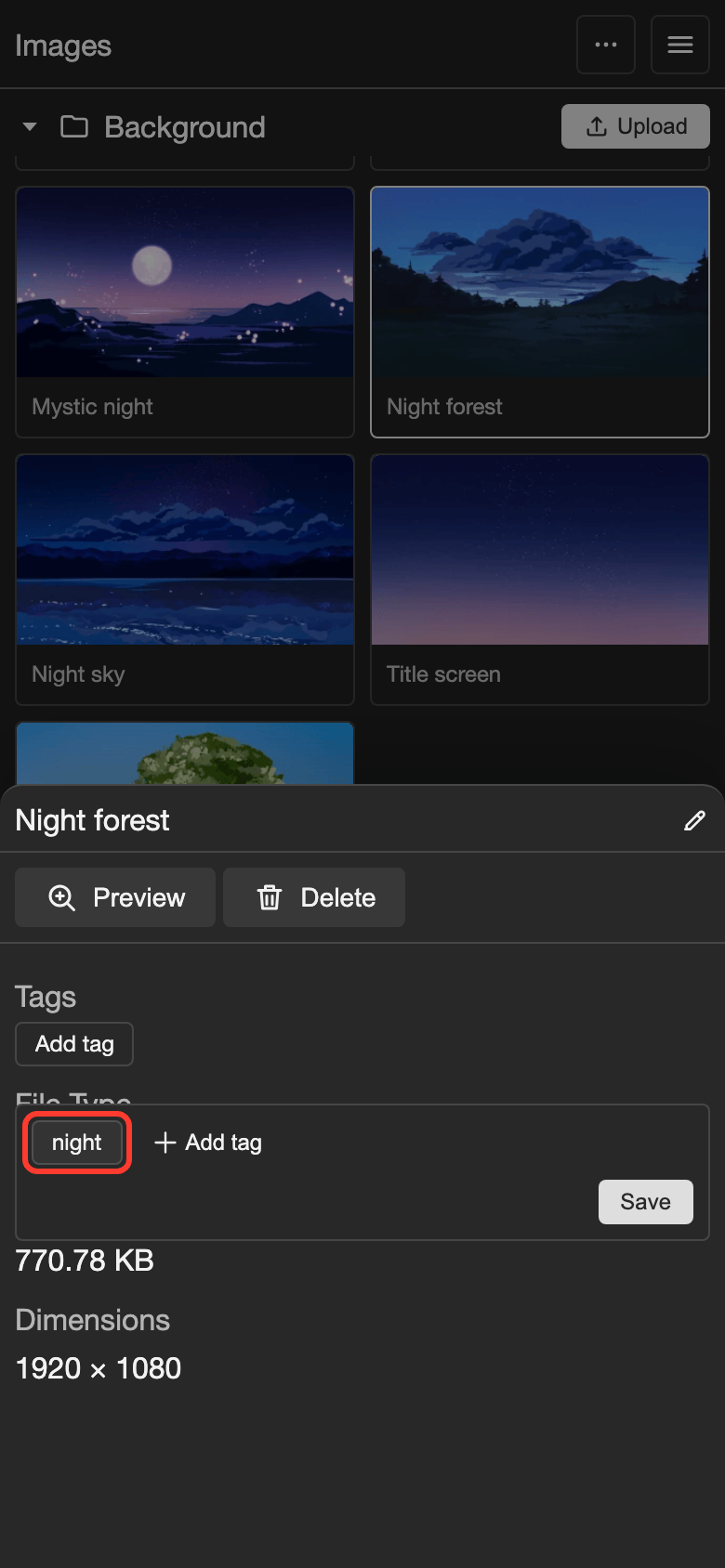
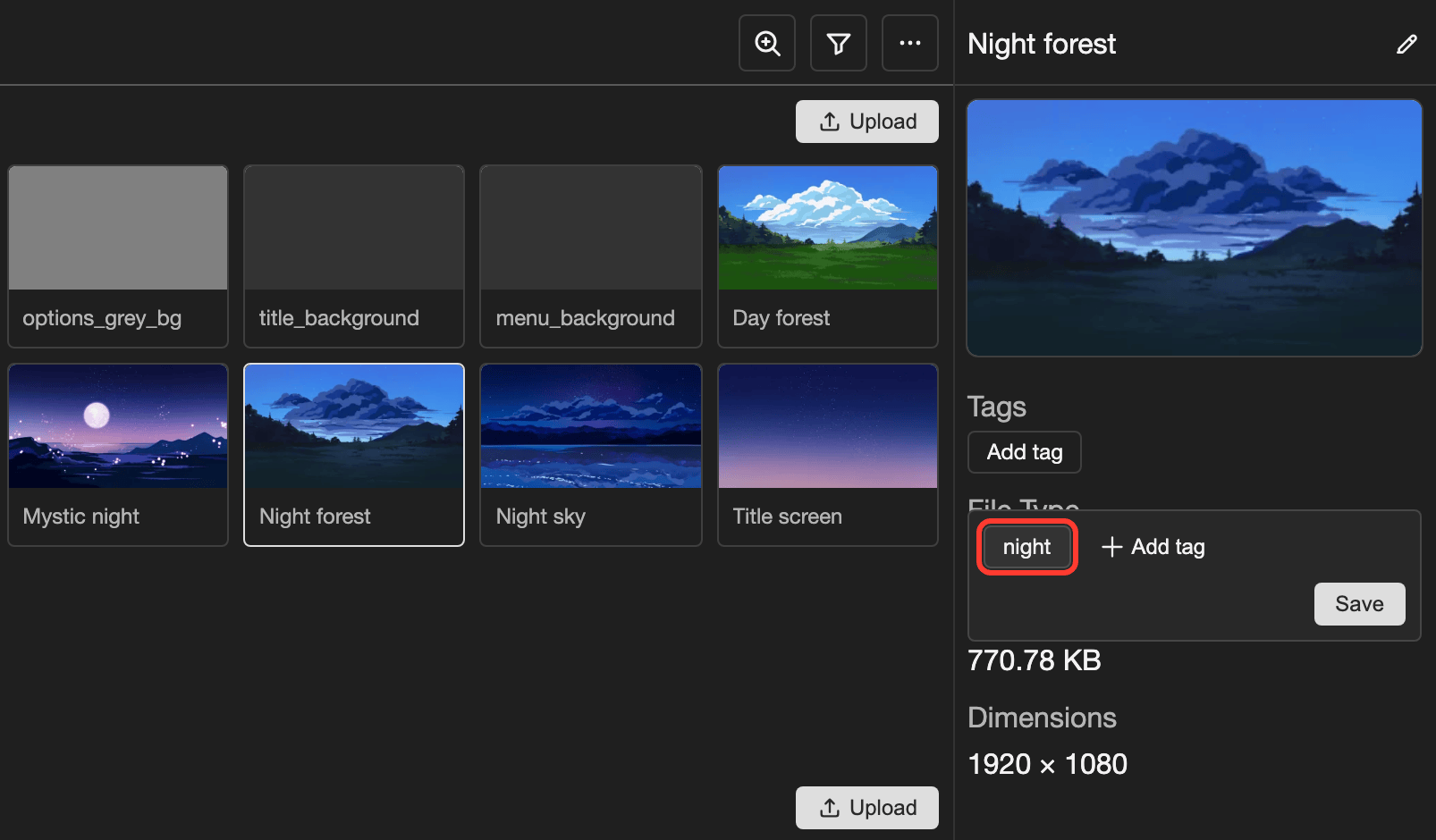
A selected tag is highlighted. The tag is highlighted. A highlighted tag has a gray background. You can tap more than one tag.
If the tag you want is not in the tag box, see Make a new tag.
-
Tap Save.
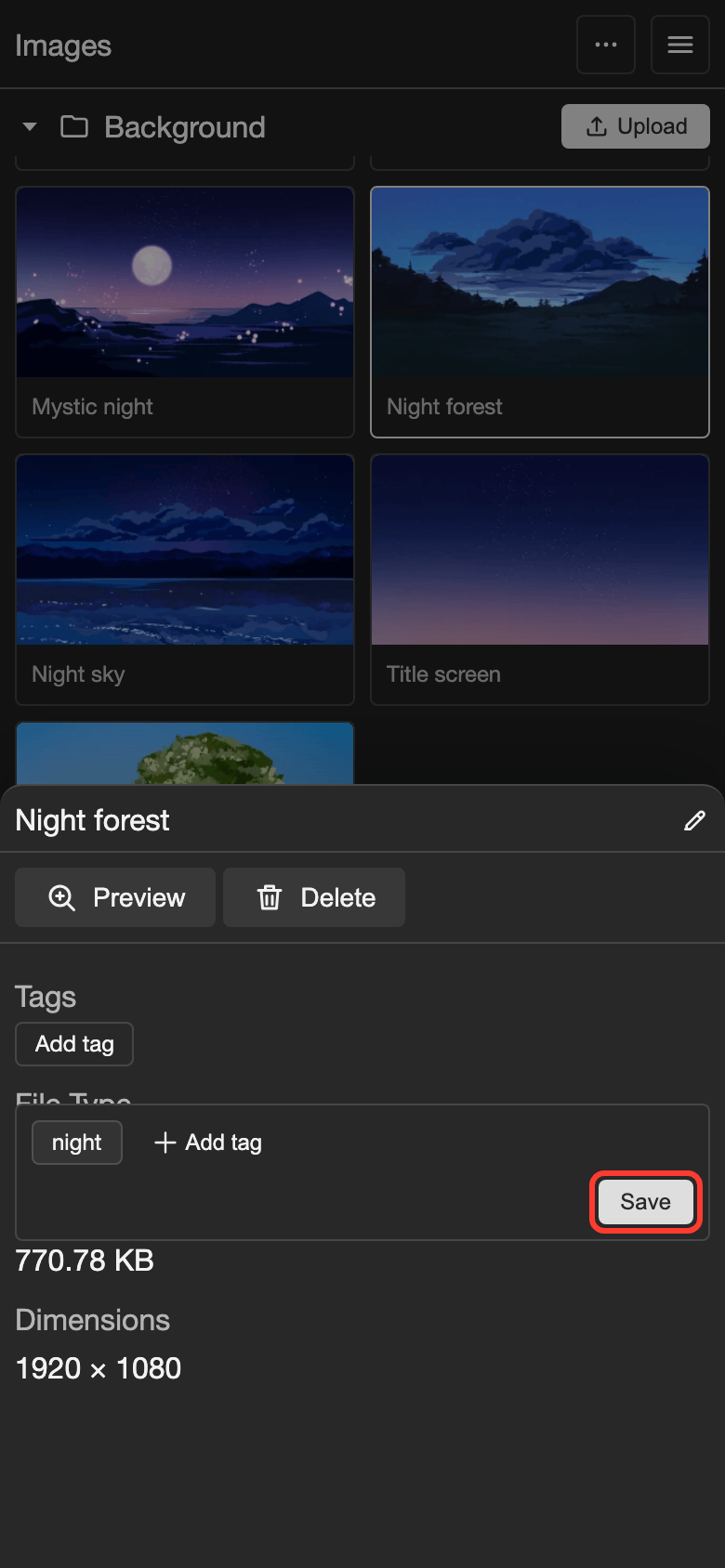
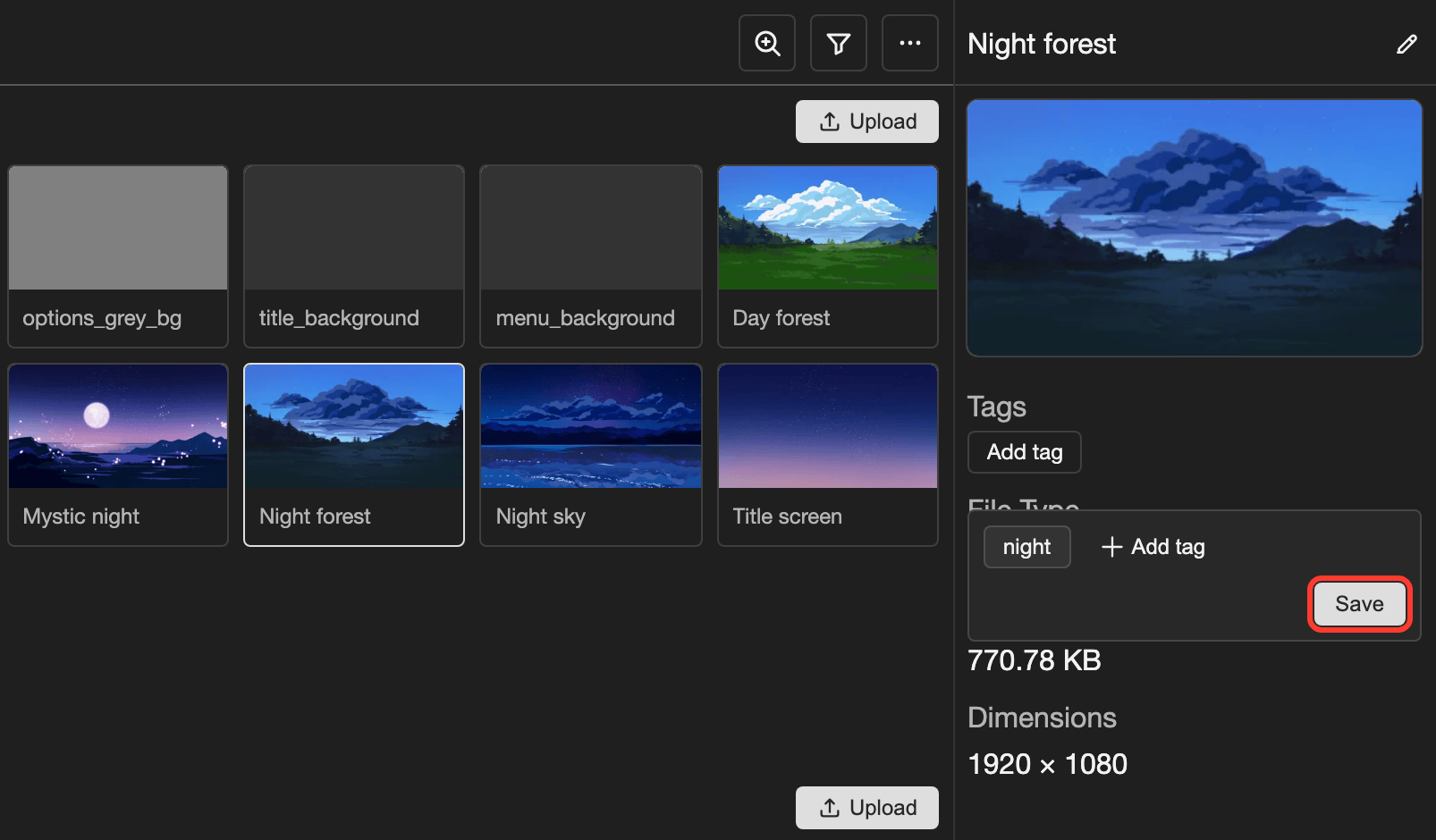
Tap Save.
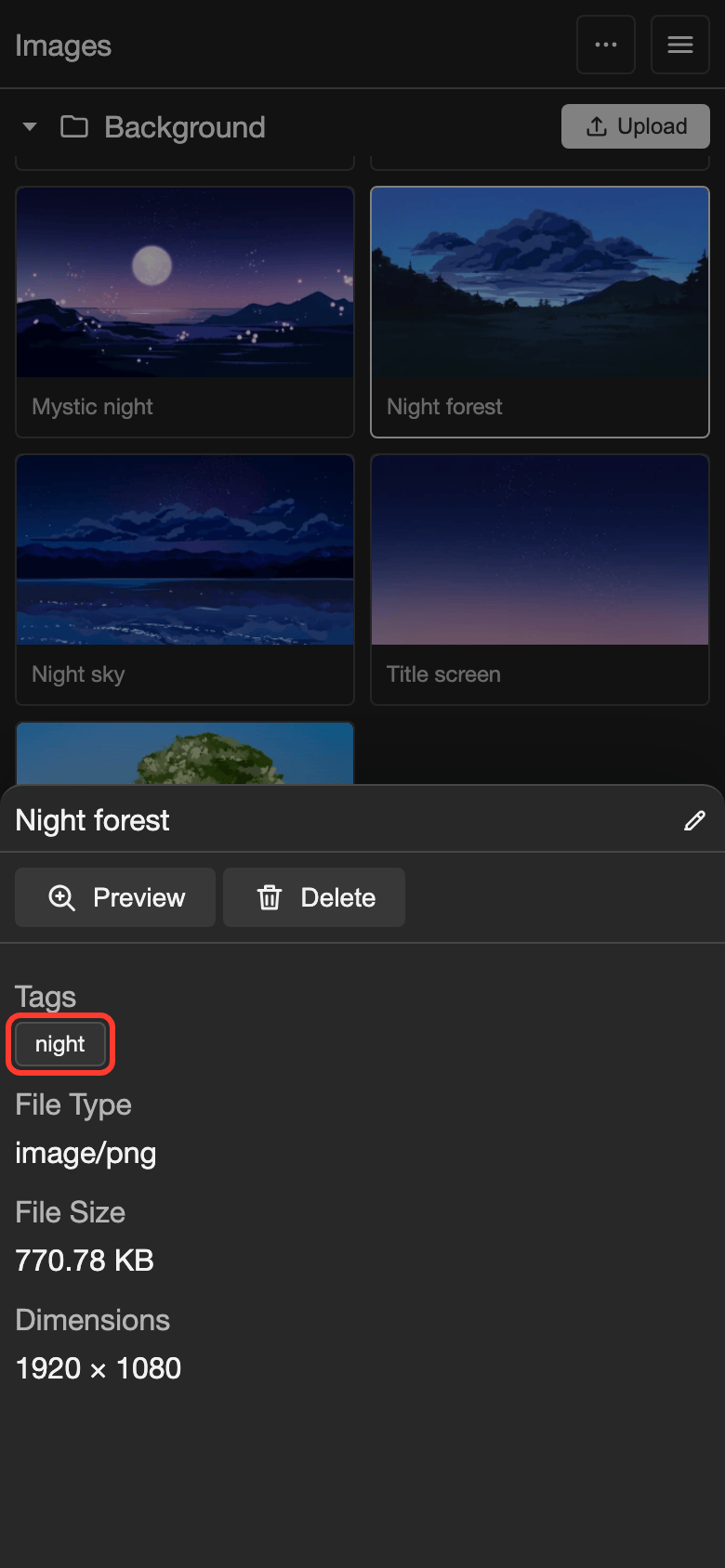
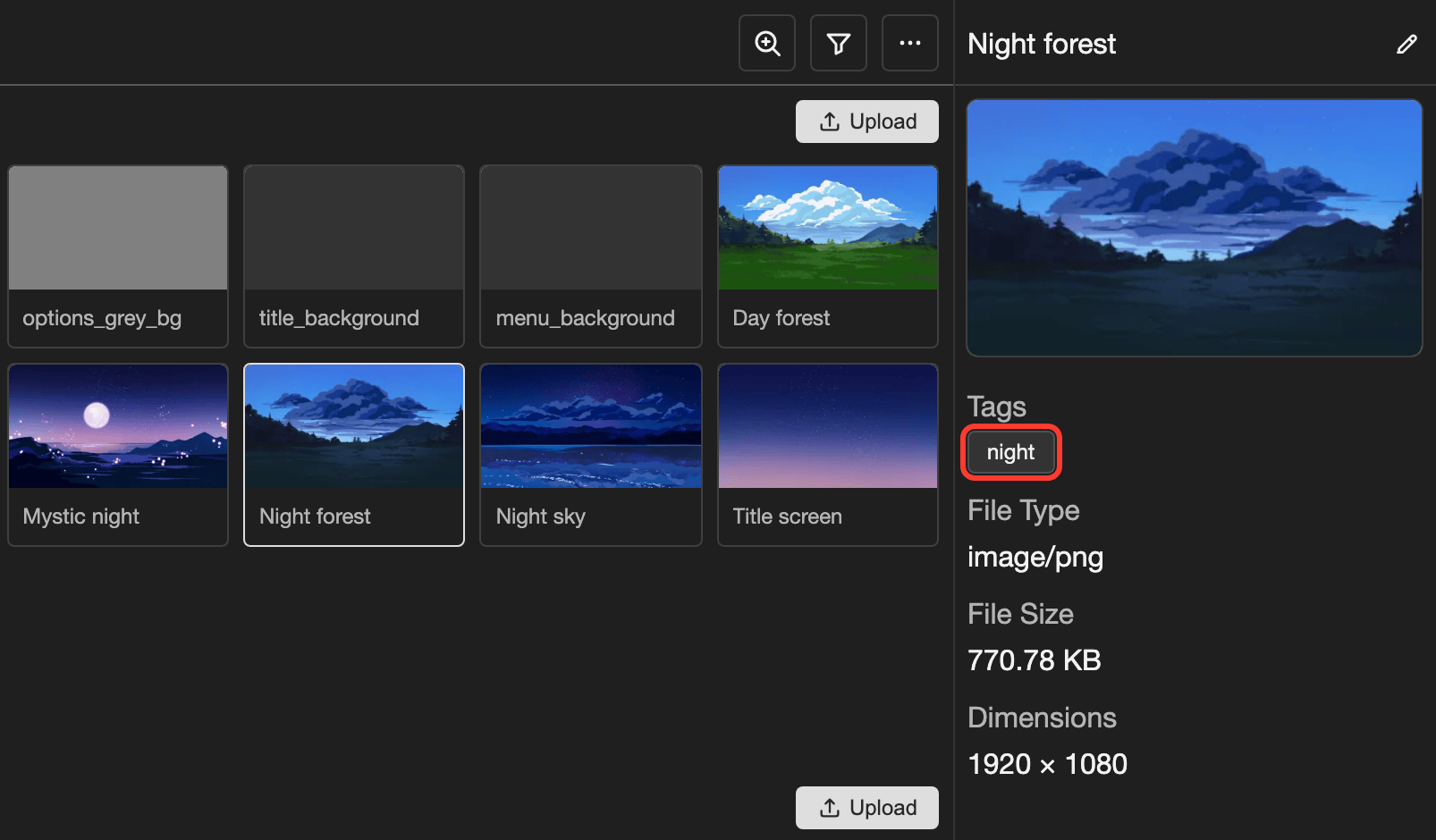
The tag shows under Tags.
Make a new tag
You make new tags in the tag box.
-
Open the tag box. See steps 1 and 2 in Add a tag to an item.
-
In the tag box, tap Add tag.
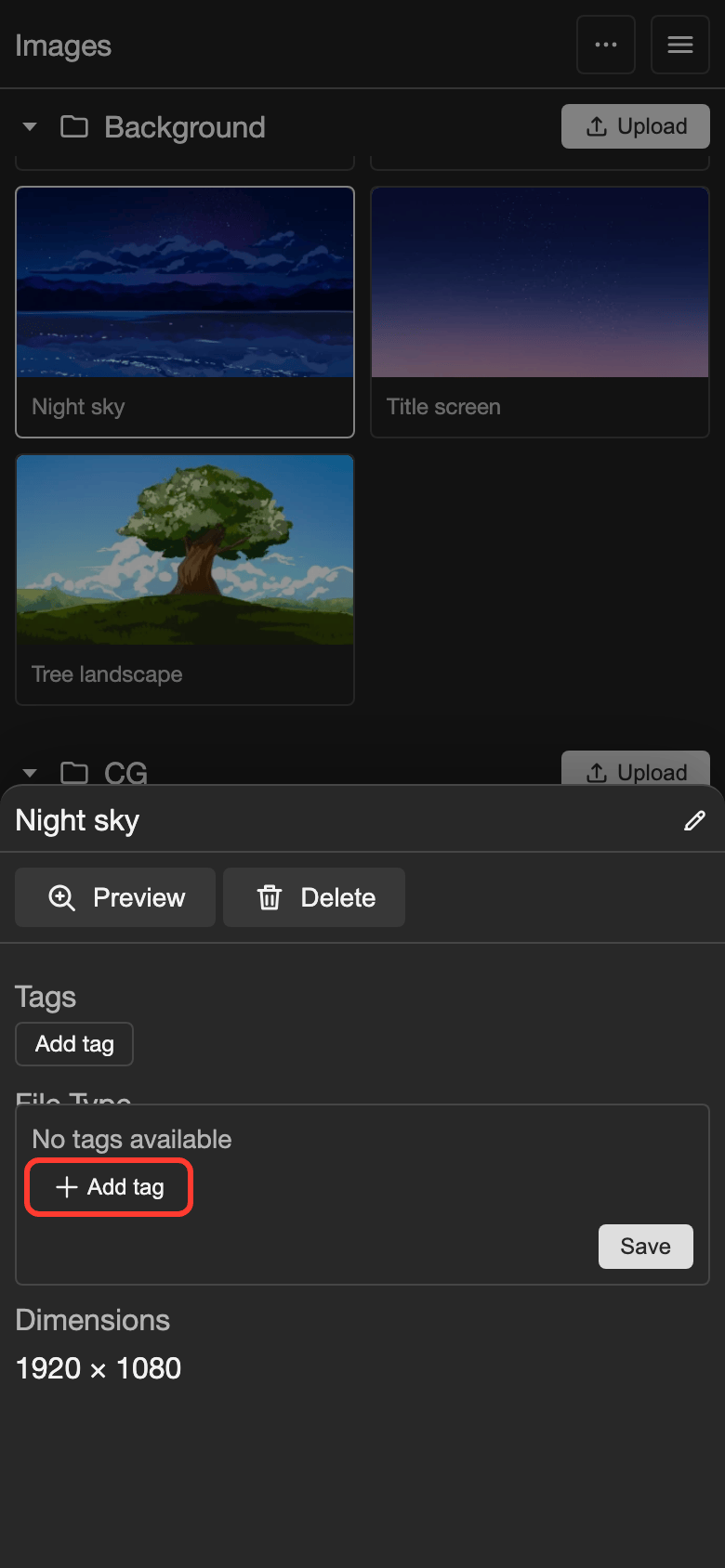
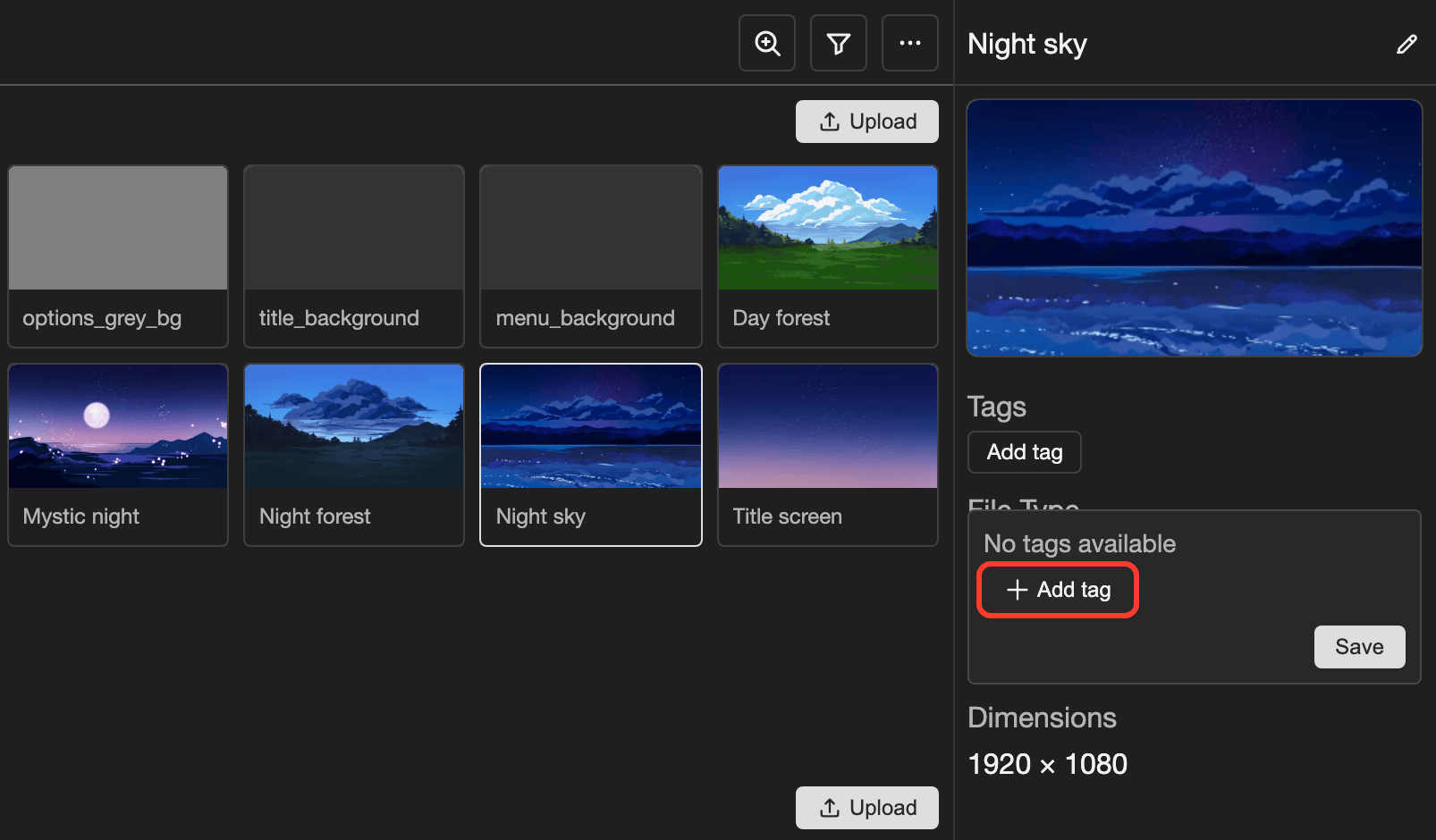
Tap Add tag in the tag box. The Create Tag box opens.
-
In the Tag Name field, type a name for the tag, for example "night".
-
Tap Create Tag.
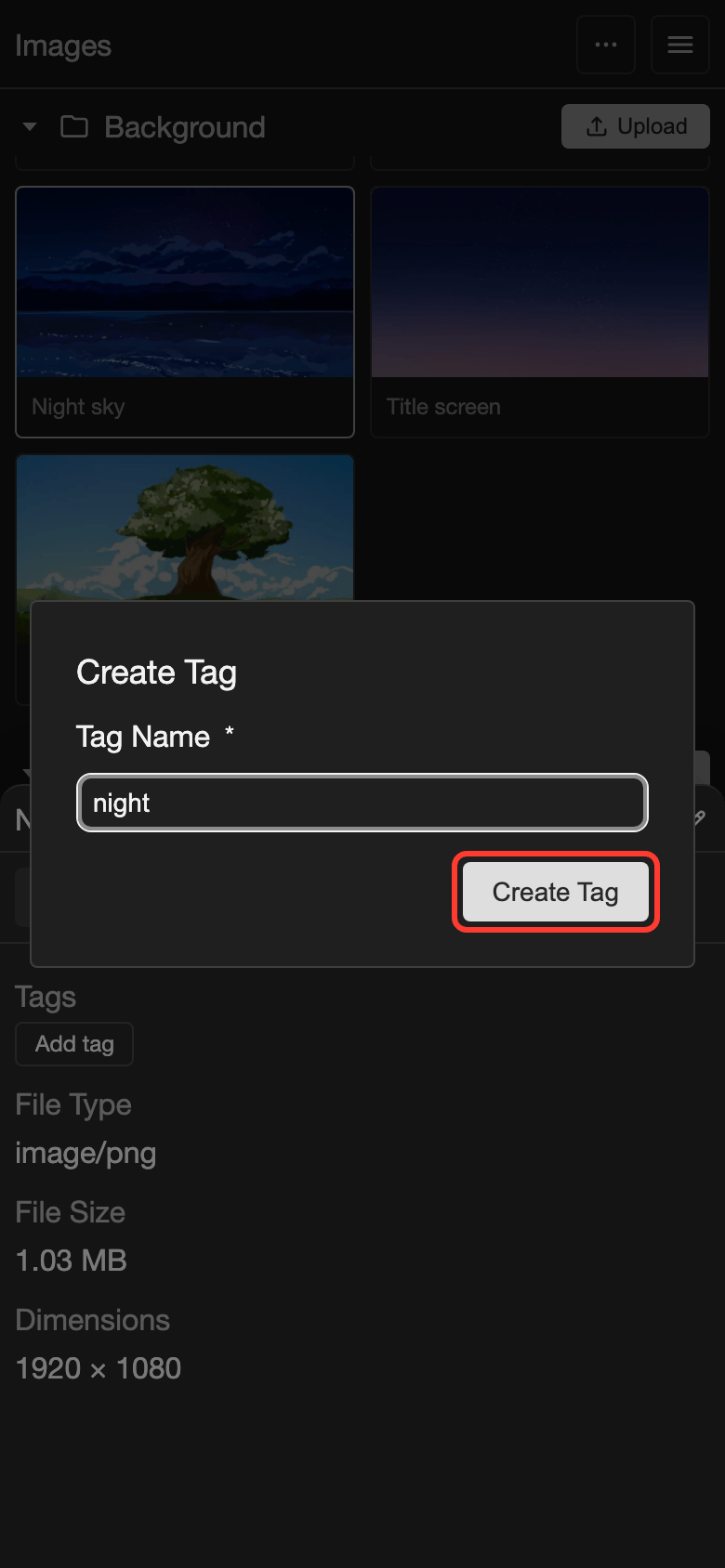
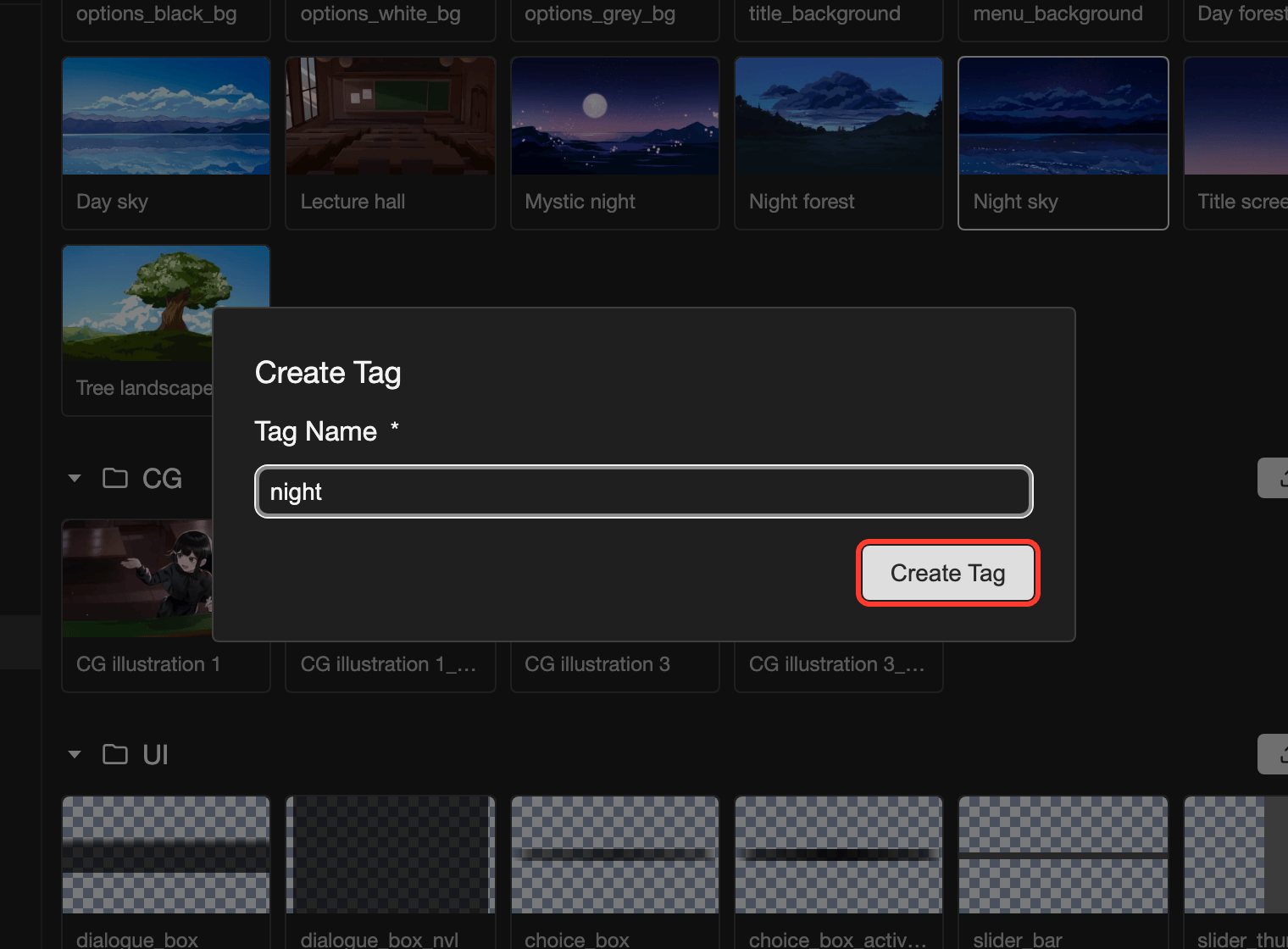
Tap Create Tag. The tag box opens again. The new tag is already highlighted.
-
Tap Save.
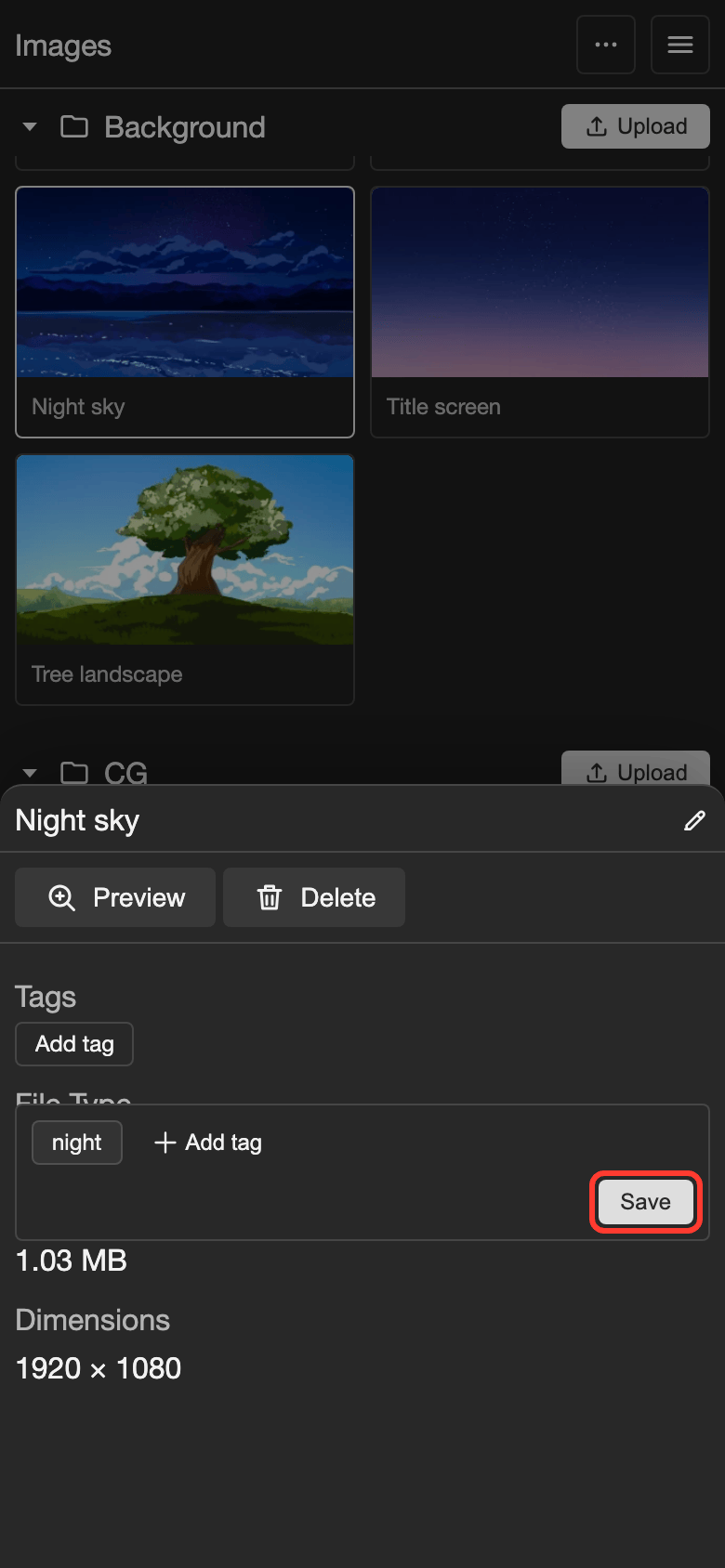
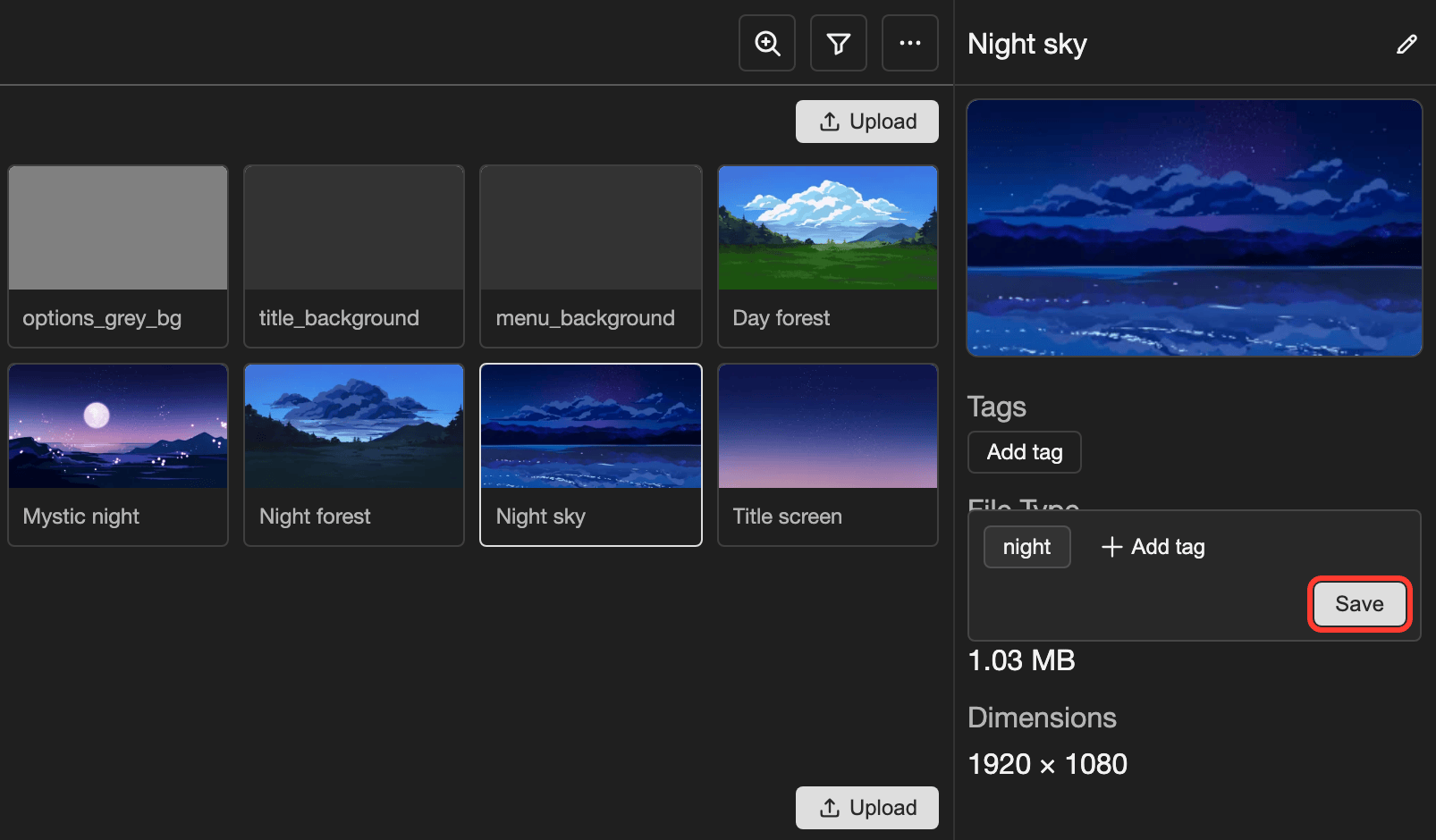
Tap Save.
The item now has the new tag. The tag is also in the tag box of every other item on this page.
Two tags in the same tag list cannot have the same name. Capital letters do not make a name different. For example, "Night" and "night" are the same name.
Remove a tag
-
Open the tag box for the item. See steps 1 and 2 in Add a tag to an item.
-
Tap the highlighted tag.
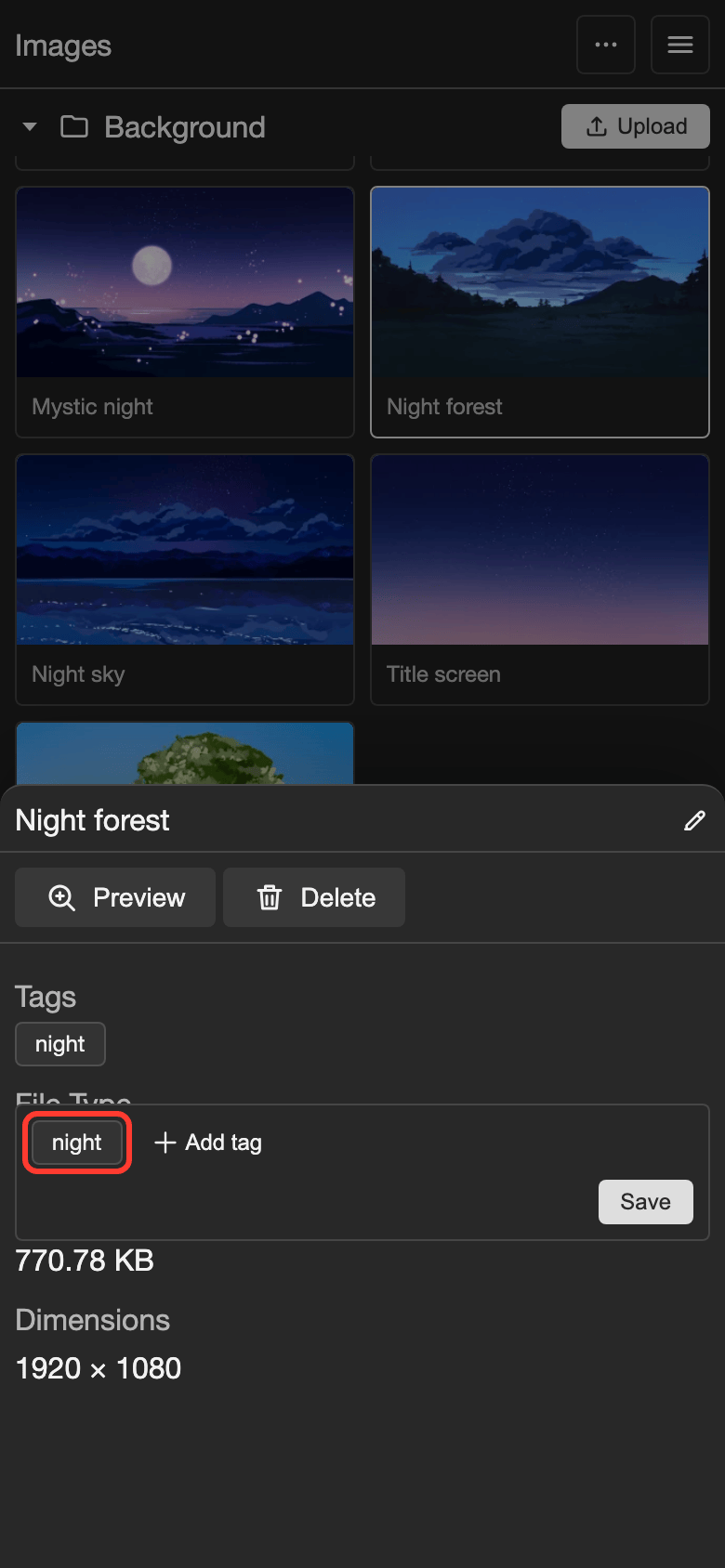
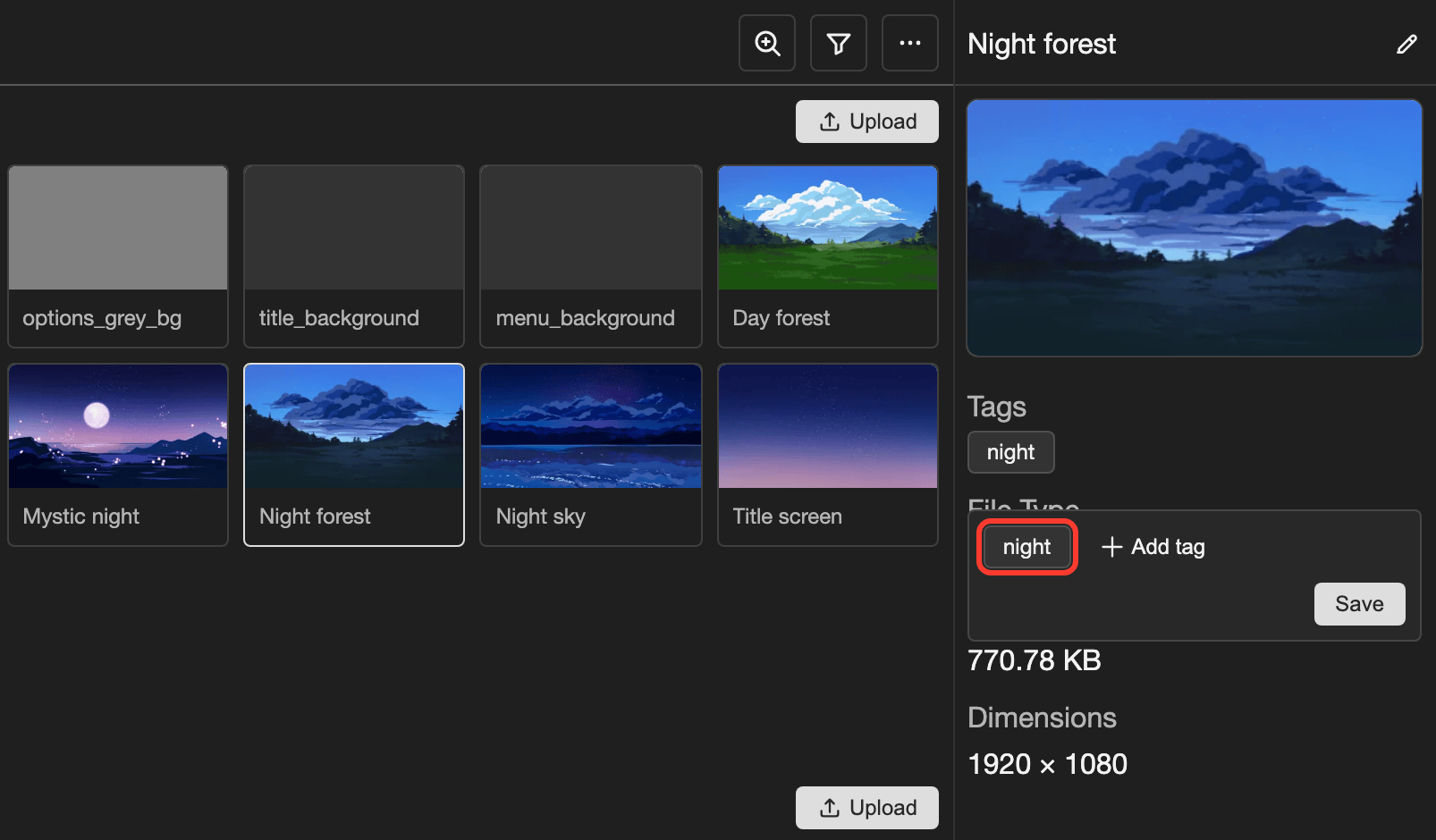
Tap the highlighted tag. The tag is no longer highlighted.
-
Tap Save.
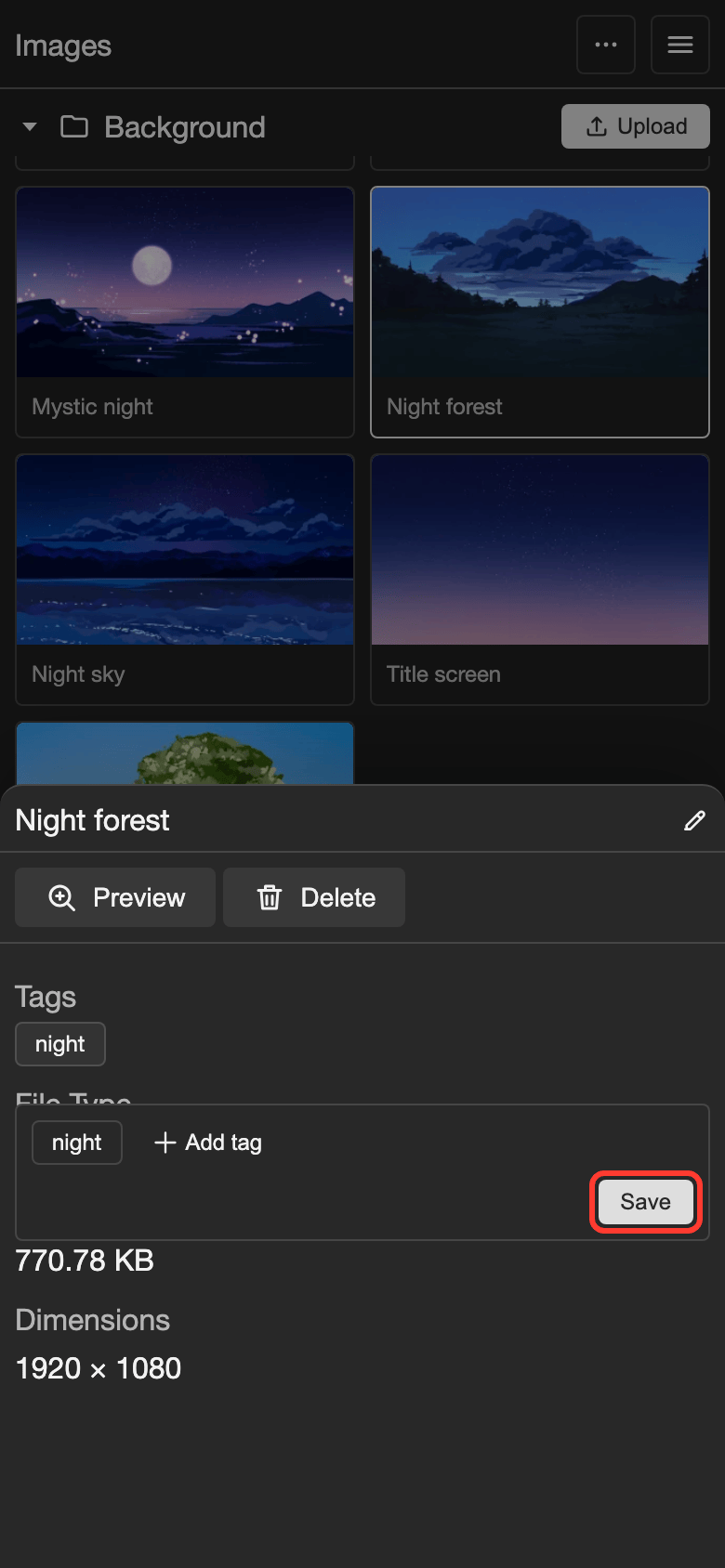
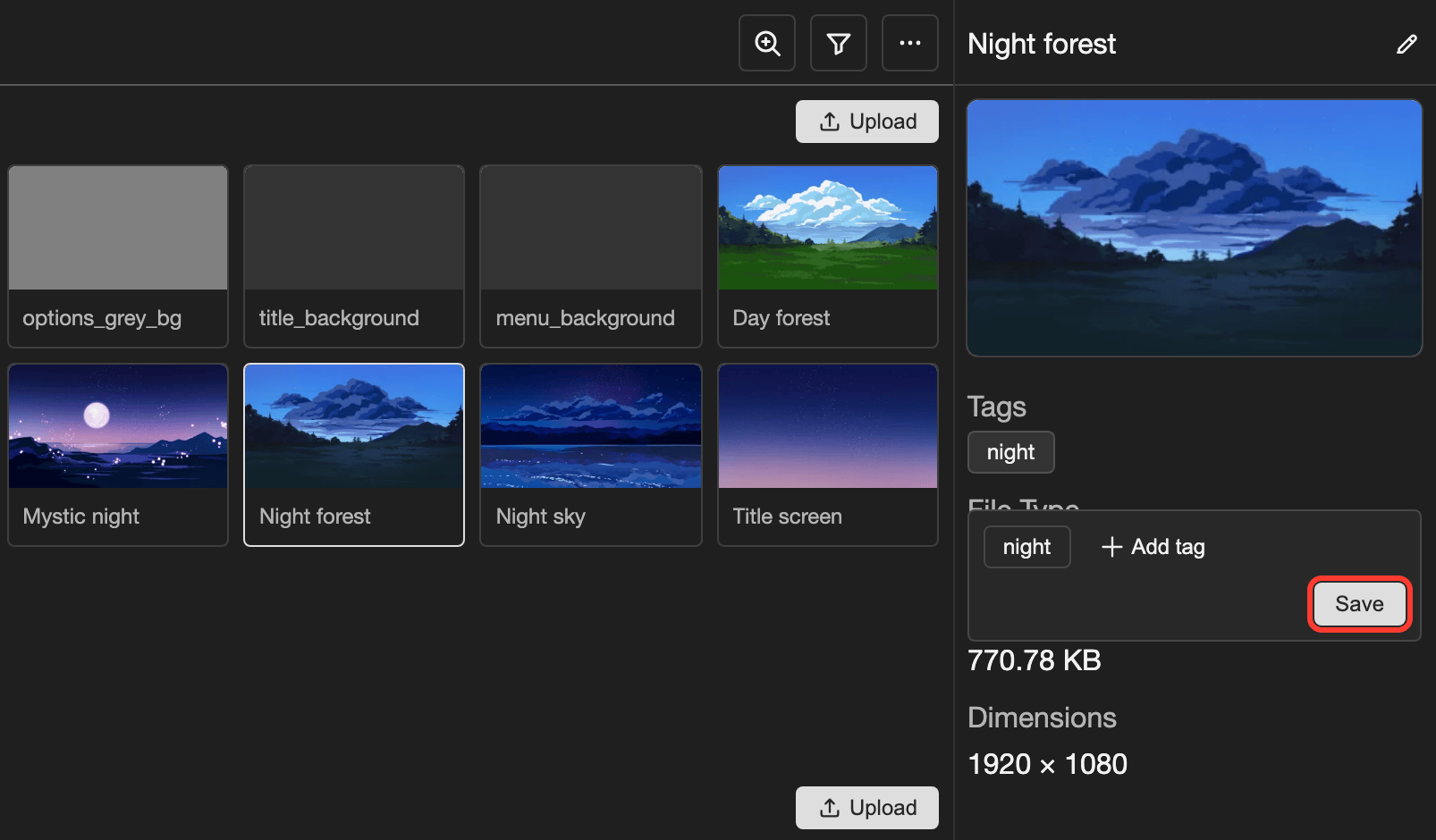
Tap Save.
The tag is removed from this item. The tag stays in the tag box, so you can add it again later.
Find items with search and tags
These steps use the Images page.
Filter by tag
-
Open the Filter box.
- Phone or tablet: At the top of the page, tap the three dots button. In the menu, tap Filter.
- Desktop: At the top of the page, click the filter button. The filter button looks like a funnel.
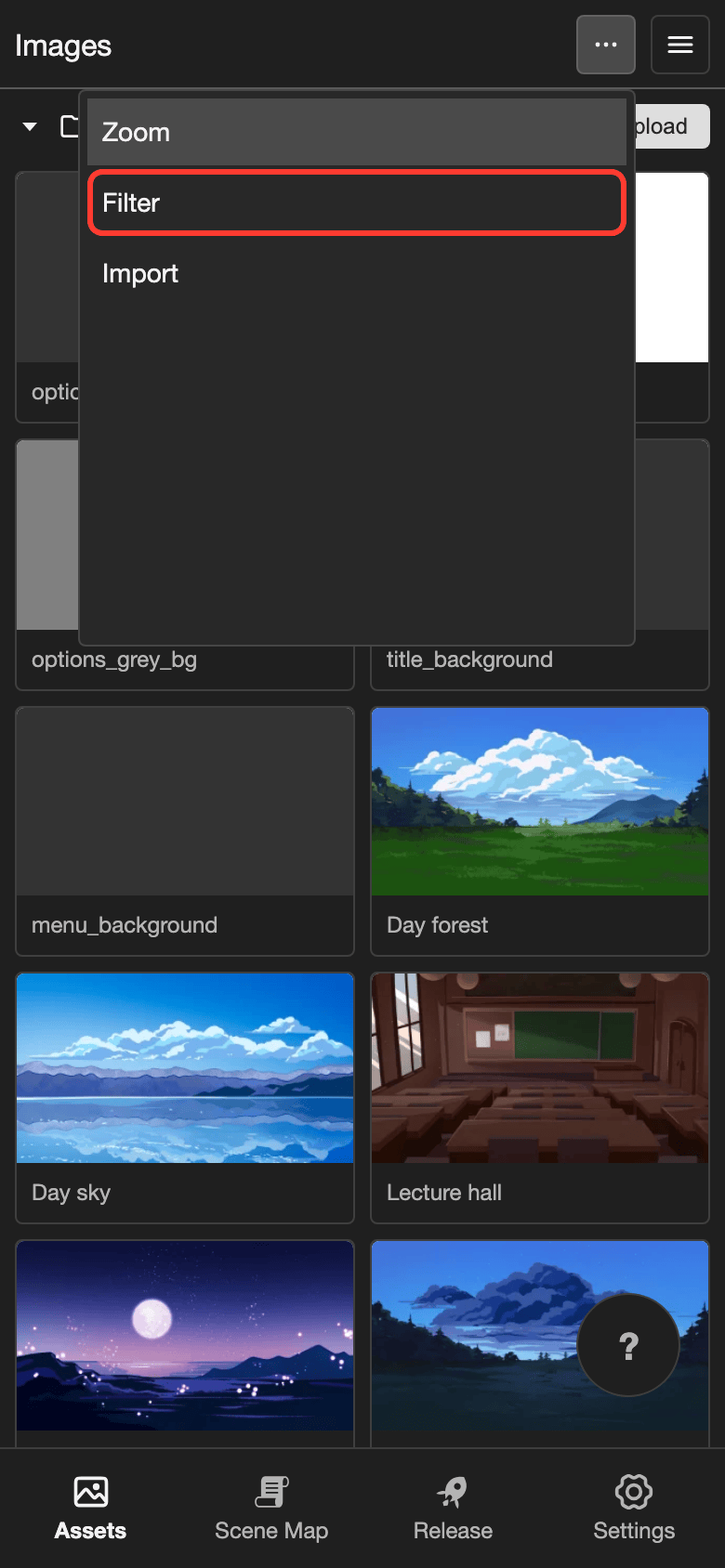
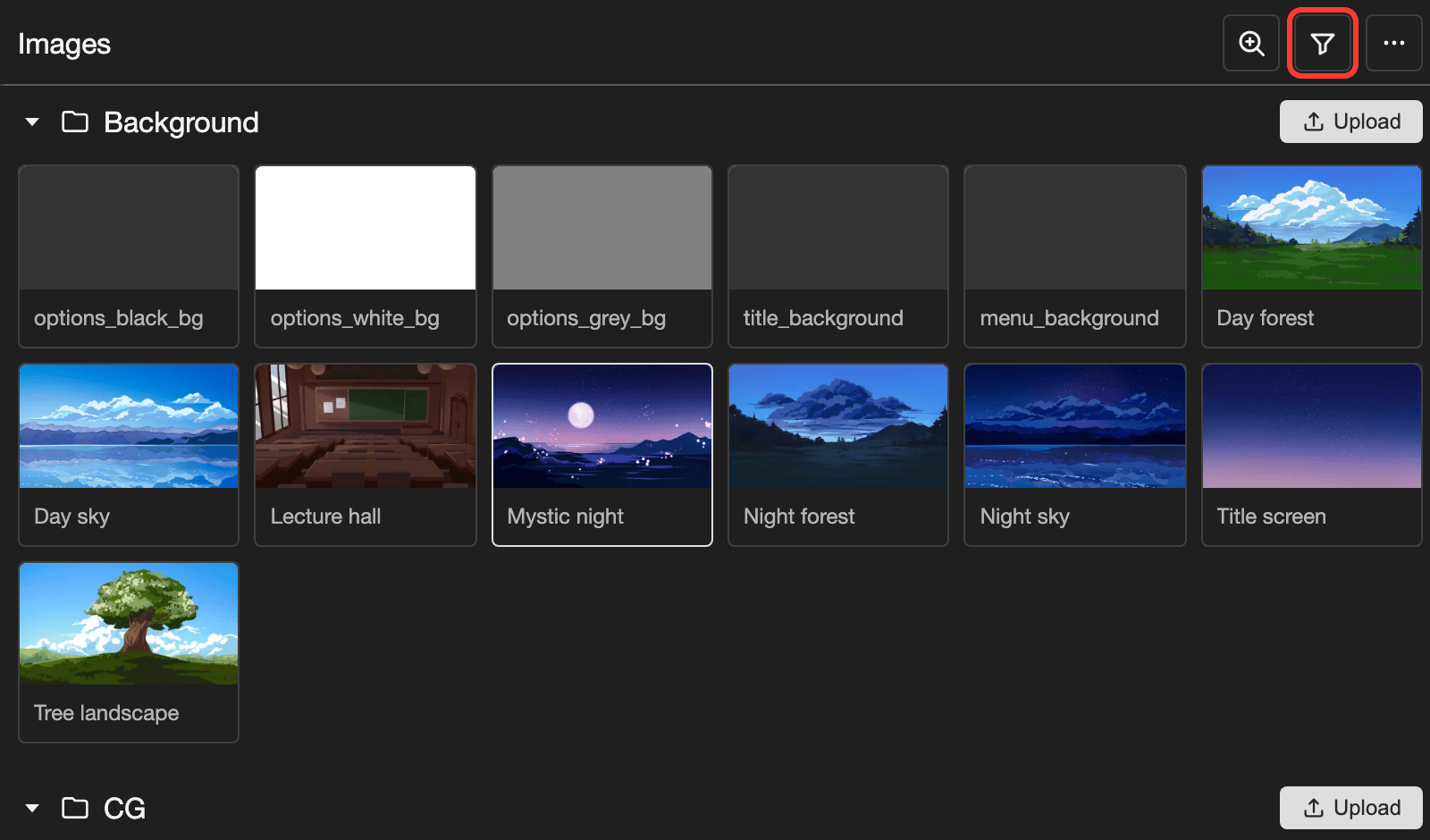
The Filter box opens.
-
Tap the tag you want.
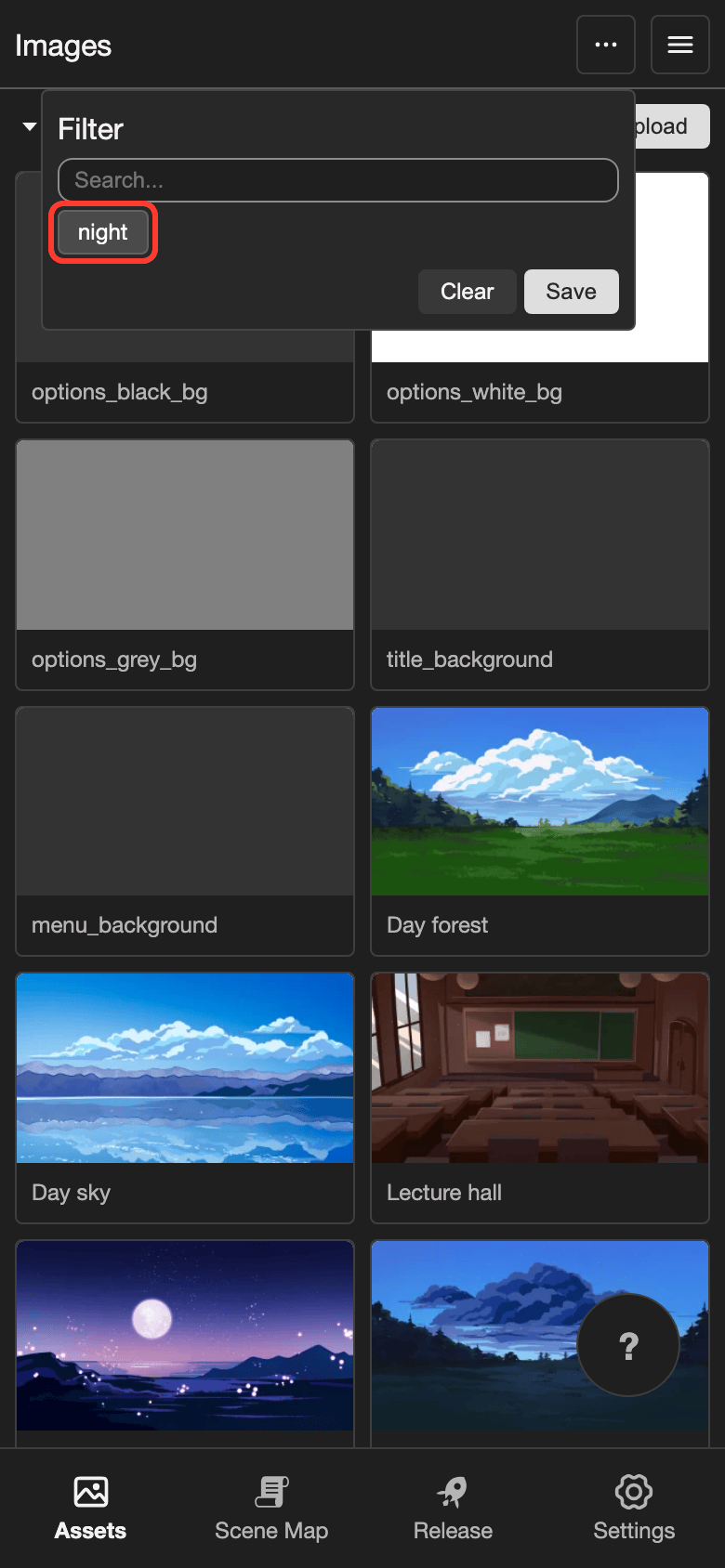
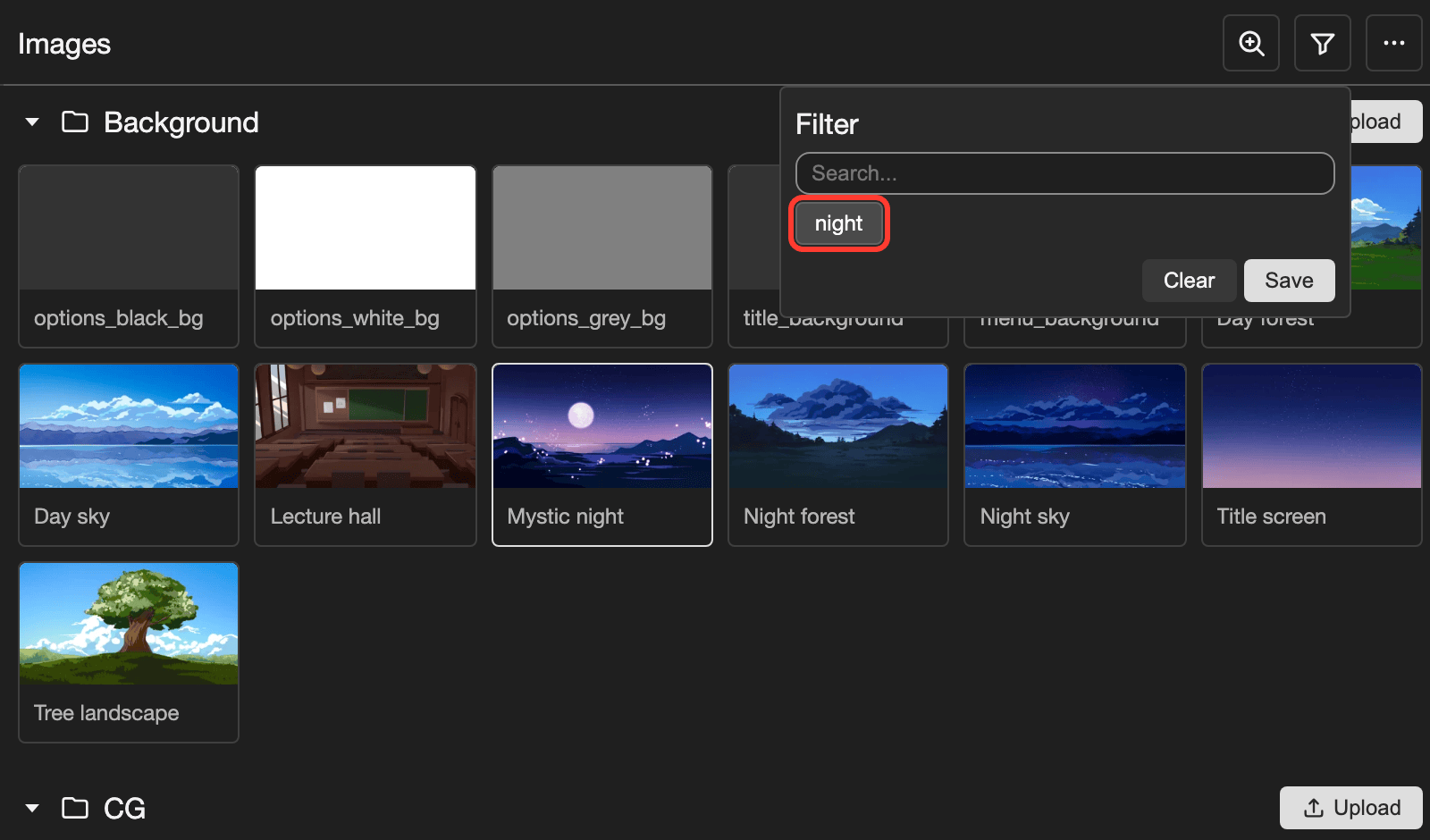
A selected tag is highlighted. The tag is highlighted. You can tap more than one tag.
-
Tap Save.
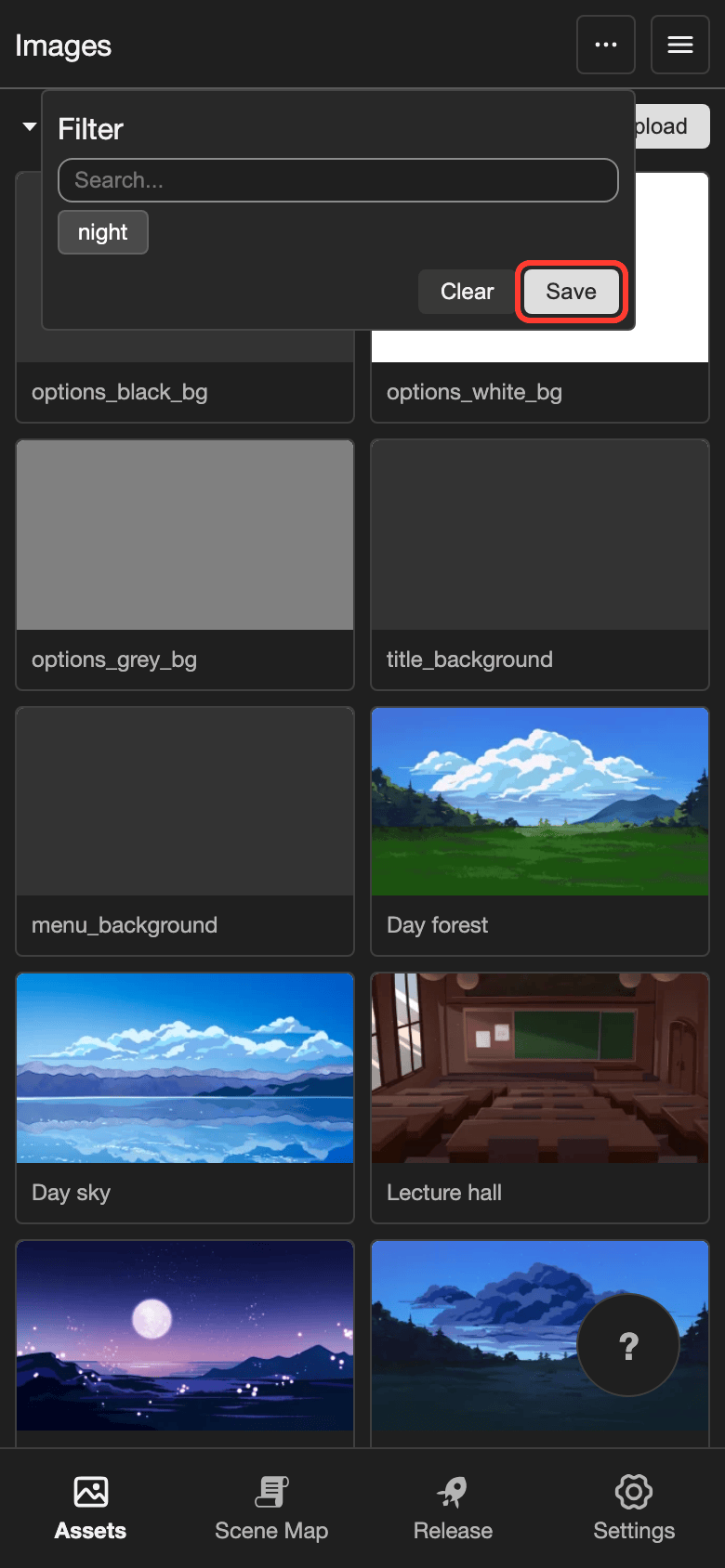
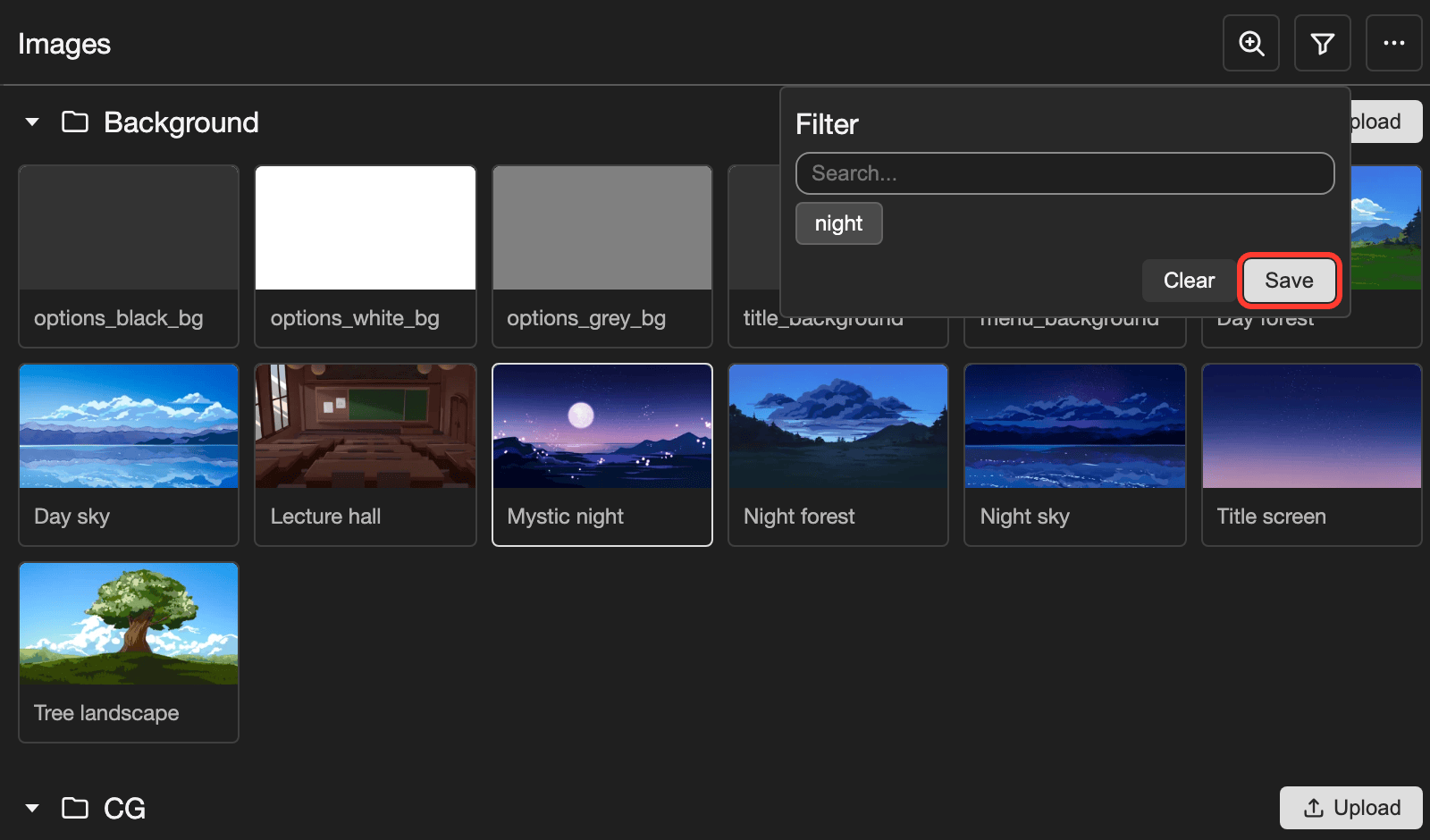
Tap Save.
The middle of the page shows only the items with this tag. The file explorer still shows all items.
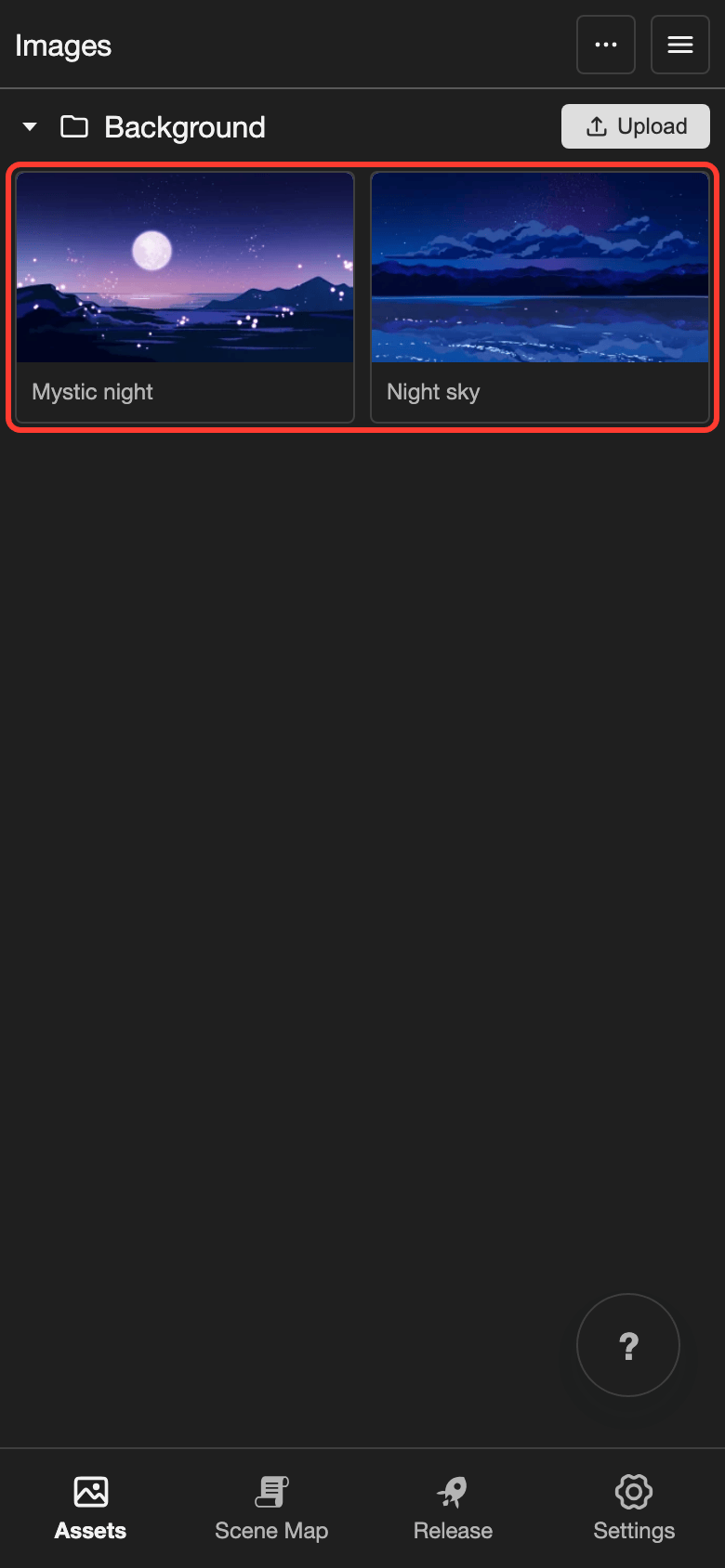
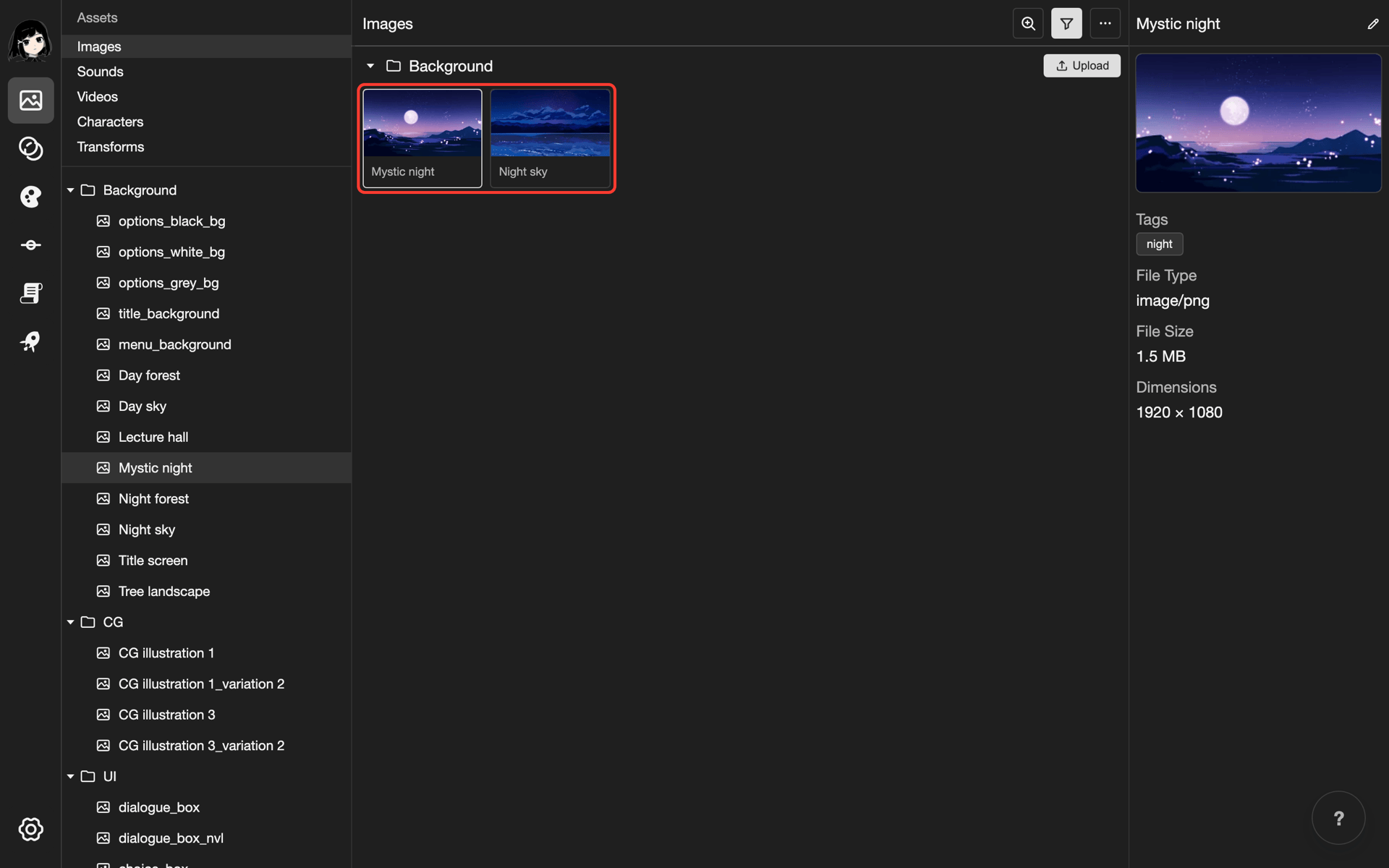
- If you tap more than one tag, you see items that have any of those tags. For example, tap "night" and "forest" to see items with "night", items with "forest", and items with both.
- On desktop, the filter button is highlighted while a tag filter or a search is on.
Search by name
-
Open the Filter box. See step 1 in Filter by tag.
-
In the Search... field, type a word.
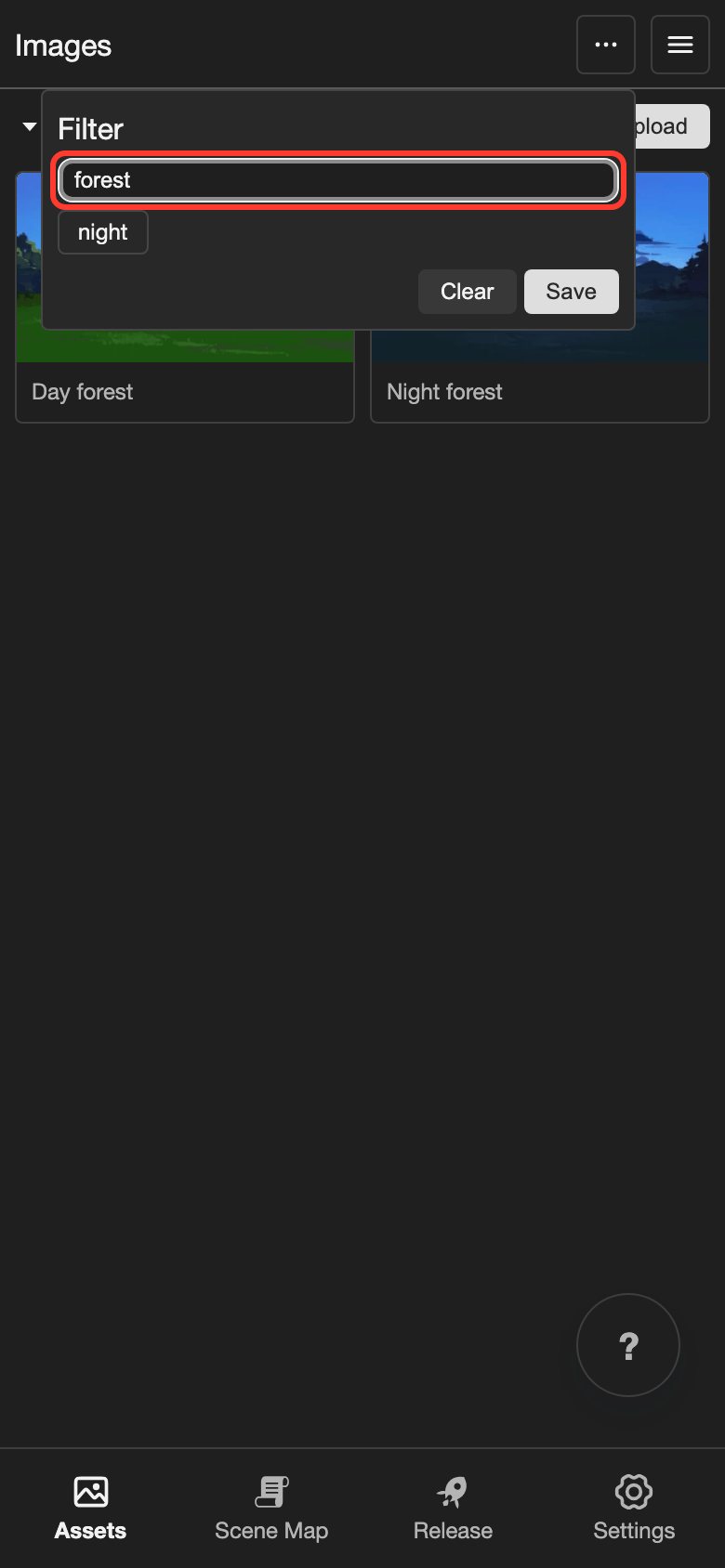
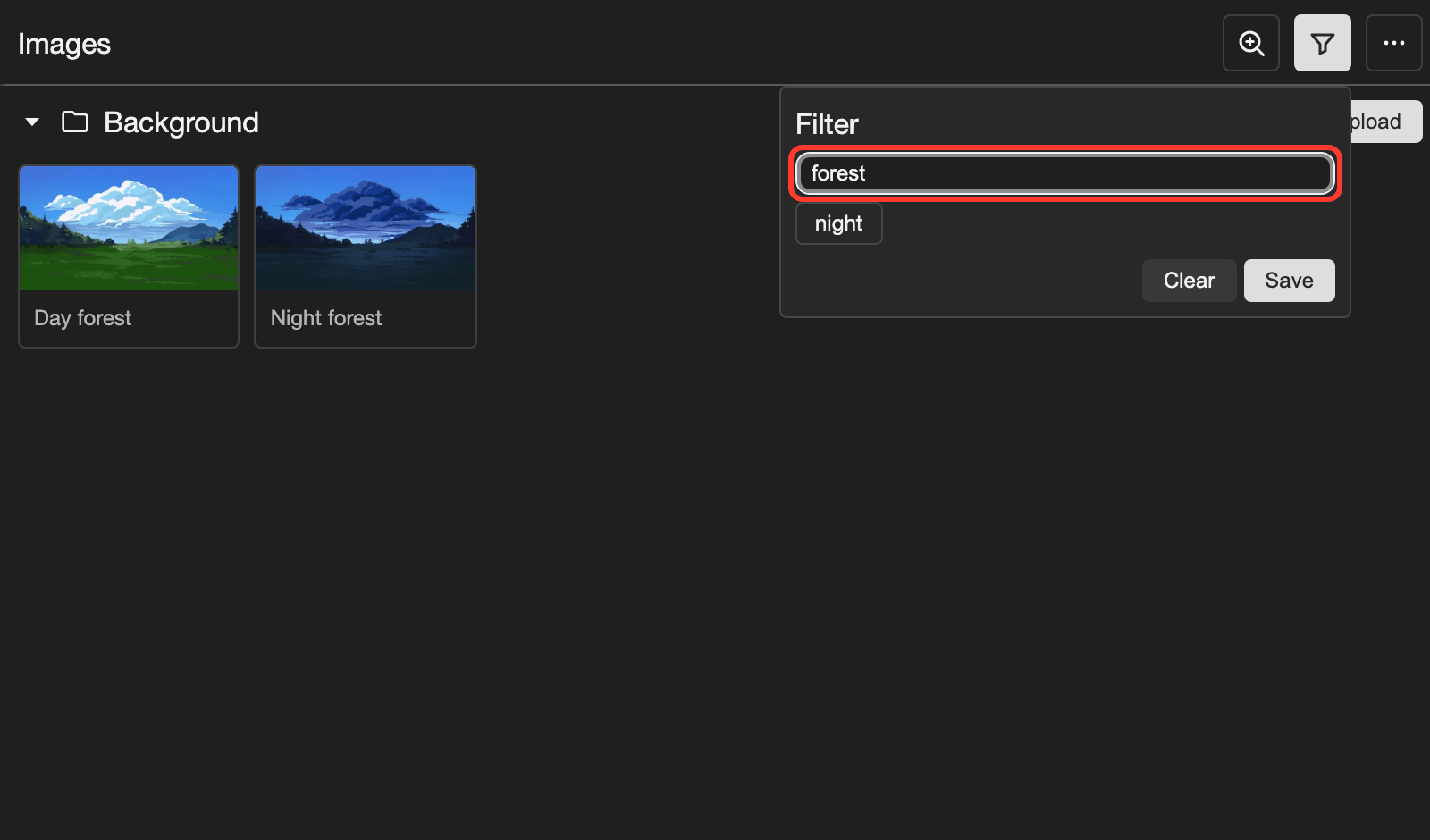
Type a word in the Search field.
The middle of the page updates as you type. It shows only the items that match the word.
- Search looks at item names. On most resource pages, it also looks at descriptions and tag names.
- If you also tapped tags, you see only the items that match both the word and the tags.
- To stop searching, delete the word in the Search... field.
Show all items again
-
Open the Filter box. See step 1 in Filter by tag.
-
Tap Clear.
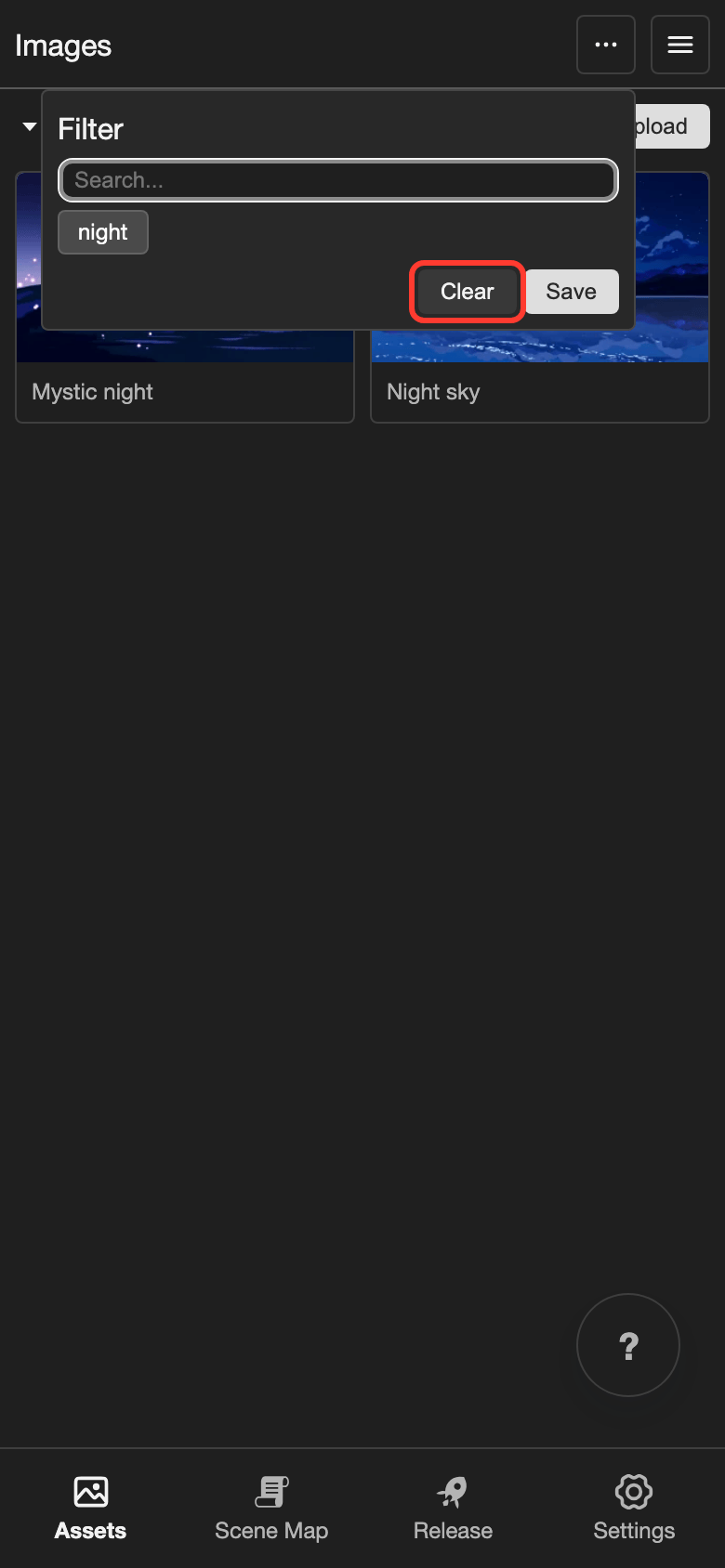
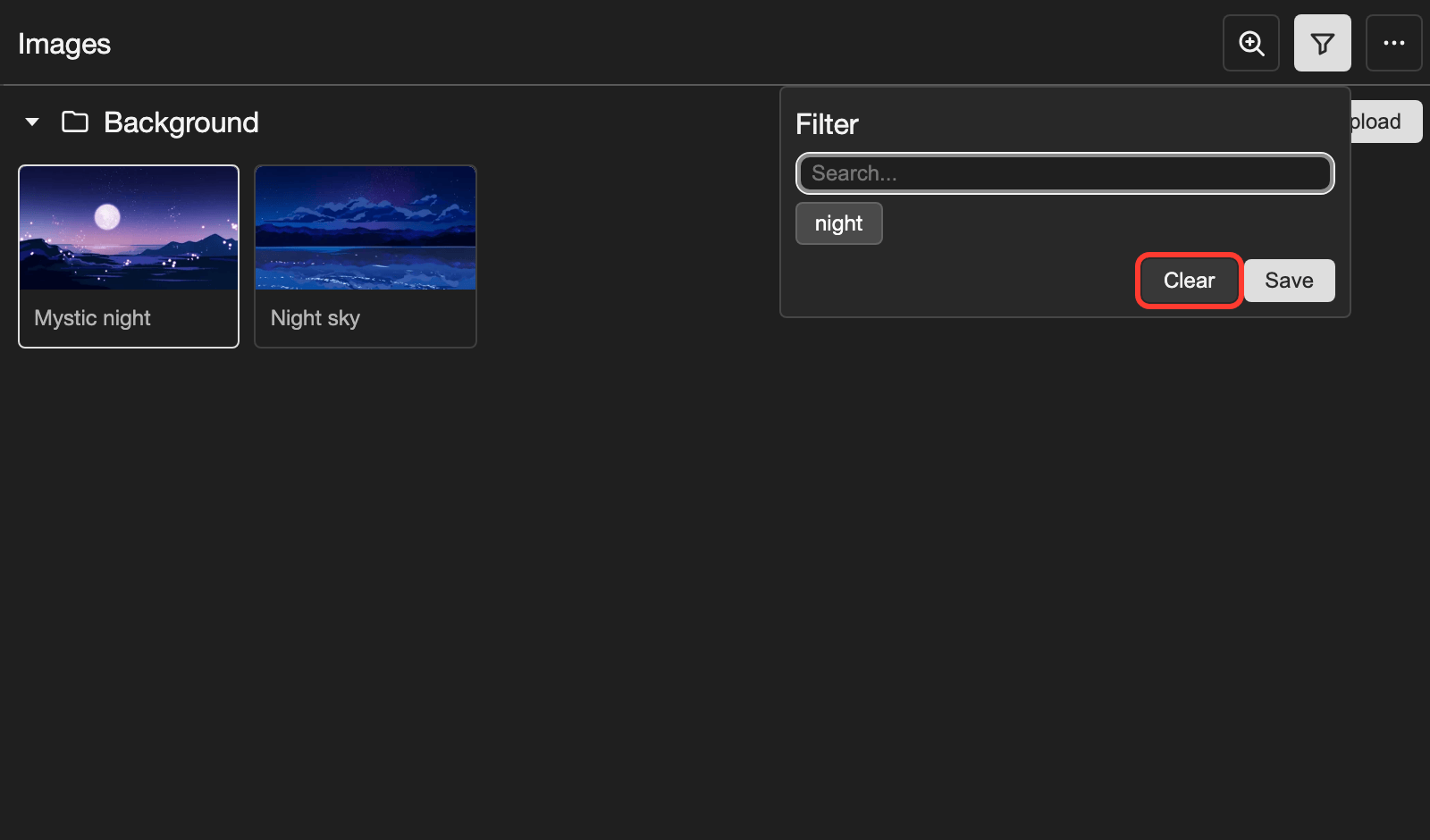
Tap Clear. No tag is highlighted now. The Search... field is empty too.
-
Tap Save.
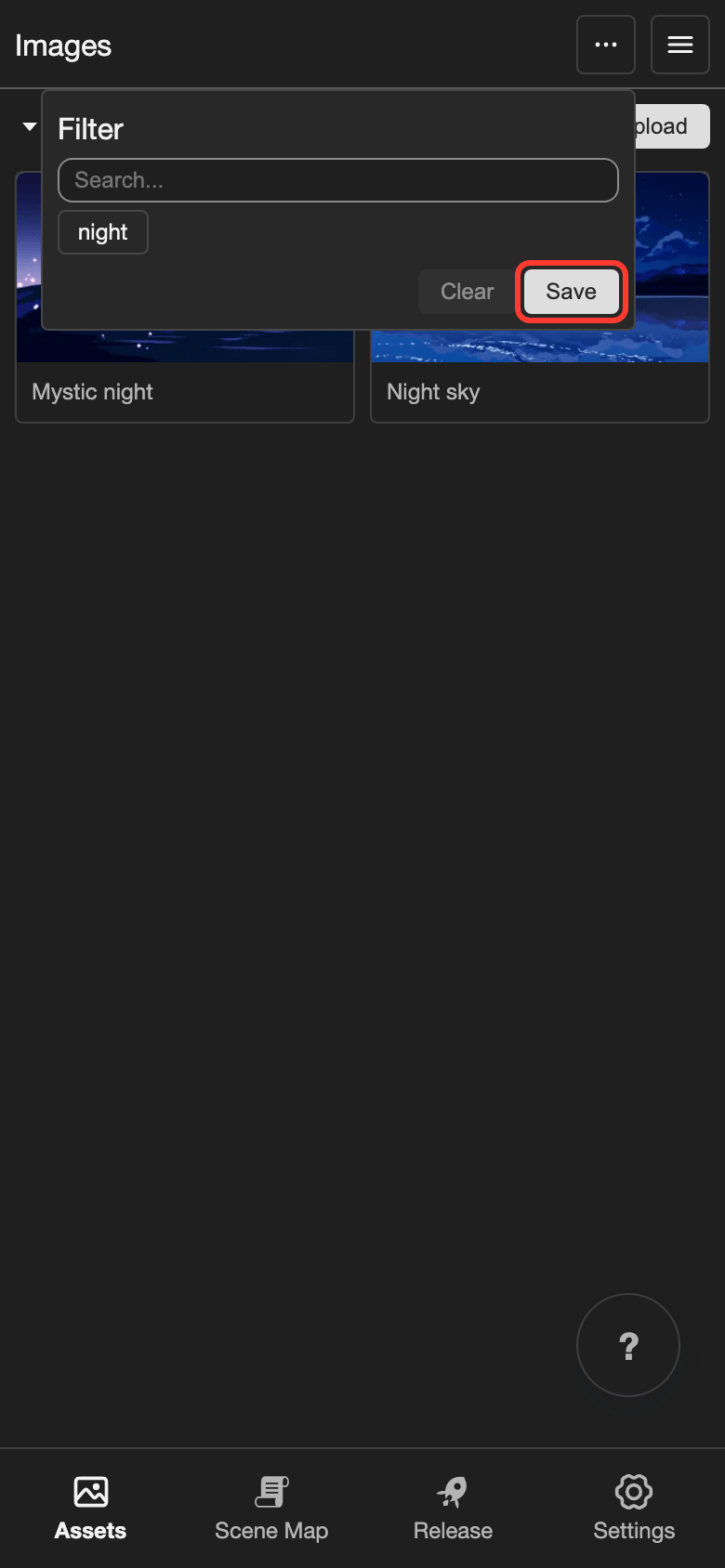
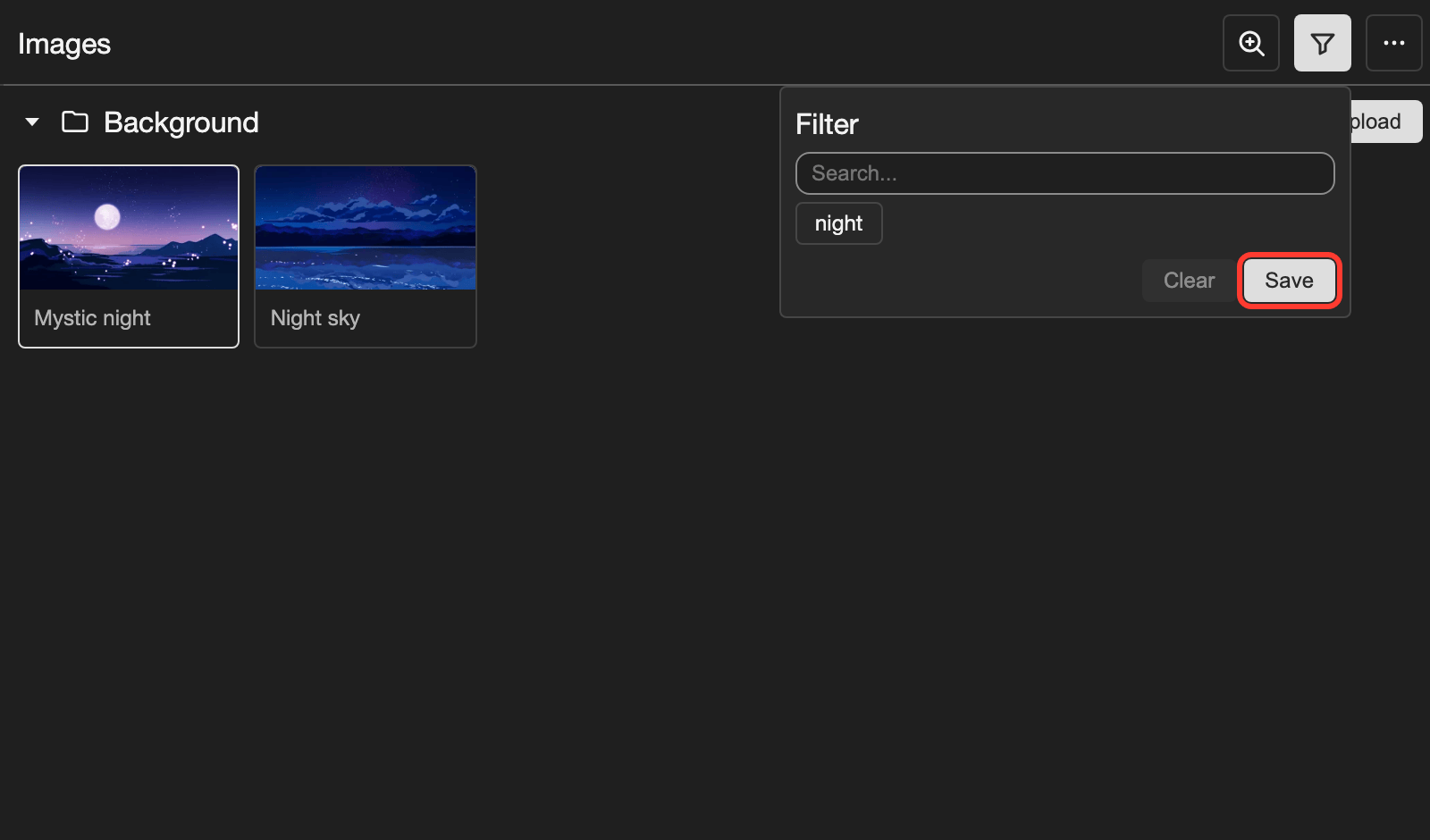
Tap Save.
The middle of the page shows all items again.
Good to know
- Tags do not move items. Each item stays in its folder.
- You can also change the tags of an item in its edit box. See Edit an item.
Problems and fixes
- I see an error when I make a tag. This tag list already has a tag with that name. Use that tag instead. You find it in the tag box.
- Some items are missing from the middle of the page. A filter or a search is on. See Show all items again.
- I cannot find a tag that I made on another page. Each resource page has its own tag list. Make the tag again on this page.