Characters
A character is a person in your story. Each character has a name, an avatar, and sprites.
- Avatar: a small picture of the character. It helps you find the character in the editor.
- Sprite: a picture of the character that you show on the screen, such as a smile or a frown.
To show a character on the screen, see Line action: Characters.
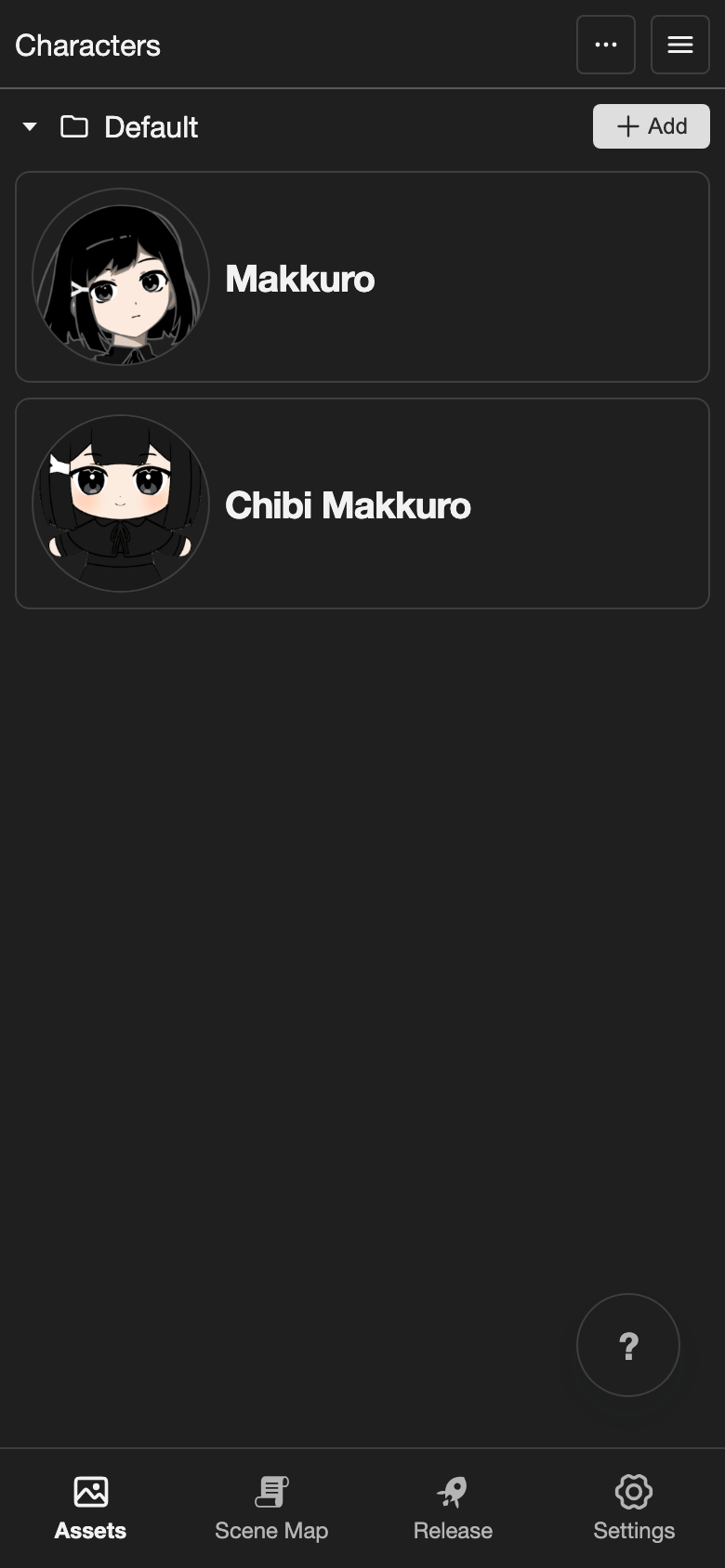
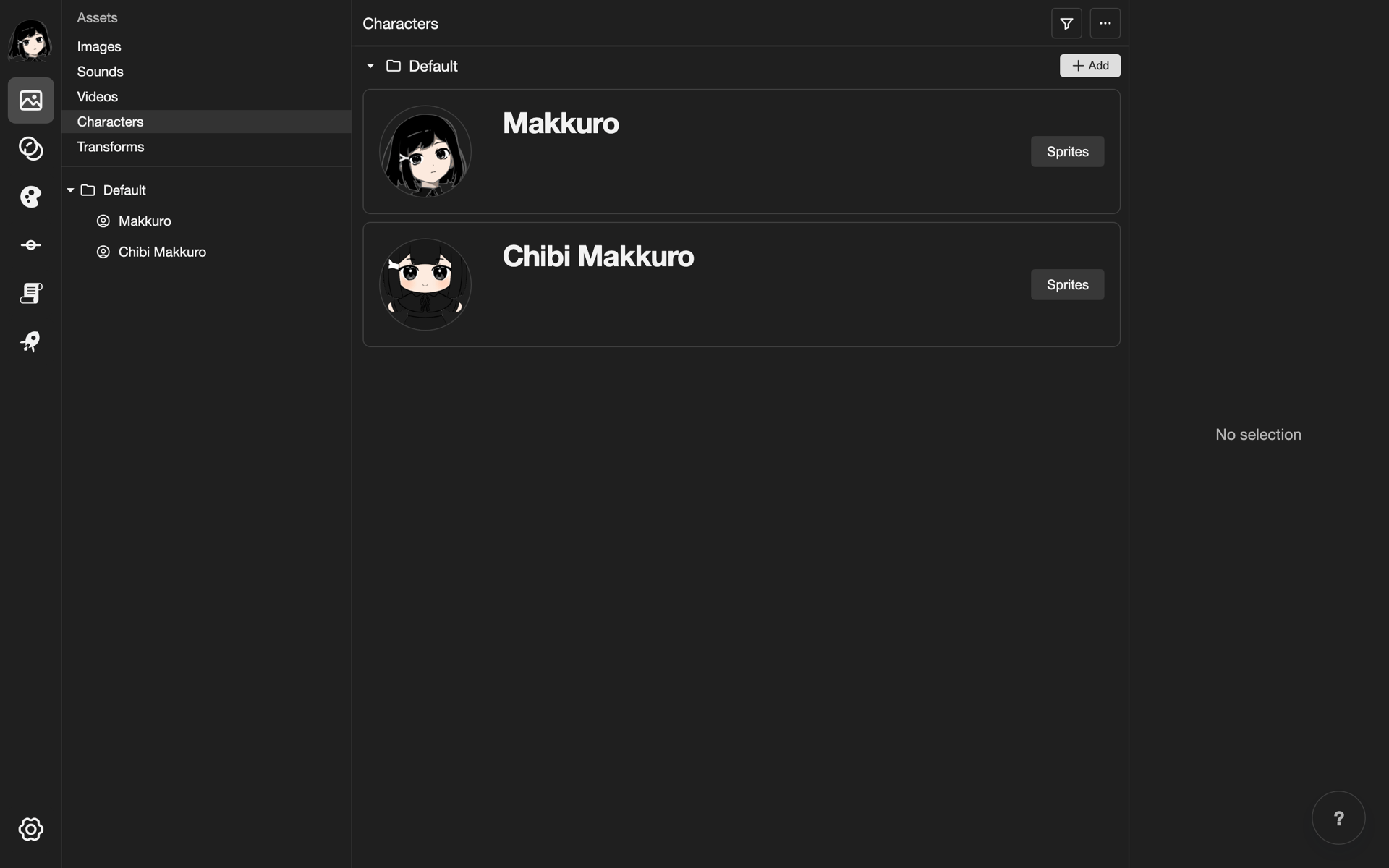
Watch the basics of using characters and their sprites.
Open the Characters page
-
Open your project. See Projects.
-
Go to the Characters page.
- Phone or tablet: Tap Assets in the bottom bar. Then tap Characters in the list.
- Desktop: In the left list, click Characters.
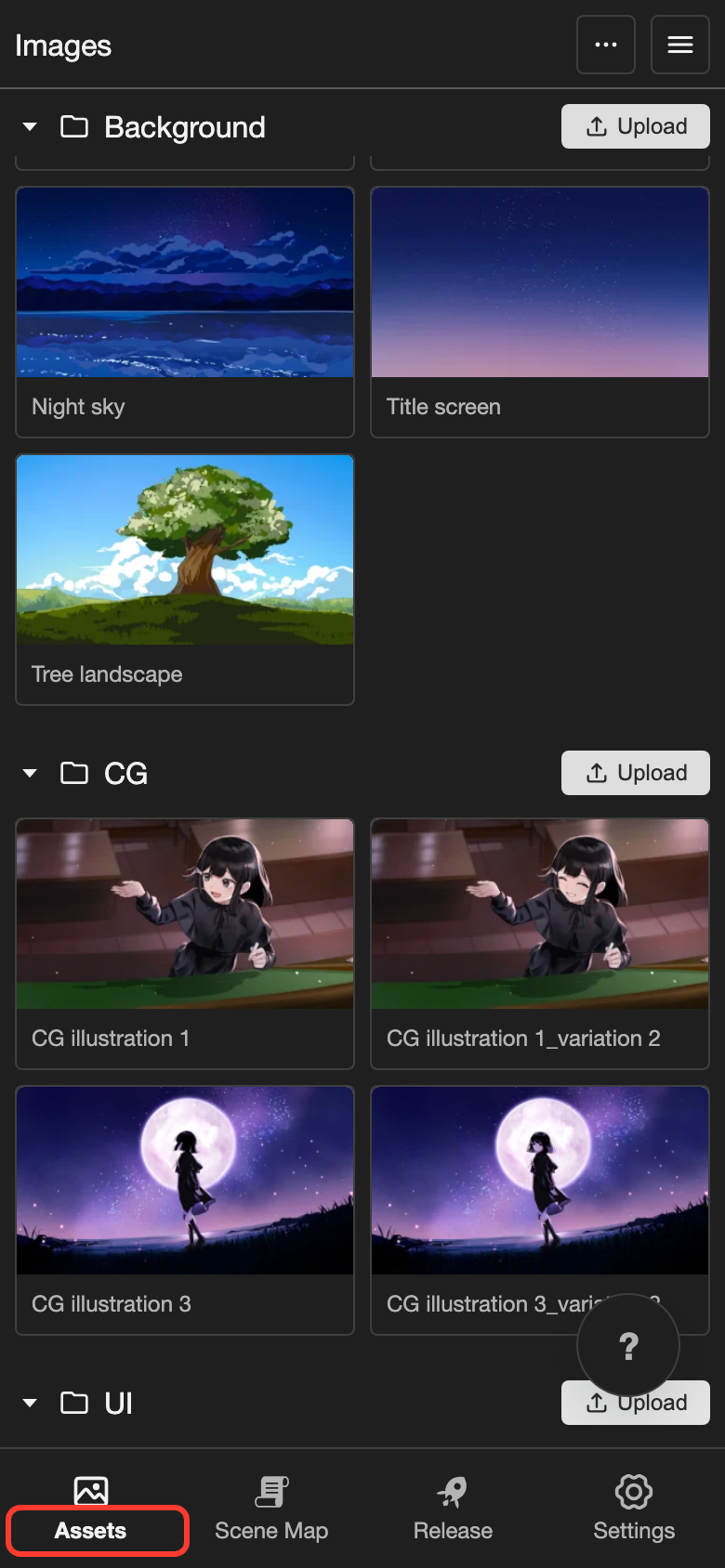
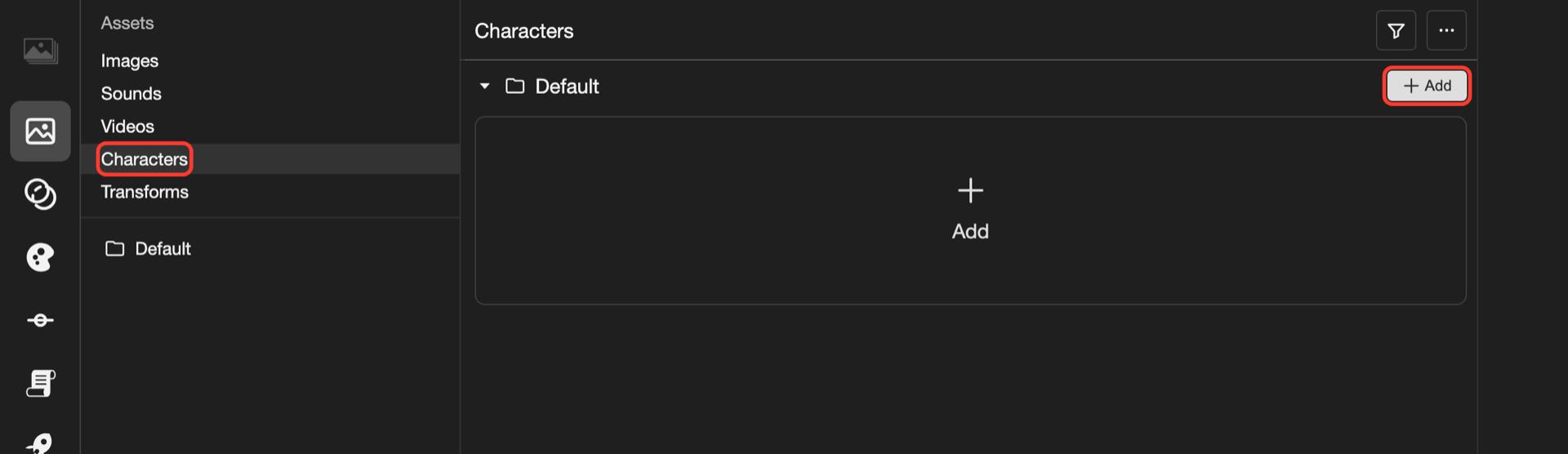
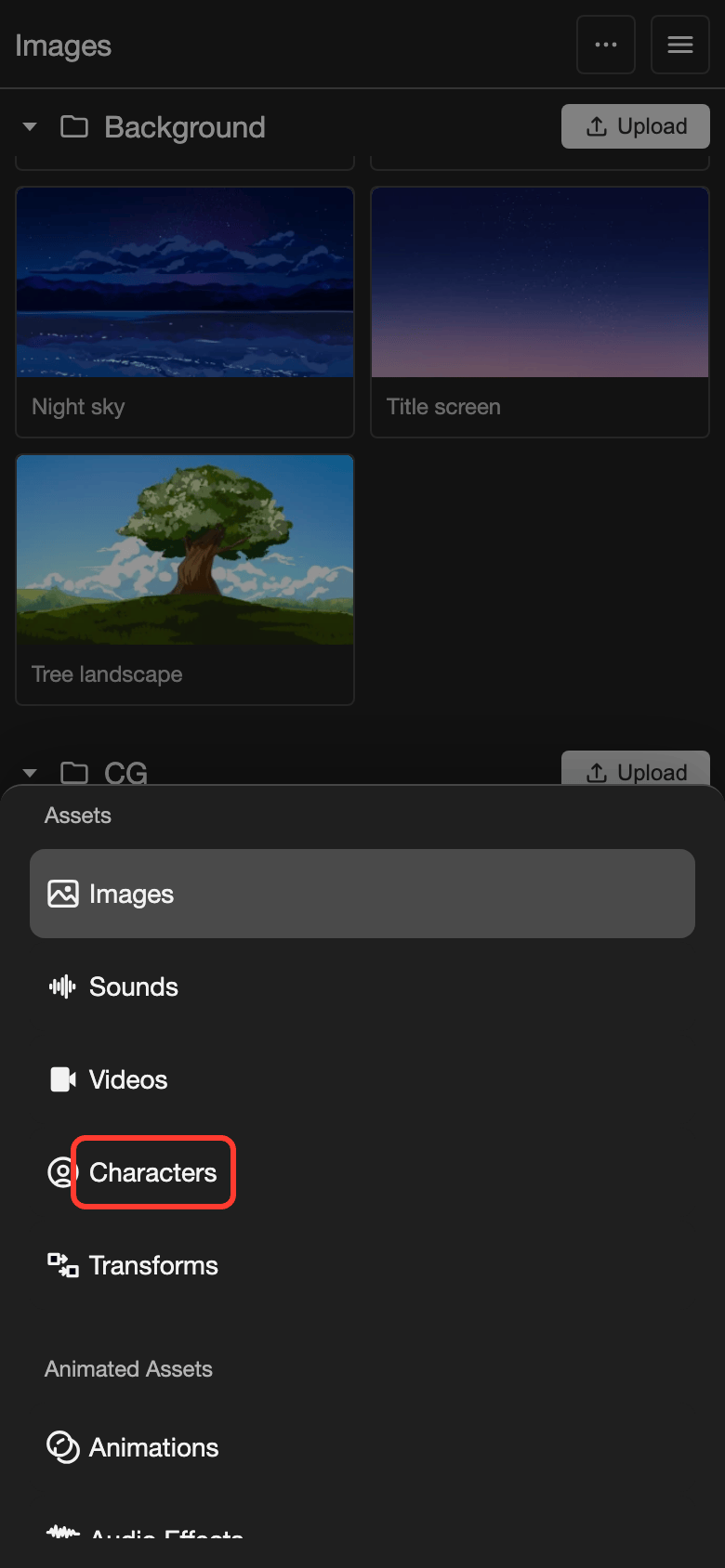
The Characters page opens.
Create a character
-
Tap Add.
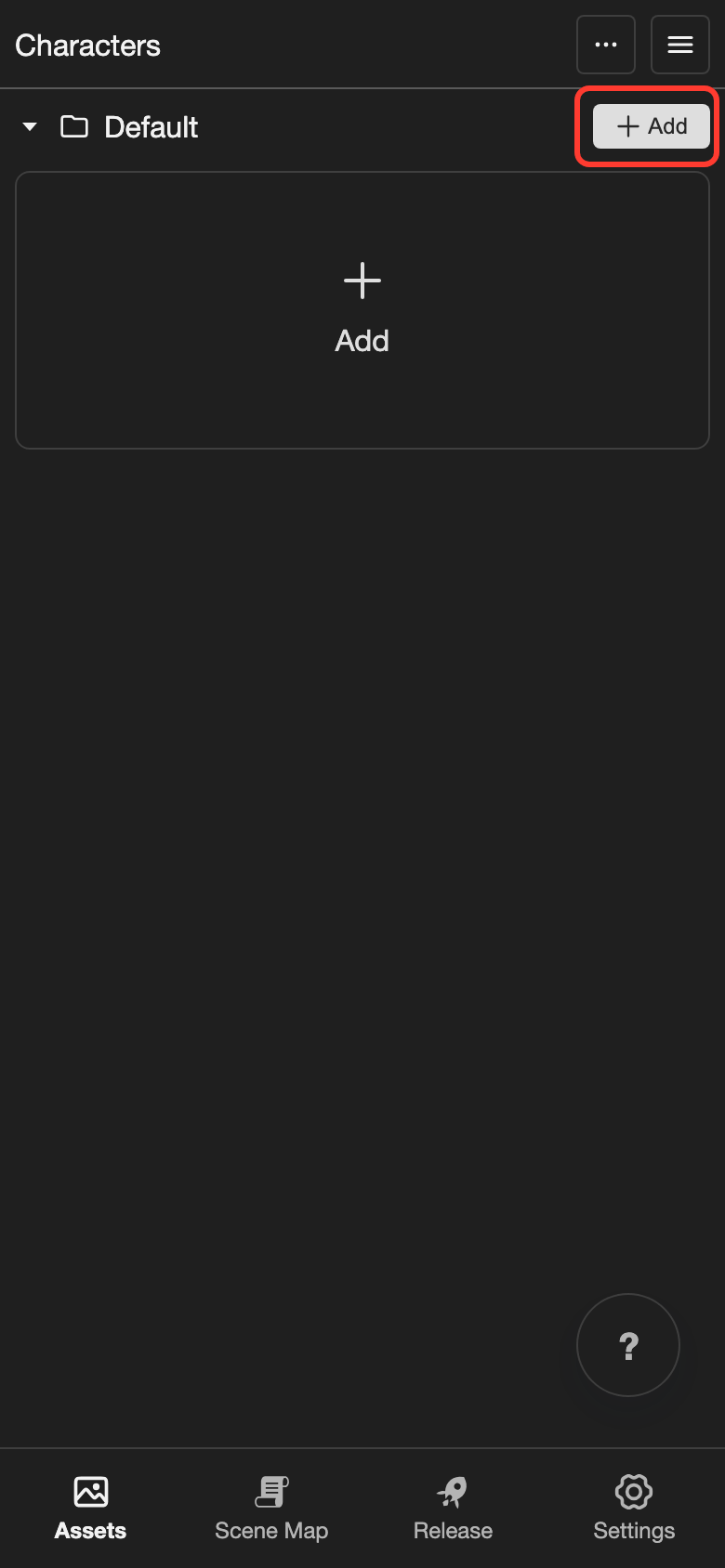
The Add Character box opens.
-
In the Name field, type a name, for example "Makkuro".
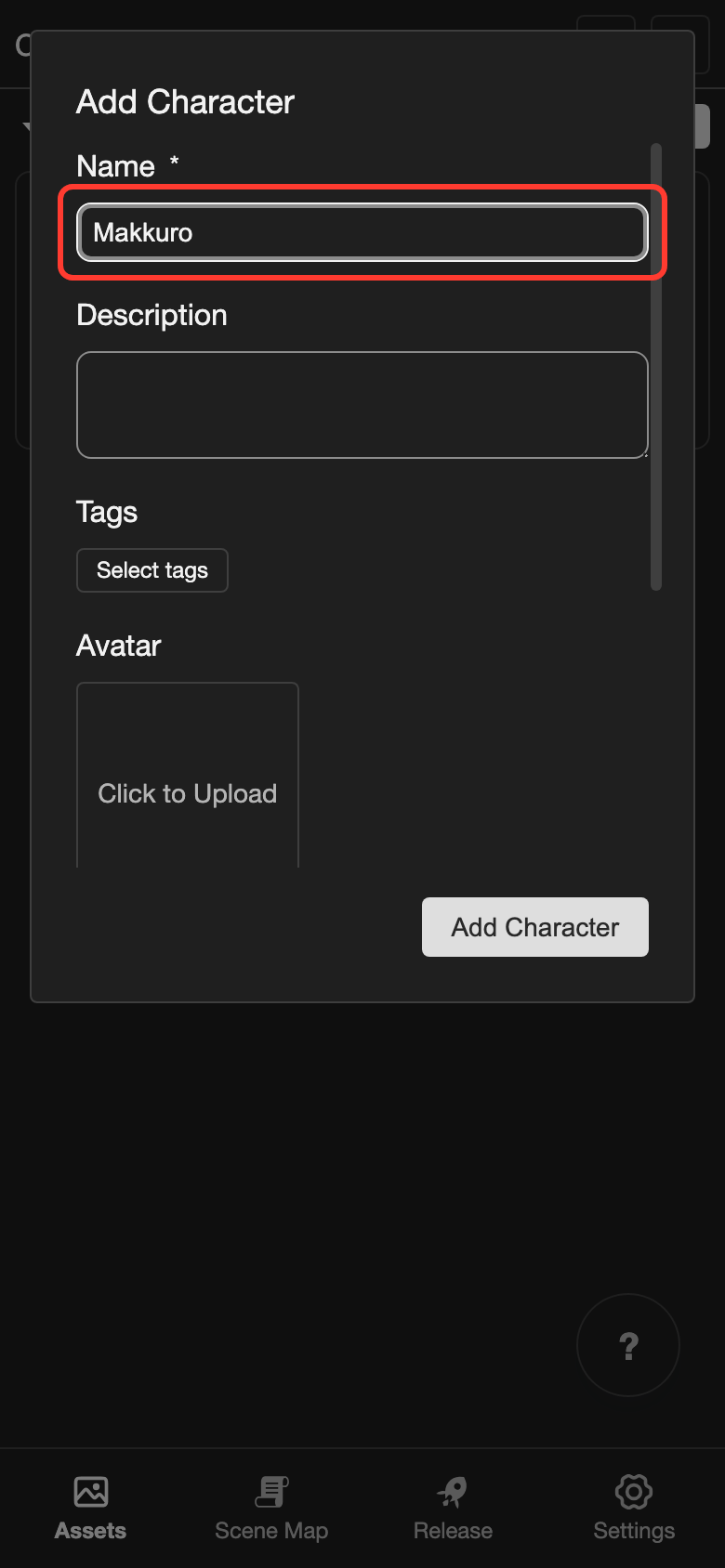
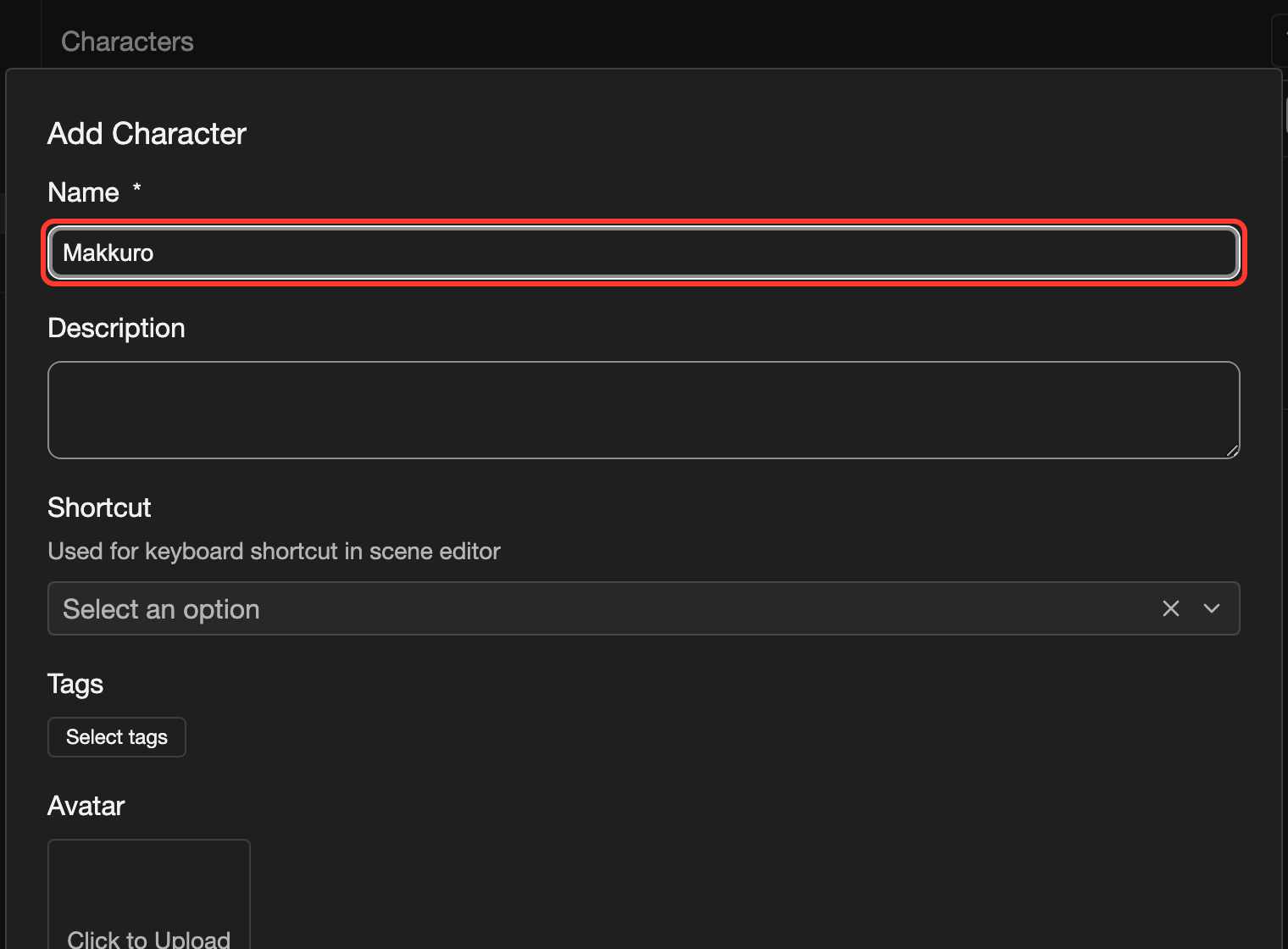
Name is required. The name is what you see in dialogue.
-
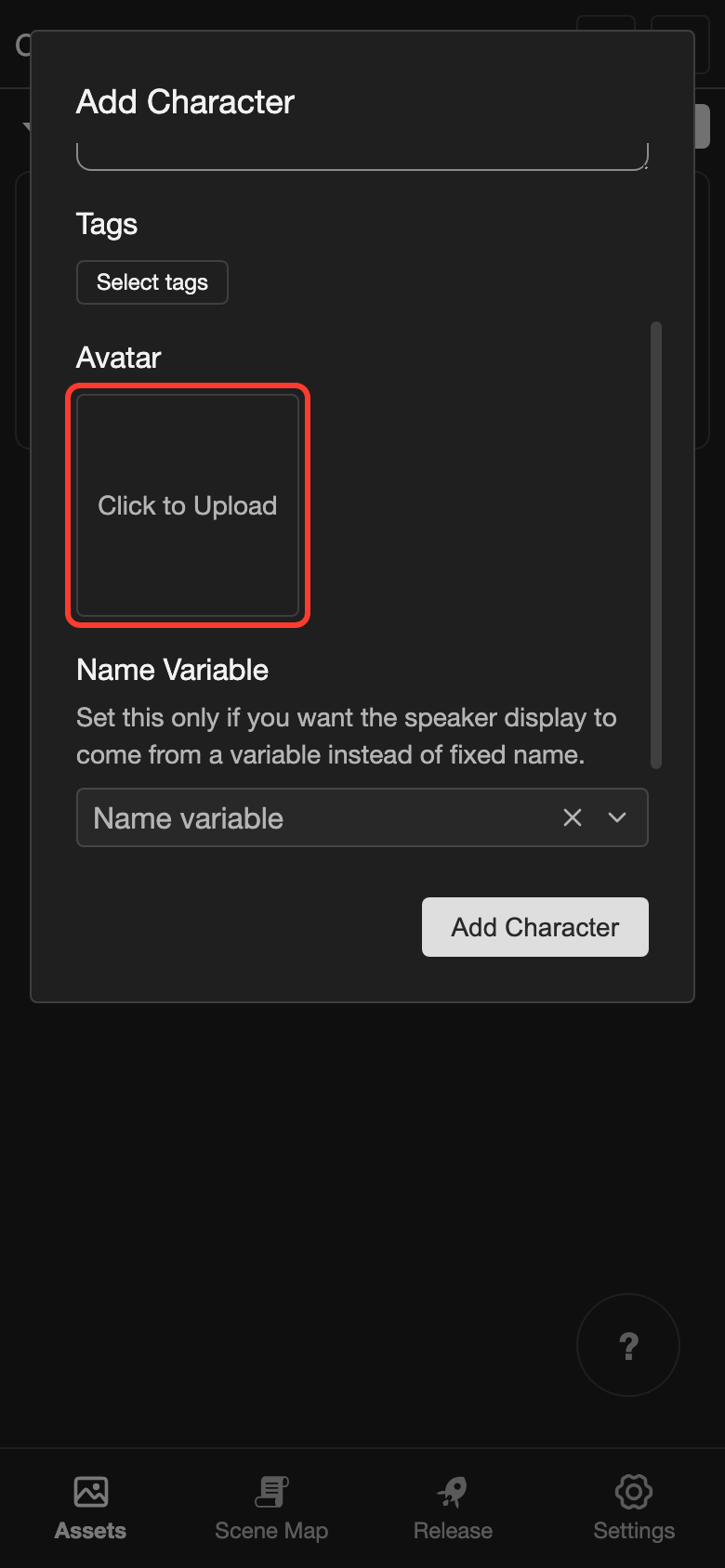
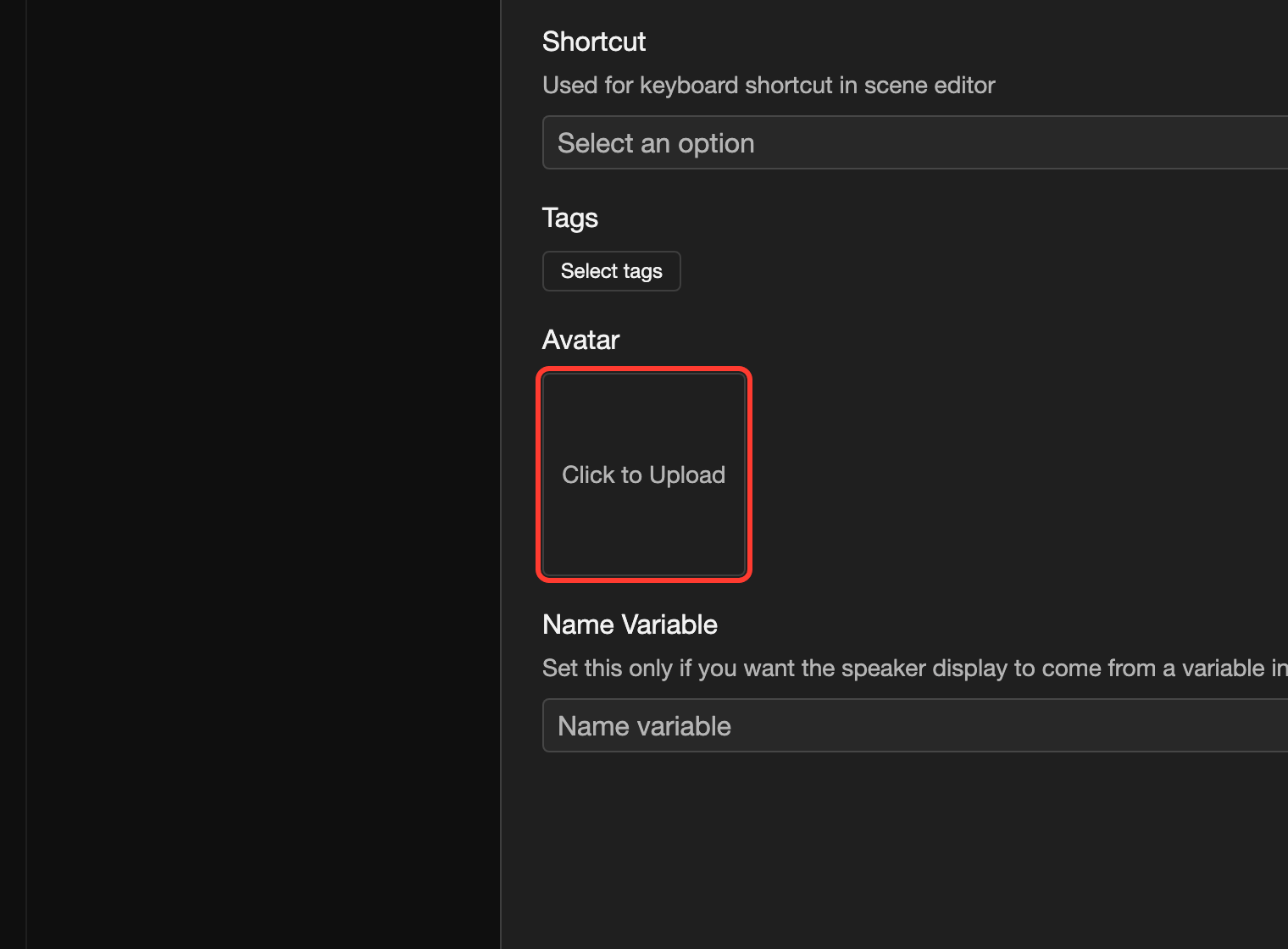
In the Avatar box, tap Click to Upload. Choose an image from your device.
-
Zoom in with the slider, and drag the image so the square shows the face. Then tap Use Crop.
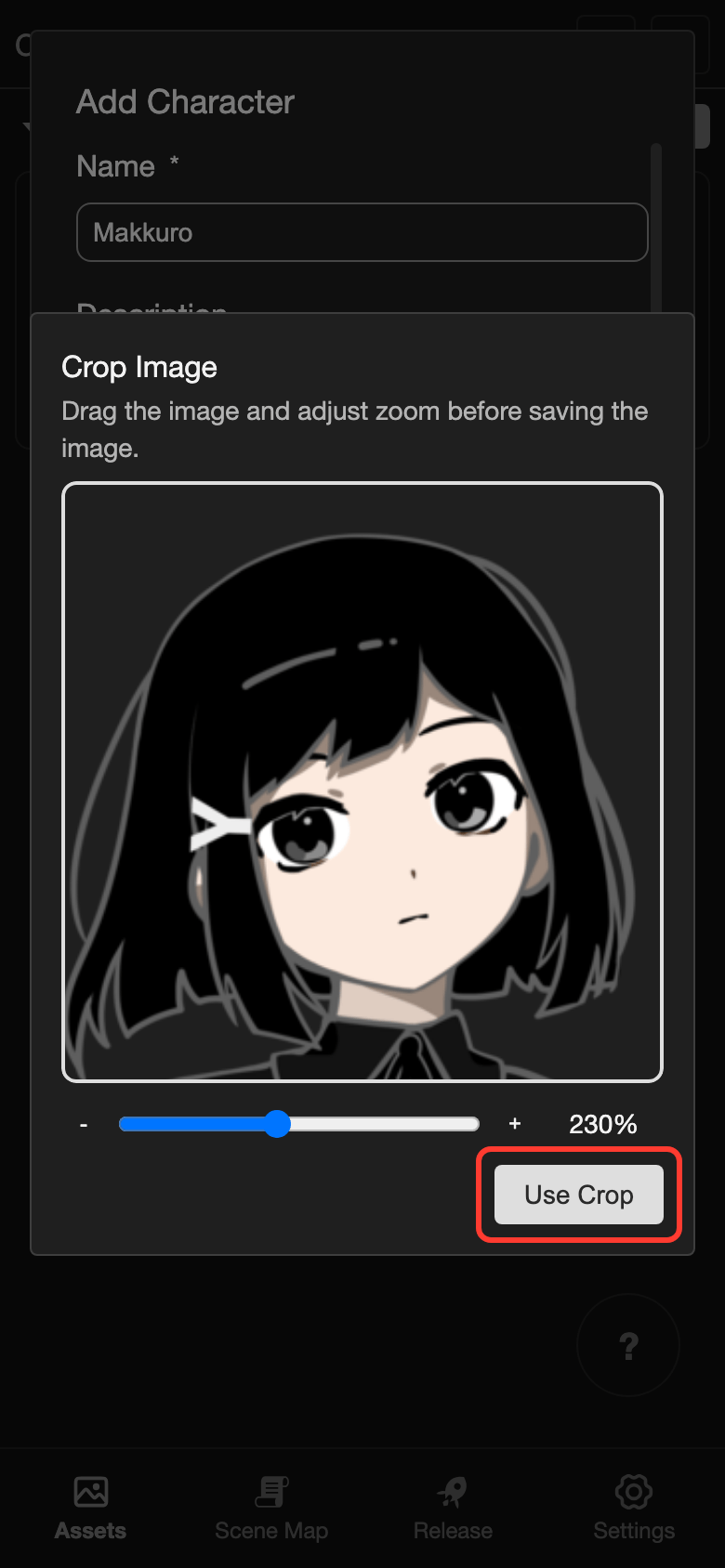
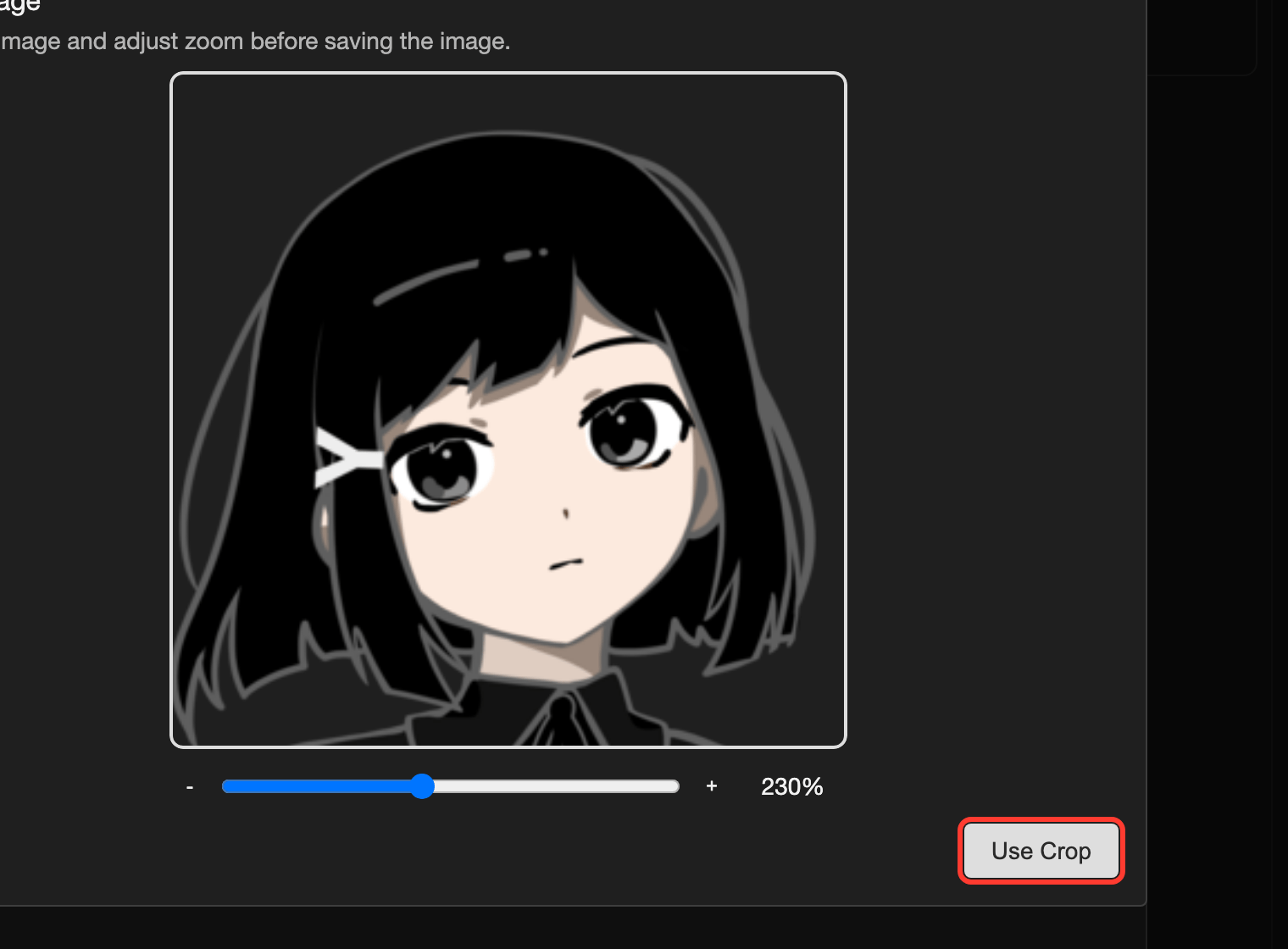
The avatar is cropped to a square.
-
Tap Add Character.
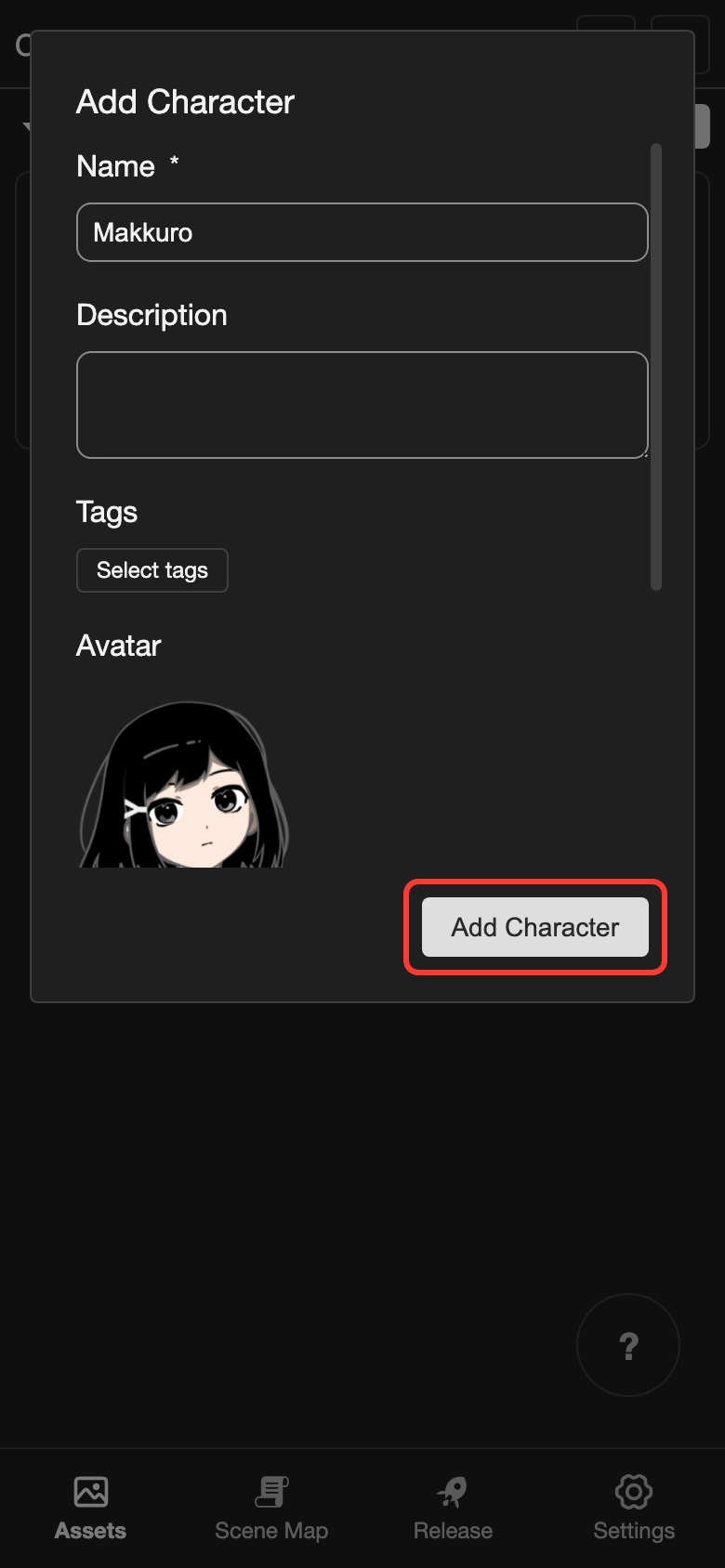
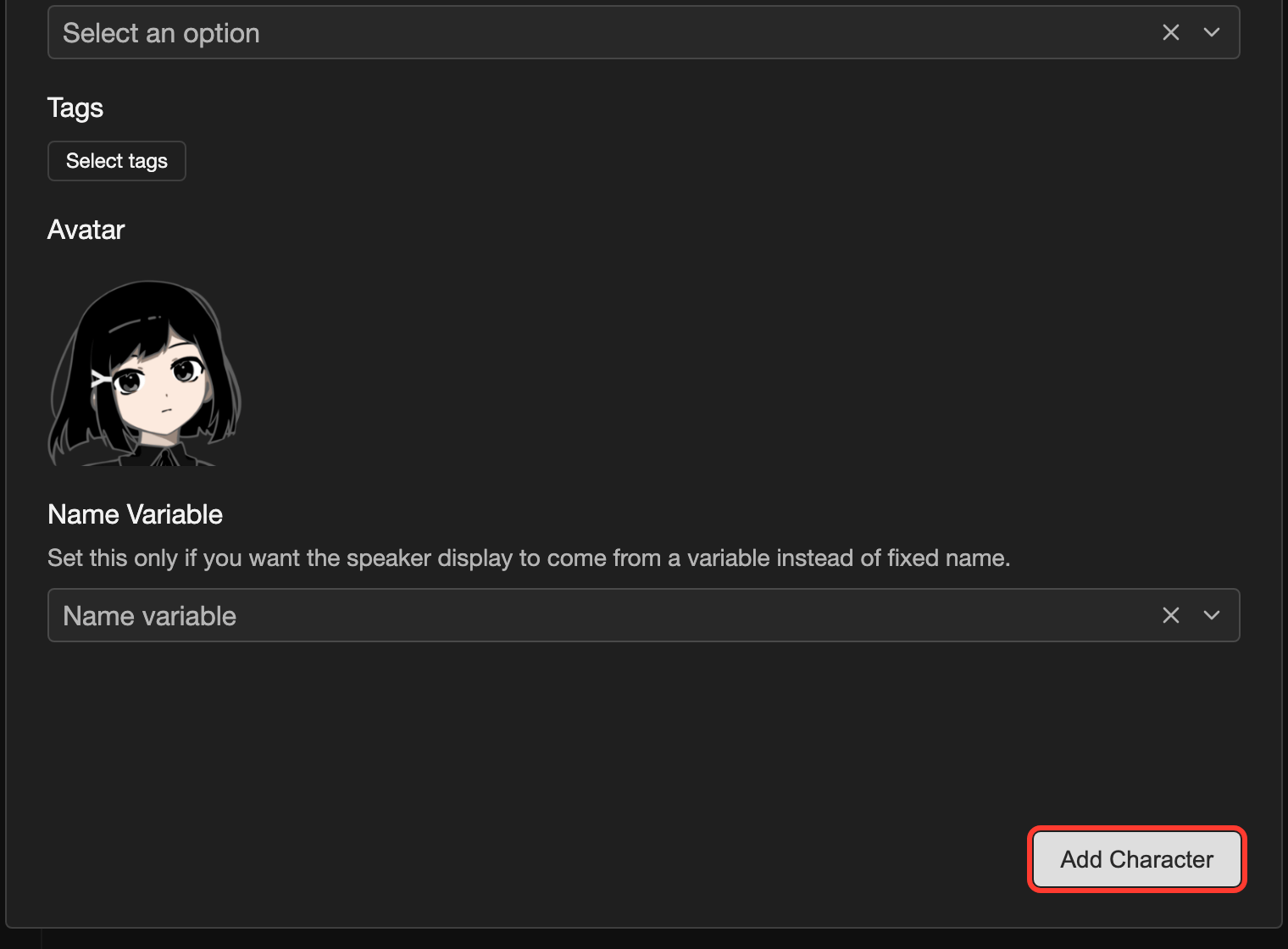
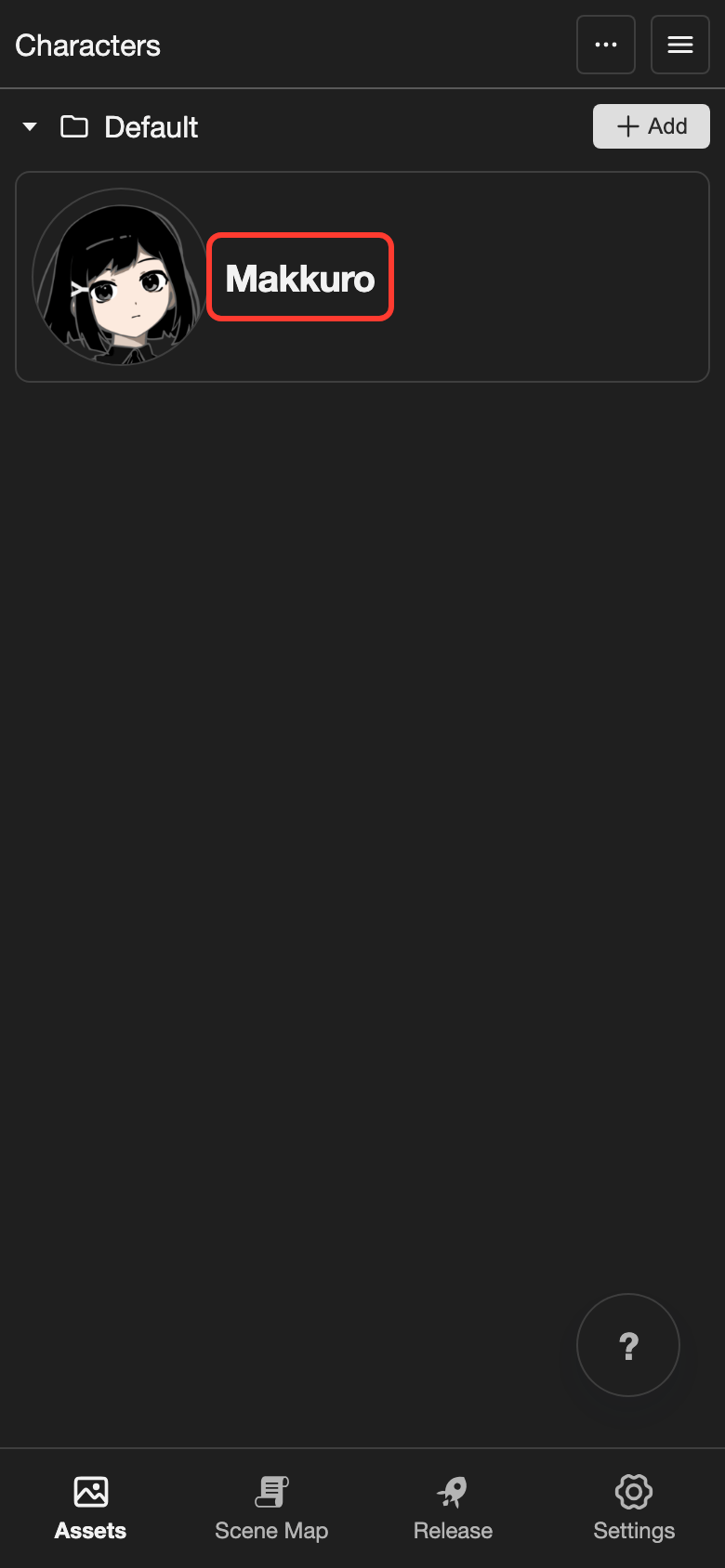
The new character appears in the list. It shows its avatar.
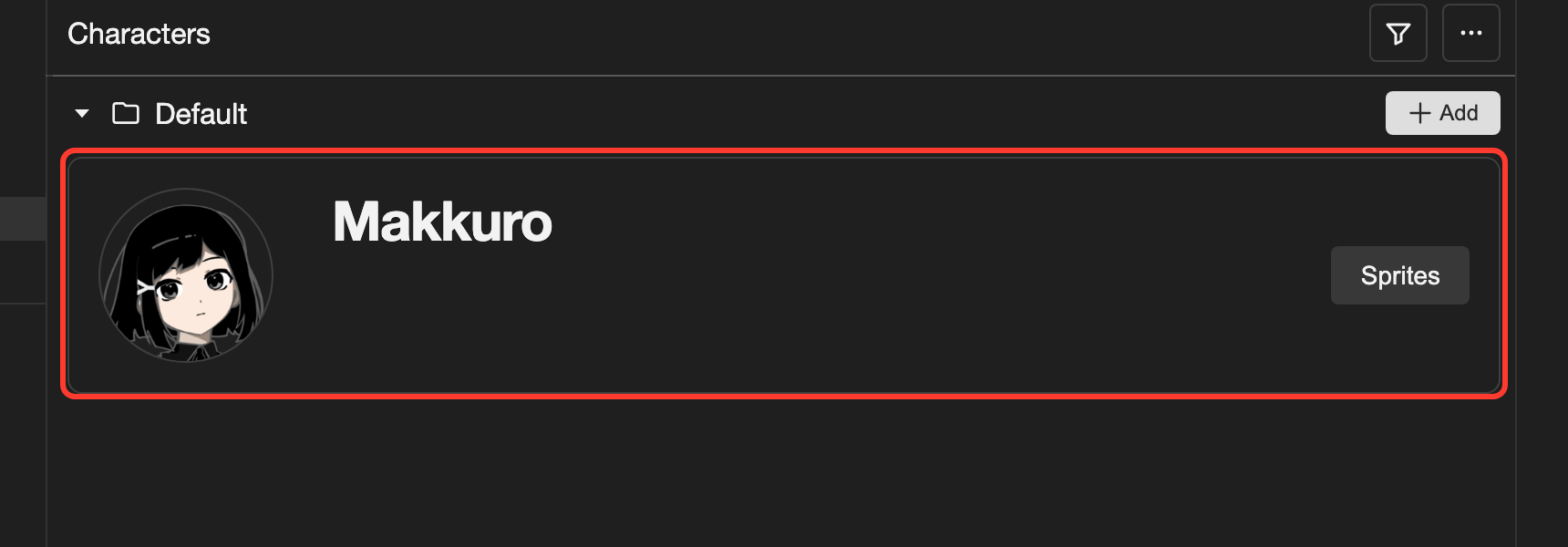
Repeat these steps to add more characters.
Shortcut
The Shortcut field is a select box. Its help text says: "Used for keyboard shortcut in scene editor." Pick a shortcut to use the character with a keyboard key in the scene editor. See Add dialogue speaker.
Character sprites
Sprites are the pictures you show on the screen. Each character has its own sprites.
-
Open the sprites of the character.
- Phone or tablet: Tap the character card. Then tap Sprites in the details.
- Desktop: On the character card, click Sprites.
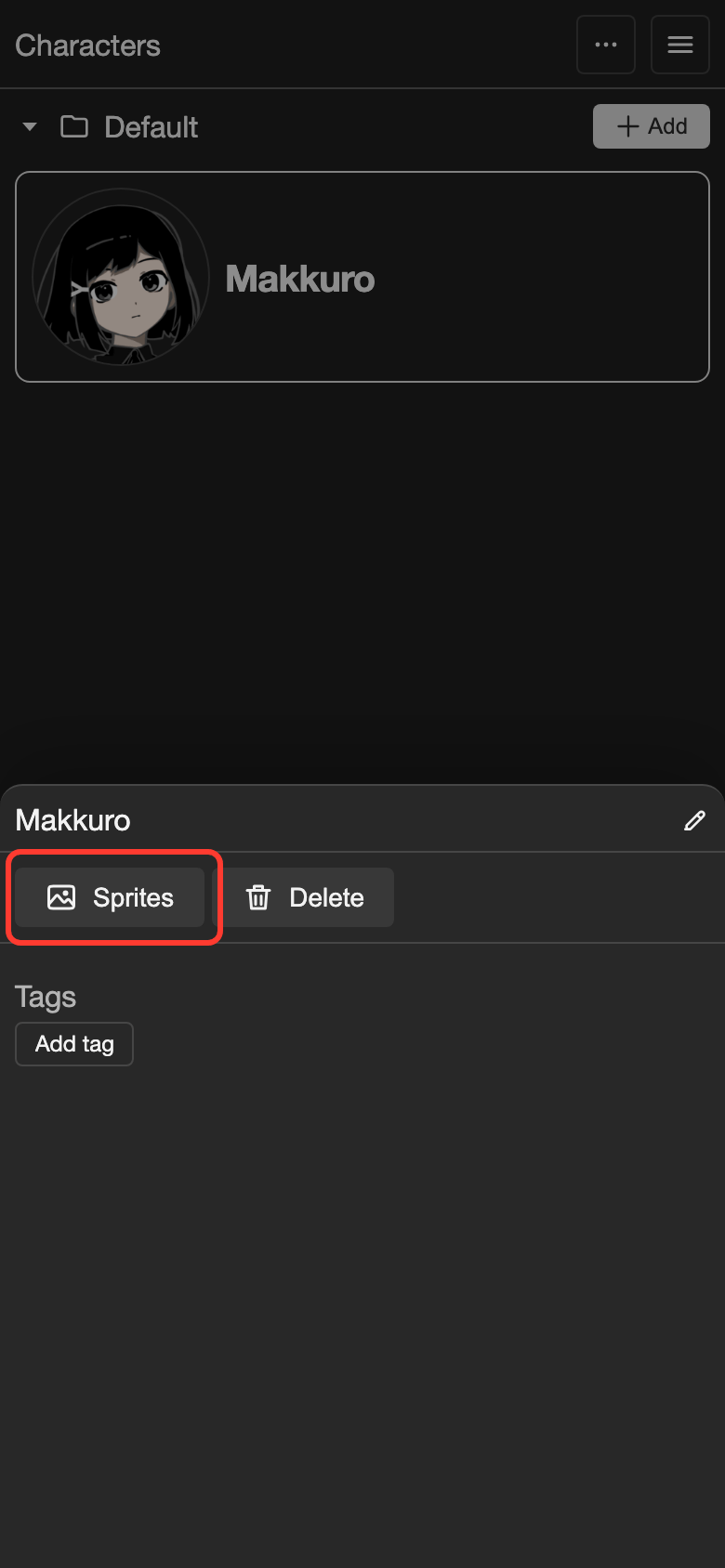
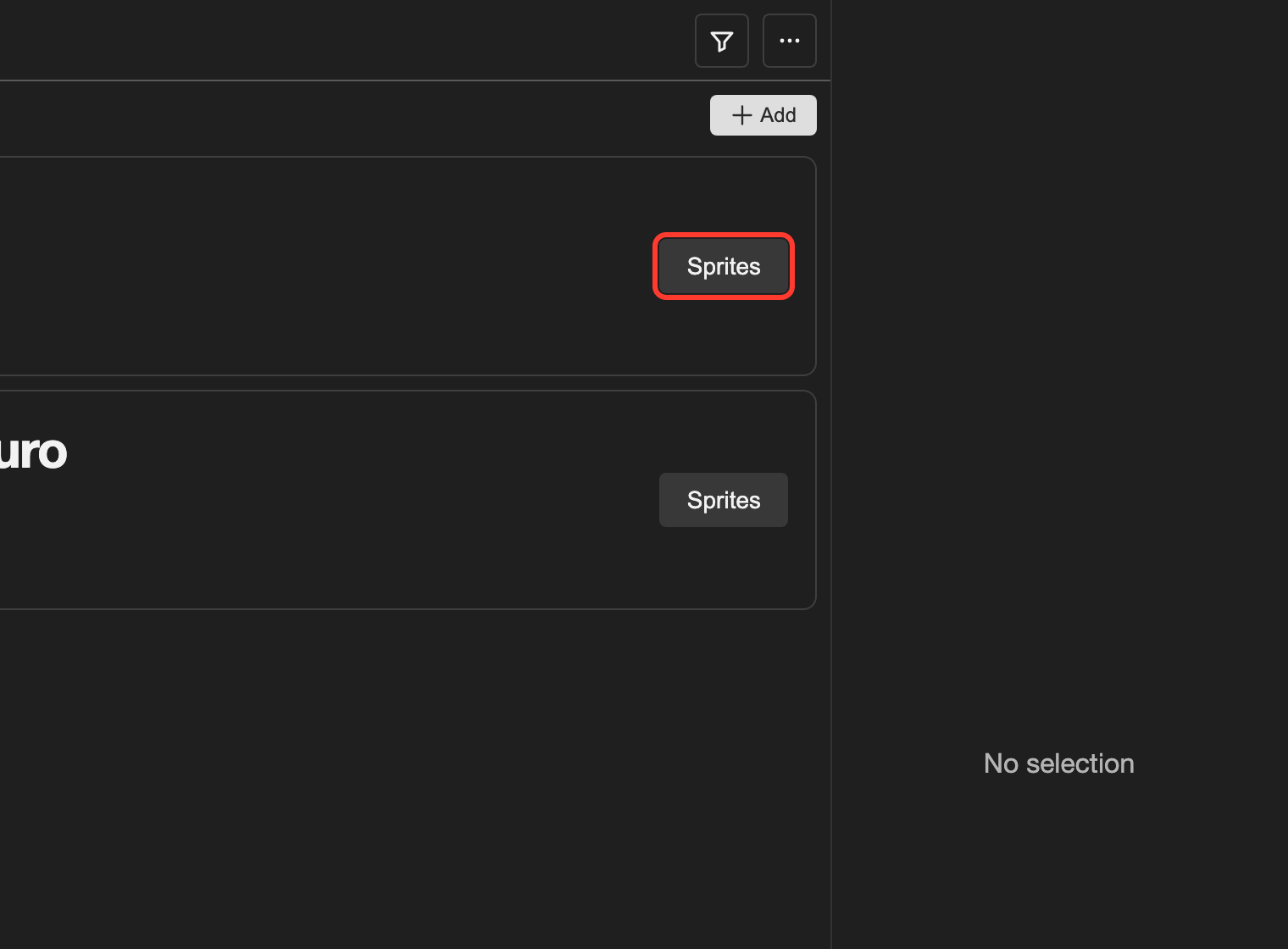
The sprites page of the character opens. Its name is at the top.
-
Upload your sprite images. See Upload images. When you tap Upload, a menu opens. Tap Image.
The new sprites appear on the page.
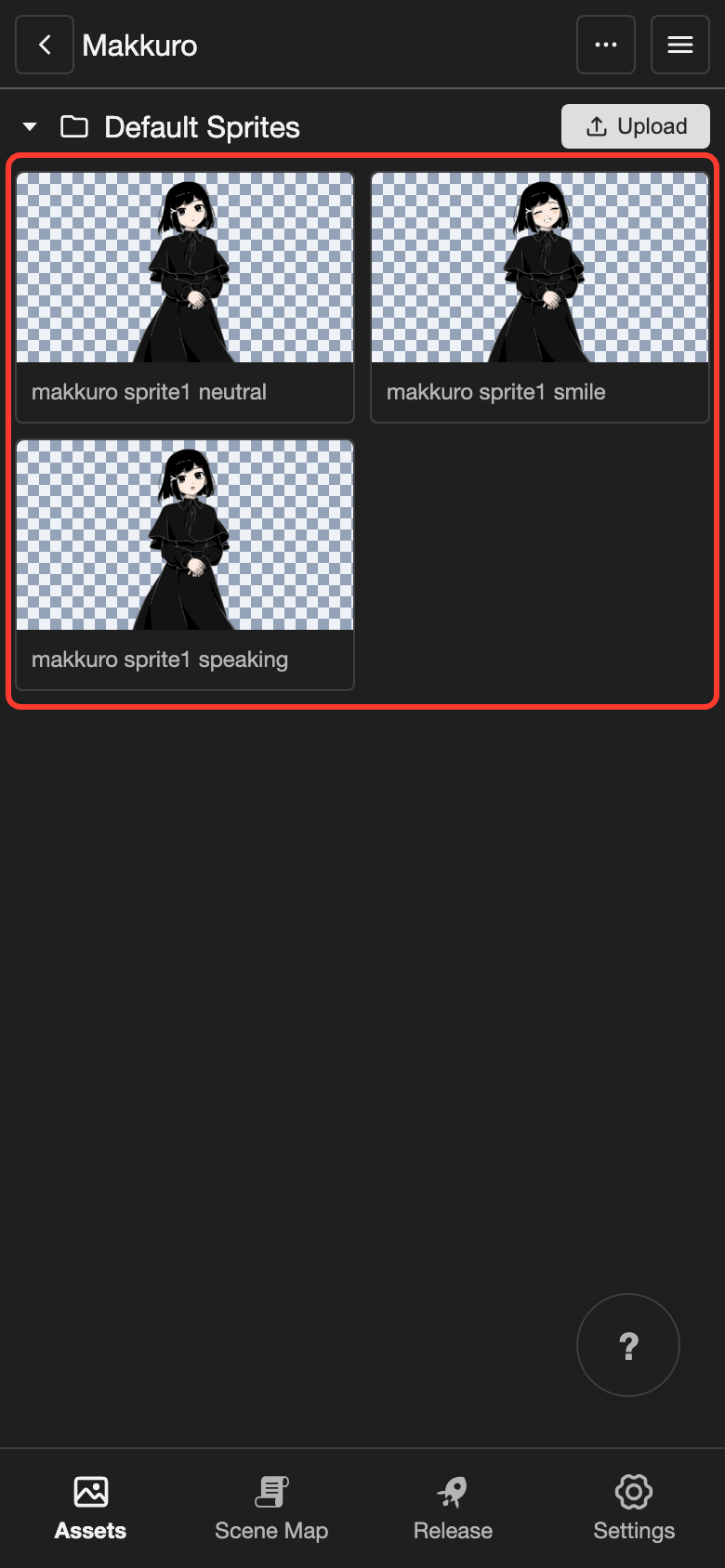
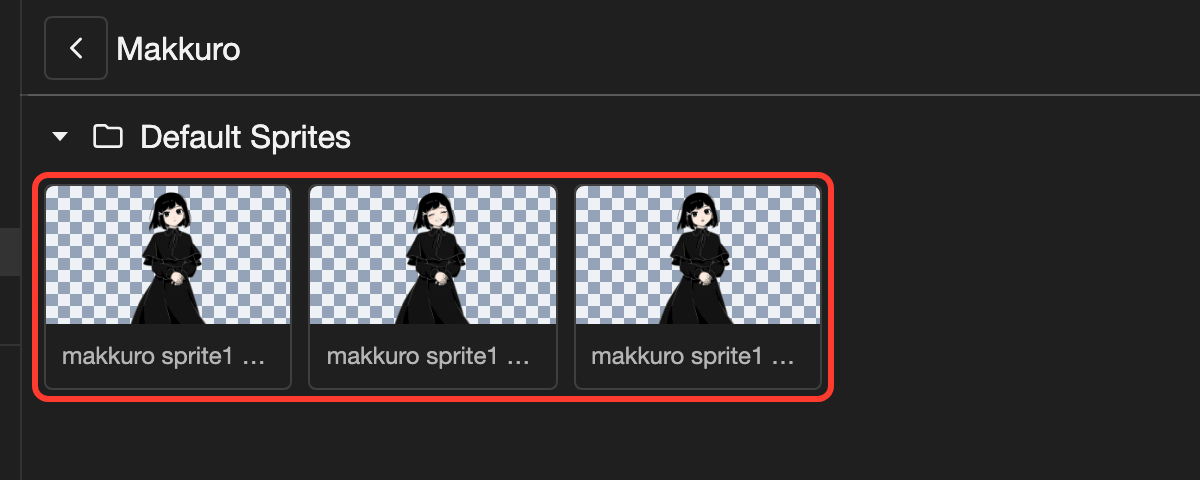
The new sprites on the sprites page.
To go back to the list of characters, tap the back button at the top left.
Sprite groups
Sprite tags make sprite groups. See Tags.
Choose the speaker in dialogue
The speaker is the character who says a line. You set it in a Dialogue Box action.
-
Open the scene. See Scene Map.
- Phone or tablet: Tap Scene Map in the bottom bar. Drag the map until Prologue is on the screen. Then double tap Prologue.
- Desktop: Click the Scenes button on the left. Then double-click Prologue.
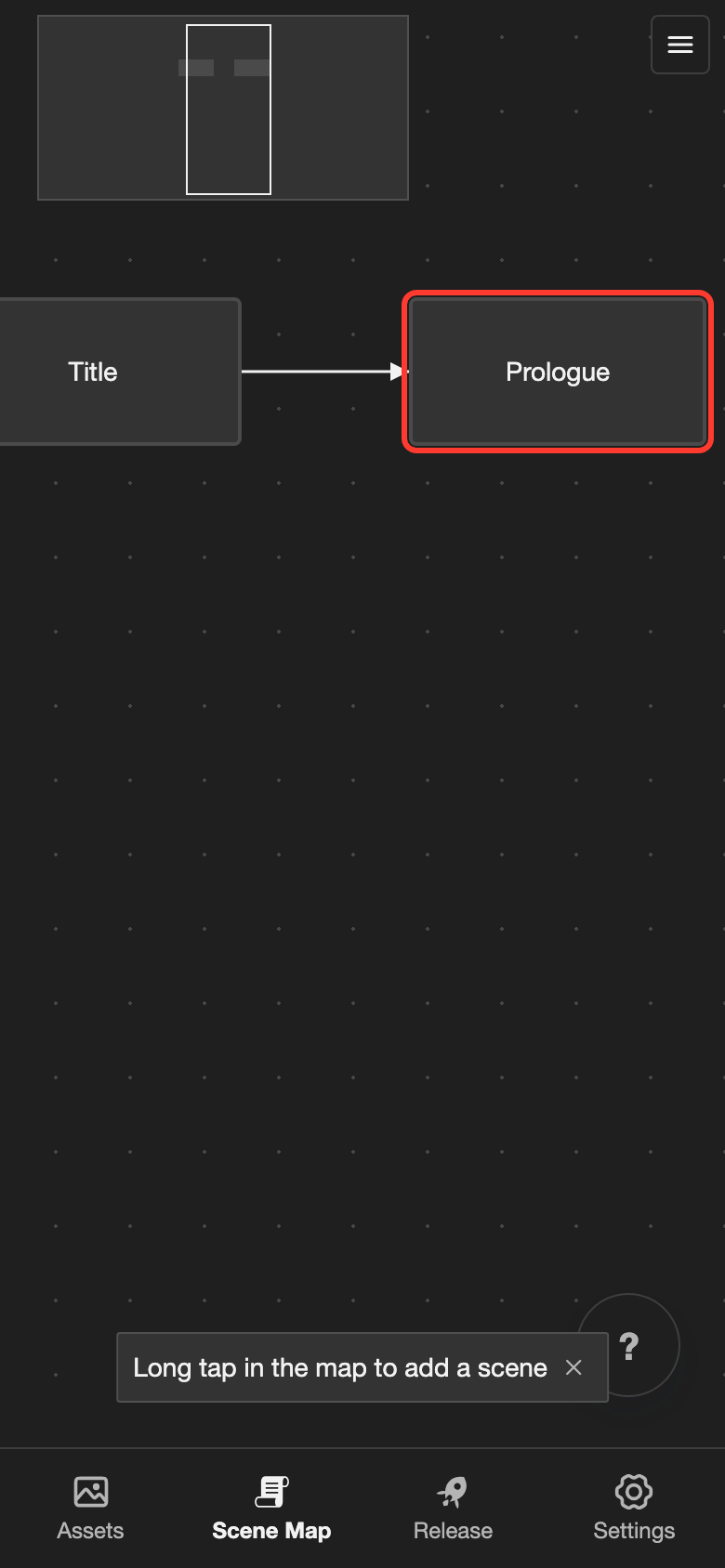
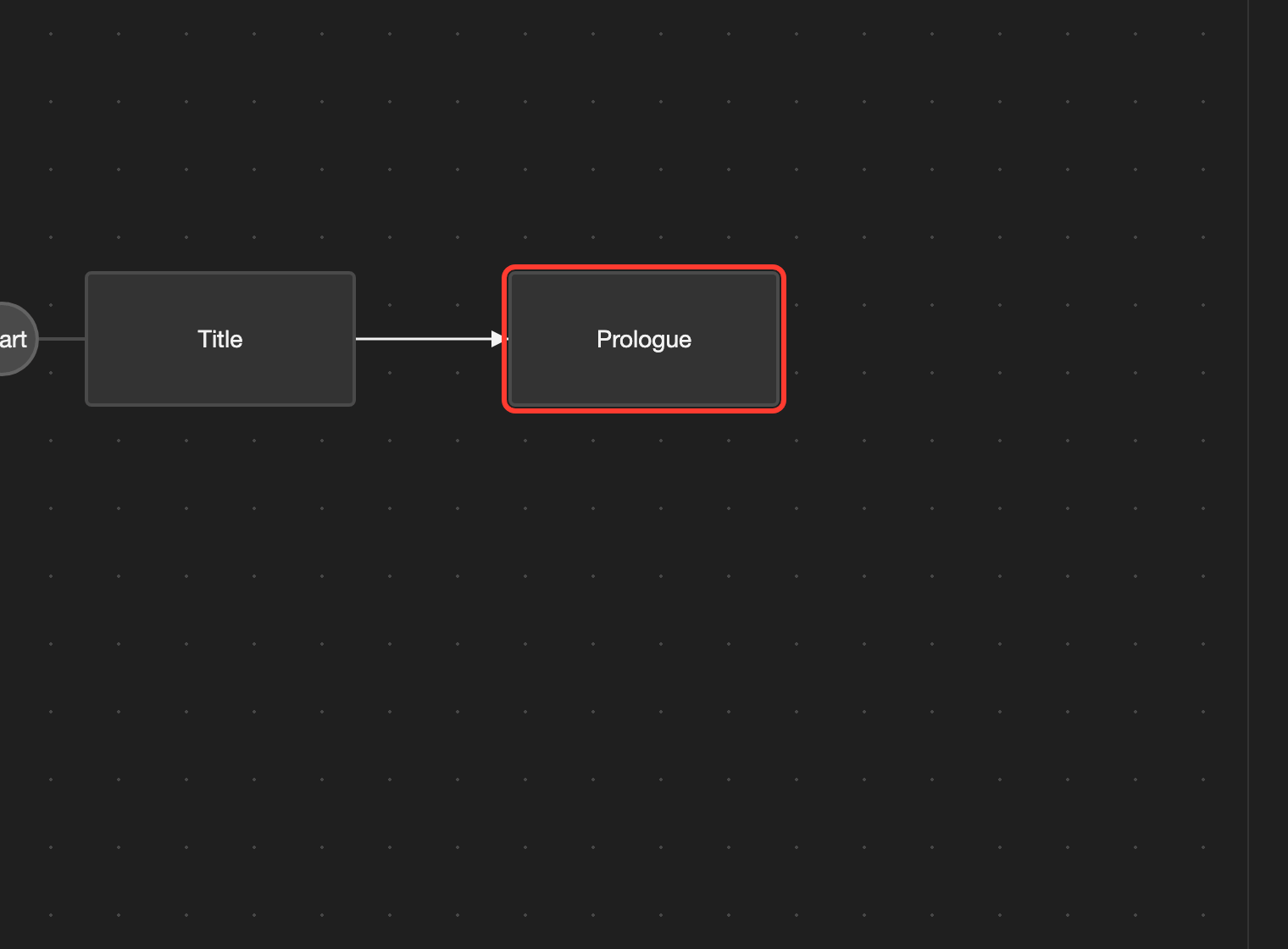
The scene editor opens.
-
Tap an empty line. Then open the add action menu.
- Phone or tablet: Tap the + button in the bottom bar.
- Desktop: Click the + button under Presentation state.
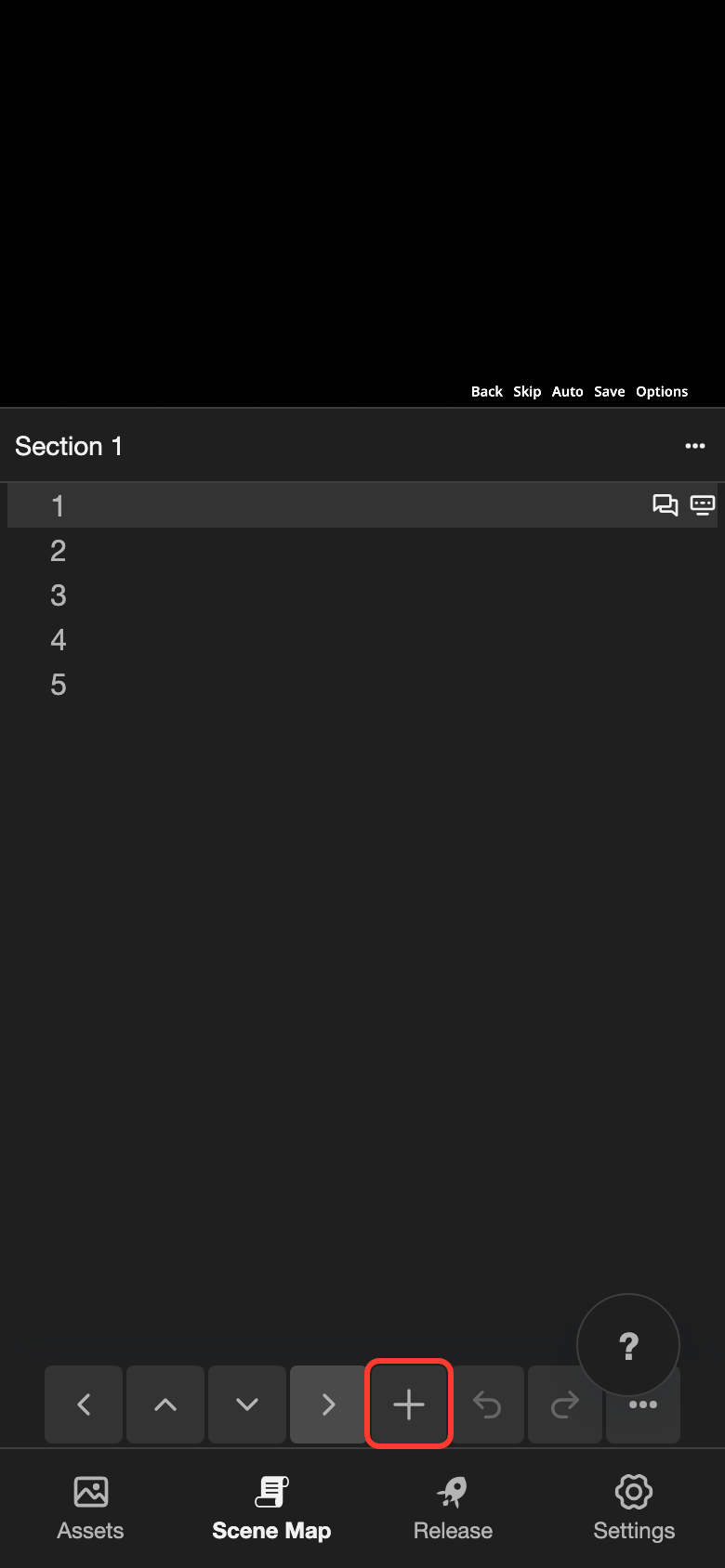
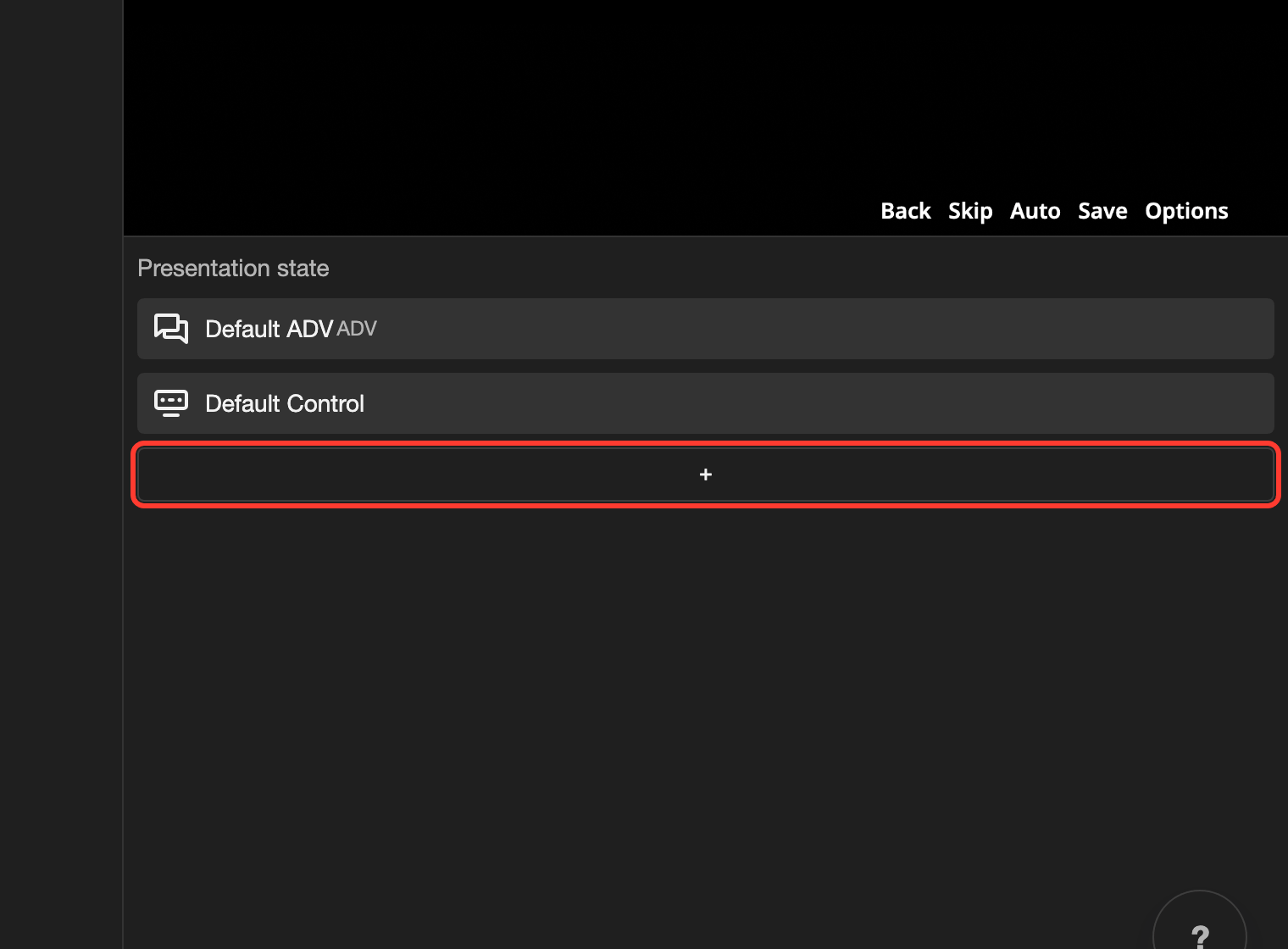
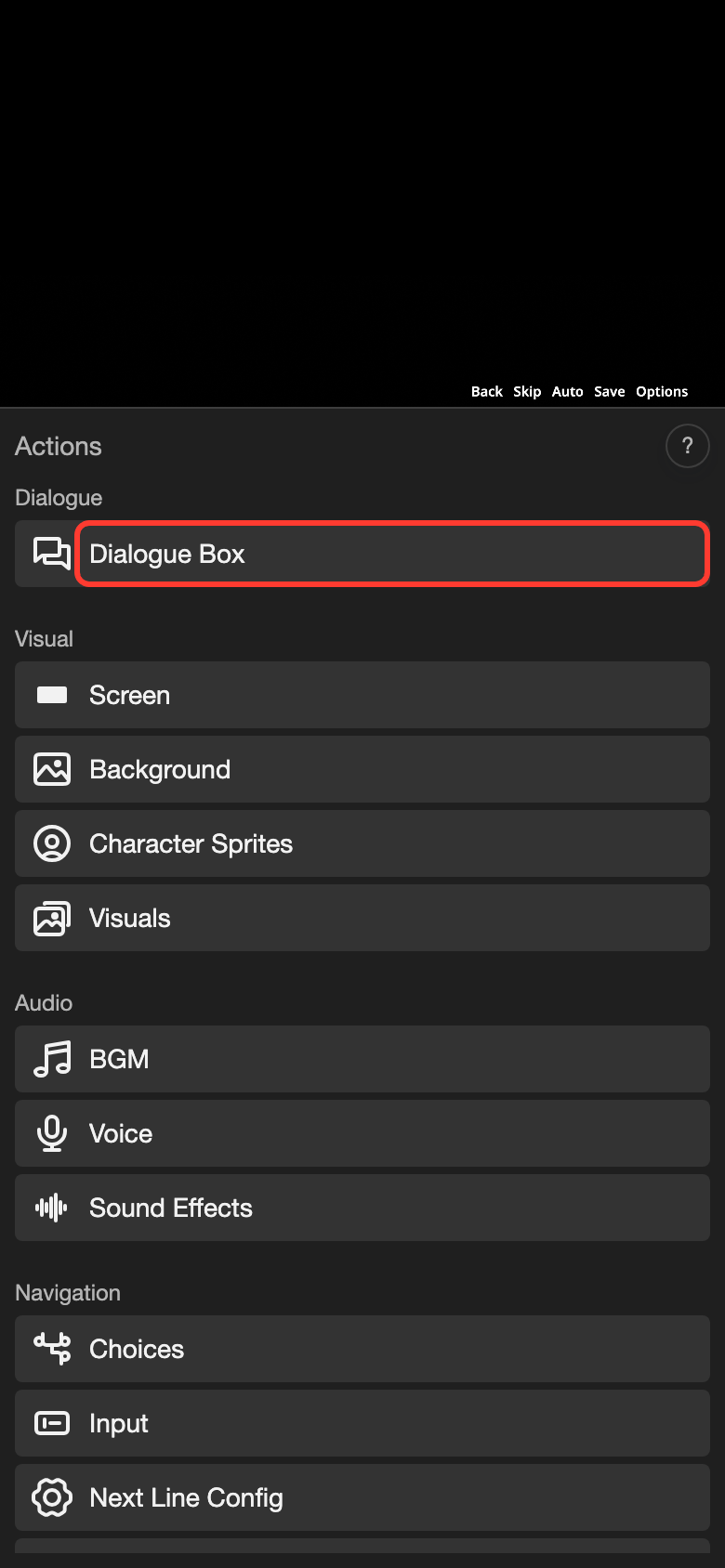
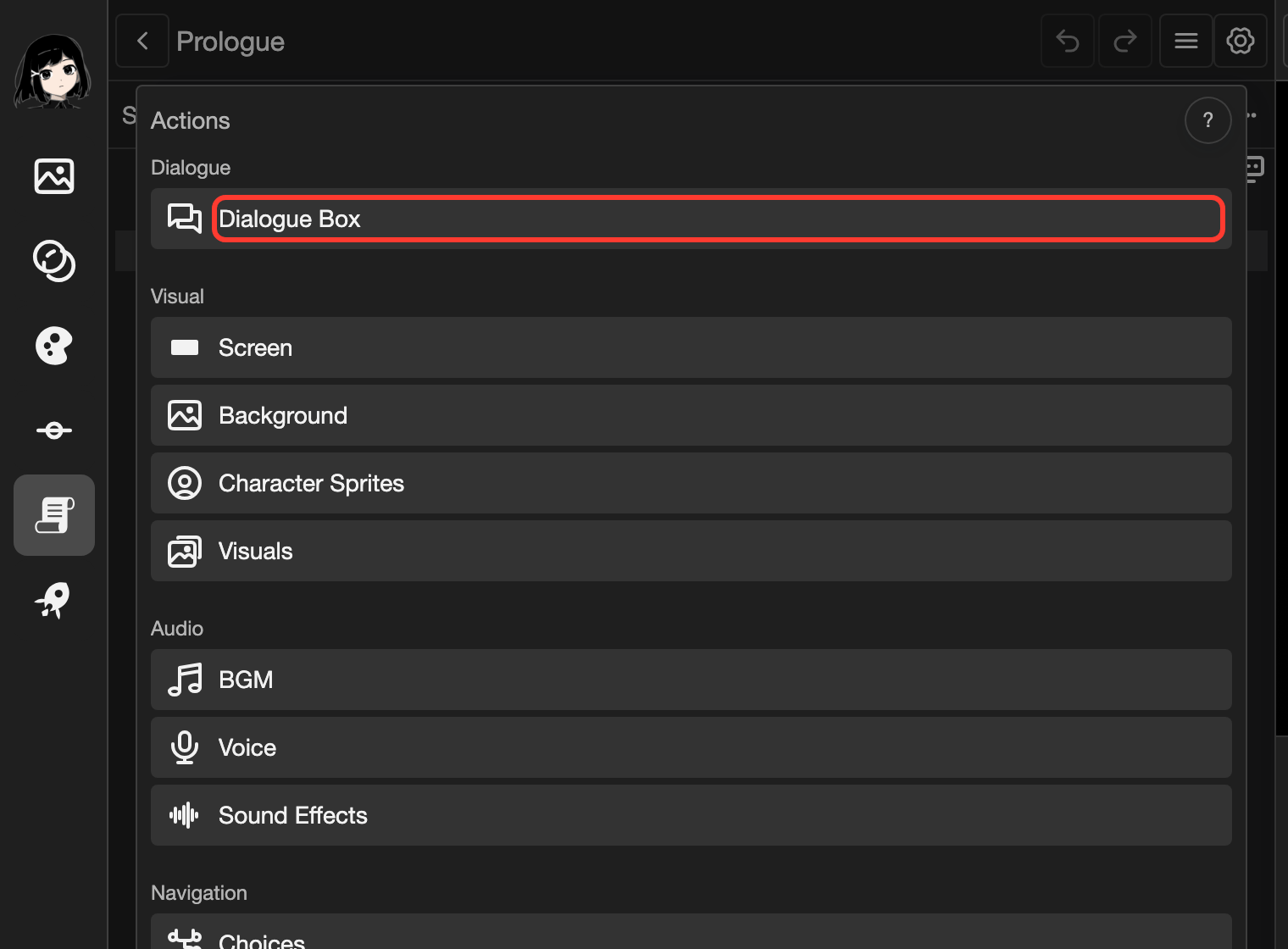
The Actions menu opens.
-
Under Dialogue, tap Dialogue Box.
-
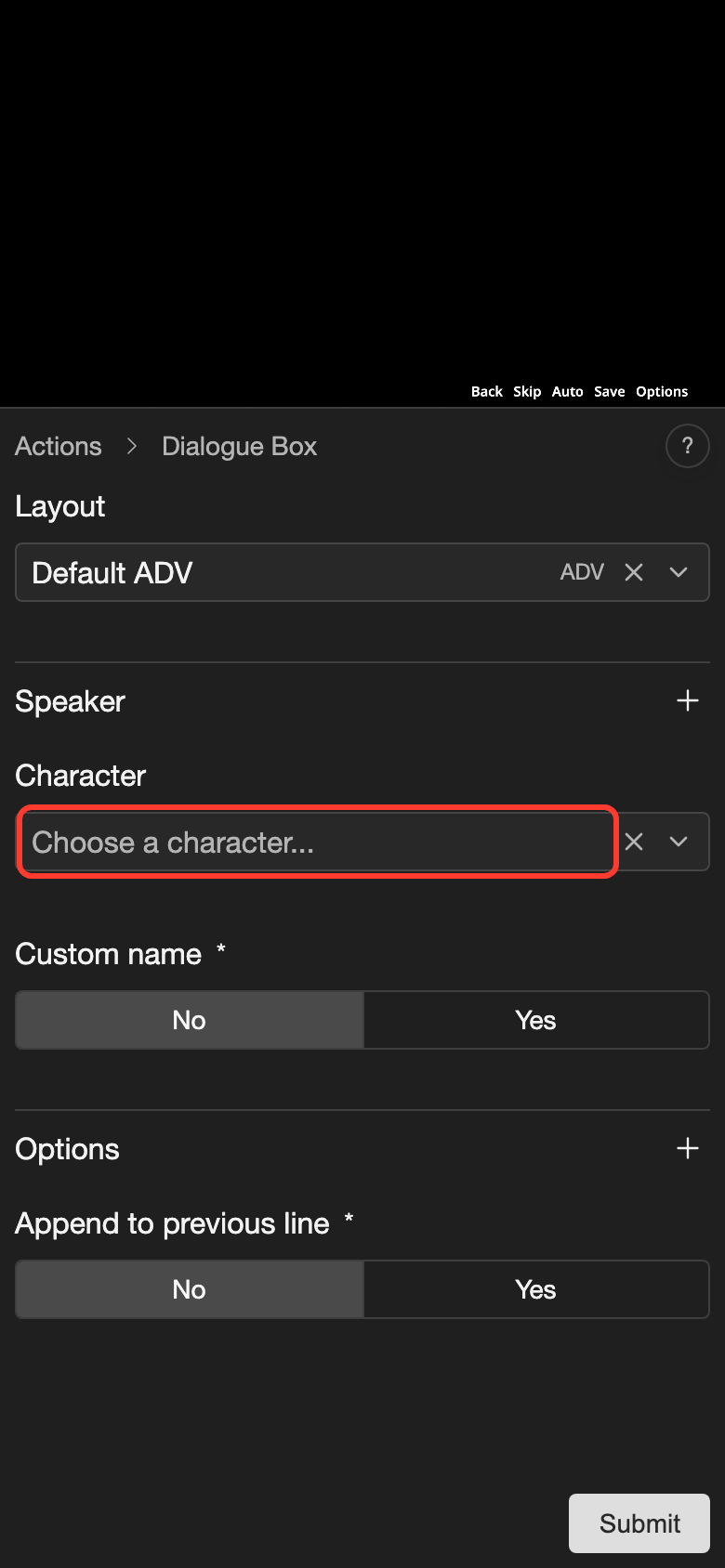
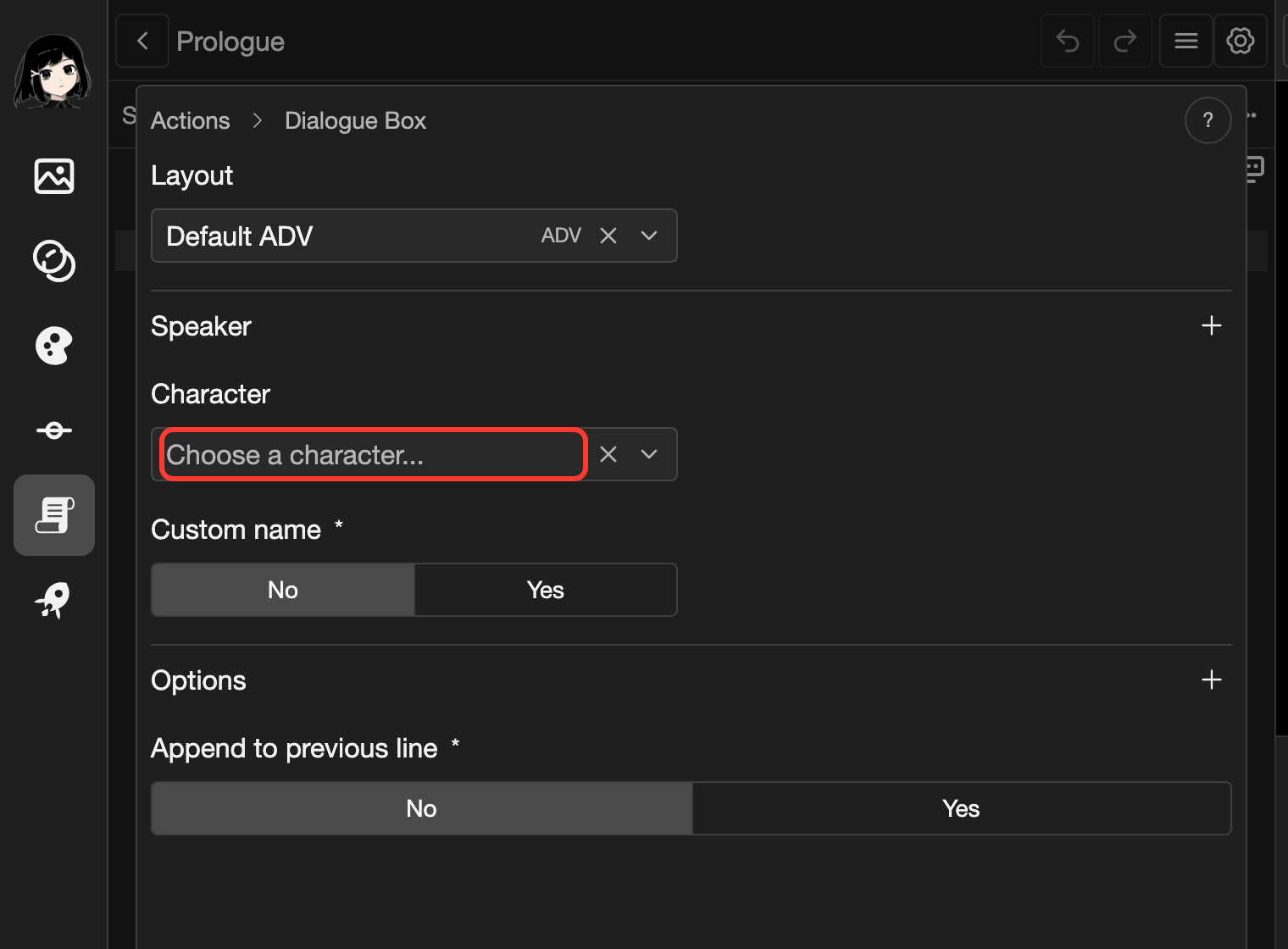
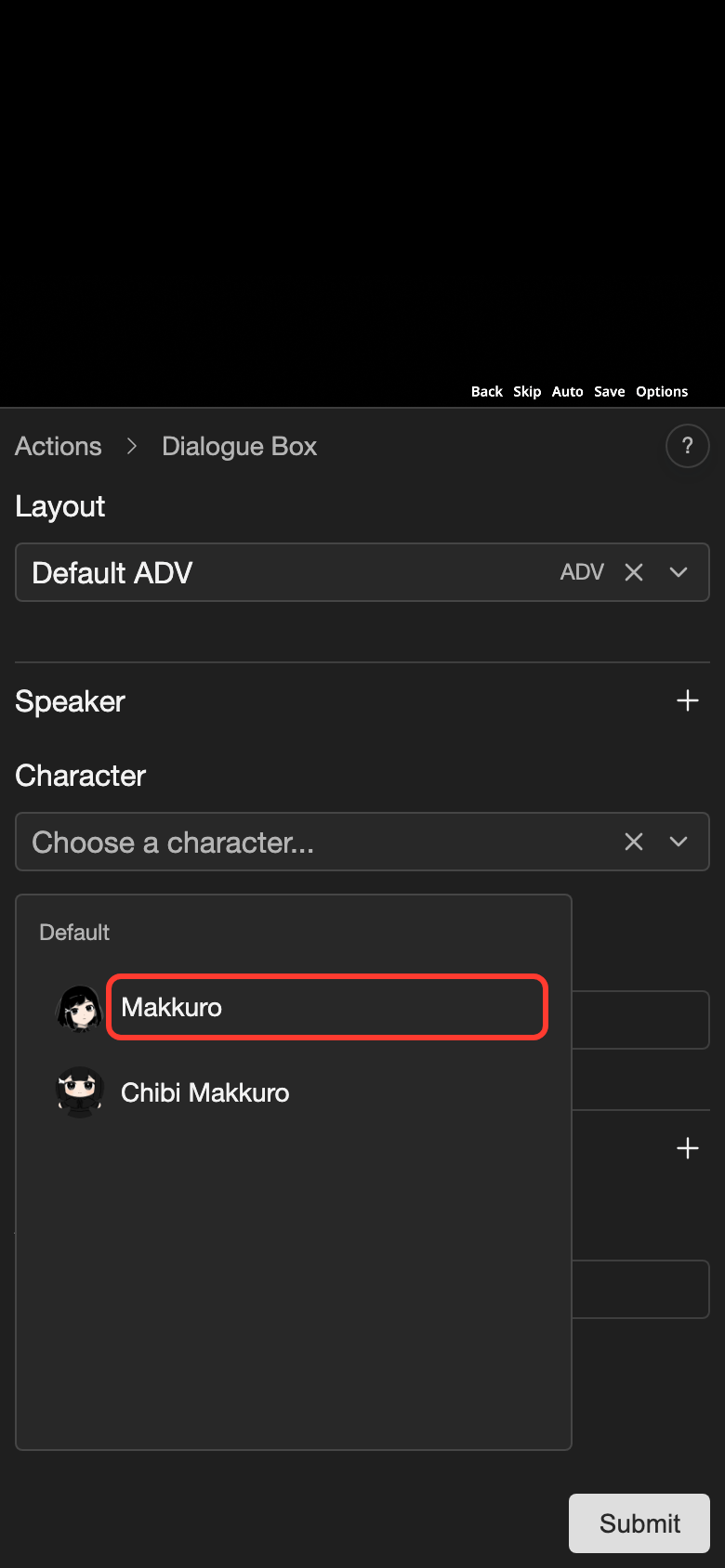
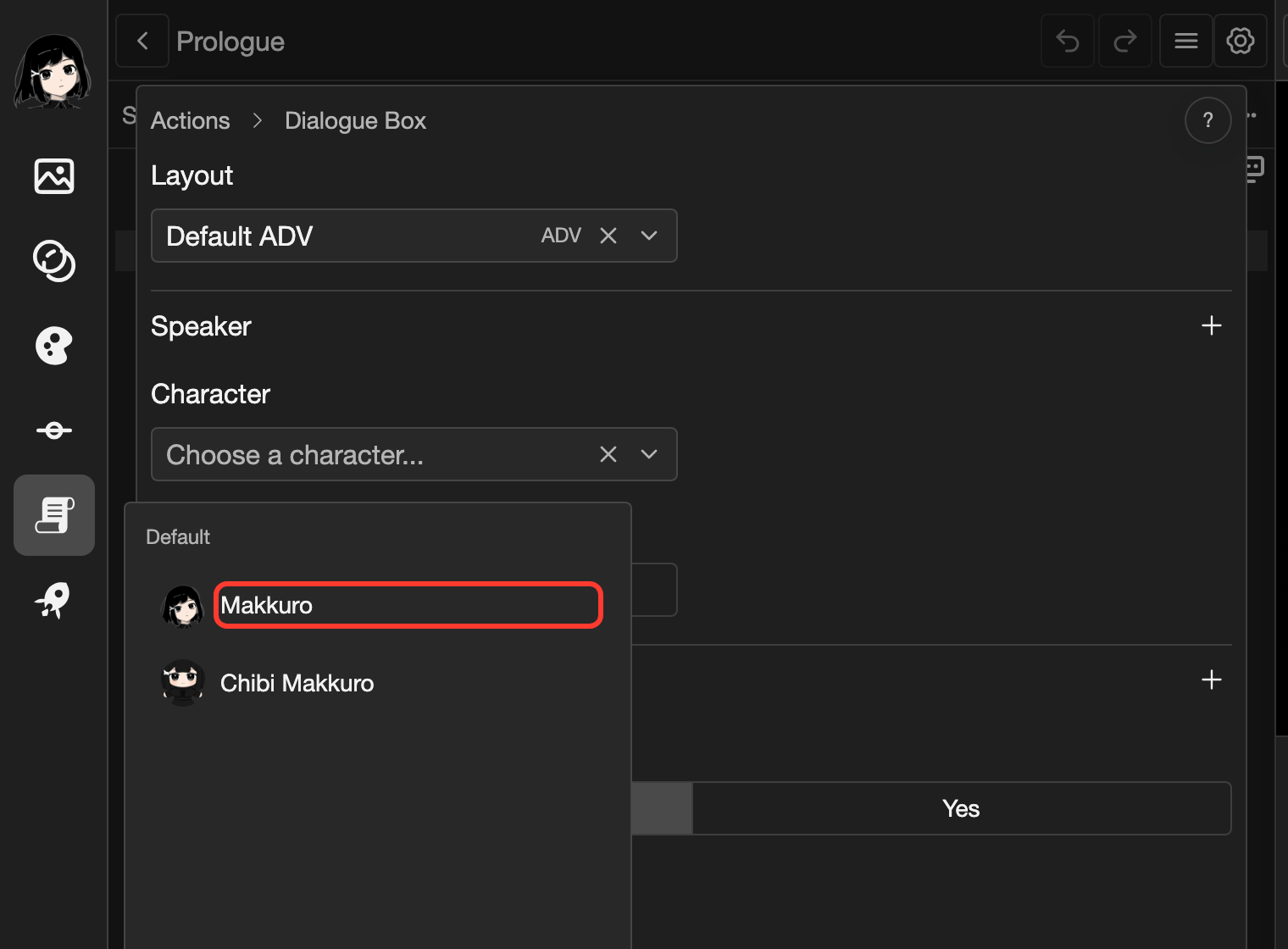
Under Speaker, tap the Character field. It says "Choose a character...".
-
Tap Makkuro.
-
Tap Submit.
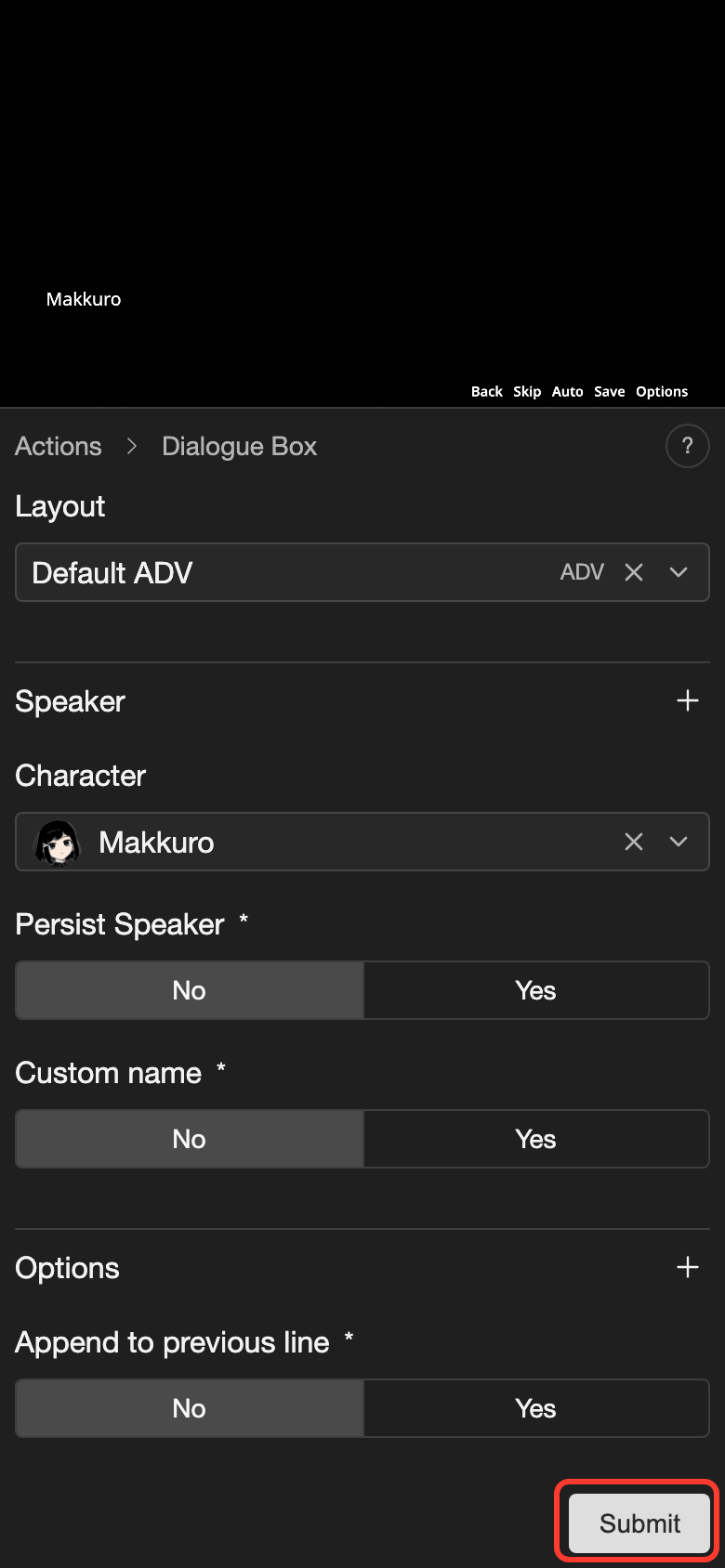
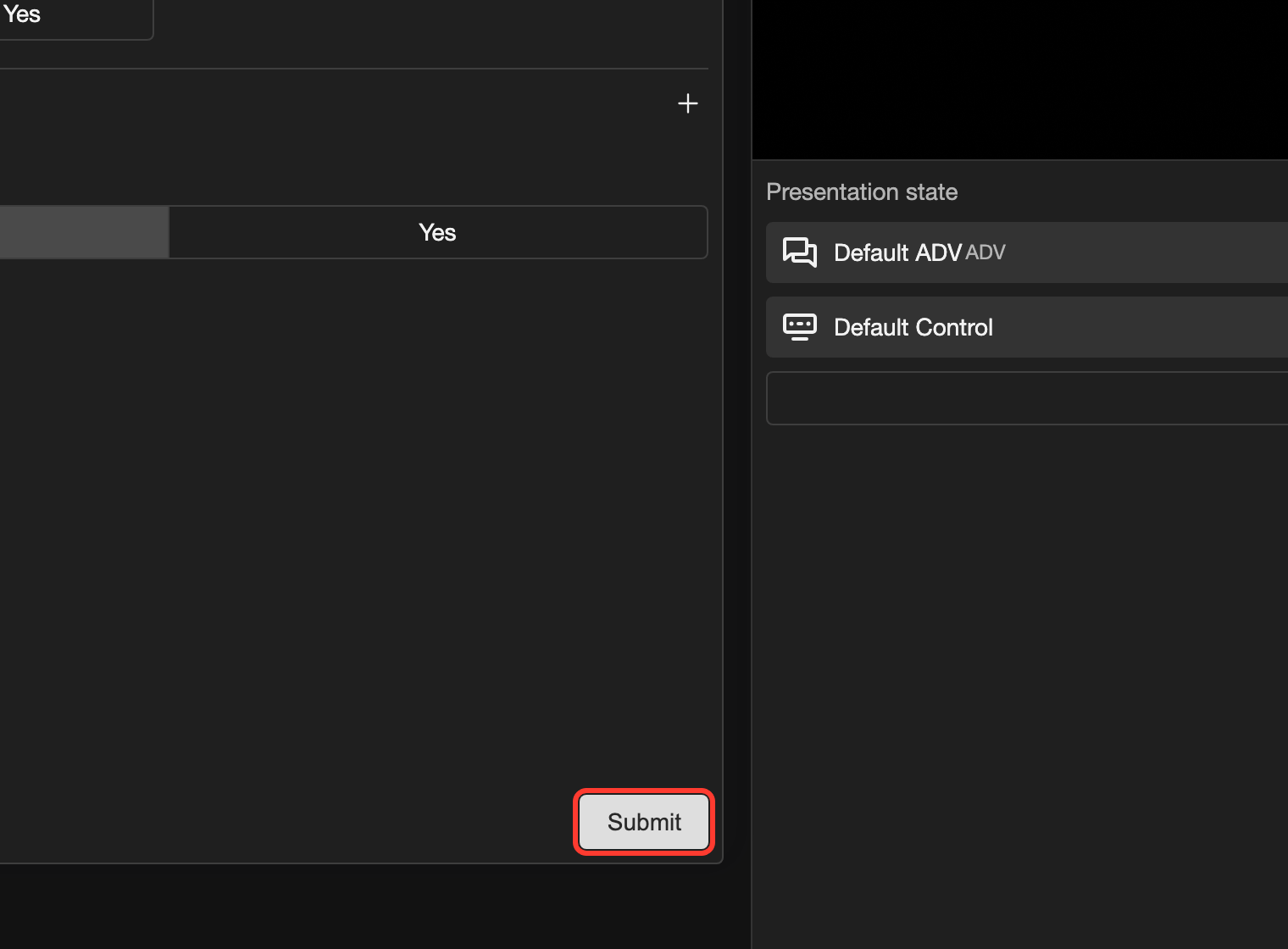
The line now has Makkuro as its speaker. The avatar of Makkuro shows in the line, between the line number and the line text.
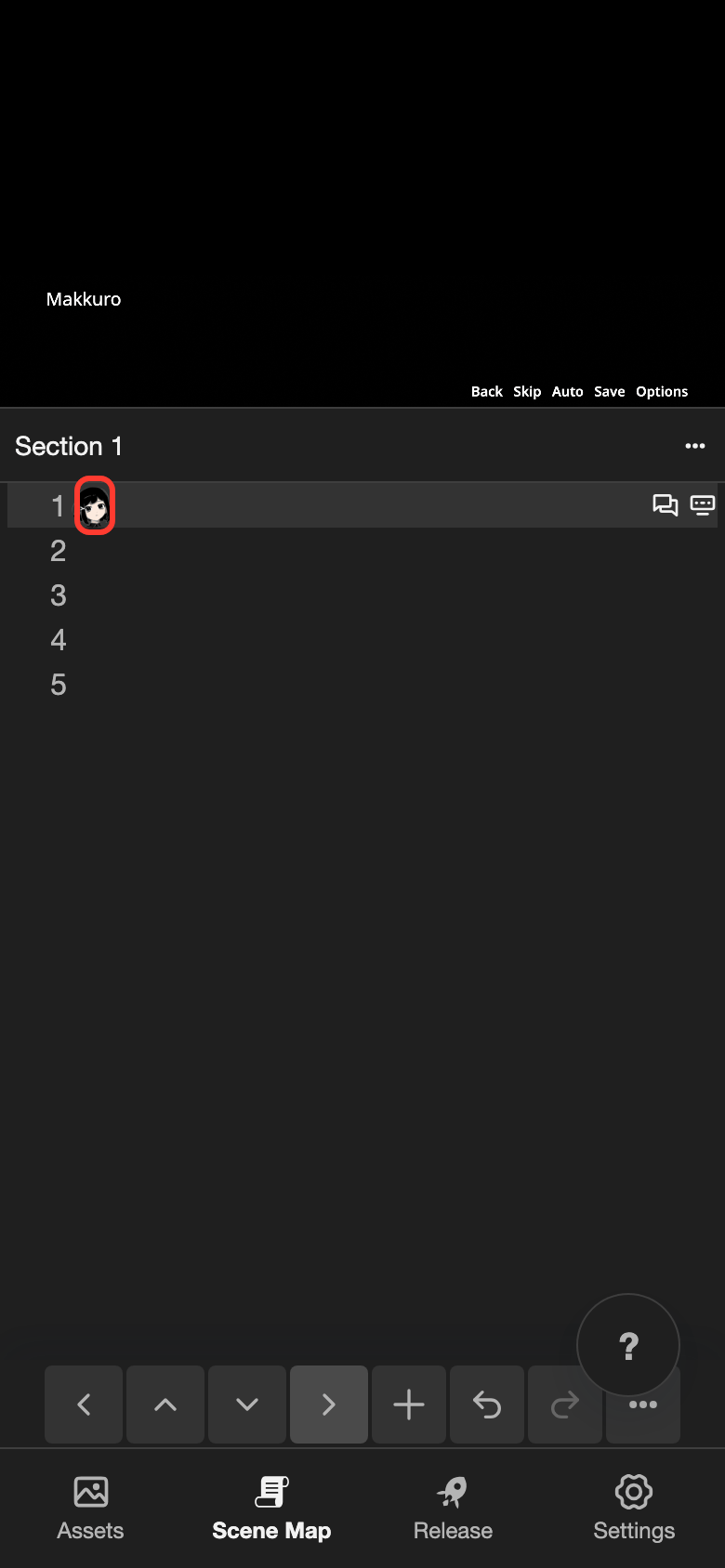
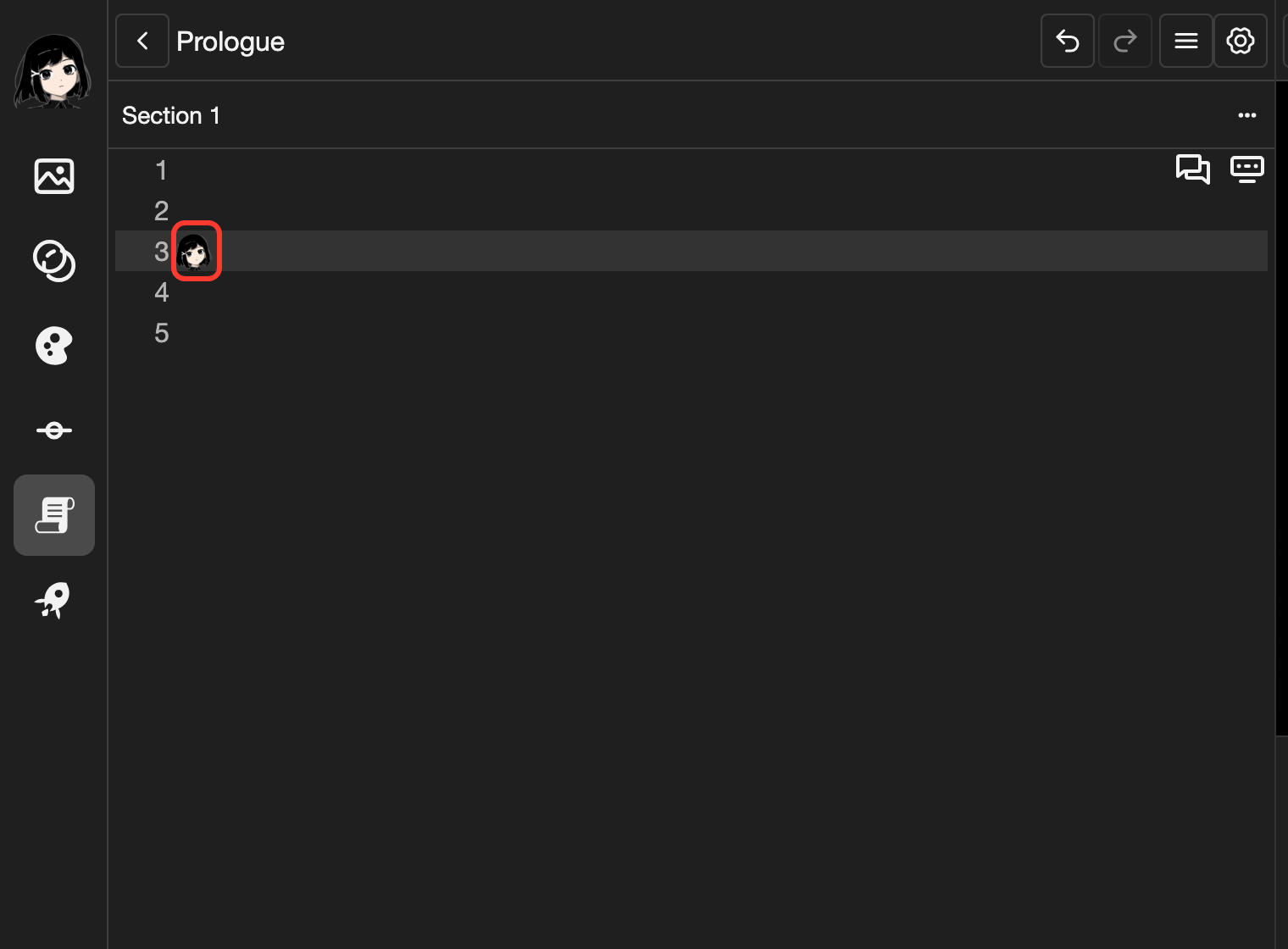
To change the speaker, open the line and choose another character.
Good to know
- The avatar helps you find the character in the editor. It shows in the character lists and next to lines that the character speaks.
- Name is the default speaker name. You can change the name for one line in the Dialogue Box form with Custom name.
Problems and fixes
- The Characters page is empty. Tap Add to create your first character. See Create a character.