Web Server
Web Server lets you read your Web export in a browser on your own device. Use it to test your visual novel before you upload it.
This works only in the desktop app (Windows, macOS, and Linux). Phones, tablets, and the web version cannot start a server.
Open Web Server
-
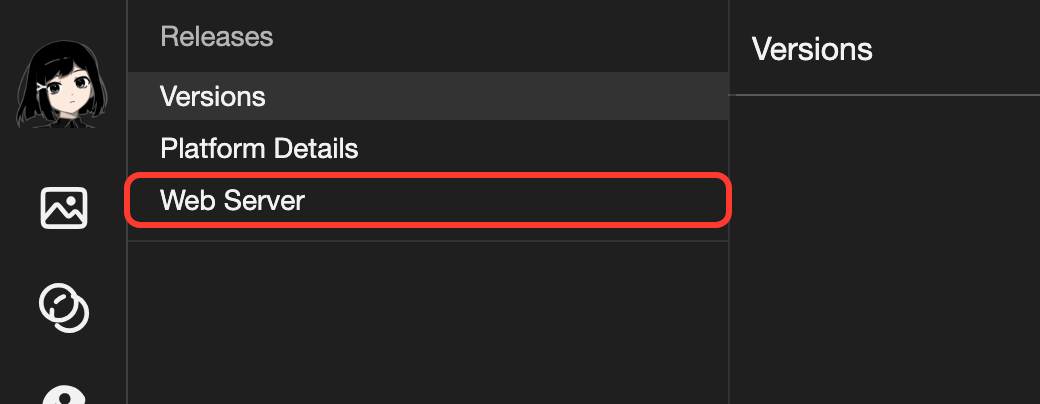
In the left bar, click the rocket button. The Releases list opens.
-
In the list, click Web Server.
Start a server
First, export your visual novel for Web. See Web. You get a ZIP file.
-
Unzip the ZIP file. You get a folder with
index.htmlinside. -
On the Web Server page, click Add in the top right.

-
A folder window opens. Choose the folder that holds
index.html. Then confirm your choice.
The server starts. A new item shows the folder name, Status: Running, and the URL.
Open your visual novel
-
On the server item, click Open URL.
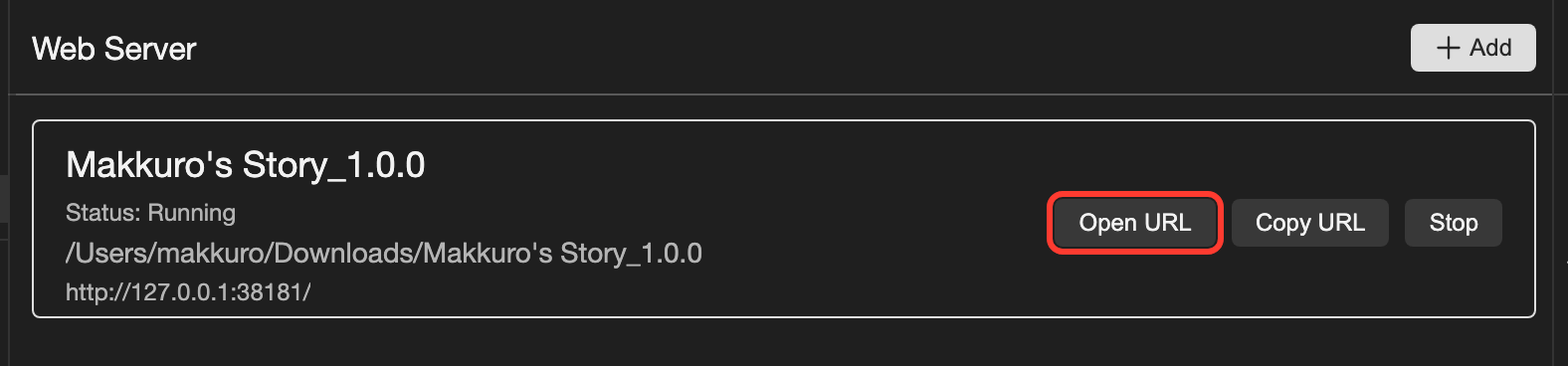
Your visual novel opens in your web browser.
To use another browser, click Copy URL. Then paste the URL in the address bar of that browser.
Stop and start a server
| Button | What it does |
|---|---|
| Open URL | Opens your visual novel in your web browser. |
| Copy URL | Copies the URL. |
| Stop | Stops the server. The item then says Status: Stopped. |
| Start | Starts a stopped server again. The URL can change. |
Open URL and Copy URL show only while the server runs. To see the same buttons on the right, click the item.
Good to know
- The URL works only on your own device. Other people cannot open it.
- The server stops when you close RouteVN Creator.
Problems and fixes
- Selected folder must contain an index.html file. You chose a folder without
index.htmlinside. If the folder holds another folder, open it and choose that one. - That folder is already being served. A server for this folder is already running. Click Open URL on its item.