Publish on itch.io
itch.io is a website where people share what they make. This page shows how to upload your export to it.
itch.io can change its pages. For every step on itch.io, see itch.io's own guide.
What you need
- An itch.io account
- An export of your visual novel. See Export Overview.
| Your export | How people get it on itch.io |
|---|---|
| Web (ZIP file) | They read it in the browser. |
| Windows (EXE file) | They download it. |
| macOS (app in a ZIP file) | They download it. |
| Android (APK file) | They download it. |
Publish a Web export
Use your Web export. It is a ZIP file. Do not unzip it.
-
On itch.io, create a new project. You can also edit a project that you already have.
-
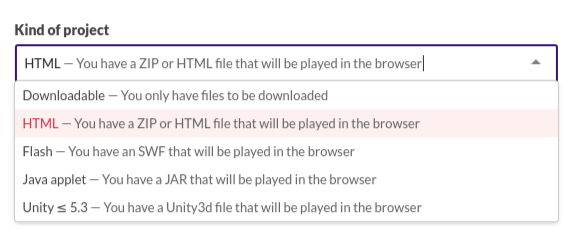
In Kind of project, choose HTML.
-
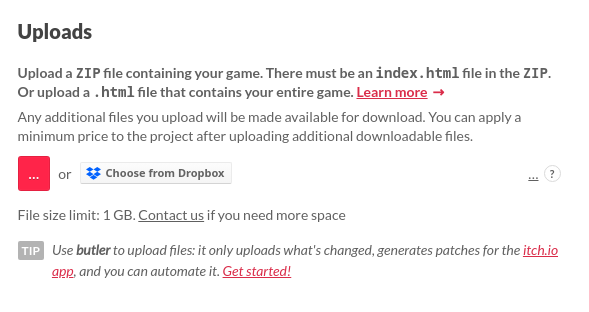
In the upload section, upload the whole ZIP file.
-
After the upload, find the new Embed options section.
-
In Embed options, choose how itch.io shows your visual novel:
- Embed in page: you type the size of the window.
- Click to launch in fullscreen: you do not type a size.
-
Preview your visual novel on itch.io.
The first time, itch.io needs a moment to process the ZIP file.
Publish a download
Use your Windows, macOS, or Android export.
- On itch.io, create a new project. You can also edit a project that you already have.
- In Kind of project, choose Downloadable.
- In the upload section, upload your file.
- For Windows, upload the EXE file.
- For macOS, upload the ZIP file as it is.
- For Android, upload the APK file, not an App Bundle. Readers cannot install an App Bundle.
Update your visual novel
- In RouteVN Creator, create a new version. See Versions.
- Export it again.
- On itch.io, open the edit page of your project.
- Upload the new file. Then remove the old file.
Readers keep their saves when you keep the same identifier.
Good to know
- A Web export on itch.io can have at most 1,000 files after unzipping.
- All files together can be at most 500 MB. One file can be at most 200 MB.
- Your
package.binis one file, so keep it under 200 MB.