Set Up Anki
Prepare Desktop Anki
- Install and open desktop Anki.
- In Anki, open Tools → Add-ons.
- Select Get Add-ons.
- Enter the AnkiConnect add-on code, 2055492159, and confirm the installation.
- Restart Anki. It must stay open while you save words.
Please see the Anki manual for more information on installing add-ons.
Install Lapis and Choose a Deck
RouteVN Web Extractor supports only the Lapis note type. We chose this note type because of its comprehensive features. A note type defines the fields that hold the word, definition, and sentence. Please don’t confuse this with a deck, which is simply a group of cards.
- Download the example deck from the Lapis releases page.
- In desktop Anki, use File → Import to import the downloaded deck and install the Lapis note type.
- Choose a deck in Anki to store your vocabulary and note its name for the extension settings below. Alternatively, you can use the Lapis deck that is created automatically. Feel free to rename it.
Connect the Extension
- Open the extension’s Settings.
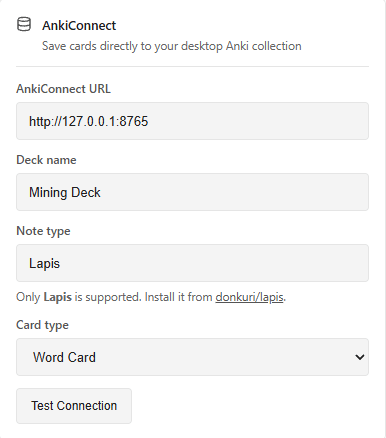
- Scroll down to the AnkiConnect section.
- Leave the AnkiConnect URL as http://127.0.0.1:8765 unless you changed it in AnkiConnect's configuration.
- Enter the precise Deck Name you want to save your words to.
- Choose a card type using the descriptions below.
- Select Test Connection and check the result. It should say Connected! Lapis note type ready (v6) if everything went well.
Card Type
The card type determines what you see on the front of a card during review. The options are:
- Word Card – Shows only the saved word on the front of the card.
- Click Card – Shows the word on the front of the card and reveals the sentence when you click the word. You can distinguish a Click Card from a Word Card by its dotted underline.
- Sentence Card – Shows the full sentence containing the word so you can review it in context.
- Word and Sentence Card – Shows the word with the sentence below it as a hint.
The extension follows Lapis’s card type settings. Start with a Word Card if you’re unsure. If you’d like a middle ground between Word Cards and Sentence Cards, use a Click Card.
Use a Sentence Card or Word and Sentence Card if you want to review words in context, but keep in mind that you may end up memorizing the meaning of the sentence instead of the target word.
Save Your First Word
- Open Anki and keep it running while you read. Otherwise, you won’t be able to save words.
- Hover over a word to lookup its definition.
- Select + in the popup.
- Wait for the save confirmation.
- The word is now saved to your Anki deck. You can review it later.
Troubleshooting
Test Connection Fails
- Anki must be running in the background.
- AnkiConnect must be installed and enabled. Restart Anki after installation.
- The AnkiConnect URL must match the add-on configuration.
Connected, but Lapis Is Not Installed
- Follow Install Lapis and Choose a Deck.
- Then return to Settings and select Test Connection again.
Connected, but Saving Fails
- Lapis must still be installed in Anki under its original name.
- The Deck Name must match the deck where you want to save your vocabulary.
If the problem continues, contact us with the error message and your Lapis version.