Using the Dictionary
This guide covers the more advanced features for using the extension’s dictionary. Before you proceed, please read the Getting Started guide to learn how to install the extension and look up your first word.
Review Earlier Dialogue
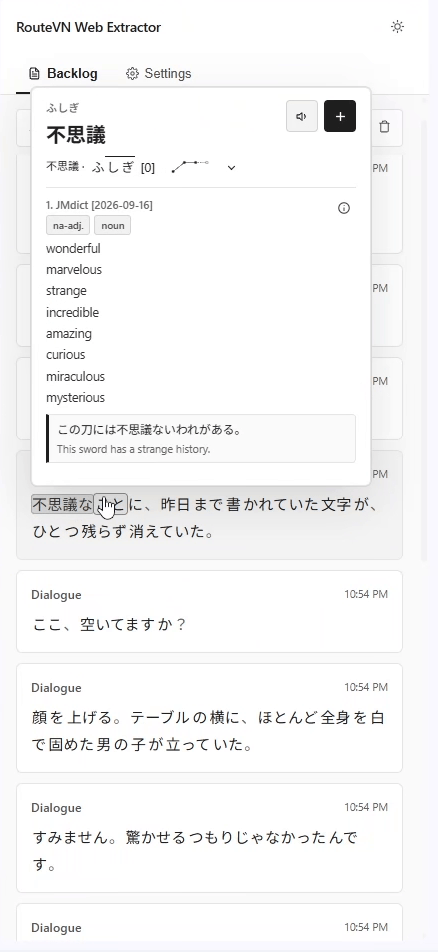
The backlog contains dialogue captured while the extension was running. New lines will appear in real time as you advance through the game.
- Click the RouteVN Web Extractor icon in your browser's Extensions menu.
- Select Open Side Panel if it is not already open.
- You’ll be redirected to the backlog page. You can read previous dialogue lines here, including dialogue from visual novels you previously read.
- Use the search field if you want to go back to a specific line.
- Hover over a word in that line to look up its definitions.
Open Settings
- Click the RouteVN Web Extractor icon in your browser's Extensions menu.
- Select Open Side Panel if it is not already open.
- Select Settings.
Settings are saved automatically.
Change the Lookup Control
- Open Settings.
- Under Dictionary & Language, find Look up words.
- Choose Hover, Shift + Hover, Ctrl / Cmd + Hover, or Alt + Hover.
- Return to the game and hover over a word, holding your selected key if needed.
Add or Change Dictionaries
You can download more dictionaries after setup from the Settings page.
- Open Settings.
- Under Dictionary & Language, choose the reading language of your game.
- Choose the Definition language you want word meanings displayed in.
- Select Add dictionary. Keep the side panel open while it downloads and installs.
- Wait for Ready! That’s how you know it’s done.
- Under Installed dictionaries, check that the dictionary is enabled. Repeat these steps to add another dictionary.
- If installation fails, check that you have a stable internet connection and try adding the dictionary again.
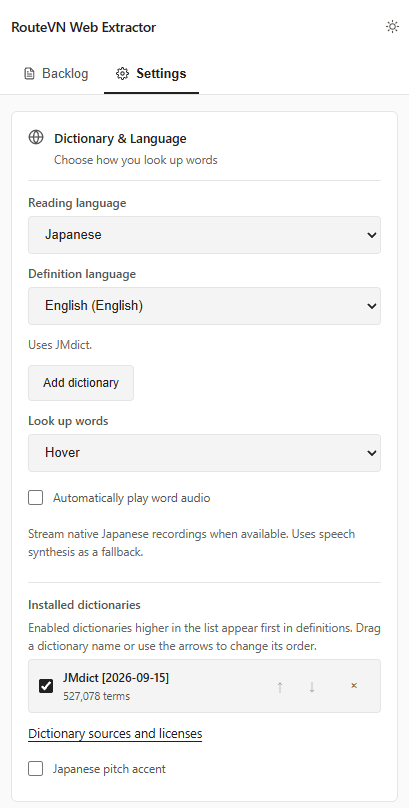
If you’d like to learn more about the dictionaries used in the extension, visit the Dictionary Sources and Licenses page in Settings.
Rearrange Dictionary Order
A dictionary's sorting order determines the order in which its definitions appear. You don’t need to worry about this if you only have one dictionary, but if you have multiple dictionaries installed and want to change their order, follow the instructions below.
- Open Settings and find Installed dictionaries under Dictionary & Language.
- Drag dictionaries up or down to change their order. The up and down buttons on the right side of each dictionary do the same thing.
- Wait for Saving dictionary order… to finish before making another change.
Simply uncheck a dictionary if you want to exclude it from the definitions without uninstalling it.