Getting Started
RouteVN Web Extractor is a popup dictionary for web visual novels on novelgame.jp and itch.io. It works on games made with RouteVN, Ren'Py, and TyranoScript. You can instantly lookup definitions by hovering over words. This guide will help you get started on Chrome, Firefox, and Safari.
Install the Extension
Chrome
- Open RouteVN Web Extractor in the Chrome Web Store.
- Select Add to Chrome.
- Review the permissions and select Add extension.
- Install a dictionary (refer to the Install a Dictionary section).
- Open Chrome's Extensions menu in the toolbar.
- Pin RouteVN Web Extractor for quick access.
Firefox
- Open RouteVN Web Extractor on Firefox Add-ons.
- Select Add to Firefox.
- Review the permissions and confirm the installation.
- Install a dictionary.
- Open Firefox's Extensions menu to access RouteVN Web Extractor.
Safari
The Safari extension is available on Mac.
-
Select Get, then Install.
-
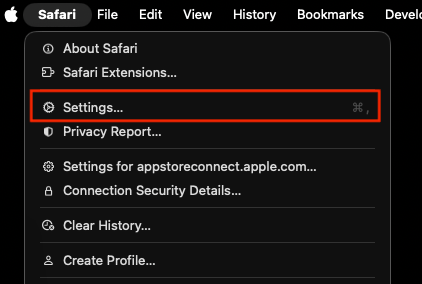
In Safari, choose Safari > Settings.
-
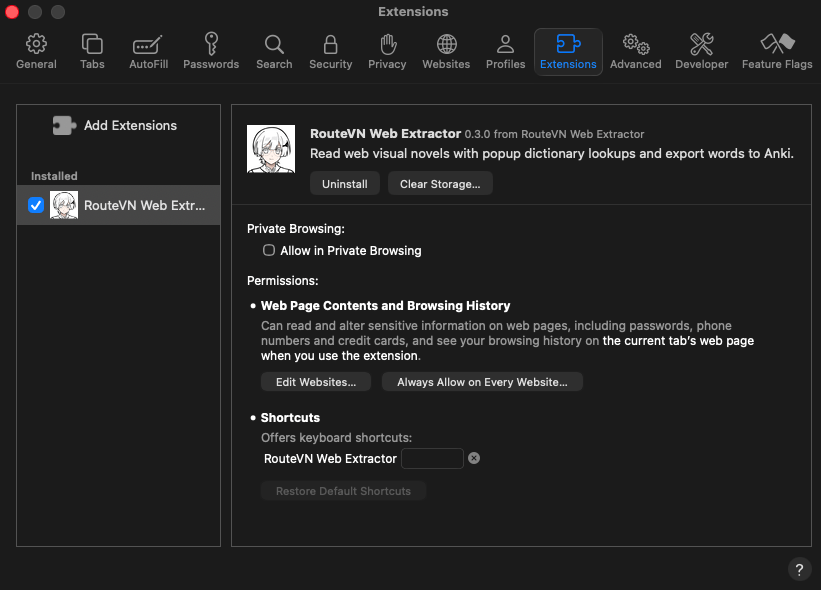
Select Extensions, then select the checkbox next to RouteVN Web Extractor.
-
Select RouteVN Web Extractor to review its permissions.
-
The onboarding opens and asks you to install a dictionary.
Install a Dictionary
Before you can lookup words, you need to install a dictionary. Our onboarding will guide you through the process:
- Reading language is the language of the visual novel: Japanese or English.
- Definition language is the language used to explain words. Available choices depend on the reading language.
For Japanese dialogue with English definitions, choose Japanese for the reading language and English for the definition language. The default reading language is Japanese. The extension will automatically choose your definition language based on your browser preferences, but feel free to change it.
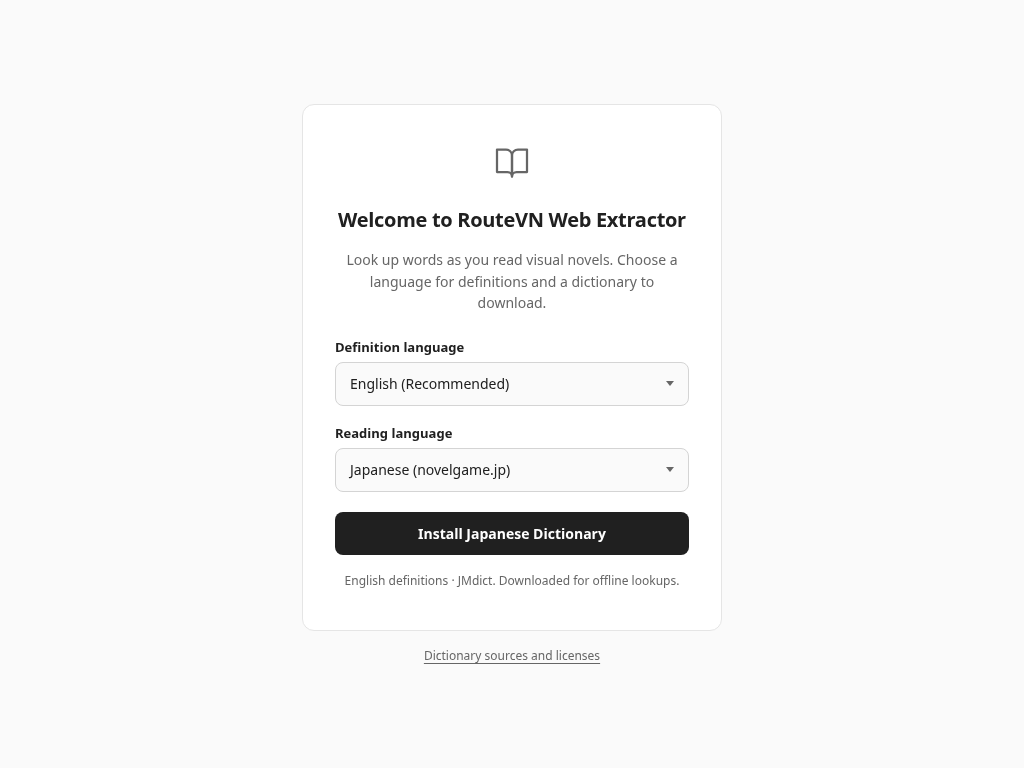
- Choose your Reading language.
- Choose your Definition language for word meanings.
- Select Install Japanese Dictionary or Install English Dictionary.
- The extension will now download the required dictionary. Keep the setup page open while it downloads and installs.
- Wait for the completion message, then select the Start Reading. This will redirect you to either itch.io or novelgame.jp depending on your reading language.
Installation may take a few minutes. The extension downloads the dictionary, unpacks its entries, and indexes them for local lookups. How long will depend on the dictionary size, your internet connection, and your device. This is a one-time setup for each dictionary.
For download errors, see Dictionary Download Fails. After setup, you can download more dictionaries, rearrange the dictionary order, or install Japanese pitch accent data.
Look Up Your First Word
The extension supports web visual novels built with RouteVN, Ren’Py, and TyranoScript. We have engineered the extension to extract as much text as possible, but some edge cases may still prevent extraction, most notably text inside images.
- Open a browser-playable visual novel on novelgame.jp or itch.io.
- Reload the game page if it was already open when you installed the extension.
- Start the game and advance until dialogue appears.
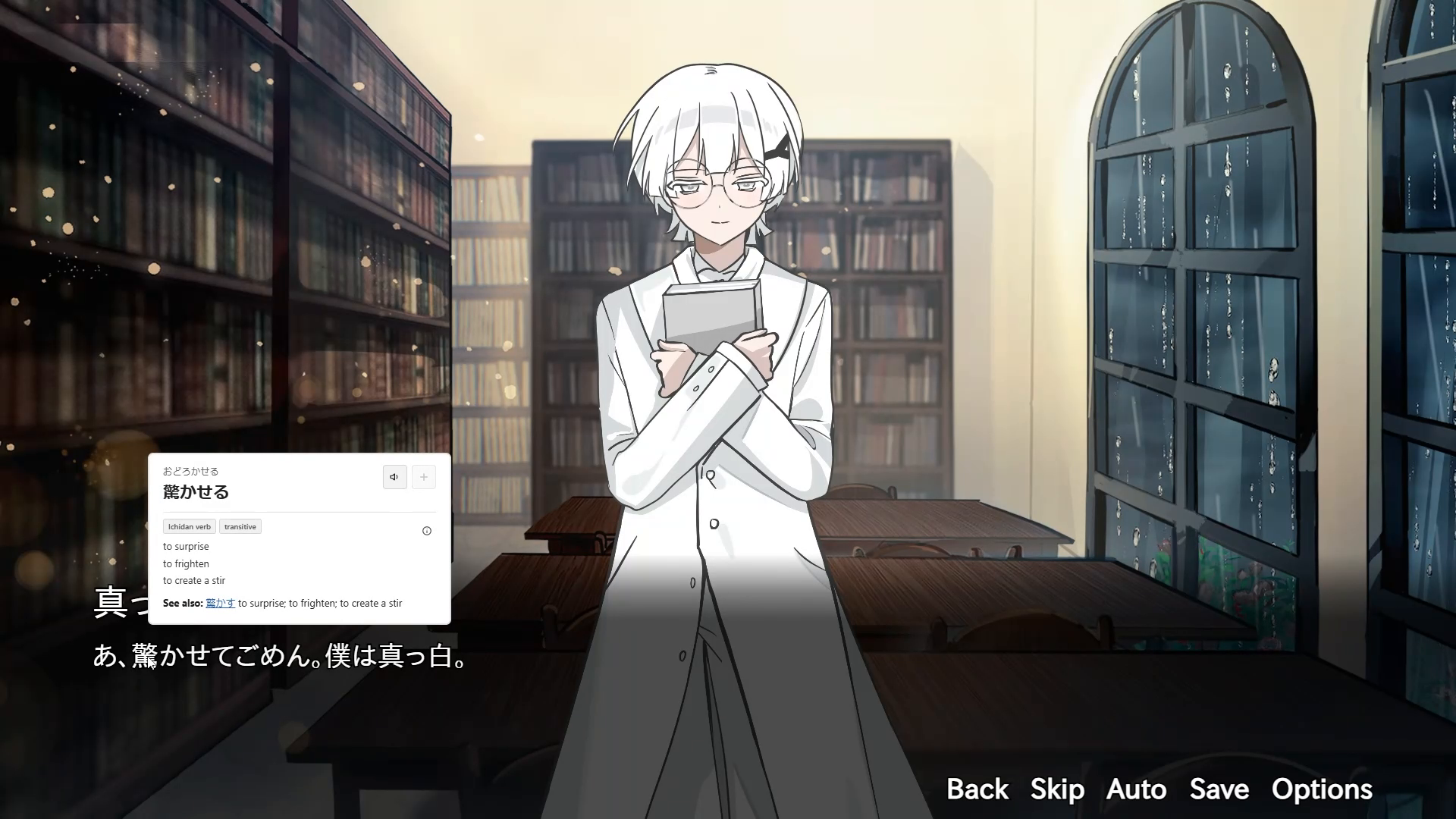
- Hover over a word in the dialogue overlay to show its definition.
See Using the Dictionary to review earlier dialogue, change lookup controls, or add dictionaries.
Save Vocab to Anki (Optional)
Anki is a flashcard app that helps you memorize vocabulary efficiently. It is not required to use our extension, but we highly recommend using it.
To set up and connect Anki, follow our Set Up Anki guide.
Troubleshooting
Dictionary Download Fails
- Check that you have a stable internet connection.
- Select Retry Download on the setup page.
- If it’s still not working, reinstall the extension or contact us.
No Definition Appears
- Extension Enabled must be turned on in the extension popup.
- If the game was opened before installation, it needs to be reloaded.
- Check that the game is running on a supported game engine. It won’t work outside of RouteVN, Ren’Py, and TyranoScript.
- A dictionary must be installed. Please see Install a Dictionary and check whether you missed a step.
- If you have installed a dictionary, make sure its reading language matches the game you want to read.
- Check whether you accidentally changed the key for looking up words. The default is hover, but if you changed it to Shift + Hover, you need to press Shift while hovering over the target word before a definition appears.
- The extension uses JMdict and Wiktionary as its dictionaries. We chose them because of their wide range of definitions. Despite this, they do not contain every expression, so please keep that in mind.
Need More Help?
Contact us with the game's URL, your browser version, the setup step that failed, and any error messages.