Choice Layout
A Choice layout shows the options that the reader picks from. The Choices action shows it.
The layout has special elements that your visual novel fills in with the words of each choice. When the reader taps a choice, the story goes on with that choice.
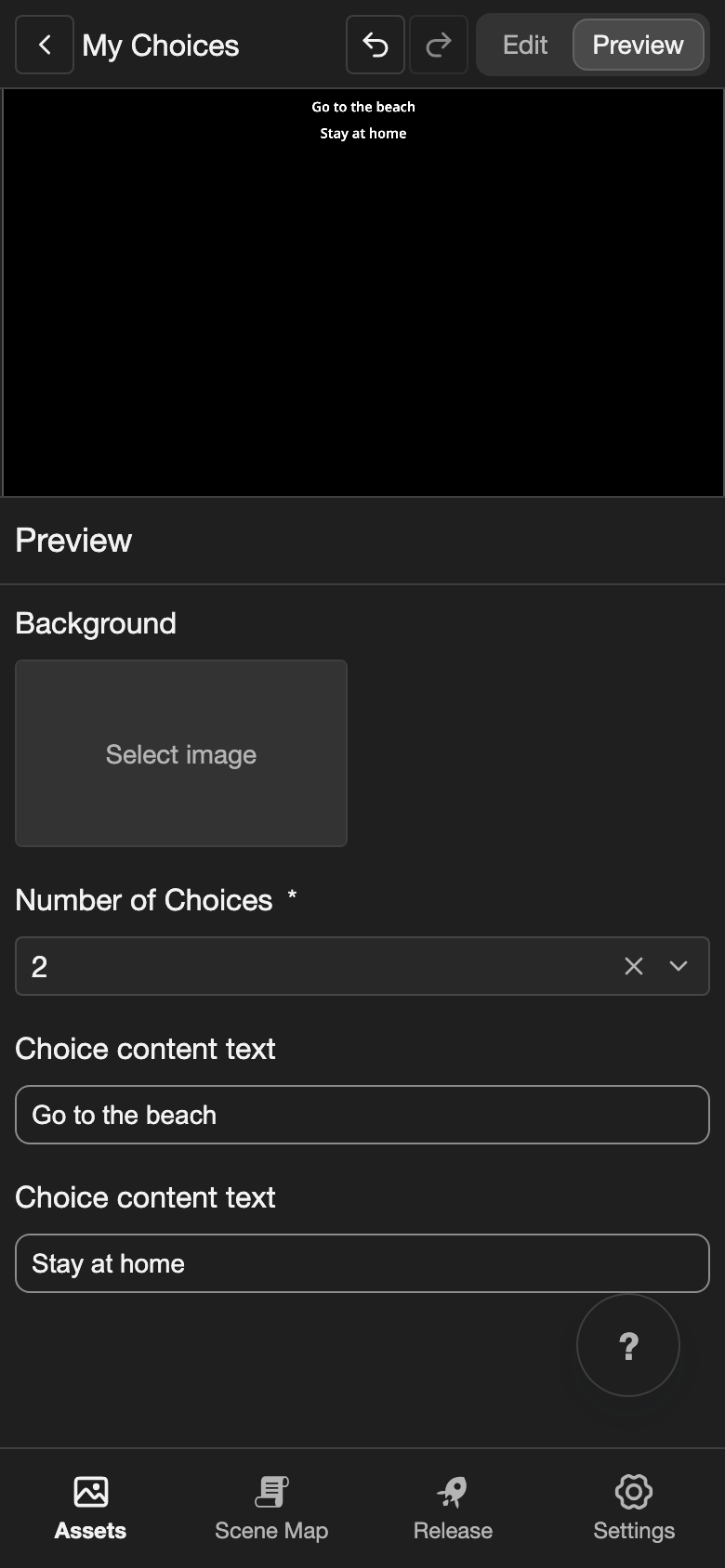
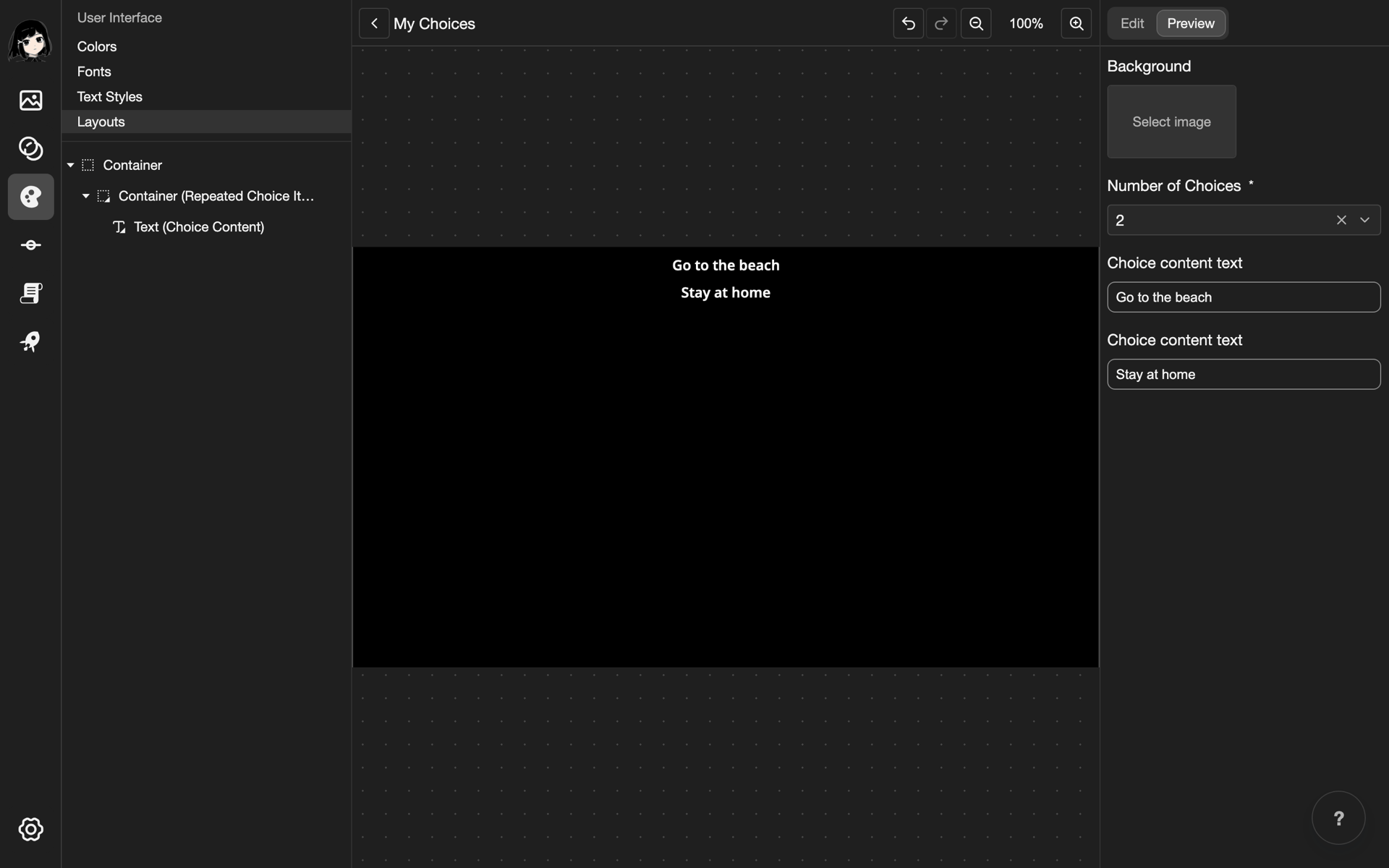
This example makes a column of choices in a new layout called My Choices.
Create the layout
- Create a layout. Under Layout Type, choose Choice. See Create a layout.
- Open the new layout. The Elements list is empty.
Add a column for the choices
The choices need a container that puts them in a column. Without it, all choices show in the same place.
- Add a Container. See Container.
- In the Elements list, tap Container. Its settings open.
- Under Layout, find Direction. Tap the right button.
Add the choice
-
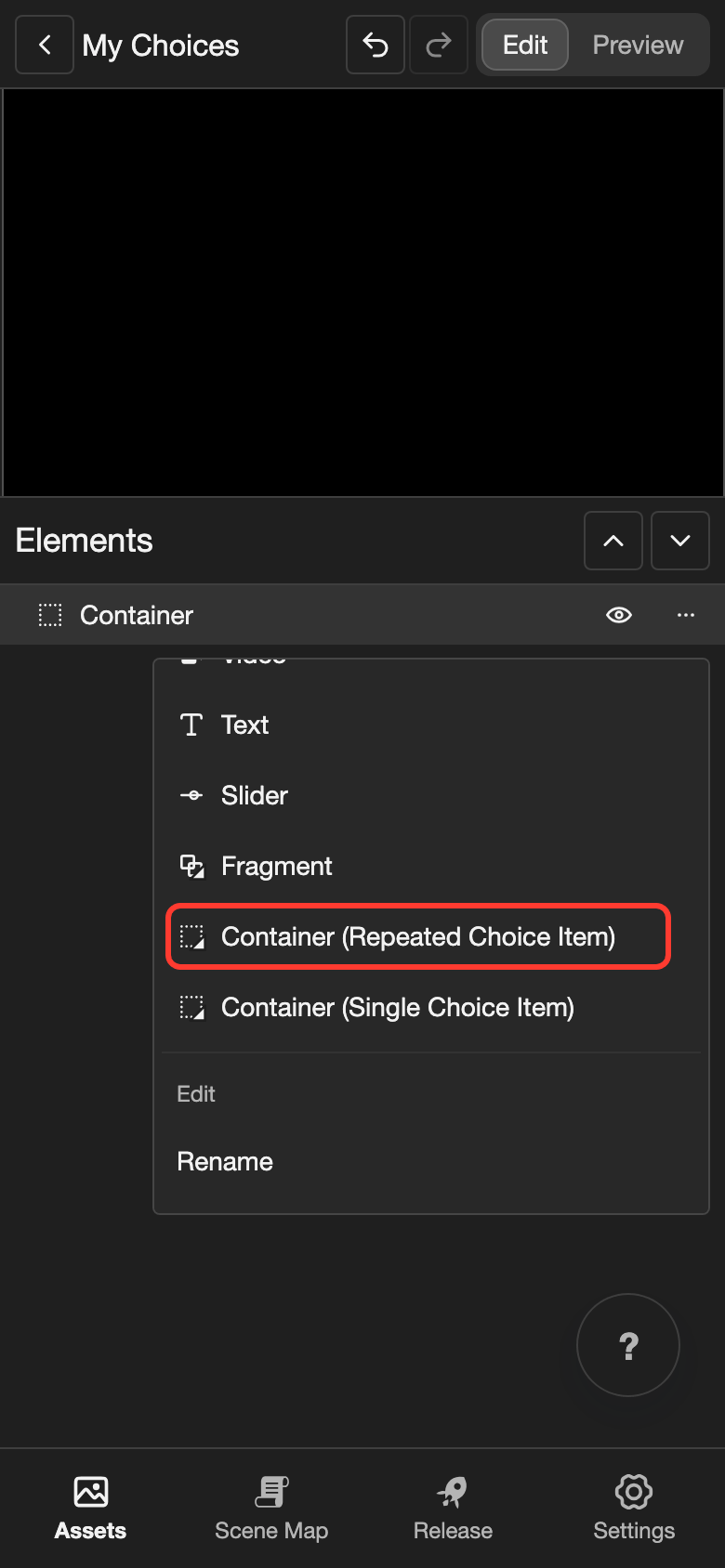
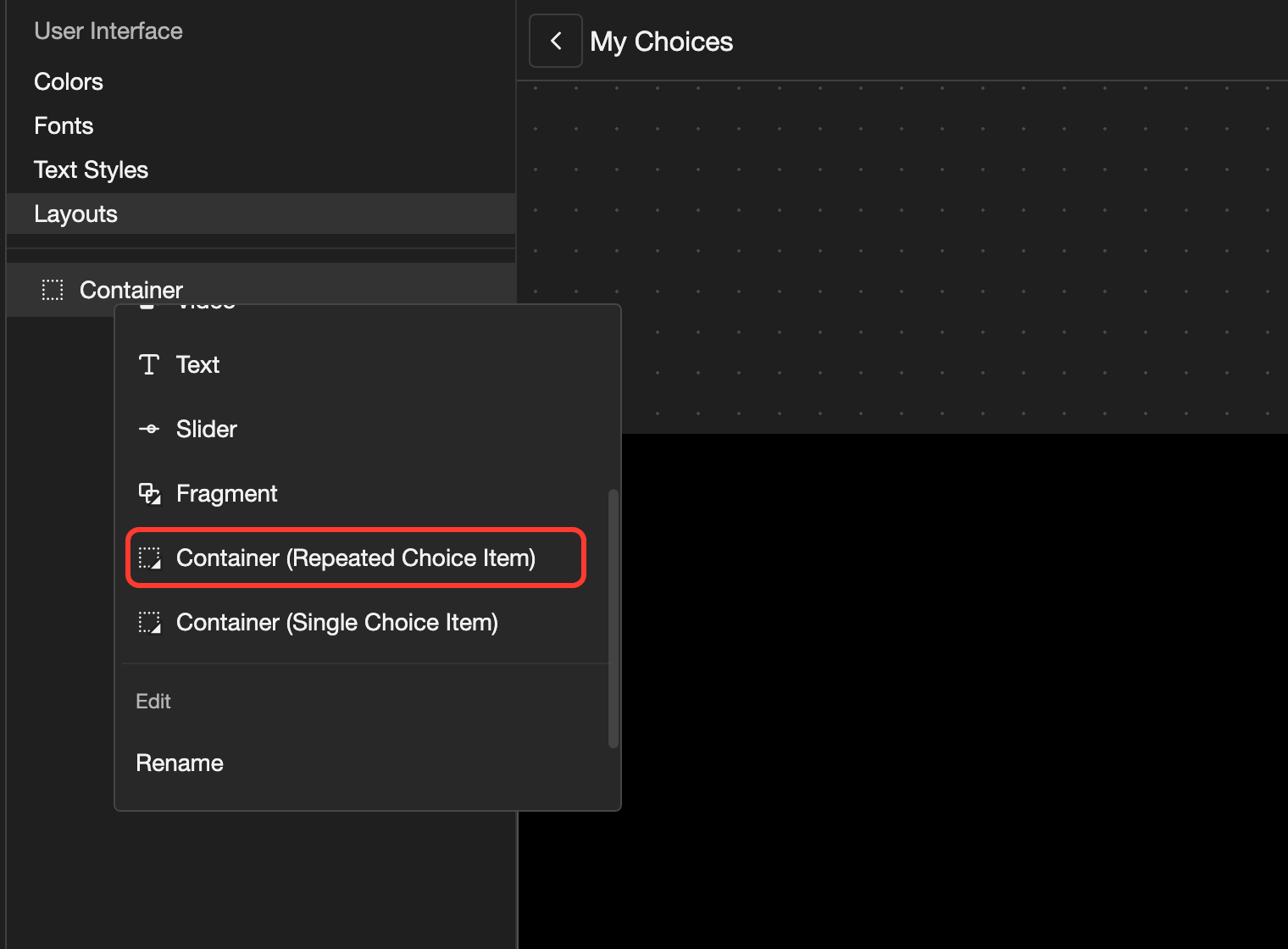
Open the menu of Container.
- Phone or tablet: In the Elements list, tap the three dots button next to Container.
- Desktop: In the Elements list, right-click Container.
-
Scroll down the menu. Tap Container (Repeated Choice Item).
-
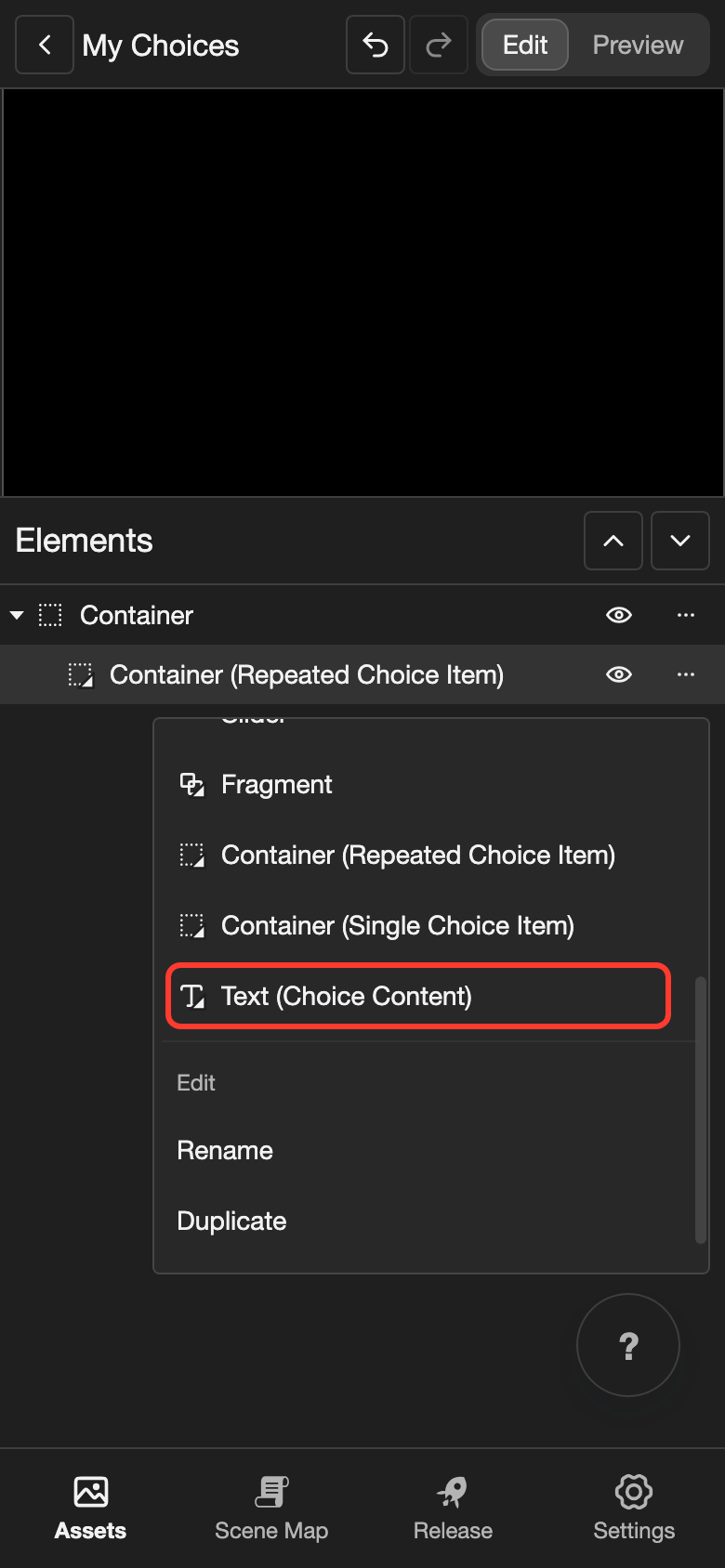
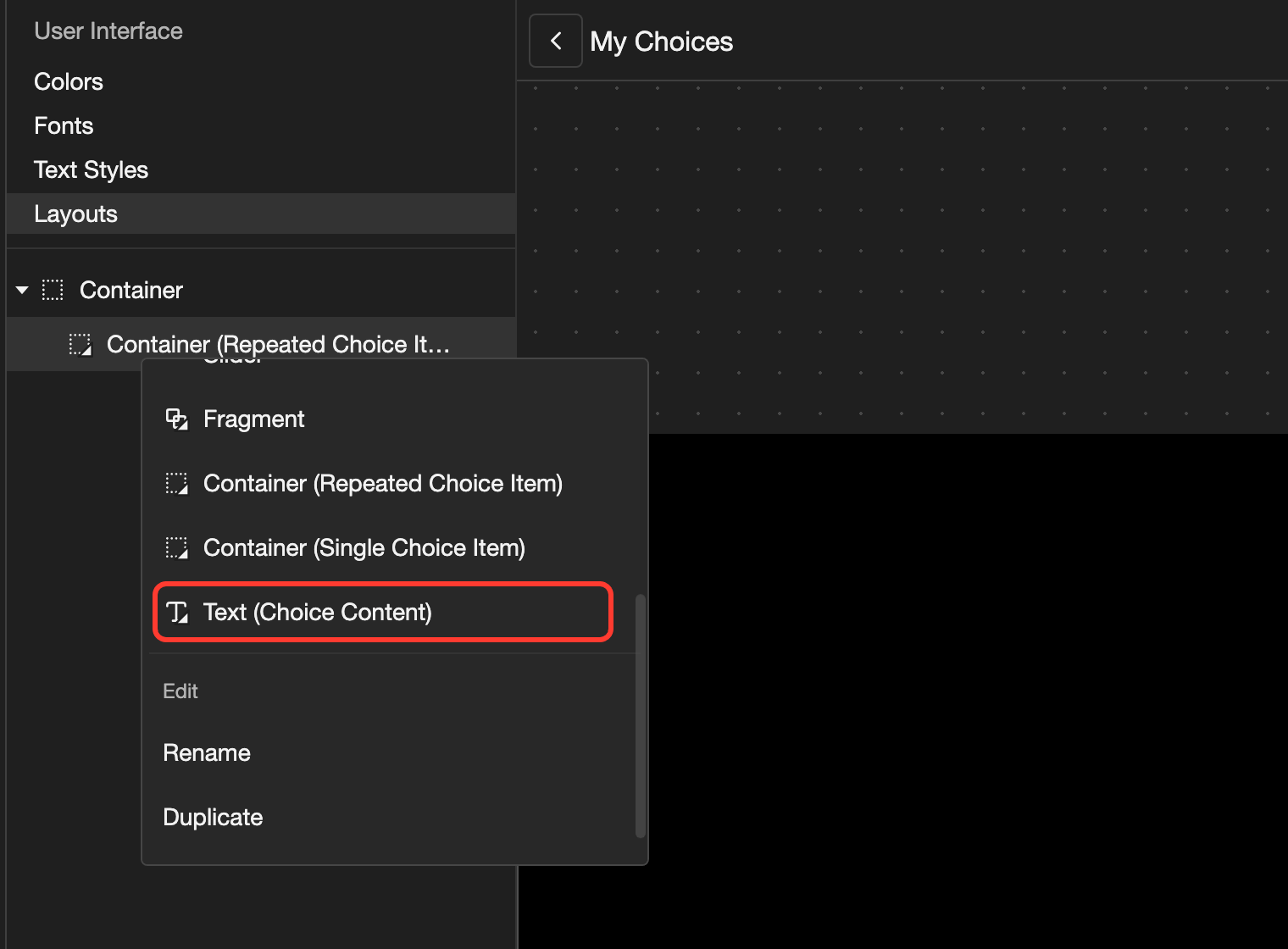
Open the menu of Container (Repeated Choice Item). Scroll down, and tap Text (Choice Content).
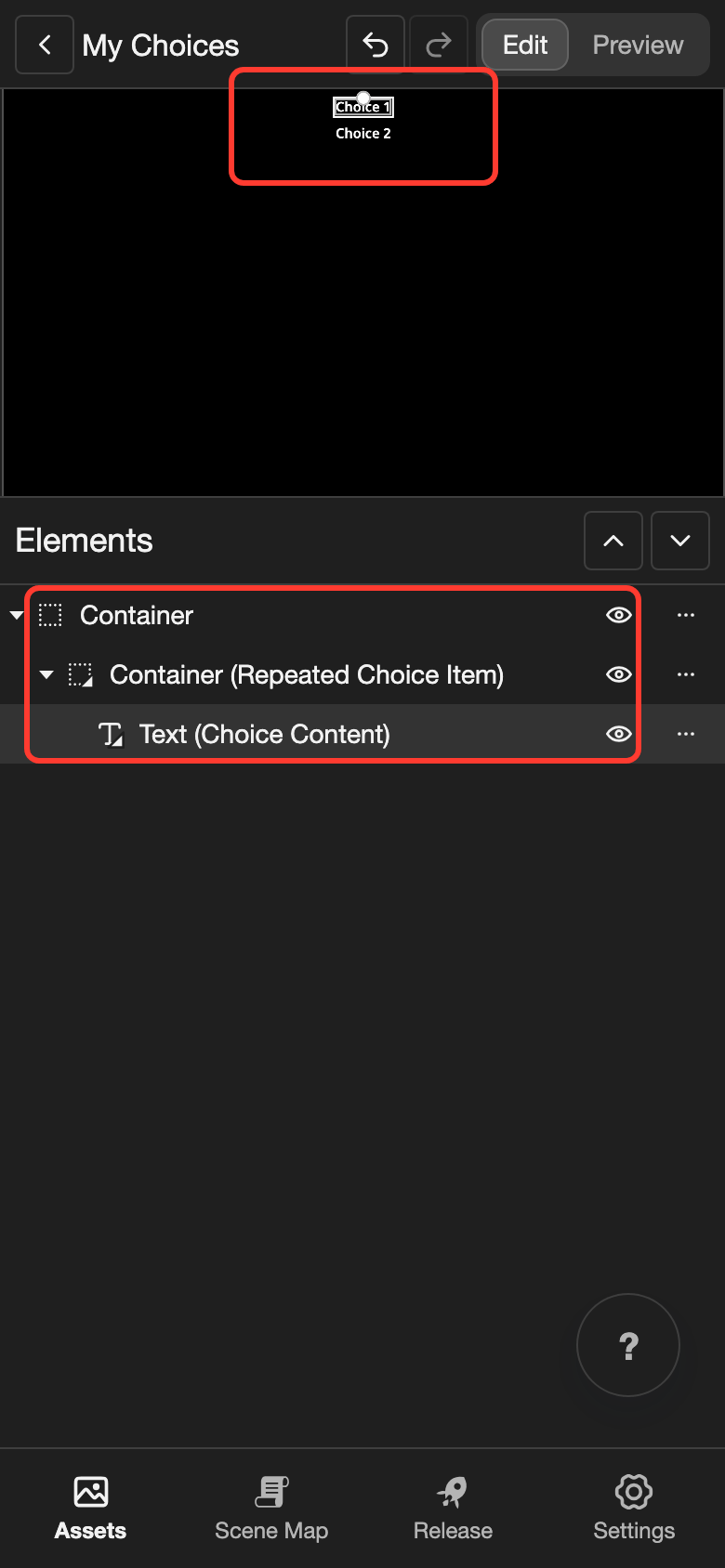
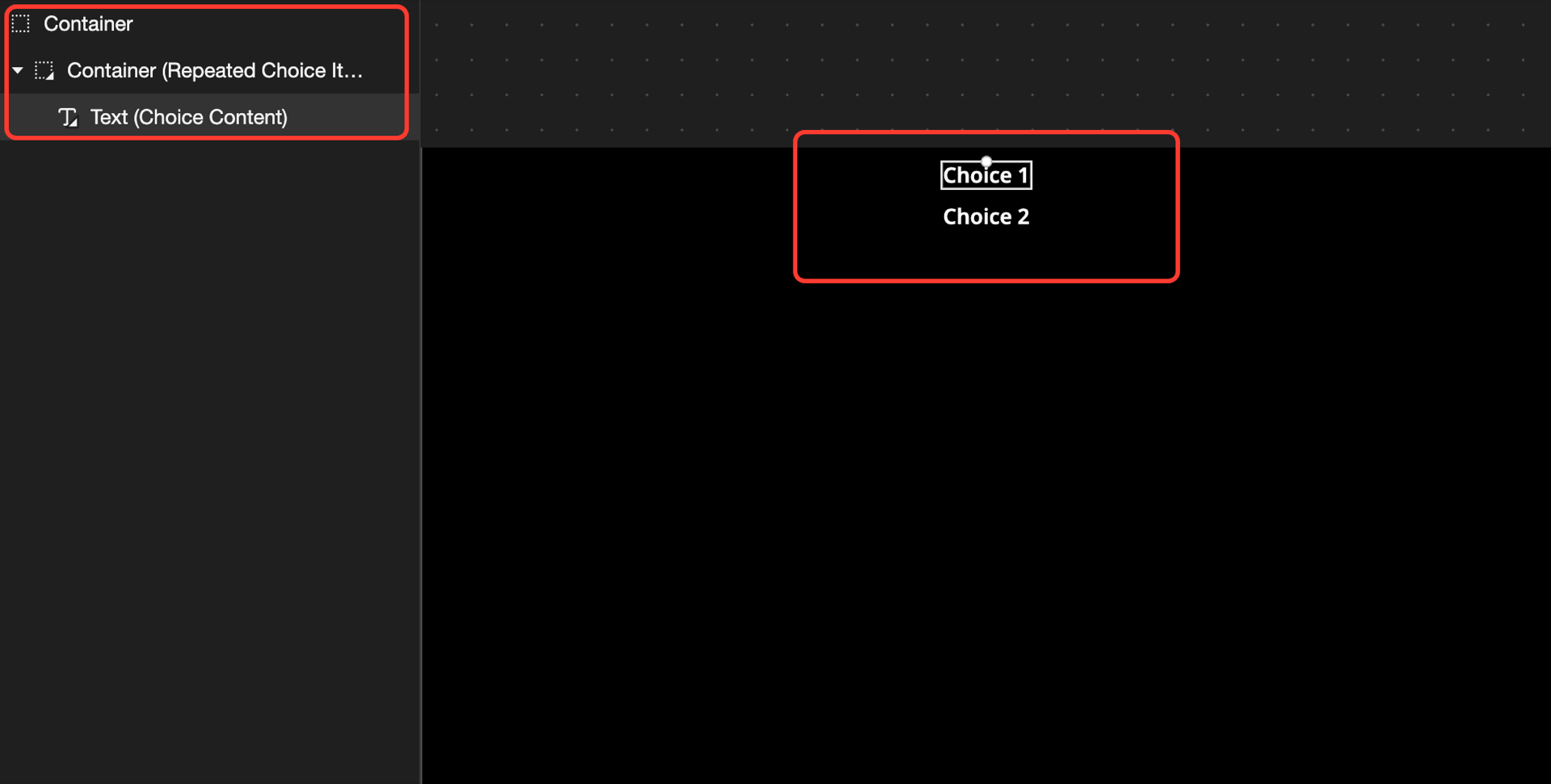
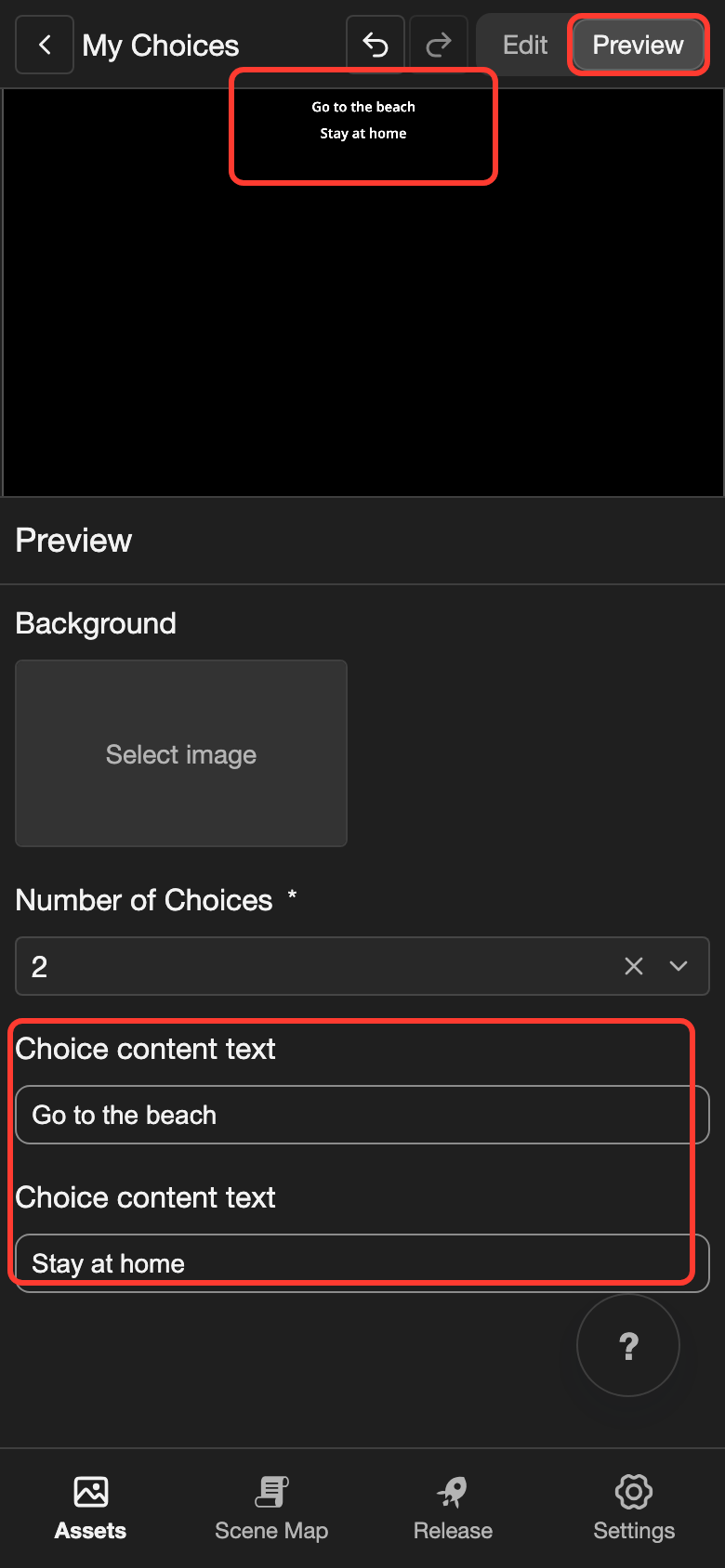
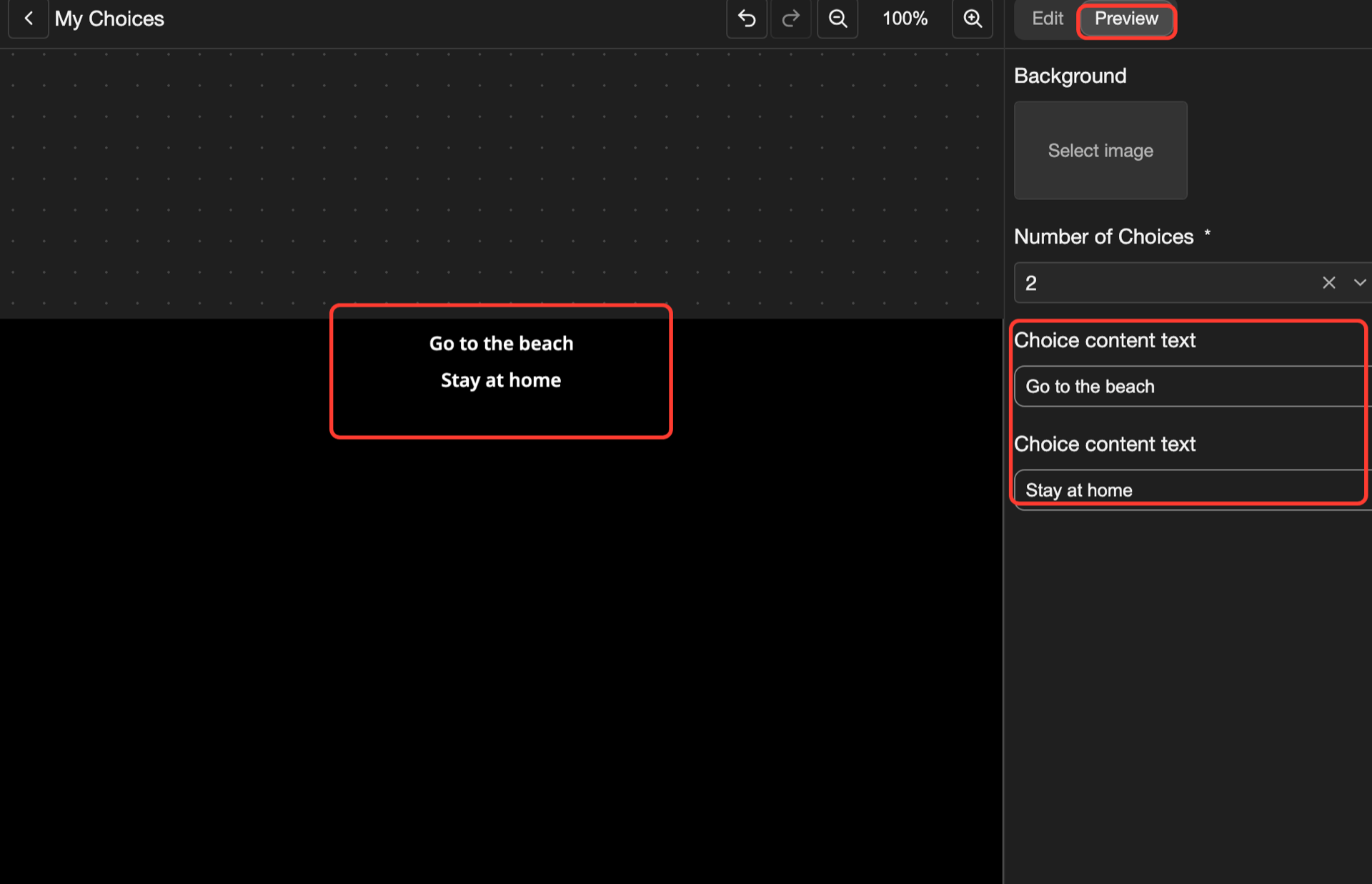
The canvas shows 2 sample choices in a column, at the top middle.
Test it in Preview
- At the top, tap Preview.
- Under Number of Choices, choose how many choices to show, from 1 to 6.
- Under each Choice content text, type the words of a choice, such as
Go to the beachandStay at home.
Special elements
| Element | What it does |
|---|---|
| Container (Repeated Choice Item) | Repeats once for each choice. Put it in a container whose Direction makes a column or a row. |
| Container (Single Choice Item) | Shows one choice. Under Choice in its settings, choose which one, such as Choice 1. It hides when the action has fewer choices. Use it to place each choice by hand. |
| Text (Choice Content) | Shows the words of the choice. Add it inside one of the 2 containers above. |
A tap on a choice container picks that choice. To make the words inside react when the reader points at a choice, use Child Interaction. See Container.