Particle
A particle element shows a particle effect from your Particles page, such as falling petals or snow.
Make the effect on the Particles page first. See Create a particle effect.
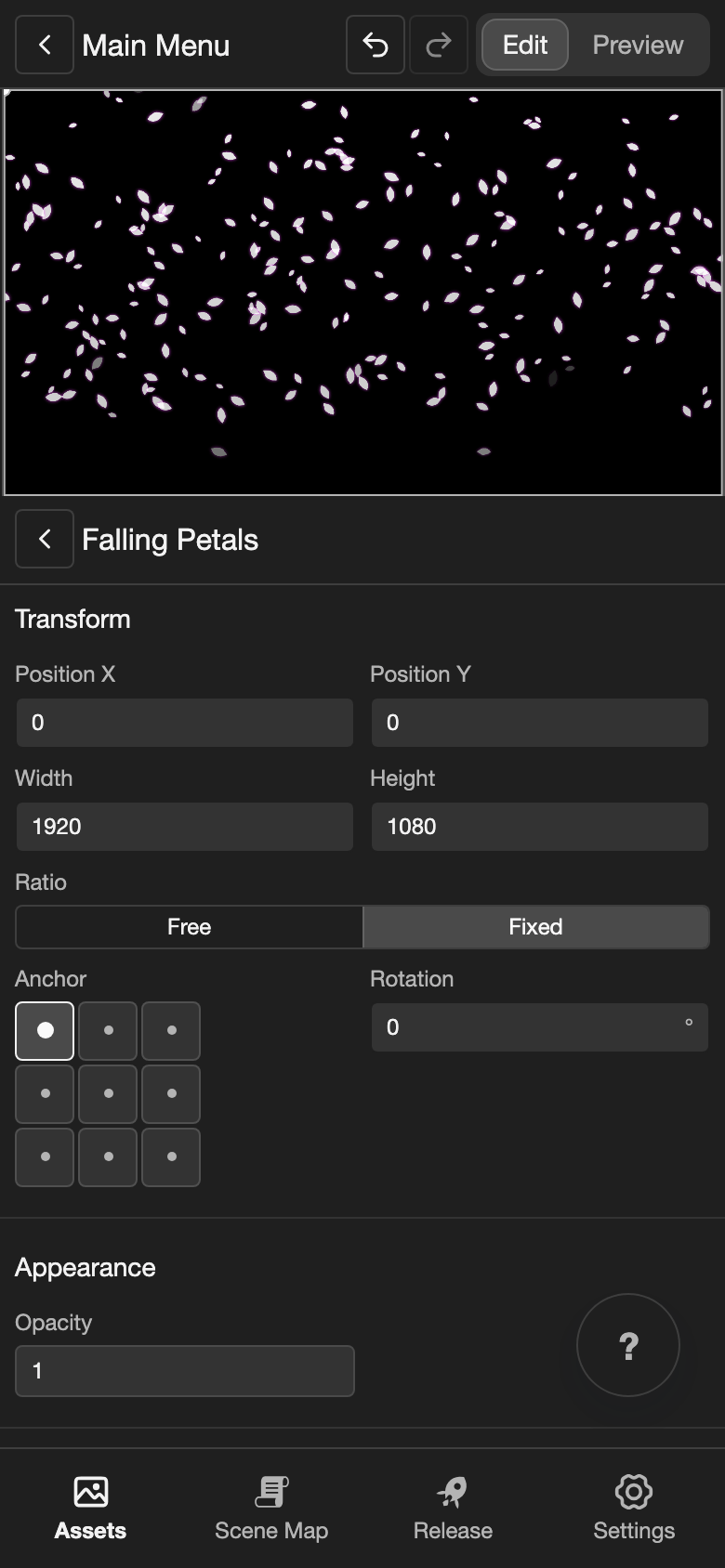
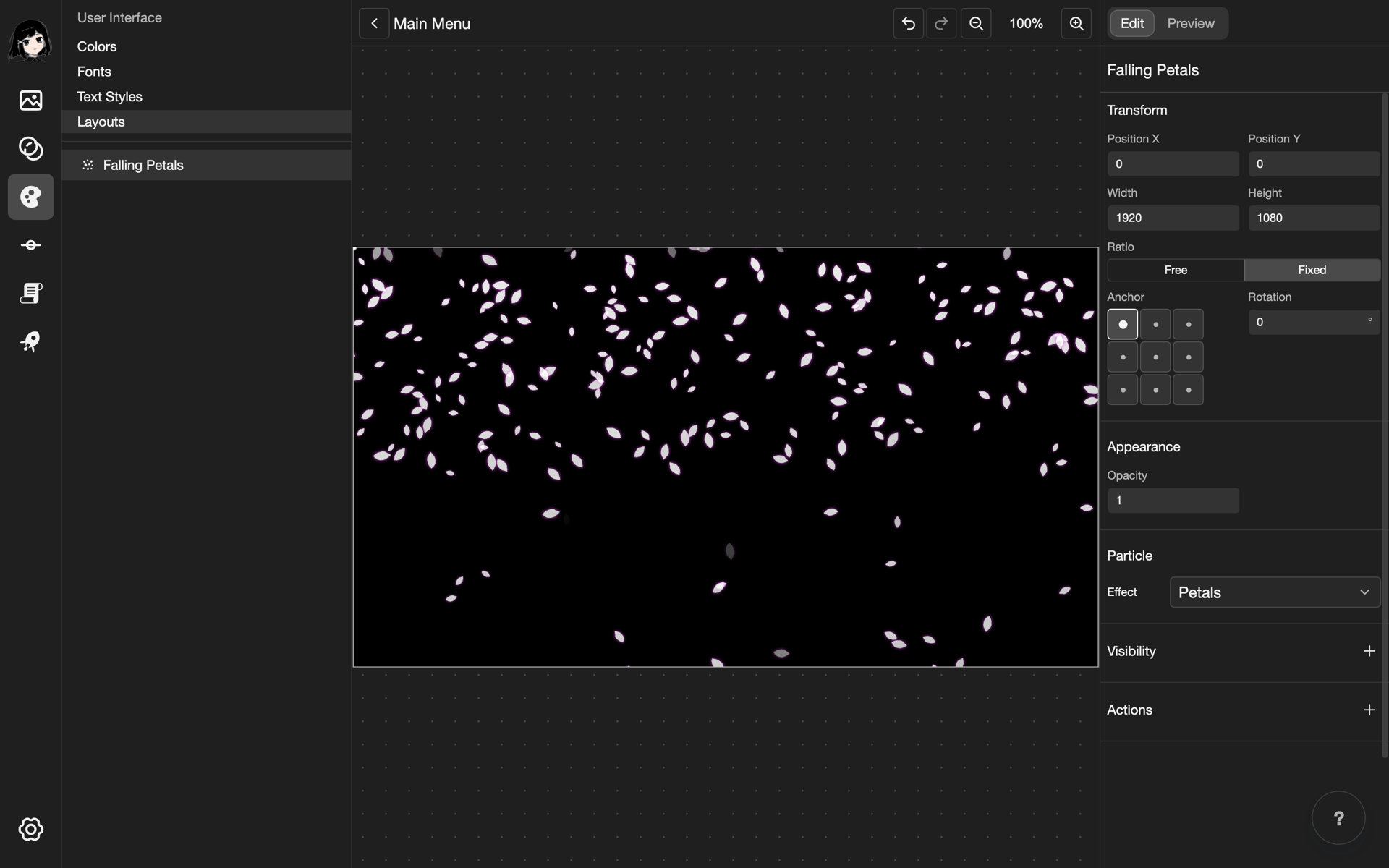
This example puts a particle effect called Petals in the Main Menu layout.
Add a particle effect
-
Open a layout in the layout editor. See Open a layout.
-
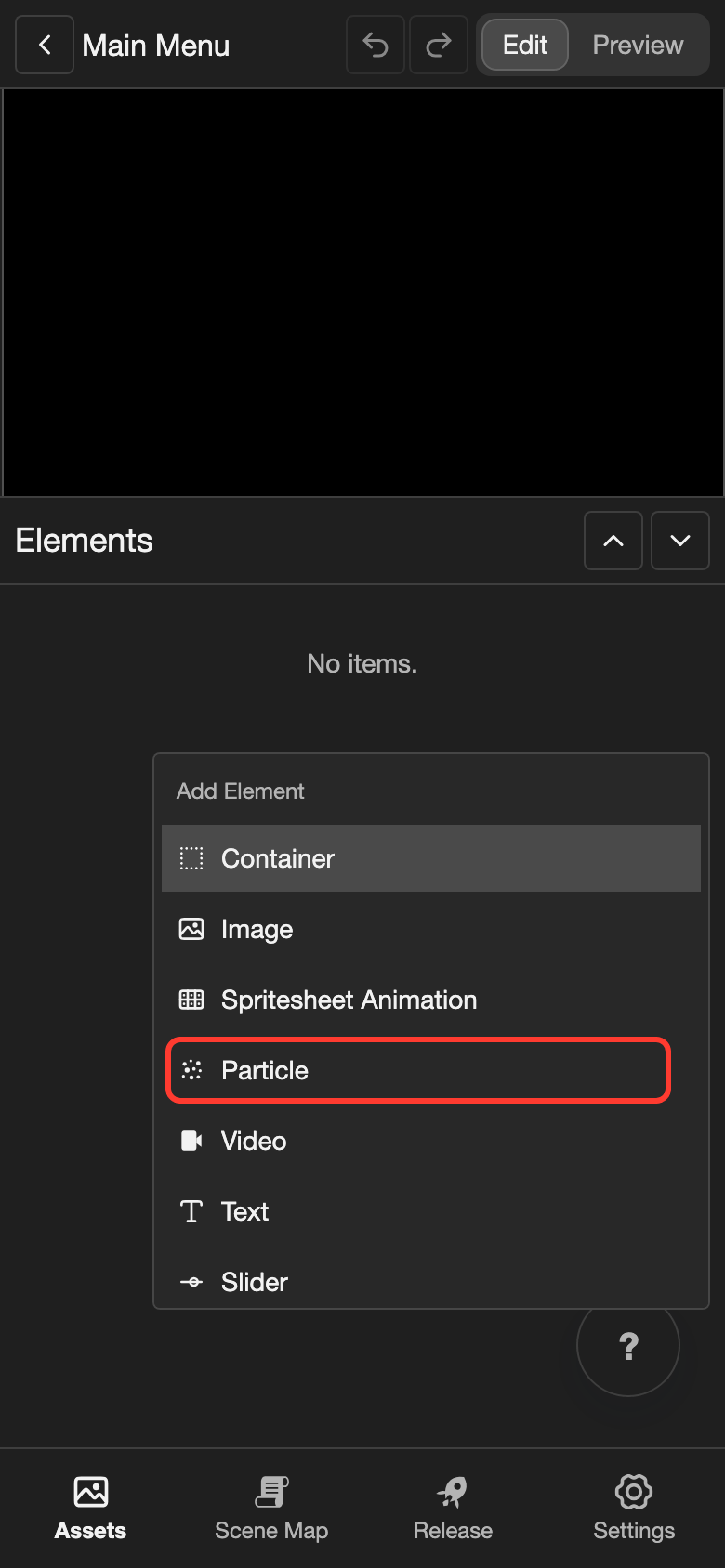
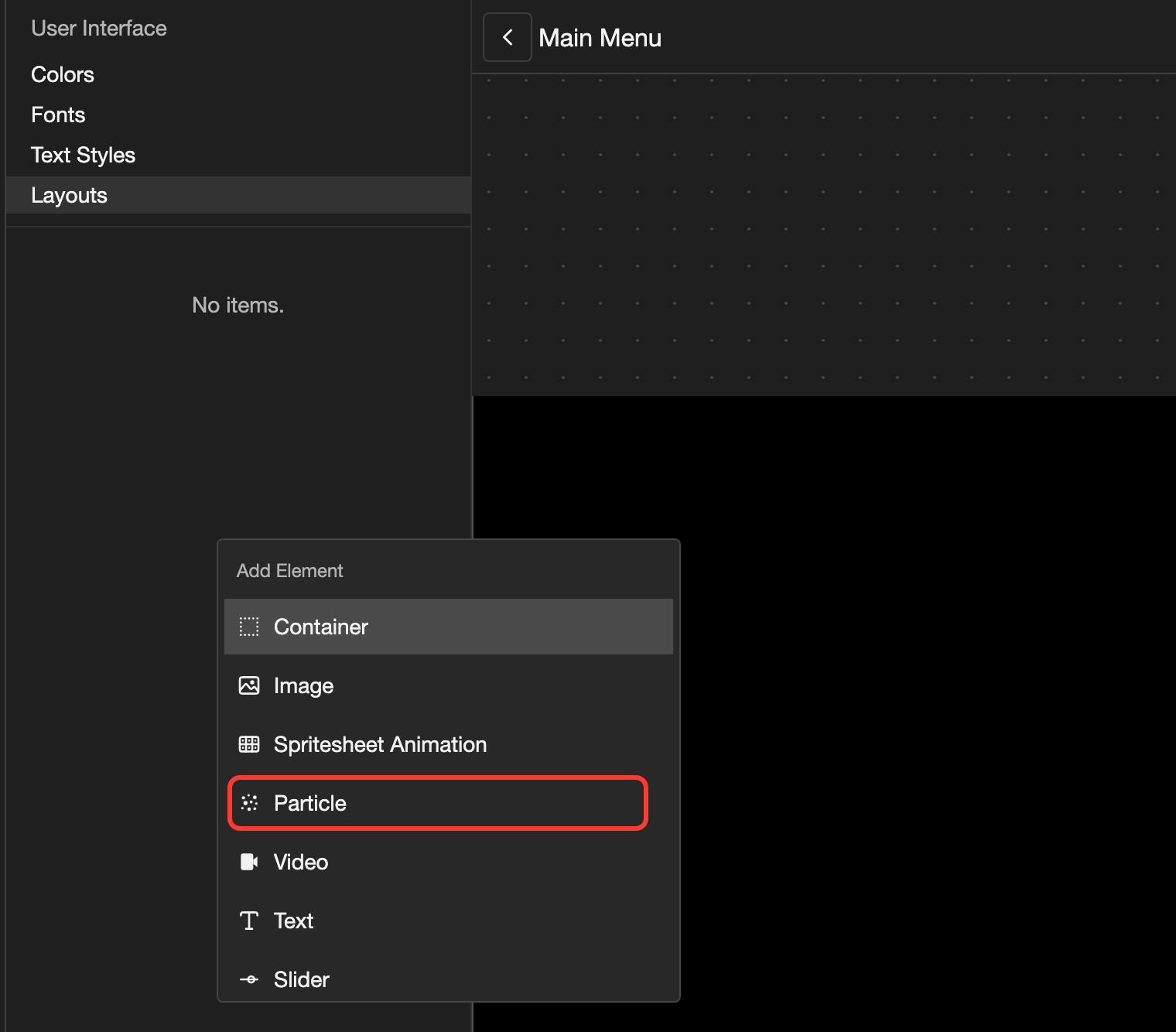
Open the Add Element menu.
- Phone or tablet: Long press (touch and hold) the empty space under the Elements list.
- Desktop: Right-click (click with the right mouse button) the empty space under the Elements list.
-
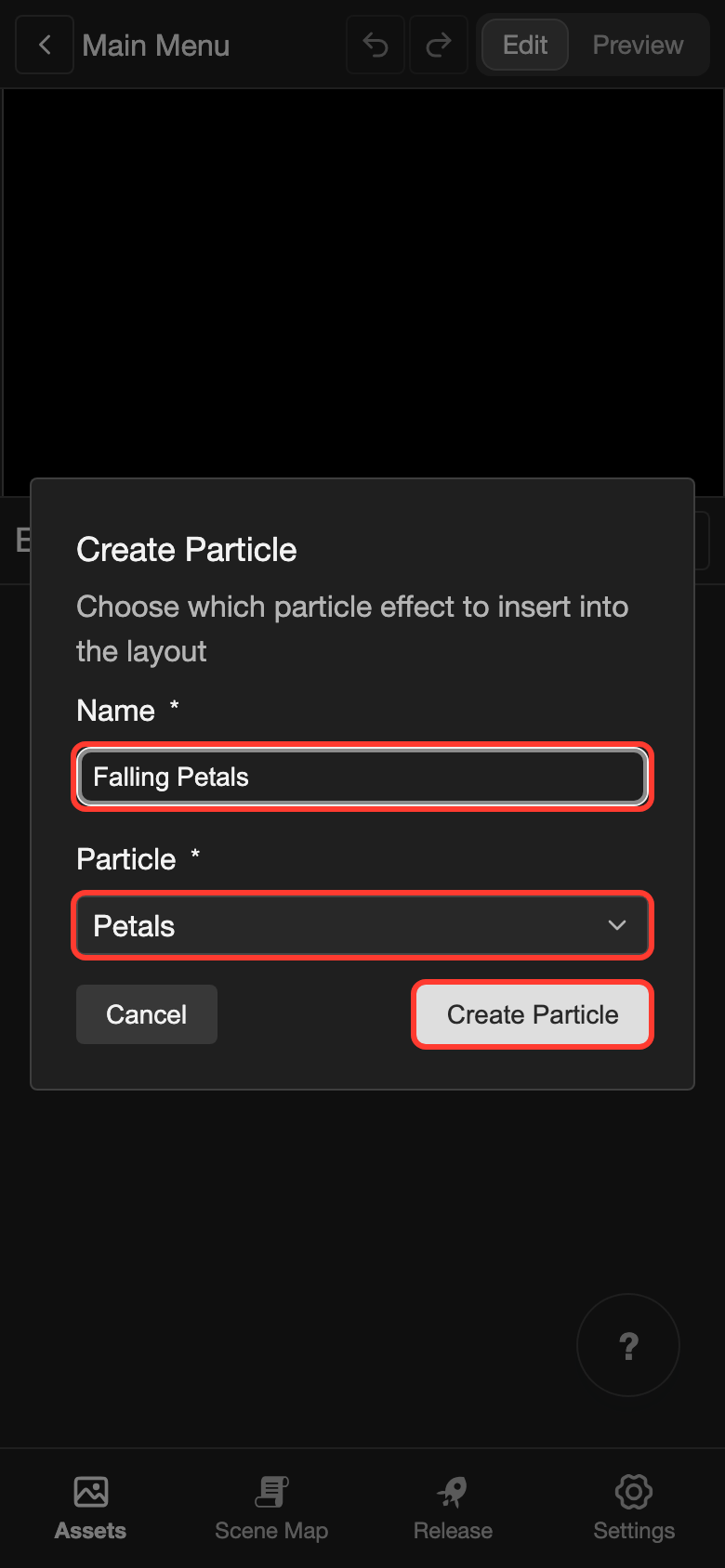
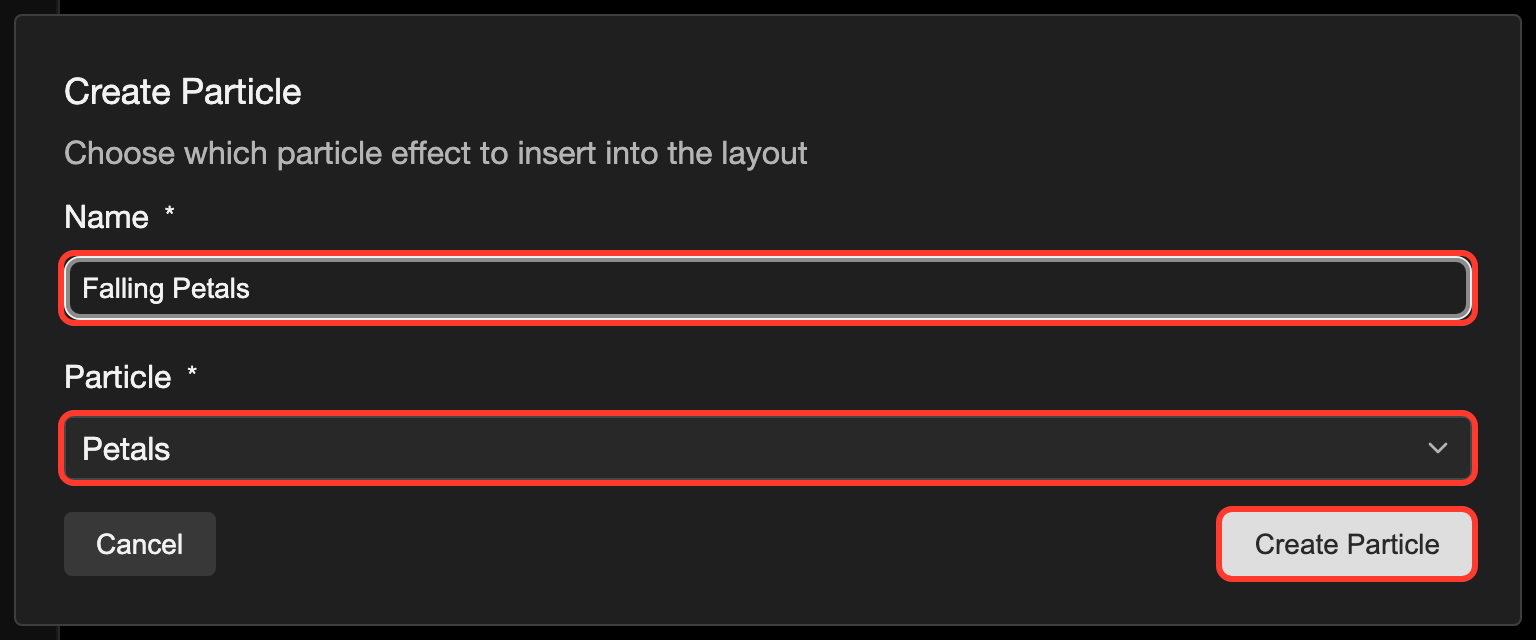
Tap Particle. The Create Particle box opens.
-
Under Name, type a name, such as
Falling Petals. -
Under Particle, choose the effect, such as Petals.
-
Tap Create Particle.
The petals start to fall on the canvas. The element gets its size from the effect, so it usually covers the whole screen.
Change the effect
-
In the Elements list, tap the particle element. Its settings open.
-
Under Particle, tap the list next to Effect.
-
Tap another effect.
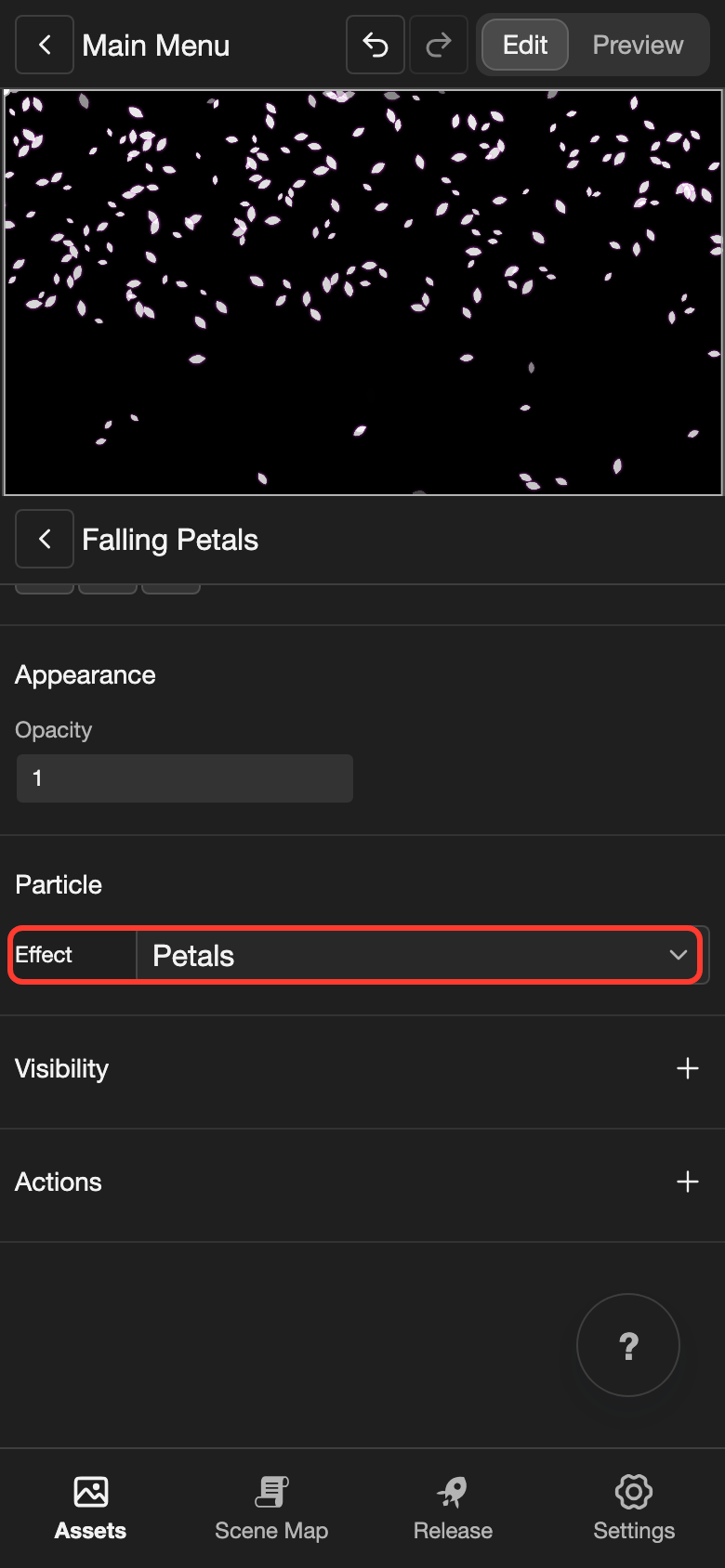
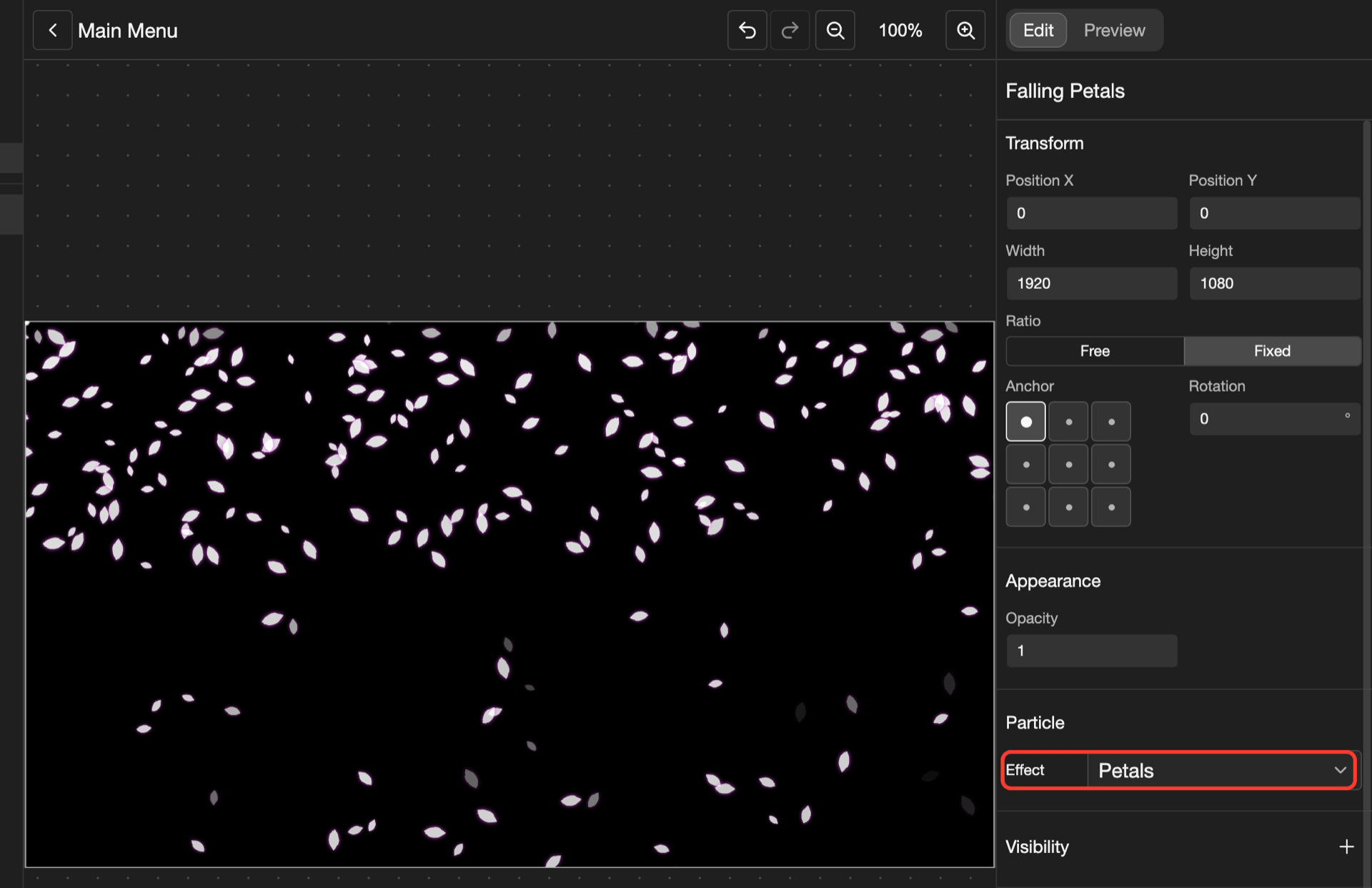
To change how the particles look and move, change the effect on the Particles page. See Change the settings. Every layout that uses the effect changes too.
Show the particles in a scene
A scene cannot show a particle effect by itself. Put the effect in a layout with the type General. Then show the layout with the Visuals action. See Show the layout in a scene.
Particle settings
| Setting | What it does |
|---|---|
| Effect | The particle effect that it shows. To show another effect, choose it from the list. |
| Width and Height | The size, in pixels. They start at the size of the effect on the Particles page. |
The other settings, such as Opacity and Visibility, are the same for most elements. See Change an element's settings.
Good to know
- An effect with no Texture Image shows nothing. Choose one on the Particles page. See Problems and fixes.