Video
A video element plays a video from your Videos page. Use it for a moving background, or a short movie on the title screen.
In your visual novel, the video starts by itself when the layout shows.
This example puts the video RouteVN in the Main Menu layout, as a moving background without sound.
Add a video
-
Open a layout in the layout editor. See Open a layout.
-
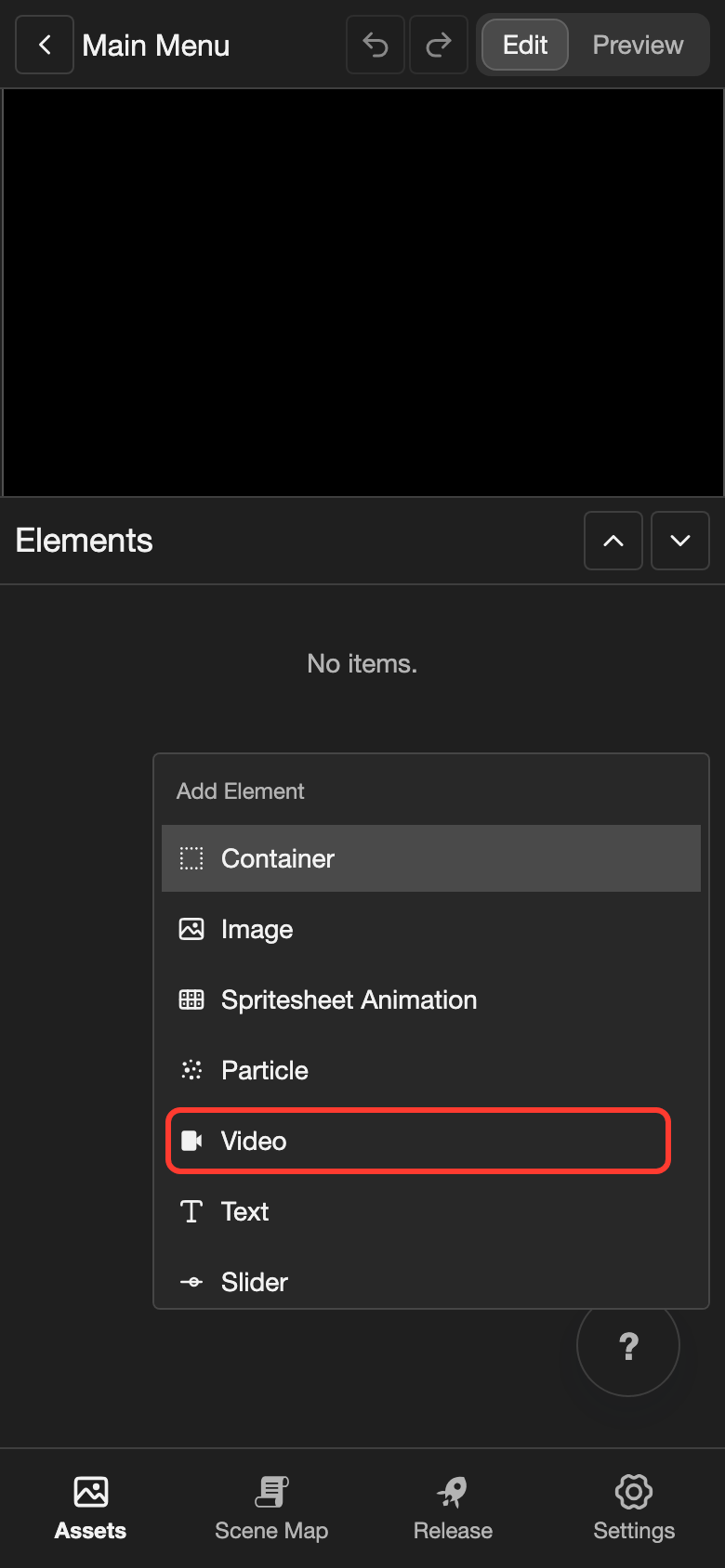
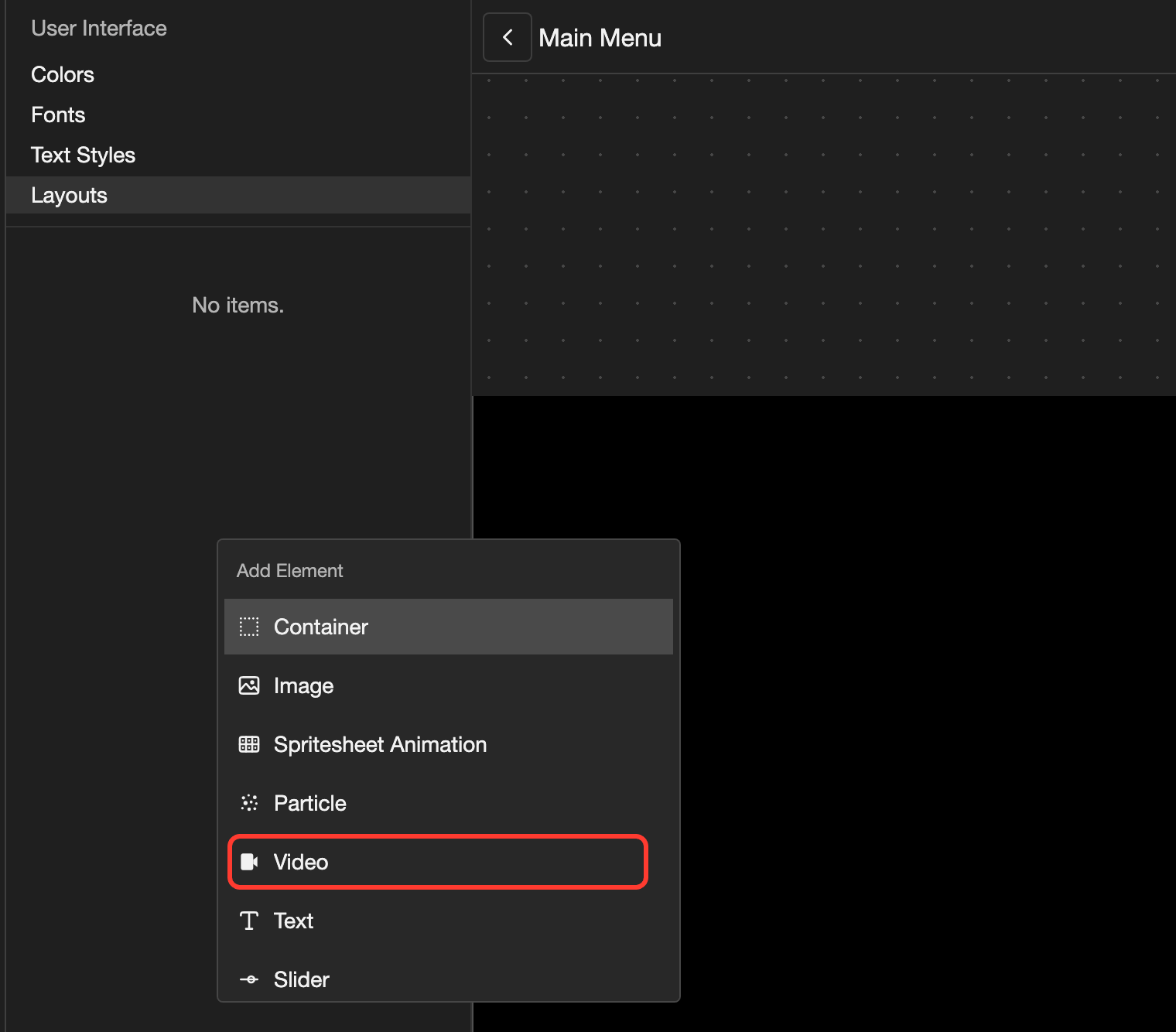
Open the Add Element menu.
- Phone or tablet: Long press (touch and hold) the empty space under the Elements list.
- Desktop: Right-click (click with the right mouse button) the empty space under the Elements list.
-
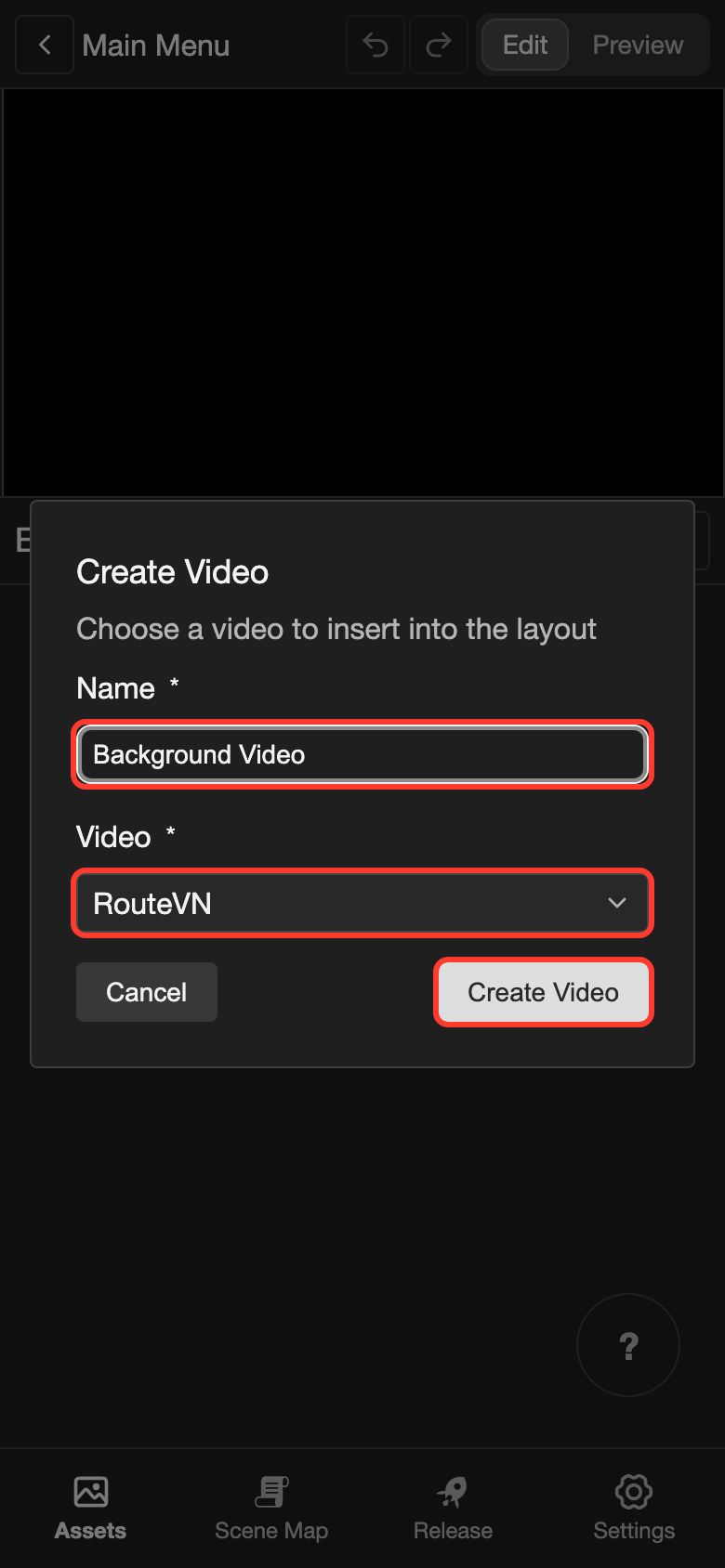
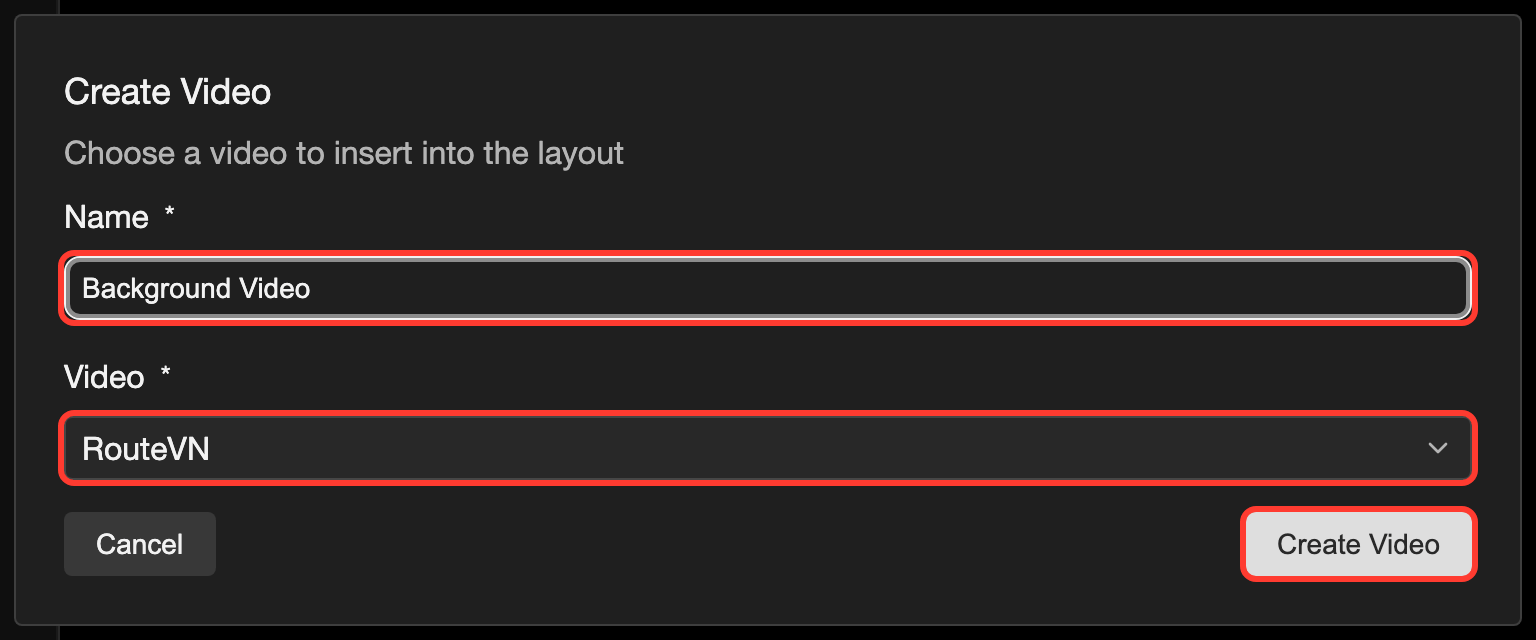
Tap Video. The Create Video box opens.
-
Under Name, type a name, such as
Background Video. -
Under Video, choose a video, such as RouteVN.
-
Tap Create Video.
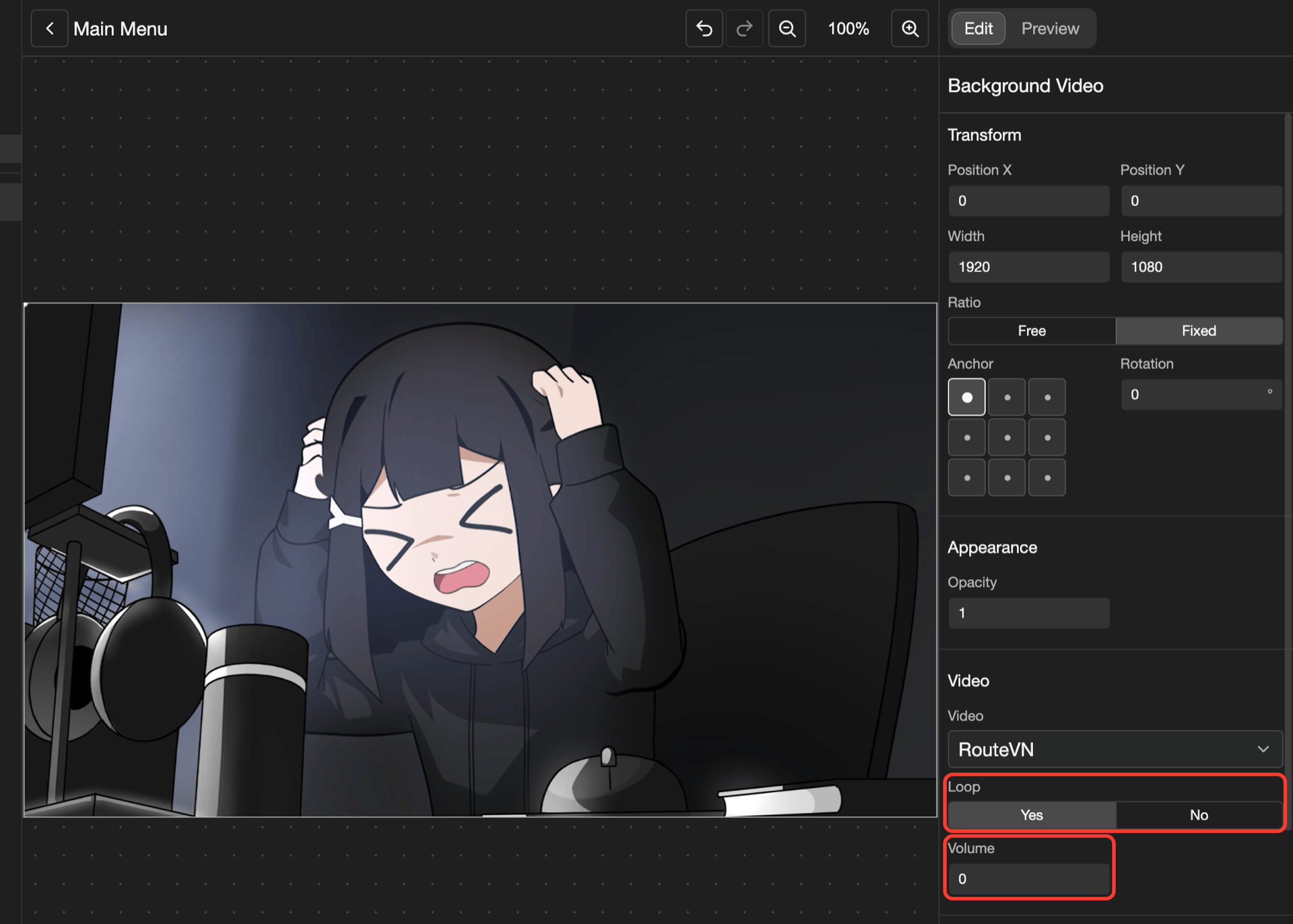
The video shows in the top left corner of the canvas. It has the same size as the video file. RouteVN is 1920 x 1080, so it fills the screen.
The video plays on the canvas, but without sound. You hear the sound only in your visual novel.
Change the loop and the volume
-
In the Elements list, tap the video. Its settings open.
-
Under Video, find Loop. Keep Yes for a background. To play the video only once, tap No.
-
Change Volume to
0, so the background has no sound. To do this, tap the number, type0, and tap Submit.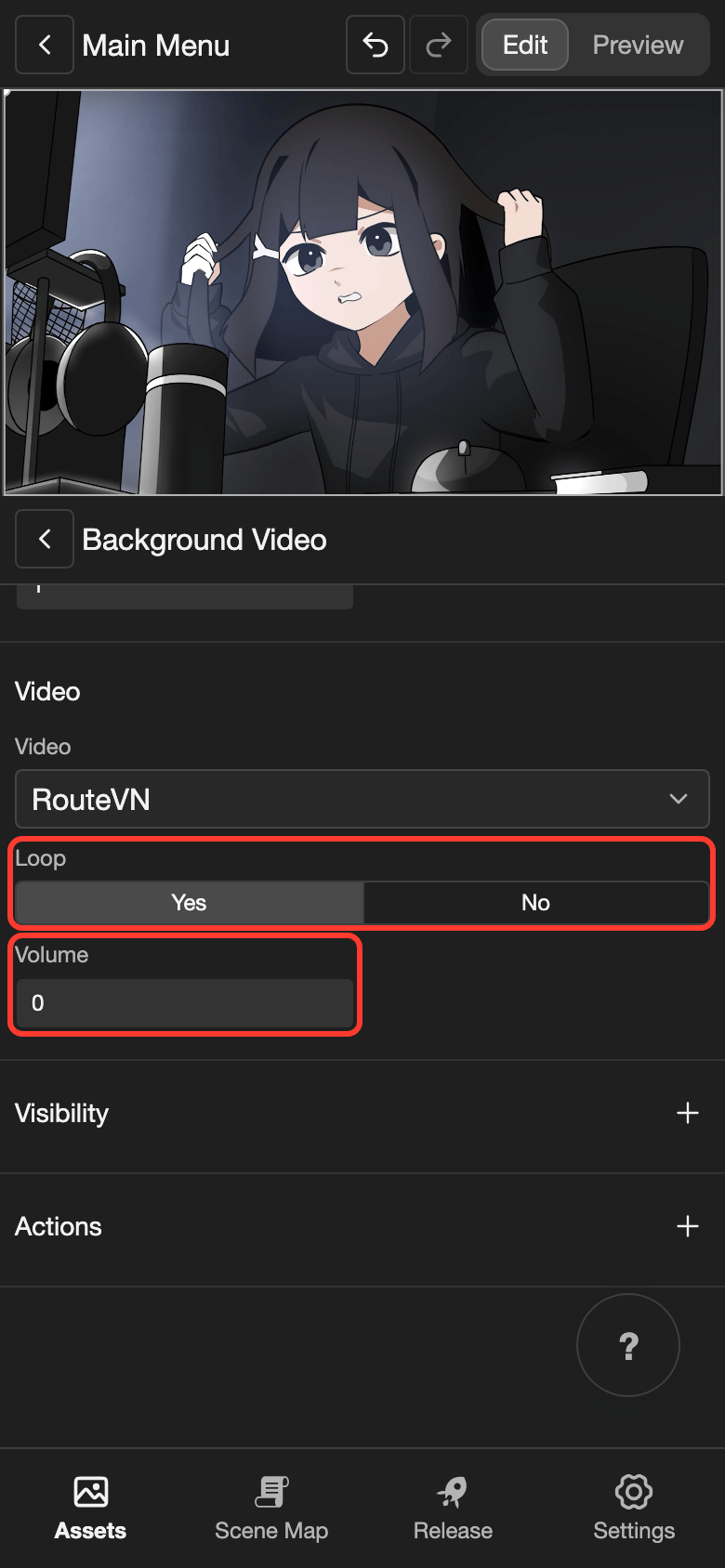
Video settings
| Setting | What it does |
|---|---|
| Video | The video that plays. To play another video, choose it from the list. The size stays the same. |
| Loop | Yes plays the video again from the start when it ends. No plays it once. A new video starts with Yes. |
| Volume | How loud the sound is, from 0 (no sound) to 100 (full sound). A new video starts with 100. |
| Width and Height | The size, in pixels. They start at the size of the video file. With Ratio set to Fixed, the video keeps its shape. |
The other settings, such as Opacity and Visibility, are the same for most elements. See Change an element's settings.
Good to know
- Upload the video on the Videos page first. See Upload a video.
- For a background, keep the video at the bottom of the Elements list. Elements higher in the list show in front of it.