Videos
Videos are short MP4 clips that play in your visual novel. Use them for intro videos, cutscenes, and moving backgrounds.
This page covers the steps that are special to videos. To work with folders, moving, renaming, deleting, tags, and zoom, read the File Explorer page.
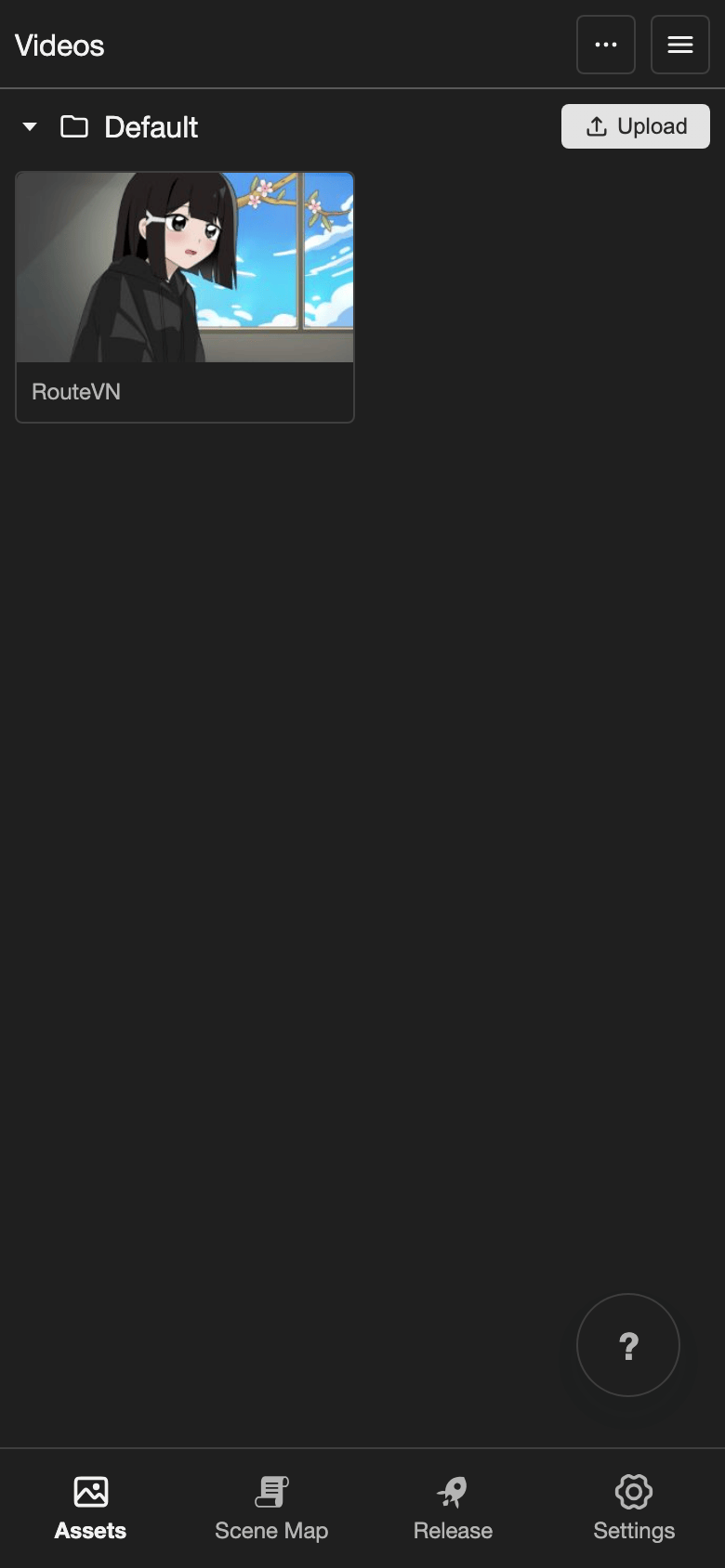
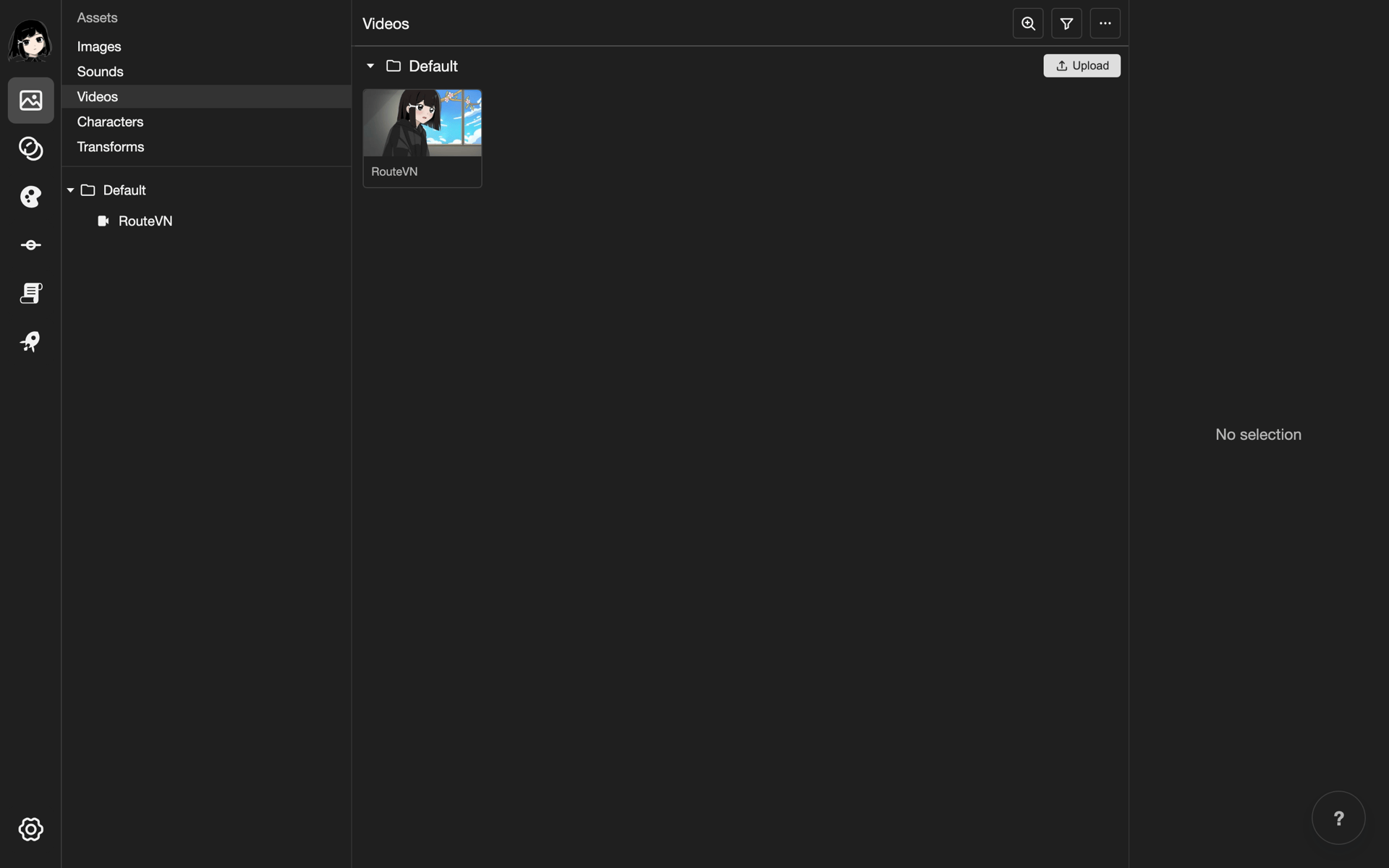
Open the Videos page
-
Open the Videos page.
- Phone or tablet: At the bottom of the screen, tap Assets. A list opens. Tap Videos.
- Desktop: In the left sidebar, under Assets, click Videos.
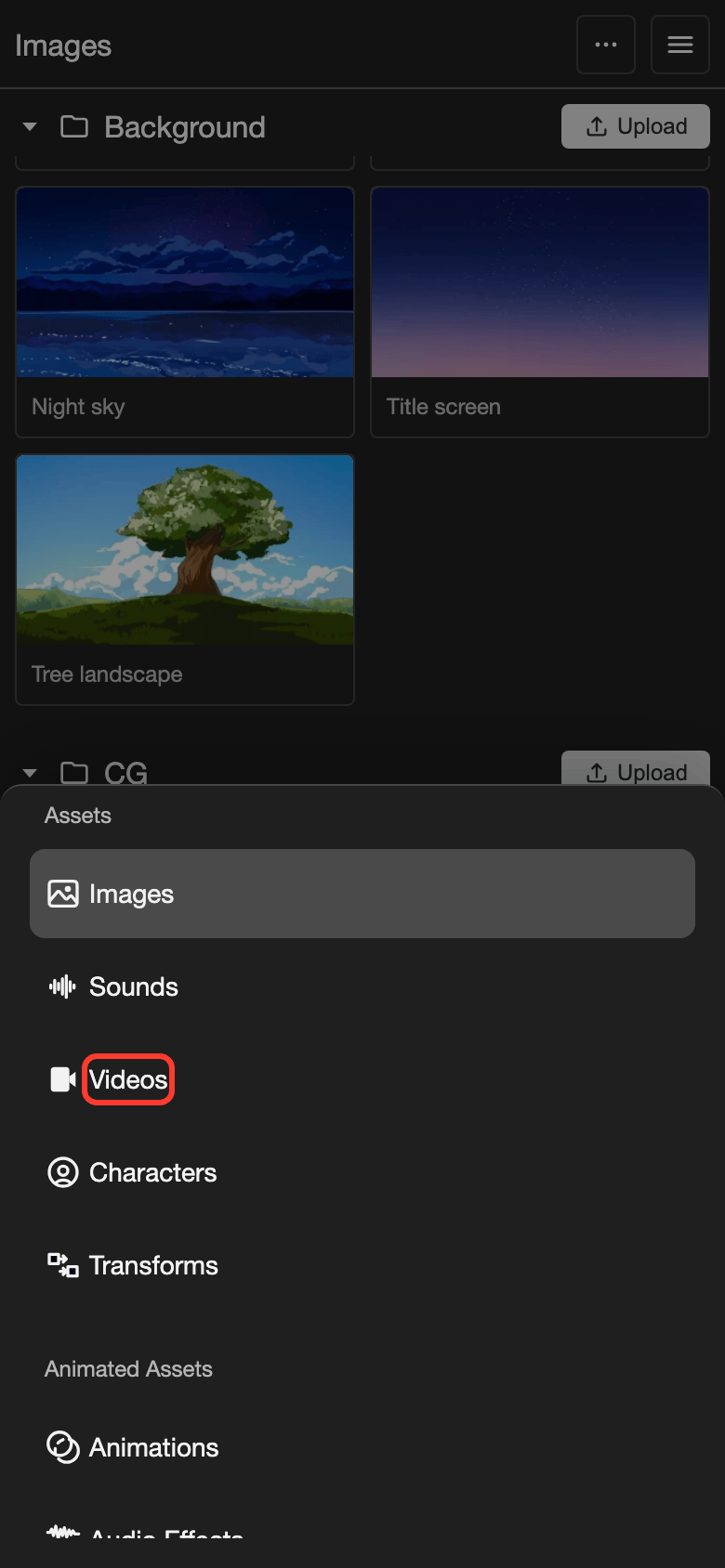
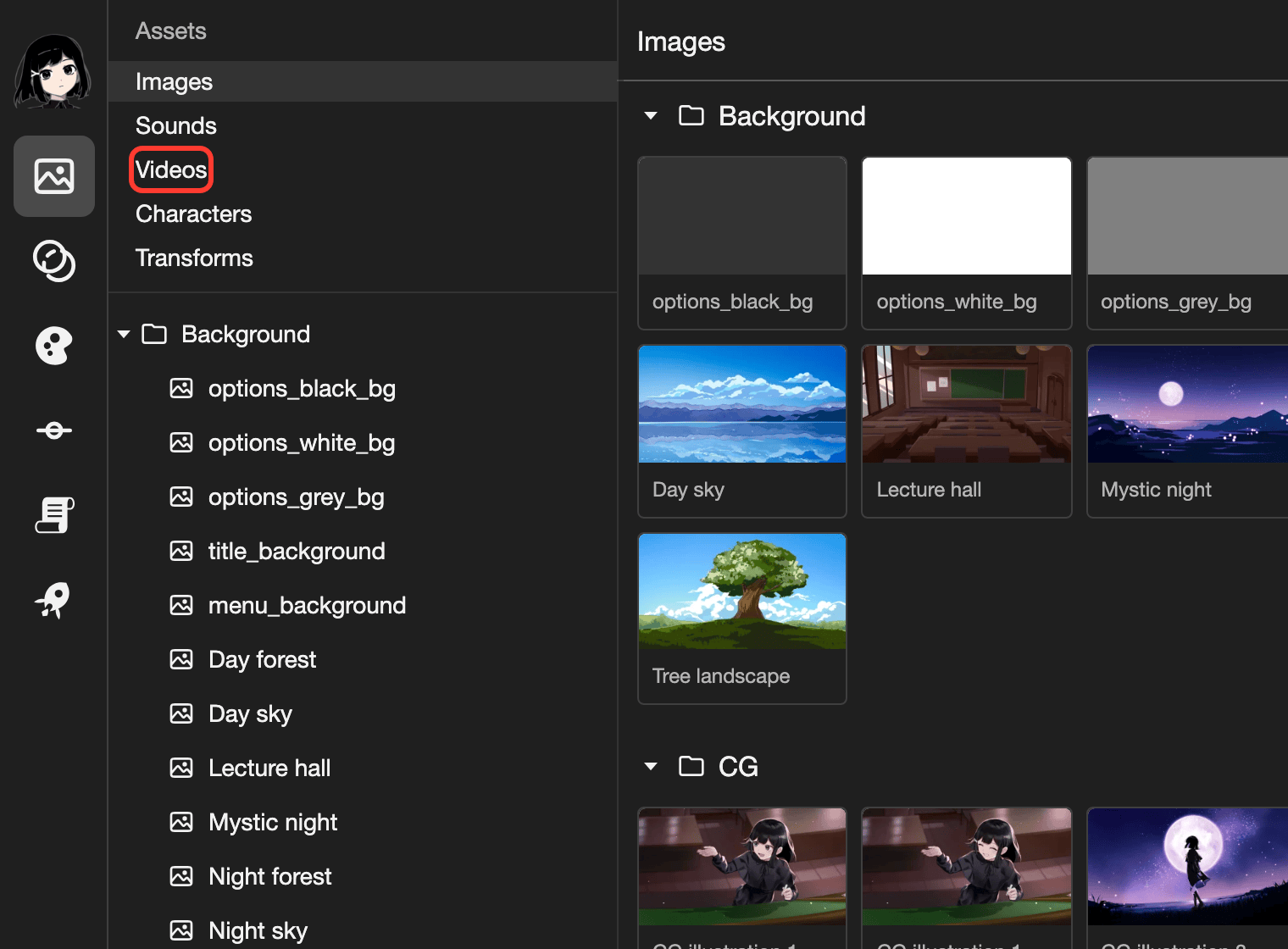
Open the Videos page from the Assets list.
The Videos page shows your video files.
Upload a video
You need an MP4 video file on your device. See Video size and formats before you upload.
-
Next to the folder name, tap Upload.
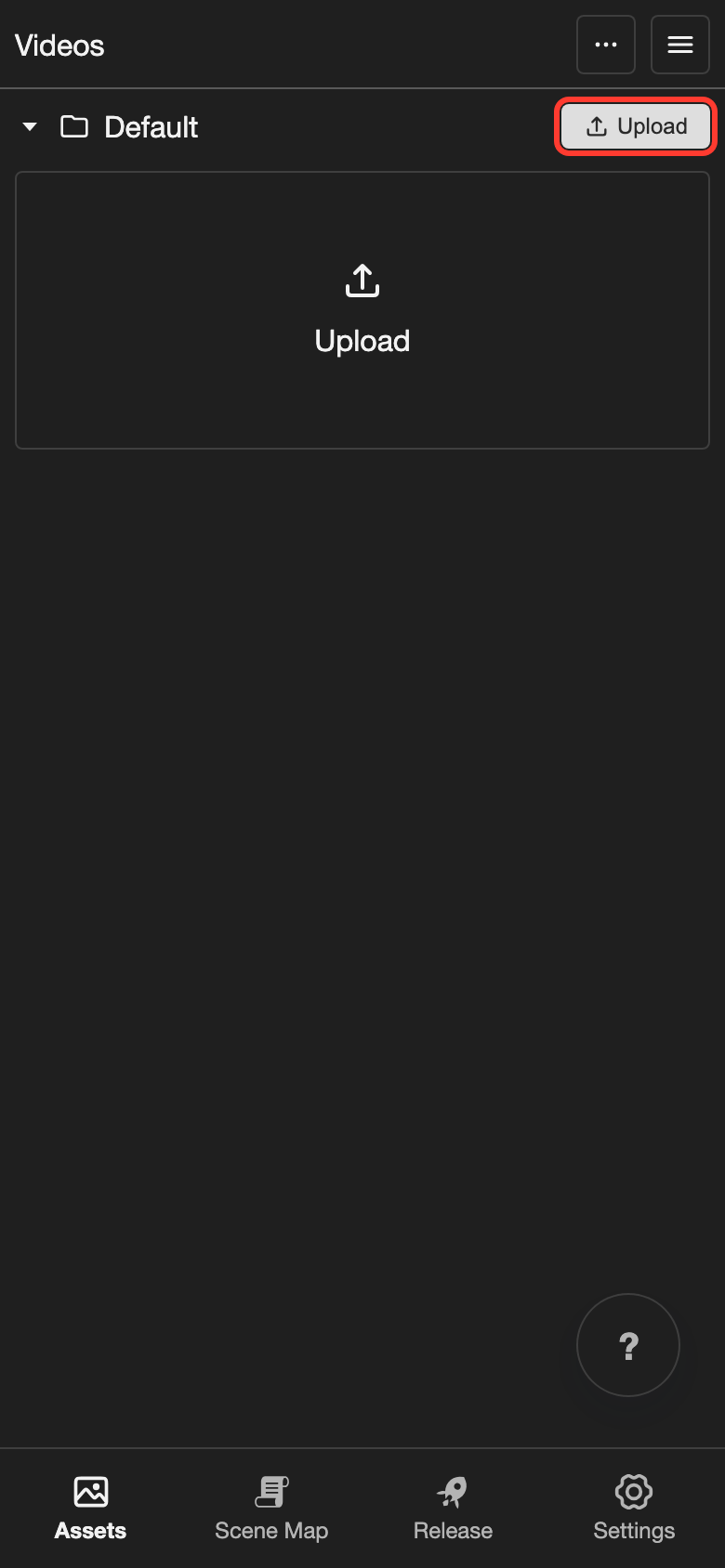
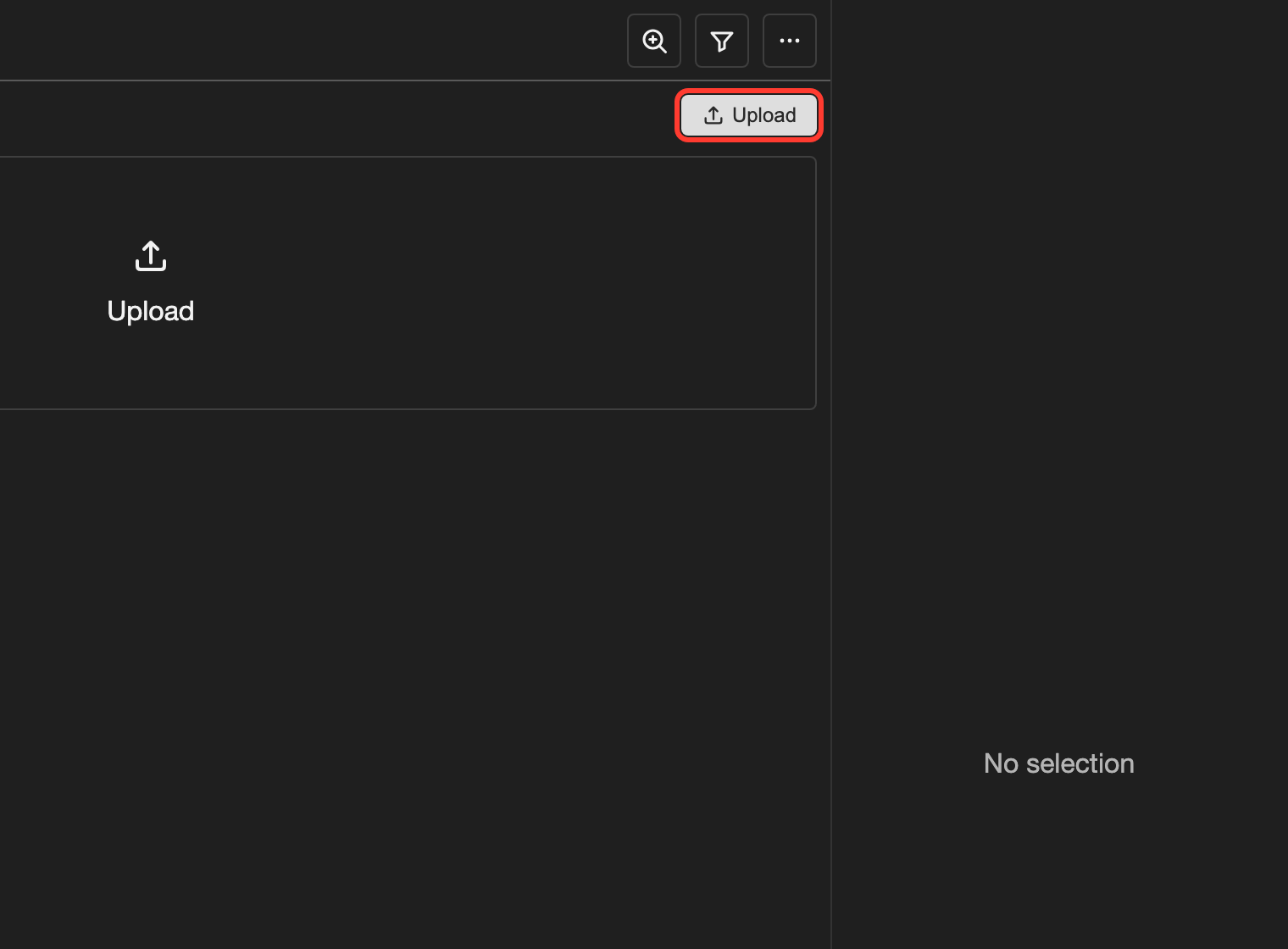
The Upload button is next to the folder name. A file picker opens.
-
Choose one or more MP4 files, then confirm.
On the Android app, a Choose source box opens first. Tap File picker to choose a file from your device.
-
Wait until the video is ready.
While the video uploads, its card shows Processing.... Stay on this page until it is done.
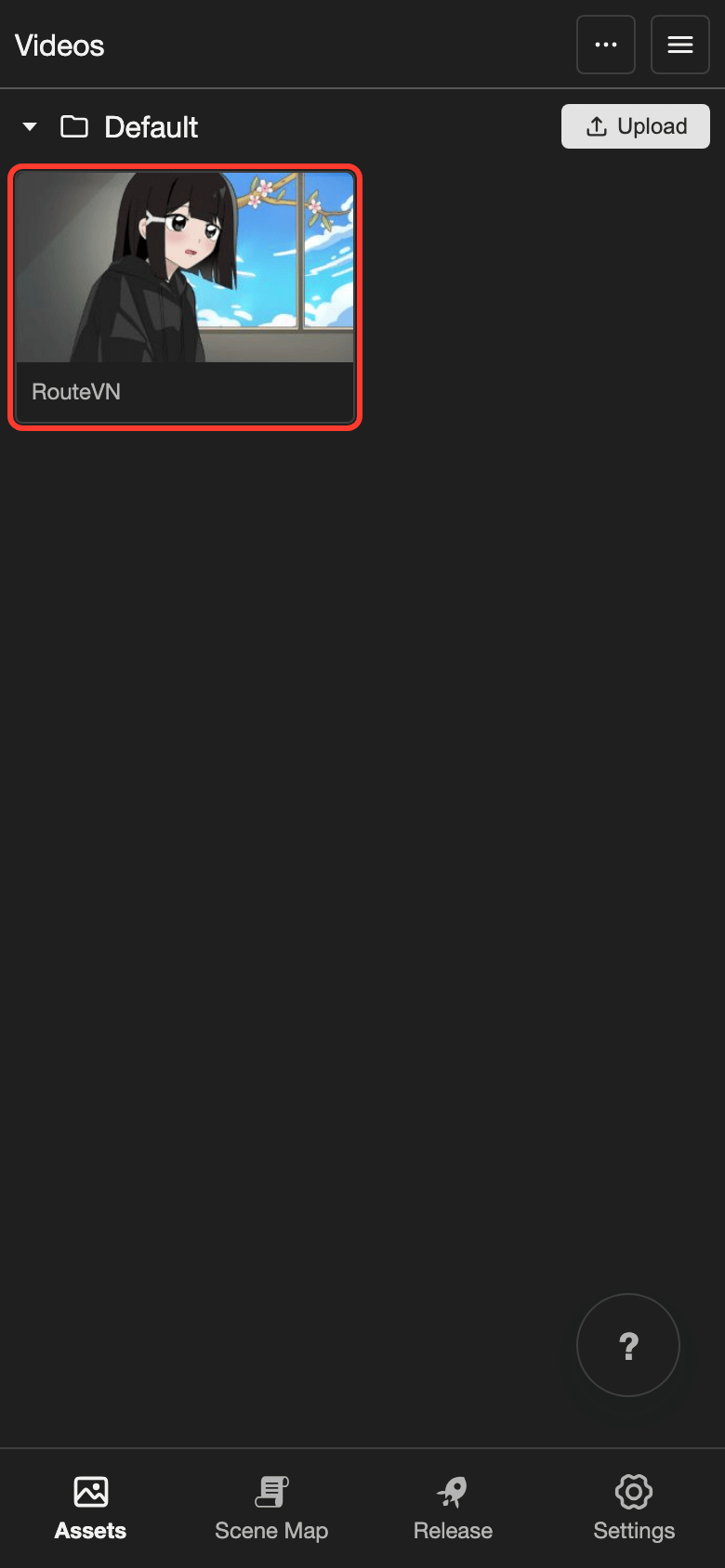
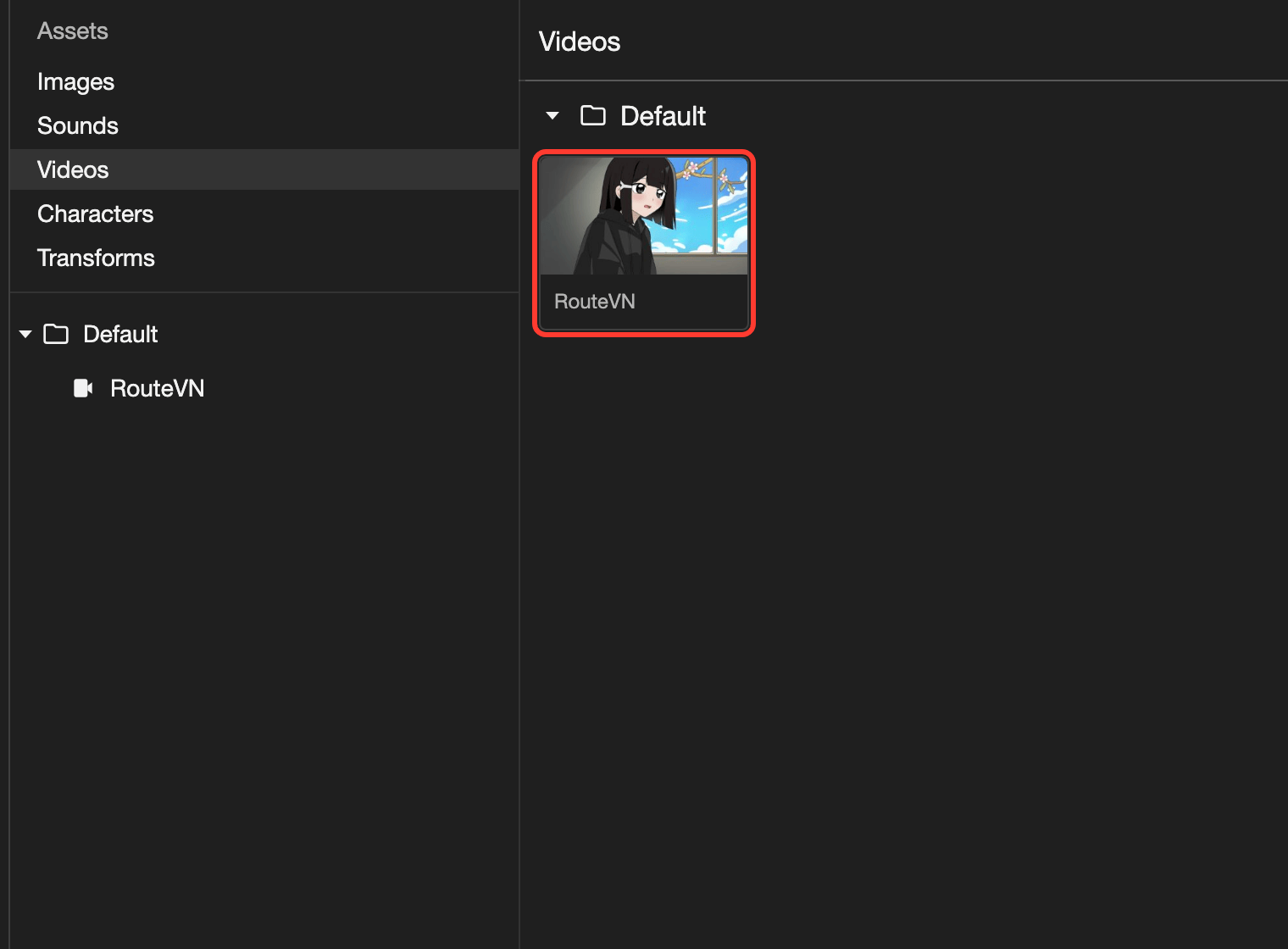
The video card shows its name and a picture of the video.
The video appears in the list. Its name is the file name, without .mp4.
Play a video
Playing a video opens it in a full screen preview. The preview has video controls, such as play, pause, and volume.
-
Select the video.
- Phone or tablet: Tap the video card. A panel opens at the bottom of the screen.
- Desktop: Double-click the video card. The video opens and plays.
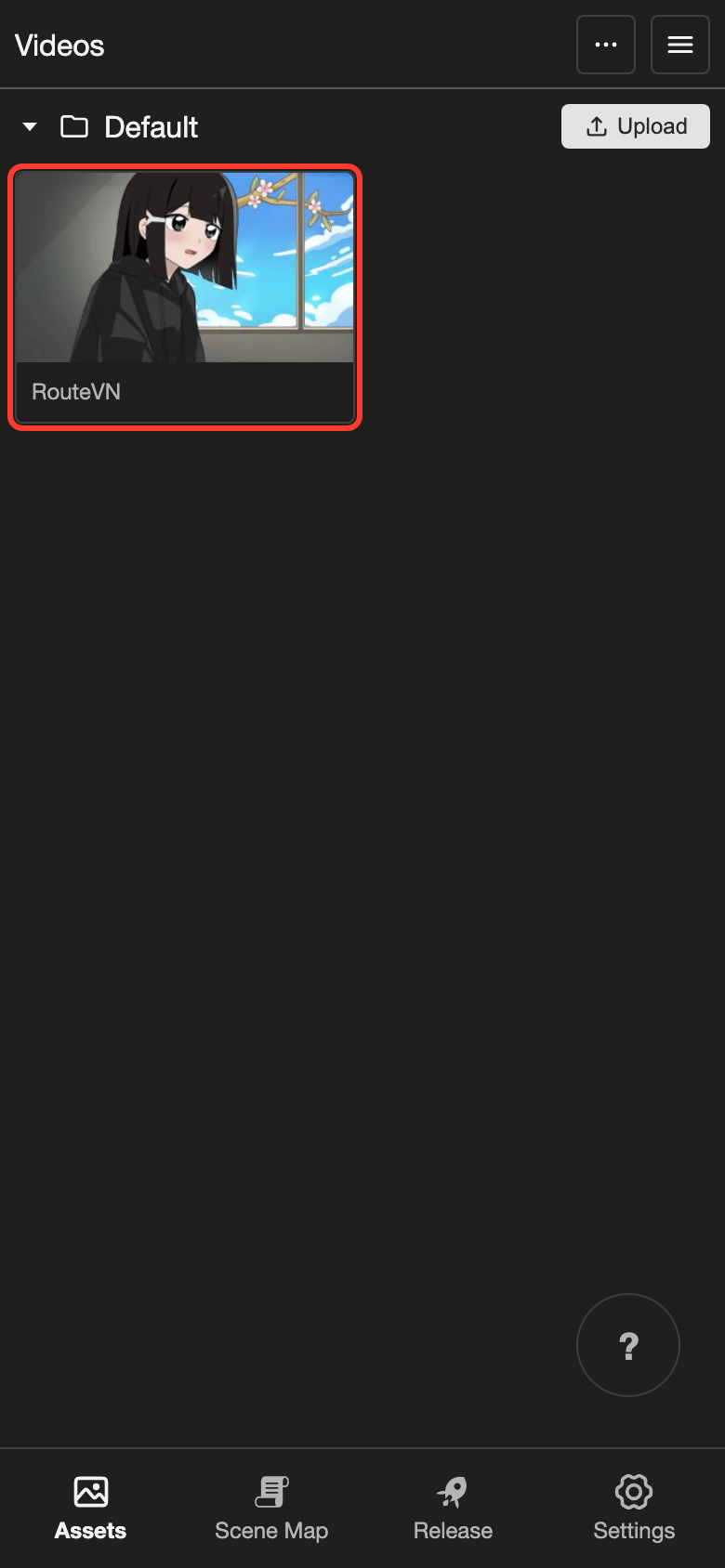
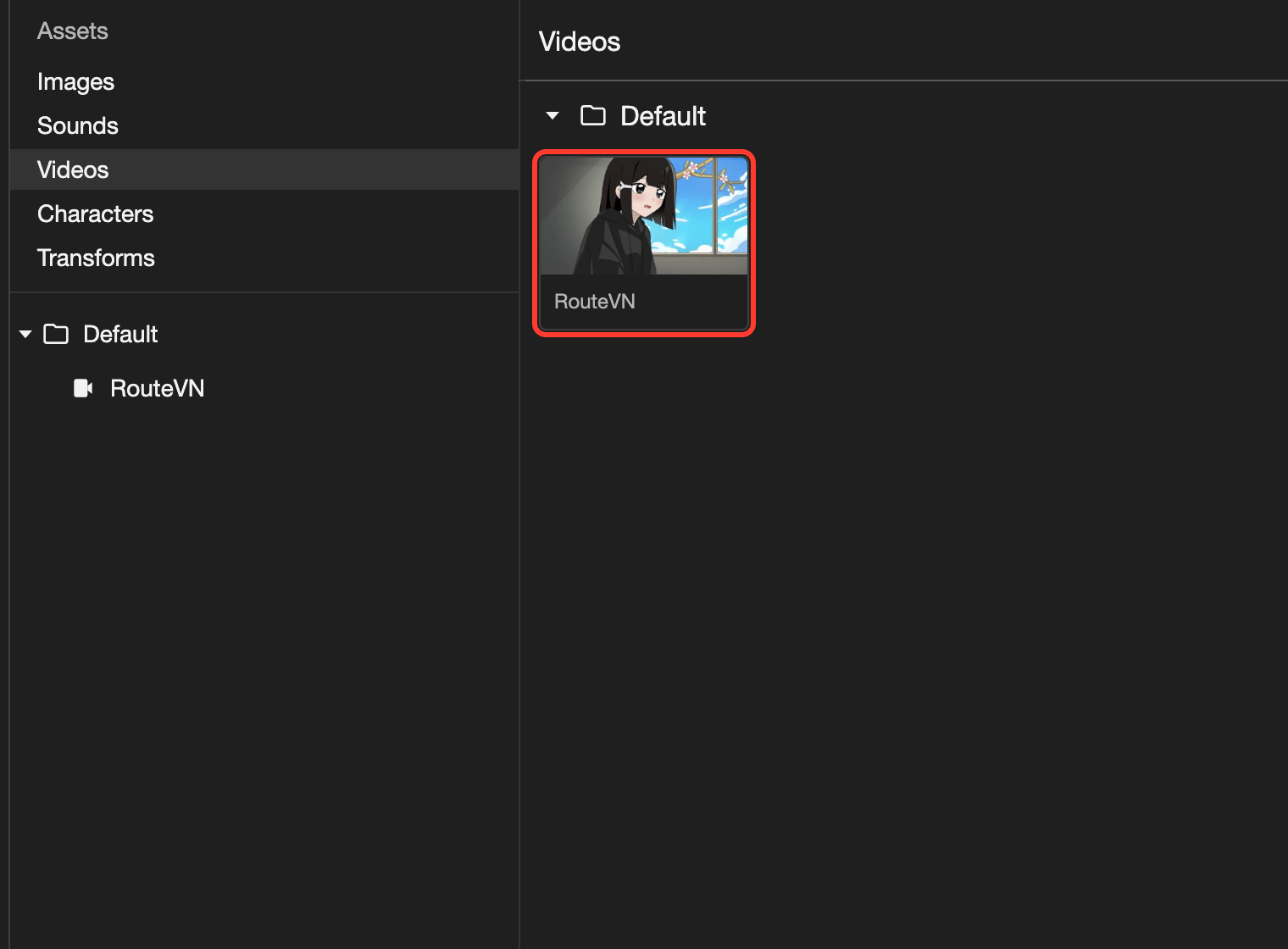
Tap the card on a phone. Double-click the card on desktop. -
Phone or tablet: Tap Preview in the panel.
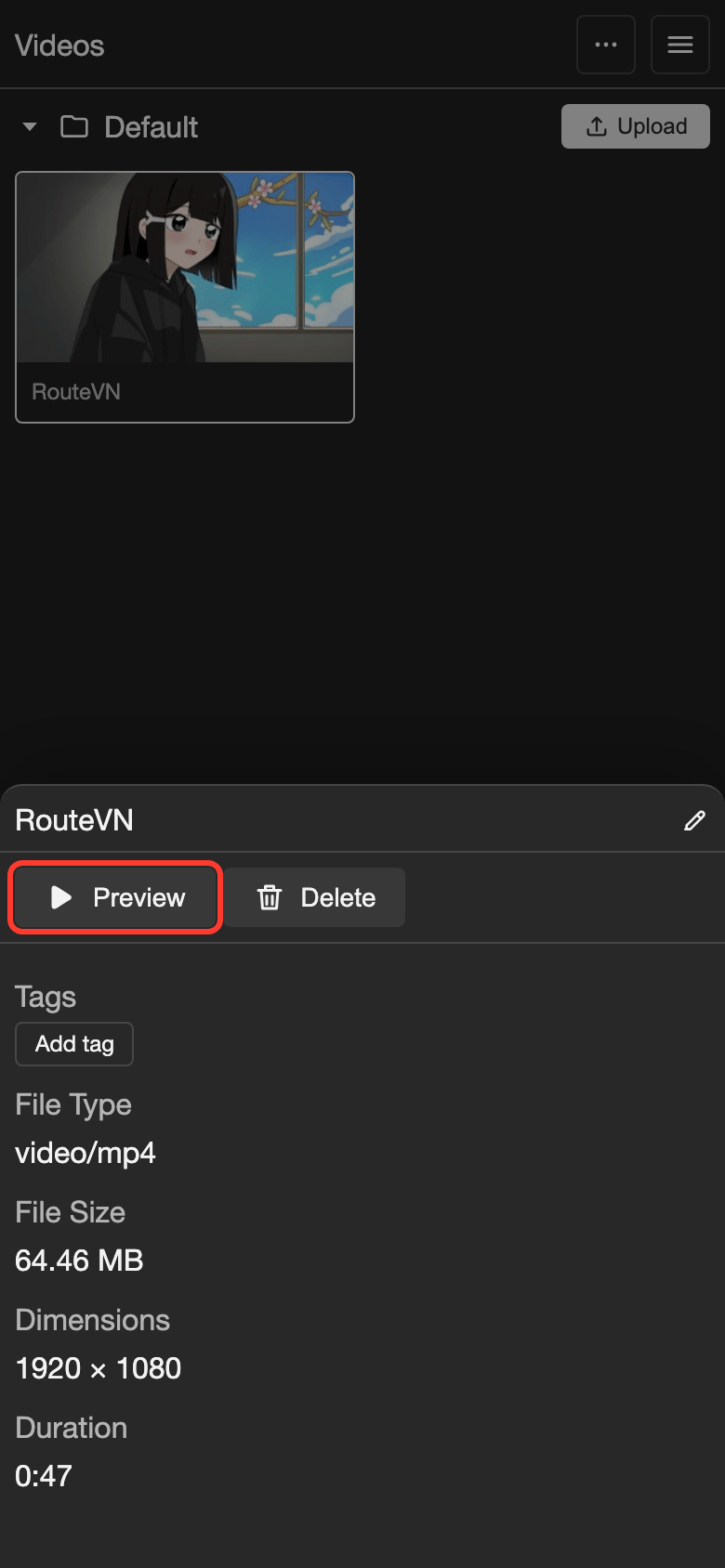
Tap Preview to play the video. The video opens in a full screen preview.
-
To close the preview, tap the X button in the top right.
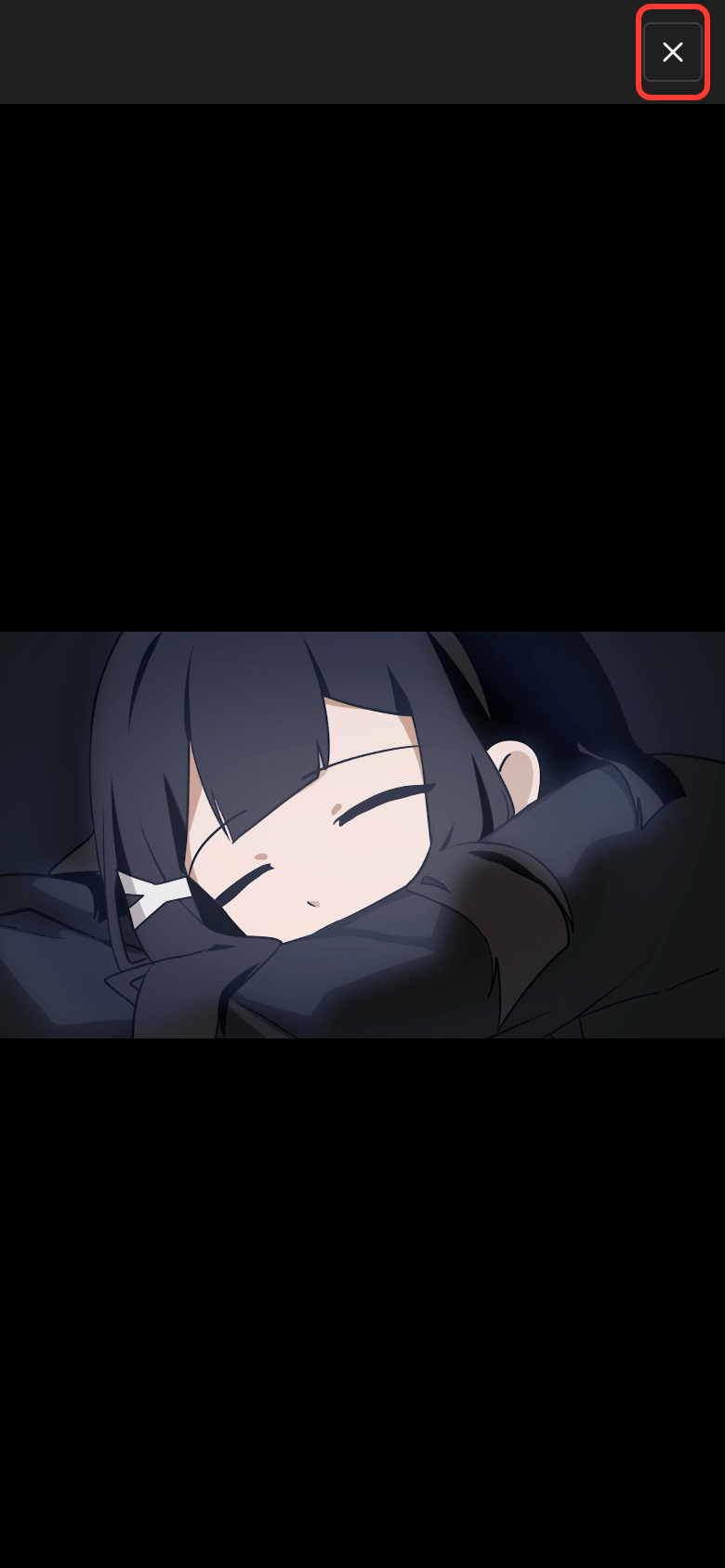
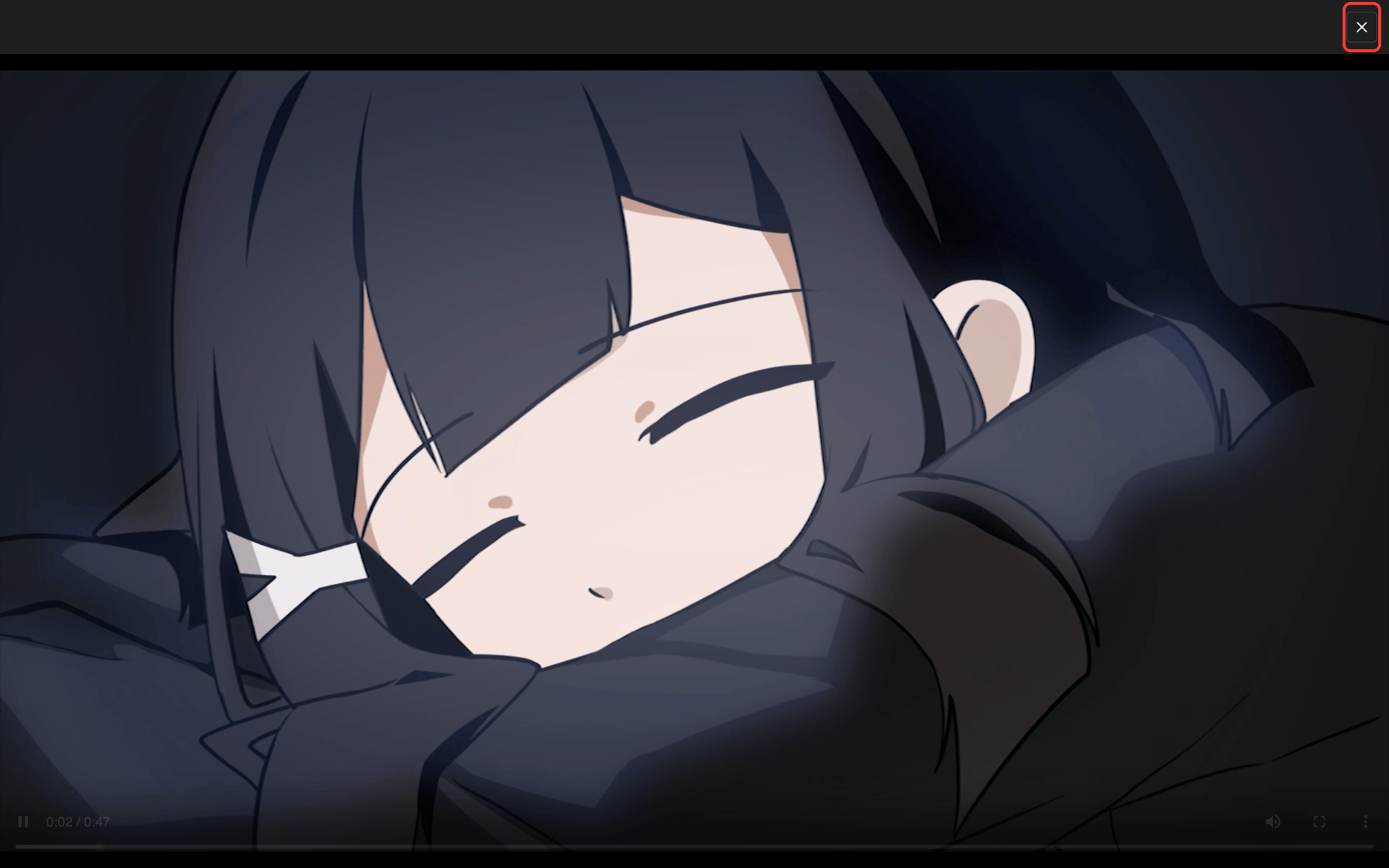
Tap the X button to close the preview. The video list comes back.
See a video's details
The details show the file type, file size, dimensions, and duration.
-
Select the video.
- Phone or tablet: Tap the video card. The details are in the panel at the bottom of the screen.
- Desktop: Click the video card. The details show in the panel on the right.
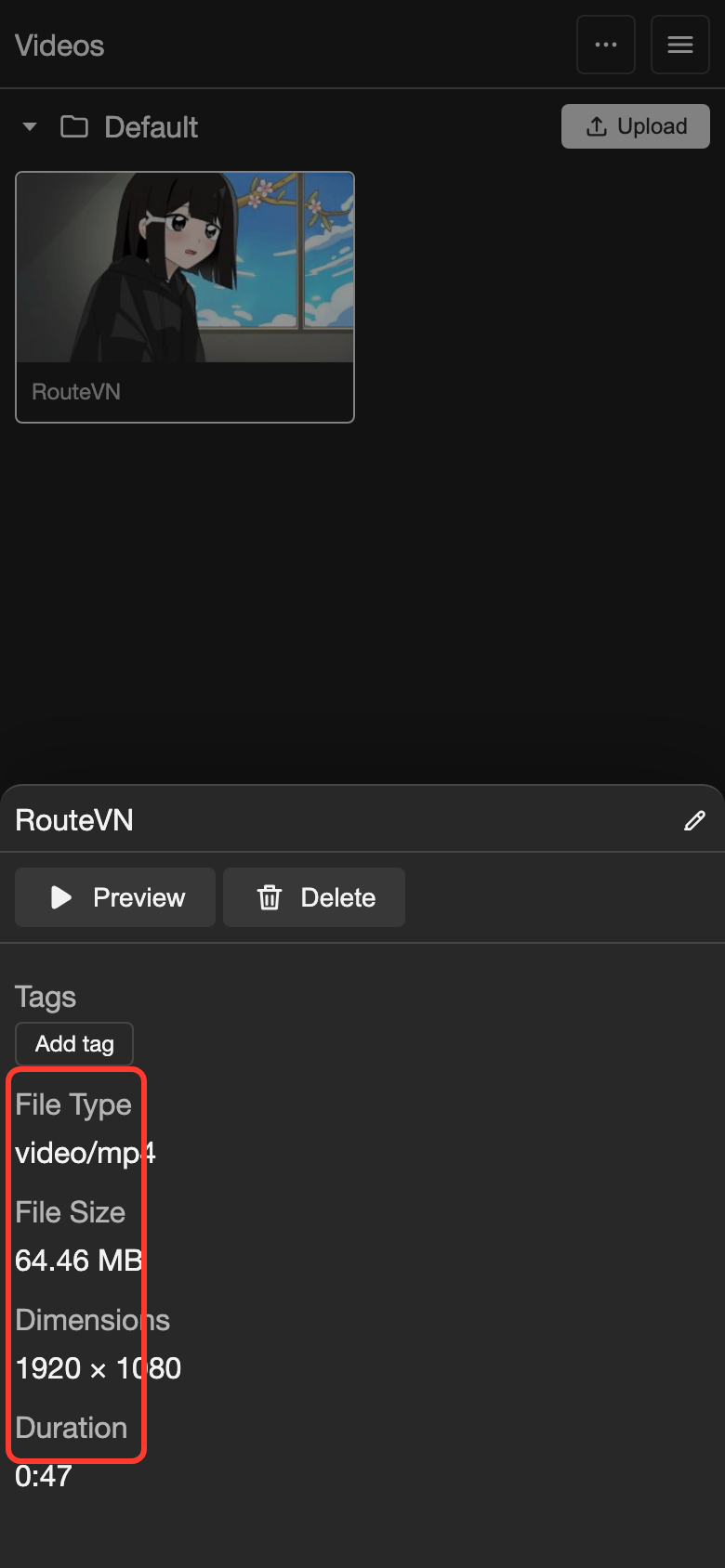
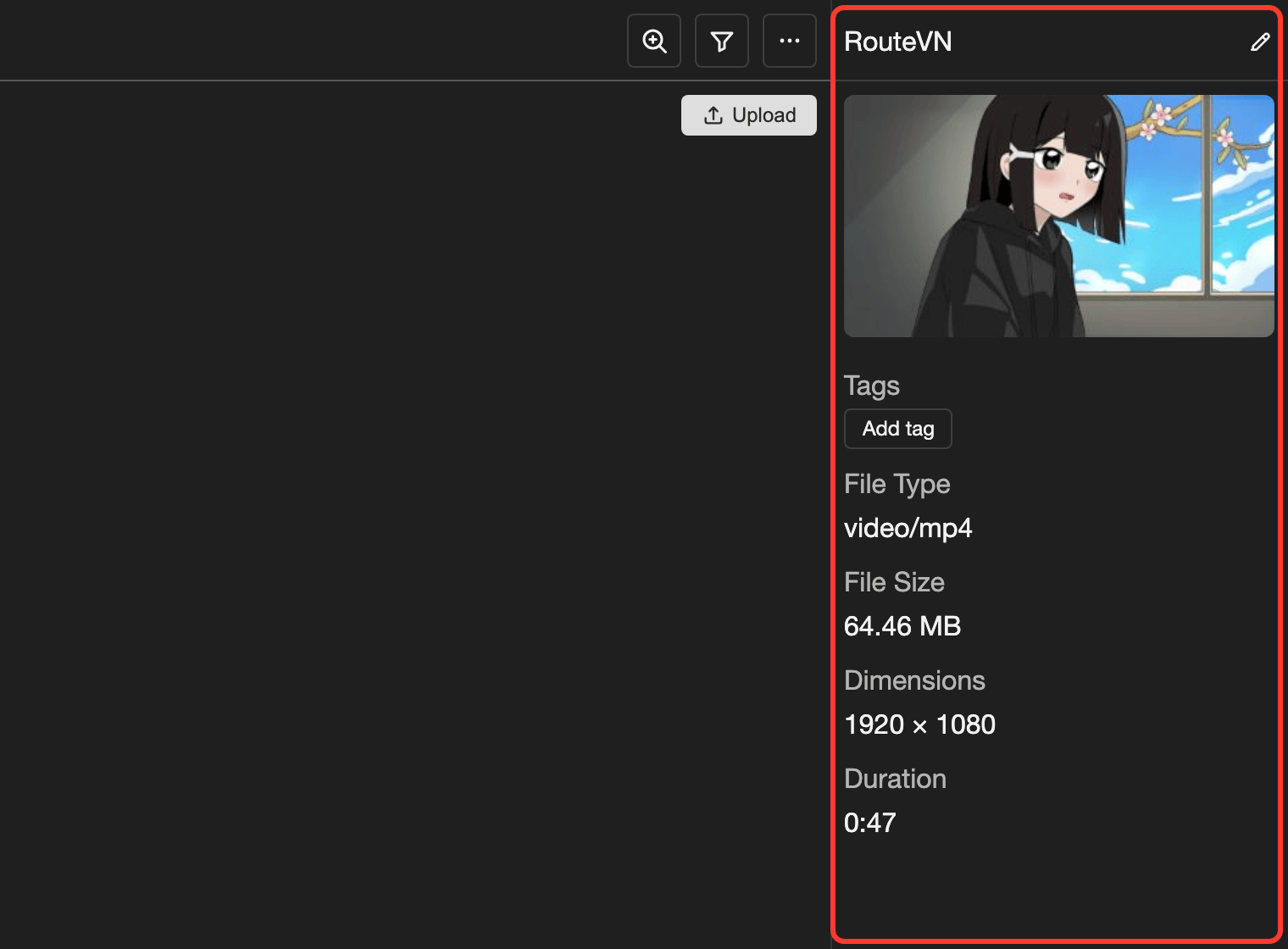
The details show the file type, file size, dimensions, and duration.
Replace a video file
Replacing a video keeps its name, tags, and places where it is used. Only the file changes.
-
Open the Edit Video box.
- Phone or tablet: Select the video. In the panel, tap the pencil icon next to the name.
- Desktop: Select the video. In the details panel, click the pencil icon next to the name.
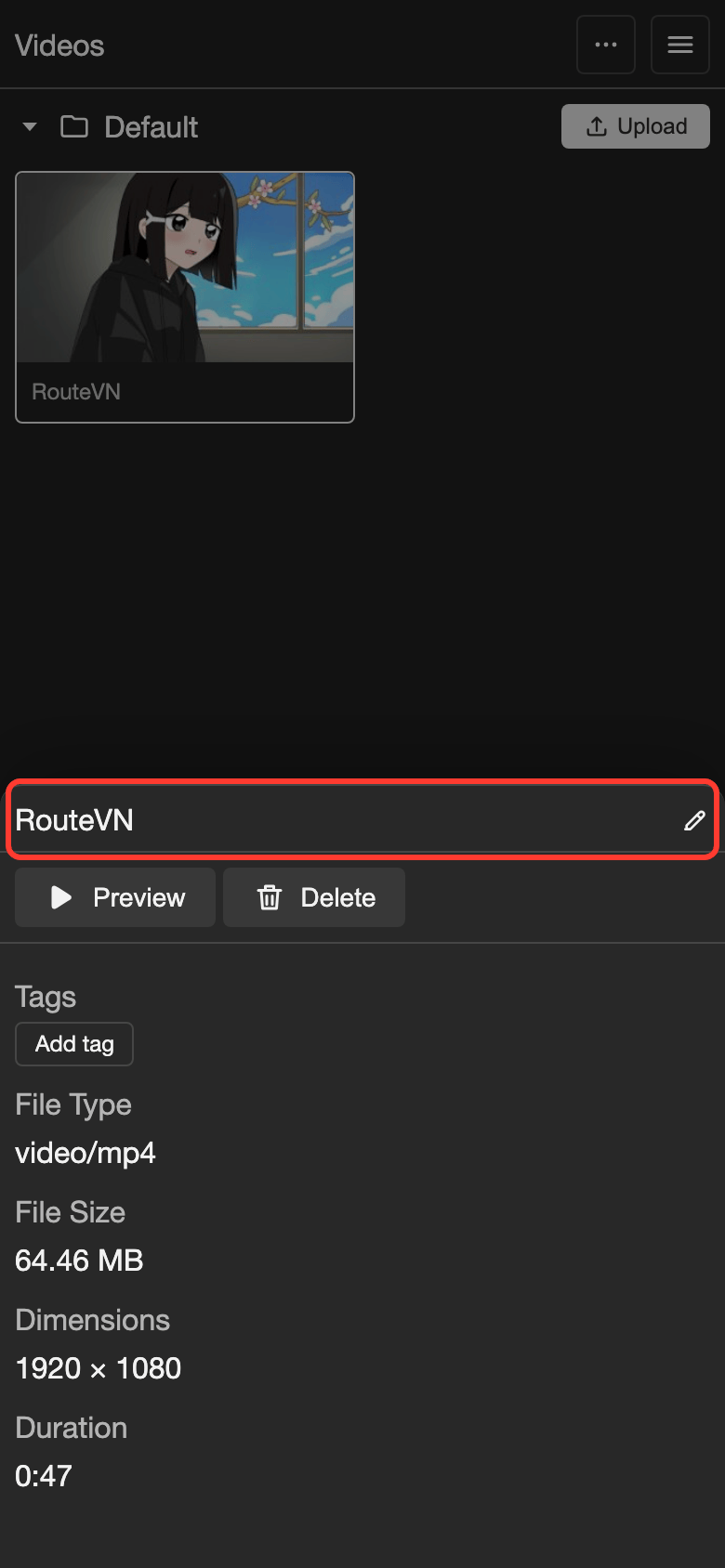
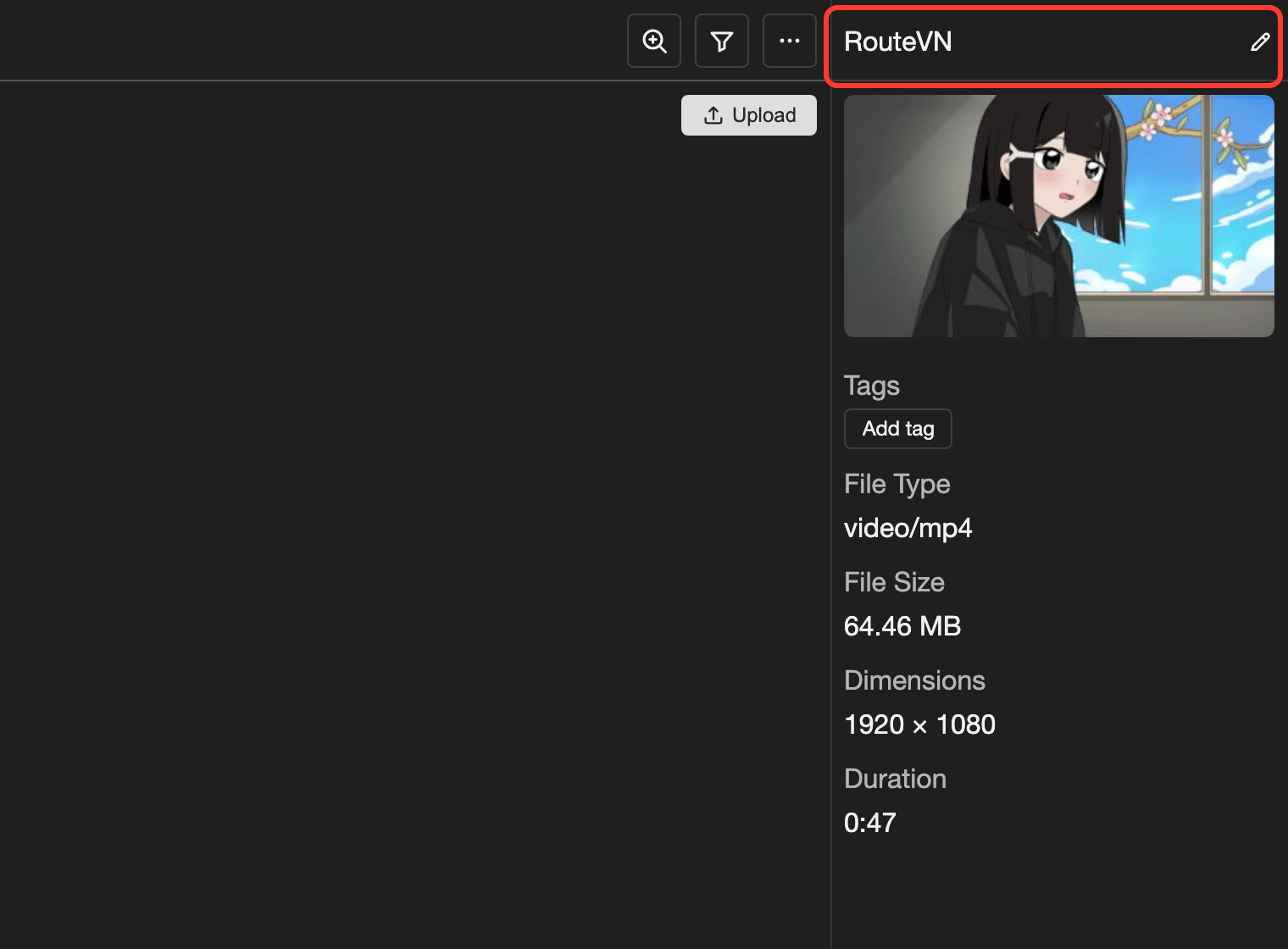
Tap or click the pencil icon next to the name. The Edit Video box opens.
-
Tap the video preview under Video.
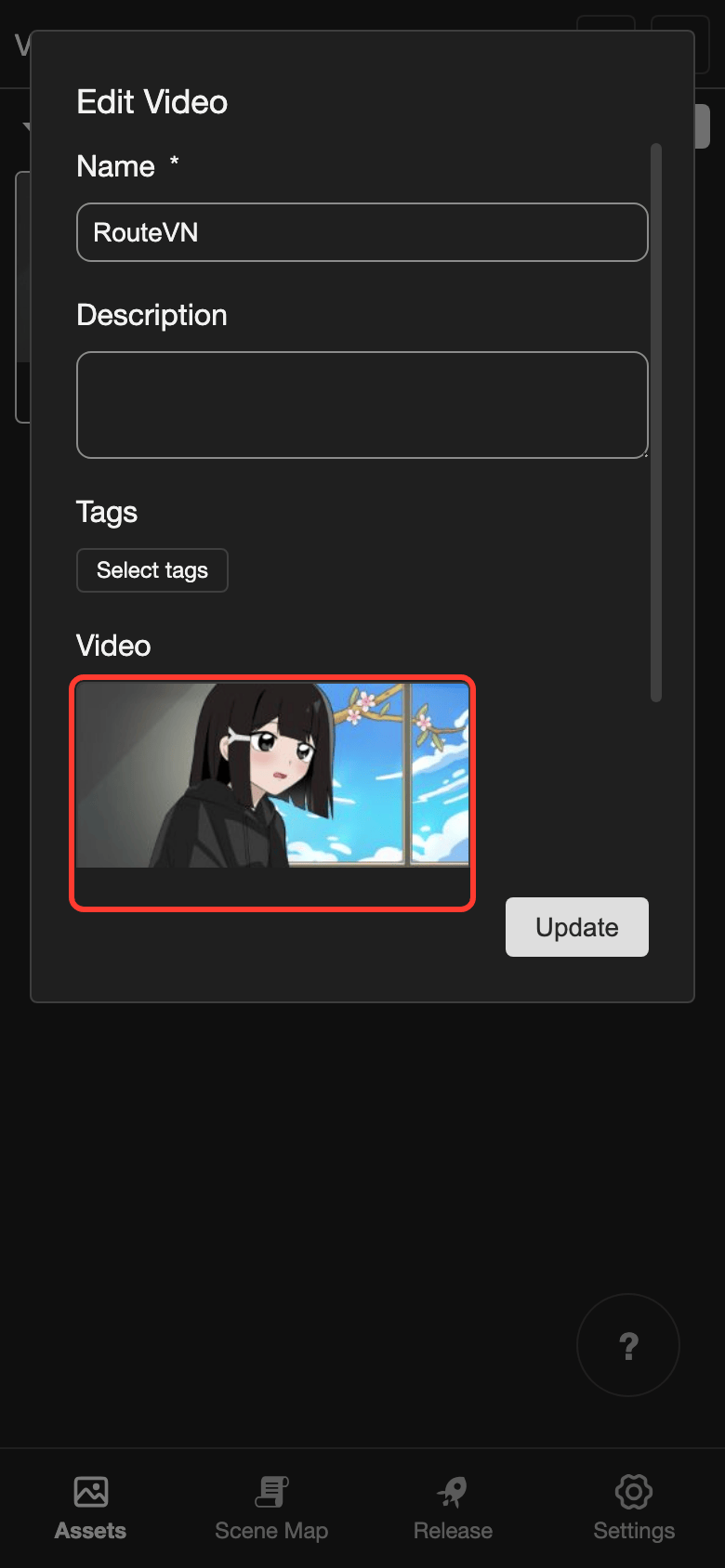
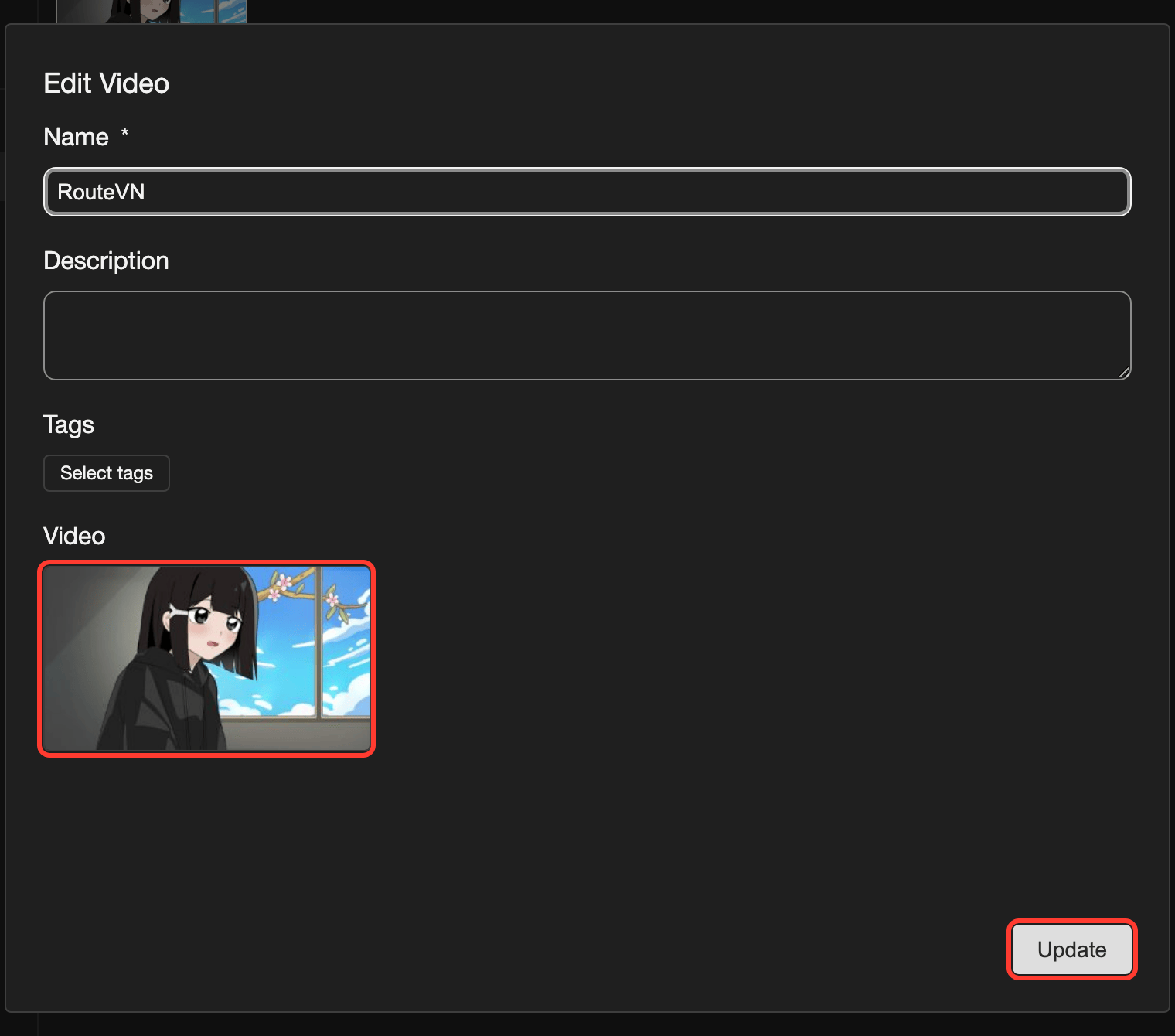
Tap the video preview to choose a new file. A file picker opens.
-
Choose the new MP4 file.
-
Tap Update.
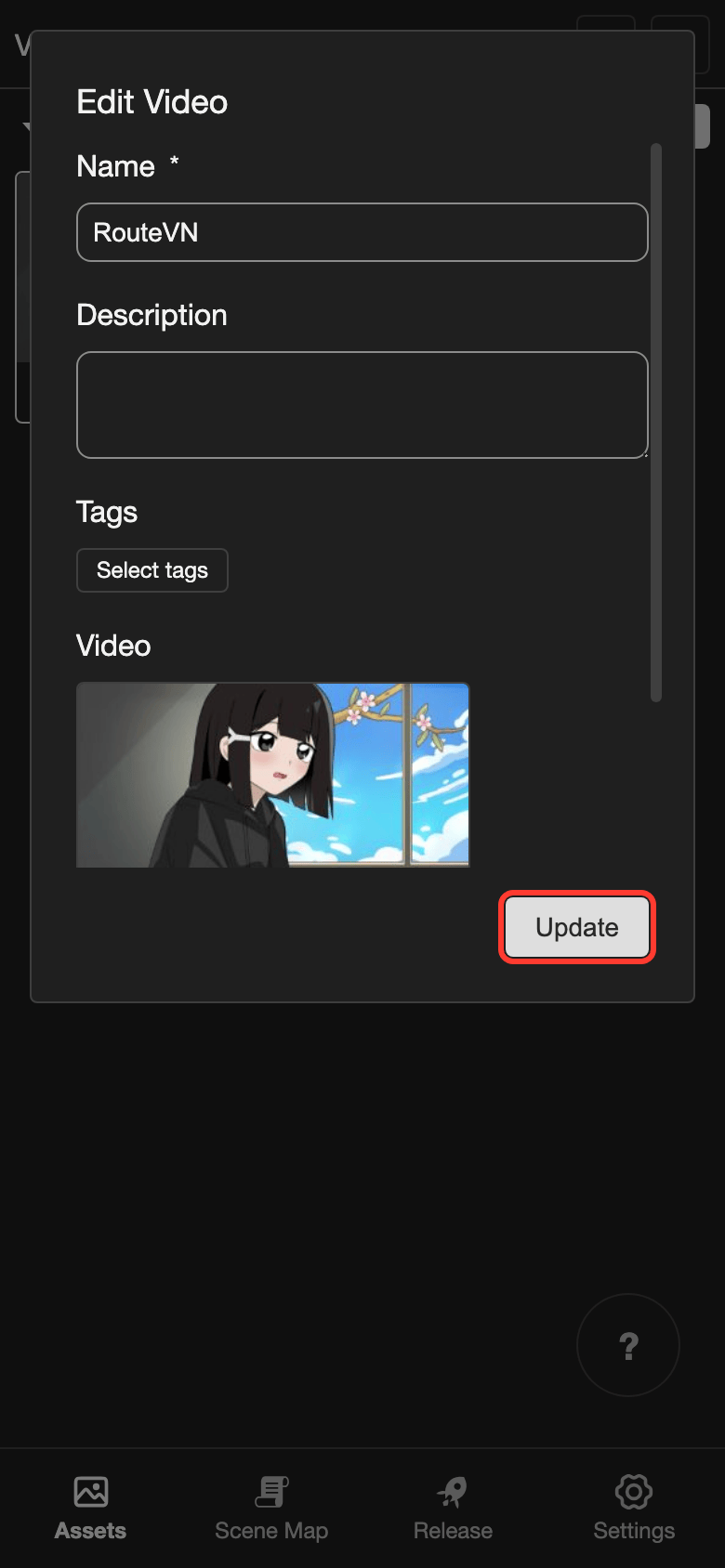
Tap Update to save the new file.
The box closes. The video now uses the new file.
Video size and formats
Only MP4 videos are supported.
Keep your videos small. Large files slow down the app. They also make your export bigger.
- Make the video size match your project. See Project resolution.
- Compress the video before you upload it. Use a video tool to make the file smaller.
Organize your videos
- To make folders, move, rename, and delete videos, read File Explorer.
- To add a tag, such as "cutscene", read Tags.
Where videos are used
You can use a video in these places:
- Background line action: Choose the Videos tab. Then choose Loop or Don't Loop. See Background.
- Visuals line action: Choose a video to show on the screen. See Visuals.
- Layouts: Add a video to a layout. See Video.
Good to know
- To delete a video, use Delete in its menu. The video is deleted right away. You cannot undo a delete.
- A video that a scene or layout uses cannot be deleted. See Problems and fixes.
Problems and fixes
- Only MP4 videos are supported. Convert your video to MP4. Then upload it again.
- Failed to upload video. Check that the file is an MP4 video. Then try again.
- Cannot delete resource, it is currently in use. A scene or layout uses this video. Remove the video from those places first. Then delete it again.