BGM
The BGM action plays background music. BGM means background music.
The music keeps playing on the lines after it. It changes only when a later line changes or stops it.
Before you start, upload your music on the Sounds page.
Add music to a line
-
Open the scene you want, for example Prologue. See Scene Map.
-
Tap the line where the music starts, for example line 1.
-
Open the Actions menu.
- Phone or tablet: At the bottom of the screen, tap the + button.
- Desktop: Under Presentation state, click the + button.
-
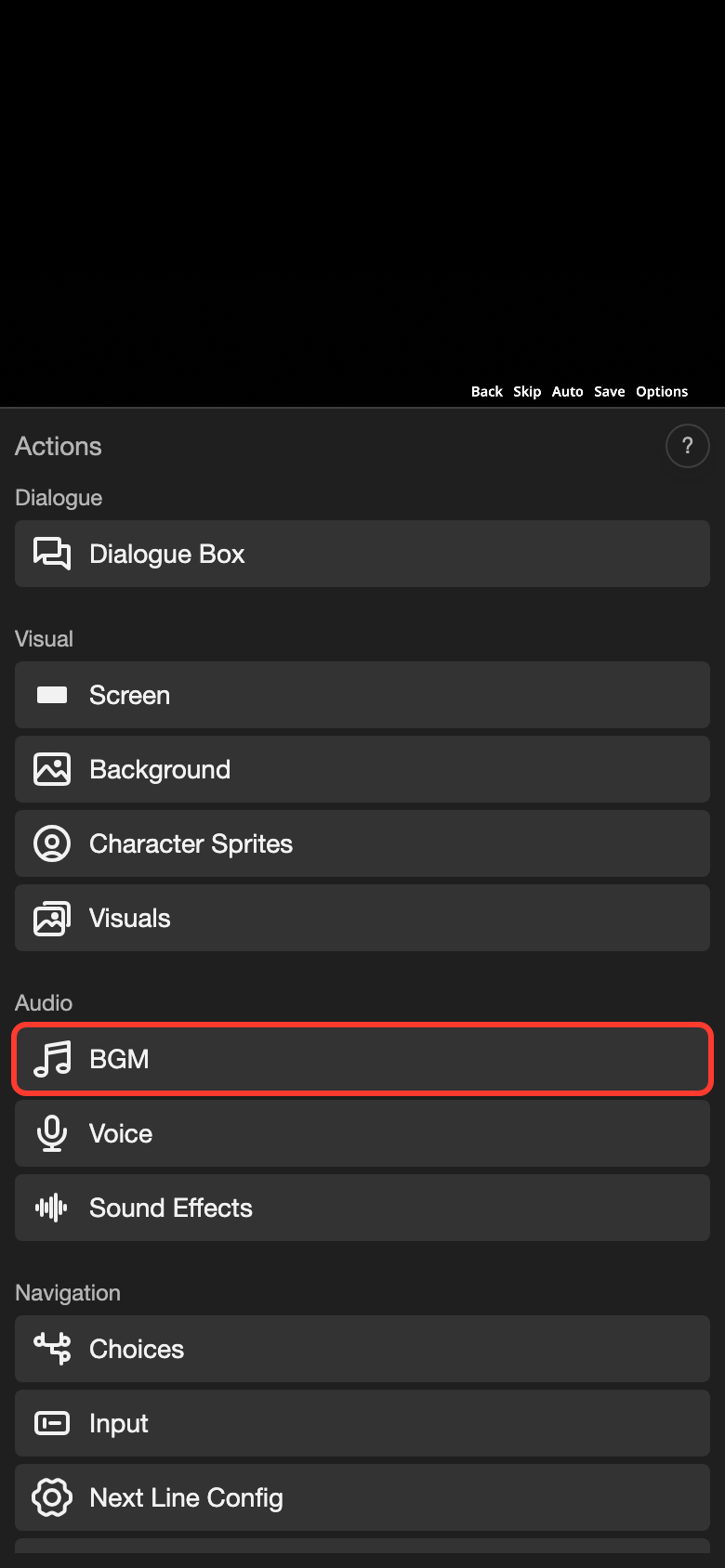
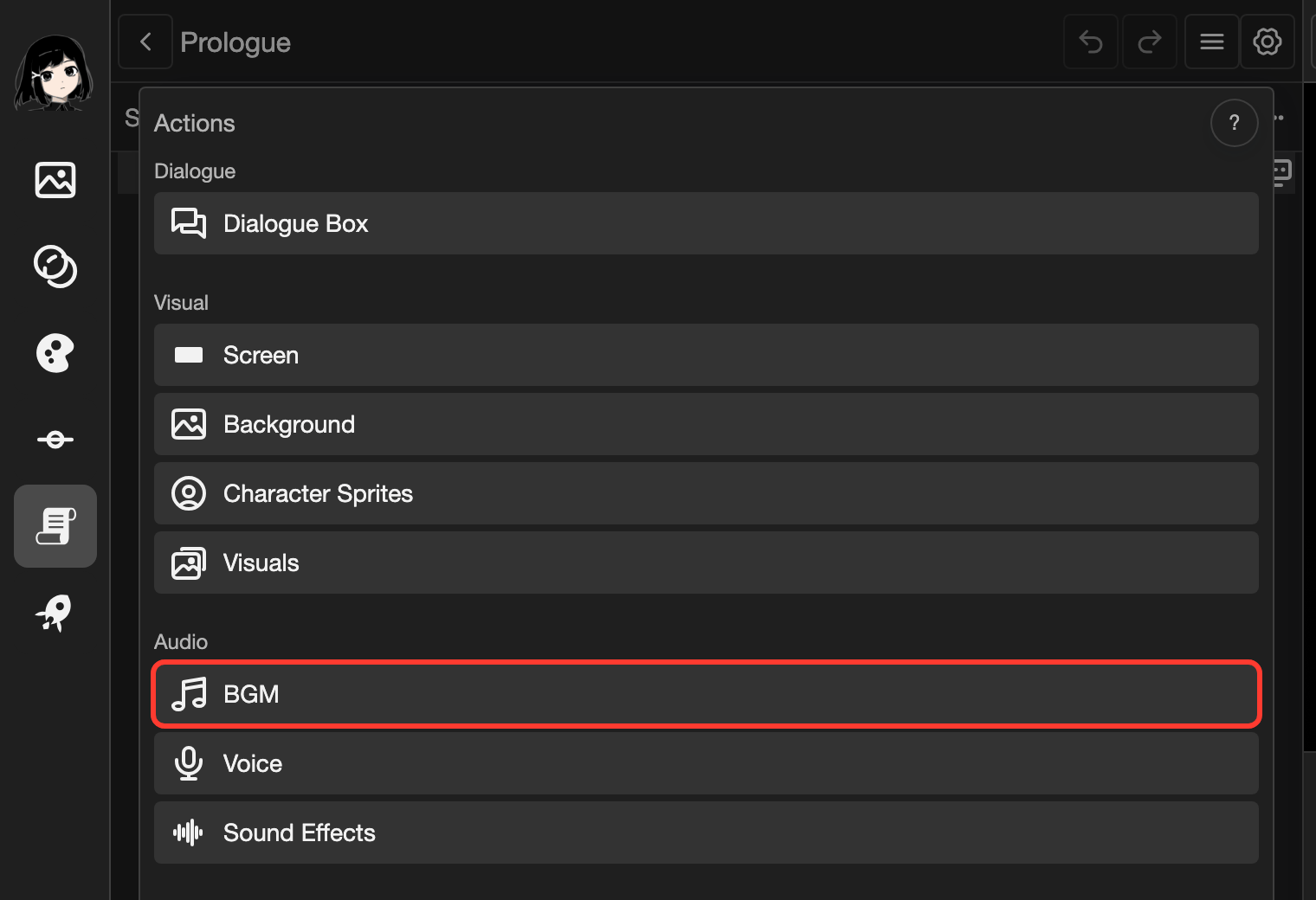
Under Audio, tap BGM. The BGM form opens.
-
Tap the BGM Channel box. It has a + in the middle.
A list of your sounds opens. If it says No items available to select., upload music on the Sounds page first.
-
Tap a sound, for example Happy.
-
Tap Select.
-
Tap Submit.
A music note icon appears at the right end of the line.
Change the settings
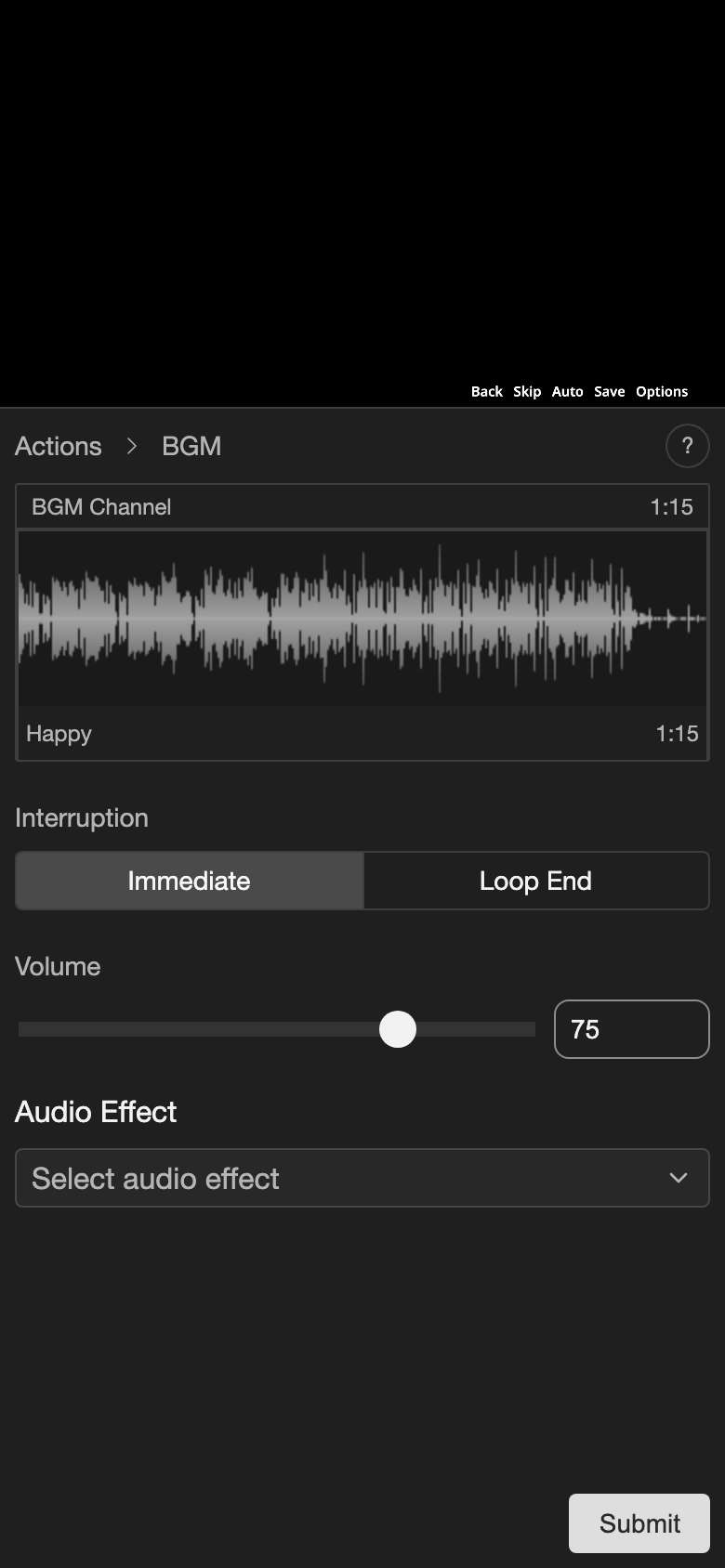
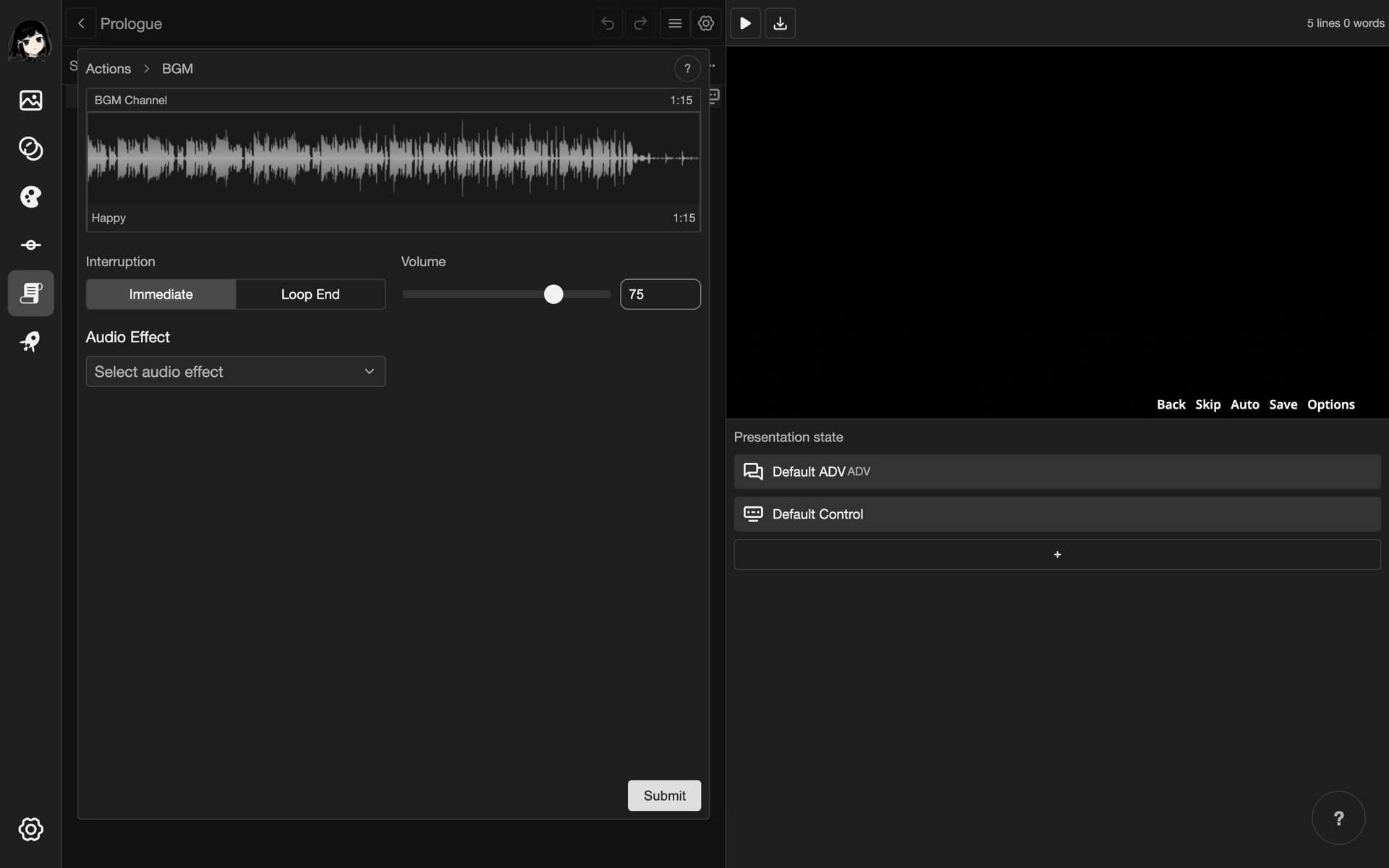
The BGM form has settings for the whole music. Each sound has more settings in the BGM Channel box.
-
In the BGM form, tap the BGM Channel box.
-
In the box, tap the sound. Its settings show below it.
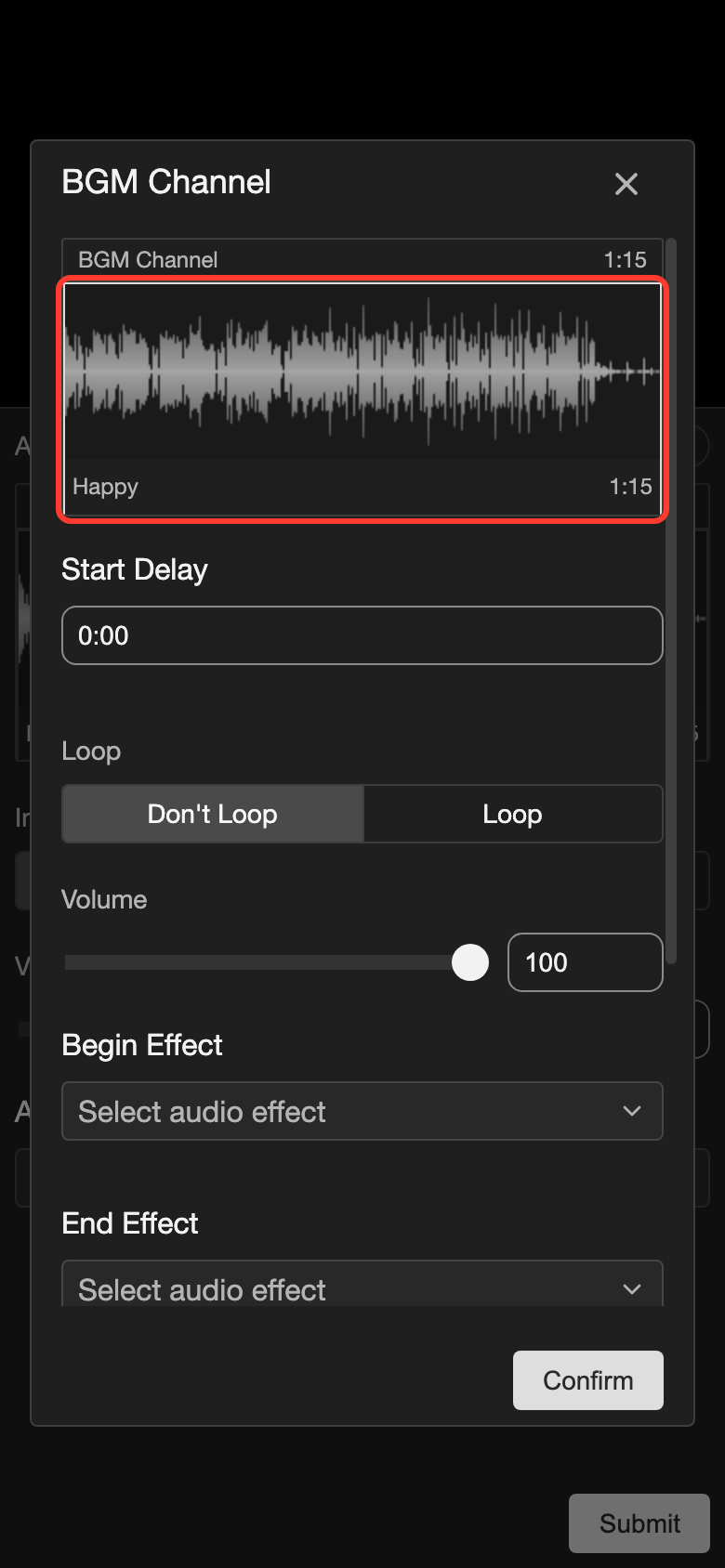
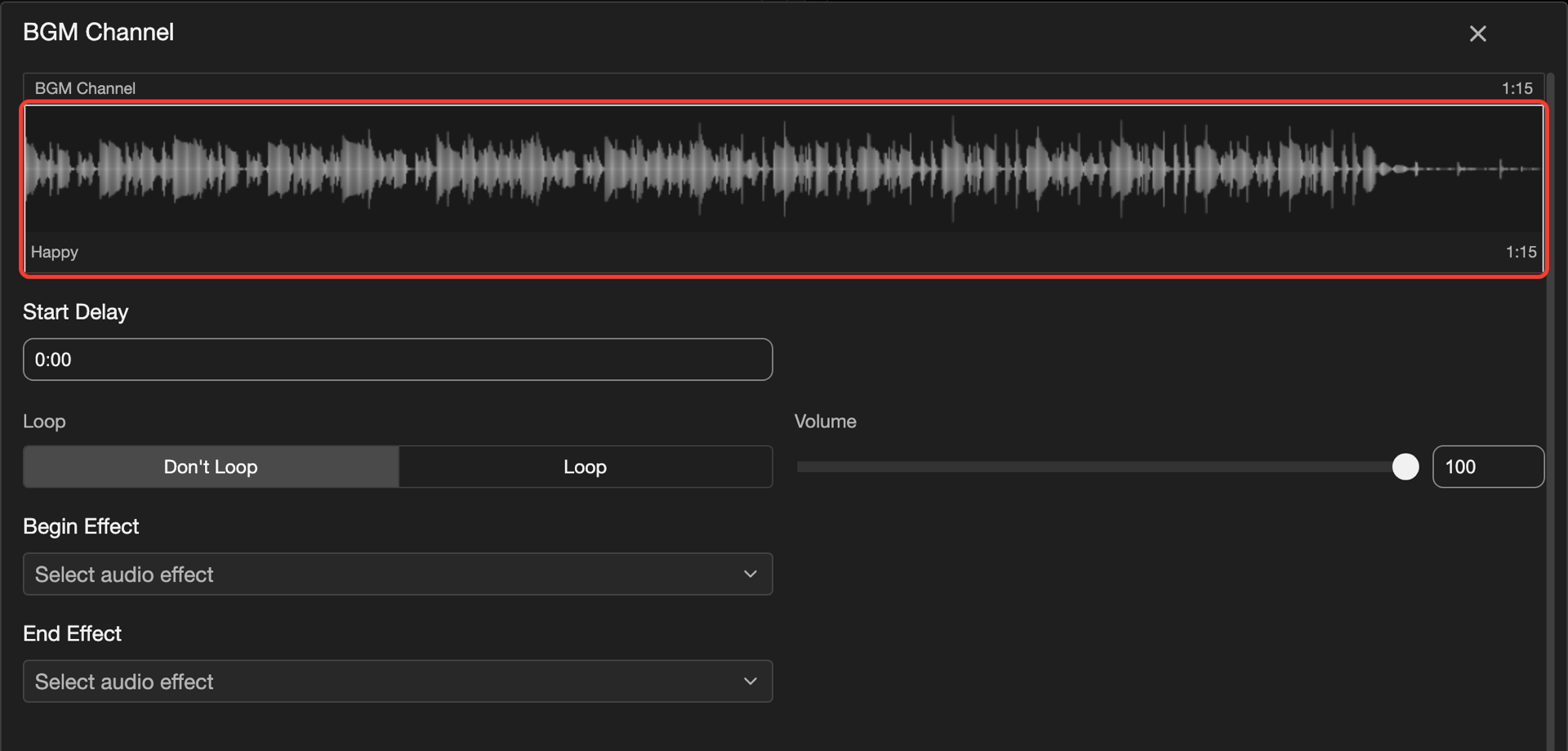
-
Change the settings.
-
Tap Confirm.
-
Tap Submit.
| Setting | Where | What it does |
|---|---|---|
| Interruption | BGM form | How the music stops when a later line changes or stops it. Immediate stops it right away. Loop End lets it reach the end of its loop first. |
| Volume | BGM form | How loud the whole BGM is. The range is 0 to 100. It starts at 75. |
| Audio Effect | BGM form | An effect from the Audio Effects page, such as Crossfade 1s. Playback Speed shows after you choose one. |
| Start Delay | Sound | How long the sound waits before it starts. It starts at 0:00. |
| Loop | Sound | Loop repeats this sound. If no sound uses Loop, the whole BGM Channel repeats. |
| Volume | Sound | How loud this sound is. The range is 0 to 100. It starts at 100. |
| Begin Effect and End Effect | Sound | An effect for when the sound starts, and an effect for when it ends. Their lists show only Update effects, such as Fade in 1s. |
Change the music on a later line
A new BGM replaces the music that is playing. The form already shows the music from the earlier line.
-
Tap a later line, for example line 3.
-
Tap the + button. Then tap BGM.
-
Tap the BGM Channel box.
-
Open the menu of the sound.
- Phone or tablet: Long press (touch and hold) the sound.
- Desktop: Right-click the sound.
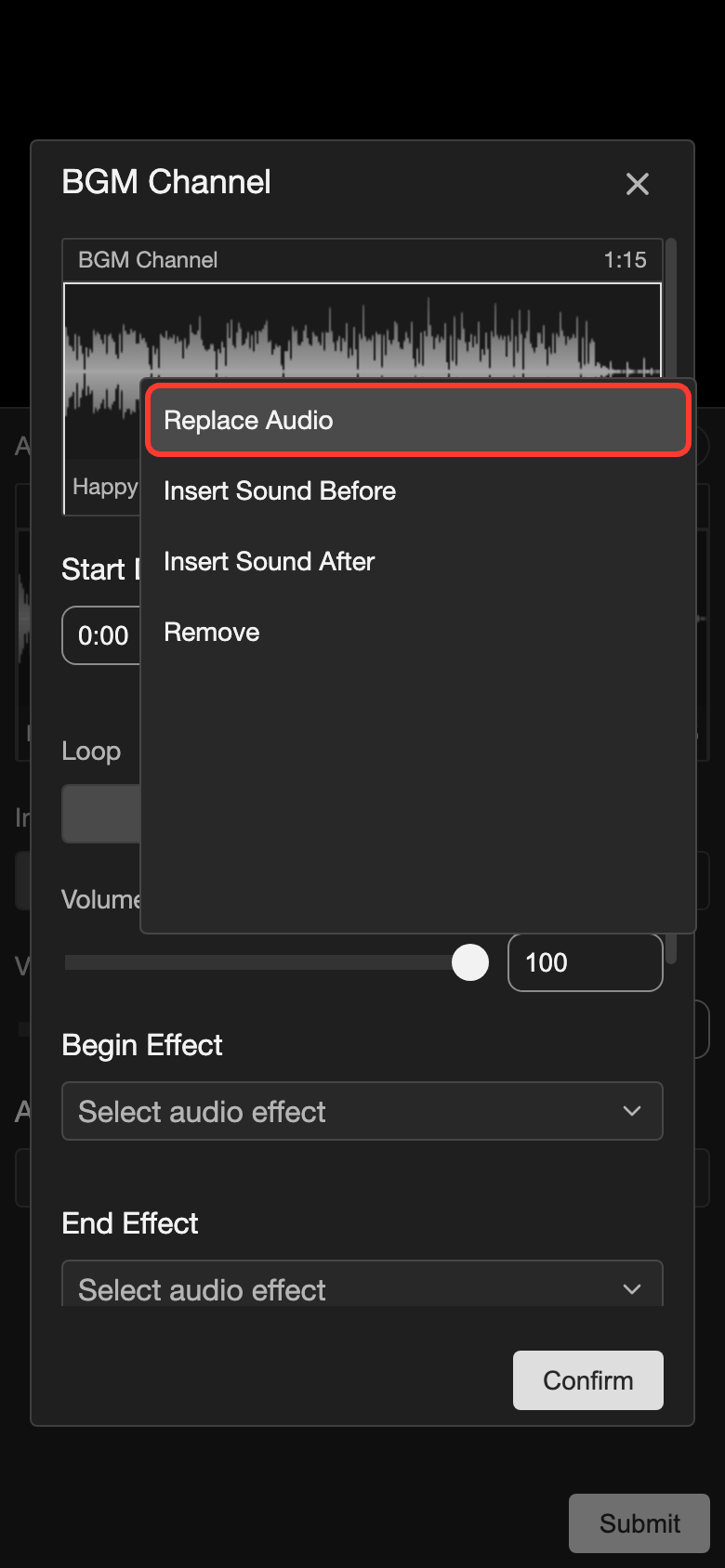
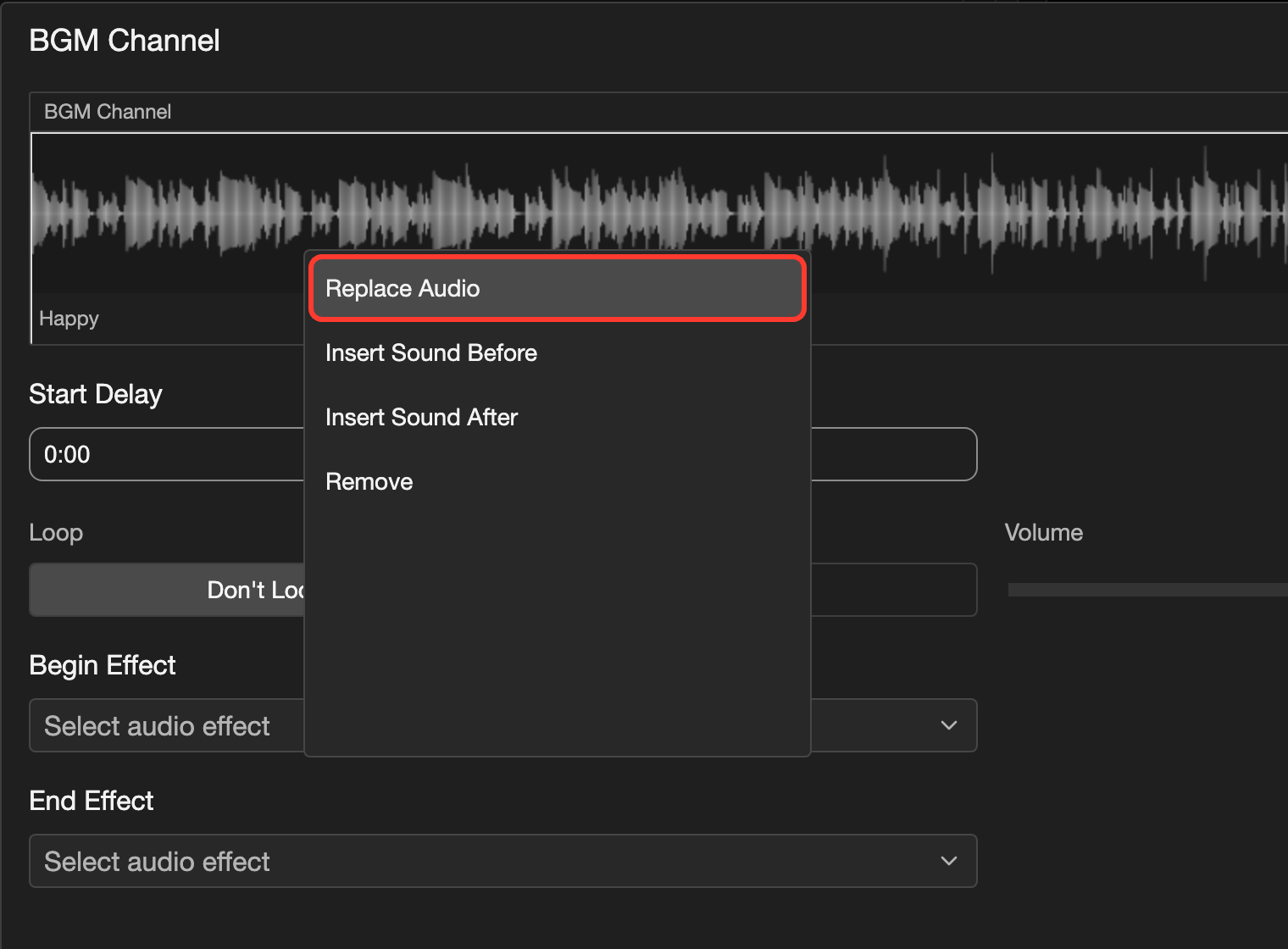
-
Tap Replace Audio.
-
Tap a different sound, for example Gloomy.
-
Tap Select.
-
Tap Confirm.
-
Tap Submit.
Line 3 now has the new music. Lines 1 and 2 keep the first music.
A BGM can hold more than one sound. In the menu of a sound, tap Insert Sound Before, Insert Sound After, or Remove.
Stop the music
-
Tap the line where the music stops, for example line 5.
-
Tap the + button. Then tap BGM.
-
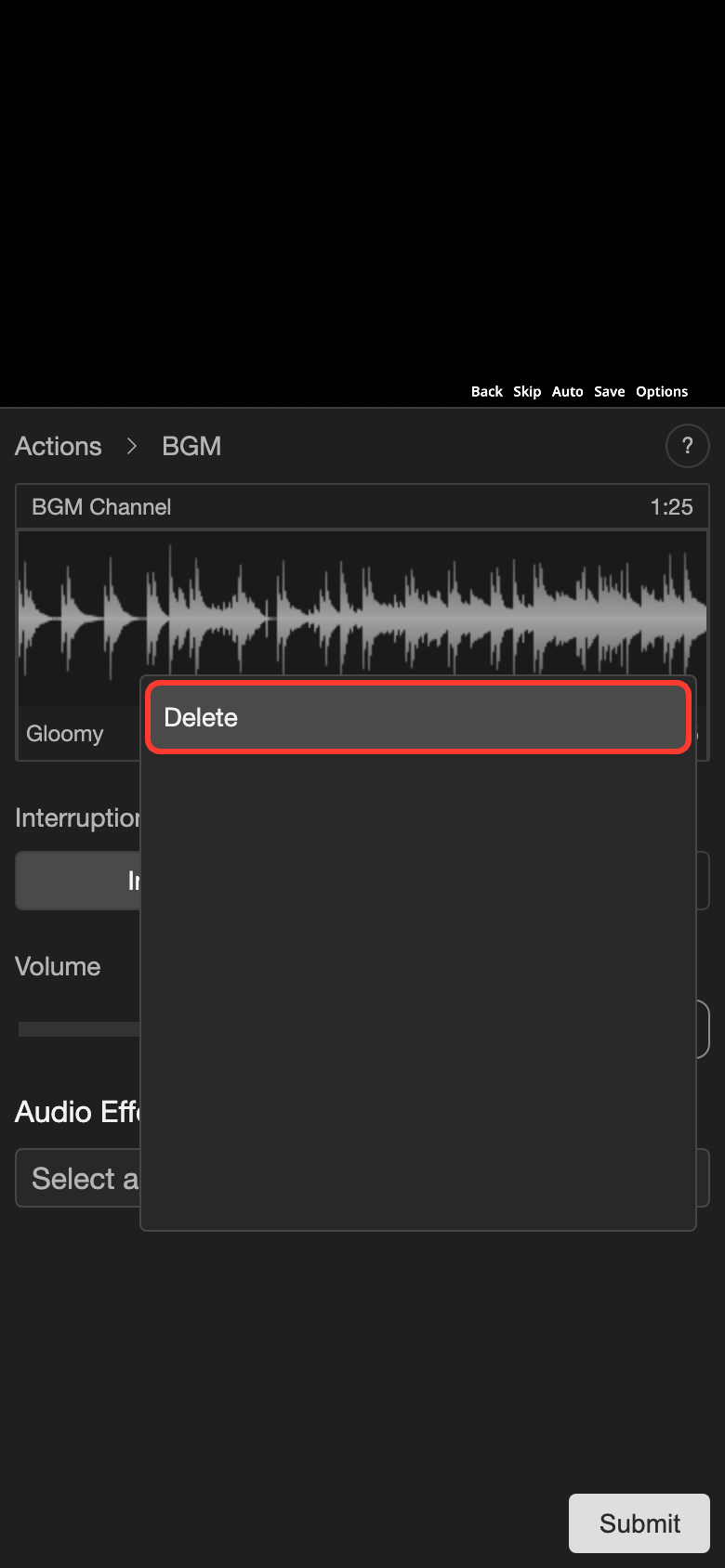
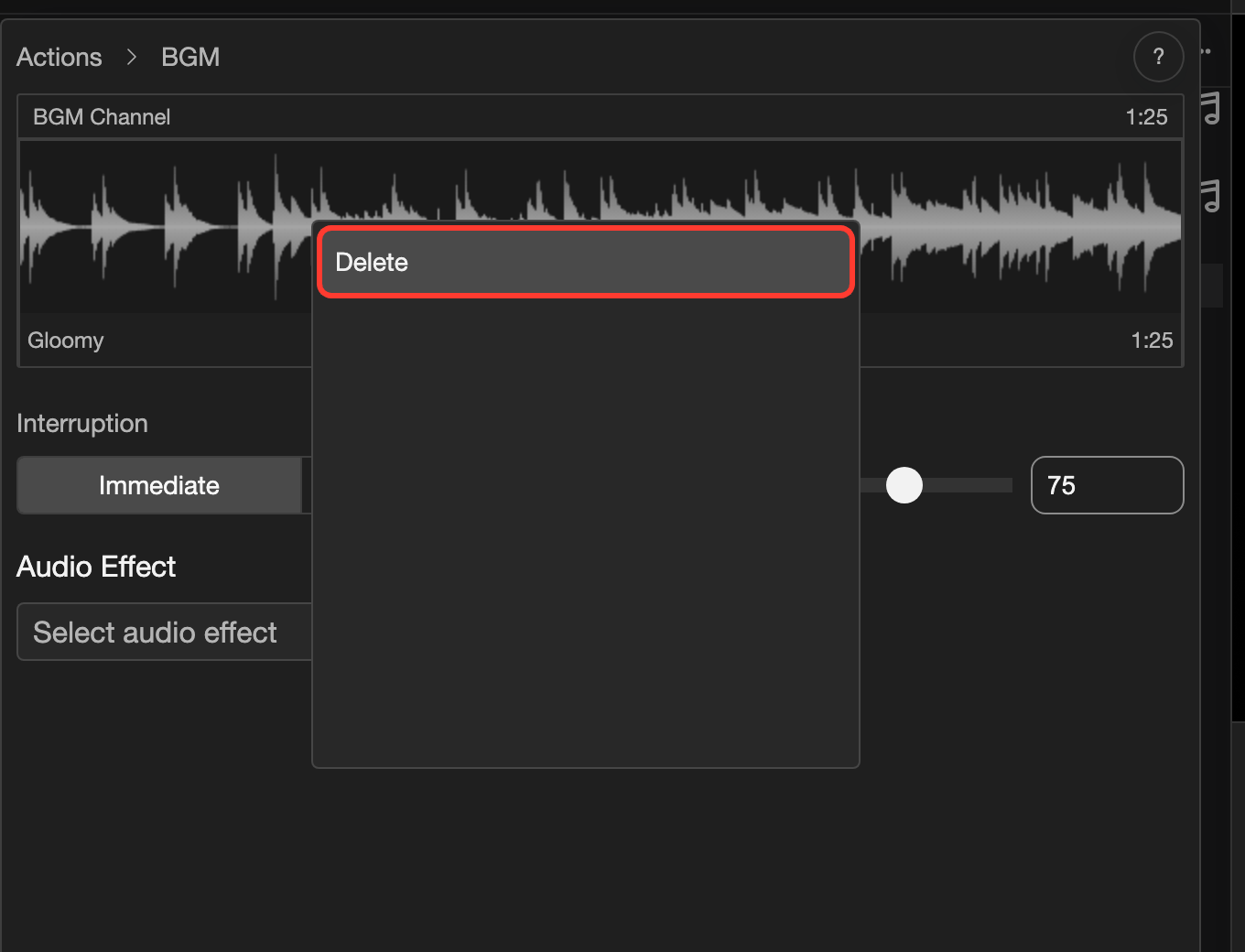
Open the menu of the BGM Channel box.
- Phone or tablet: Long press the BGM Channel box.
- Desktop: Right-click the BGM Channel box.
-
Tap Delete. The box is empty.
-
Tap Submit.
The music is gone from this line and the lines after it.
On desktop, there is a shortcut. Right-click the music row under Presentation state. Then click Delete.