Sounds
The Sounds page holds the sounds for your visual novel. Use it to upload music, sound effects, and voices, and to play them before you use them.
- Music (BGM): Background music that plays for a scene.
- Sound effects (SFX): Short sounds, such as a door or a bell.
- Voice: A spoken line from a character.
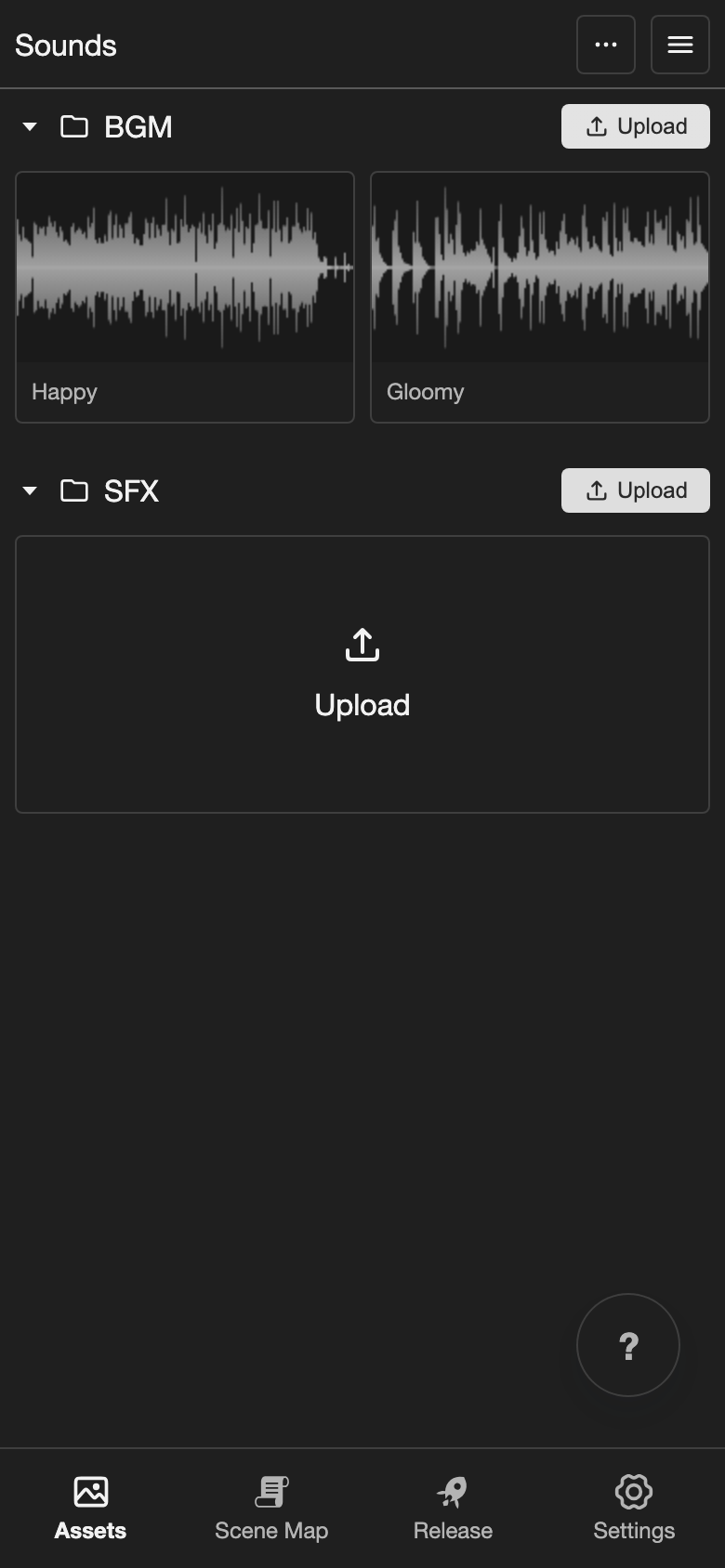
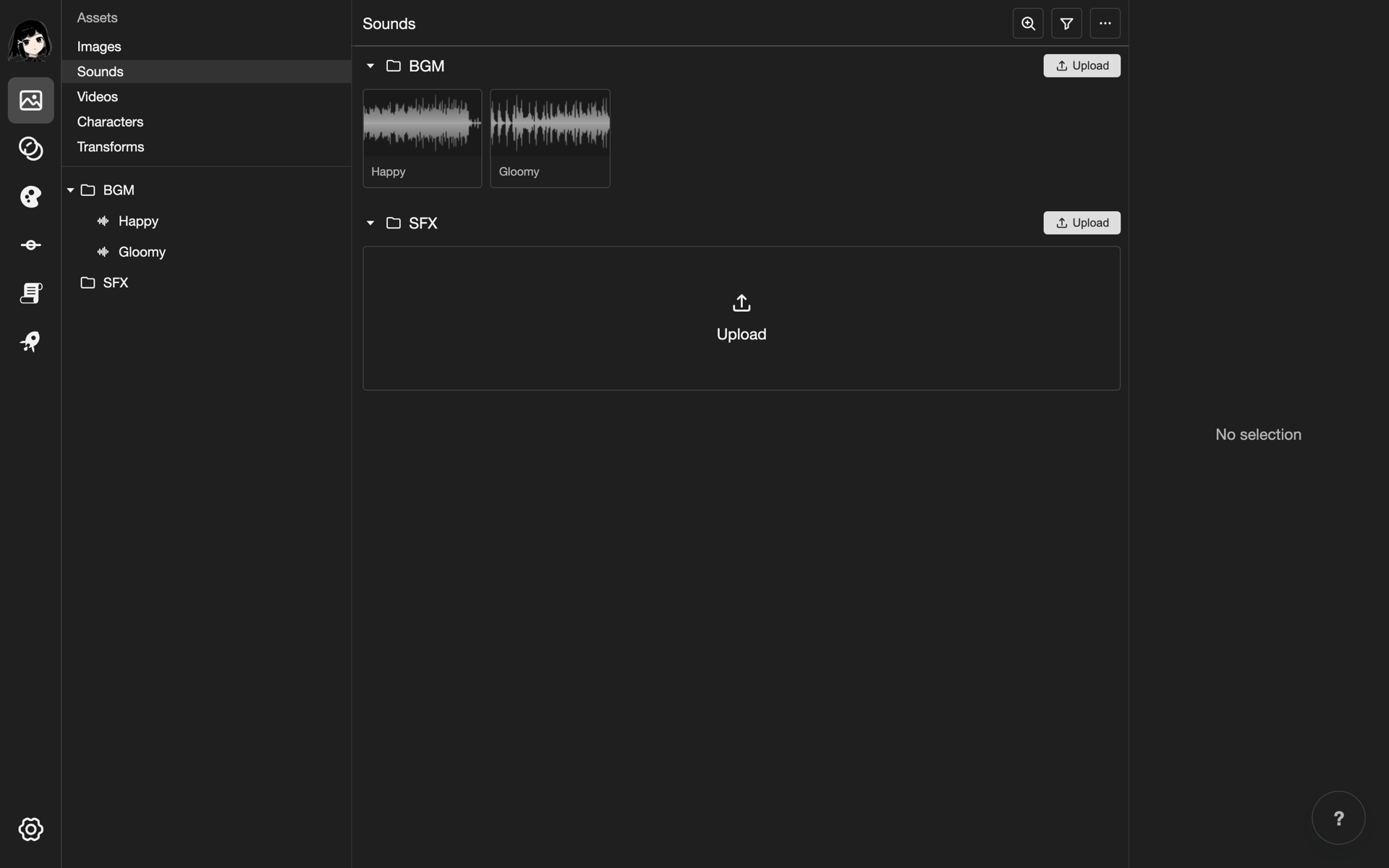
Open the Sounds page
-
Go to the Assets list.
- Phone or tablet: At the bottom of the screen, tap Assets. A list opens.
- Desktop: The Assets list is always on the left side. You do not need to open it.
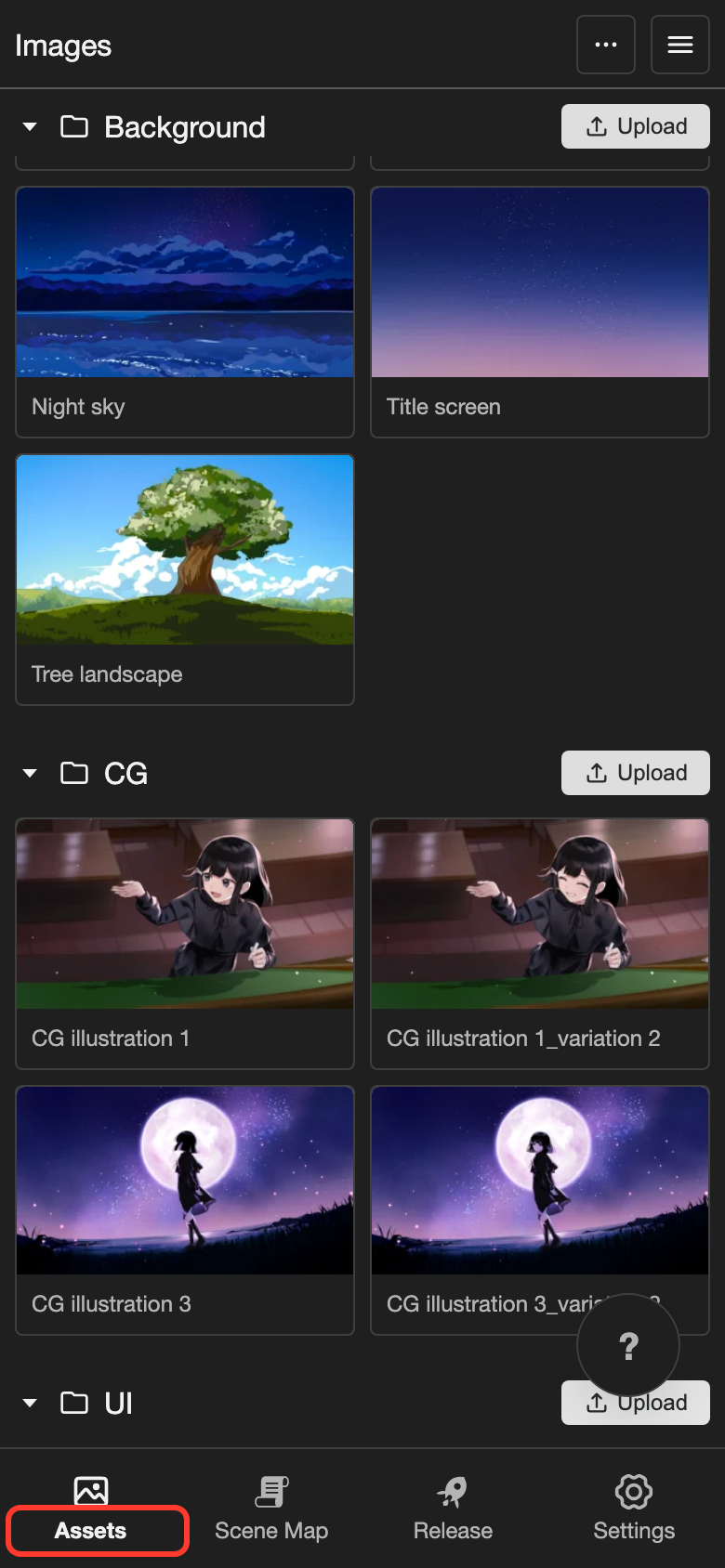
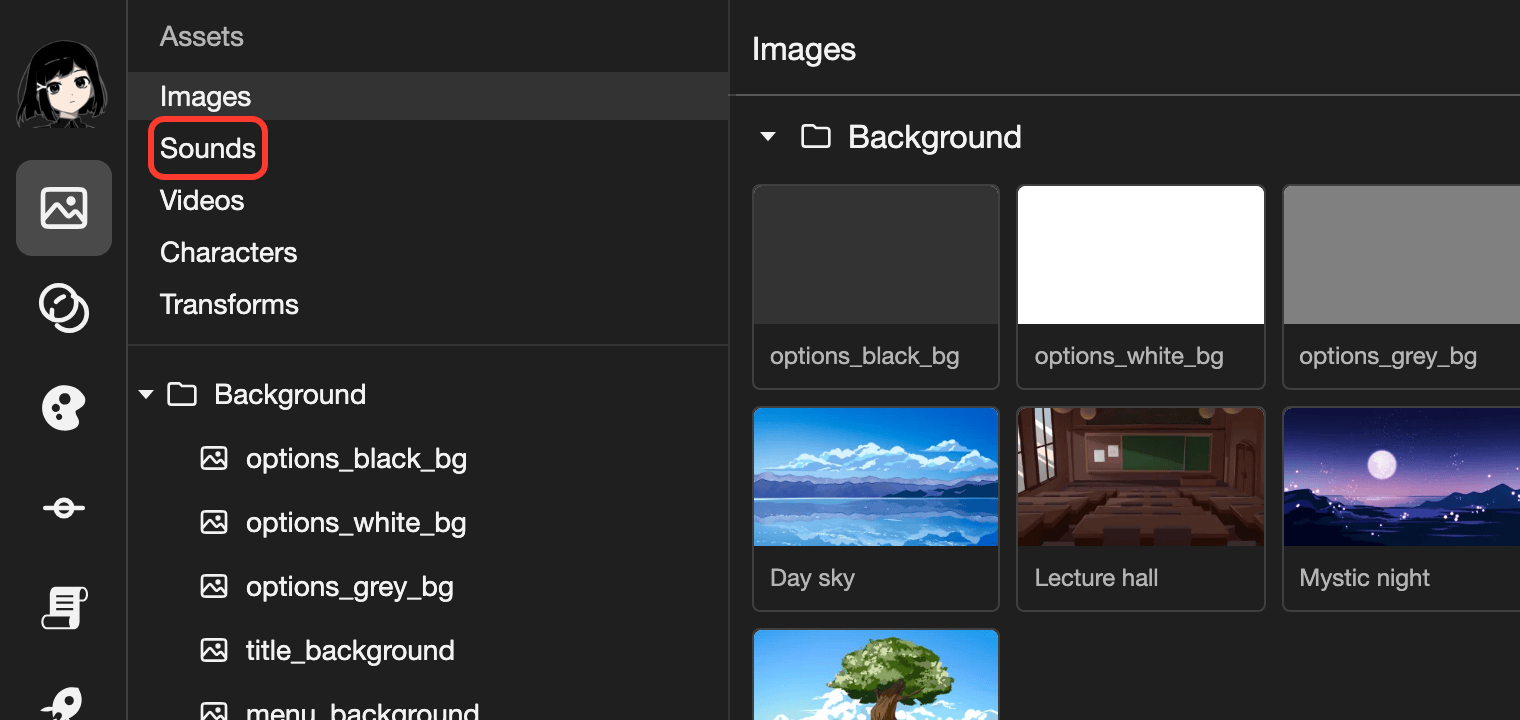
The Assets list is where you find the Sounds page. -
Tap Sounds.
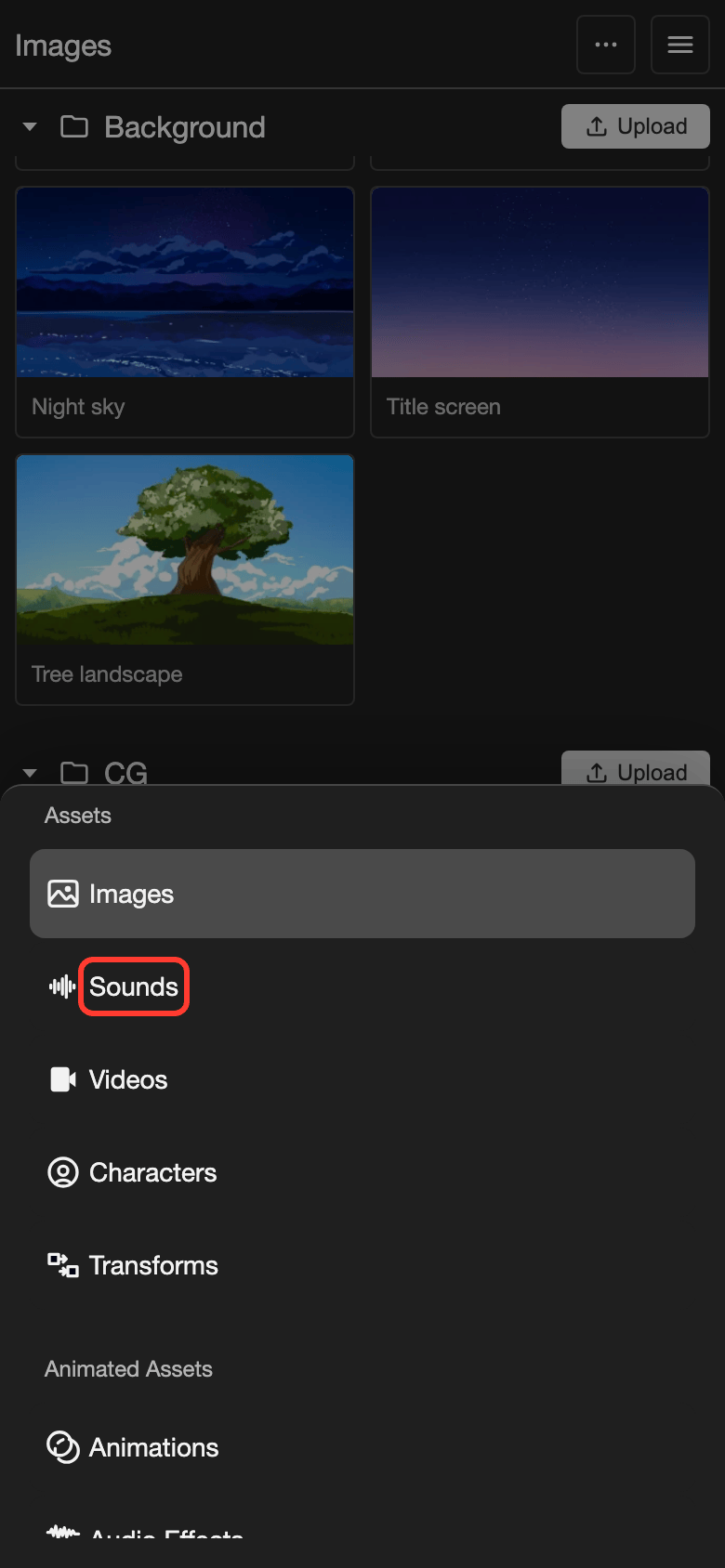
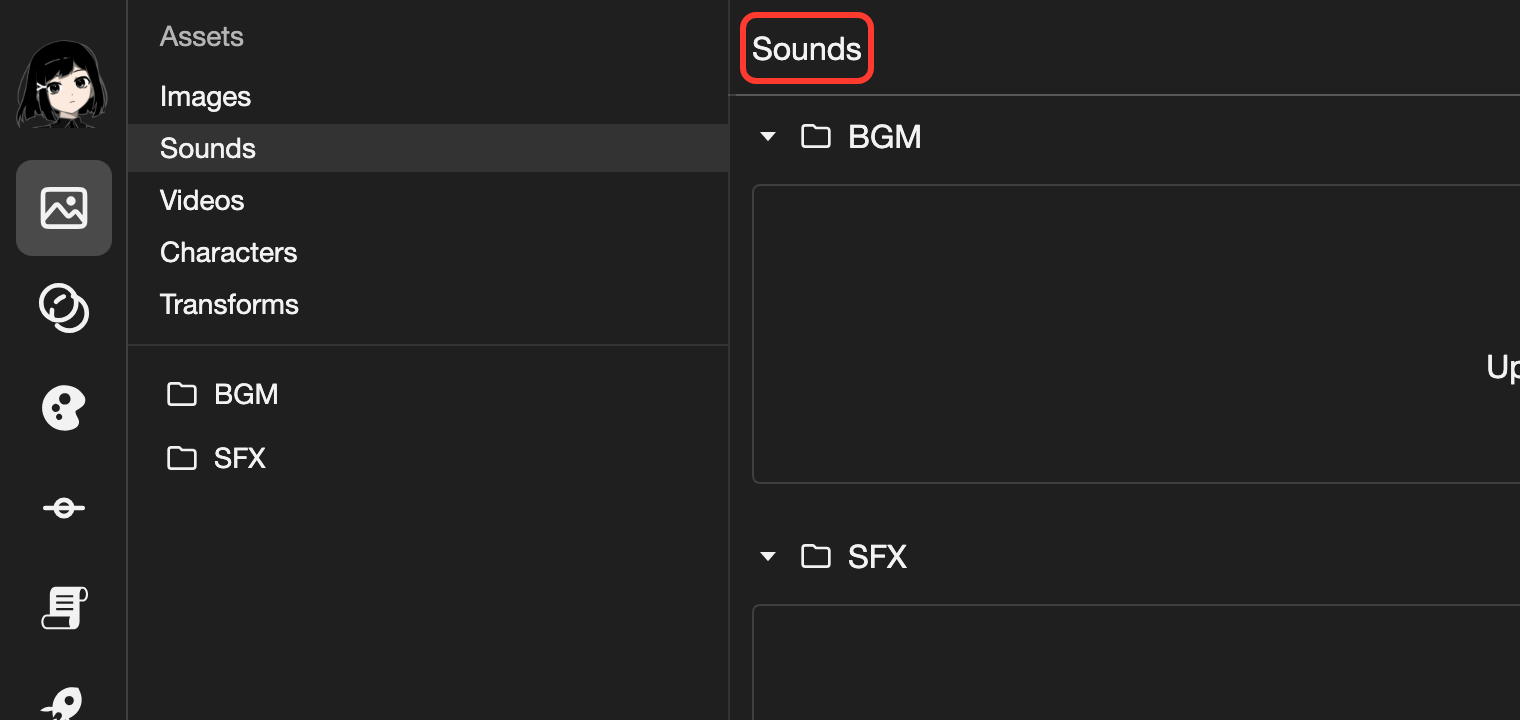
The Sounds page has a folder called BGM and a folder called SFX.
Upload sounds
Upload sounds into a folder. Each folder has its own Upload button.
-
Find the Upload button of the folder. This example uses the BGM folder.
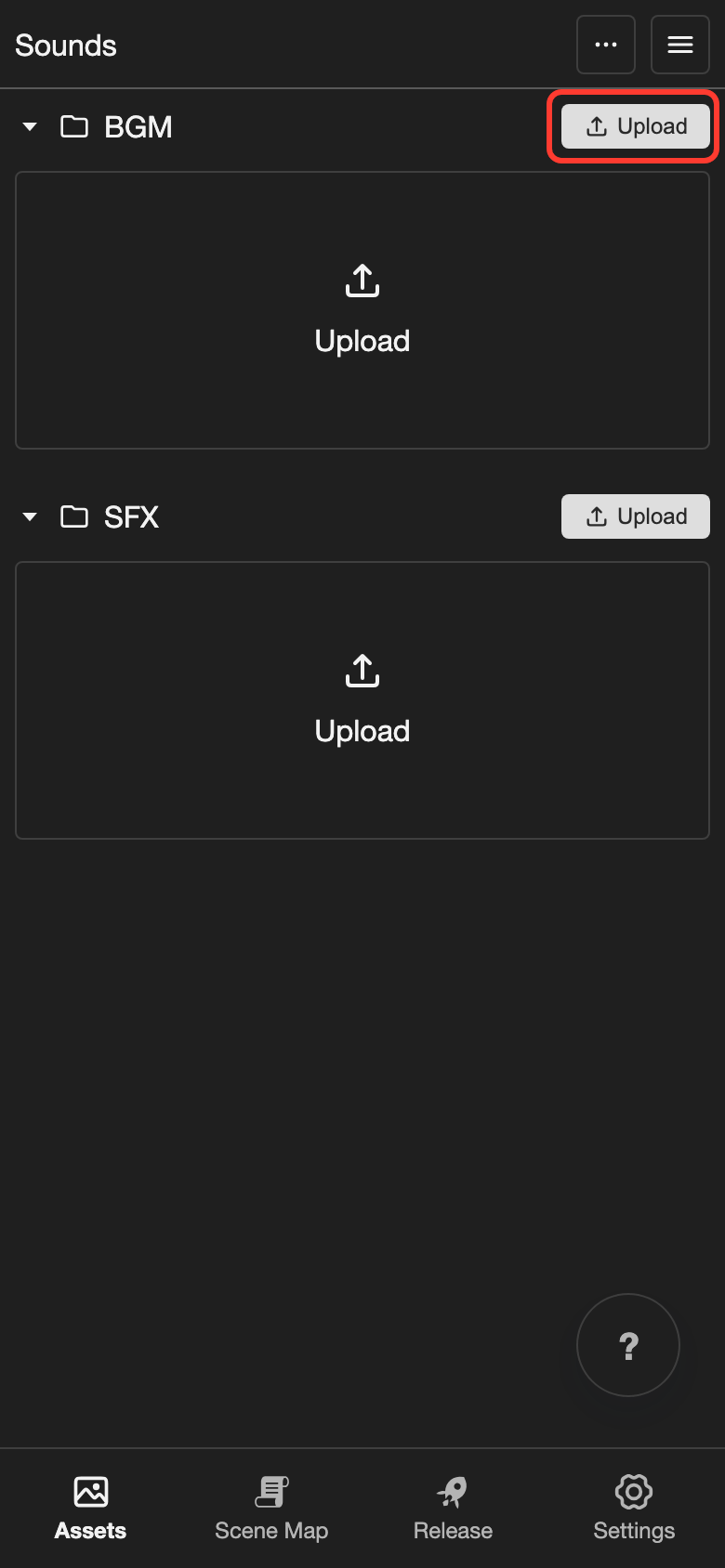
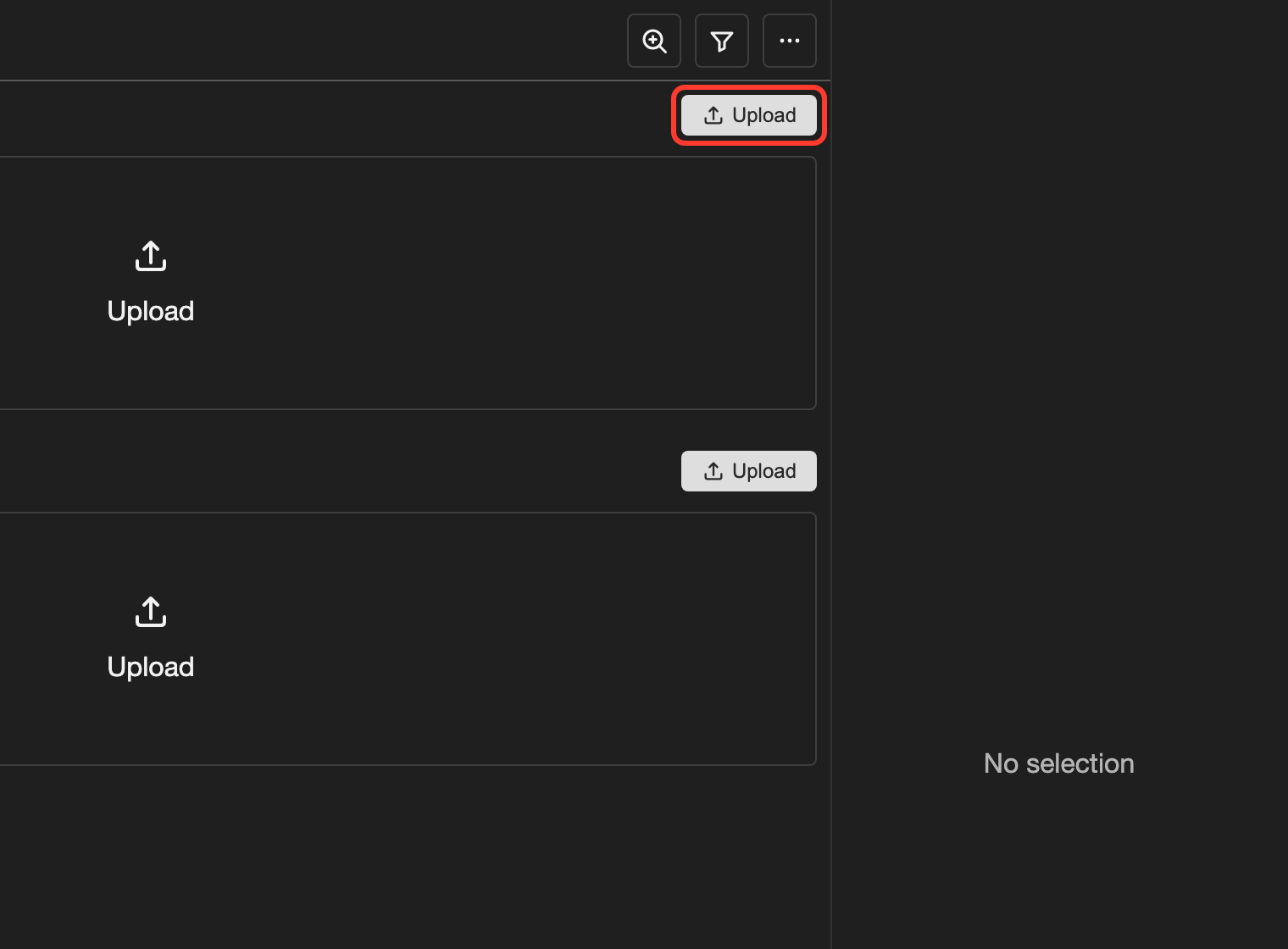
The Upload button is at the top right of each folder. -
Tap Upload.
A window opens. Choose one or more sound files from your device. Hold
Ctrl(Windows) orCommand(Mac) to pick more than one file on desktop. -
Wait until the sounds appear in the folder.
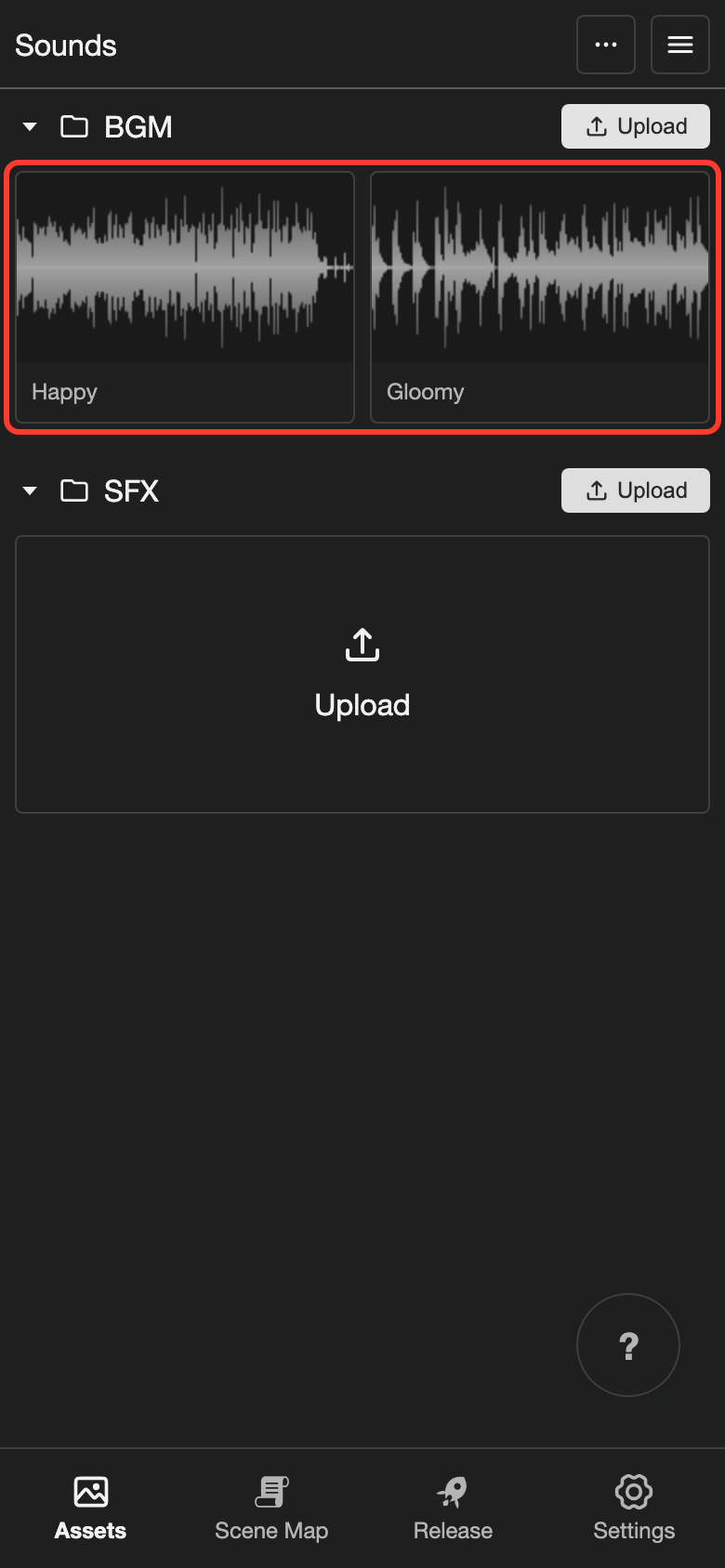
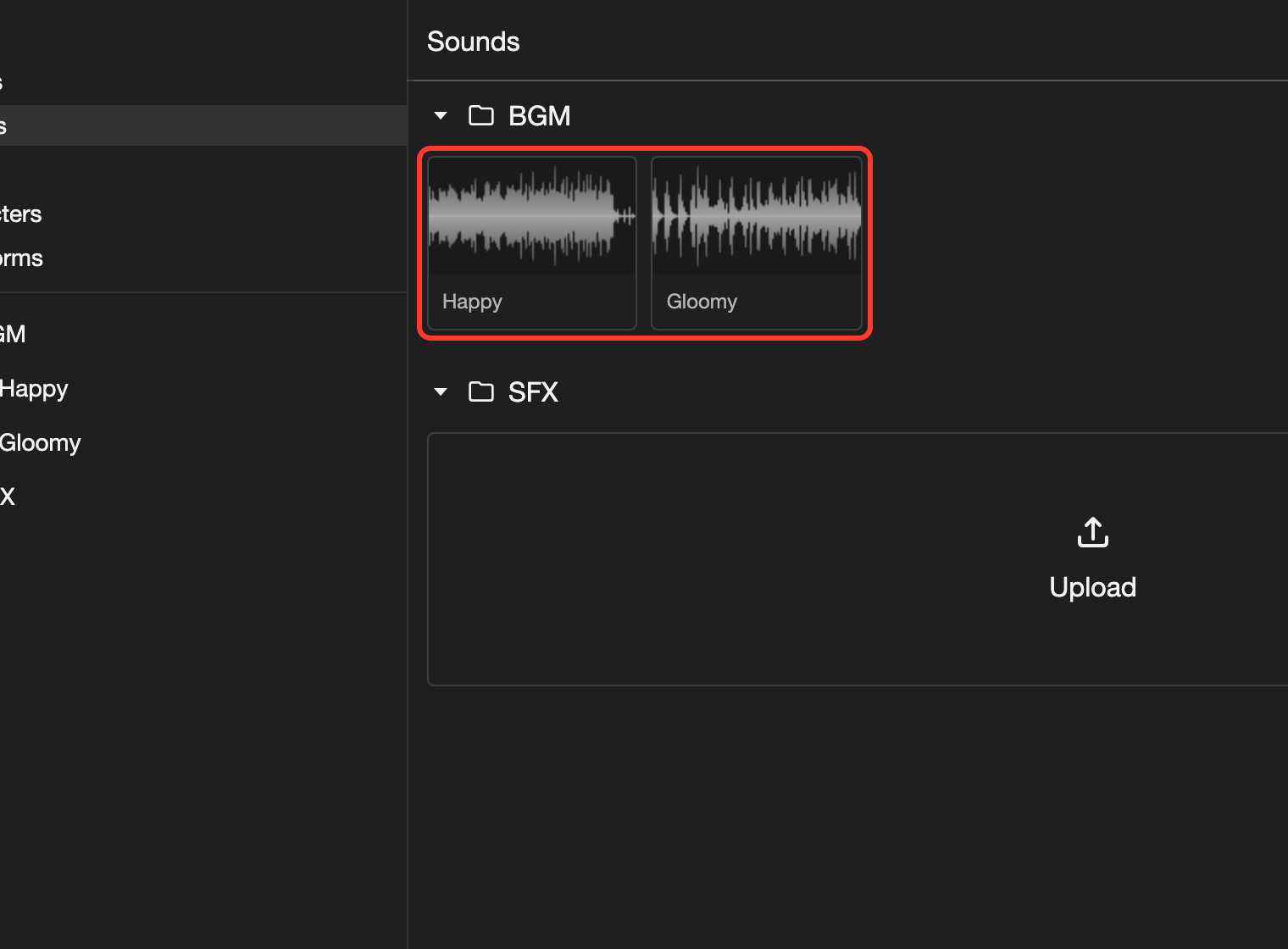
Each sound shows its name and a waveform.
Keep the app open until every upload finishes. Only MP3, WAV, and OGG files work. See Supported formats.
Play a sound
-
Start the sound.
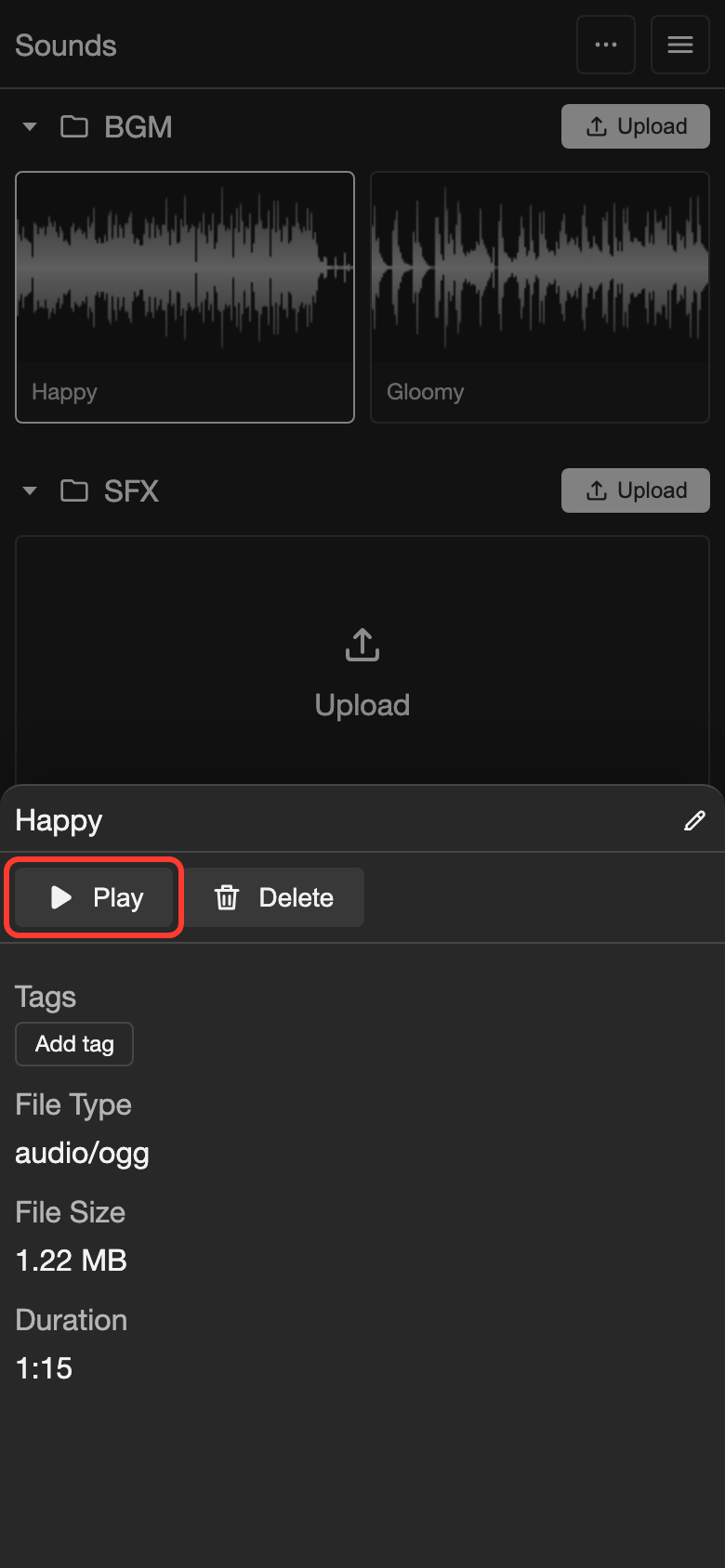
- Phone or tablet: Tap the sound. A panel opens at the bottom of the screen.
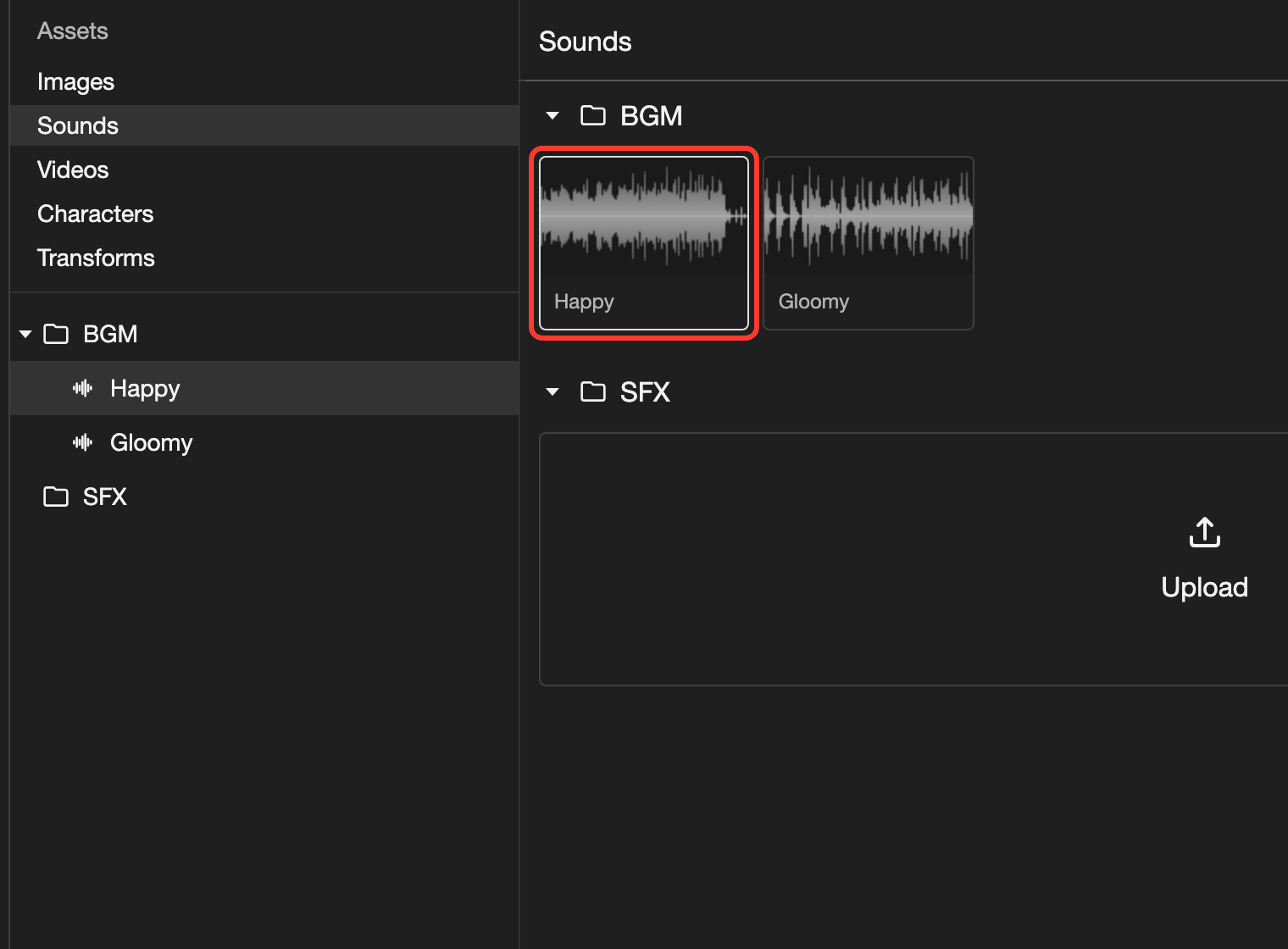
- Desktop: Double-click (click twice quickly) the sound. It starts to play.
-
Phone or tablet: Tap Play in the panel.
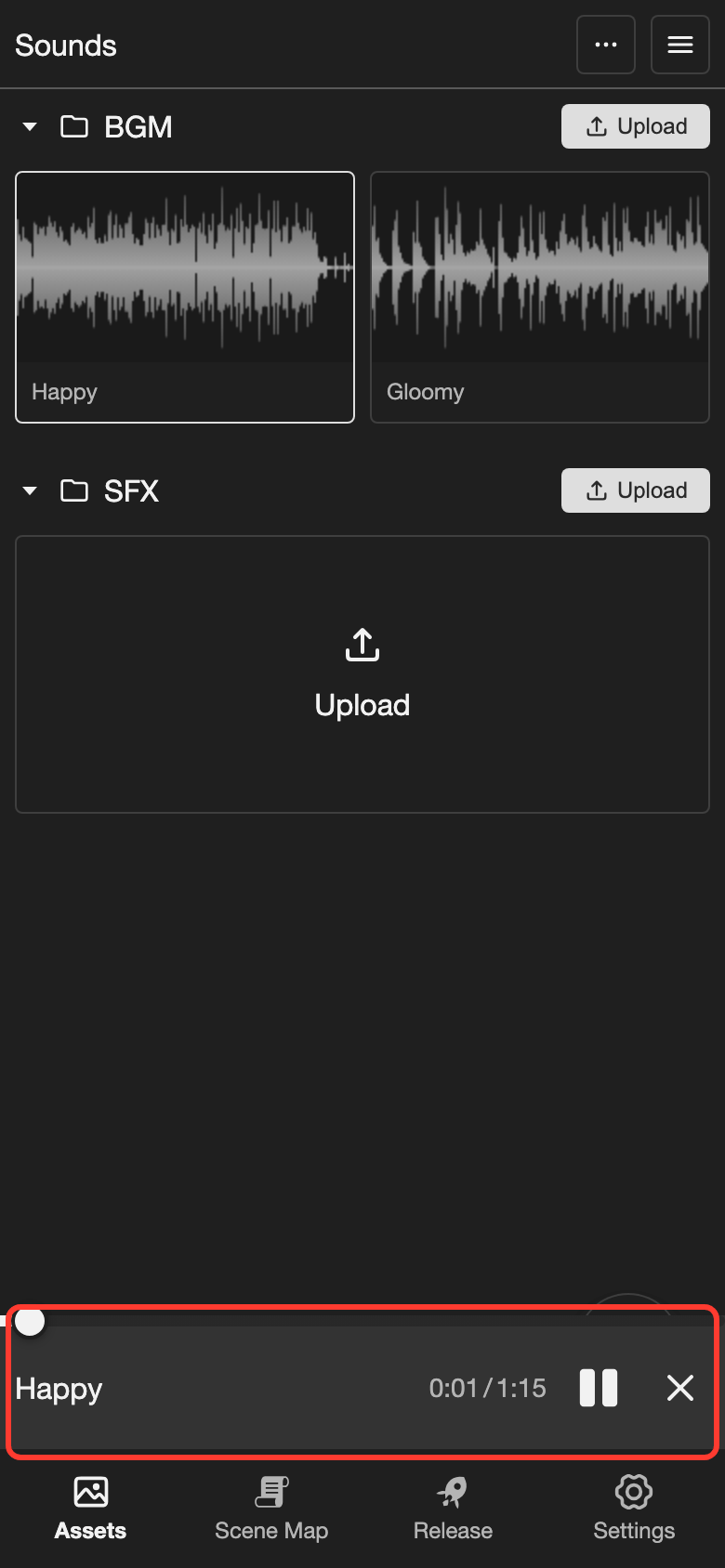
The audio player appears at the bottom of the screen. -
To pause the sound, tap the pause button in the audio player.
-
To close the audio player, tap the X button at the right of the player.
On desktop, you can also select a sound and press Enter to play or pause it.
See a sound's details
-
Select the sound.
- Phone or tablet: Tap the sound. The panel at the bottom opens.
- Desktop: Click the sound. Its details show in the panel on the right.
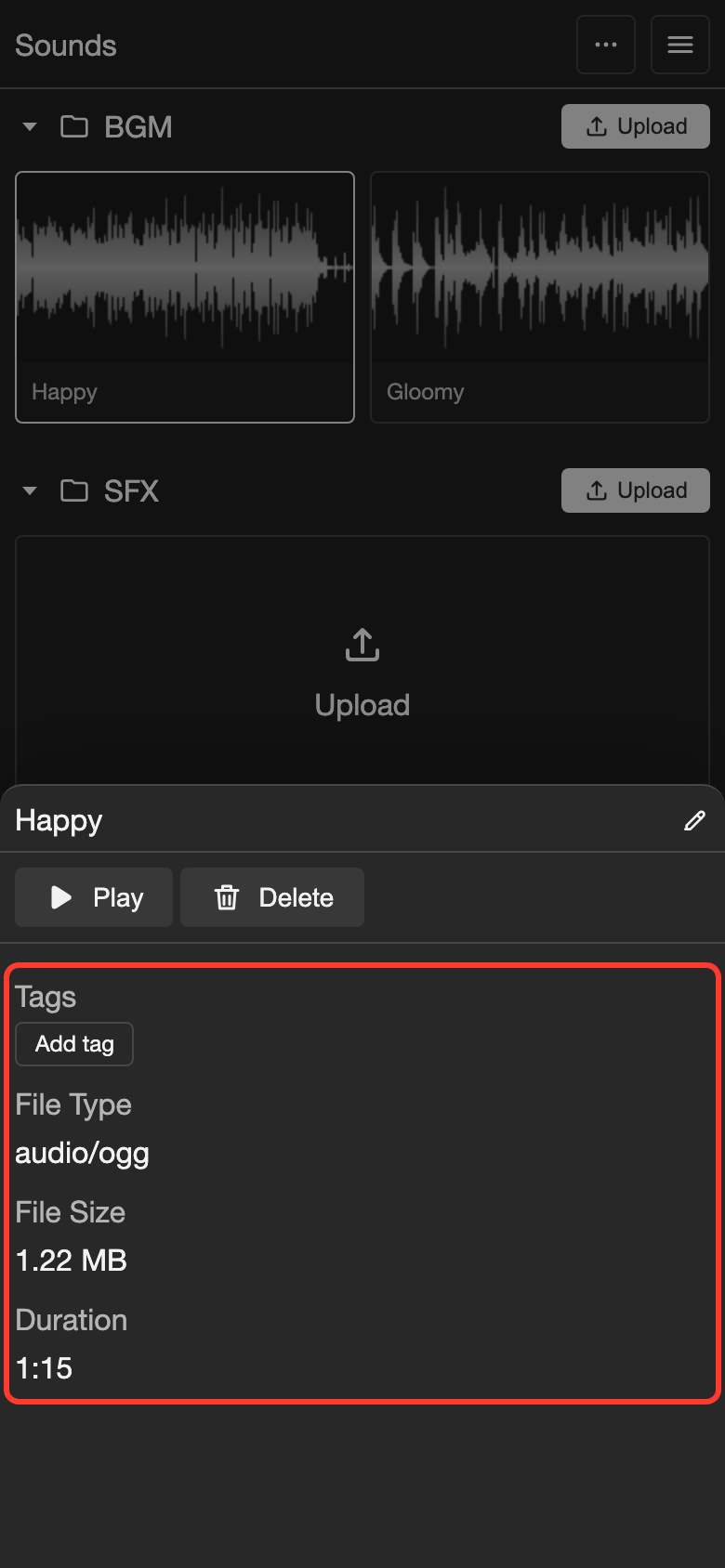
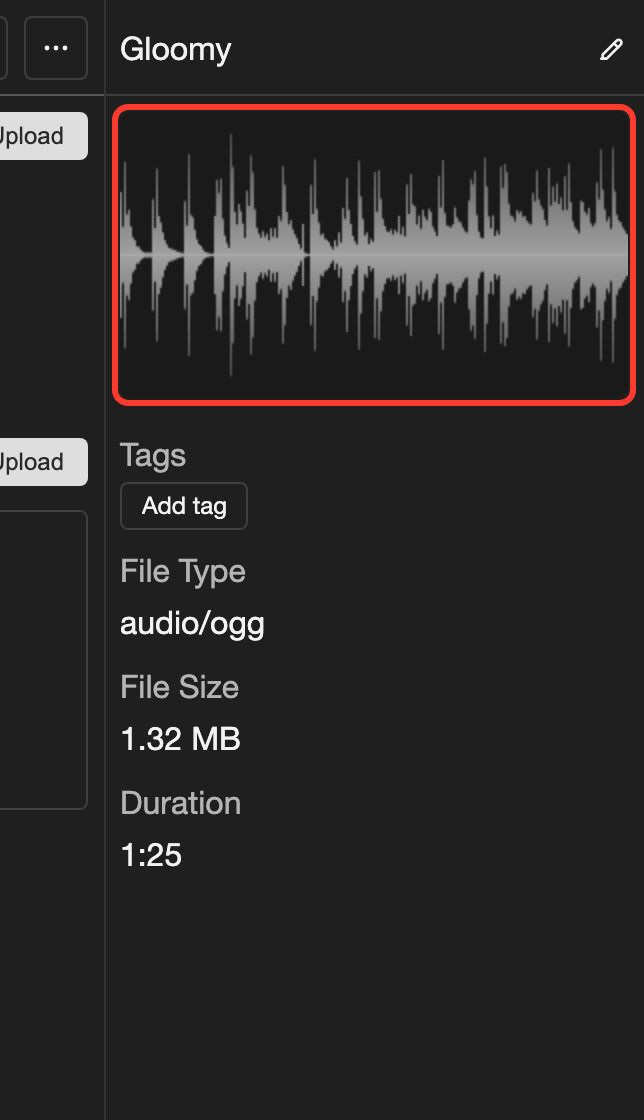
The details show the tags, the file type, the file size, and the duration.
The details show:
- Waveform: A picture of the sound. On desktop, it is at the top of the panel. On a phone, it is not shown.
- Tags: Labels for the sound. See Tags.
- File Type: The file type, for example
audio/ogg. - File Size: The size of the file.
- Duration: The length of the sound, for example
1:25.
Replace a sound file
Use this to change the file of a sound. The name, tags, and places that use the sound stay the same.
-
Select the sound, then tap the pencil icon next to its name.
- Phone or tablet: Tap the sound. In the panel at the bottom, tap the pencil icon next to the name.
- Desktop: Click the sound. In the details panel on the right, click the pencil icon next to the name.
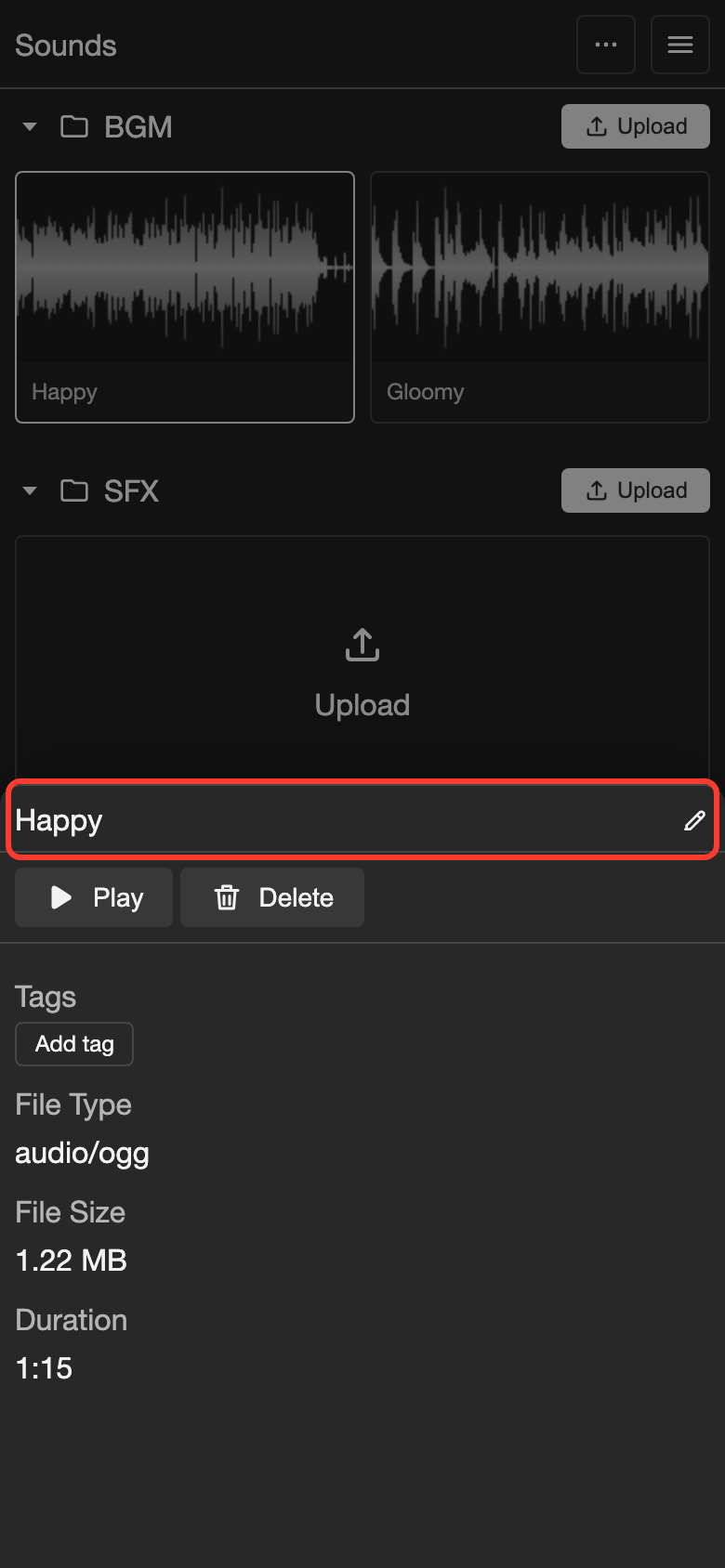
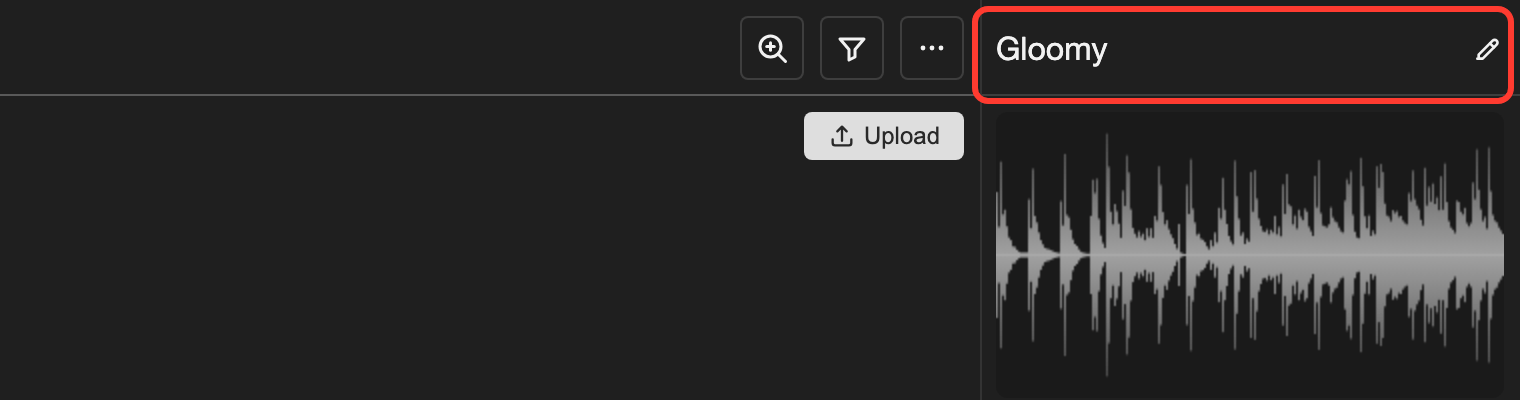
The pencil icon is next to the sound name. The Edit Sound box opens.
-
Find the Sound box in the middle of the form.
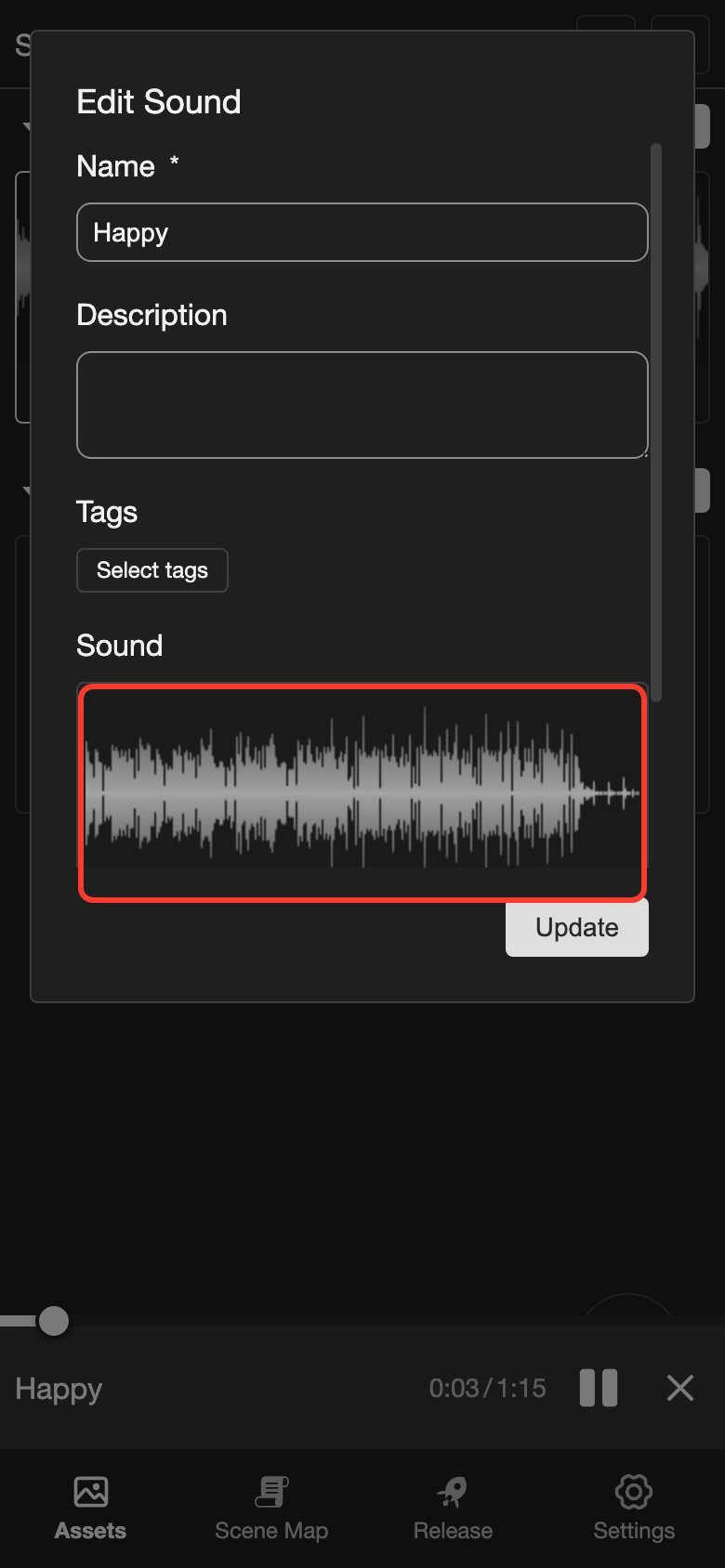
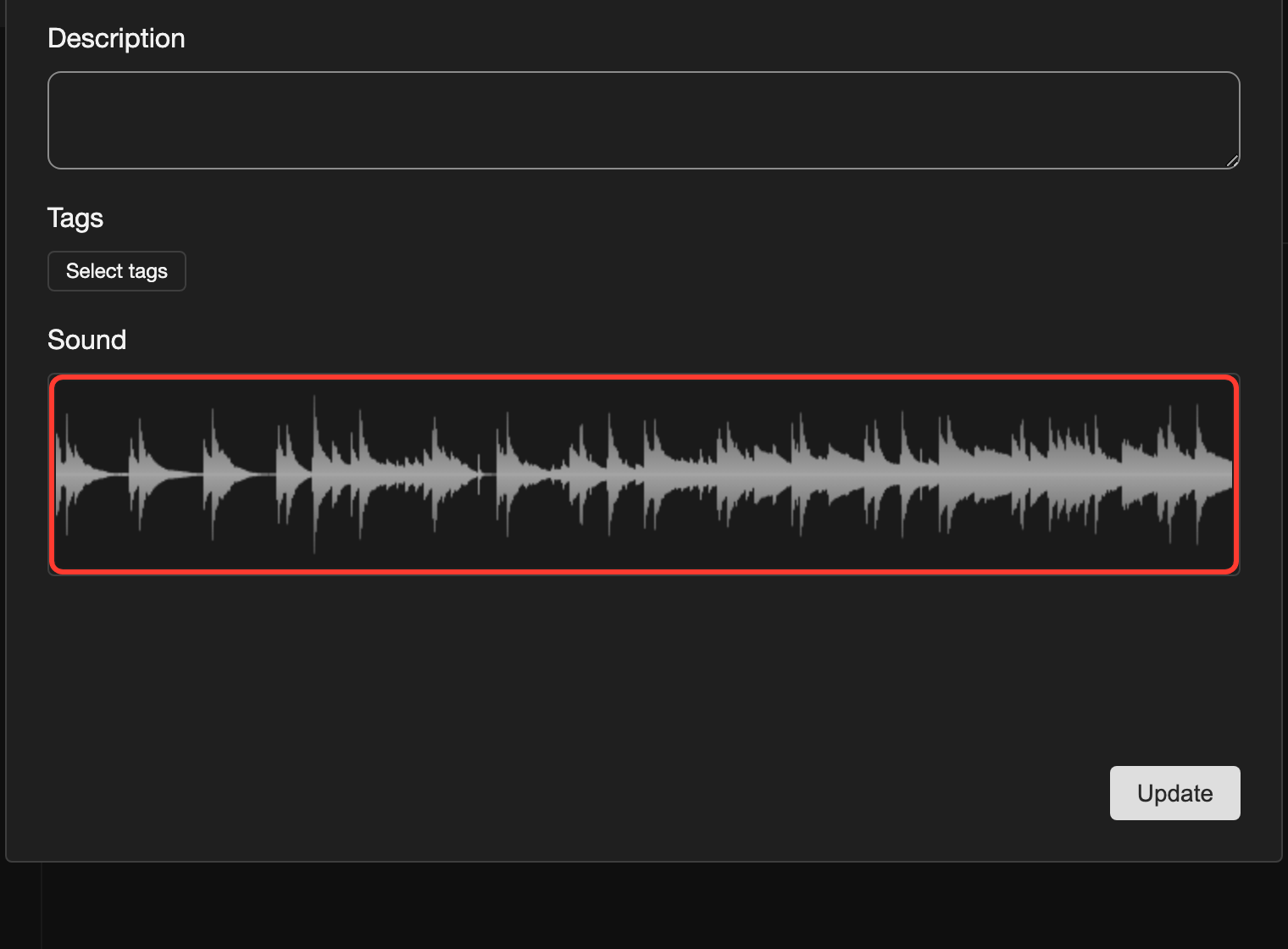
The box shows the waveform of the current file. -
Tap the Sound box. Choose the new sound file in the window that opens.
A window from your device opens, so no screenshot is shown here. The new waveform appears in the Sound box.
-
Tap Update.
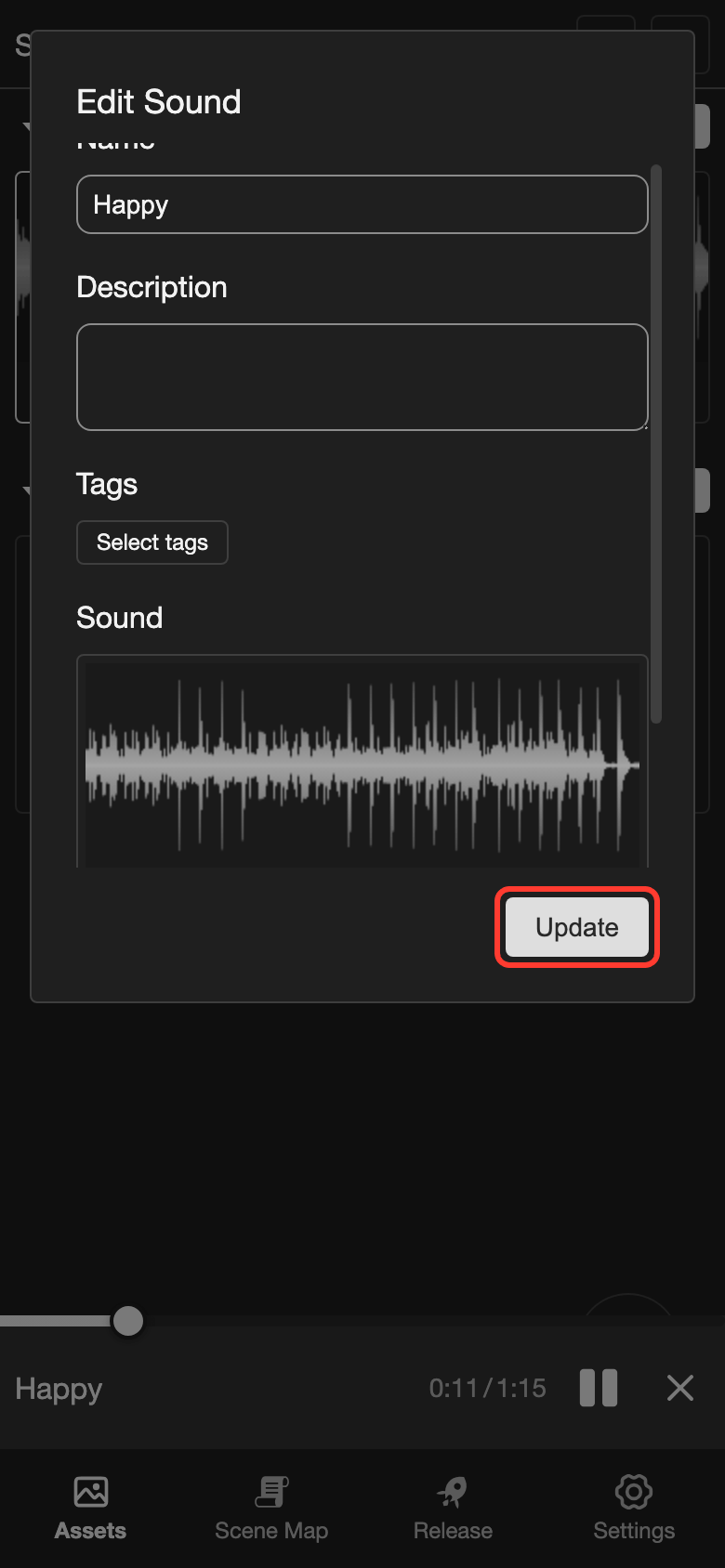
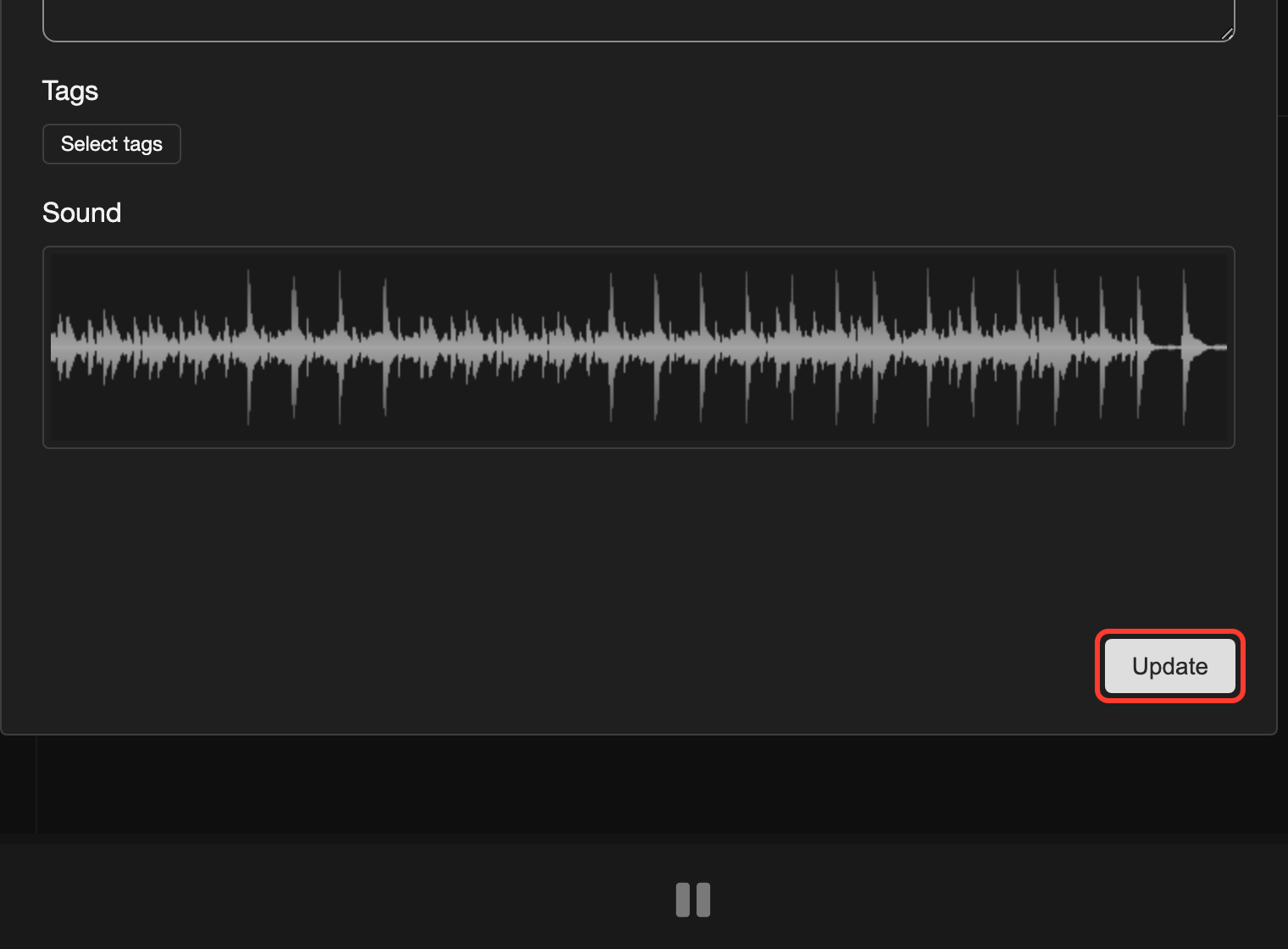
Tap Update to save the new file.
The Edit Sound box also has Name, Description, and Tags fields. Name is required.
Supported formats
RouteVN Creator supports these sound files:
ogg: Our top pick. It has high quality and a good file size.mp3: A common format with small files. A looping sound may have a small gap.wav: The best quality. The files are often very large.
A loop plays the same sound again and again. Most programs that make mp3 files add a short silence at the start and end. Because of this, a looping mp3 may have a small gap.
Other files do not upload. You see the Unsupported Sound message.
Organize your sounds
The Sounds page starts with 2 folders:
- BGM: For background music.
- SFX: For sound effects.
You can make more folders, move sounds, and rename sounds. Use the same steps as on the other asset pages. See File Explorer.
Where sounds are used
Add a sound to your visual novel from these actions:
- BGM: Plays background music.
- Sound Effects: Plays a sound effect.
- Voice: Plays a voice line. You choose the voice file inside the action.
Good to know
- Replacing a file keeps the same sound. The actions that use it play the new file.
- A new upload makes a new sound. You must change each action that should use the new sound.
- Use the File Explorer for folders, moving, renaming, deleting, and zoom.
- You cannot delete a sound that your visual novel uses. See Problems and fixes.
Problems and fixes
- I see "Unsupported Sound". Only MP3, WAV, and OGG files work. Convert the file to one of these formats, then upload it again.
- I see "Cannot delete resource, it is currently in use." Your visual novel uses this sound. Remove it from the actions that use it. Then delete it again.
- I see "Failed to upload sound." Keep the app open and try the upload again.