Audio Effects
An audio effect changes how a sound plays over time. For example, music can fade in, fade out, or crossfade into the next song. Make an audio effect once, then use it in many scenes.
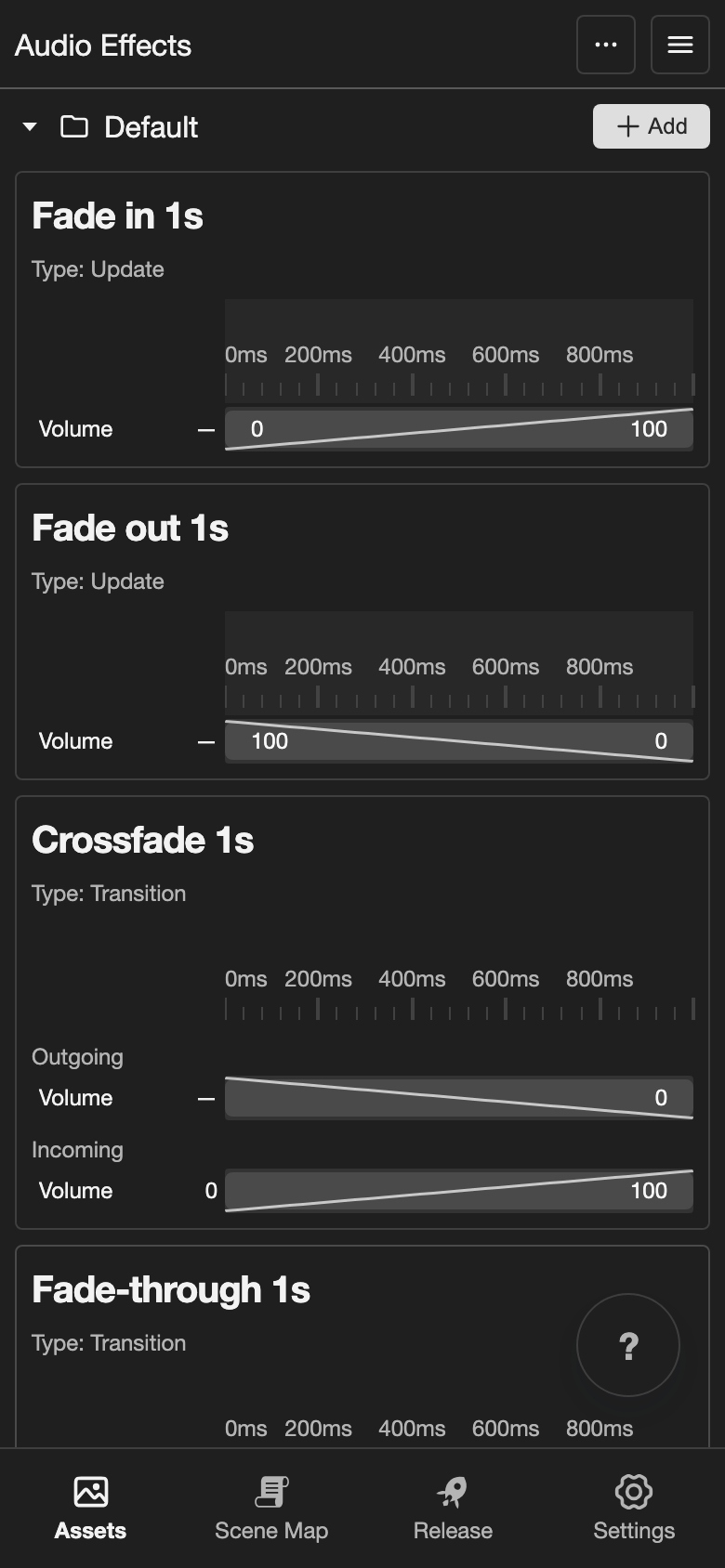
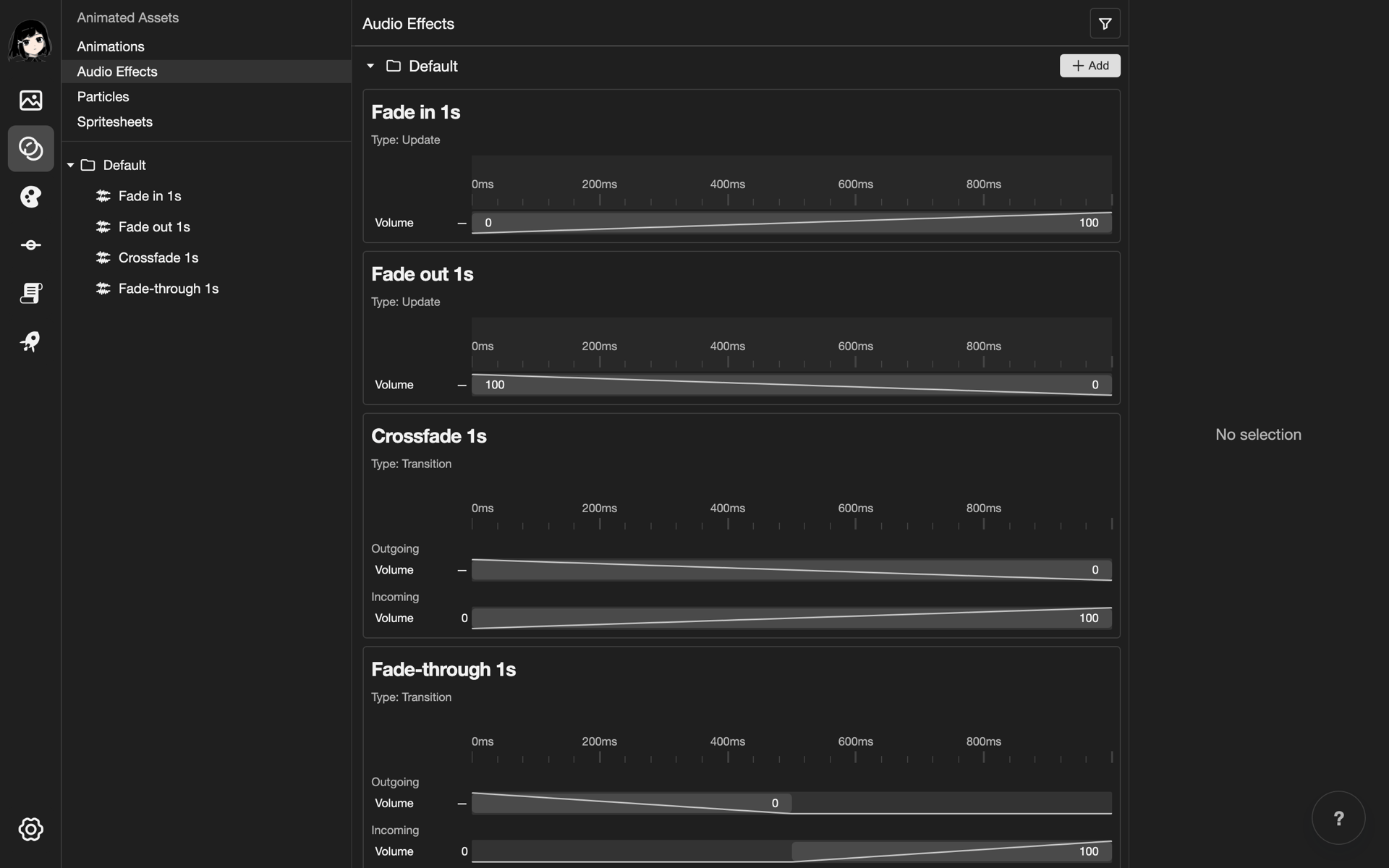
There are two types of audio effects:
- Update: Changes a sound while it plays. For example, a fade out turns the music down until it is silent.
- Transition: Changes one song into the next. For example, a crossfade fades out the old song while the new song fades in.
Like an animation, an audio effect has a timeline with keyframes. A keyframe is one step of the change. To learn how timelines and keyframes work, see Animations. This page shows what is different for sound.
Open the Audio Effects page
-
Open your project. See Projects.
-
Go to the Audio Effects page.
- Phone or tablet: Tap Assets in the bottom bar. Then tap Audio Effects under Animated Assets.
- Desktop: In the far left bar, click the Animated Assets button, below the Assets button. Then click Audio Effects.
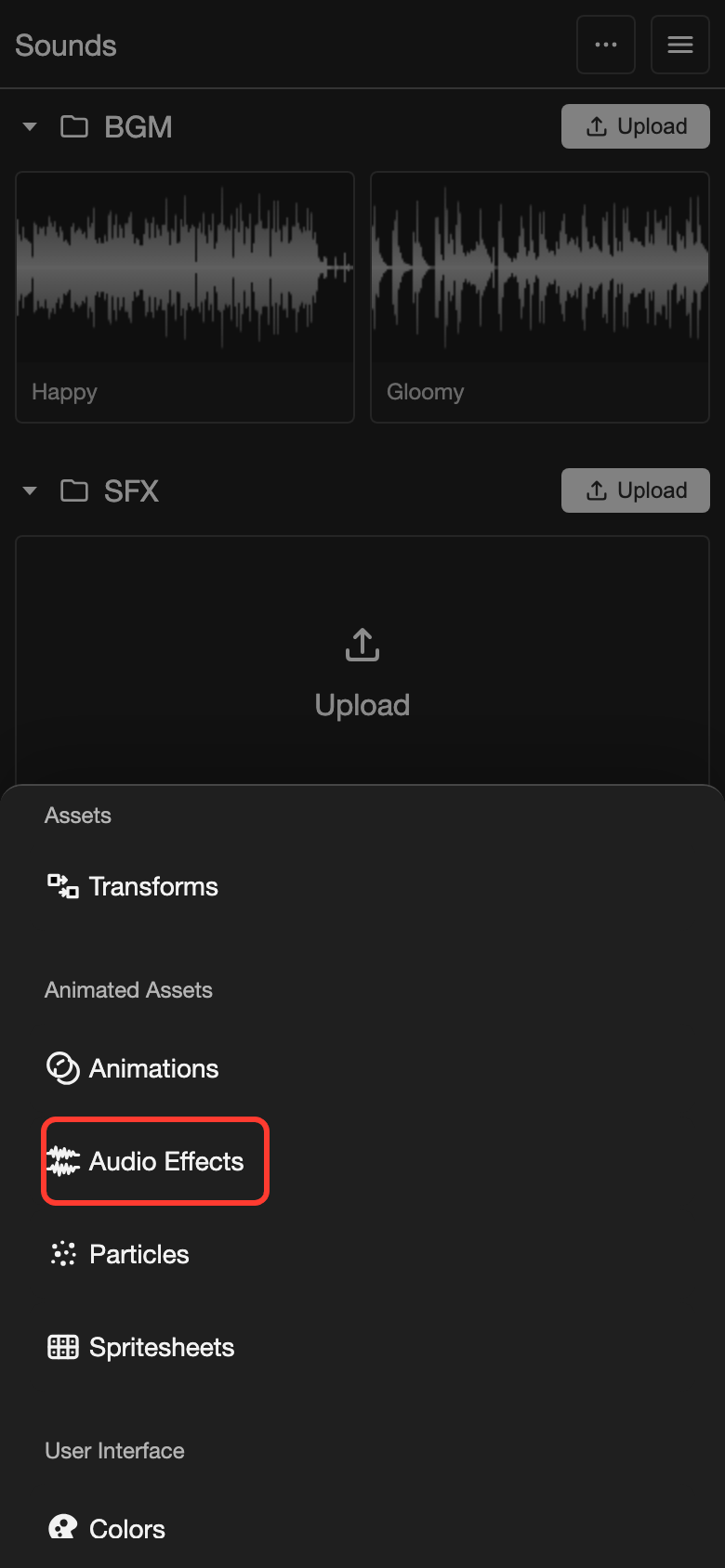
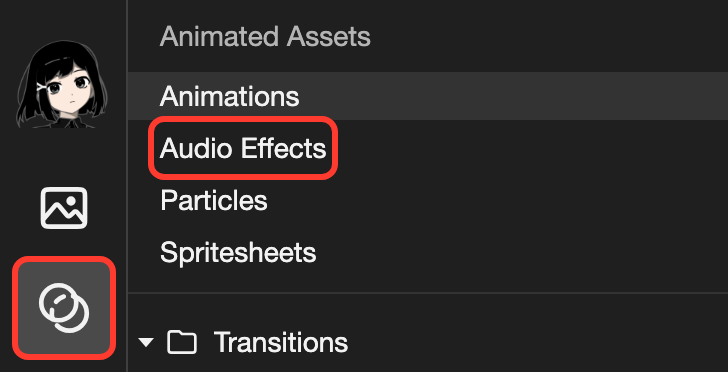
Audio Effects is under Animated Assets.
Folders, renaming, and duplicating work the same as on other pages. See File Explorer.
Create an audio effect
This example makes an update effect called Slow fade out. The music fades to silence in 3 seconds.
-
Next to the Default folder, tap Add.
-
In Name, type
Slow fade out. Check that Update is selected under Type. Then tap Create. You cannot change the type later. -
Open the new audio effect.
- Phone or tablet: At the bottom of the screen, tap Open.
- Desktop: Double-click (click twice quickly) Slow fade out.
The audio effect editor opens.
Audio effect editor
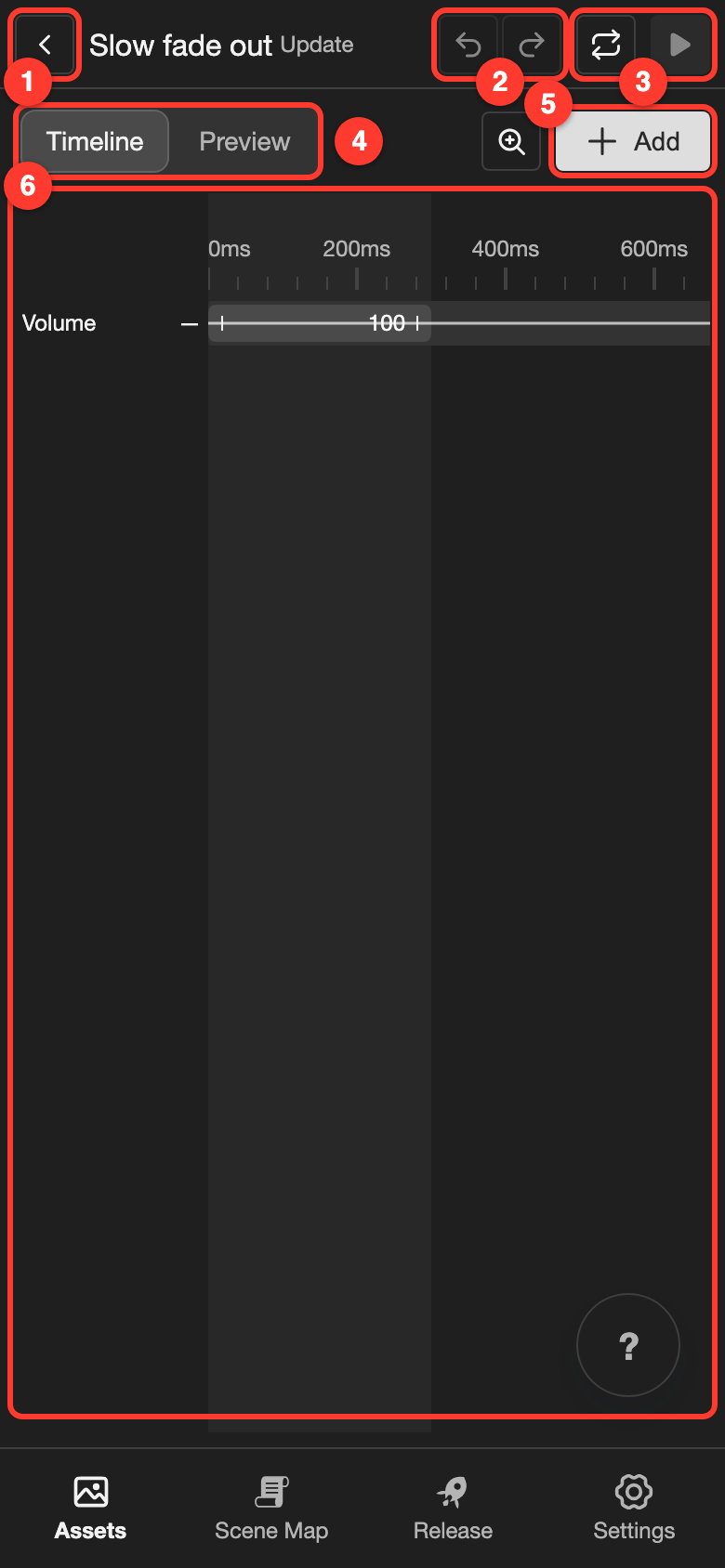
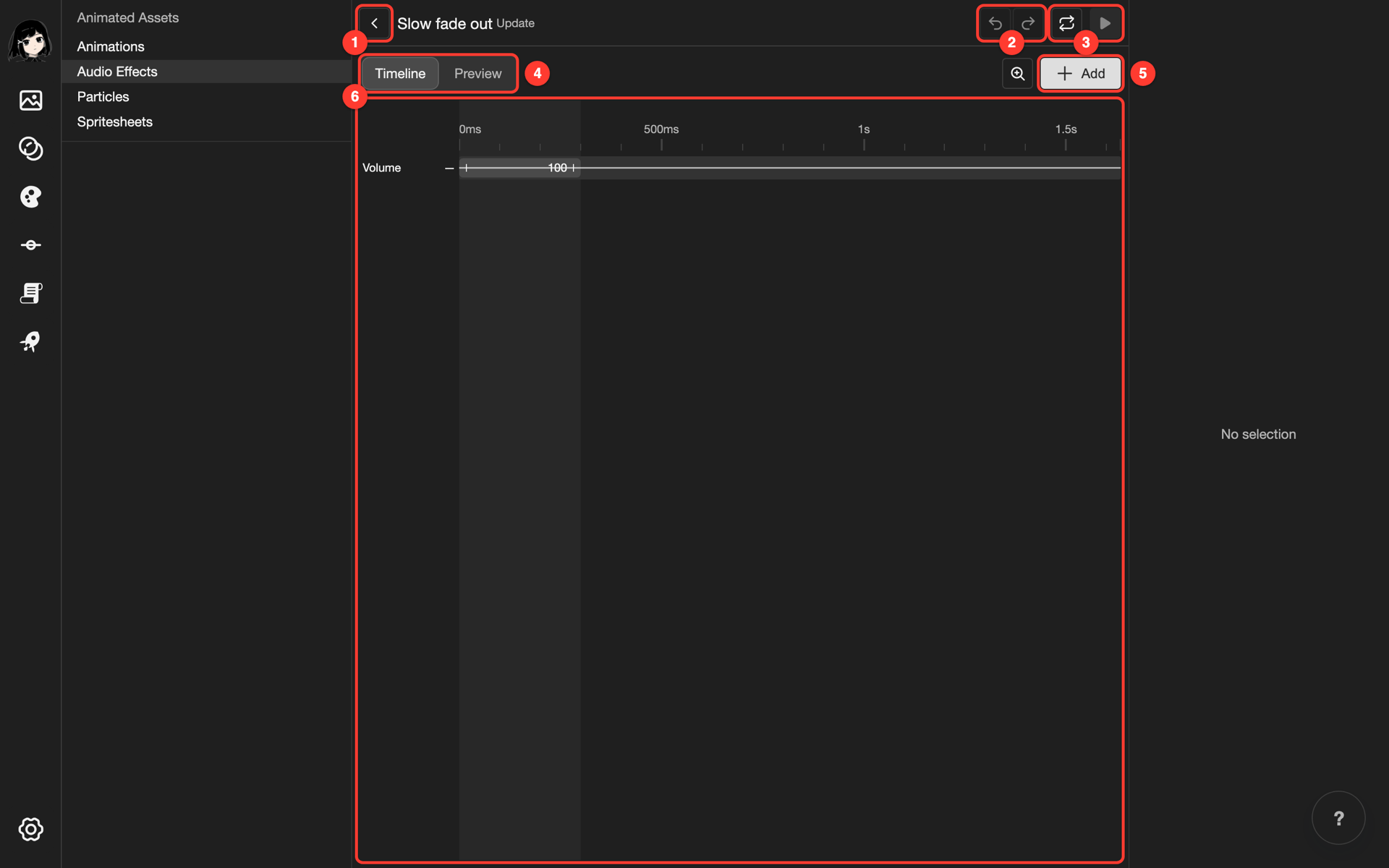
- Back button: Goes back to the Audio Effects page. Your changes save by themselves.
- Undo and redo: Undo the last change, or bring it back.
- Loop and play: The play button plays the effect on a preview song. With the loop button on, it plays again and again.
- Timeline and Preview: Timeline shows the keyframes. Preview sets the songs to play.
- Add button: Adds a property, such as Pan.
- Timeline area: Shows a row for each property, with its keyframes. Time goes from left to right.
Change a keyframe
A new update effect has a Volume row with one keyframe.
-
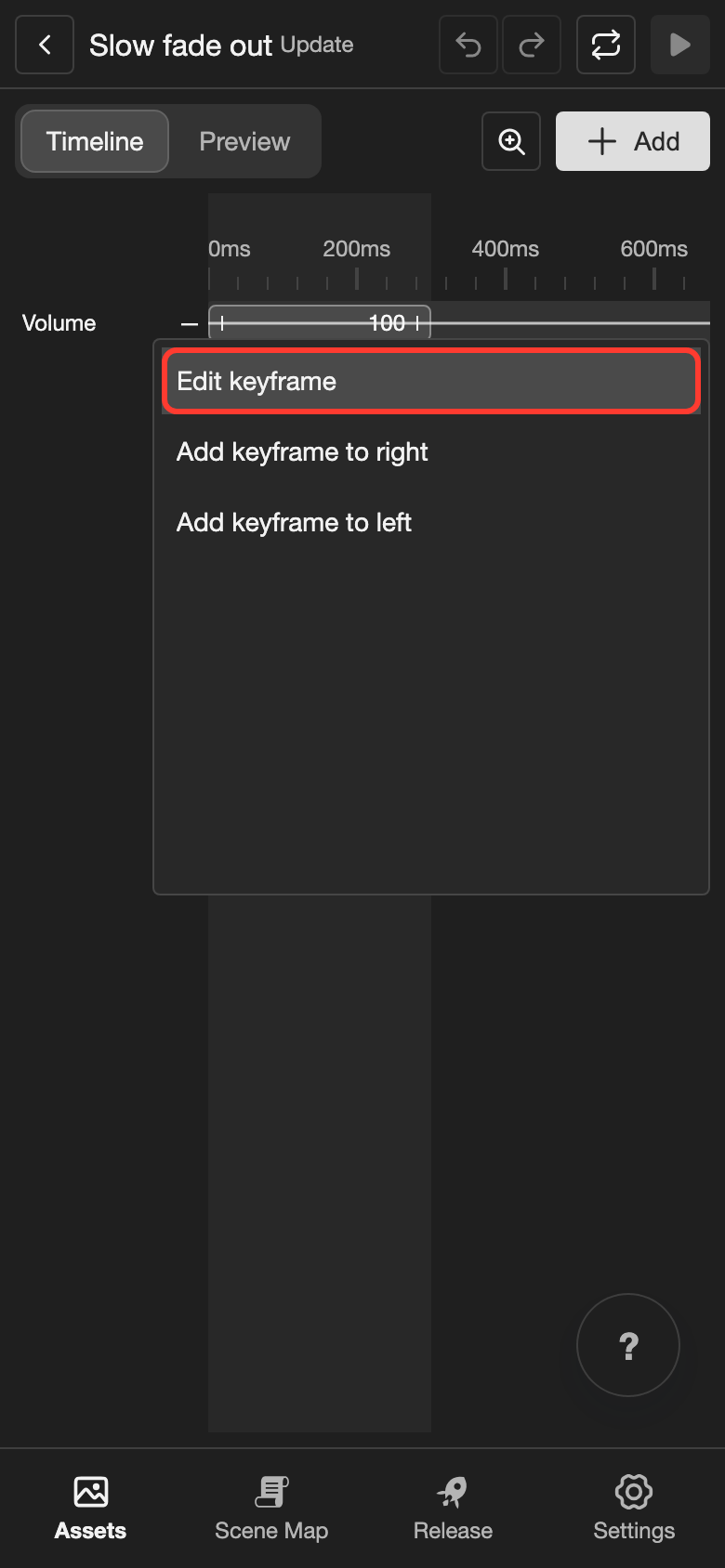
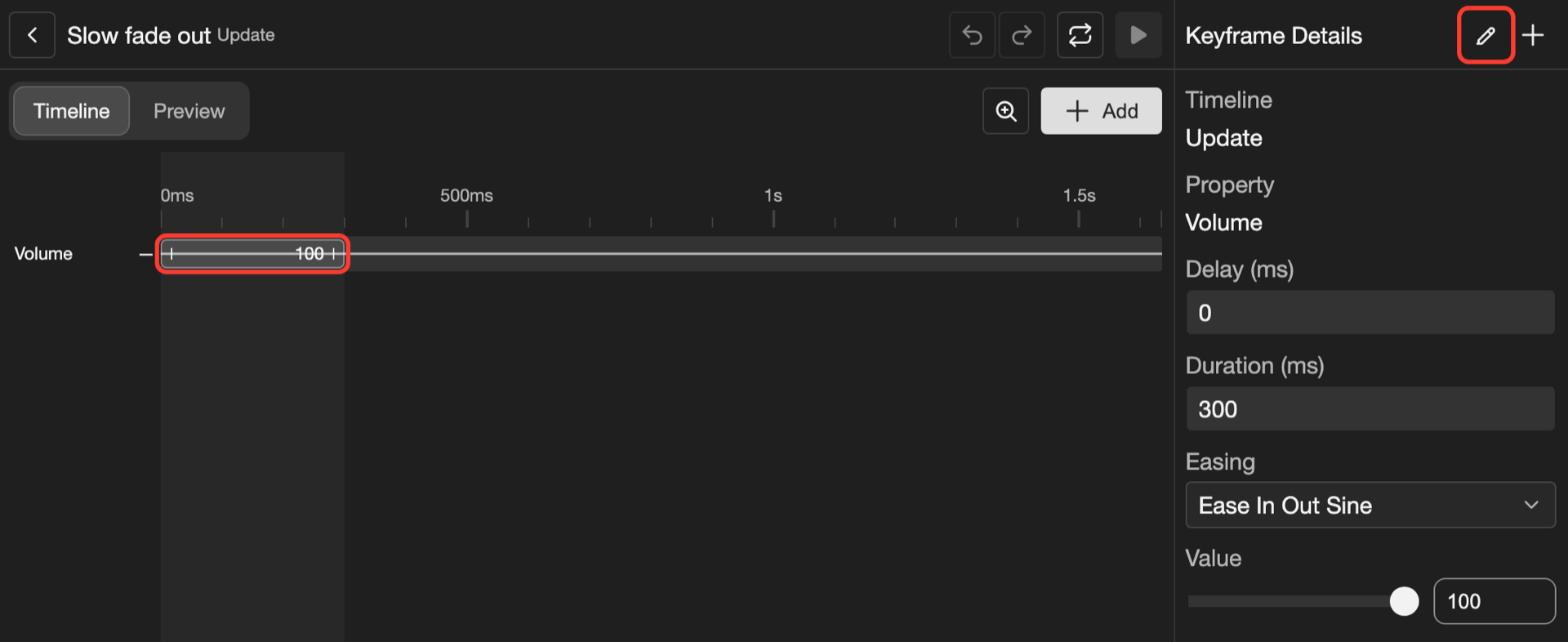
Open the keyframe on the Volume row.
- Phone or tablet: Long press (touch and hold) the keyframe. Then tap Edit keyframe.
- Desktop: Click the keyframe. Keyframe Details opens on the right. At its top, click the pencil icon (the pencil-shaped button that opens editing).
The Edit Keyframe box opens.
-
Set Value to
0. Set Duration (ms) to3000. Then tap Update.3000 ms is 3 seconds. Keep Start value on Current value, so the fade starts from the current volume. Delay (ms) and Easing work the same as in animations.
To add another keyframe, open the keyframe menu. Then tap Add keyframe to right.
- Phone or tablet: Long press the keyframe.
- Desktop: Right-click (click with the right mouse button) the keyframe.
Add a property
- Tap Add. The Add Audio Property box opens.
- Tap the box under Property, and choose a property. Then tap Add Property.
The new row starts with one keyframe. You can add each property once.
| Property | What it changes |
|---|---|
| Volume | How loud the sound is. 0 is silent, and 100 is the normal volume of the sound. |
| Pan | Where you hear the sound. -1 is left, 0 is the middle, and 1 is right. |
| Playback Rate | How fast the sound plays. 1 is normal, and 2 is twice as fast. Faster also sounds higher. |
Preview the audio effect
- Tap Preview. Then tap Select Sound.
- Tap a song, such as Happy. Then tap Select.
- At the top, tap the play button.
Happy plays and fades to silence in 3 seconds. The preview song only helps you hear the effect. If you have no songs, add some on the Sounds page.
Transition effects
A transition effect has two parts. Outgoing changes the old song, and Incoming changes the new song. When you tap Add, choose Outgoing or Incoming first.
To preview a transition, choose an Outgoing Sound and an Incoming Sound in Preview. They must be two different songs.
Use an audio effect in a scene
You use audio effects in the BGM action, which plays background music.
-
Add a BGM action with a song to a line. See Line action: BGM.
-
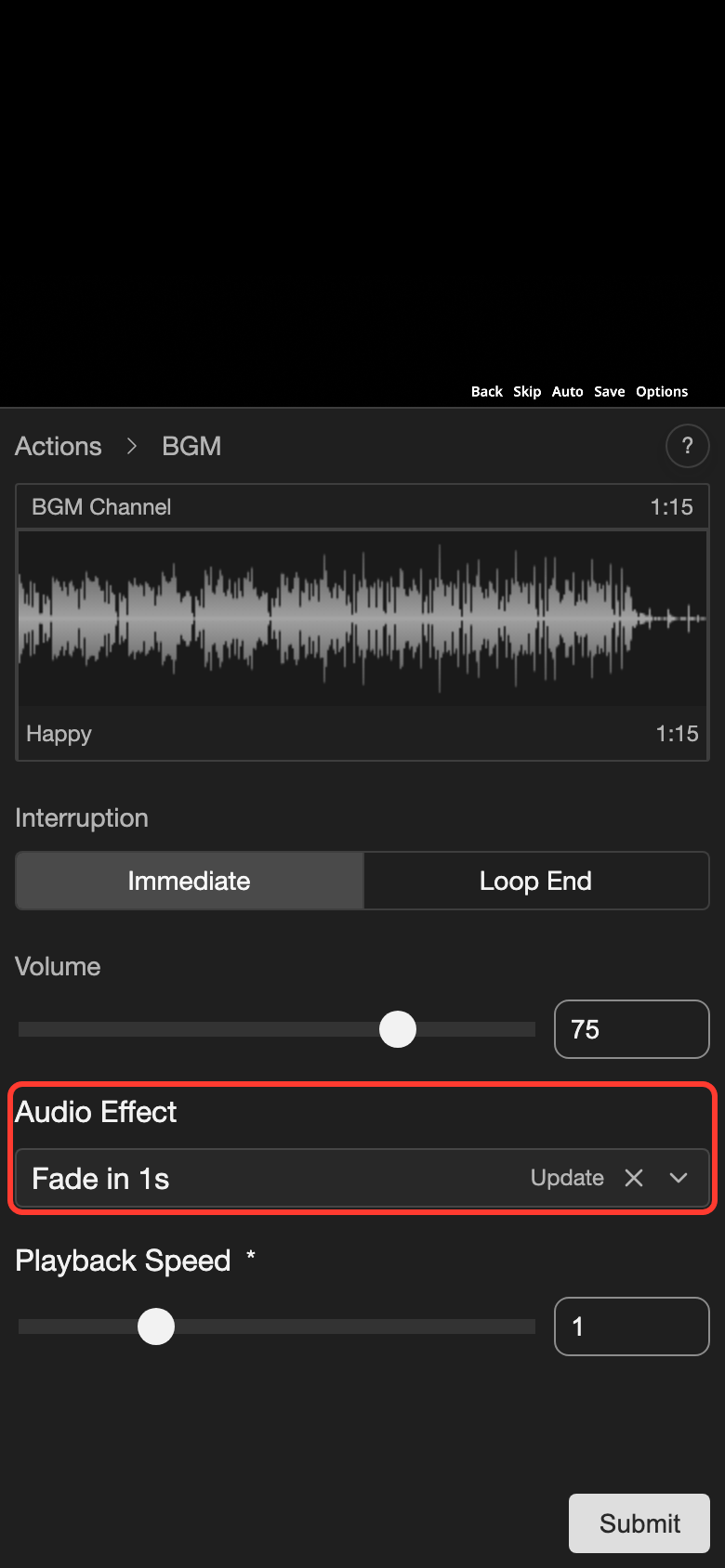
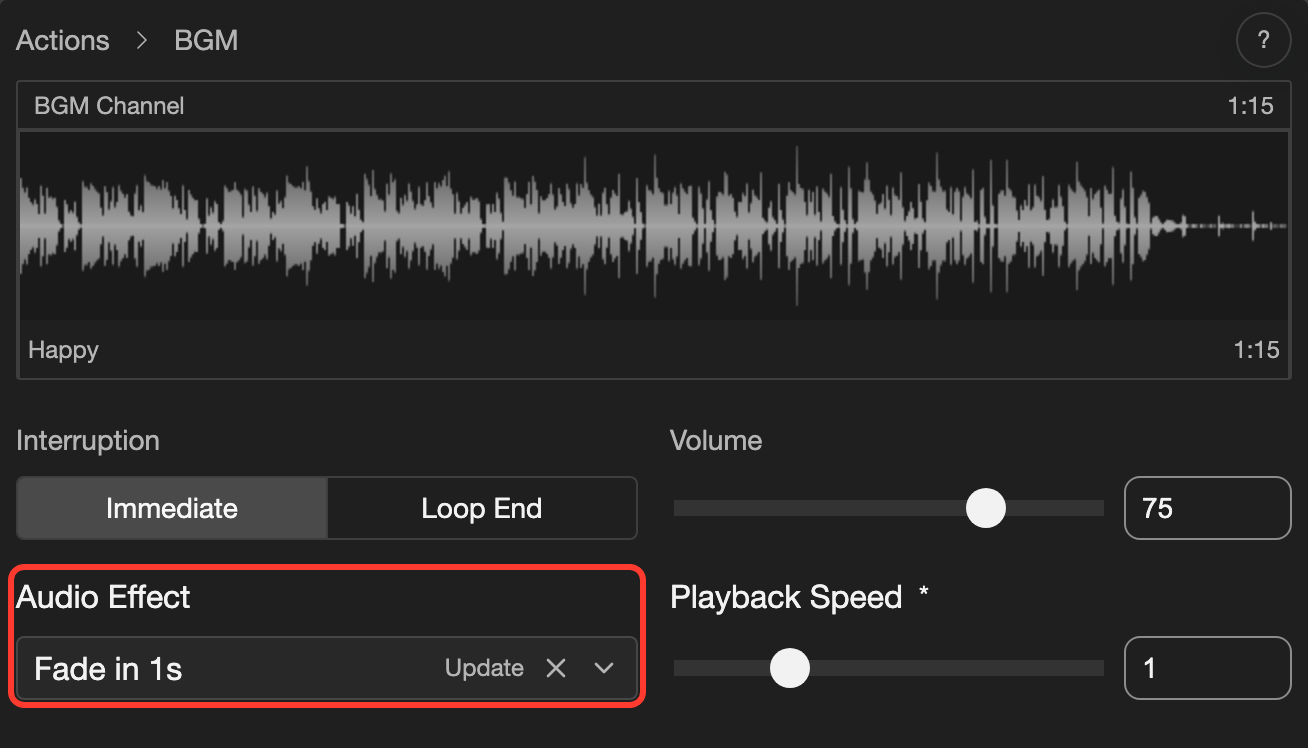
Tap the box under Audio Effect. Then tap an audio effect, such as Fade in 1s.
-
Tap Submit.
When the line plays, the song fades in over 1 second. Playback Speed sets how fast the effect plays. 2 is twice as fast.
A transition effect plays when the BGM action changes the song. The old song plays the Outgoing part. The new song plays the Incoming part.
Each song in the BGM action also has Begin Effect and End Effect. To find them, tap the BGM Channel box. Then tap the song. Begin Effect plays when the song starts, and End Effect plays as it ends. These lists show only update effects.
A change to an audio effect changes every scene that uses it.
Problems and fixes
- I cannot tap the play button. Choose a song in Preview first. In a transition effect, choose two different songs.
- Nothing opens when I tap a keyframe. On a phone or tablet, a tap only selects the keyframe. Long press it to open the menu.
- I cannot delete an audio effect. A scene uses it. First remove it from the BGM action.