Characters
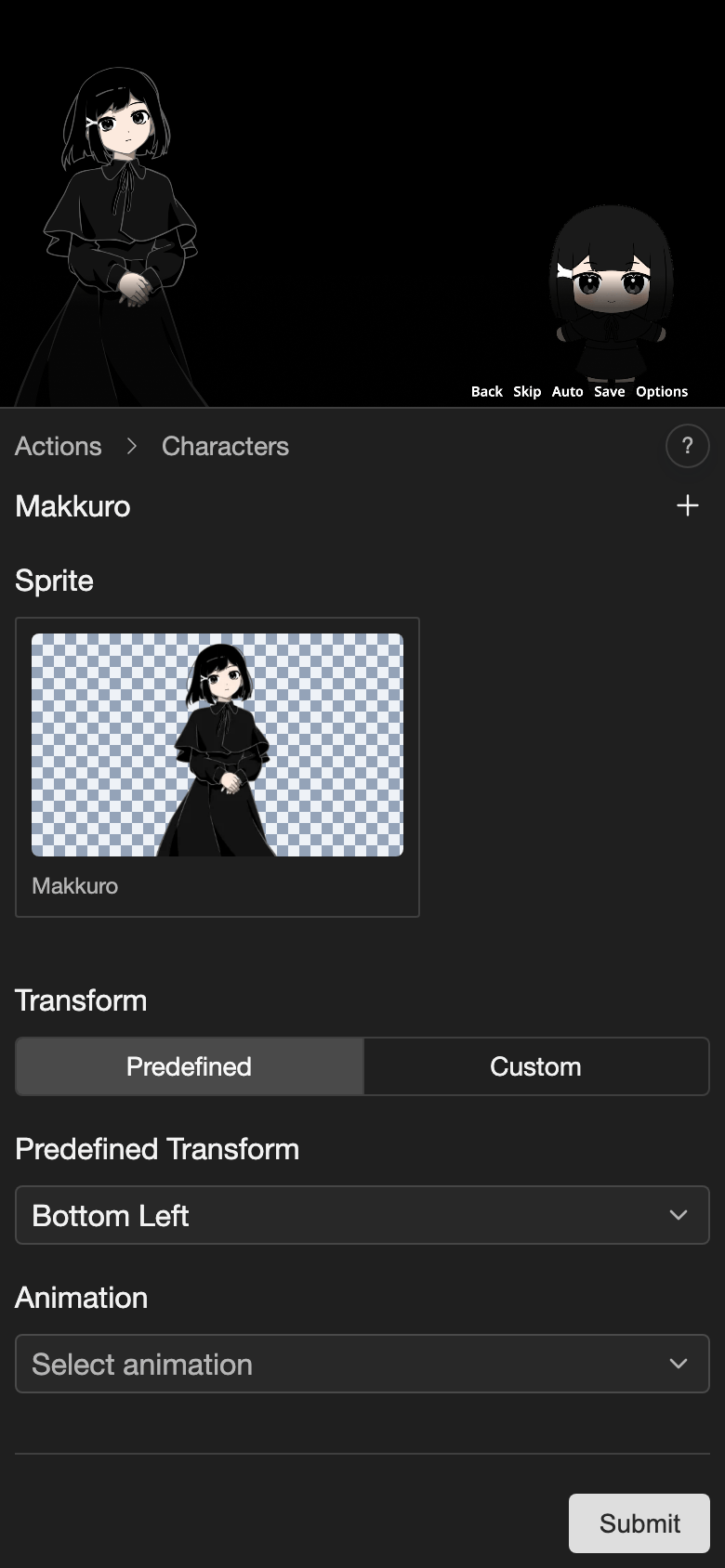
The Character Sprites action shows characters on the screen. Use it to put a character sprite on the screen, such as Makkuro standing on the left.
A character sprite stays on the screen until a later line removes it or changes it. You can show zero, one, or many character sprites at the same time.
Before you start, create a character and add its sprites. See Characters.
Show a character on the screen
-
Open the Prologue scene. See Characters: Choose the speaker in dialogue.
-
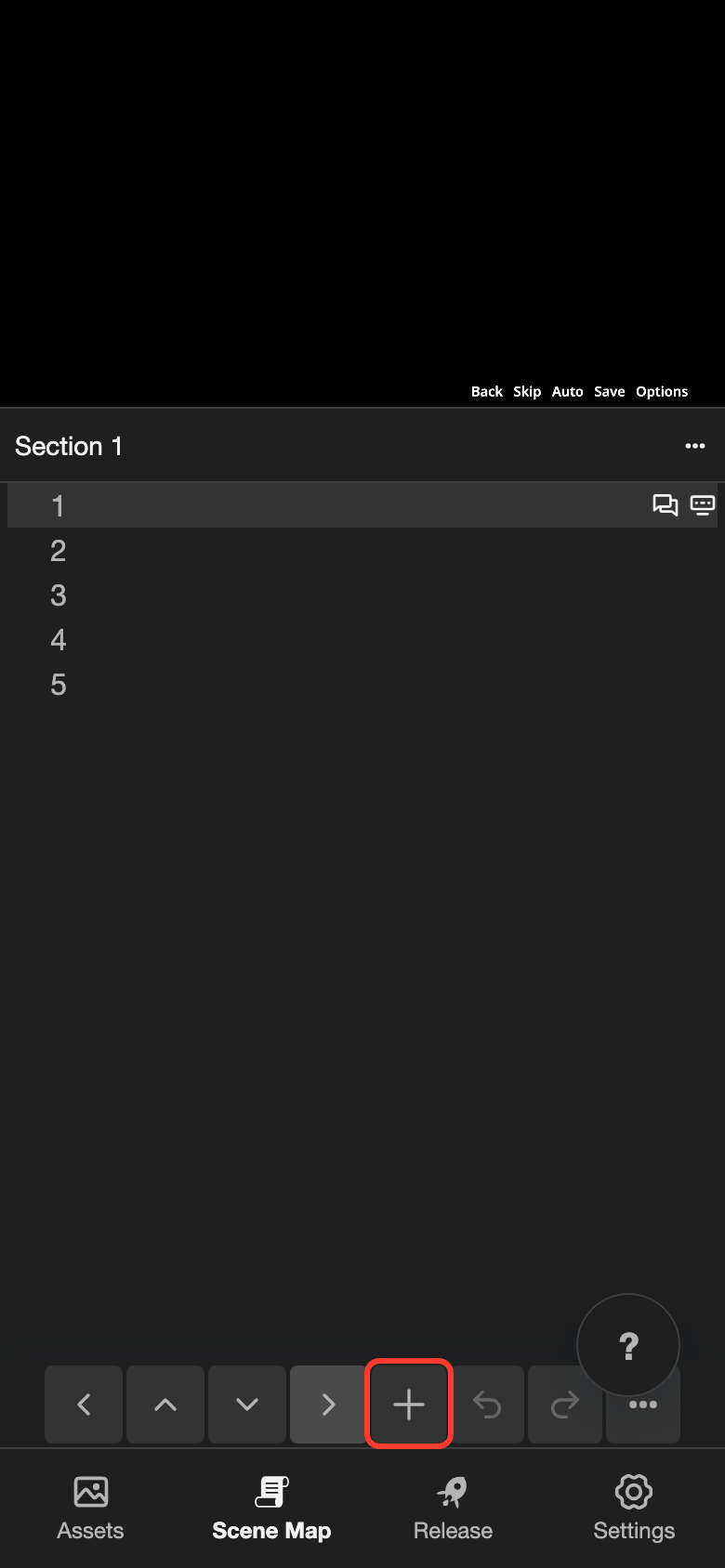
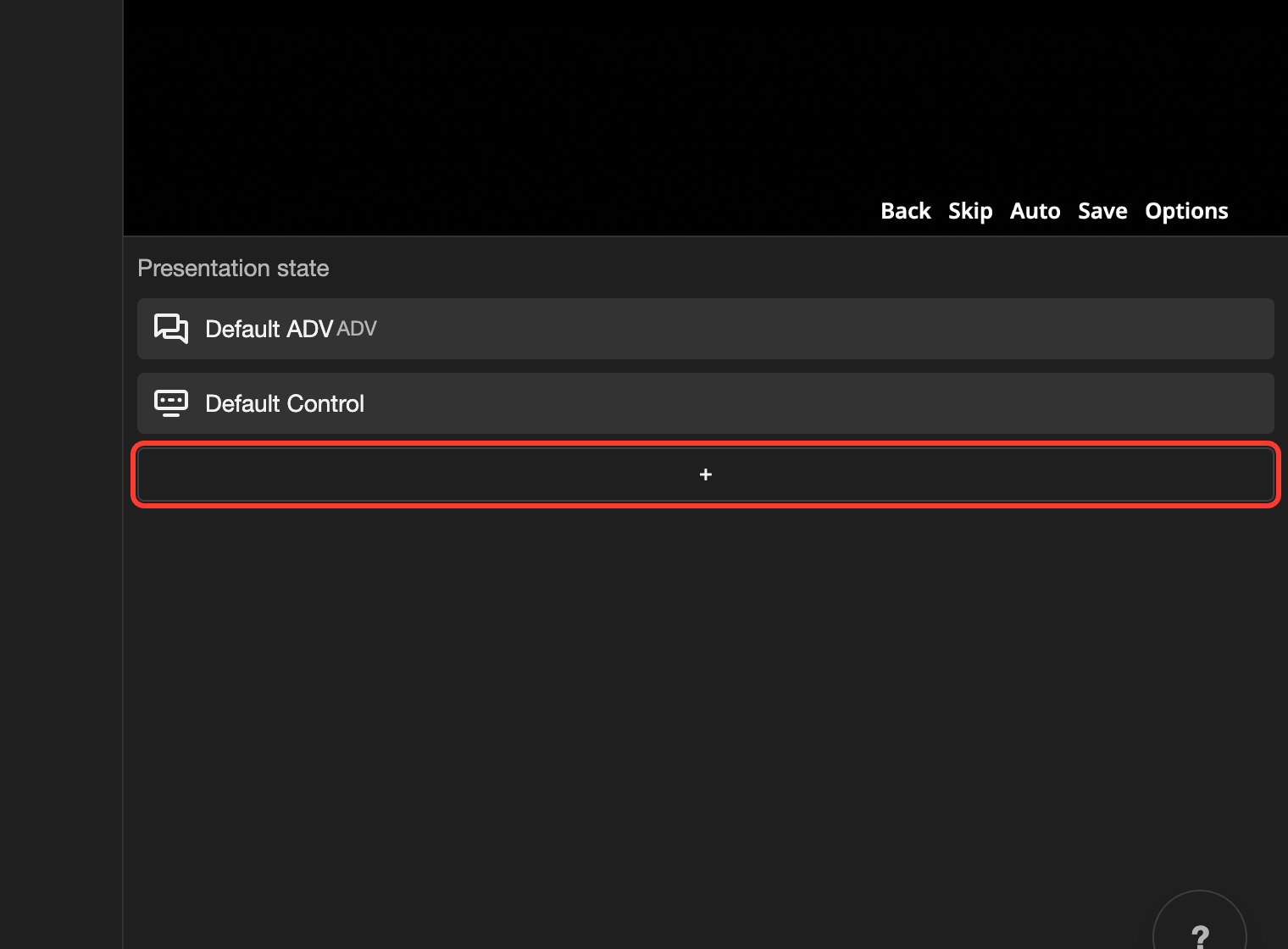
Tap line 1. Then open the add action menu.
- Phone or tablet: Tap the + button in the bottom bar.
- Desktop: Click the + button under Presentation state.
The Actions menu opens.
-
Under Visual, tap Character Sprites.
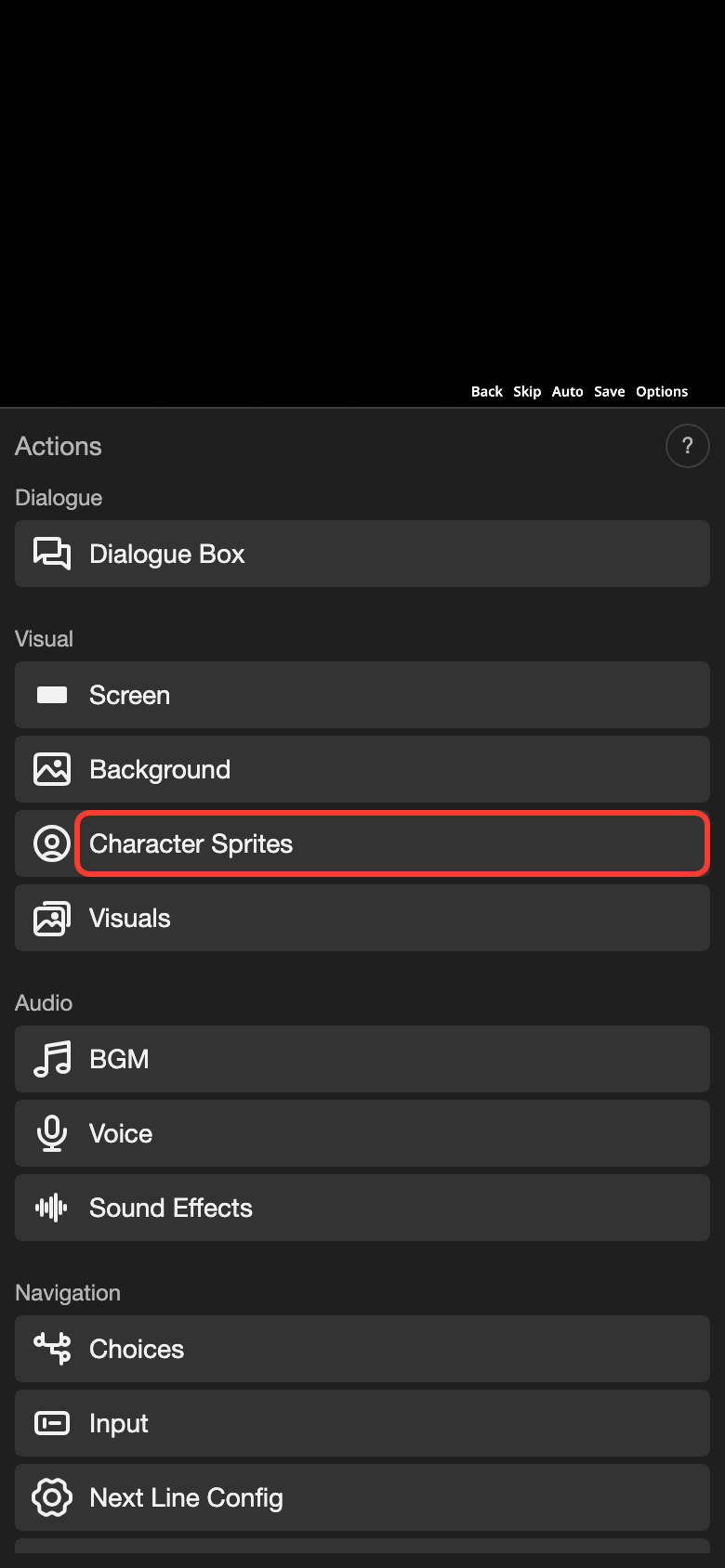
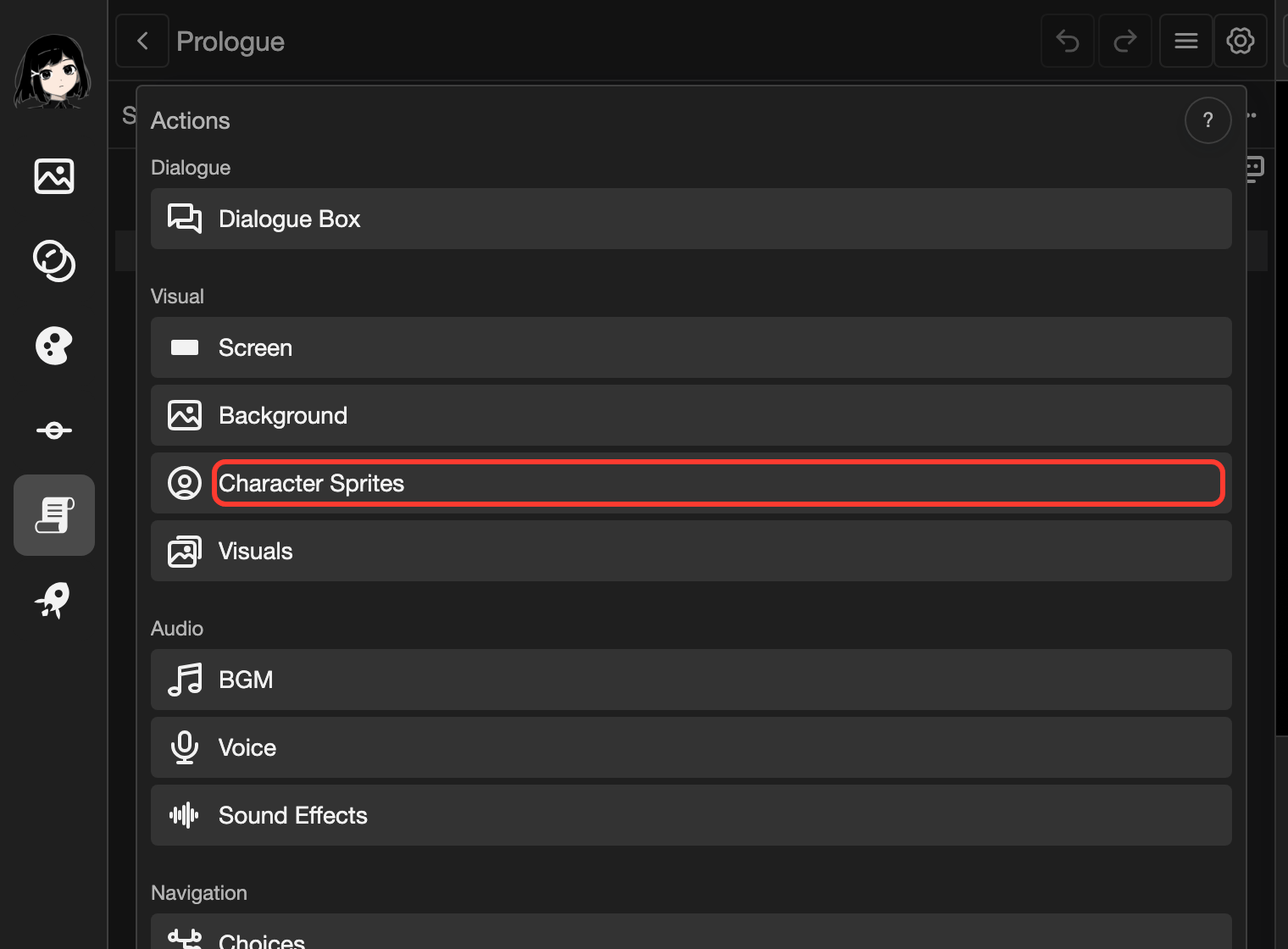
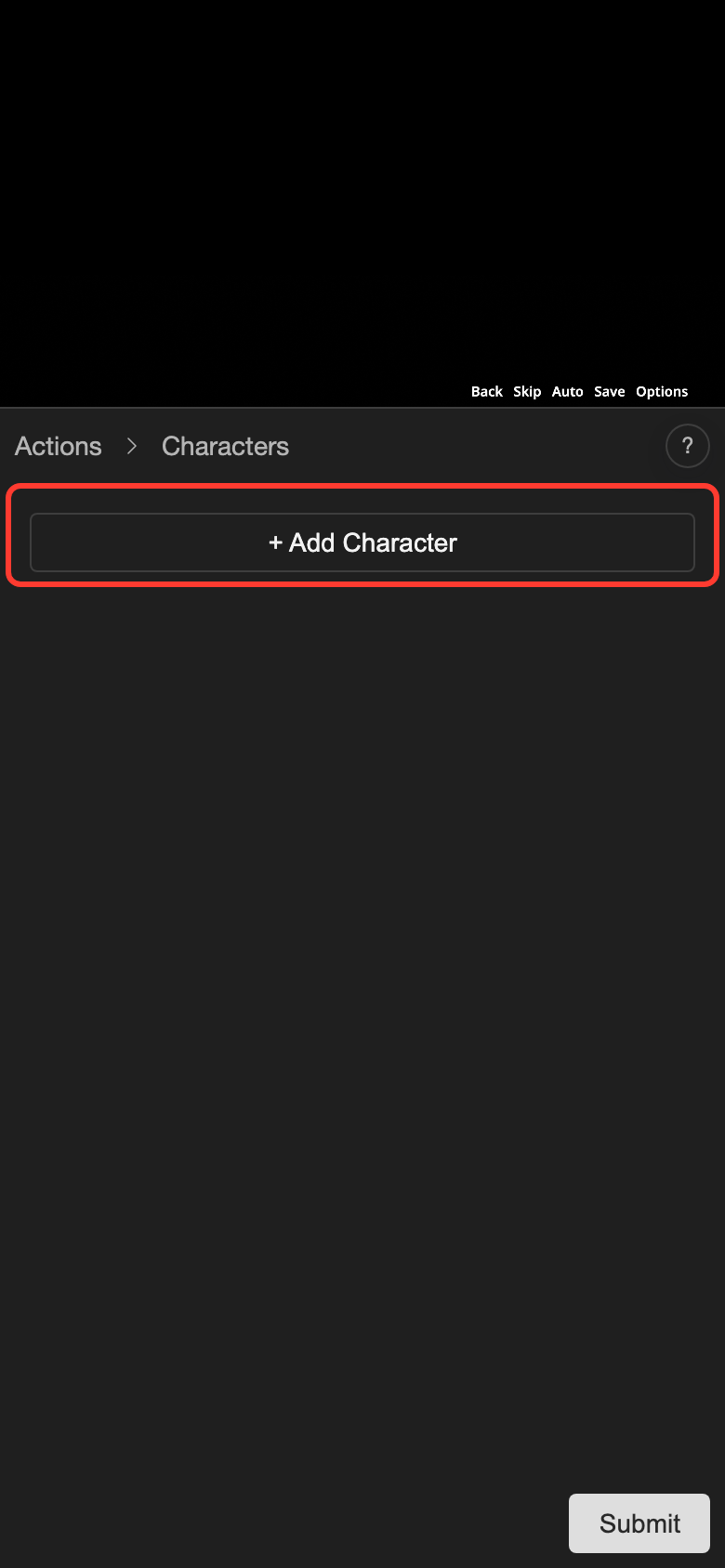
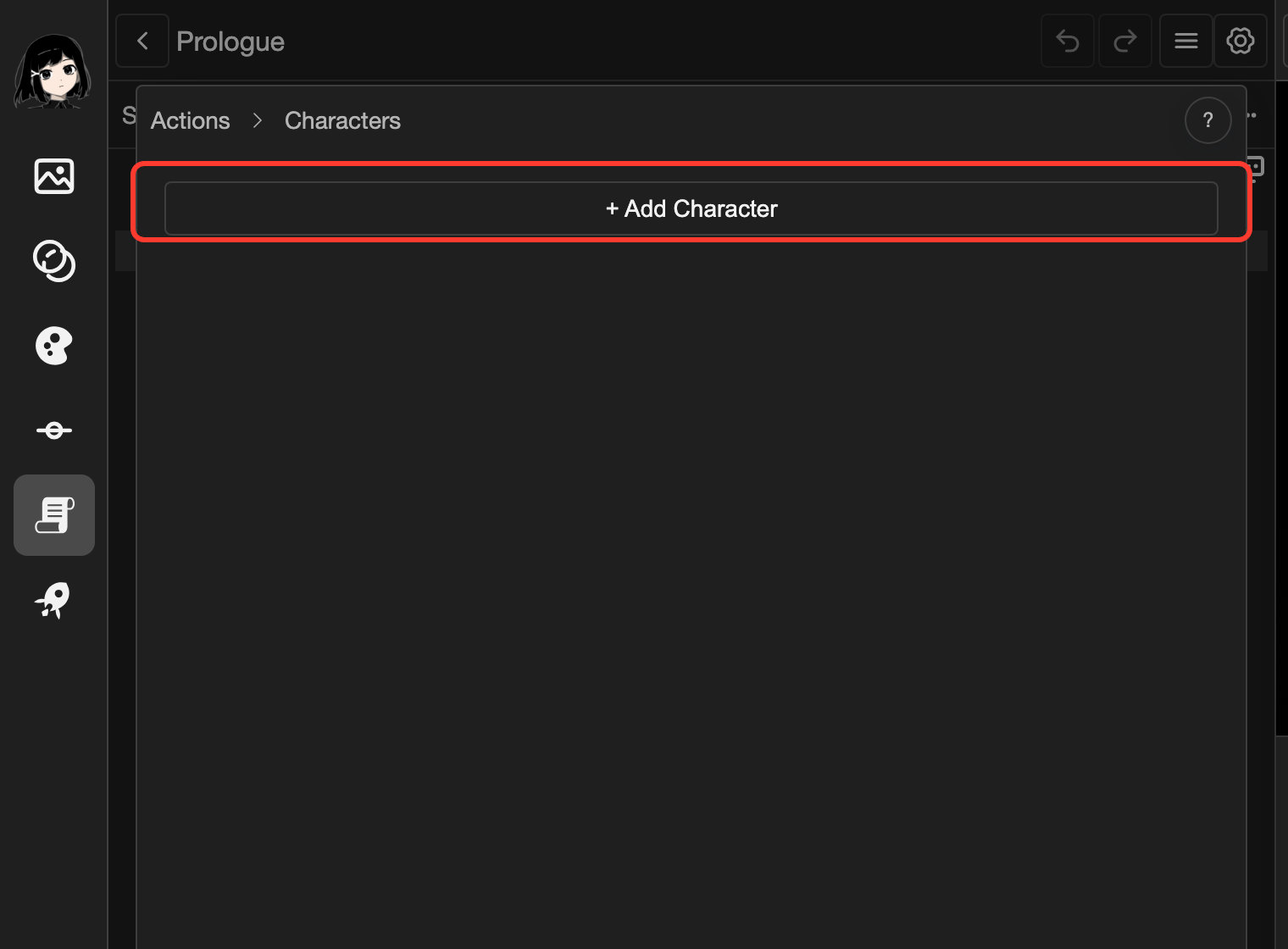
The Characters form opens.
-
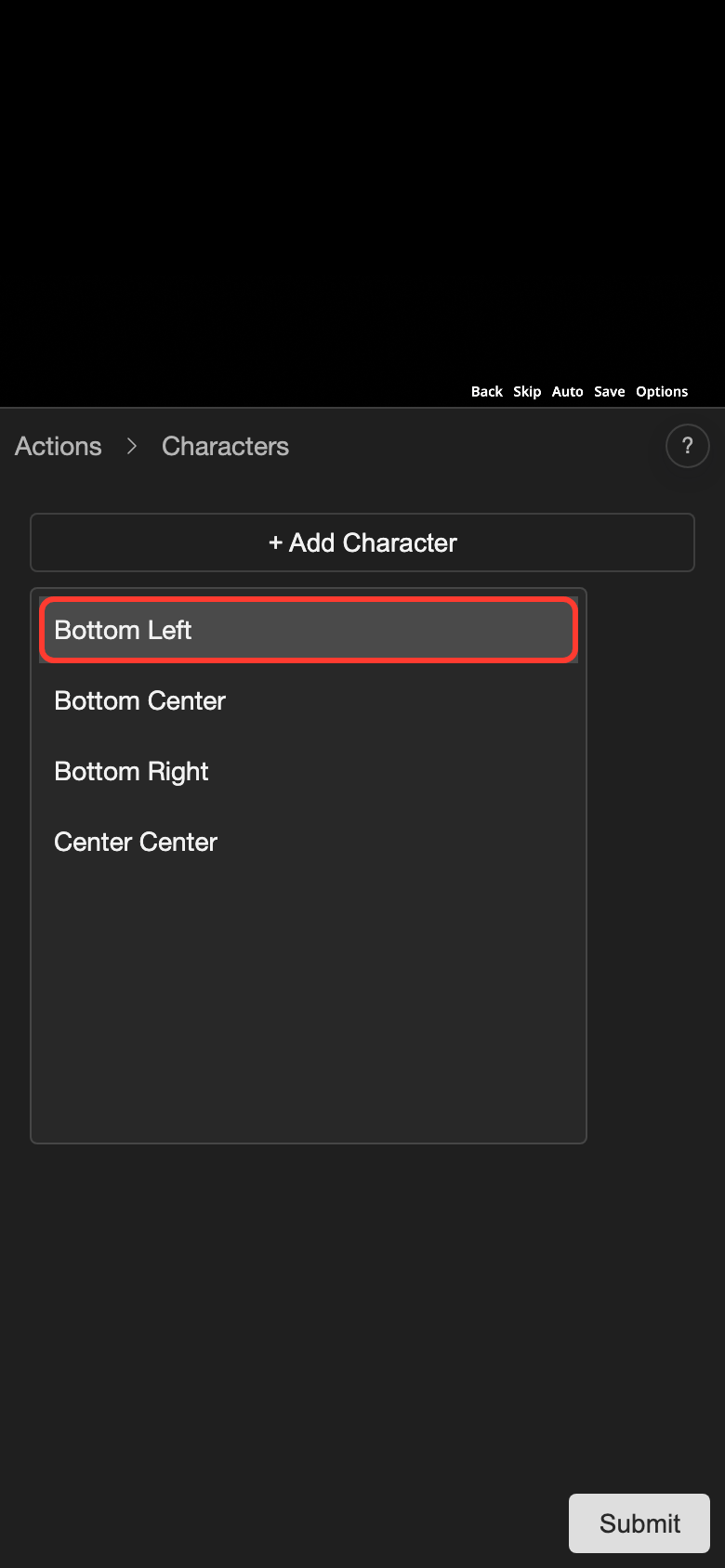
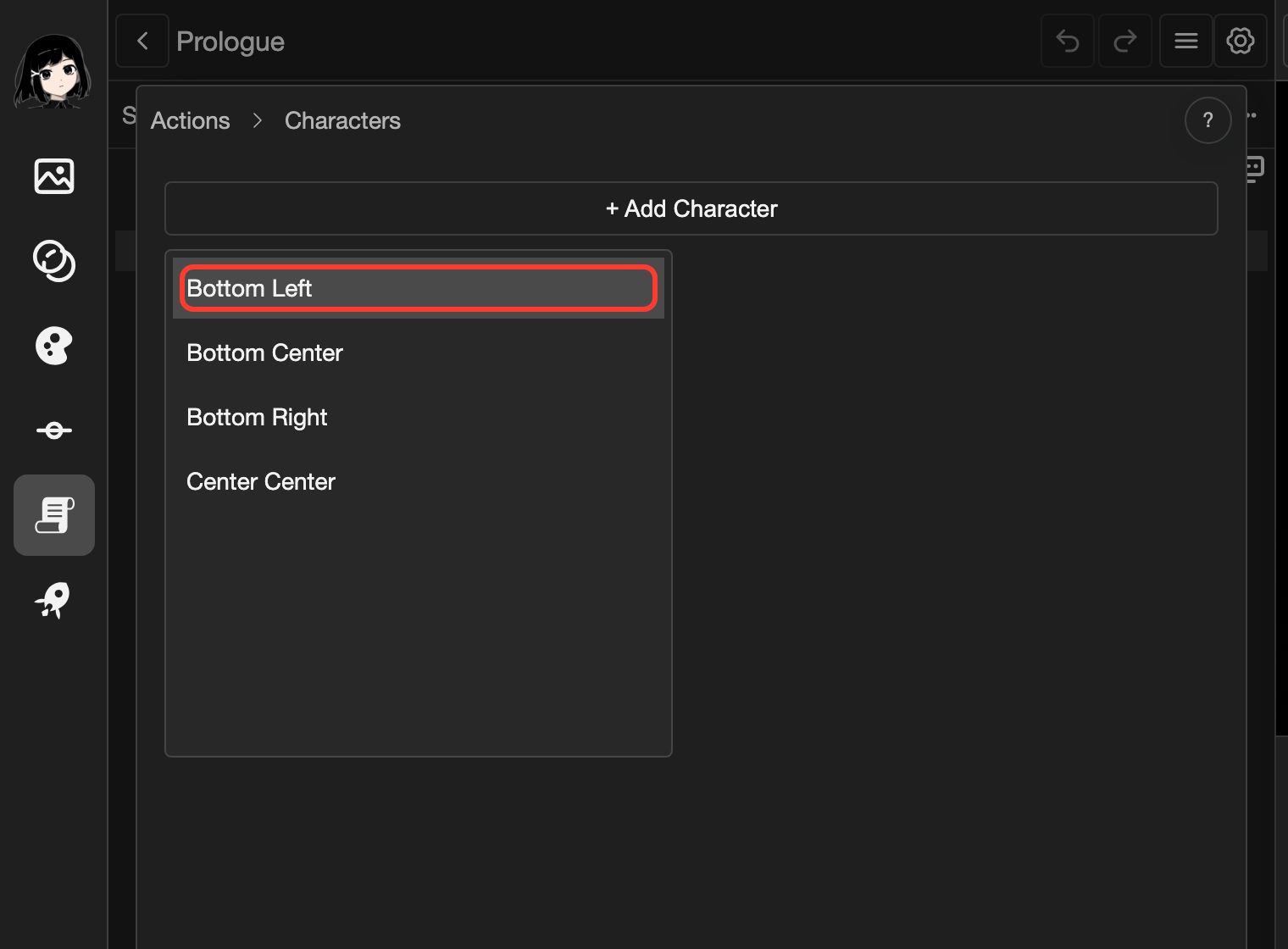
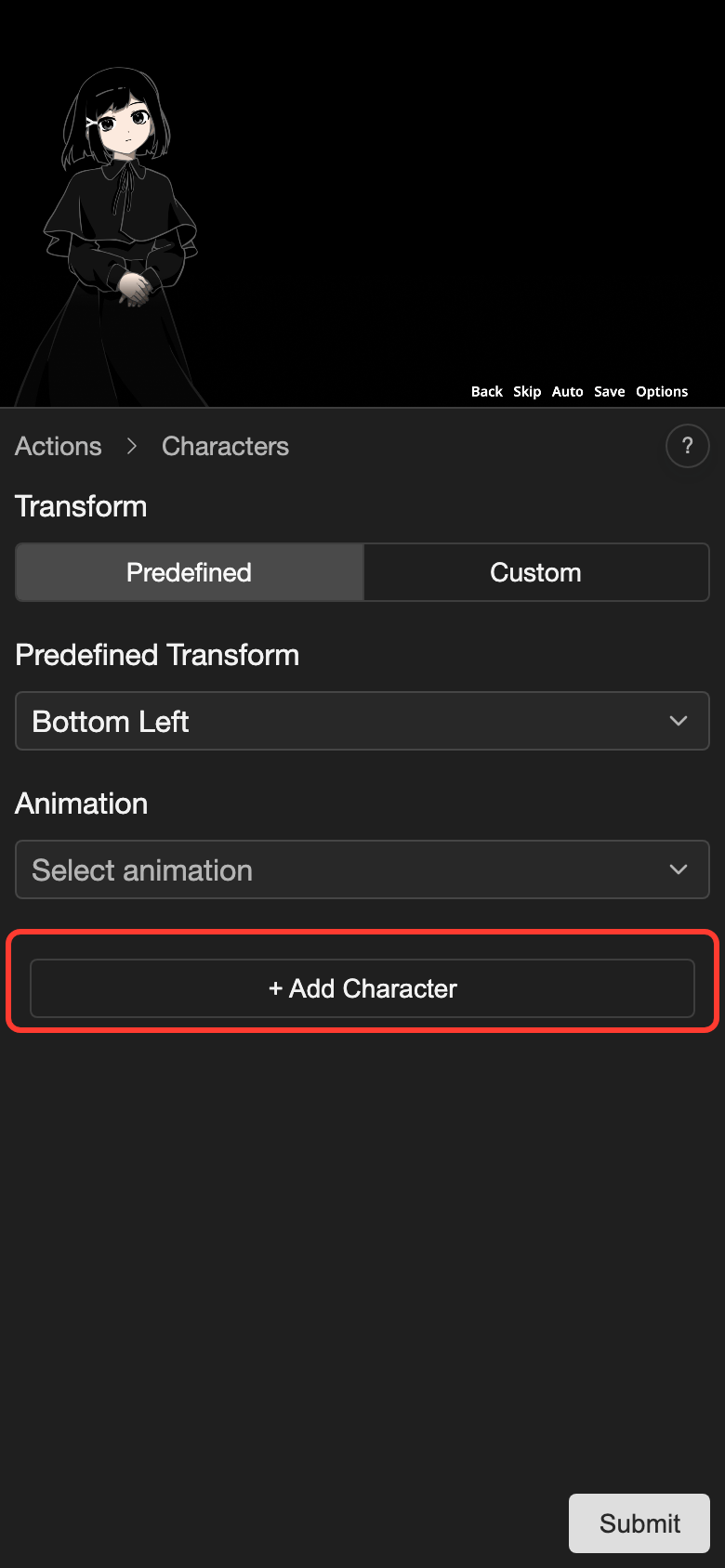
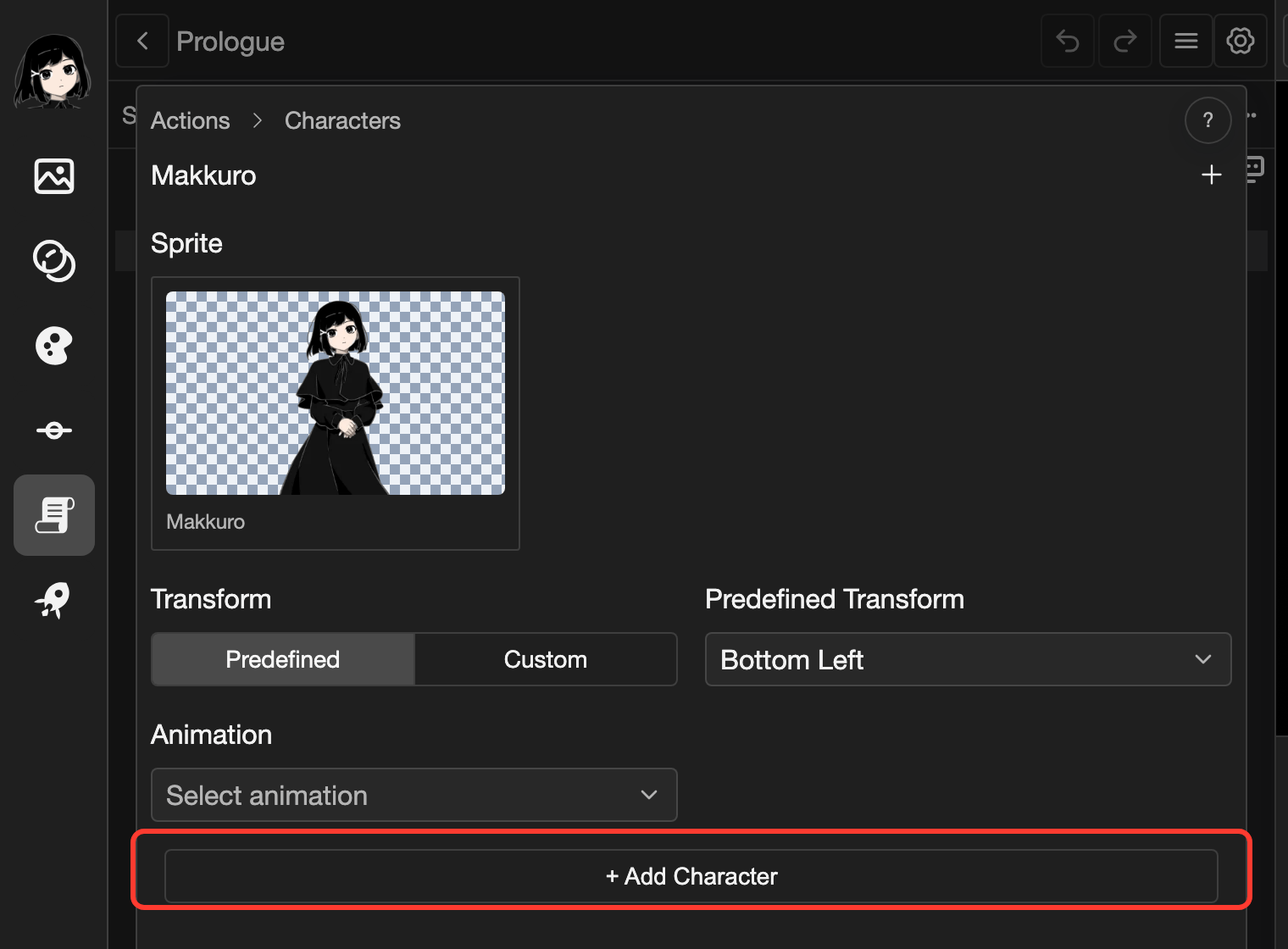
Tap + Add Character.
A list of positions opens.
-
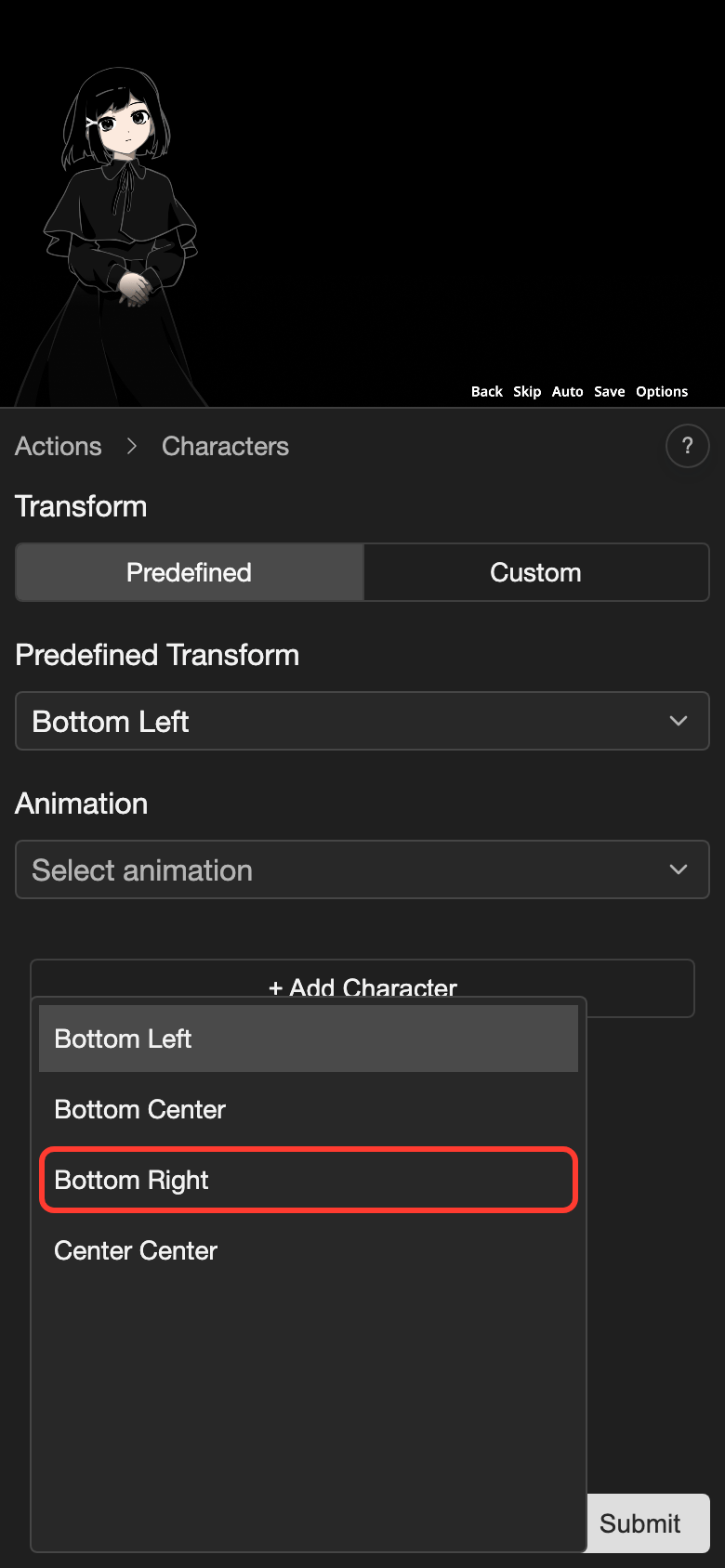
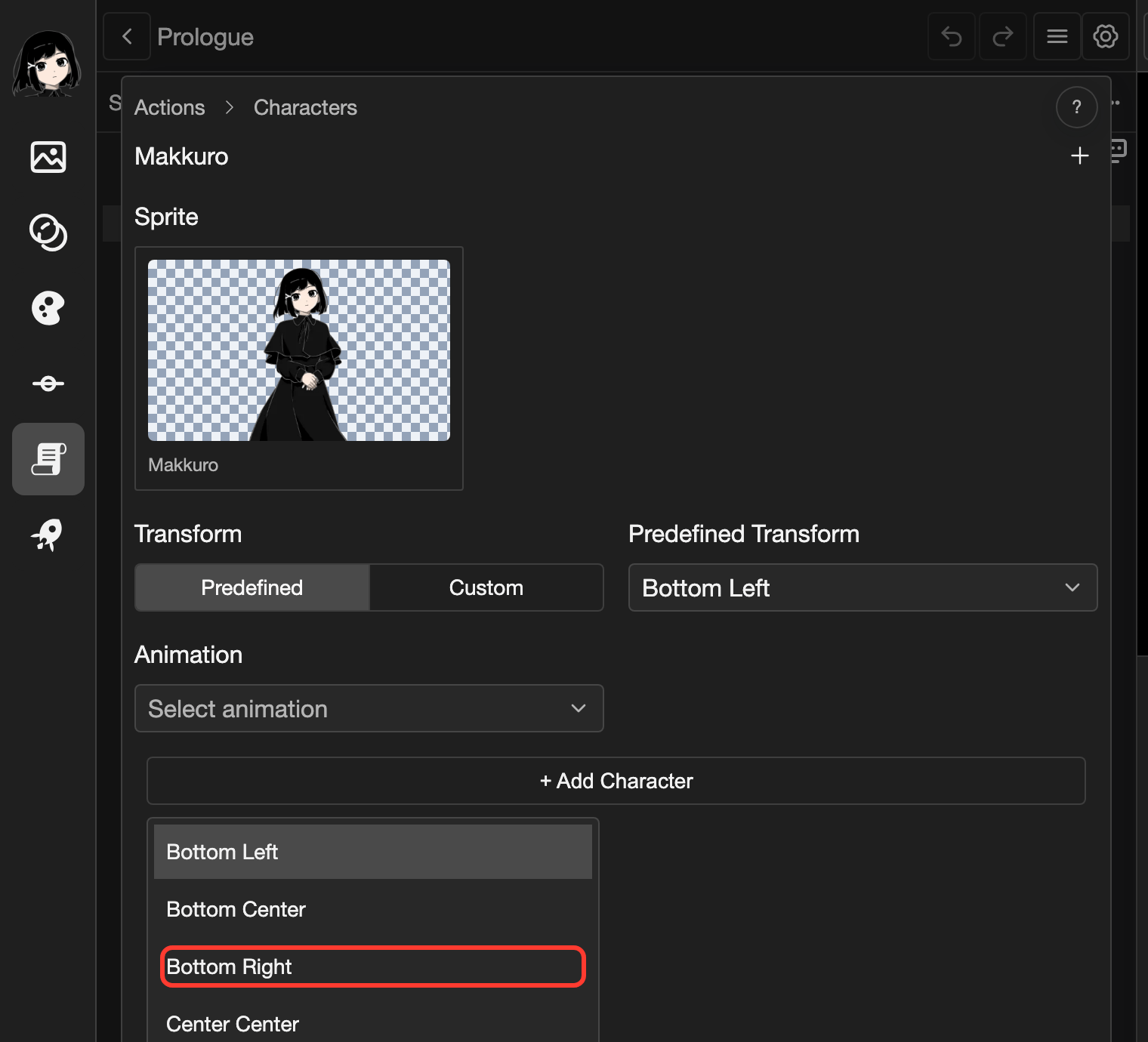
Tap Bottom Left. This is where the character stands on the screen.
-
Tap Makkuro.
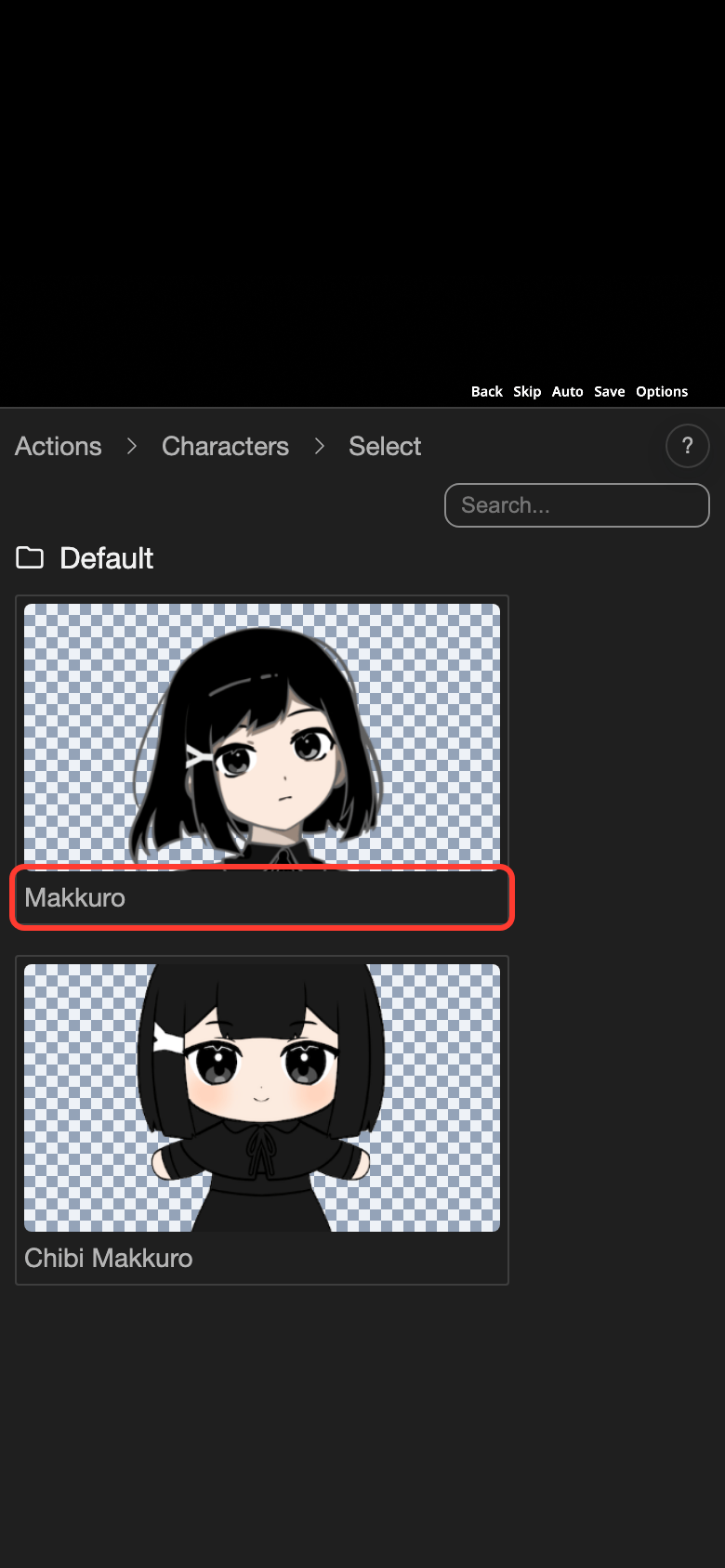
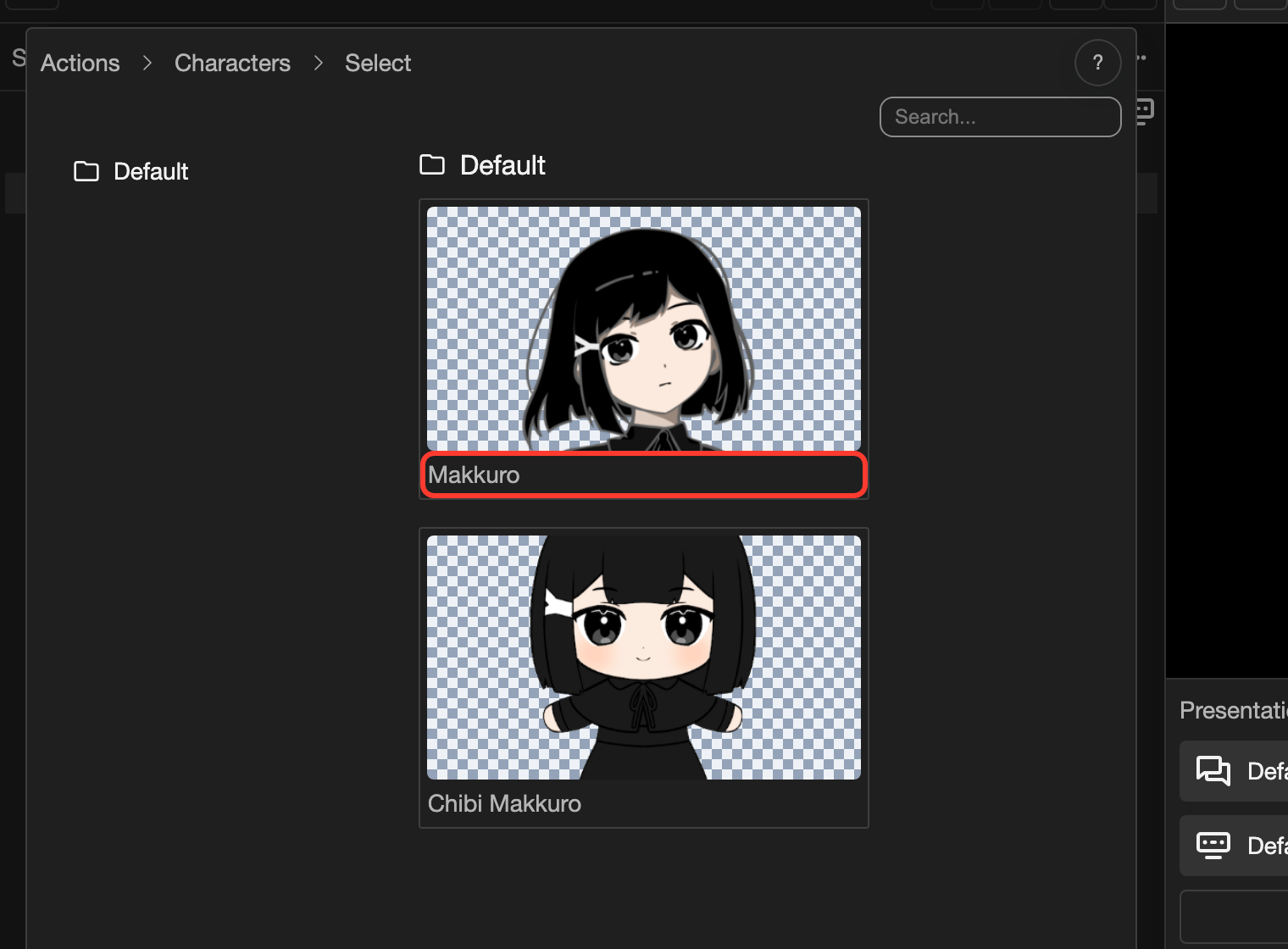
The Sprite Selection page opens. It shows the sprites of Makkuro.
-
Tap the sprite makkuro sprite1 neutral.
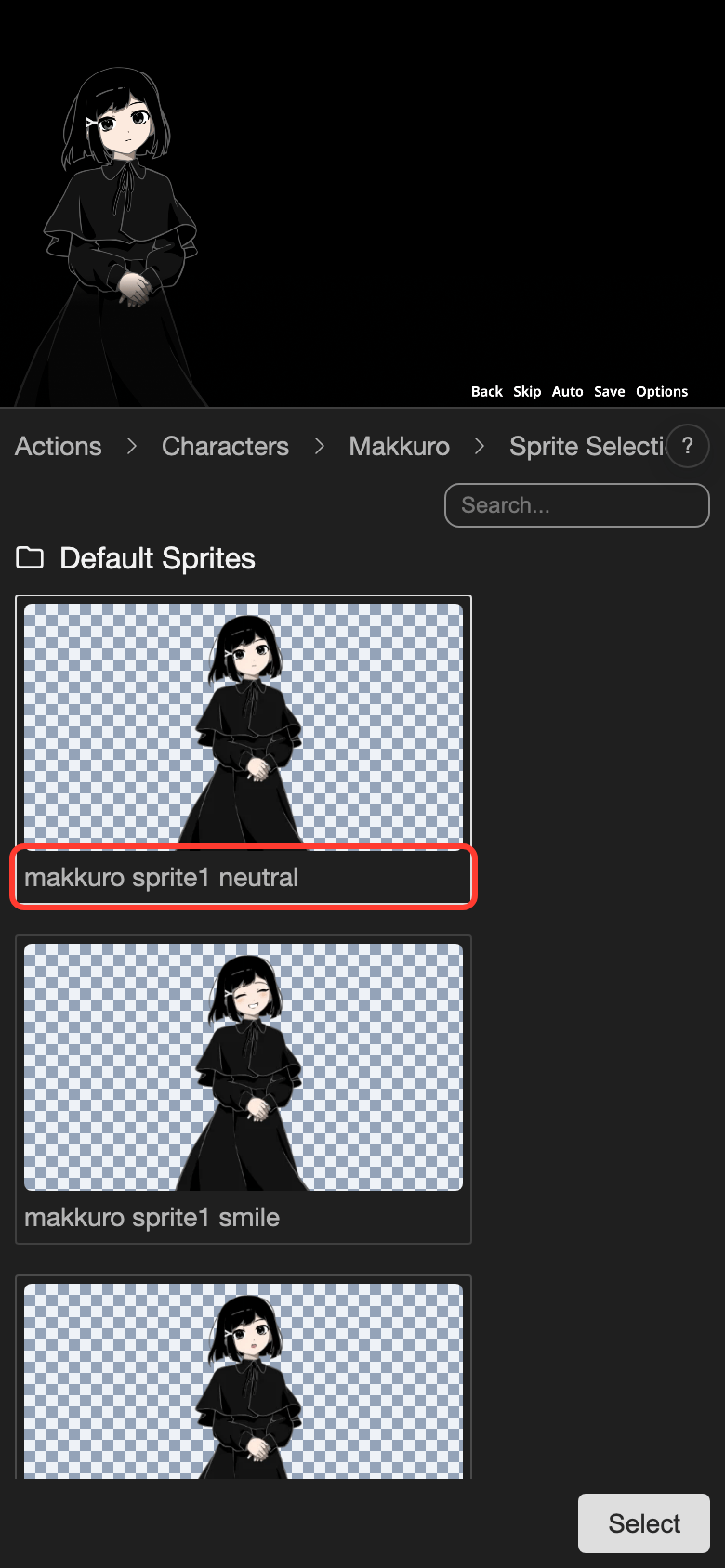
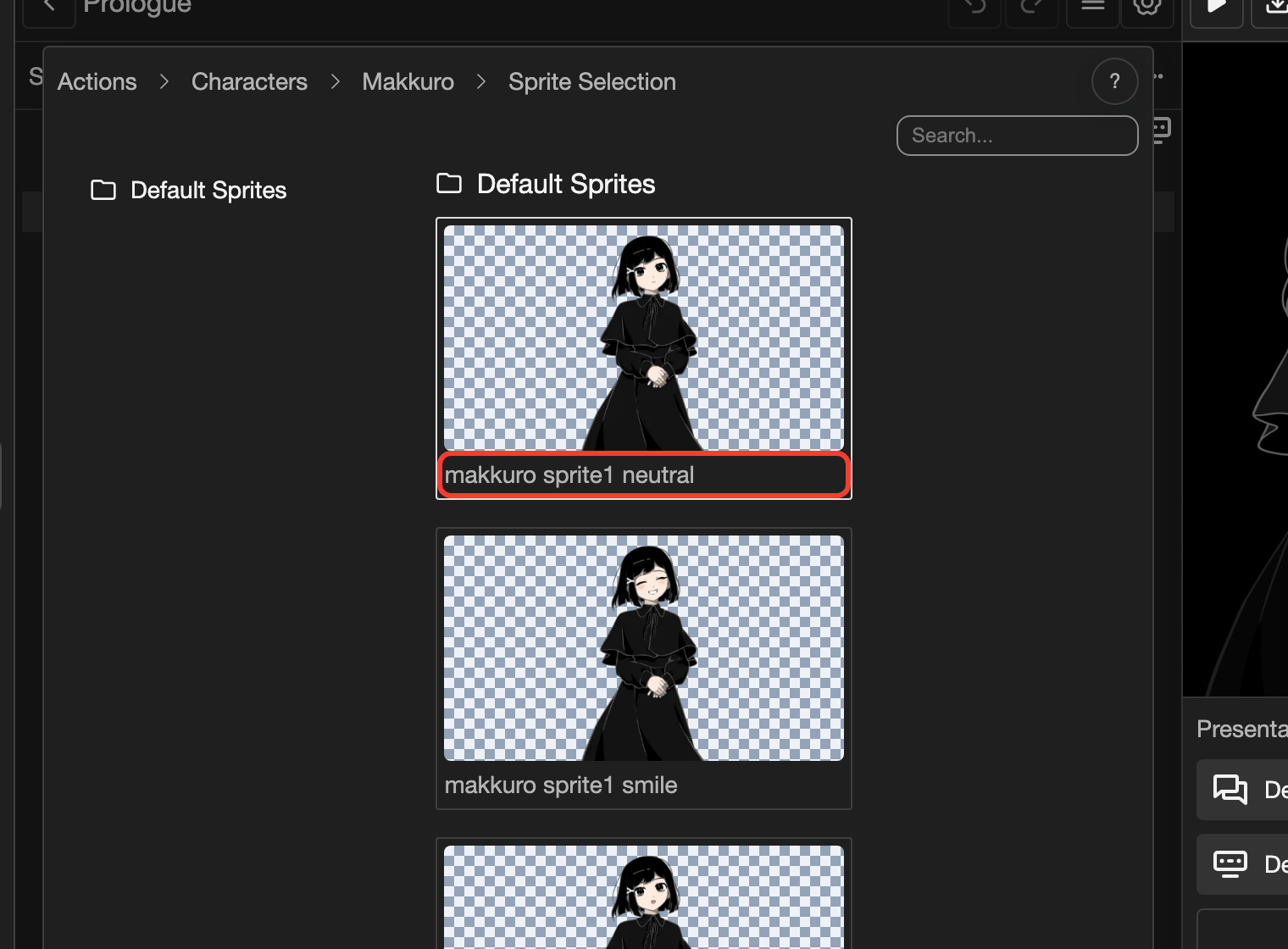
-
Tap Select.
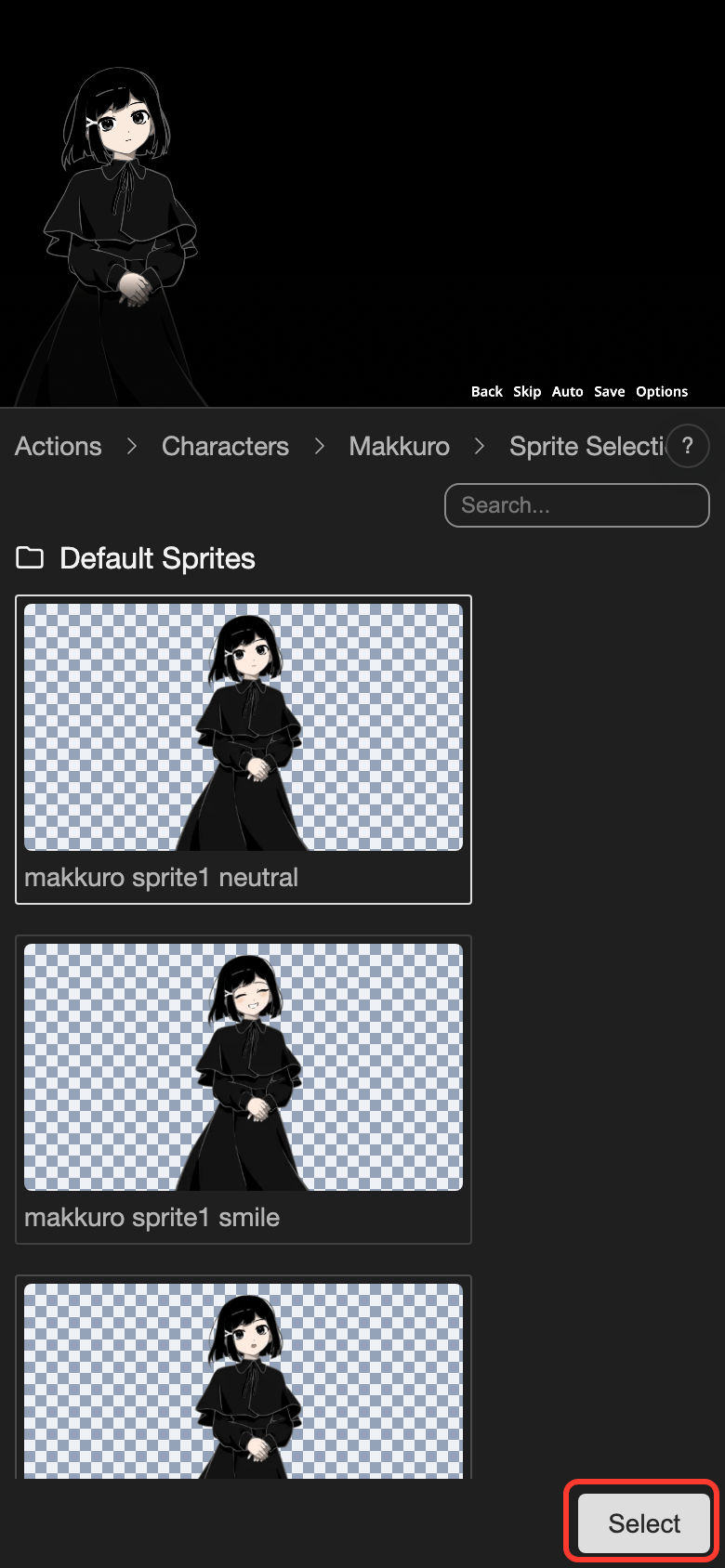
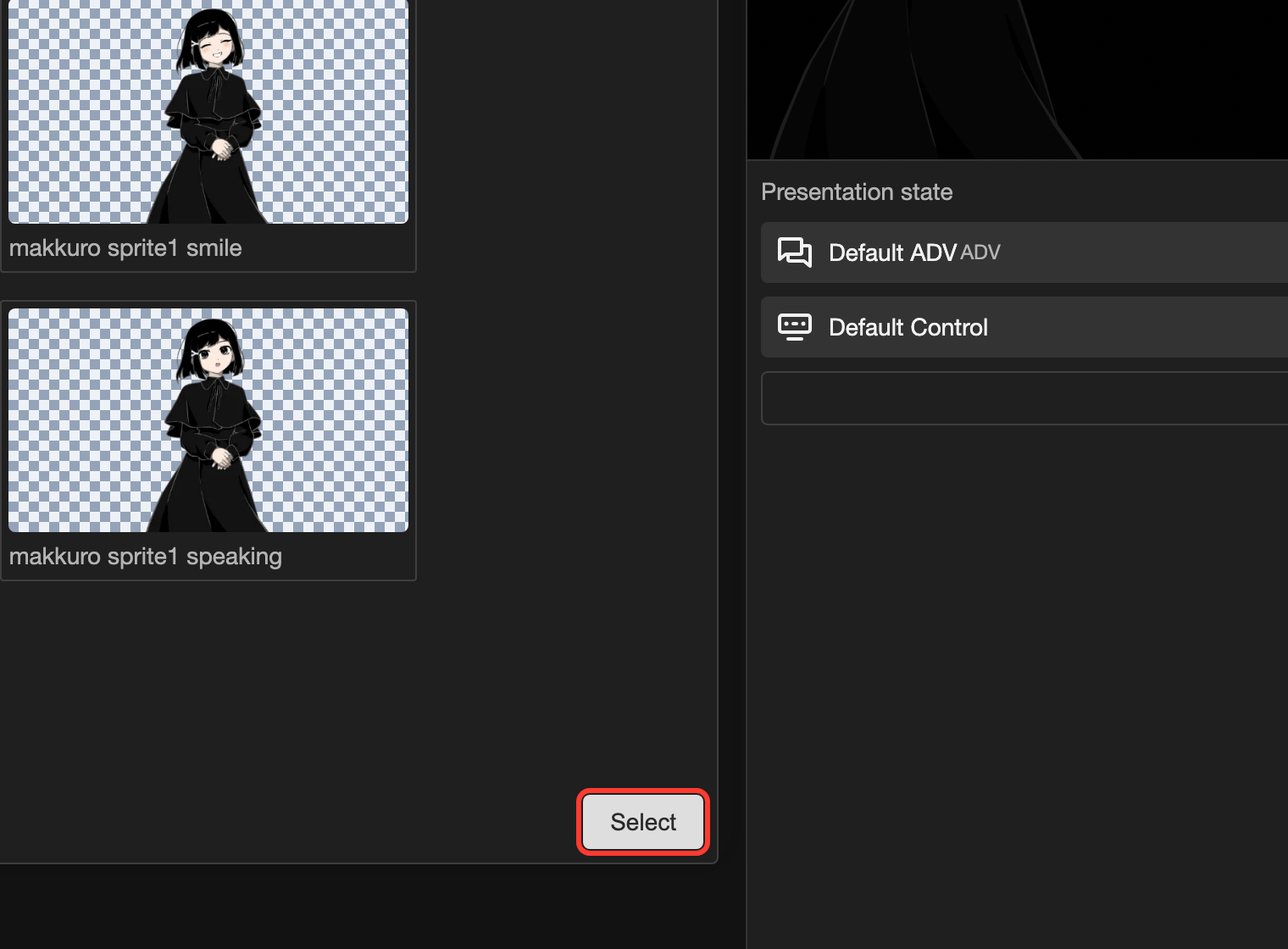
The Characters form shows Makkuro with the sprite you chose.
Show a second character on the right
Add a second character to the same line.
-
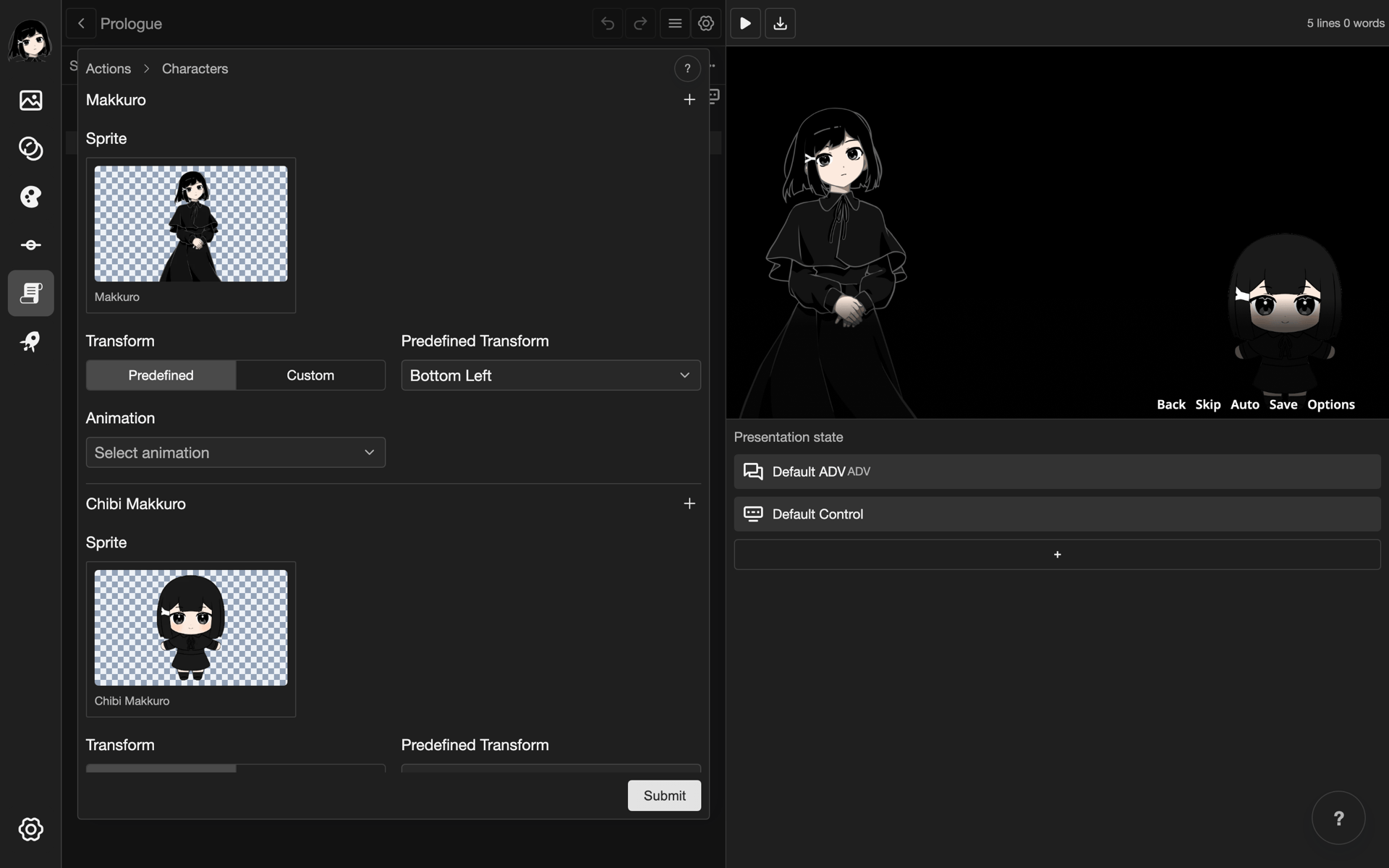
Tap + Add Character under Makkuro.
-
Tap Bottom Right.
-
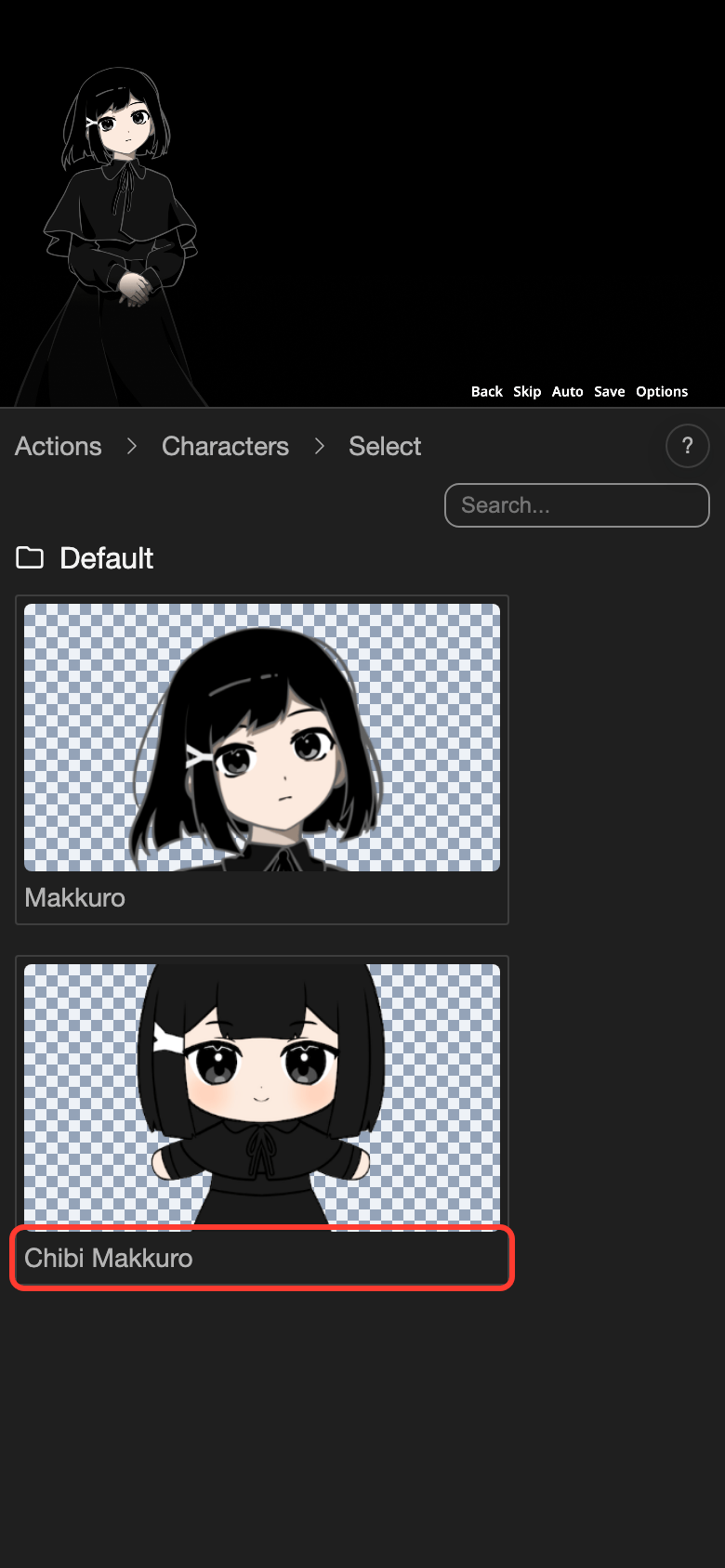
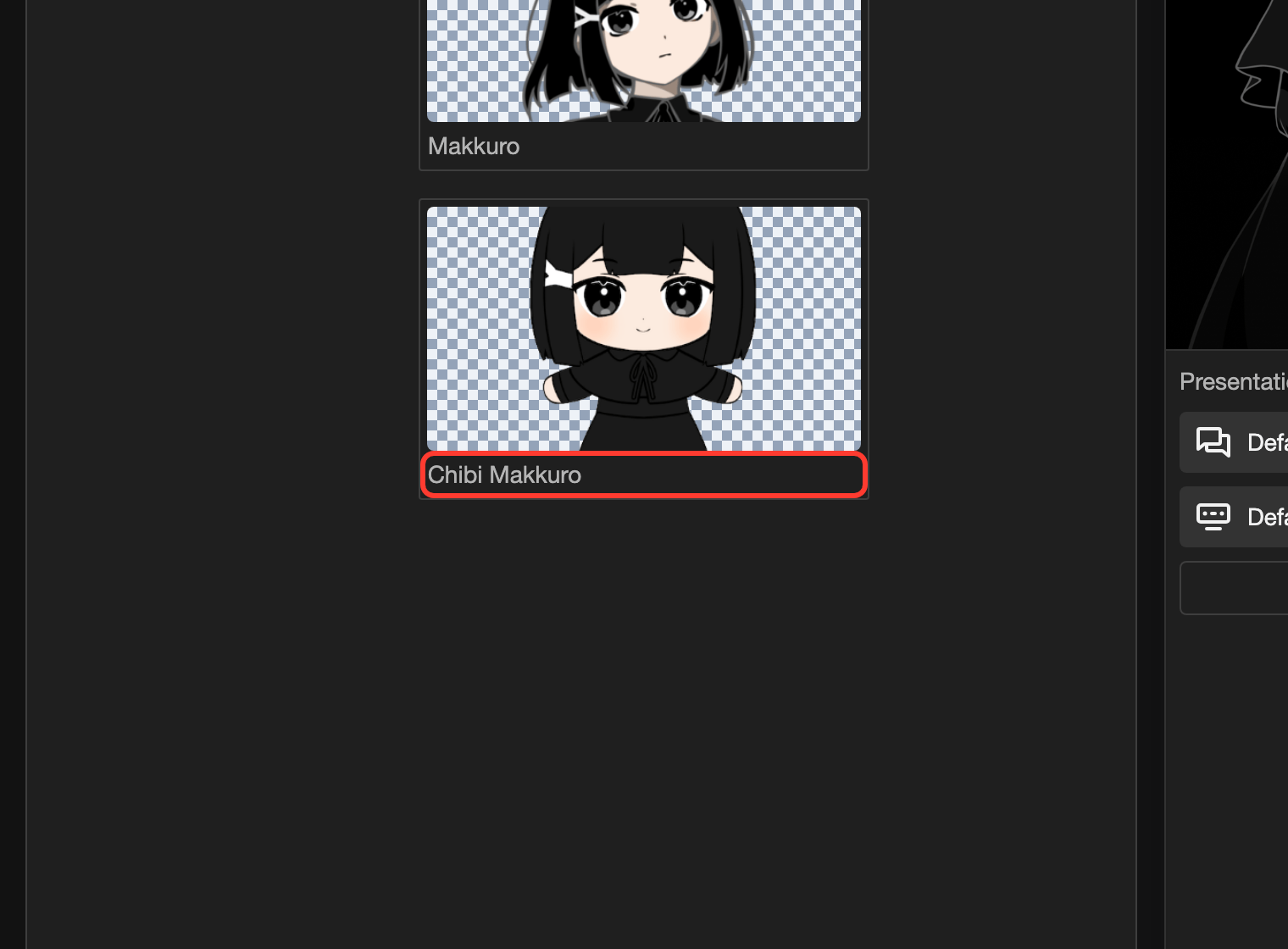
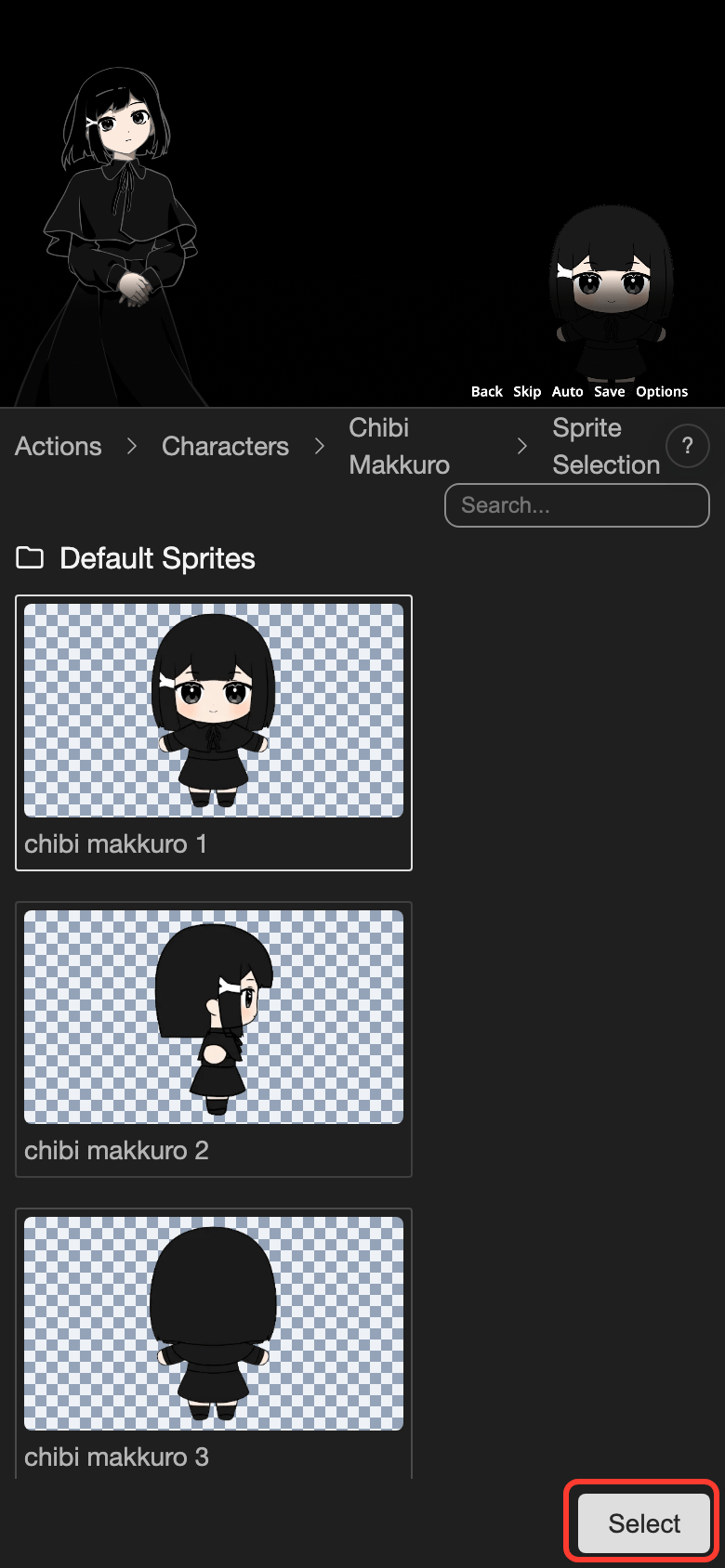
Tap Chibi Makkuro.
-
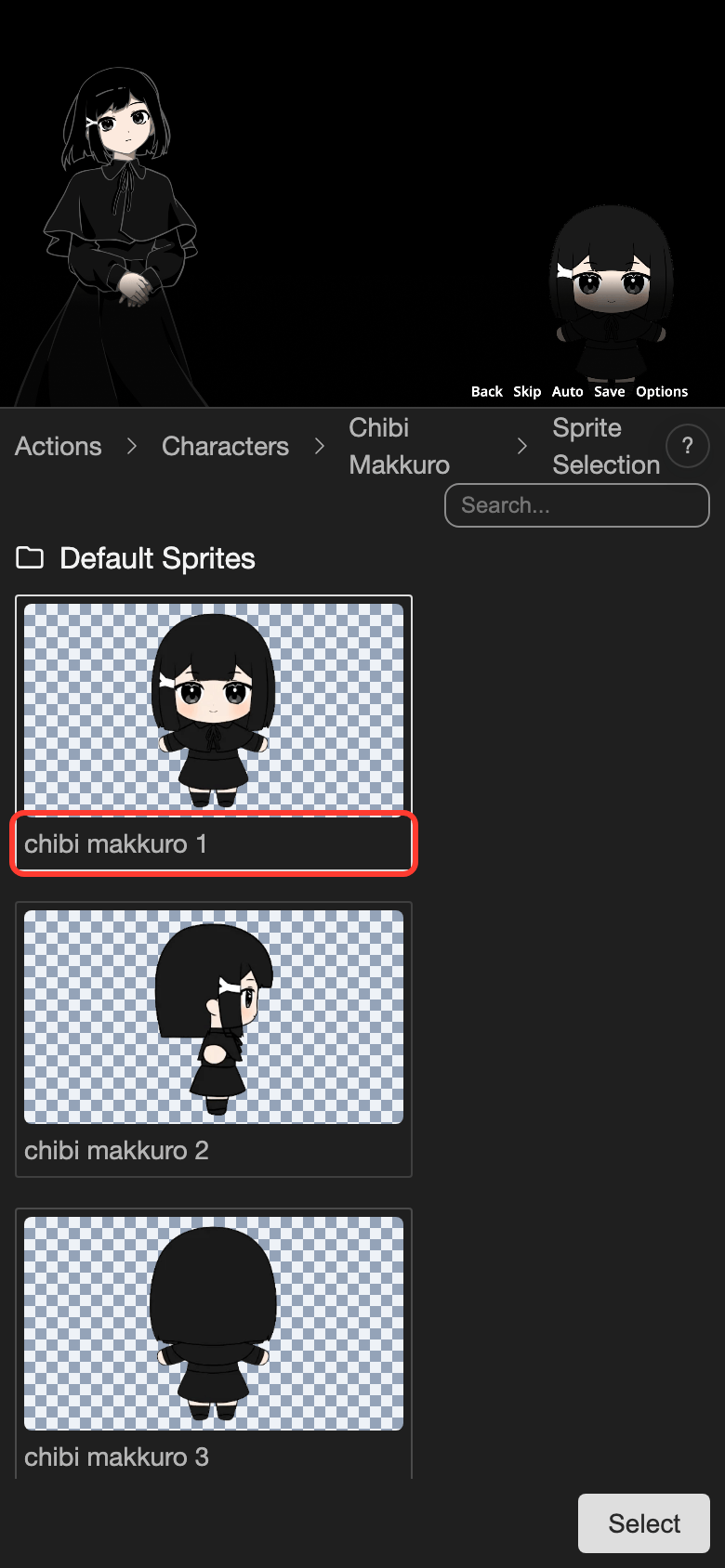
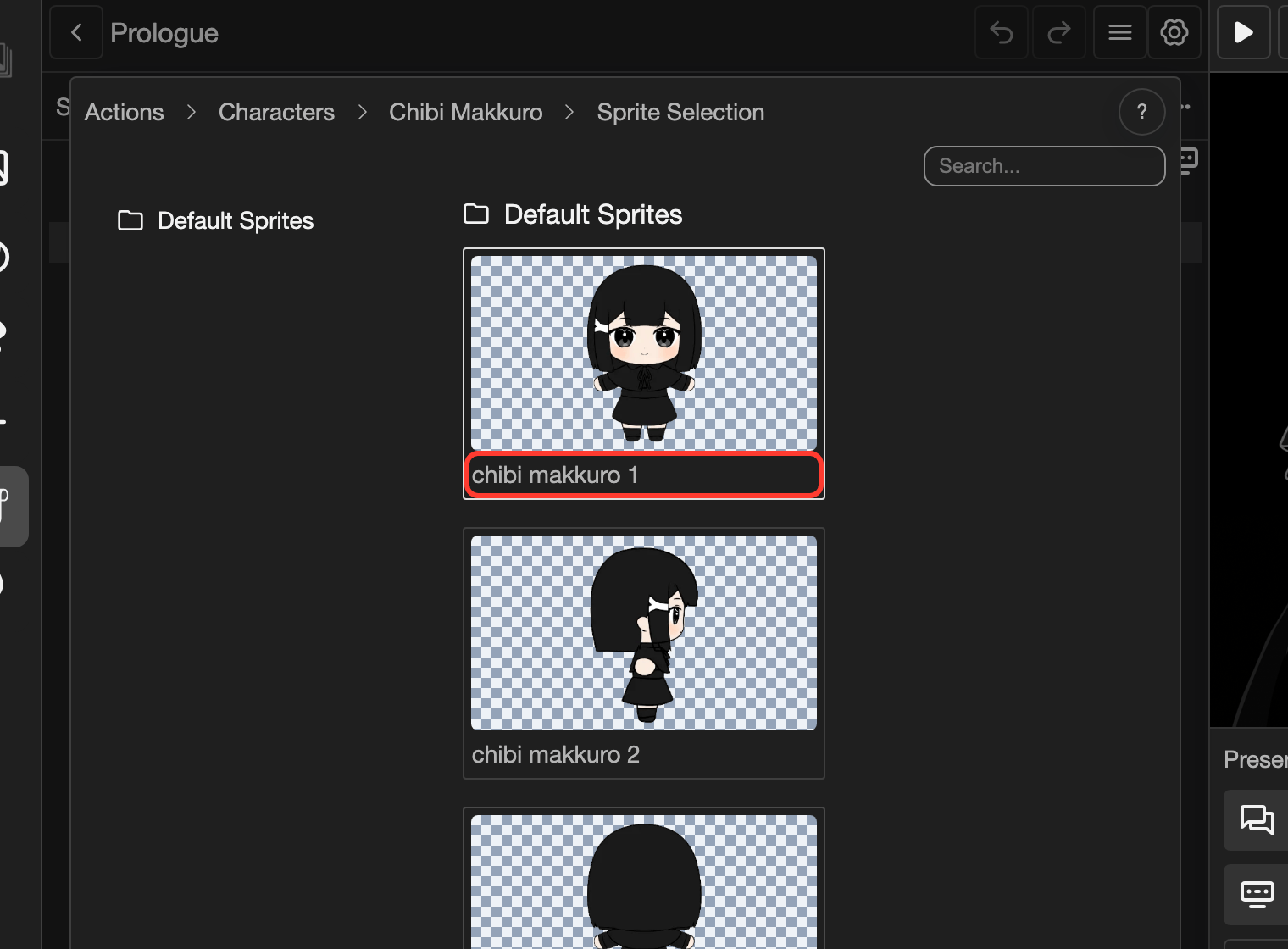
Tap the sprite chibi makkuro 1.
-
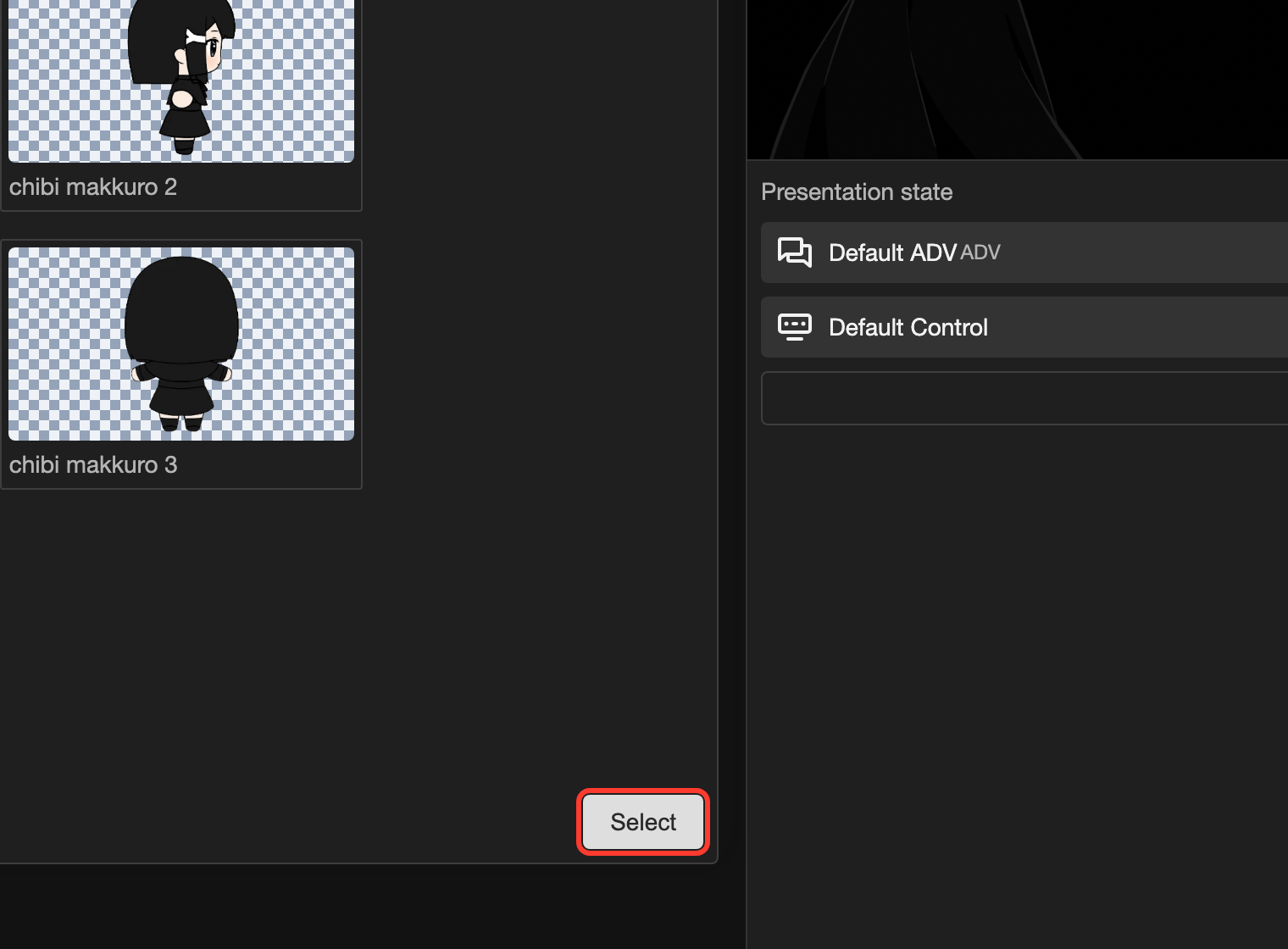
Tap Select.
-
Tap Submit.
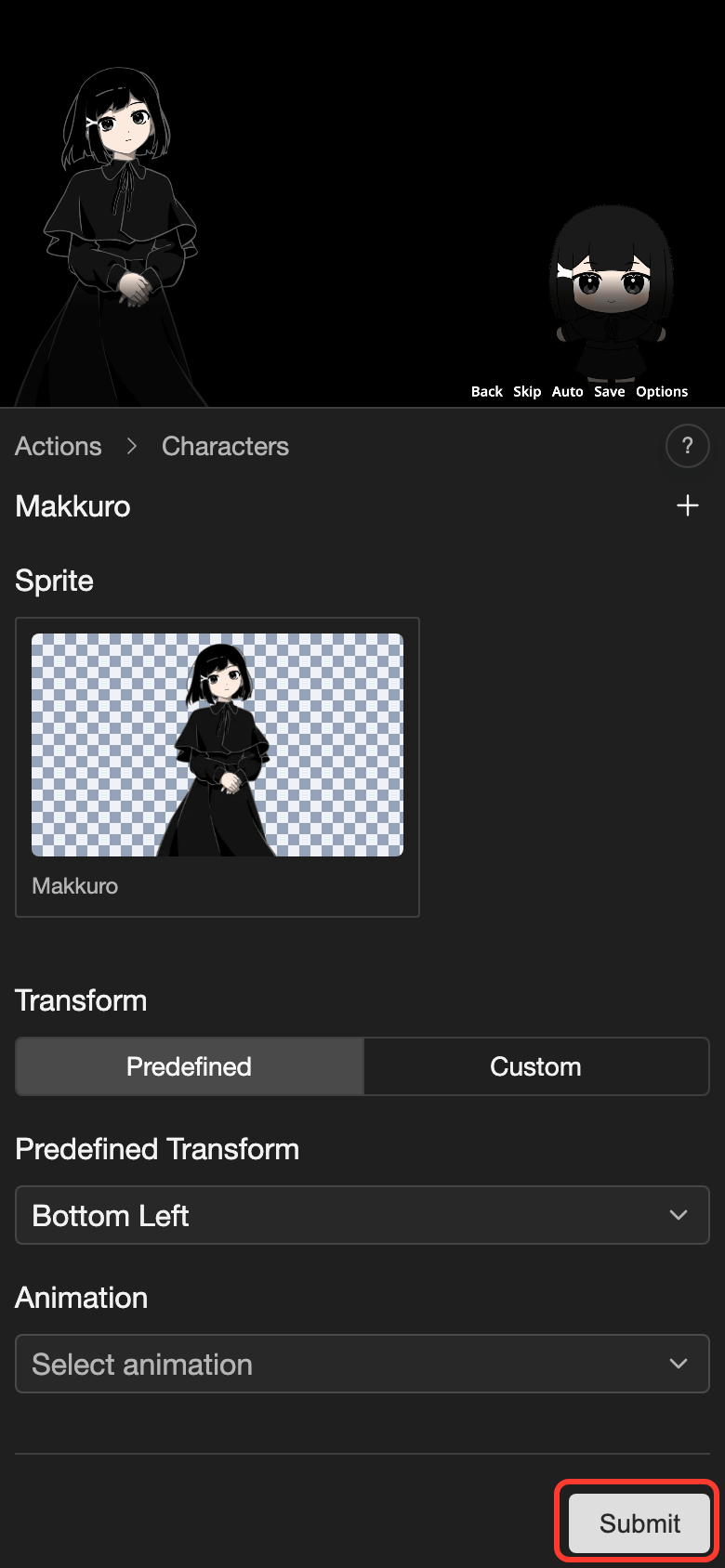
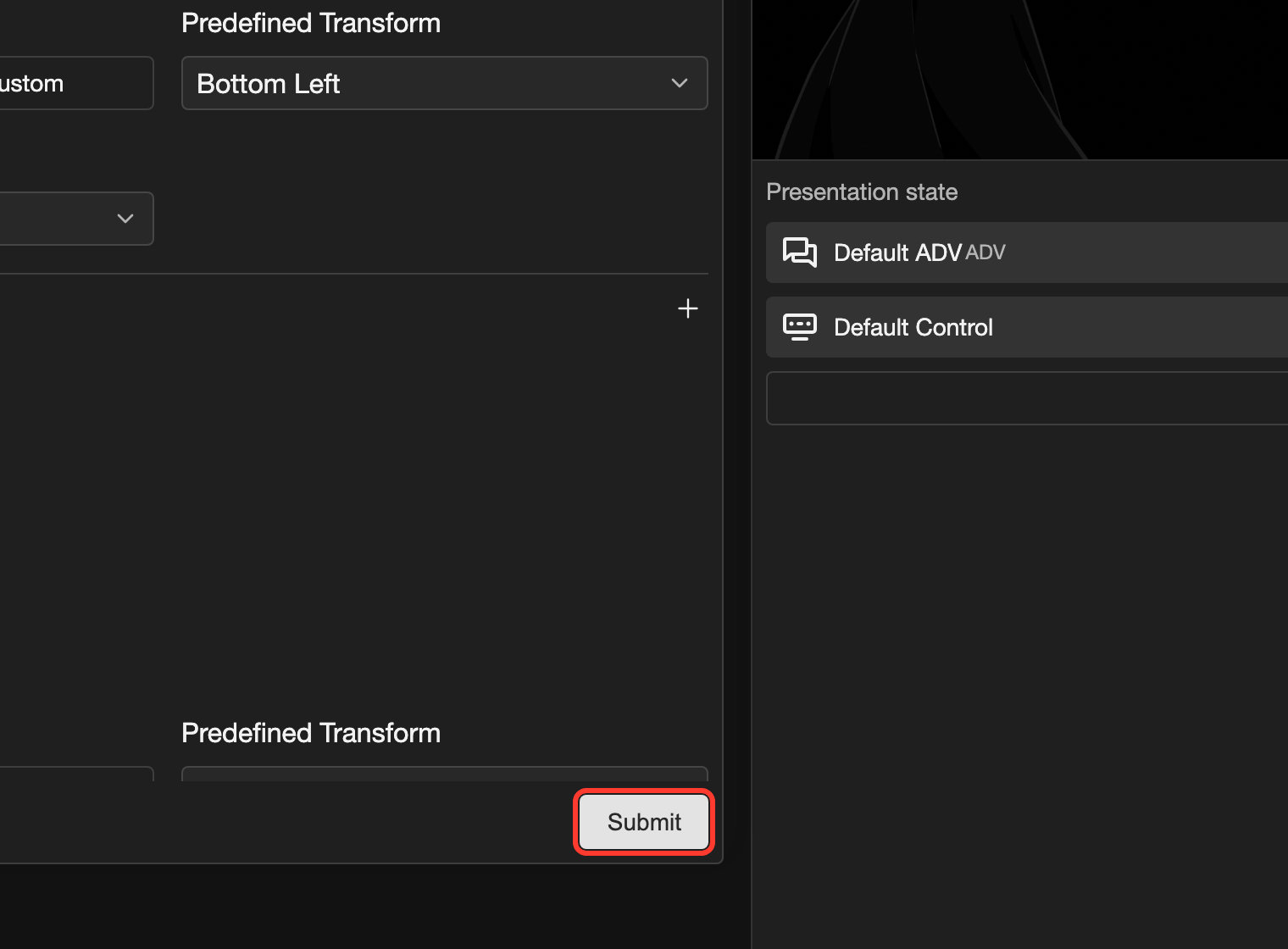
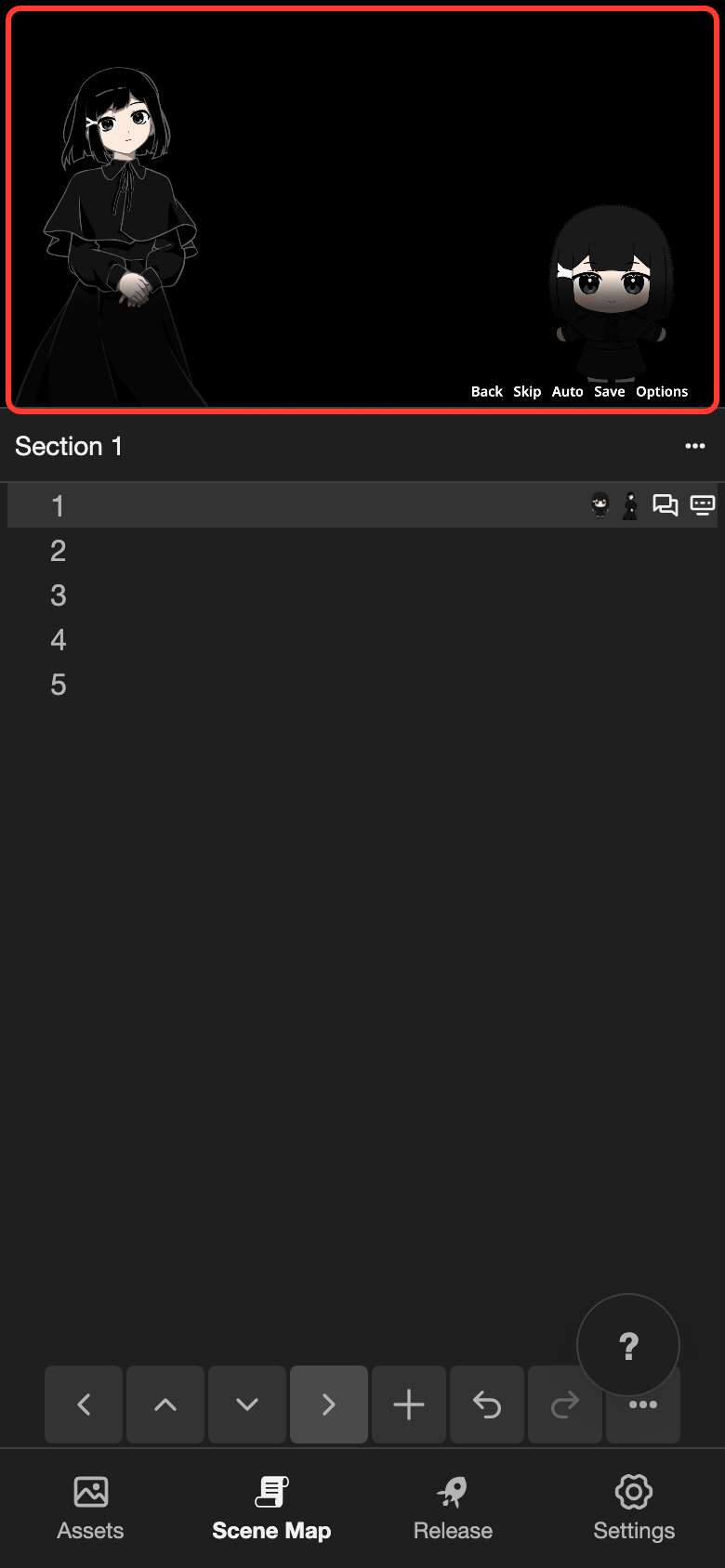
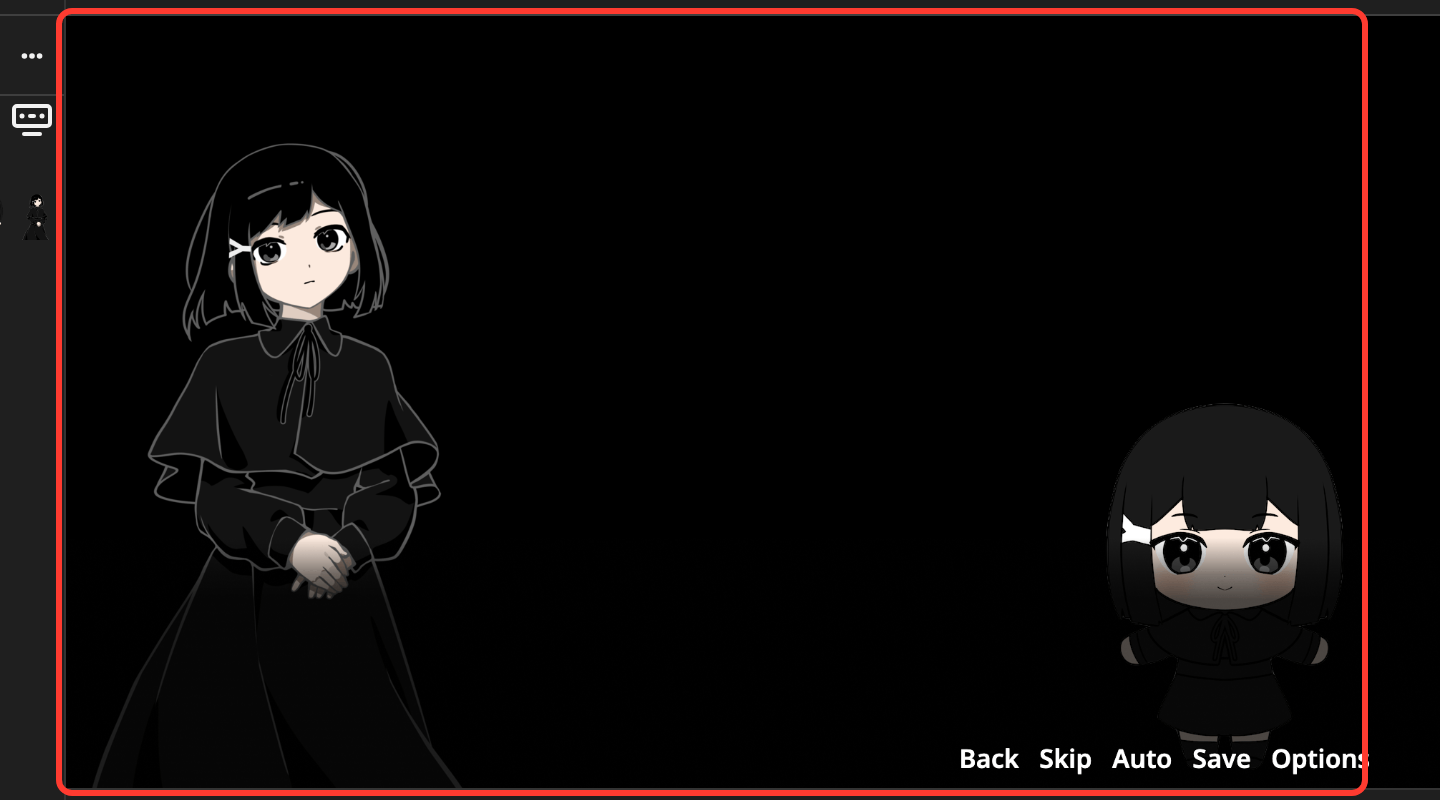
The scene preview now shows both characters. Makkuro stands on the left, and Chibi Makkuro stands on the right.
Change a character on a later line
A character stays on the screen until a later line changes it. To change the sprite, for example to make Makkuro smile, add a Character Sprites action to a later line.
-
Tap a later line, for example line 2. Then open the add action menu, like in Show a character on the screen.
-
Tap Character Sprites.
The Characters form opens. It already shows the characters that are on the screen.
-
Tap the sprite of Makkuro.
The Sprite Selection page opens.
-
Tap a new sprite, for example makkuro sprite1 smile.
-
Tap Select.
-
Tap Submit.
From this line on, Makkuro uses the new sprite. The lines before it do not change.
Remove a character from the screen
These steps are for desktop. They open the line's action again from Presentation state.
-
Click the row with the character icons under Presentation state.
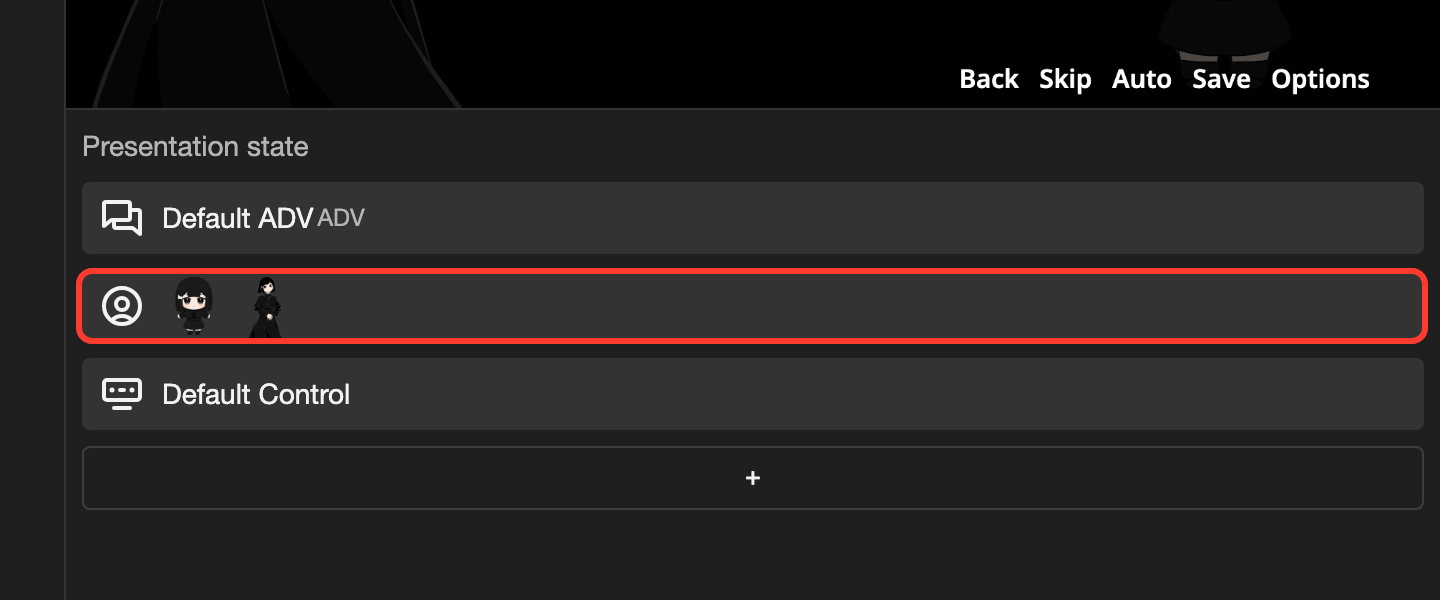
The Characters form opens. It shows the characters of the action.
-
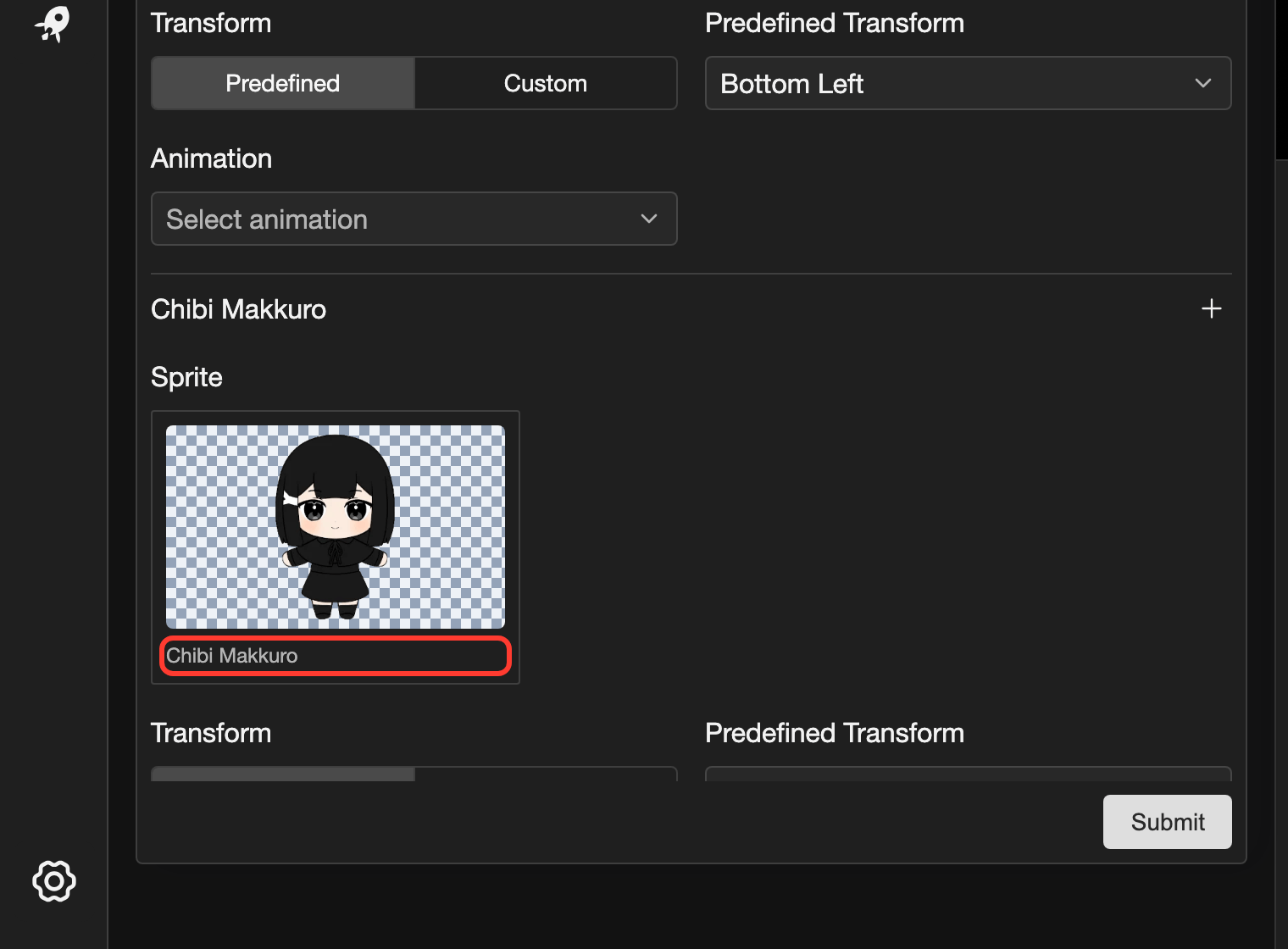
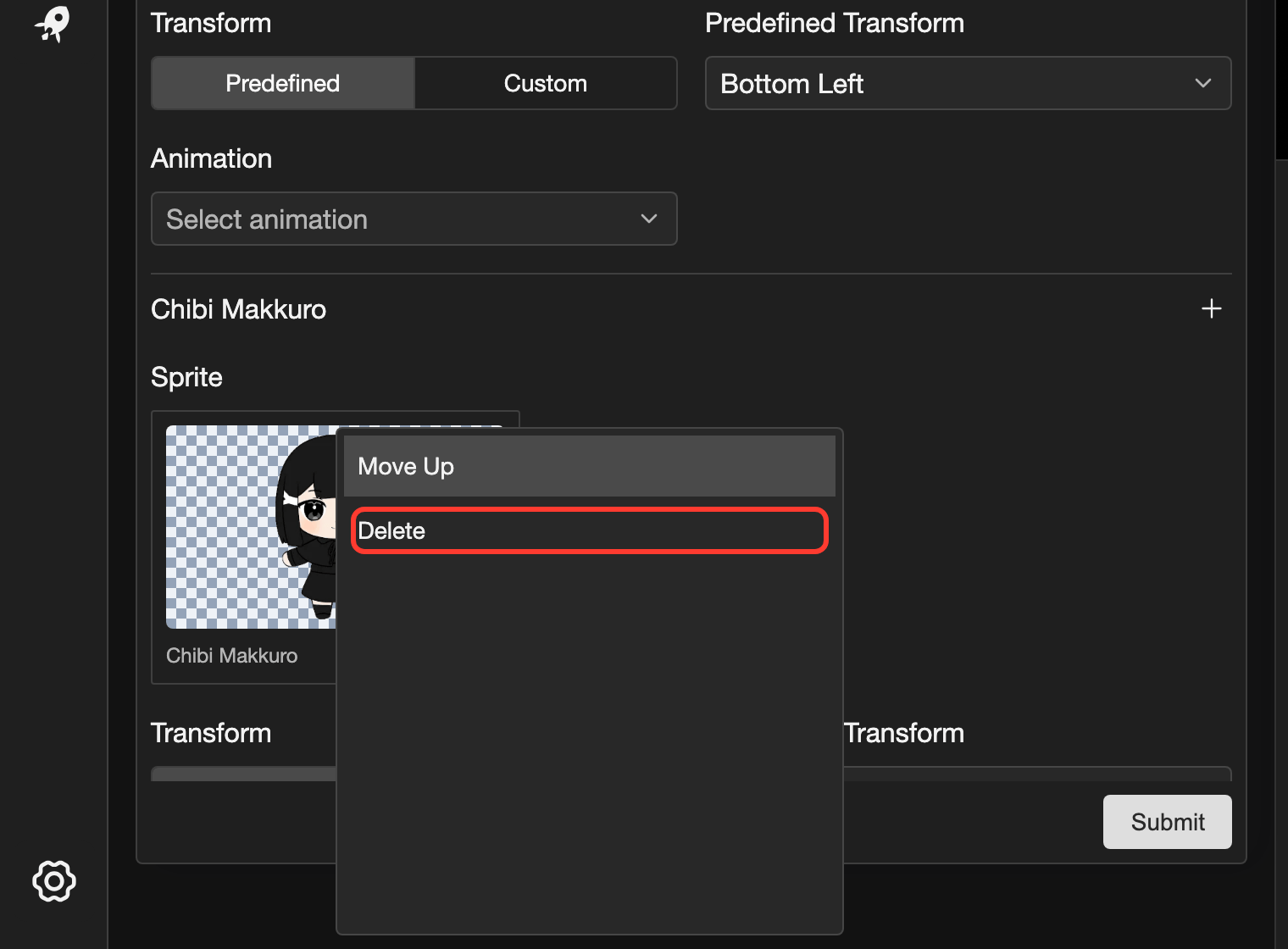
Right-click the Chibi Makkuro card.
-
Click Delete.
-
Click Submit.
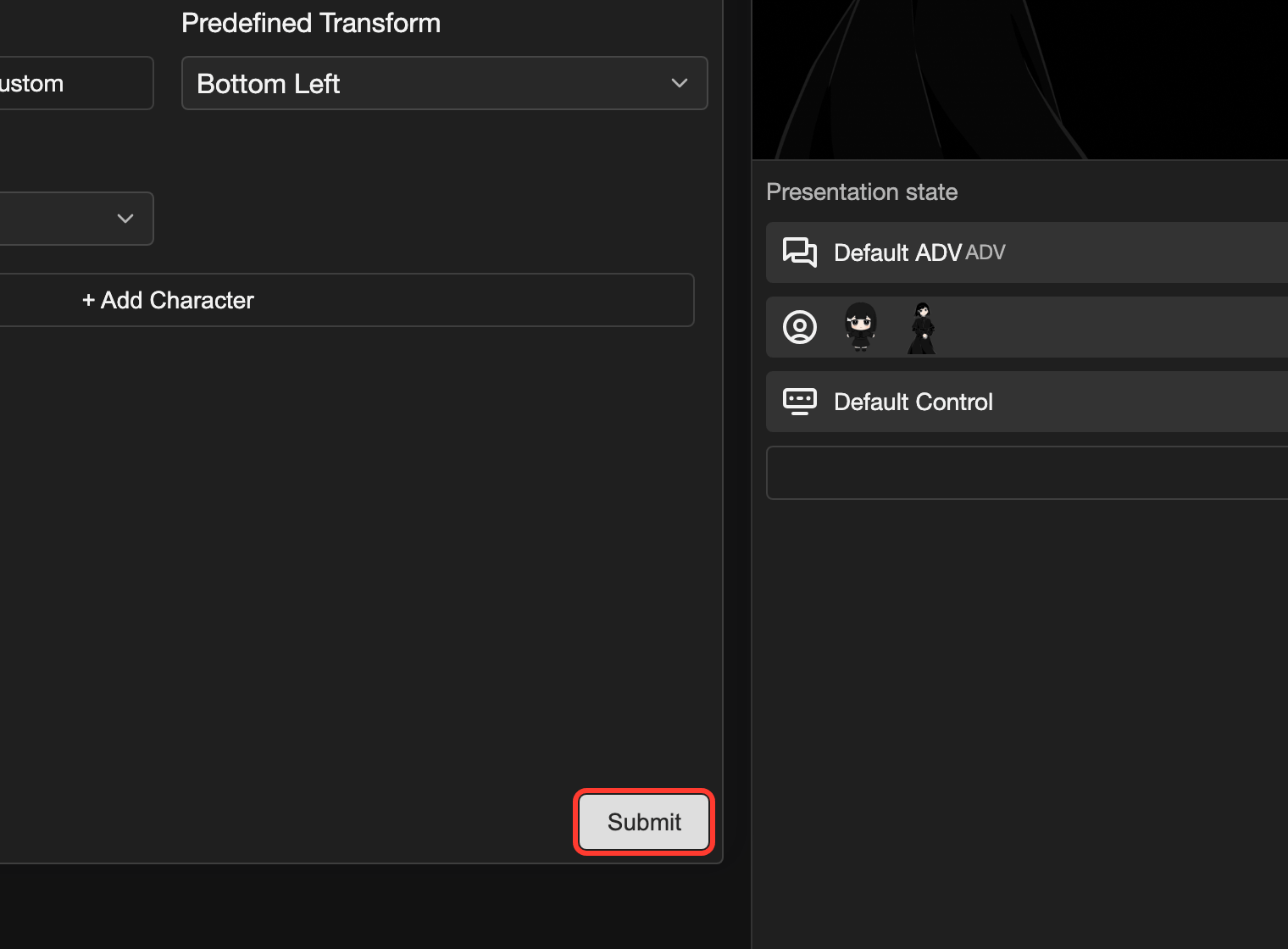
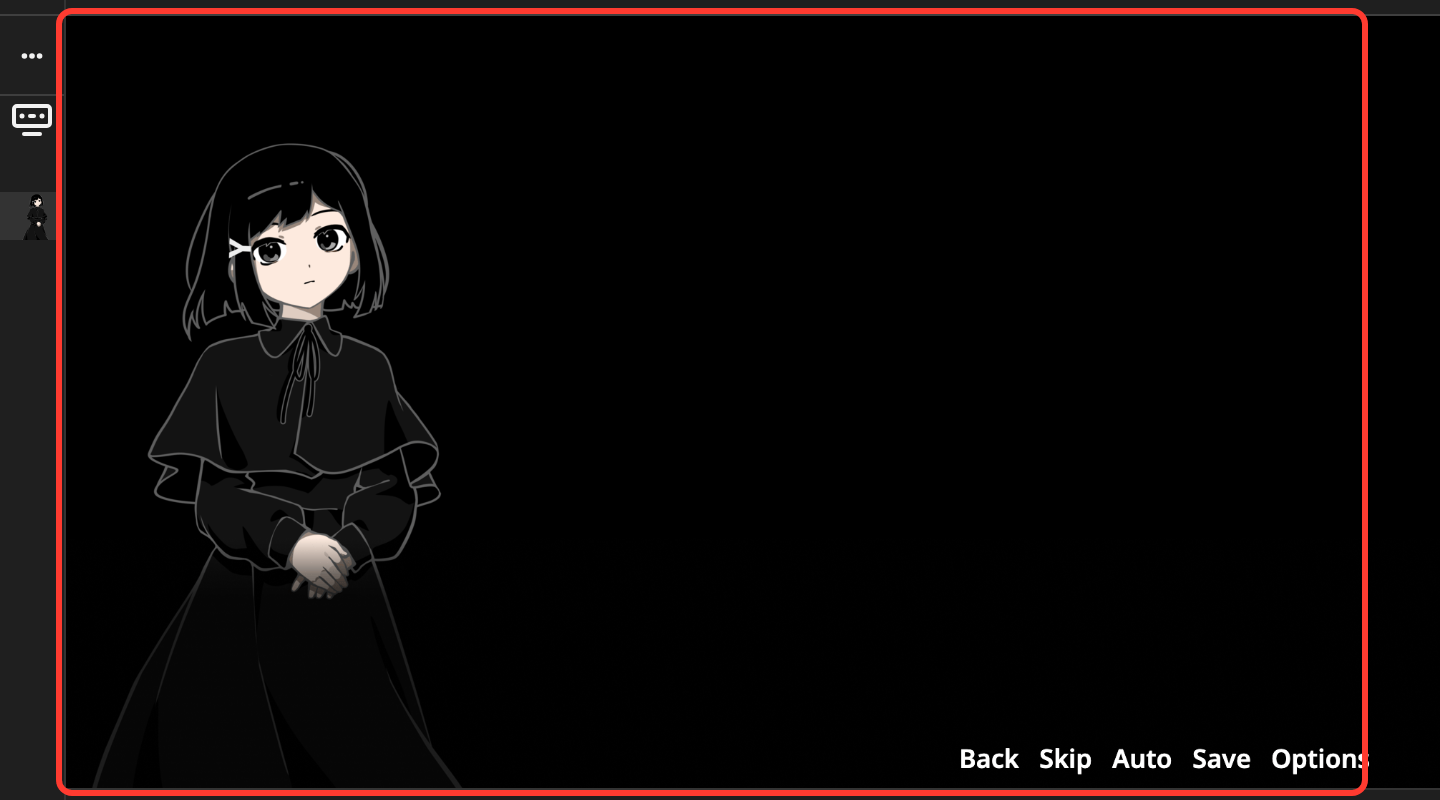
The preview shows only Makkuro now.
Transform
The Transform field sets where the character sits on the screen.
- Predefined: pick one of the positions, such as Bottom Left, from Predefined Transform.
- Custom: set your own position.
Transforms are shared settings. See Transforms.
Animation
The Animation field is optional. It shows Select animation when no animation is set.
Good to know
- The same character can be added more than once on a line.
- Character sprites stay on the screen on the following lines until a later line changes or removes them.
Problems and fixes
- The character does not appear. Check that the line has the Character Sprites action and that you tapped Submit.