Control
The Control action turns on a control for the next lines. A control decides what the reader's keys and clicks do while they read.
You make and edit controls on the Controls page. The Control action only picks which control is on.
A control stays on until a later line picks another control or turns it off. New scenes start with a Control action on line 1. It turns on the first control on the Controls page.
Turn on a control
-
Tap the line where the control should start.
-
Open the Actions menu.
- Phone or tablet: Tap the + button in the bottom bar.
- Desktop: Click the + button under Presentation state.
-
Under Navigation, tap Control.
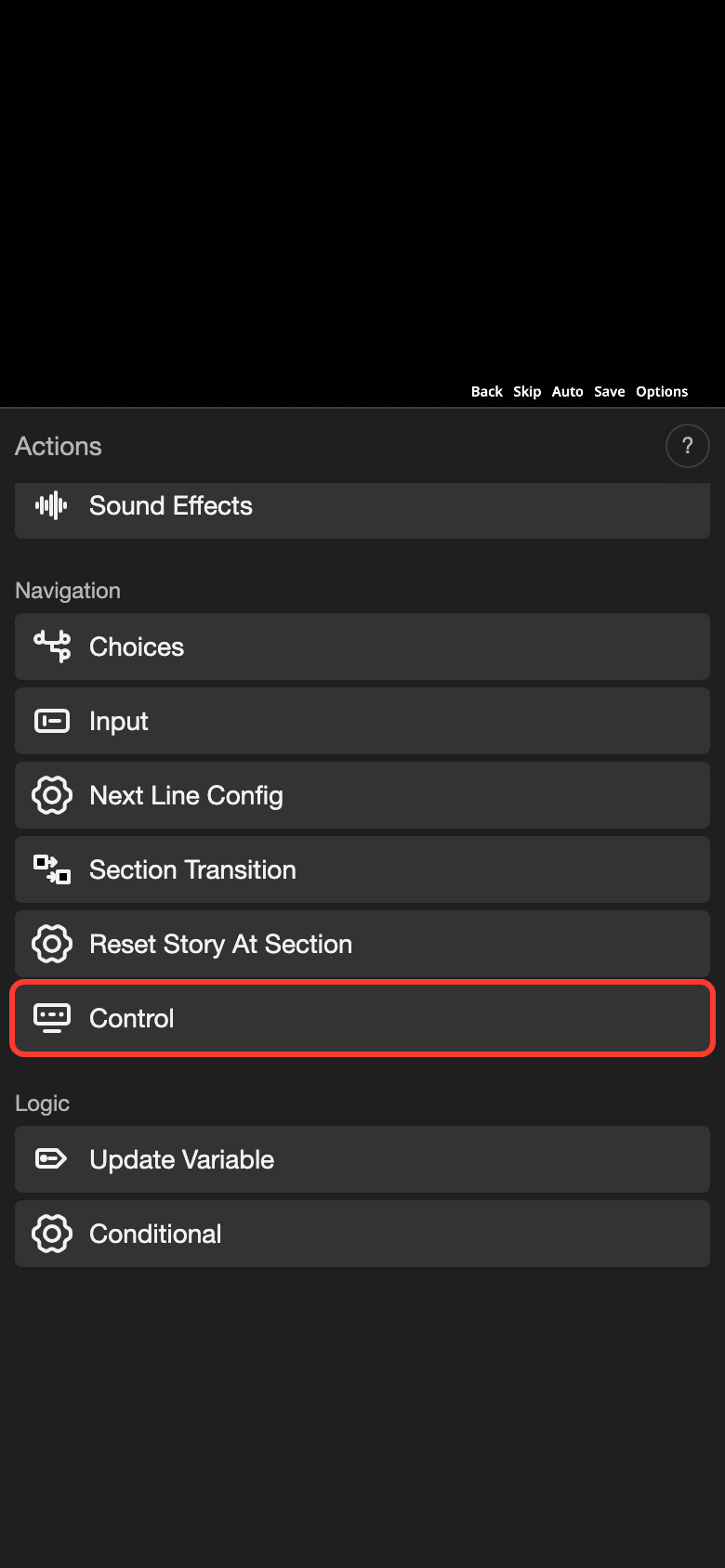
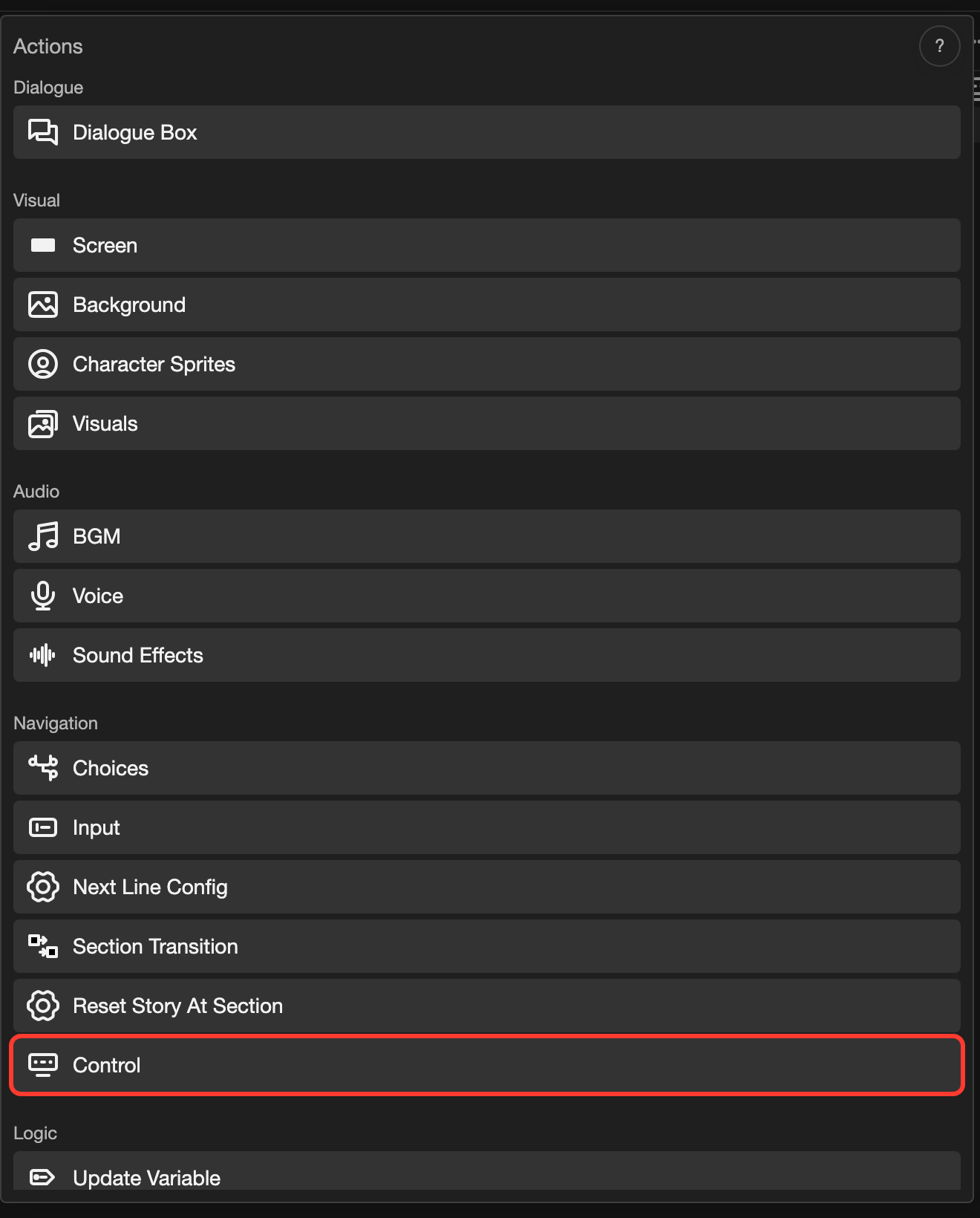
On a phone, scroll down to find Control. The Control form opens.
-
Tap the Control list.
-
Tap the control you want.
-
Tap Submit.
The control is on from this line. The lines before it do not change. To switch to another control later, do the same steps on a later line.
Turn off the control
This works on desktop. On a phone held upright, Presentation state is not on the screen.
-
Click the line where the control should stop.
-
Right-click the control row under Presentation state.
-
Click Delete.
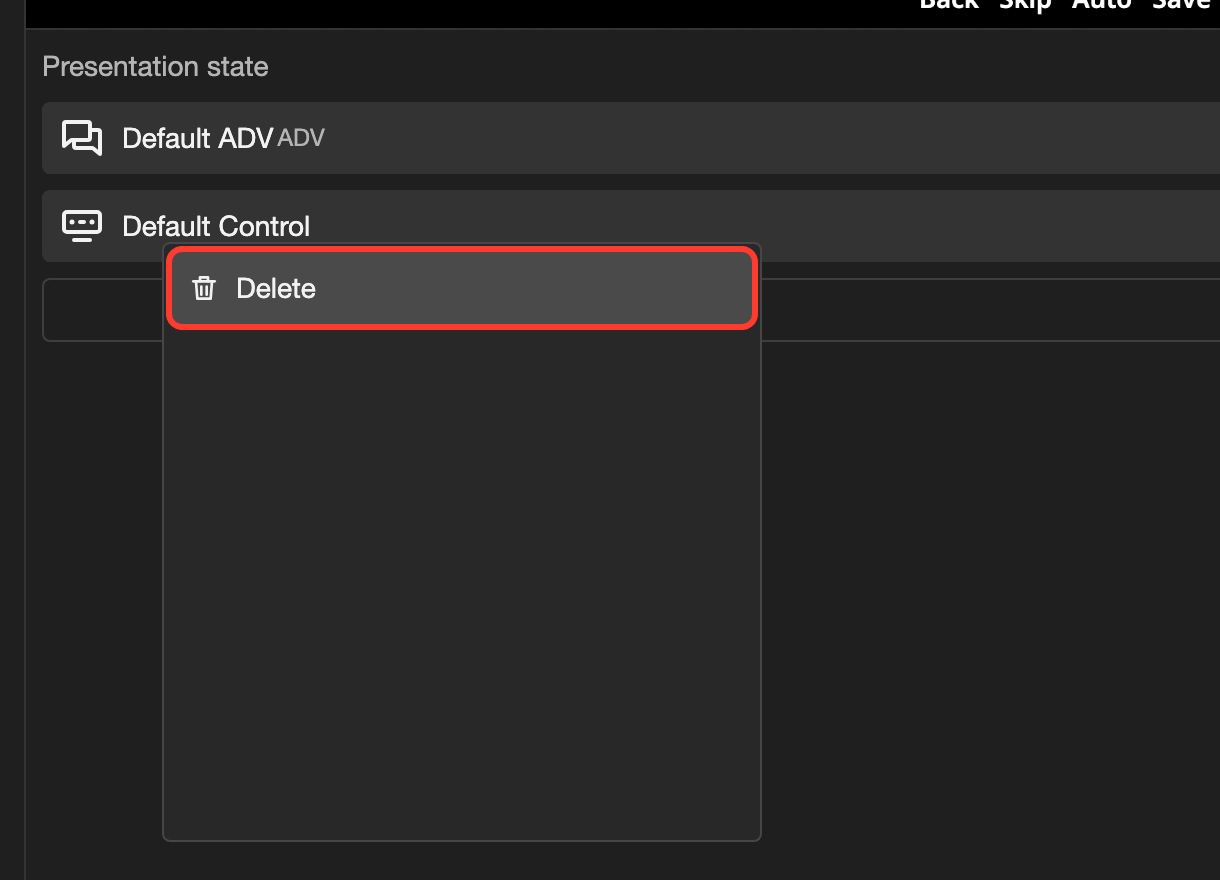
The control row leaves Presentation state. A crossed-out control icon shows at the right end of the line. The next lines have no control.
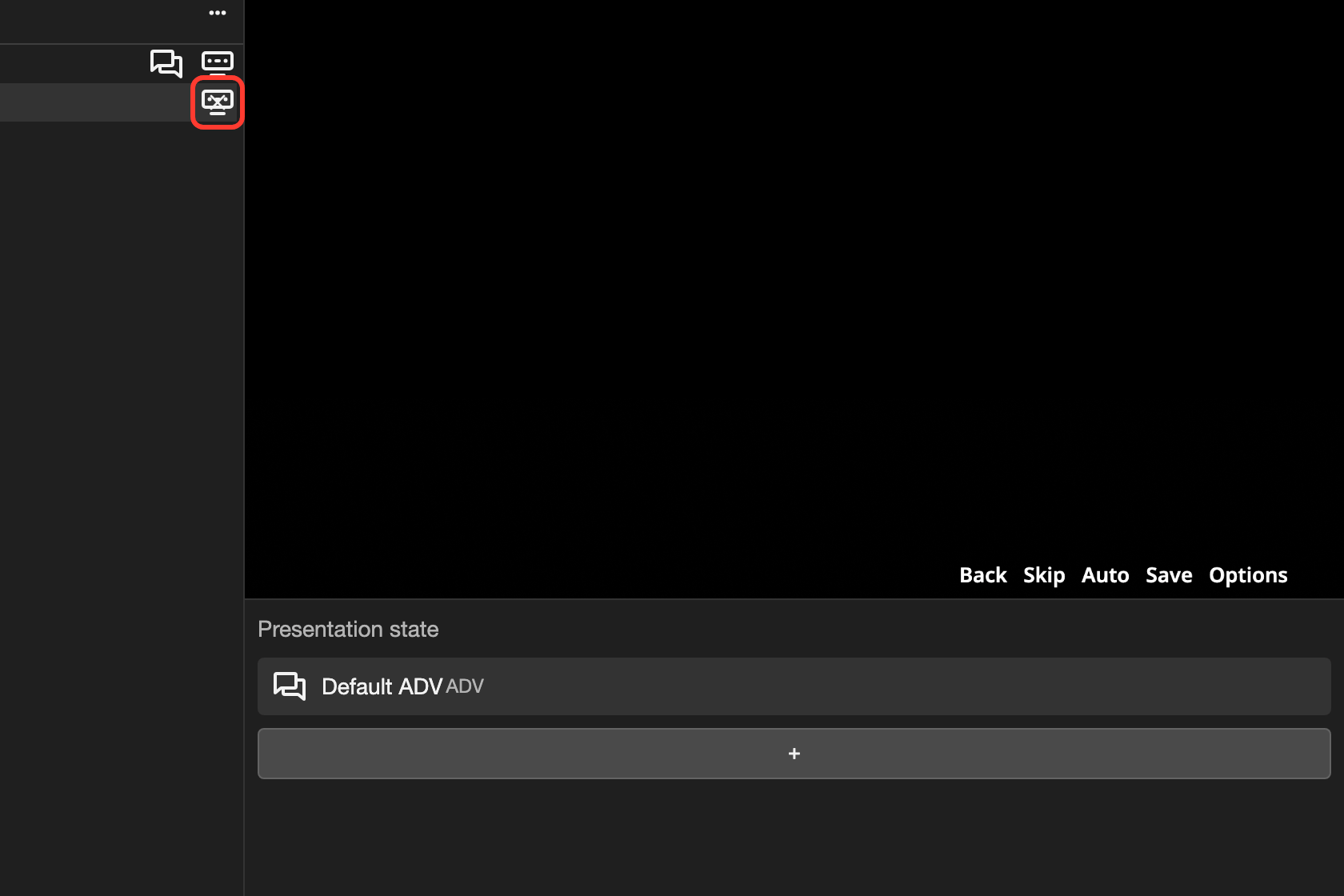
Without a control, the keys and screen clicks that the control sets do not work. Choices and layout buttons still work, because they have their own click actions.