Controls
A control decides what happens when the reader presses a key, clicks, or taps the screen. For example, a tap shows the next line. The examples on this page use a control called Default Control.
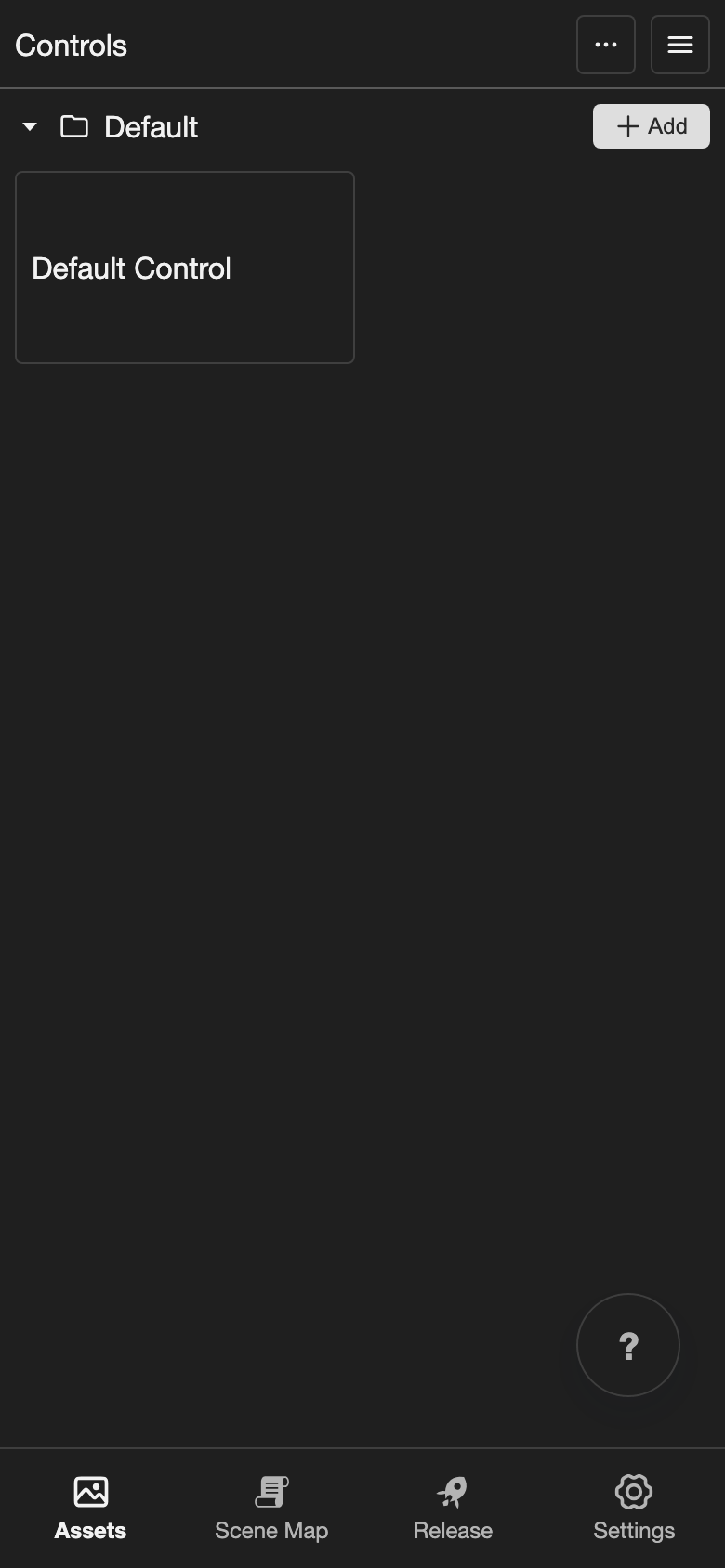
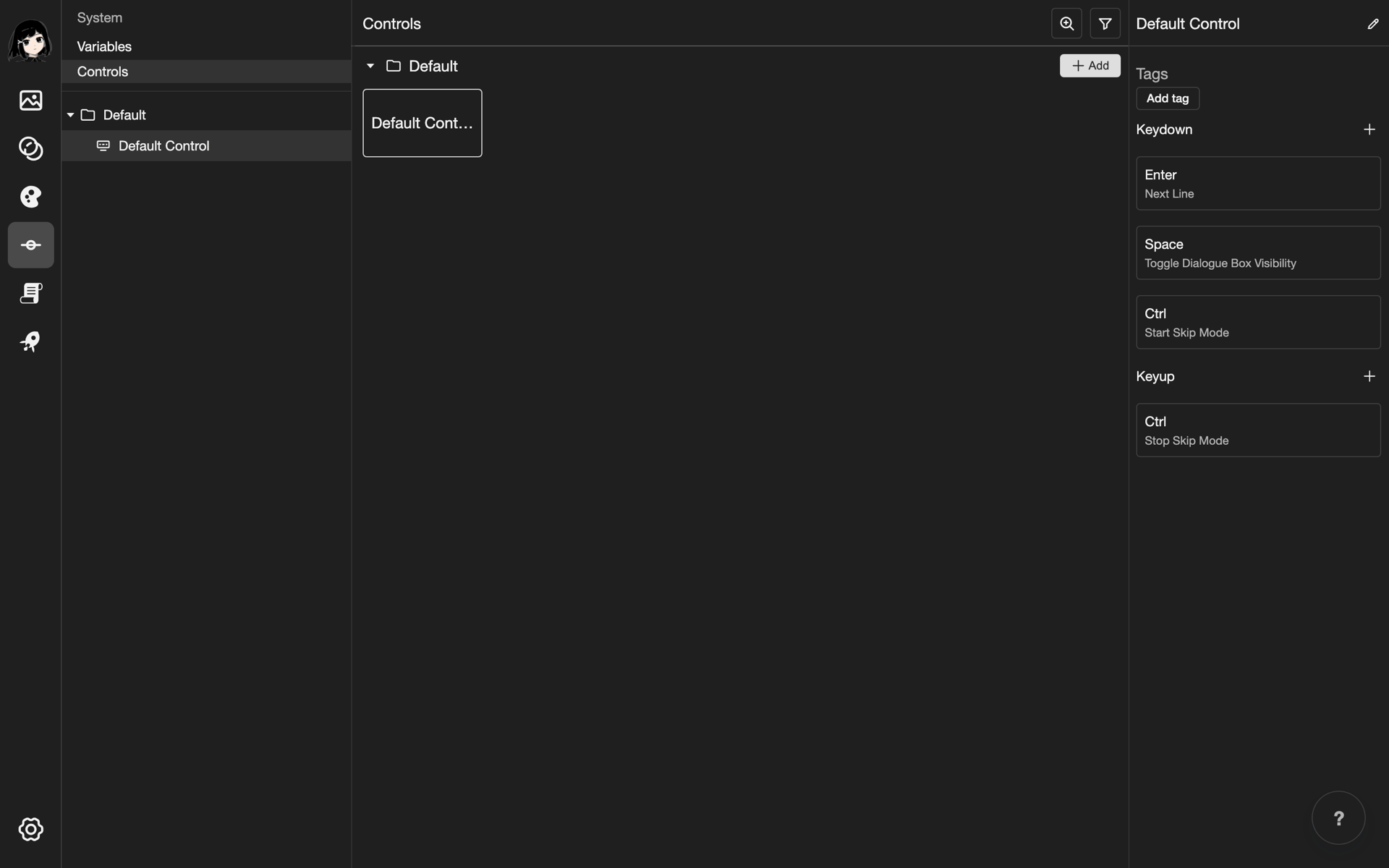
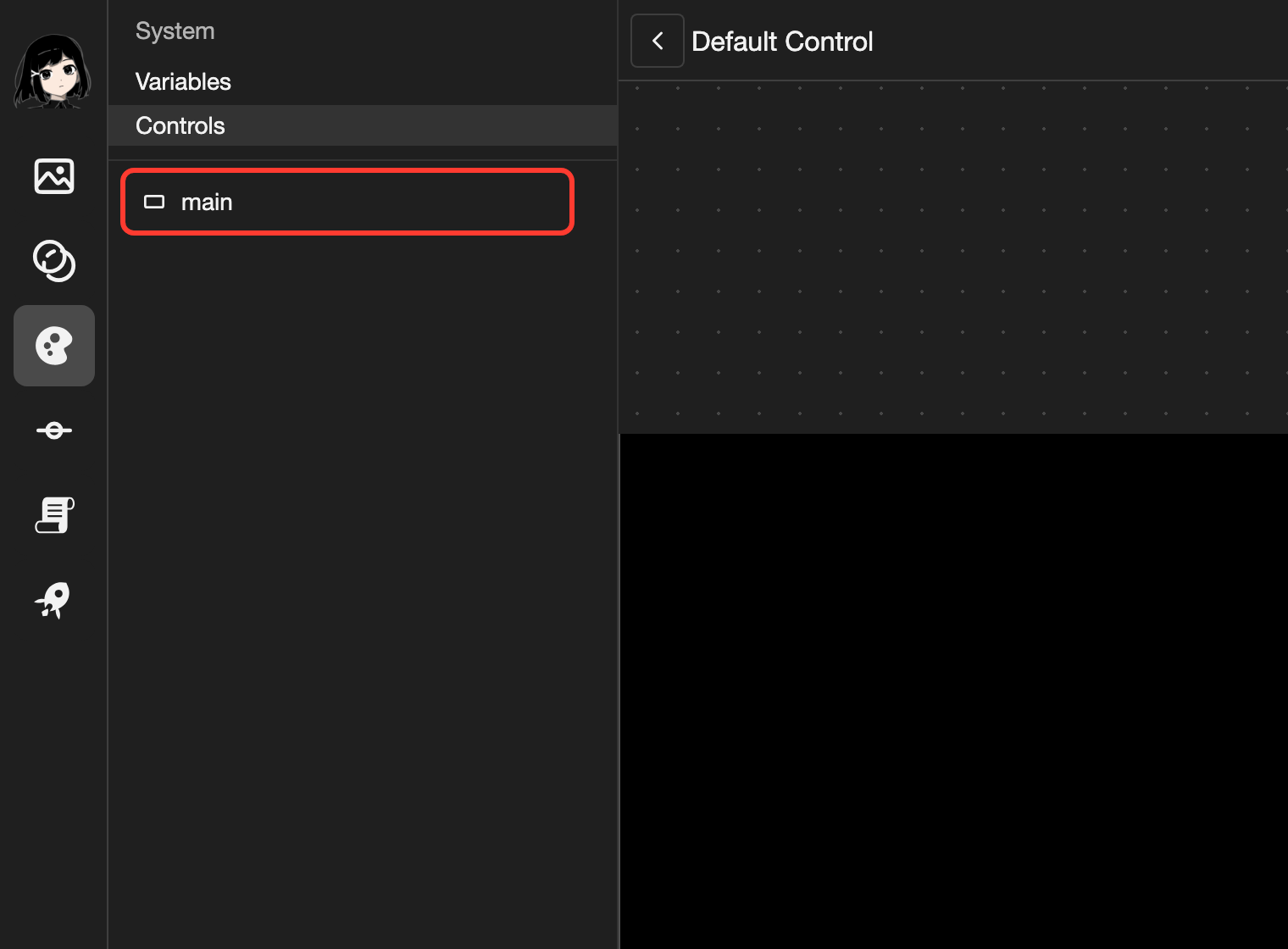
Open the Controls page
-
Open your project. See Projects.
-
Go to the Controls page.
- Phone or tablet: Tap Assets in the bottom bar. Scroll down the list. Then tap Controls under System.
- Desktop: In the far left bar, click the System button, below the User Interface button. Then click Controls.
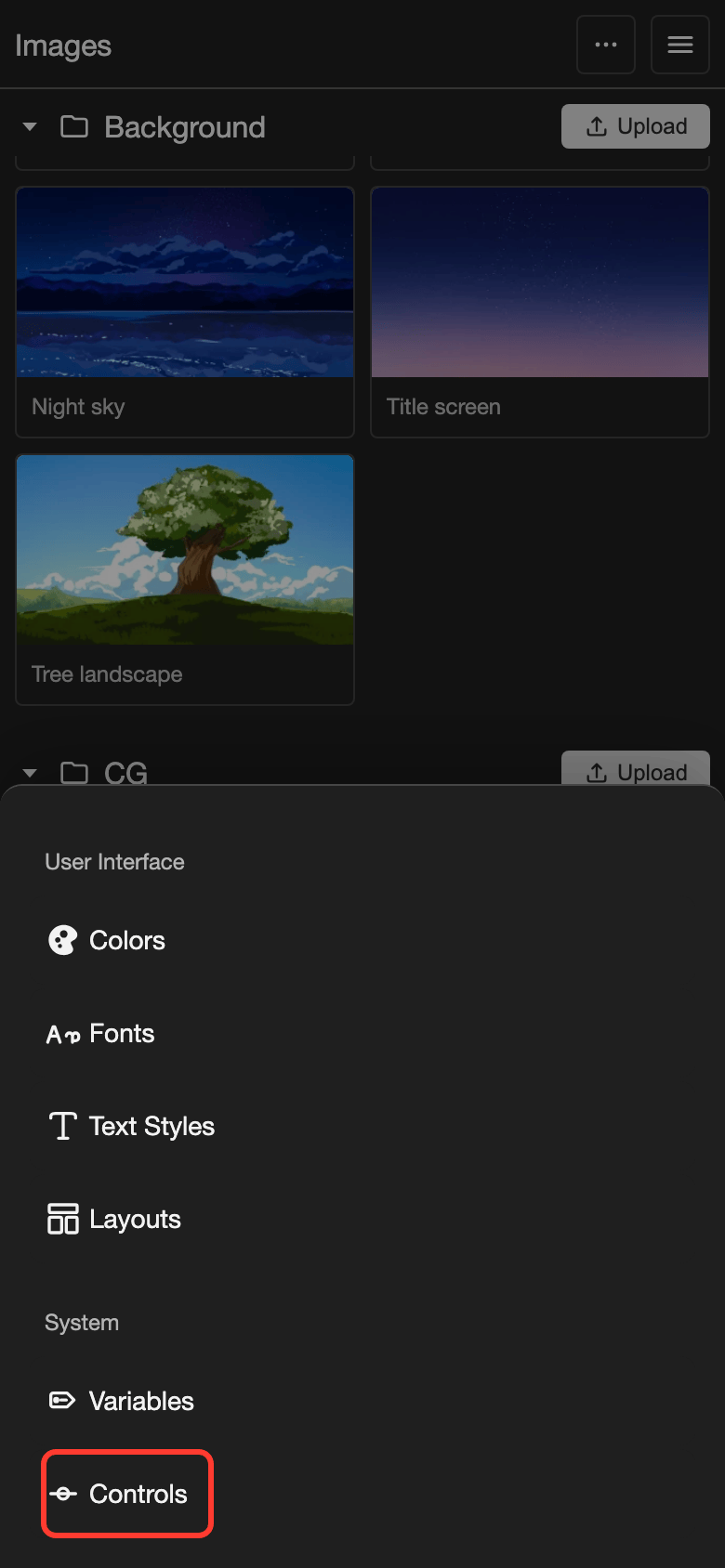
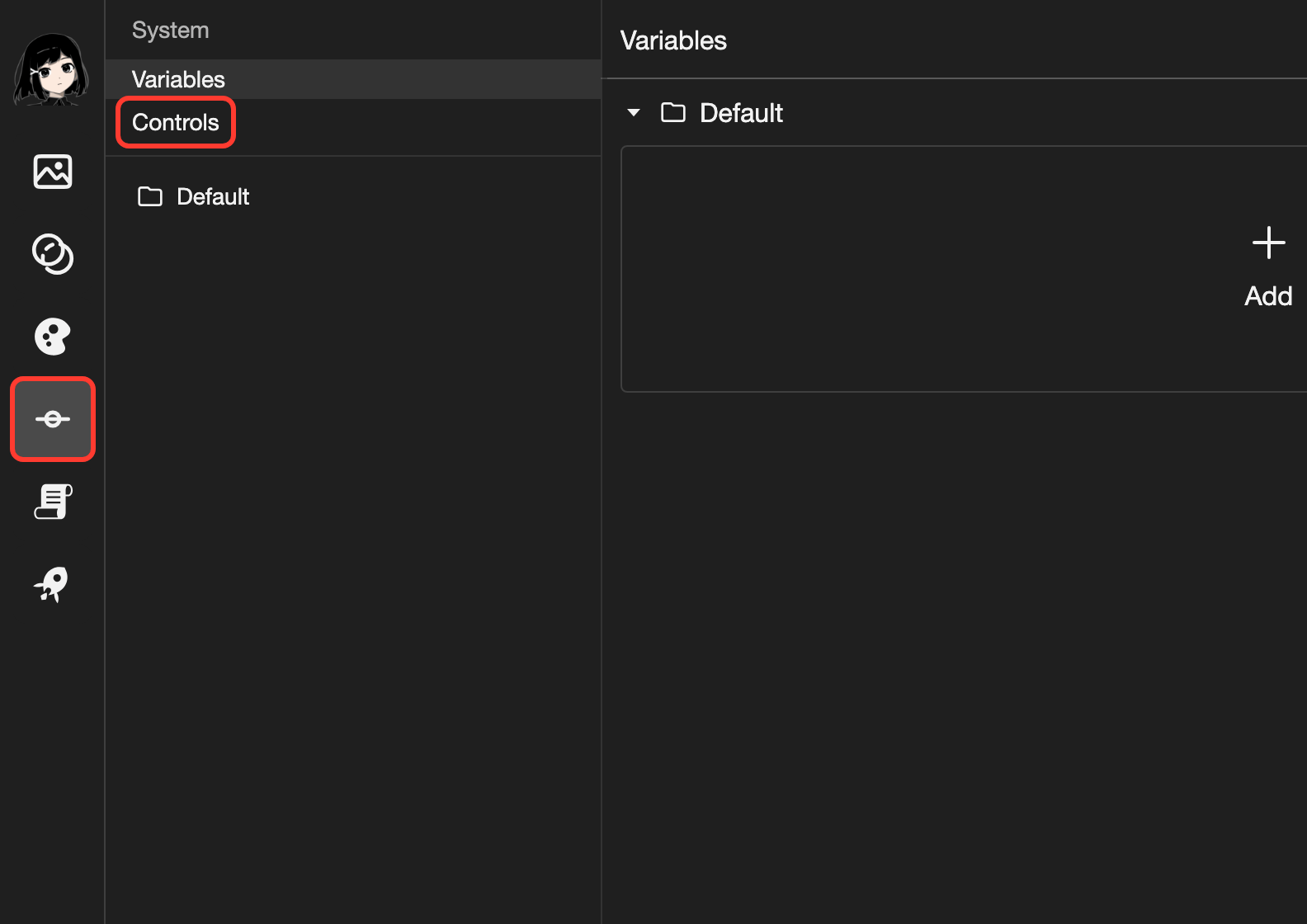
Controls is under System.
The Controls page opens.
Parts of a control
A control has 2 parts:
- Keyboard actions: What happens when the reader presses or lets go of a key.
- Elements: Areas of the screen. Each one says what happens when the reader clicks, taps, or scrolls on it.
For example, an element can cover the whole screen and have Click: Next Line. Then a tap anywhere shows the next line.
| When the reader | Where you set it |
|---|---|
| Taps or clicks | Click on an element |
| Right-clicks (clicks with the right mouse button) | Right Click on an element |
| Scrolls up or down with the mouse wheel | Scroll Up or Scroll Down on an element |
| Presses a key | Keydown in the keyboard actions |
| Lets go of a key | Keyup in the keyboard actions |
On a phone or tablet, a tap works like a click. Keys, right-click, and the mouse wheel need a keyboard or a mouse. Buttons in a layout can also run actions, on any device. See Layouts.
Keyboard actions
This works only on desktop. On a phone or tablet, RouteVN Creator does not show keyboard actions.
Actions under Keydown run when the reader presses a key. Actions under Keyup run when the reader lets go.
You can use these keys: Enter, Space, Escape, Ctrl, Left Arrow, Right Arrow, Up Arrow, and Down Arrow.
Add a keyboard action
This example makes Escape turn auto mode on and off. In auto mode, the next line shows by itself.
-
Click the control, such as Default Control. Its keyboard actions show on the right.
-
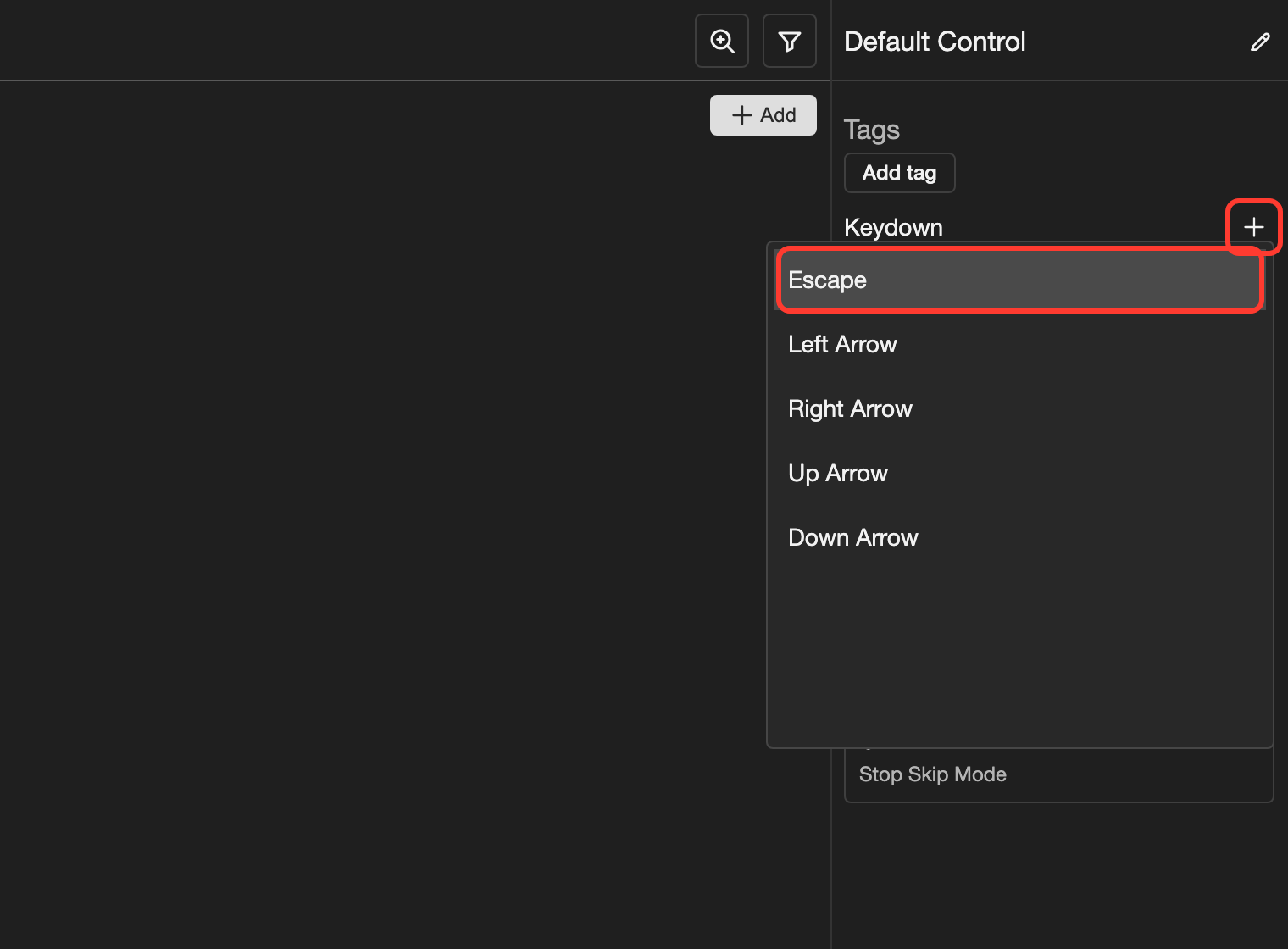
Click the + button next to Keydown. A list of keys opens.
-
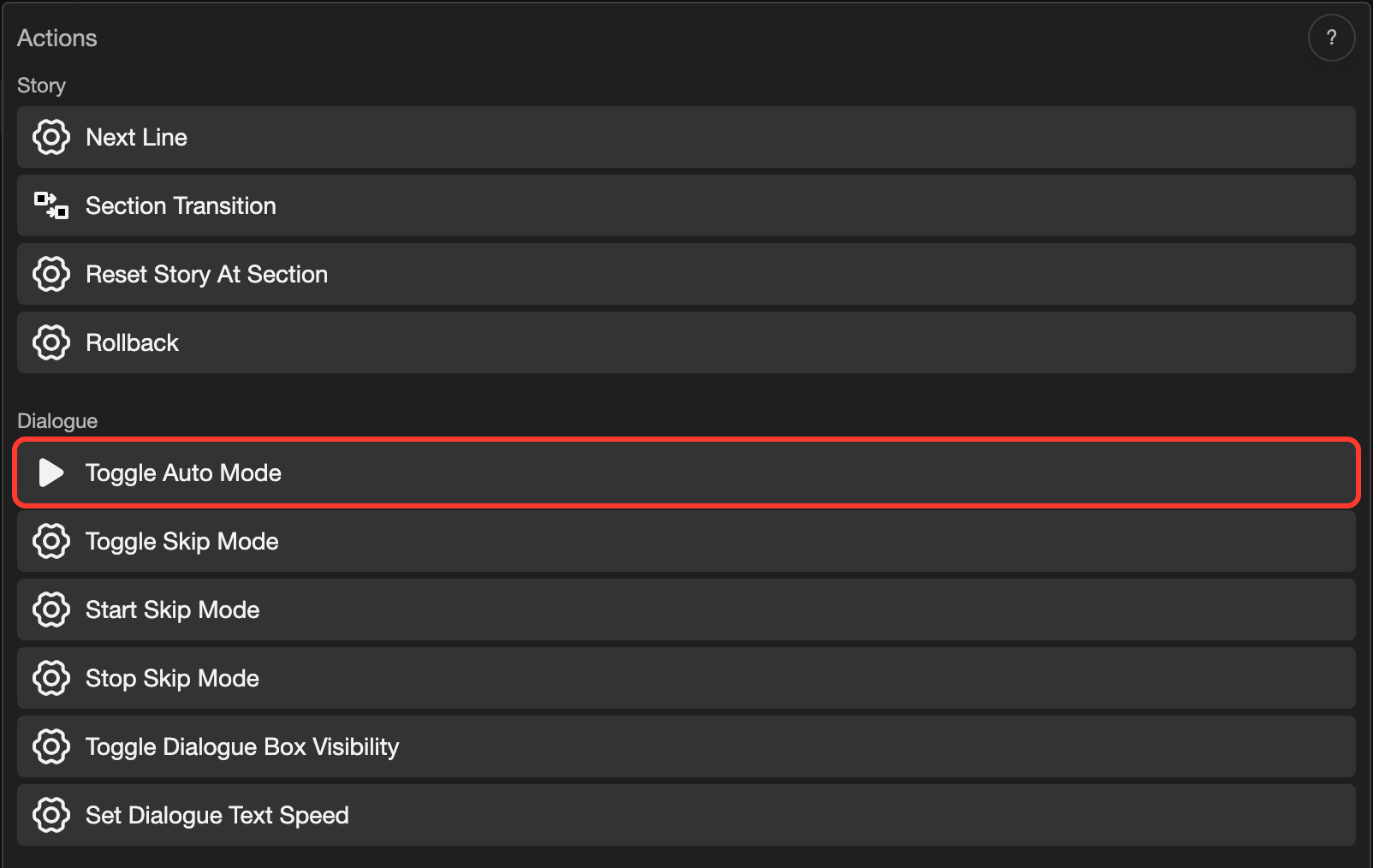
Click a key, such as Escape. The Actions box opens.
-
Click an action, such as Toggle Auto Mode under Dialogue.
-
Click Submit.
A new row under Keydown shows Escape and Toggle Auto Mode.
Change or delete a keyboard action
- To change the settings of an action, click its row. Then click Submit.
- To delete an action, right-click its row. Then click Delete.
- To give a key another action, delete its row. Then add the key again.
Change what clicks and taps do
Clicks, taps, and the mouse wheel use the elements of the control. Each element has a list of Actions. A row such as Click: Next Line means: when the reader clicks, show the next line.
-
Open the control.
- Phone or tablet: Tap the control. Then tap Open at the bottom of the screen.
- Desktop: Double-click (click twice quickly) the control.
The control editor opens.
-
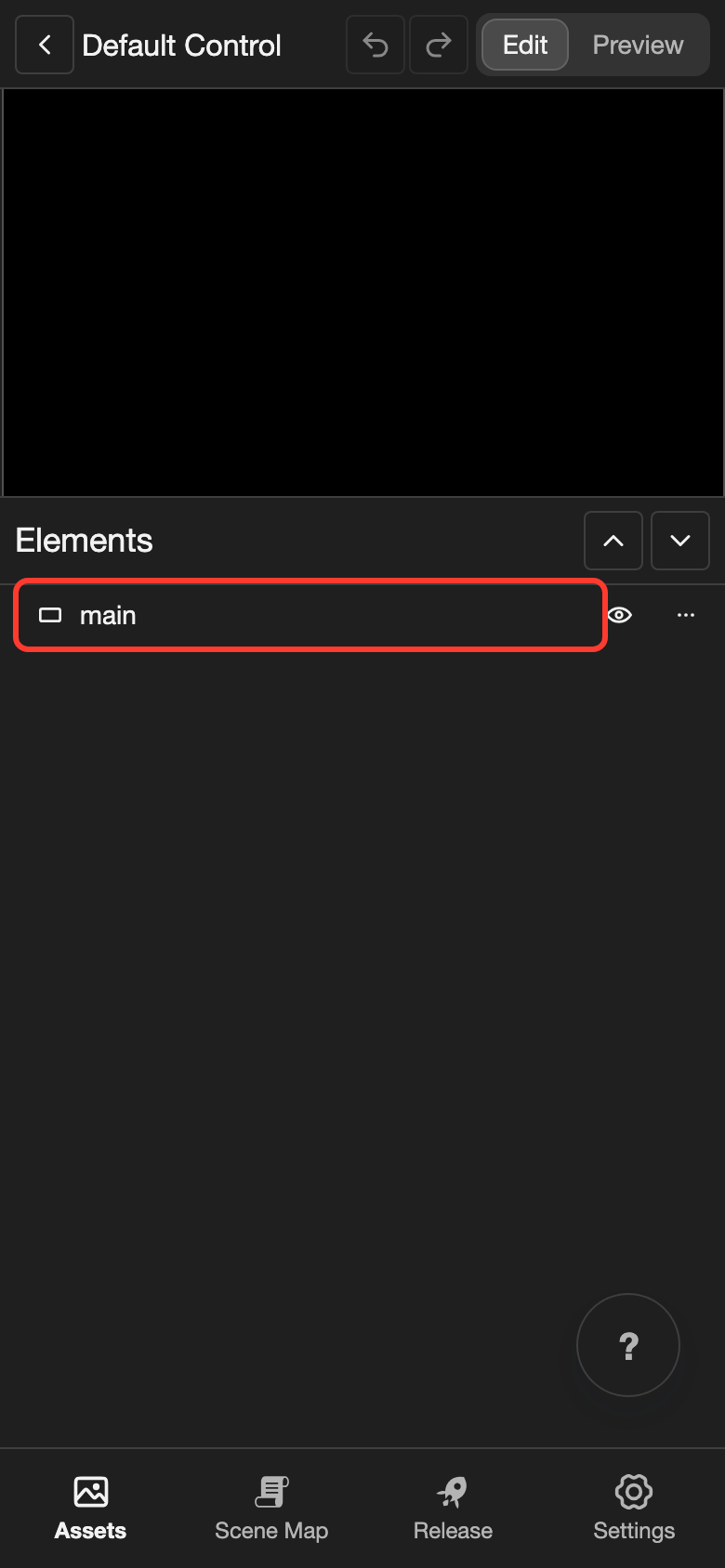
In the list of elements, tap the element, such as main. Its settings open.
-
At the bottom of the settings, tap the + button next to Actions. Scroll down if you do not see it.
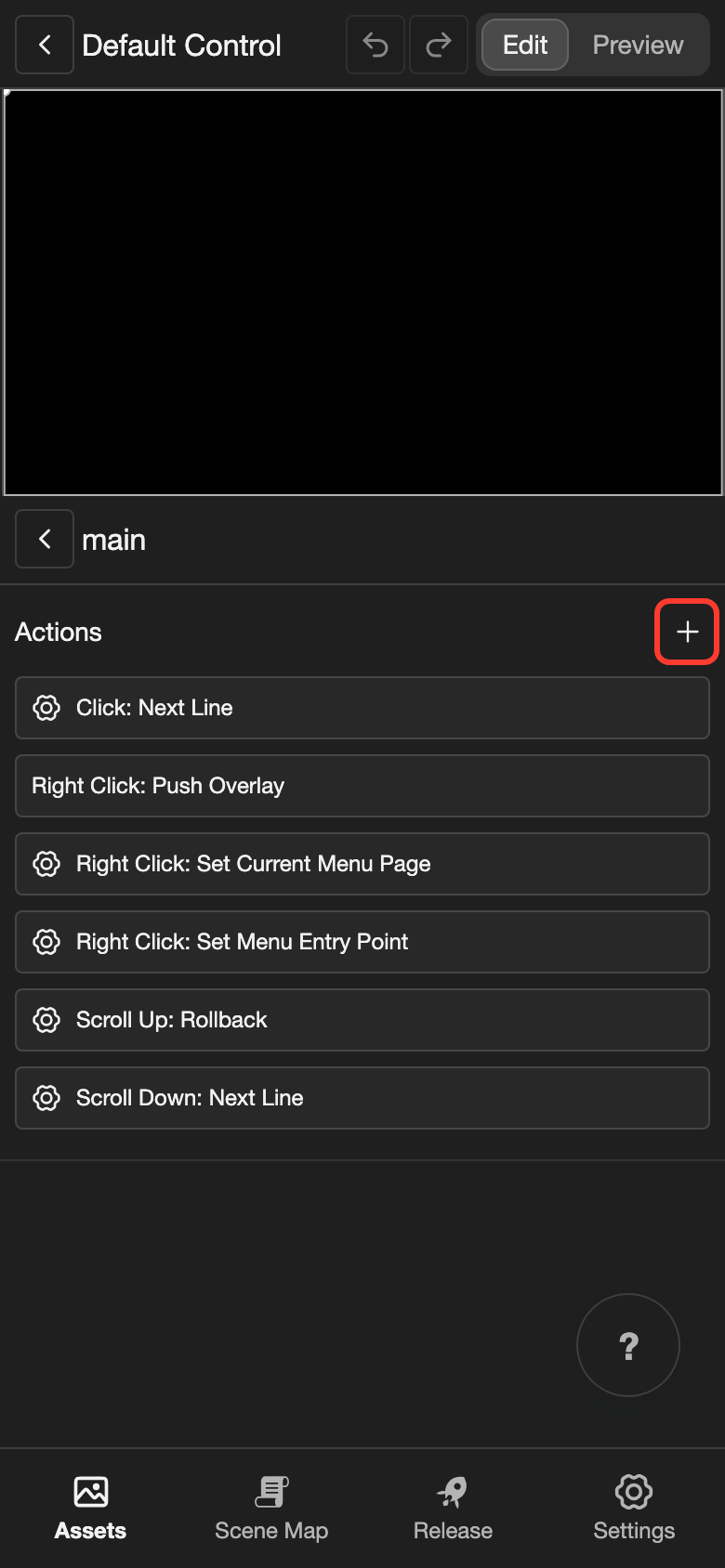
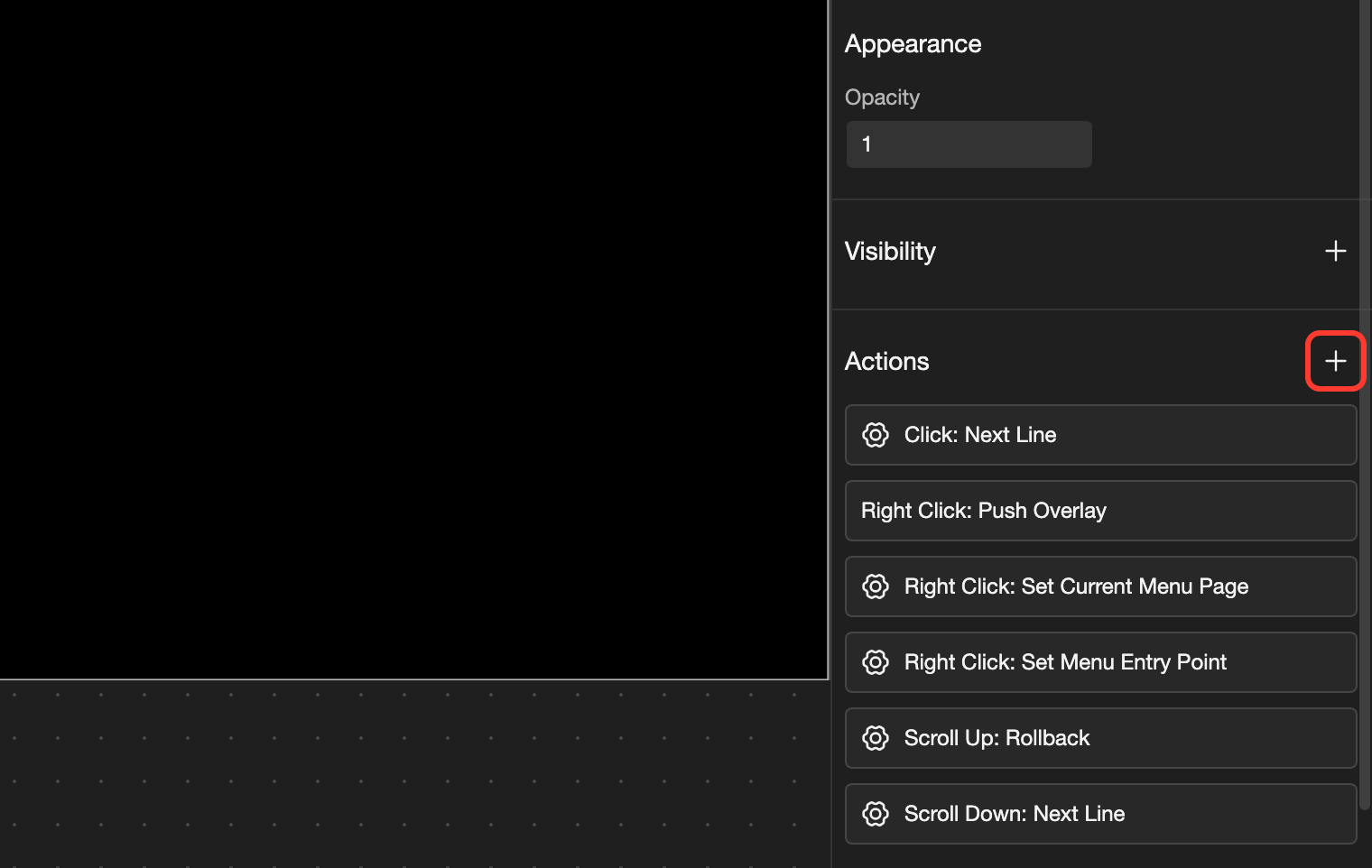
-
Tap what the reader does: Click, Right Click, Scroll Up, or Scroll Down. The Actions box opens.
-
Tap the action you want, such as Next Line.
-
Tap Submit.
The new action shows as a row under Actions.
- To change the settings of an action, tap its row. Then tap Submit.
- To remove an action, long press (touch and hold) its row on a phone or tablet. On desktop, right-click it. Then tap Remove.
Actions you can use
The Actions box lists all the actions a control can run. These are the most common:
- Next Line: Shows the next line.
- Toggle Auto Mode: Turns auto mode on or off.
- Toggle Skip Mode: Turns skip mode on or off. In skip mode, lines go by very fast.
- Push Overlay: Shows a layout over the visual novel, such as the menu.
- Pop Overlay: Closes the layout on top and goes back to the view under it.
- Update Variable: Changes the value of a variable.
Choose the control for a scene
A Control action on a line turns on a control. The control stays on for the next lines of the same section.
New scenes and sections start with a Control action on their first line. It turns on the first control in your project. That is why keys and taps work right away.
To use another control, add a Control action to a line. Then choose your control. See Line action: Control.
Good to know
- To add another control, tap Add next to the Default folder. Type a Control Name. Then tap Add Control.
- A new control has no keyboard actions. Its one element, Control Sprite, has Click: Next Line.
- To add another element, long press an empty spot under Elements on a phone or tablet. On desktop, right-click an empty spot in the list of elements. Then tap Rect in the Add Element menu.
- To change the size of an element, change Width and Height under Transform.
- To rename or delete a control, see File Explorer.
Problems and fixes
- I cannot find Keydown or Keyup. Keyboard actions show only on desktop. Open your project in RouteVN Creator on desktop.
- A key is missing from the list. The key already has a row under that heading. Delete that row first, or choose another key.
- Keys and taps do nothing in a section. No control is on in that section. Add a Control action to its first line.
- The app says "Cannot delete resource, it is currently in use." A Control action in a scene still uses this control. Change that action to another control first.