Next Line
Next Line moves the visual novel to the next line. The reader starts it, for example by pressing Enter or clicking the screen.
Next Line is a system action. A system action runs when the reader does something. So it is not in the Actions menu of the scene editor. You add it in these places:
- A control, when the reader clicks, presses a key, or scrolls
- The click action of an element in a layout
Next Line has no settings.
Add Next Line to a click
-
Open a layout in the layout editor. See Layouts.
-
In the list of elements, tap the element that the reader should click.
-
Next to Actions, tap the + button.
-
Tap Click.
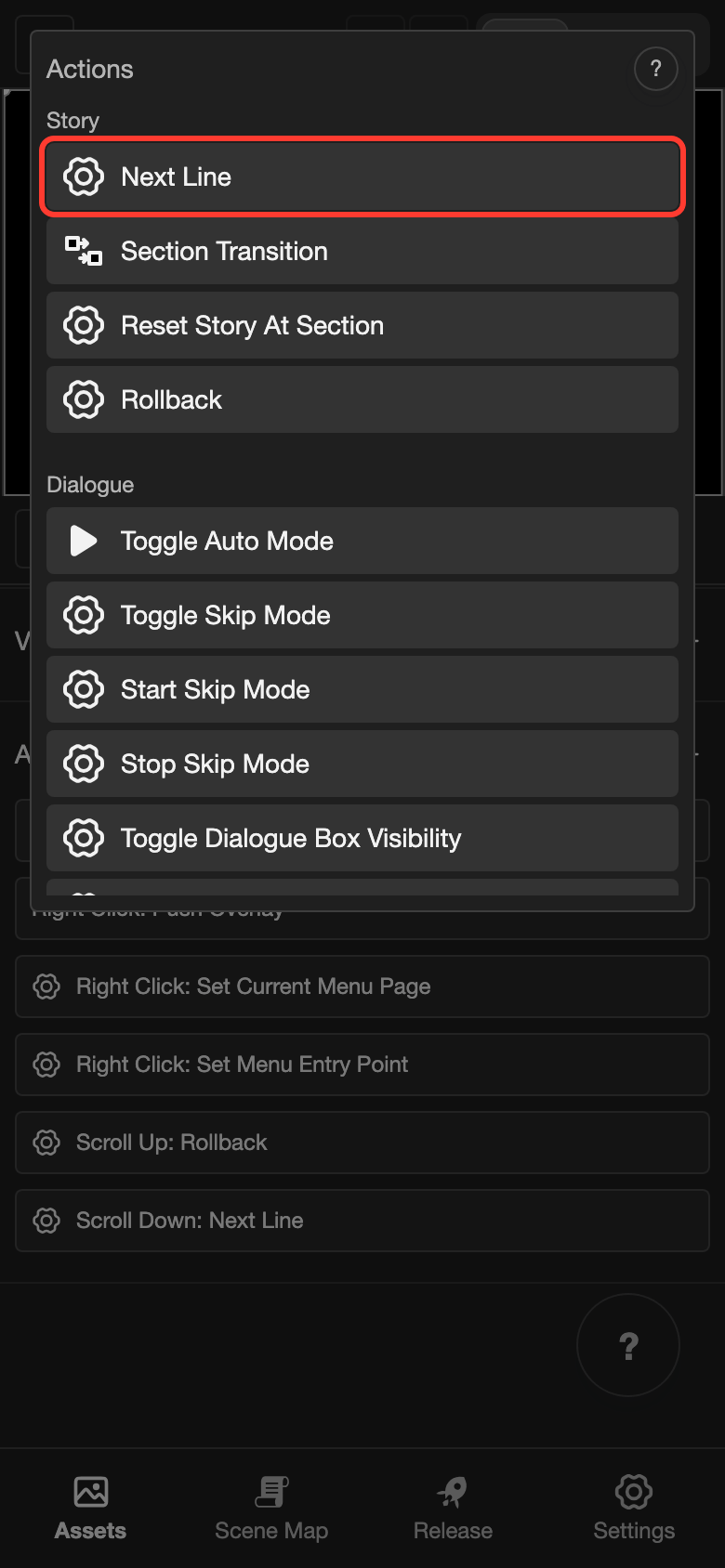
The Actions list opens.
-
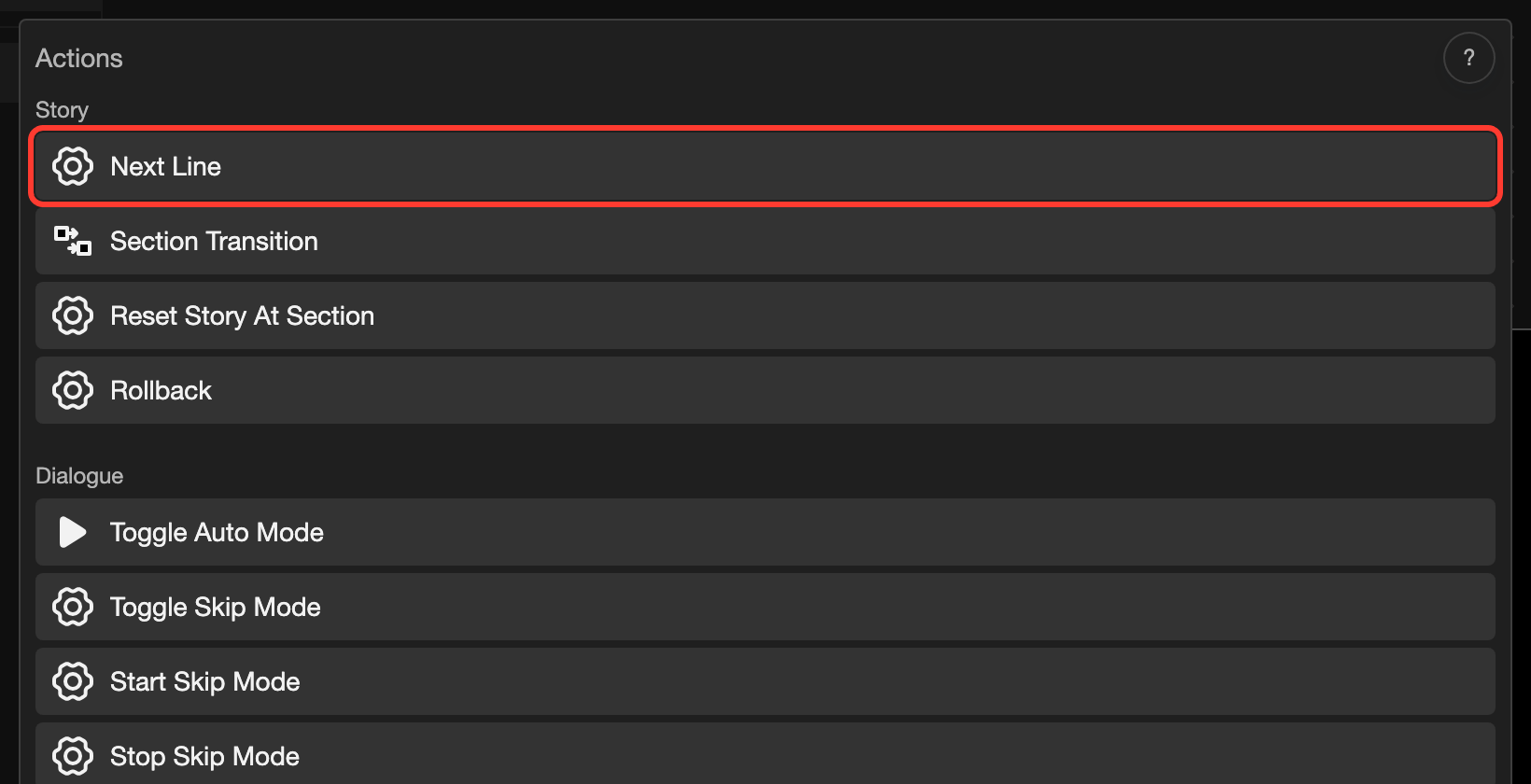
Under Story, tap Next Line.
-
Tap Submit.
Good to know
- If the dialogue box is hidden, Next Line shows it again. It does not move to the next line.
- If the line is still playing, Next Line finishes it first. Use it again to move on.
- If choices are on the screen, Next Line does nothing. The reader must pick a choice. See Choices.
- If Click to Advance is No, Next Line does nothing. See Next Line Config.