Pop Overlay
Pop Overlay closes the overlay on top. The reader starts it, for example by clicking a Return button in a menu.
An overlay is a layout that sits on top of the screen. Push Overlay opens it. Pop Overlay closes it.
Pop Overlay is a system action. A system action runs when the reader does something. So it is not in the Actions menu of the scene editor. You add it in these places:
Pop Overlay has no settings.
Add Pop Overlay to a click
You can add it to an element of a layout or of a control. Both editors work the same way.
-
Select the element that the reader should click.
-
Next to Actions, tap the + button.
-
Tap Click. The Actions list opens.
-
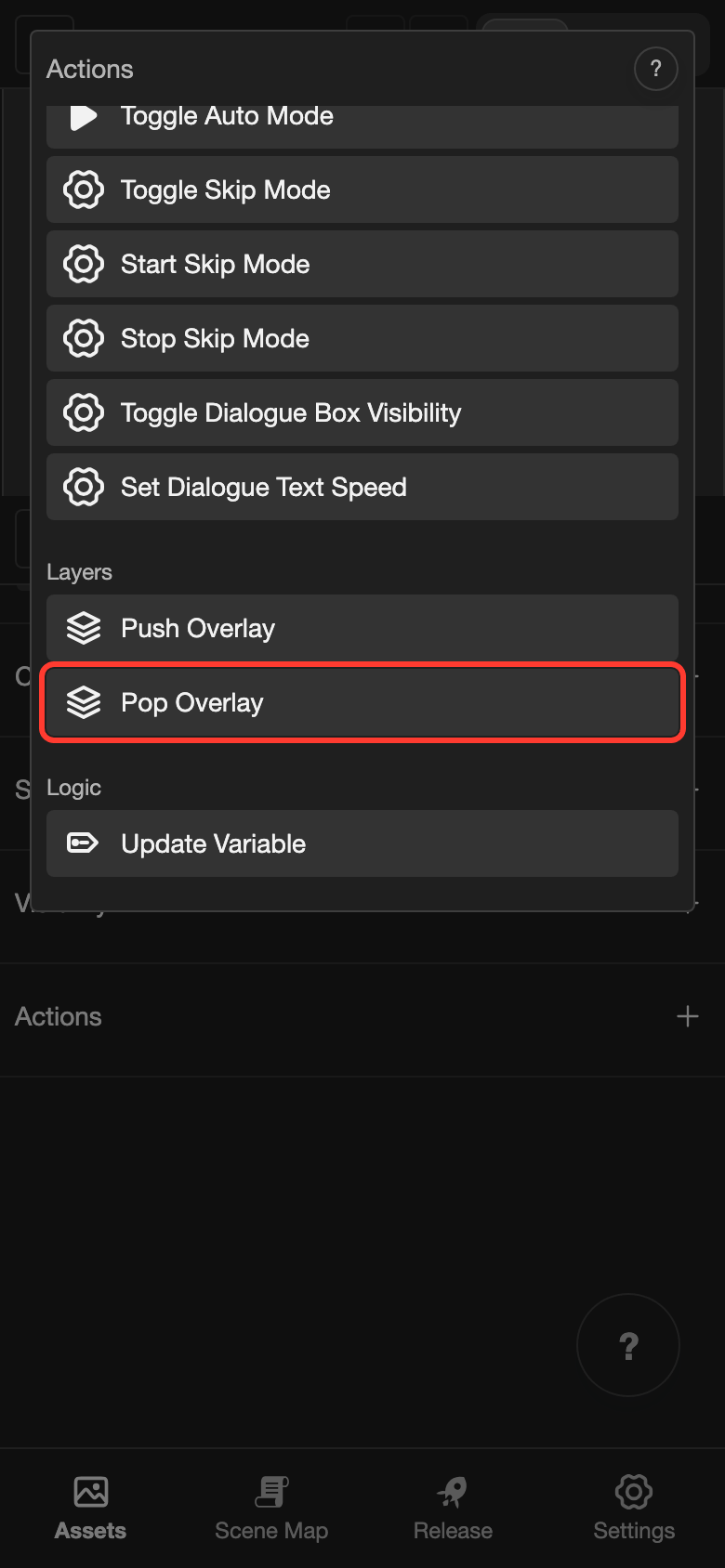
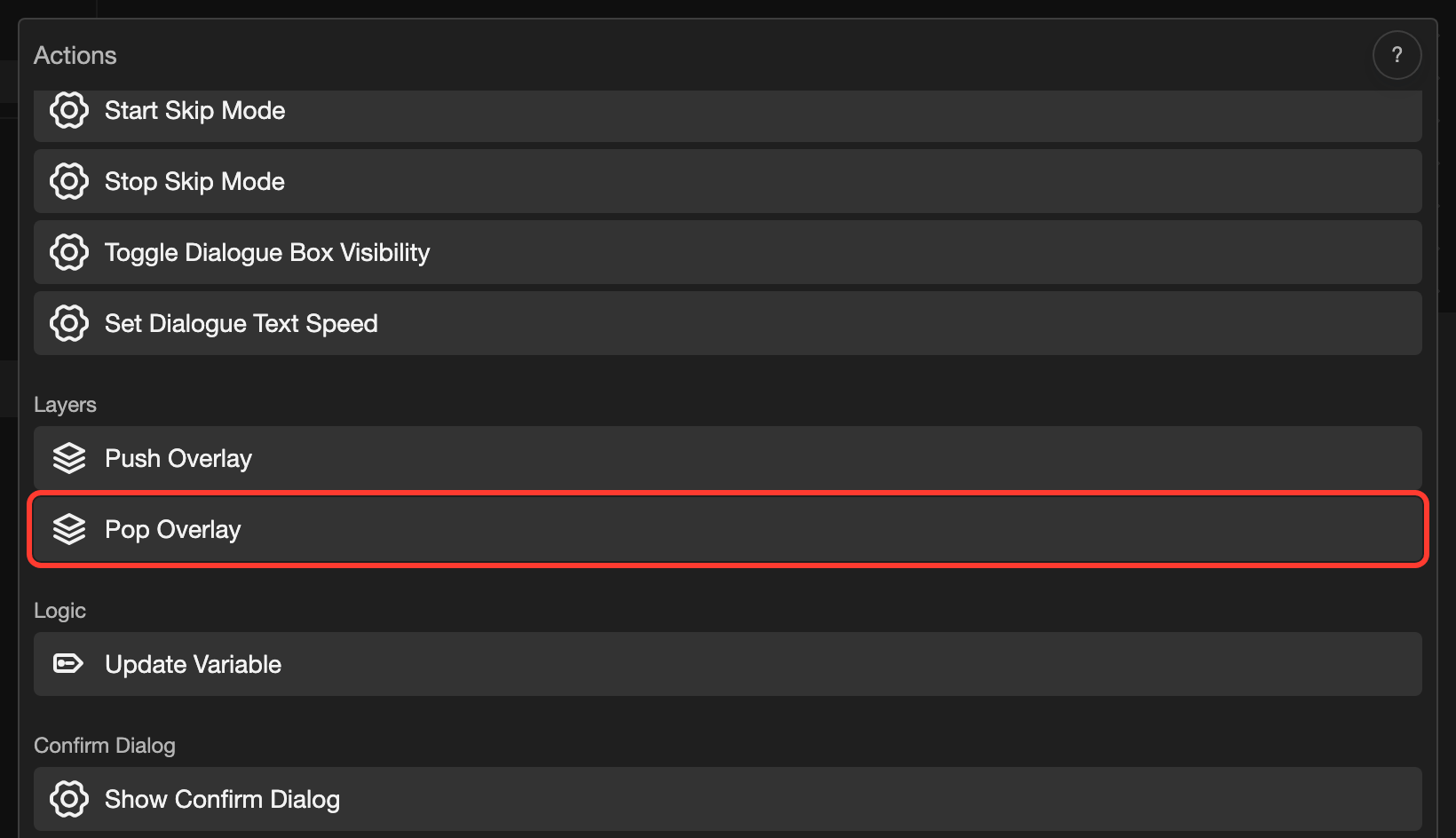
Scroll down to Layers.
-
Under Layers, tap Pop Overlay.
-
Tap Submit.
Good to know
- Pop Overlay closes only the top overlay. If two overlays are open, the one below stays open.
- If no overlay is open, Pop Overlay does nothing.
- To let the reader right-click to close an overlay, add Pop Overlay to Right Click on a full-screen element of that layout.