Push Overlay
Push Overlay shows a layout on top of the screen. This layout is called an overlay. For example, an overlay can be the menu or the save screen. The visual novel stays on the same line under it.
Push Overlay is a system action. A system action runs when the reader does something. So it is not in the Actions menu of the scene editor. You add it in these places:
For example, a right-click in a control can open the menu.
Push Overlay has one setting.
| Setting | What it does |
|---|---|
| Layout | The layout to show on top of the screen. You can choose any layout in your project. |
Add Push Overlay to a click
You can add it to an element of a layout or of a control. Both editors work the same way.
-
Select the element that the reader should click.
-
Next to Actions, tap the + button.
-
Tap Click. The Actions list opens.
-
In the Actions list, find Layers. Scroll down if you do not see it.
-
Tap Push Overlay.
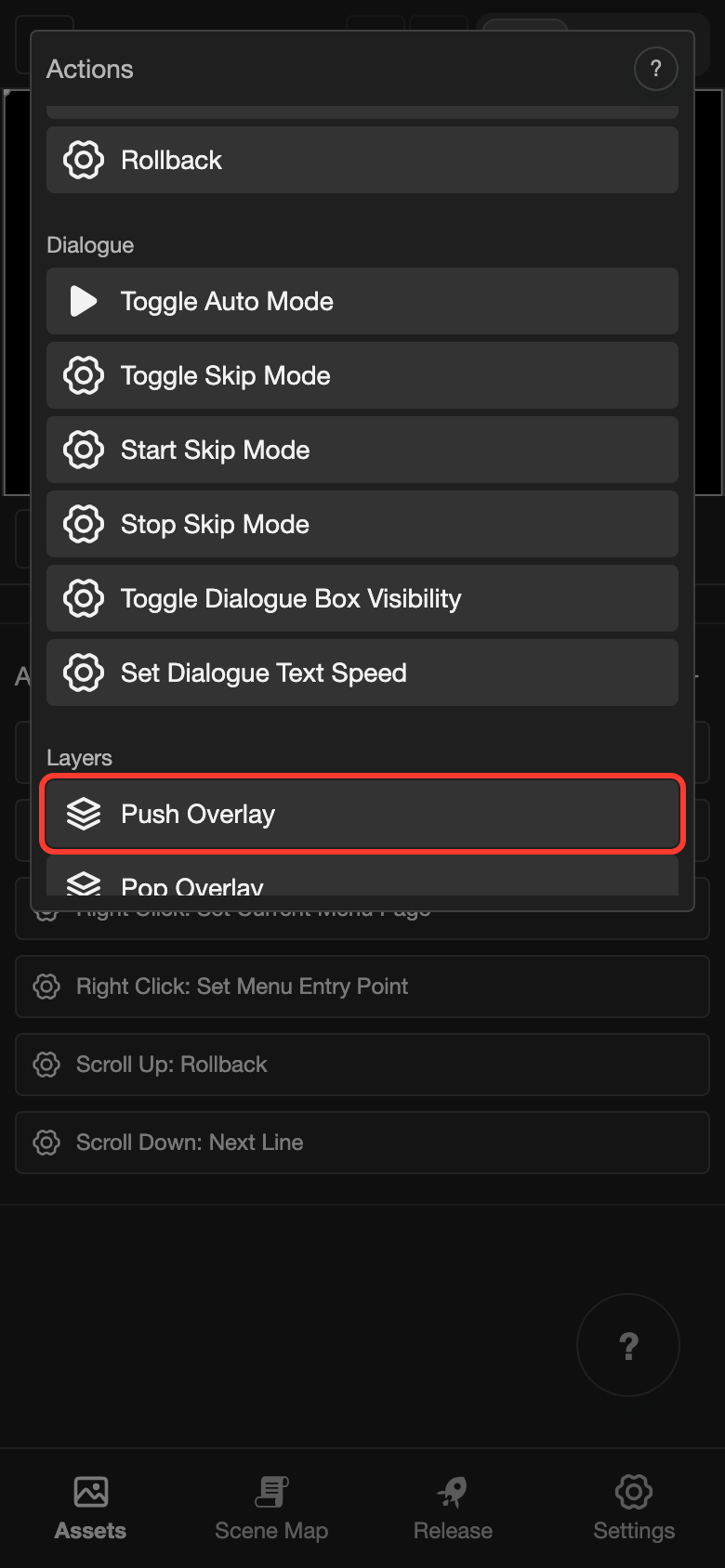
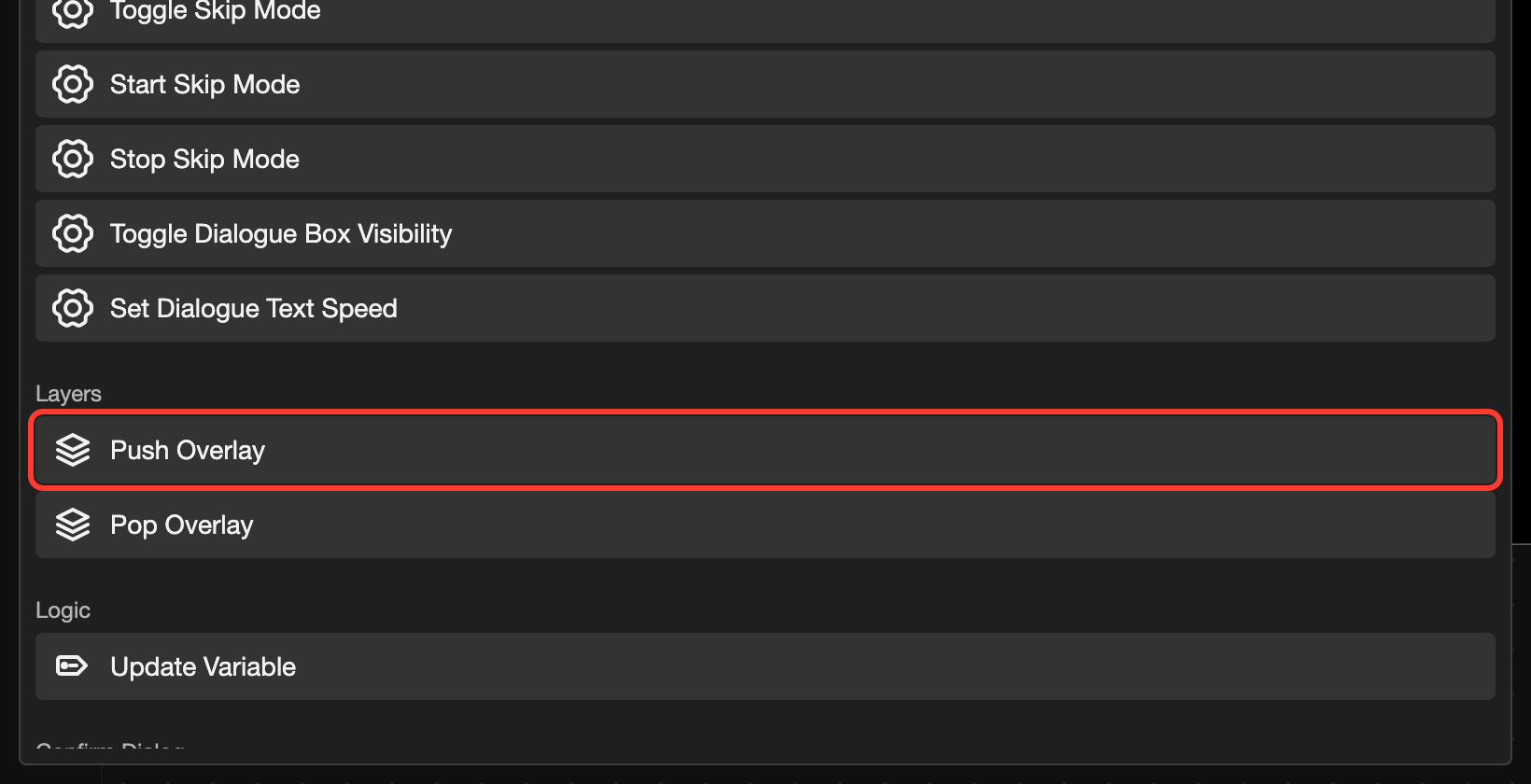
The Push Overlay form opens.
-
Tap Choose a layout.
-
In the list, tap the layout you want. For example, tap Menu Page.
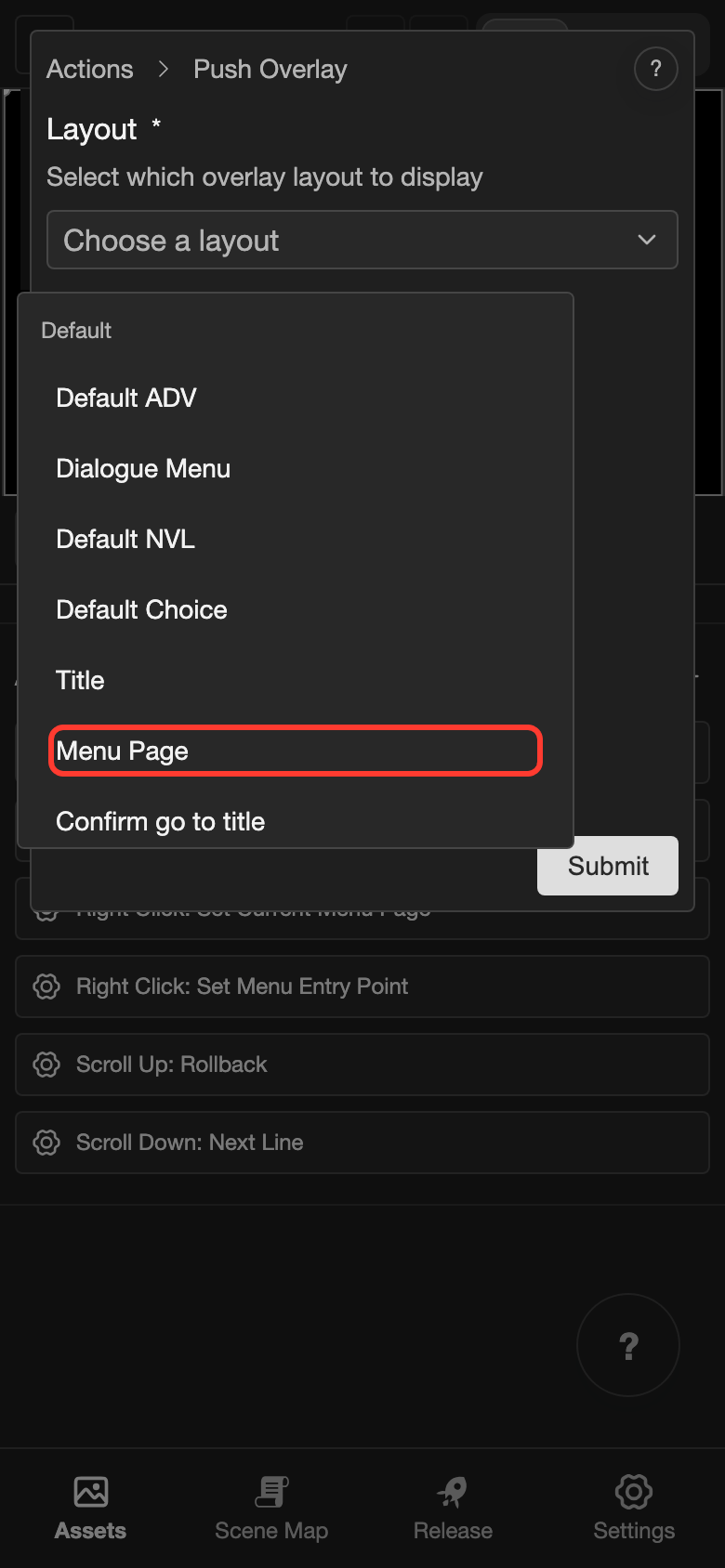
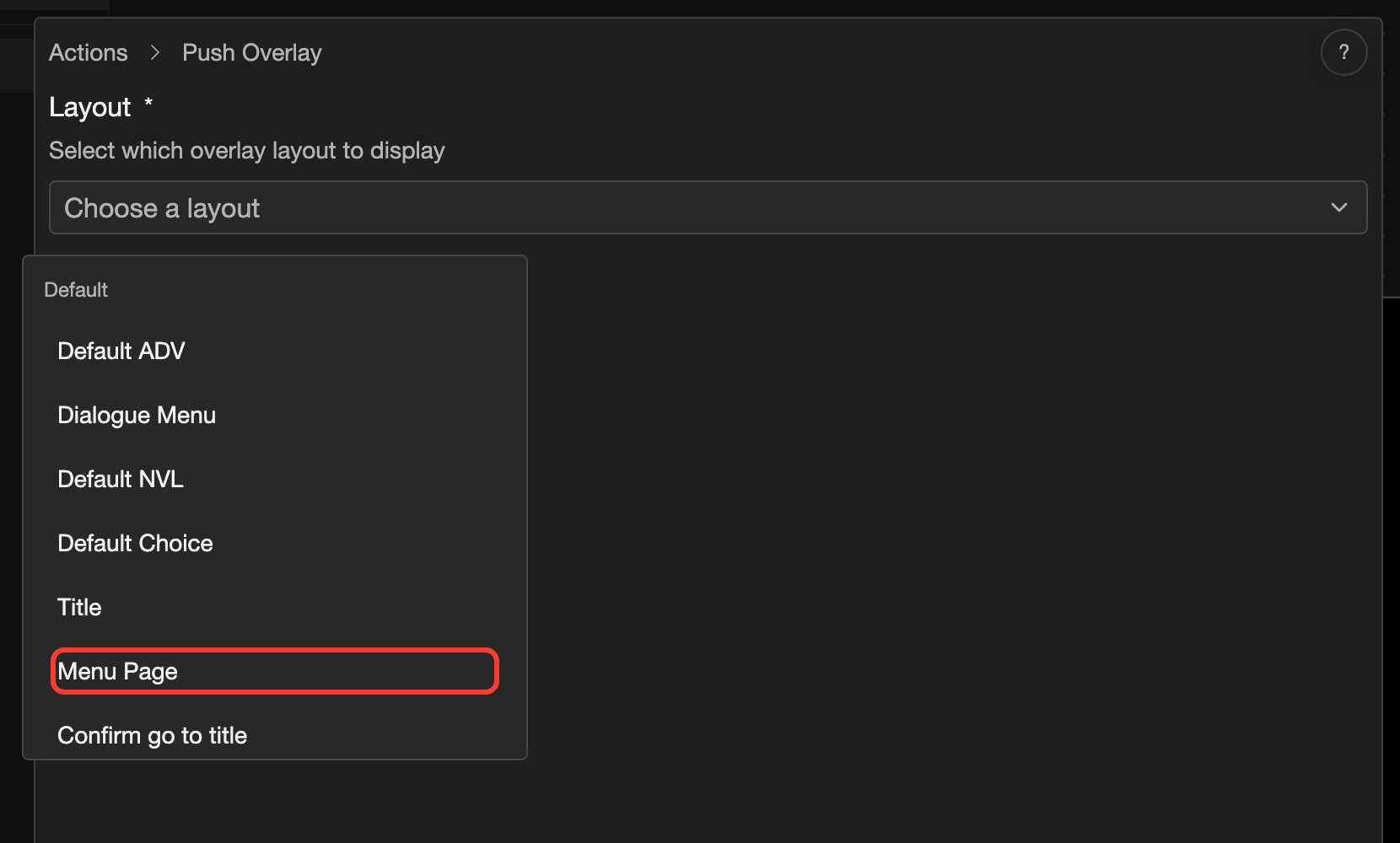
-
Tap Submit.
Good to know
- Run Push Overlay again to stack more overlays. Pop Overlay closes the top one.
- An overlay blocks clicks on the screen under it.
- Give the overlay a button that runs Pop Overlay, such as a Return button. Then the reader can close it.