Voice
The Voice action plays a voice clip on one line. For example, a character says the line out loud.
You pick the clip from your device inside the action. You do not need to upload it on the Sounds page first. The clip must be an MP3, WAV, or OGG file.
Add a voice clip
-
Select the line that should play the voice. See Scene Editor.
-
Open the Actions menu.
- Phone or tablet: Tap the + button in the bottom bar.
- Desktop: Click the + button under Presentation state.
-
Under Audio, tap Voice.
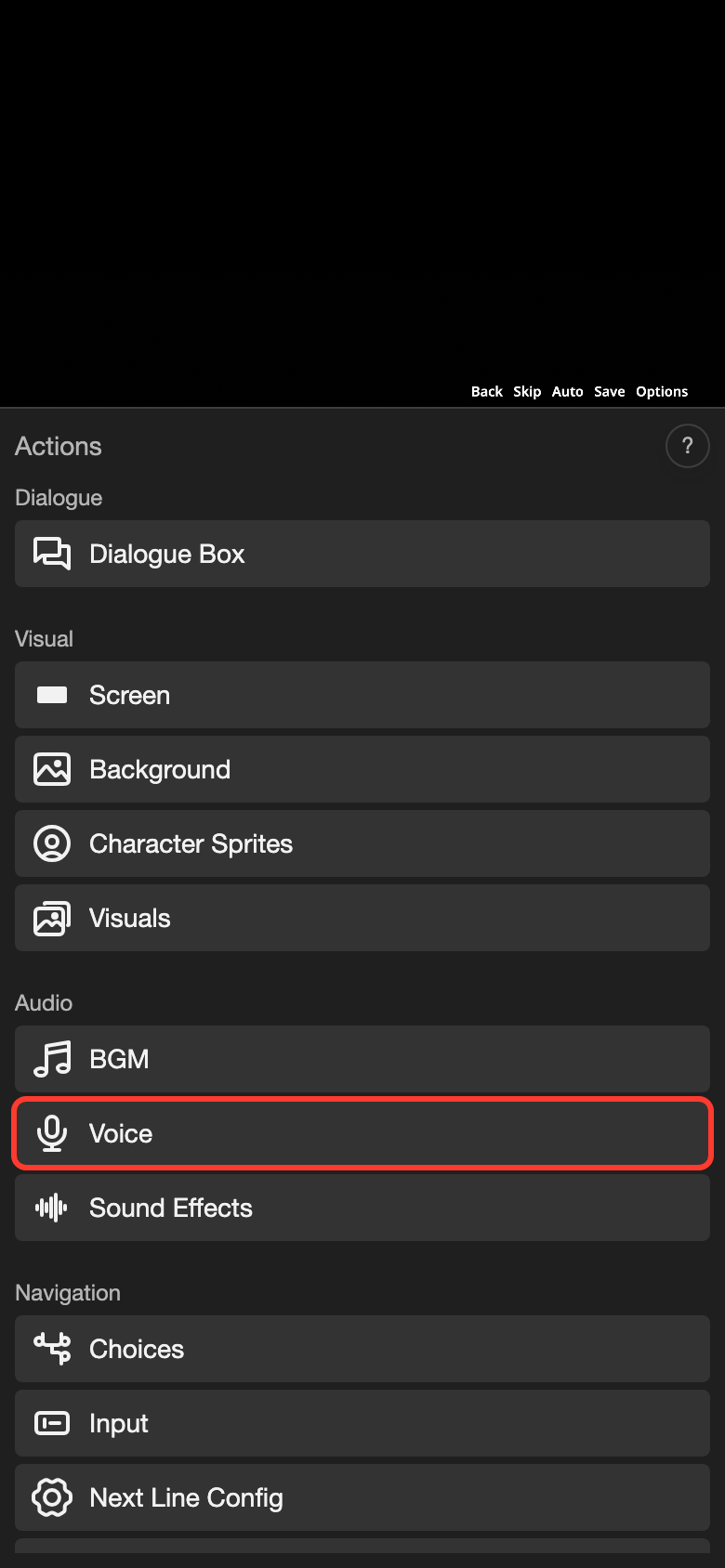
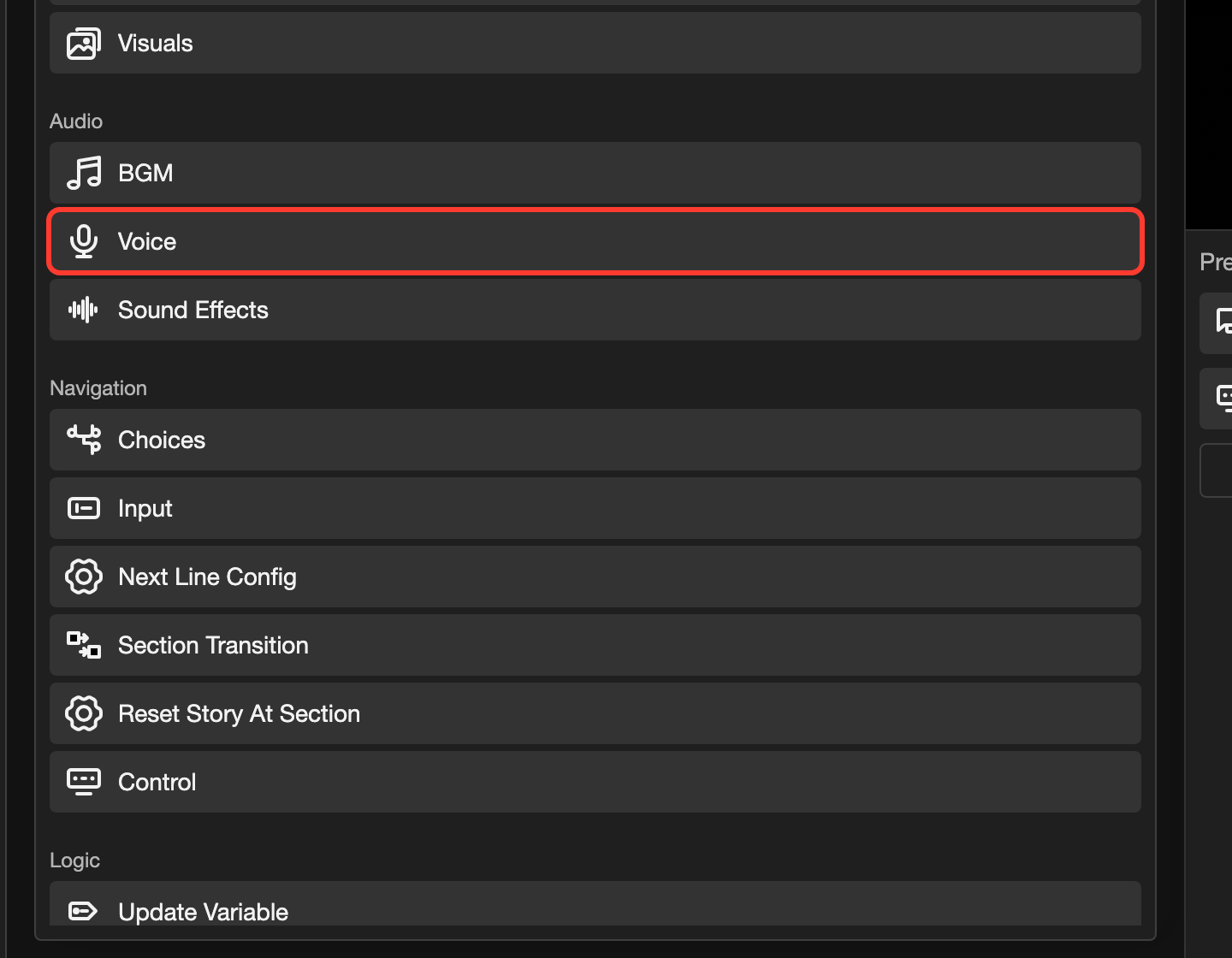
The Voice screen opens. Its Voice Channel box is empty.
-
Tap the Voice Channel box.
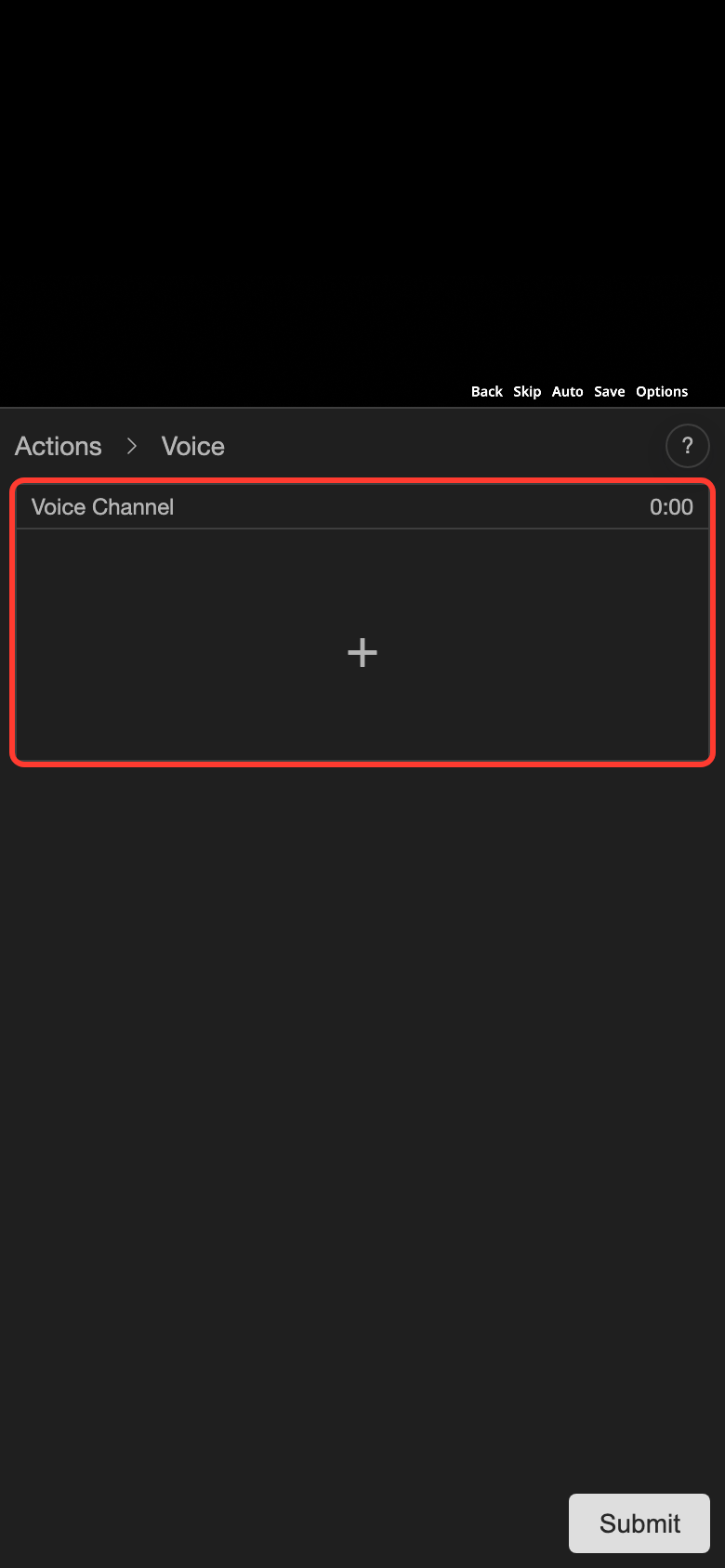
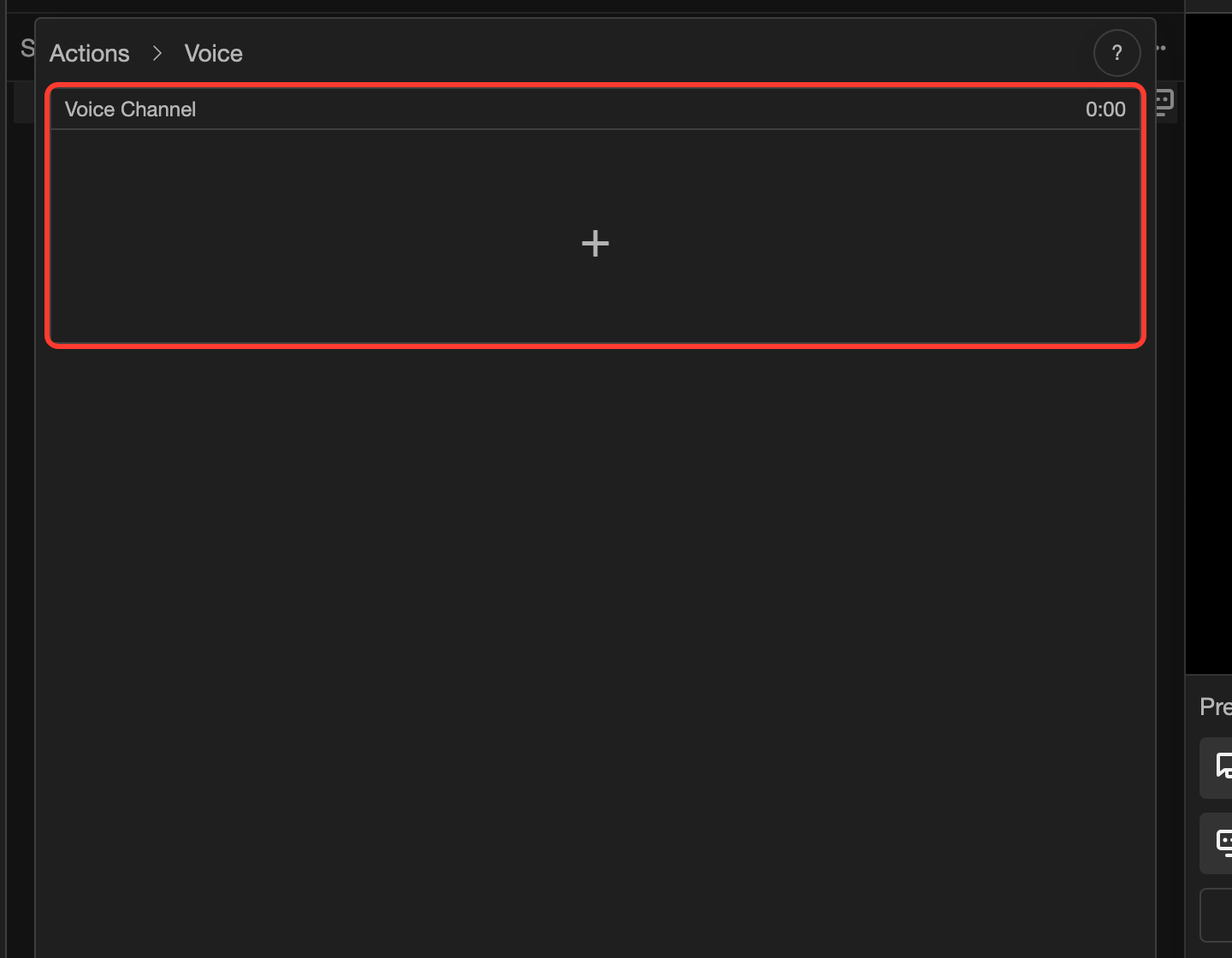
Your device opens a window to pick a file.
-
Choose an audio file.
The clip appears in the Voice Channel box. You see its waveform (a picture of the sound), its name, and its length.
-
Tap Submit.
A microphone icon shows at the right end of the line. On desktop, the clip name also shows under Presentation state.
Voice settings
After you add a clip, the Voice screen shows these settings.
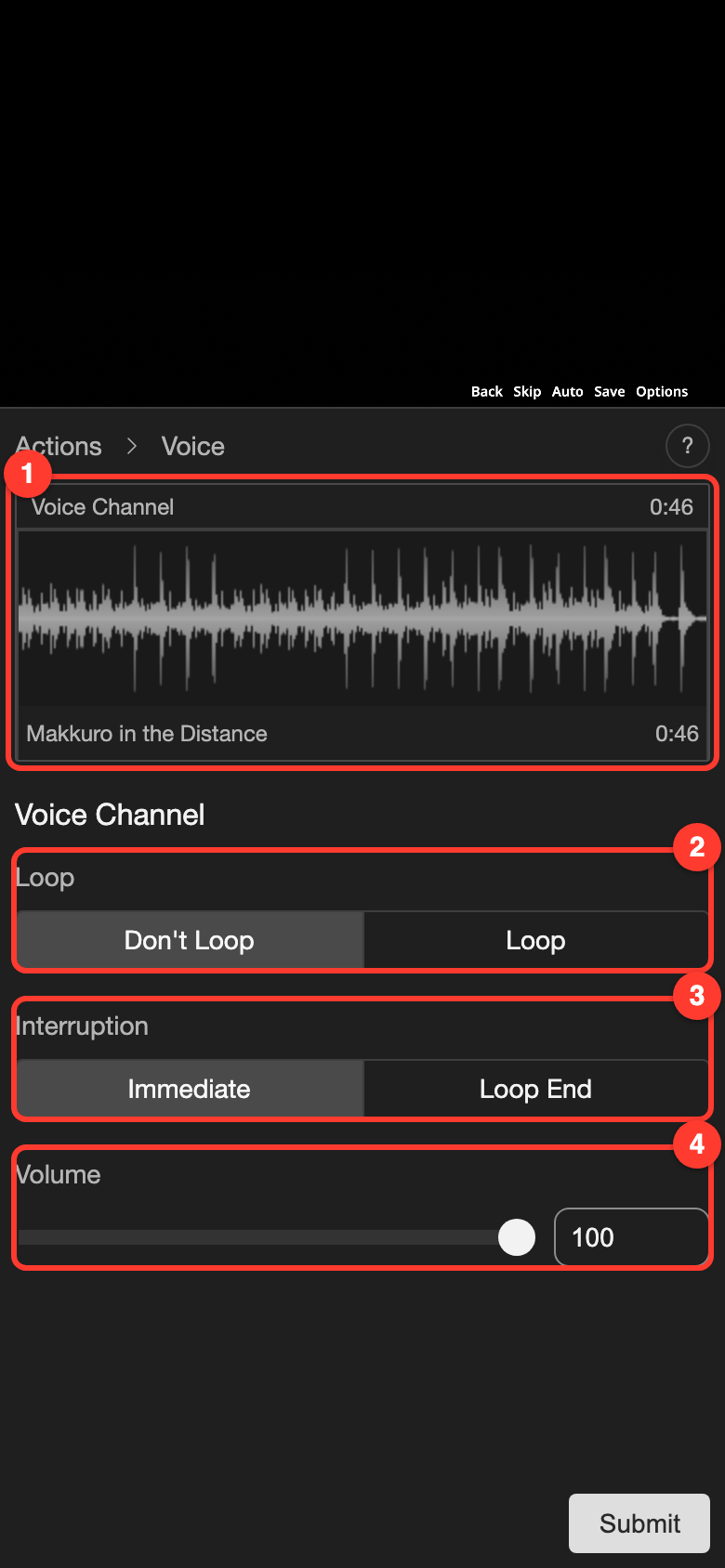
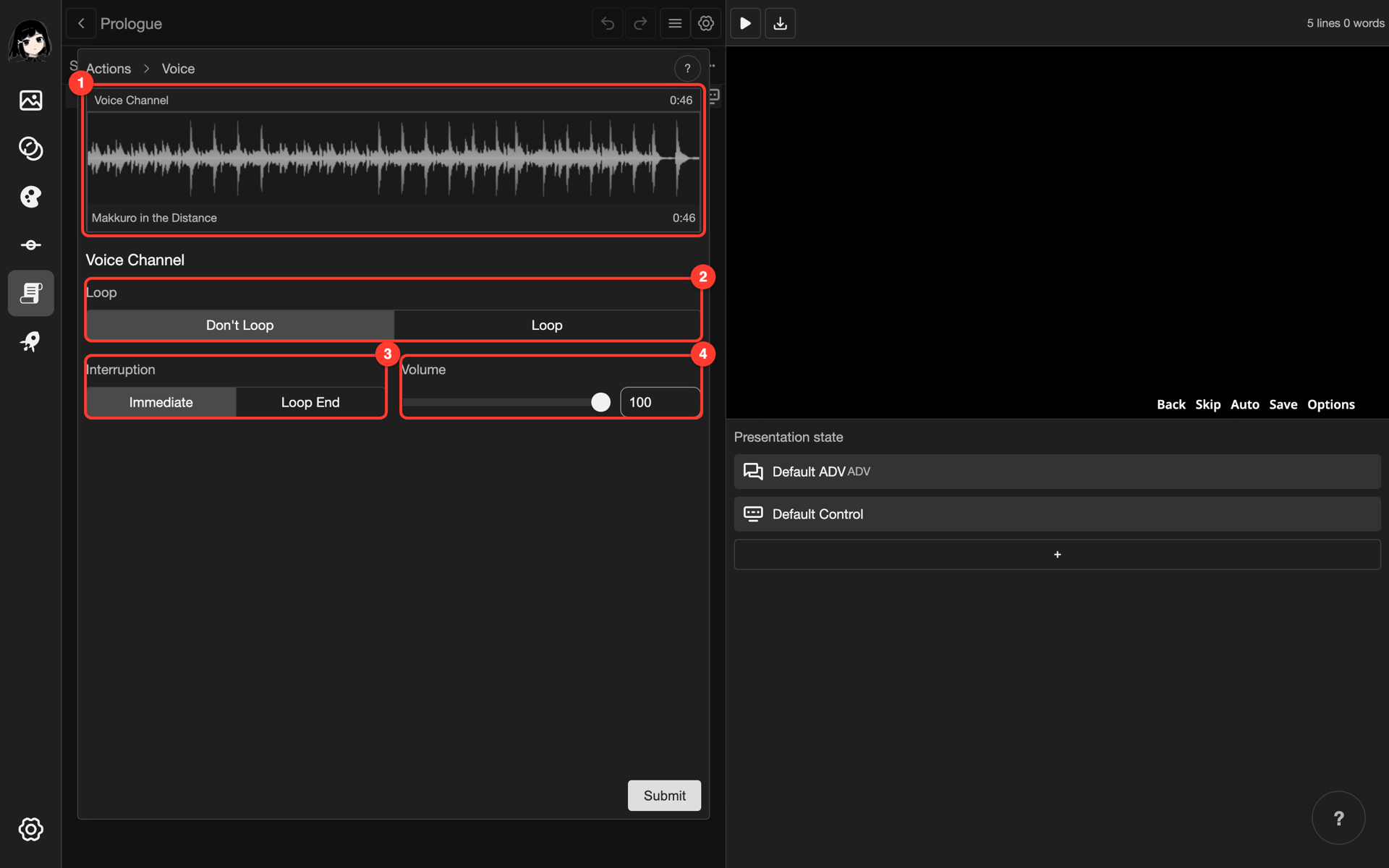
| # | Setting | What it does | Default |
|---|---|---|---|
| 1 | Voice Channel | Holds your clip. Tap it to open the Voice Channel window. | Empty |
| 2 | Loop | Loop plays the voice again and again. Don't Loop plays it once. | Don't Loop |
| 3 | Interruption | How the voice stops when the reader goes to the next line. Immediate stops it at once. Loop End lets it finish its loop first. | Immediate |
| 4 | Volume | How loud the voice is. Use a number from 0 to 100. | 100 |
Each clip also has its own Start Delay, Loop, and Volume. To see them, tap the Voice Channel box. Then tap the clip. Start Delay is how long the clip waits before it starts. The default is 0:00.
Change a clip
-
Open the Voice action again.
- Phone or tablet: Tap the + button in the bottom bar. Then tap Voice.
- Desktop: Under Presentation state, click the row with the clip name.
The Voice screen opens. Your clip is in the Voice Channel box.
-
Tap the Voice Channel box.
The Voice Channel window opens.
-
Open the menu of the clip.
- Phone or tablet: Long press (touch and hold) the clip.
- Desktop: Right-click the clip.
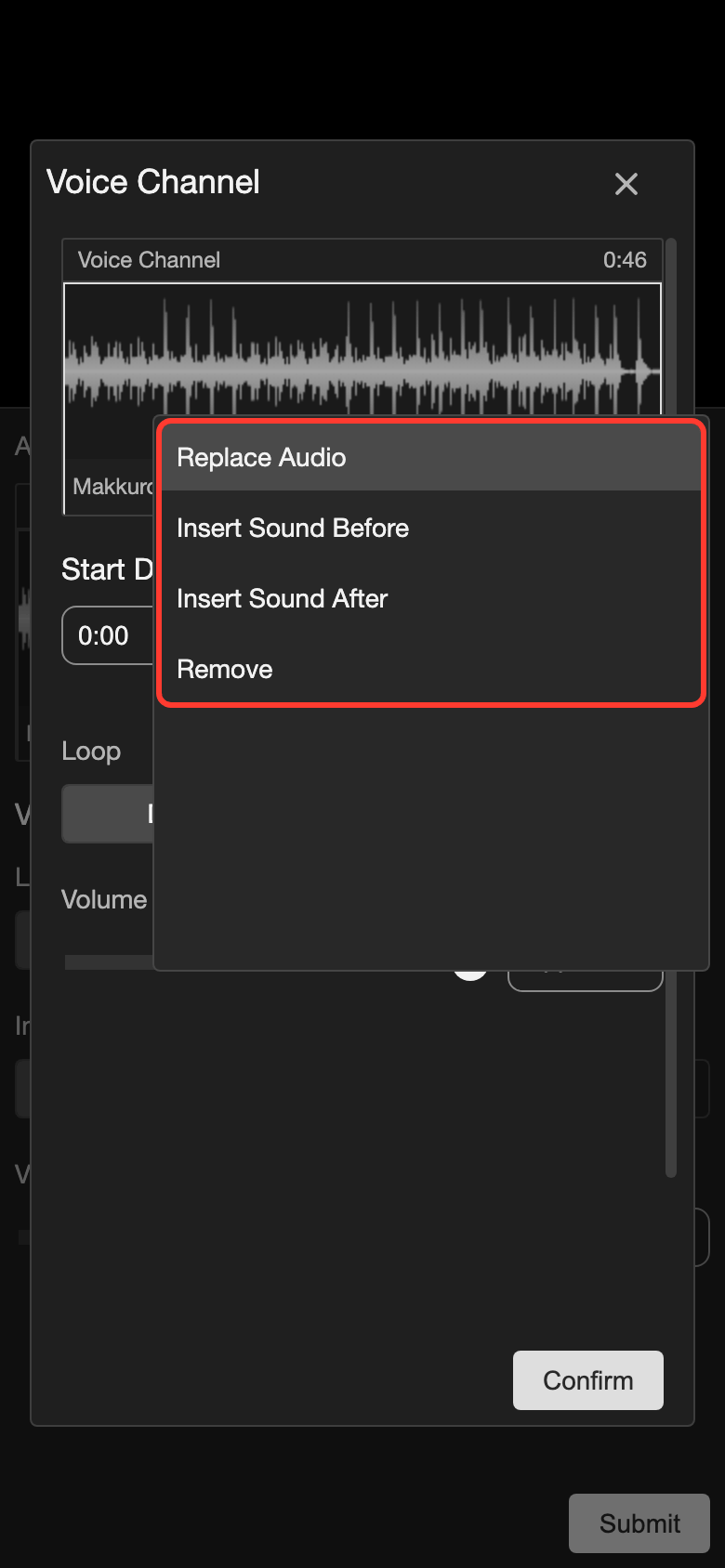
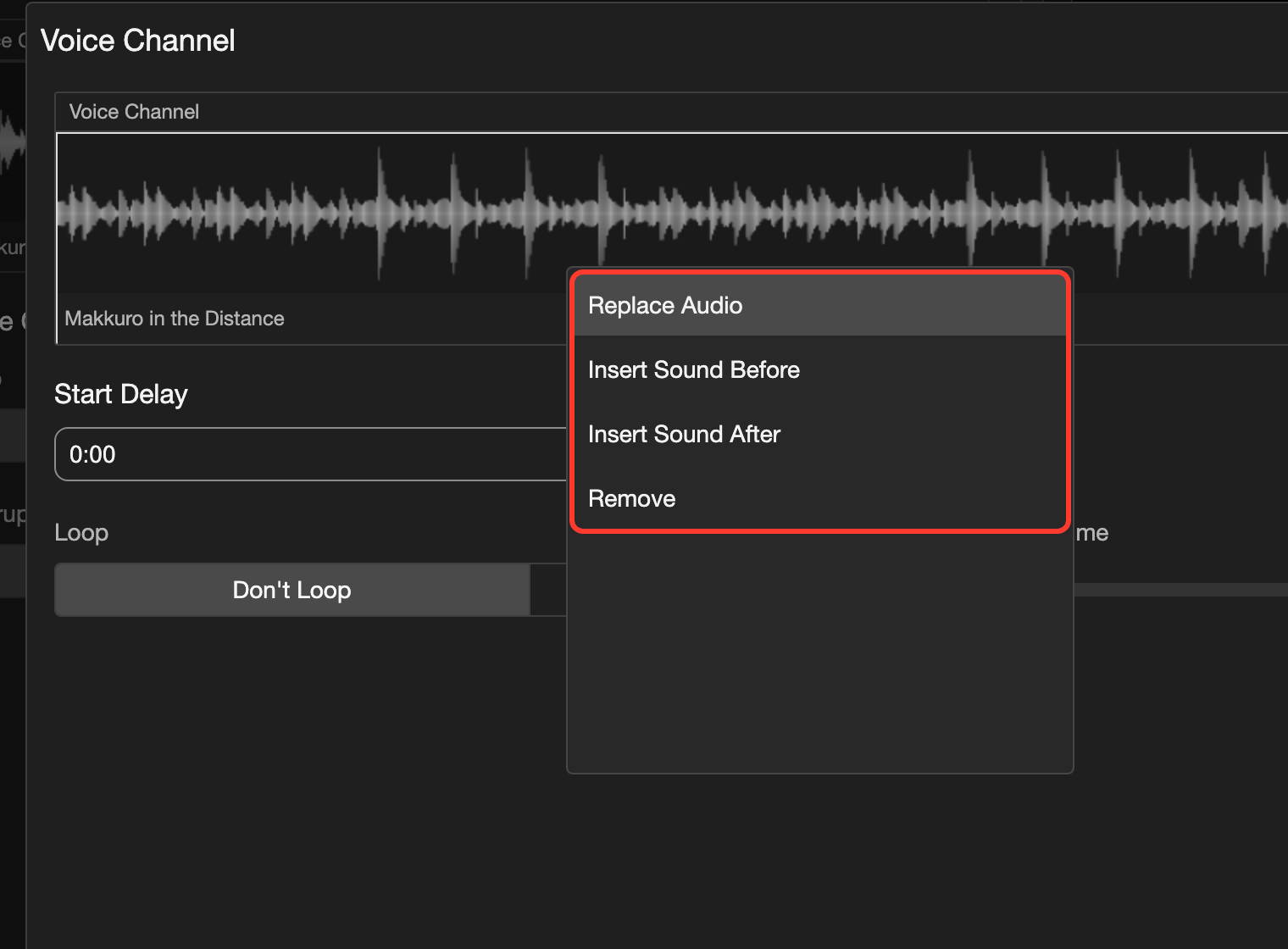
-
Tap Replace Audio.
Your device opens a window to pick a file.
-
Choose a new audio file.
The new clip takes the place of the old one.
-
Tap Confirm to close the window.
-
Tap Submit.
Remove a clip
- Open the menu of the clip. Follow steps 1 to 3 in Change a clip.
- Tap Remove.
- Tap Confirm.
- Tap Submit.
The clip leaves the line. If it was the only clip, the line plays no voice. The microphone icon is gone.
Good to know
- A voice plays only on its own line. When the reader goes to the next line, the voice stops. Interruption sets how.
- A line can have more than one clip. In the menu of a clip, tap Insert Sound Before or Insert Sound After.
- Desktop: Double-click a clip in the Voice Channel window to hear it.
Problems and fixes
- I see "Invalid file format". Only MP3, WAV, and OGG files work. Convert the file, then add it again.