Settings
Settings are for the whole app, not for one project. They have 3 pages:
- About: the app version, community links, and contact options
- Config: the language, the color theme, and other app settings
- Tutorials: video lessons
Open Settings
You open Settings from inside a project.
-
On the Projects page, tap a project. The project opens.
-
Open Settings.
- Phone or tablet: At the bottom of the screen, tap Settings. A list opens.
- Desktop: At the bottom of the left bar, click the gear icon. The About page opens, with a list next to the left bar.
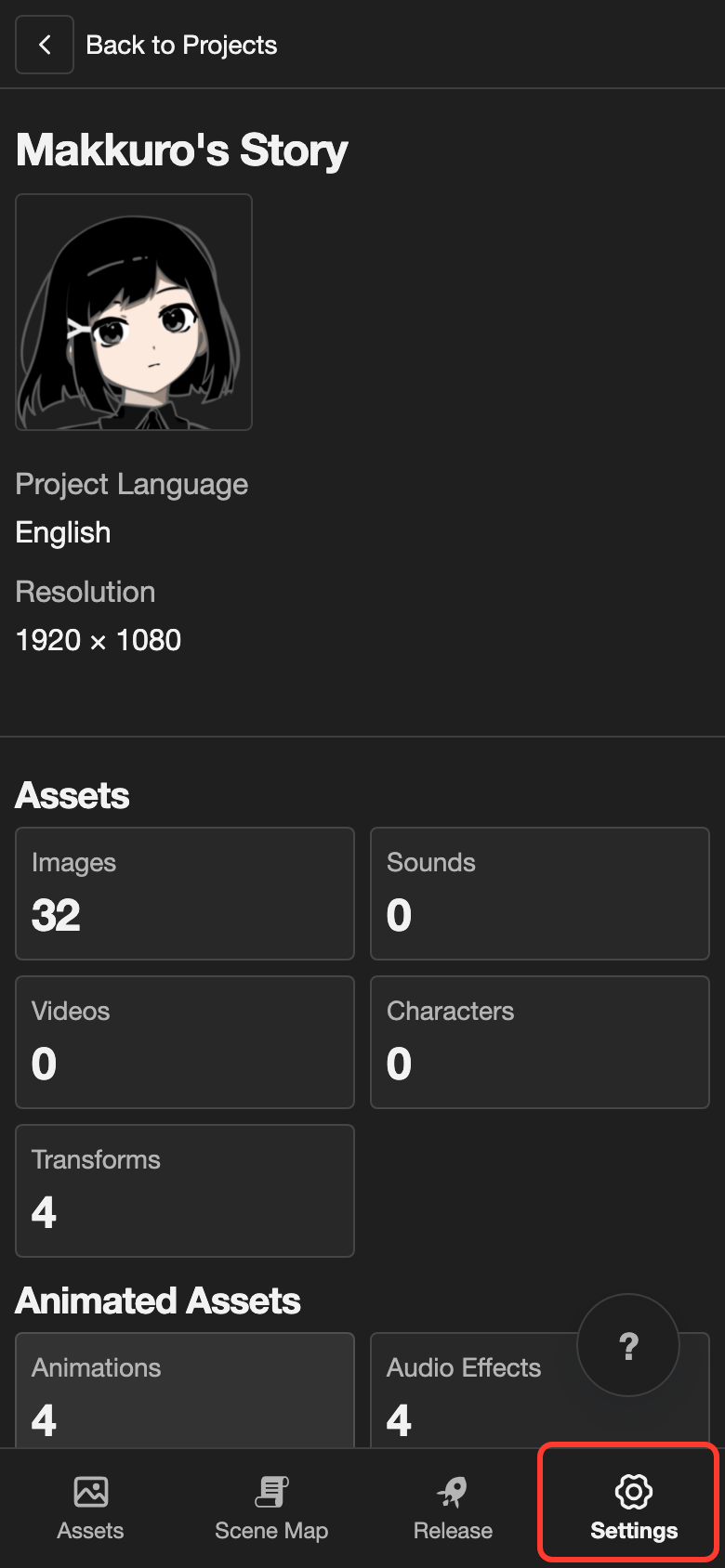
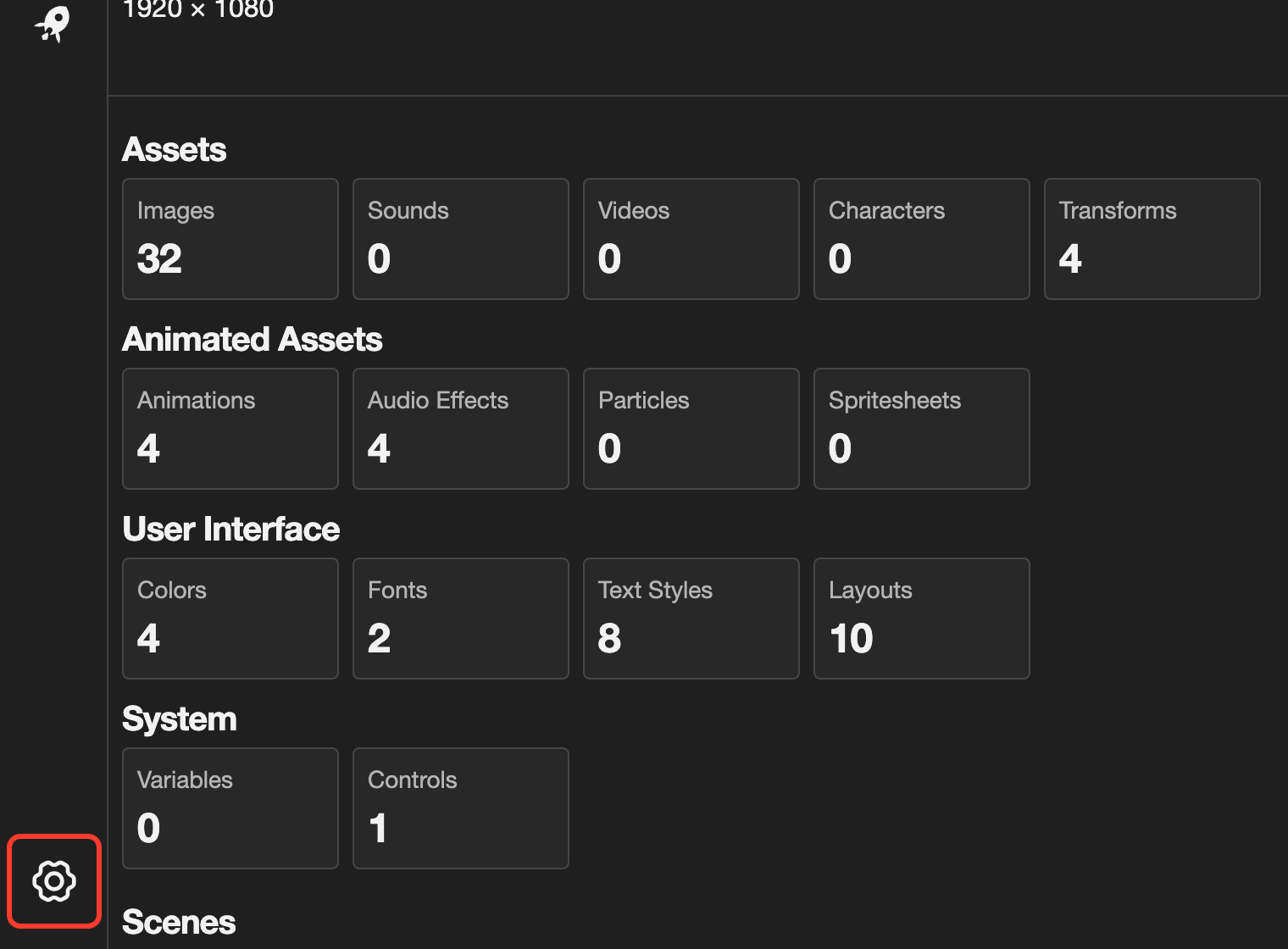
-
In the list, tap the page you want, for example Config.
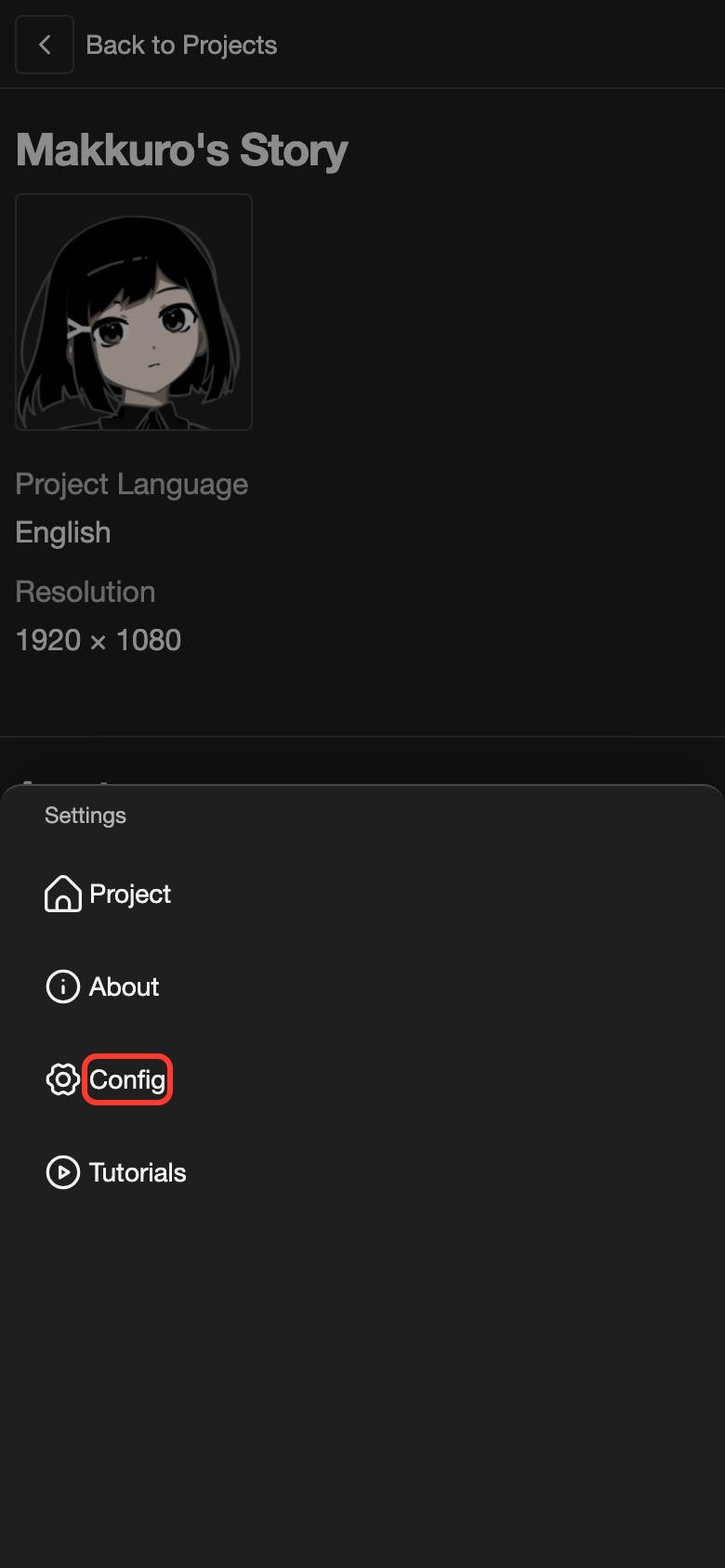
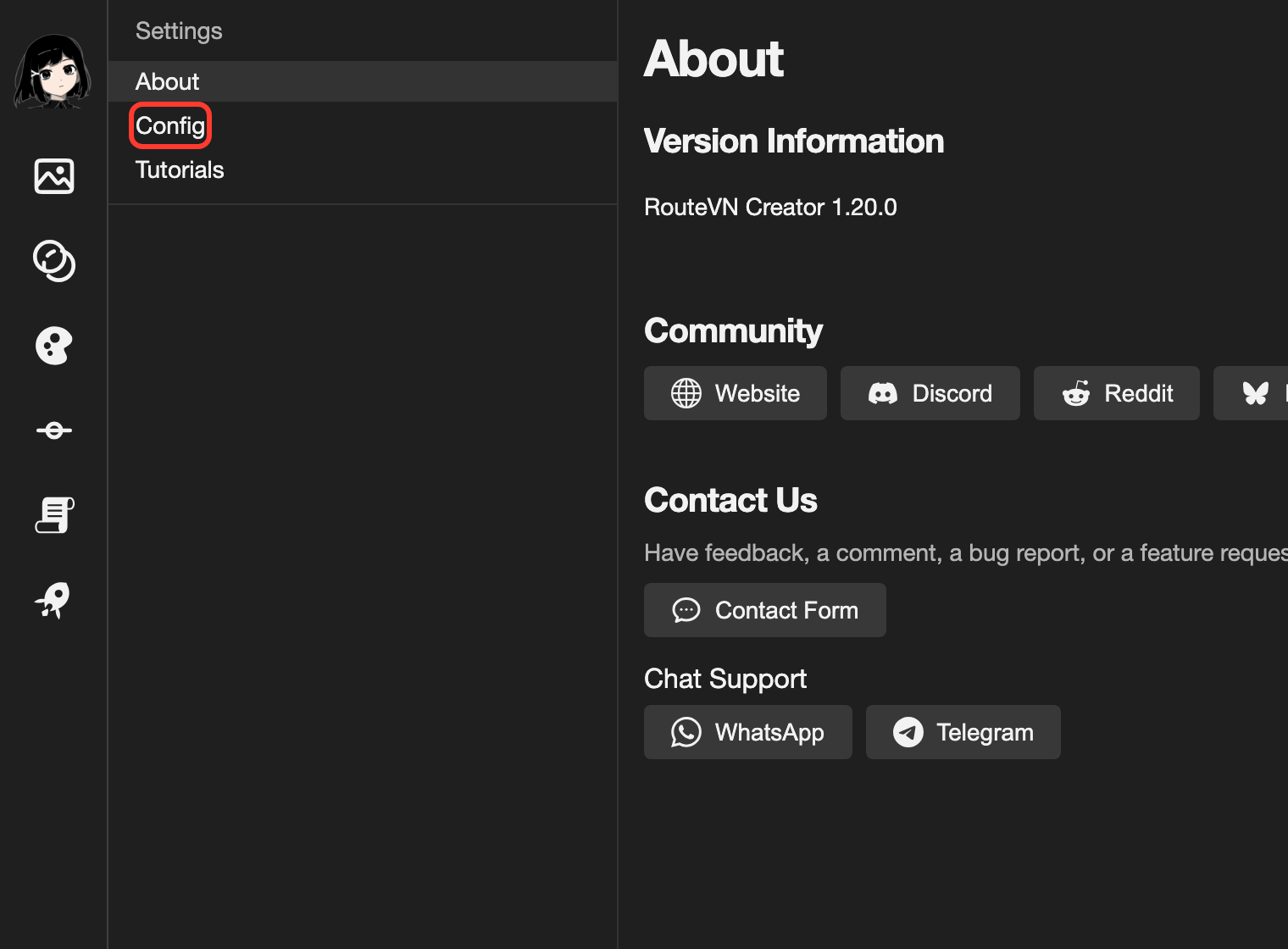
On a phone or tablet, the list also has Project. It takes you back to the project's main page.
Config
Config holds the settings for the app. To change a setting, tap the choice that you want. For Language, tap the list first. The change happens right away. There is no Save button.
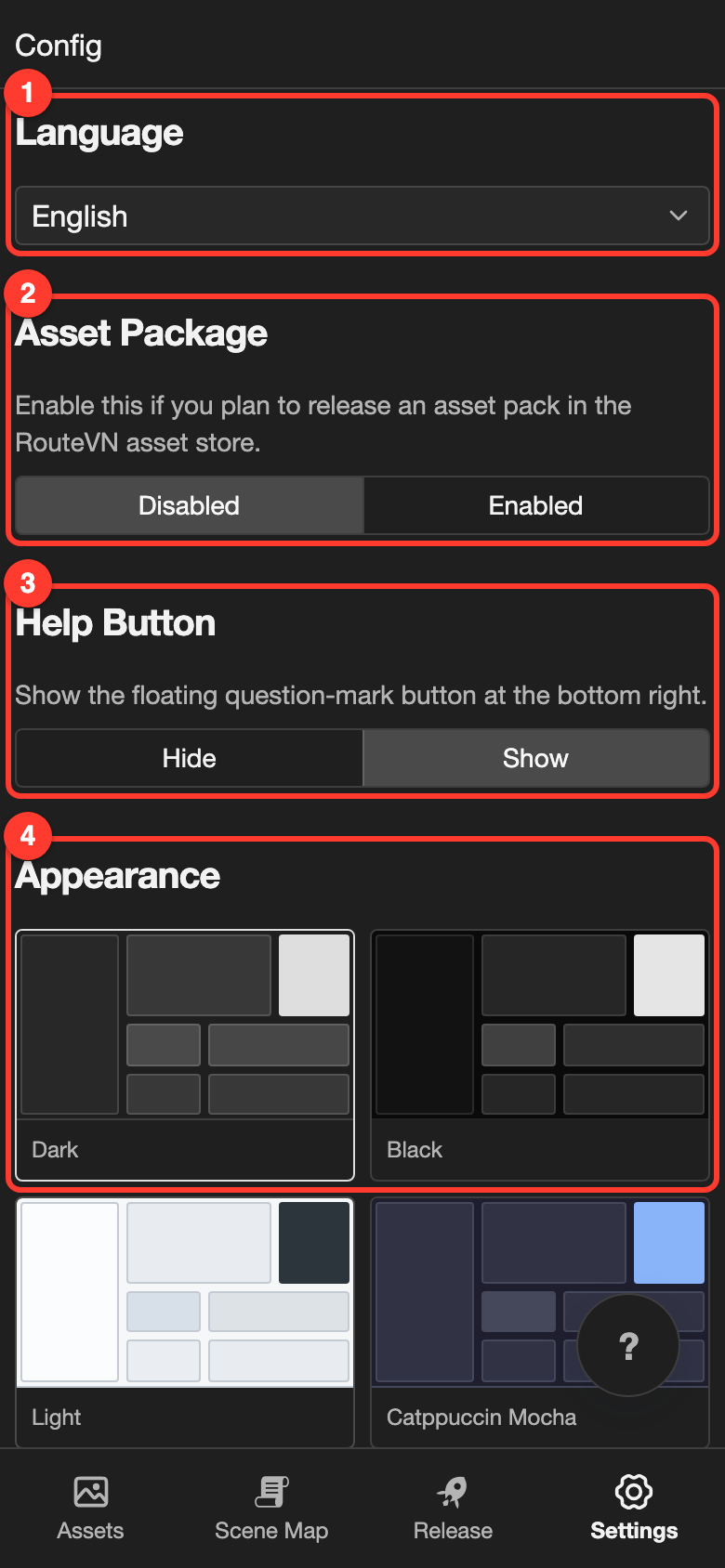
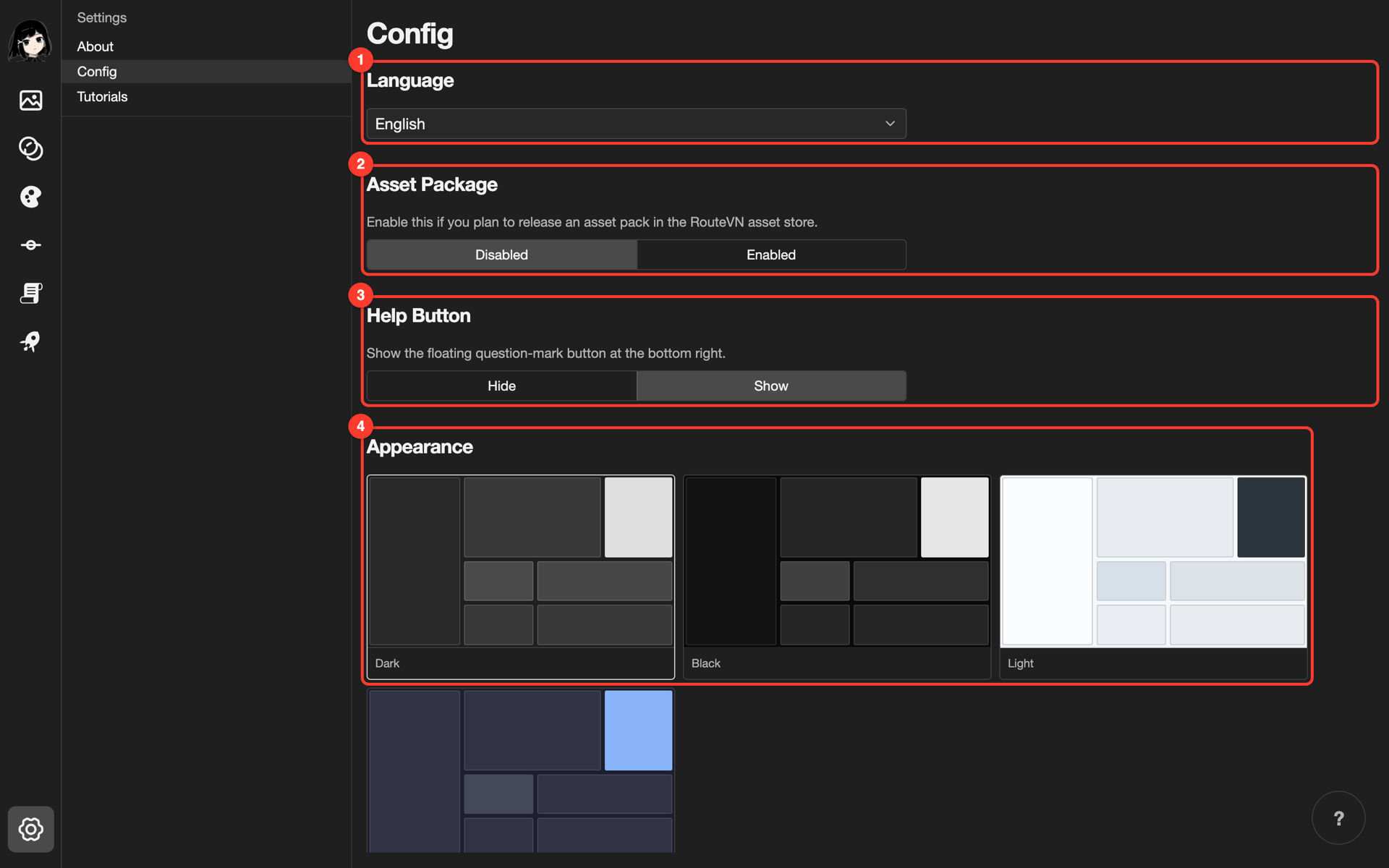
| # | Setting | What it does | Choices |
|---|---|---|---|
| 1 | Language | Sets the language of the app's buttons, menus, and pages. See Change the language. | English and 8 more languages |
| 2 | Asset Package | Adds the Asset Packs page to Release. Use that page to make a pack of images, audio, and videos for the Asset Store. Most people can leave this Disabled. | Disabled (the default) or Enabled |
| 3 | Help Button | Shows or hides the ? button at the bottom right. The ? button opens the docs page for the screen that you are on. | Show (the default) or Hide |
| 4 | Appearance | Sets the colors of the app. Tap a picture to choose a theme. | Dark (the default), Black, Light, or Catppuccin Mocha |
Some devices show one more setting below Language:
- iPhone and iPad: Projects folder shows the folder where your projects are saved. To choose another folder, tap Change folder.
- Android: Android local backups shows whether backups are on. If they are off, tap Set up backup folder.
To learn more about the folder and backups, see Storage and Backups.
About
About shows information about the app and ways to reach the RouteVN team.
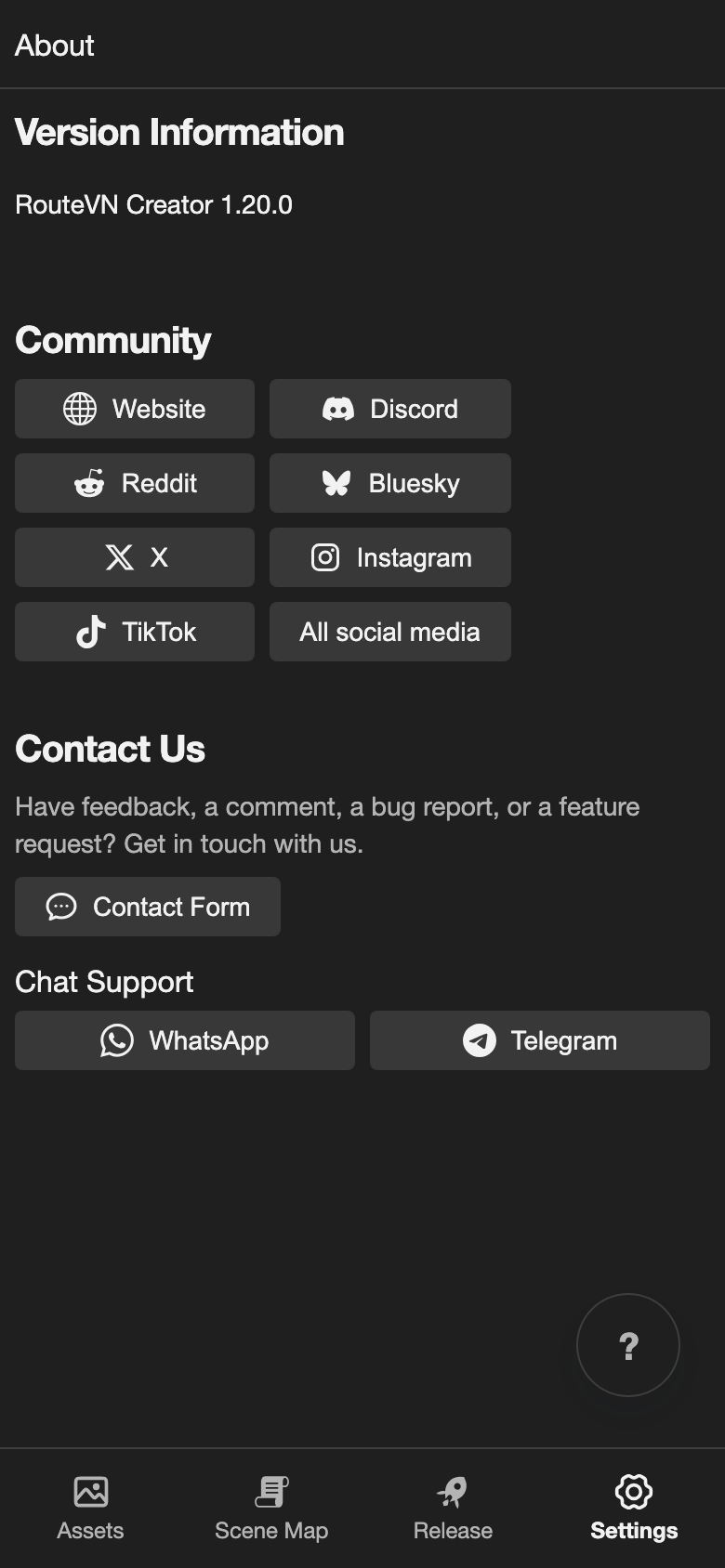
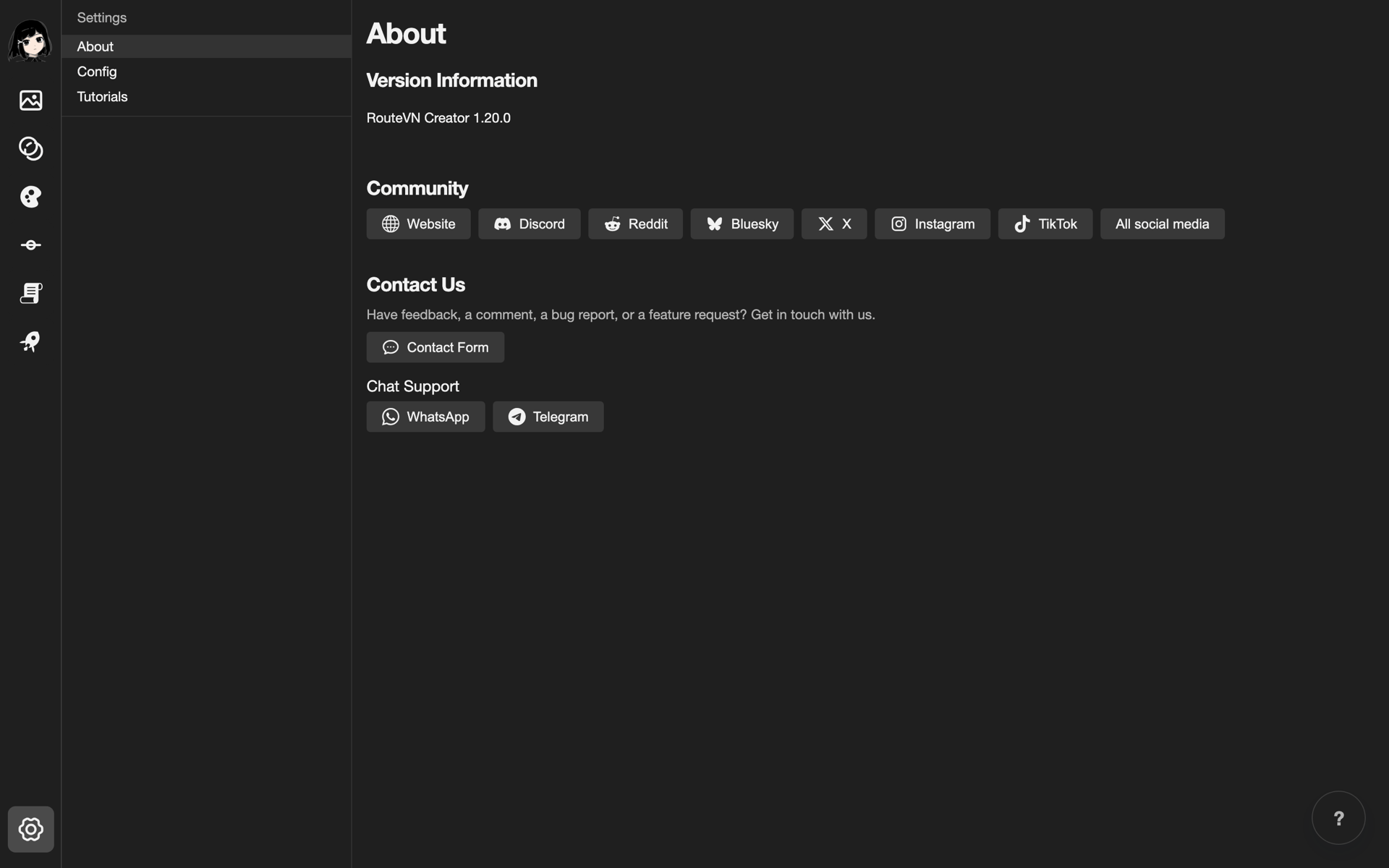
- Version Information: your version of RouteVN Creator. On some devices, you can tap Check for Updates here.
- Community: links to the RouteVN website, Discord, Reddit, and other social media.
- Contact Us: send feedback, a bug report, or an idea with Contact Form. To chat with the team, tap WhatsApp or Telegram.
Tutorials
Tutorials has one button, Watch Video Tutorials. It opens the video lessons on the RouteVN website, so it needs an internet connection.
- On a phone or tablet, it opens Video Tutorials Mobile.
- On desktop, it opens Video Tutorials.
Settings on the Projects page
The Projects page has no Settings button. It has a menu with some settings instead. To open it, tap the version number at the bottom of the Projects page. It says RouteVN Creator and the version, with a gear icon. For pictures of these steps, see Change the language.
| Menu item | What it does |
|---|---|
| Check for update | Looks for a new version of the app. It shows only on some devices. |
| Language | Opens the Language box. Choose a language, then tap Save. |
| Appearance | Opens the Appearance box. Choose a Theme, then tap Save. |
| Contact & Support | Opens the RouteVN contact page. |
Language and Appearance in this menu are the same settings as on the Config page. A change in one place also shows in the other.
Good to know
- Settings are saved on this device. They apply to every project. On another device, set them again.
- The Language setting is not the same as Project Language. Project Language tells the app how to count the words in your visual novel. See Project Language.
- If you hide the ? button, it is hidden on every screen. To show it again, set Help Button to Show.