Animations
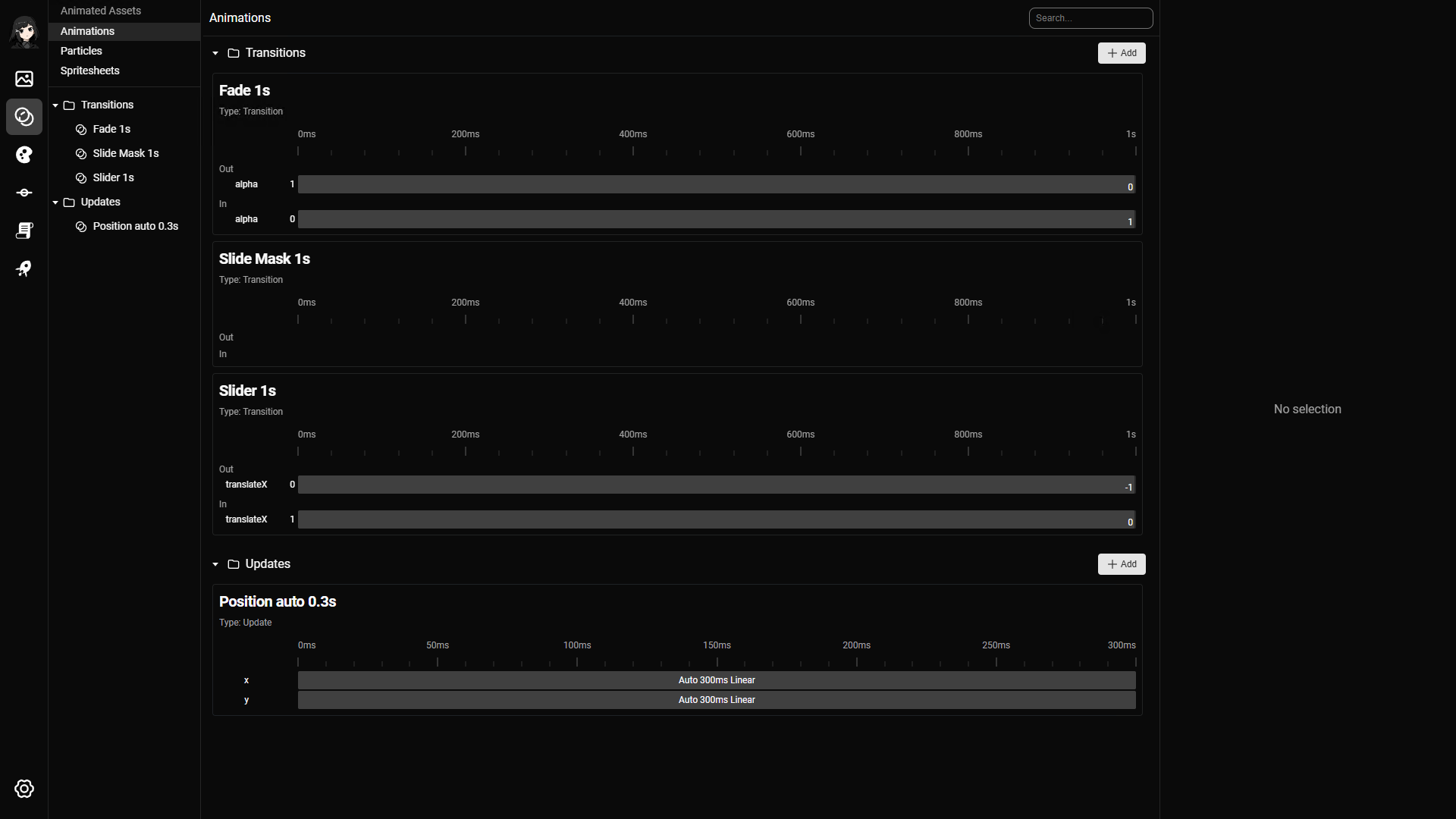
Animations are used on images and other visual elements to make transitions and motion feel smoother. In practice, you will usually define a small set of reusable animations and use them across backgrounds, characters, and other visuals.
There are 2 main animation modes:
- Update animations: animate a visual that is already on screen
- Transition animations: animate the change from one visual to another
Update animations
Update animations are applied to a single visual. They assume the visual is already on screen and will remain on screen after the animation finishes.
This is useful for effects such as:
- Moving a character slightly
- Fading an element in or out
- Scaling or repositioning a visual during a scene
Update animations use tween effects.
Transition animations
Transition animations are used when one visual is replaced by another. They can animate the outgoing visual, the incoming visual, or both.
This is useful for effects such as:
- Changing from one background to another
- Replacing a character pose
- Revealing a new image with a mask effect
Transition animations can use:
Animation effects
Tween
Tween effects change properties over time using keyframes. They can be used in both update animations and transition animations.
Each tween is made up of one or more animated properties. Each property can have:
- An optional initial value
- One or more keyframes
If no initial value is provided, the current value of the element is used. This makes it easier to create reusable animations.
Supported properties
| Property | Availability | Description |
|---|---|---|
| Alpha | Update and transition | Controls opacity from 0 (transparent) to 1 (opaque). |
| Position X and Position Y | Update and transition | Set the position using project coordinates. |
| Translate X and Translate Y | Update and transition | Move the element relative to the screen width or height. |
| Scale X and Scale Y | Update and transition | Change the width or height scale. A value of 1 keeps the original scale. |
| Rotation | Update and transition | Rotates the element in degrees. |
| Blur X and Blur Y | Update only | Apply horizontal or vertical blur. |
Position and Translate cannot be used together on the same axis. For example, use either Position X or Translate X for horizontal movement.
Keyframes
Keyframes define how a property changes over time. Each keyframe moves from the previous value to a new value. Multiple keyframes can be used to create an animation with several stages.
| Field | Description |
|---|---|
| Delay (ms) | Waits before the keyframe starts. |
| Duration (ms) | Sets how long it takes to move from the previous value to this keyframe's value. |
| Value | Sets the property's value at the end of the keyframe. |
| Value type | Absolute sets the exact value. Relative adds the value to the previous value. |
| Easing | Controls how the rate of change accelerates or slows during the keyframe. |
If the property has no initial value, the first keyframe starts from the element's current value when the animation begins.
Mask
Mask effects are used in transition animations. They reveal or hide an image based on a mask image instead of only moving or fading it.
The most important input is the mask image itself. You can also control values such as duration and smoothness.
Mask effects animate a Progress property from 0 to 1. Progress keyframes use the same delay, duration, value, value type, and easing fields described above.
Animation editor page
The animation editor is where you define and preview animation behavior.
You can:
- Edit tween properties and keyframes
- Configure mask-based transitions
- Click preview to test the result
- Hover the timeline to inspect how the animation looks at a specific point in time