Export for macOS
A macOS export is an app that runs your visual novel on a Mac. Readers do not need RouteVN Creator.
This works only in the desktop app on a Mac. This export is in beta. Beta means it is new and still being tested.
Before you start
- Create a version of your visual novel. See Versions.
- Check your project icon. The macOS icon starts as this picture. To change it, see Projects.
Start the export
-
On the Versions page, click the version you want to export. Its details open.
-
In the details, click Export. The Export for box opens.
-
Click macOS.
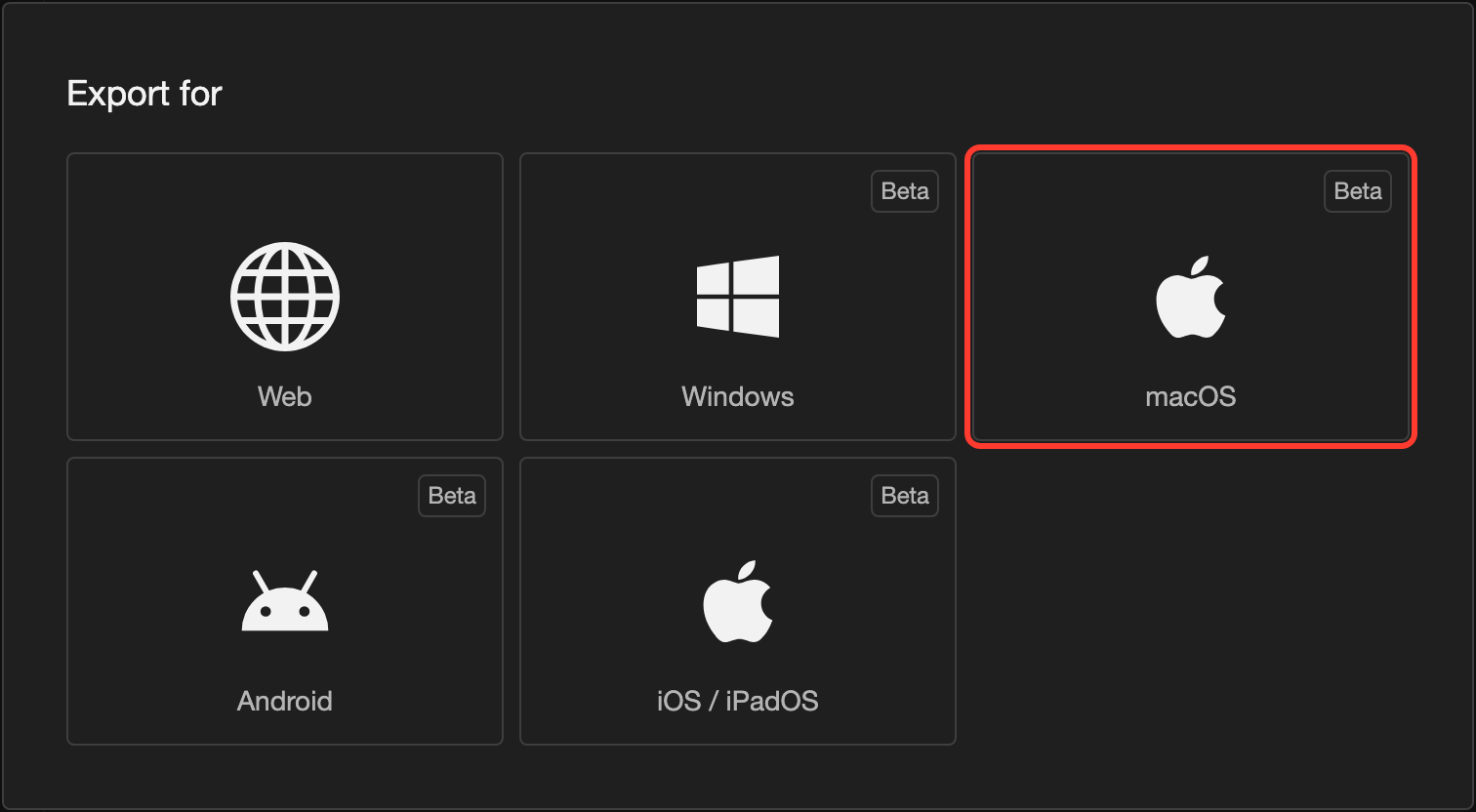
The first time, the Add Platform Details First box opens. Go on with Fill in the macOS details.
After the first time, the Confirm macOS App Export box opens. Go to Confirm and save.
Fill in the macOS details
You do this once. RouteVN Creator remembers the details for the next export.
-
In the Add Platform Details First box, click Continue. The Add macOS Platform Details box opens.
-
In Application Name, check the name. It starts as your project name. The Mac shows it in Finder, the Dock, and the app menus.
-
Under Icon, check the picture. It starts as your project icon. To use another picture, click it. See Choose an icon.
-
In Bundle Identifier, type an identifier, for example
com.routevn.makkurotest. Write words with periods between them. Use only letters, numbers, hyphens, and periods. -
In the box, click Add Platform.
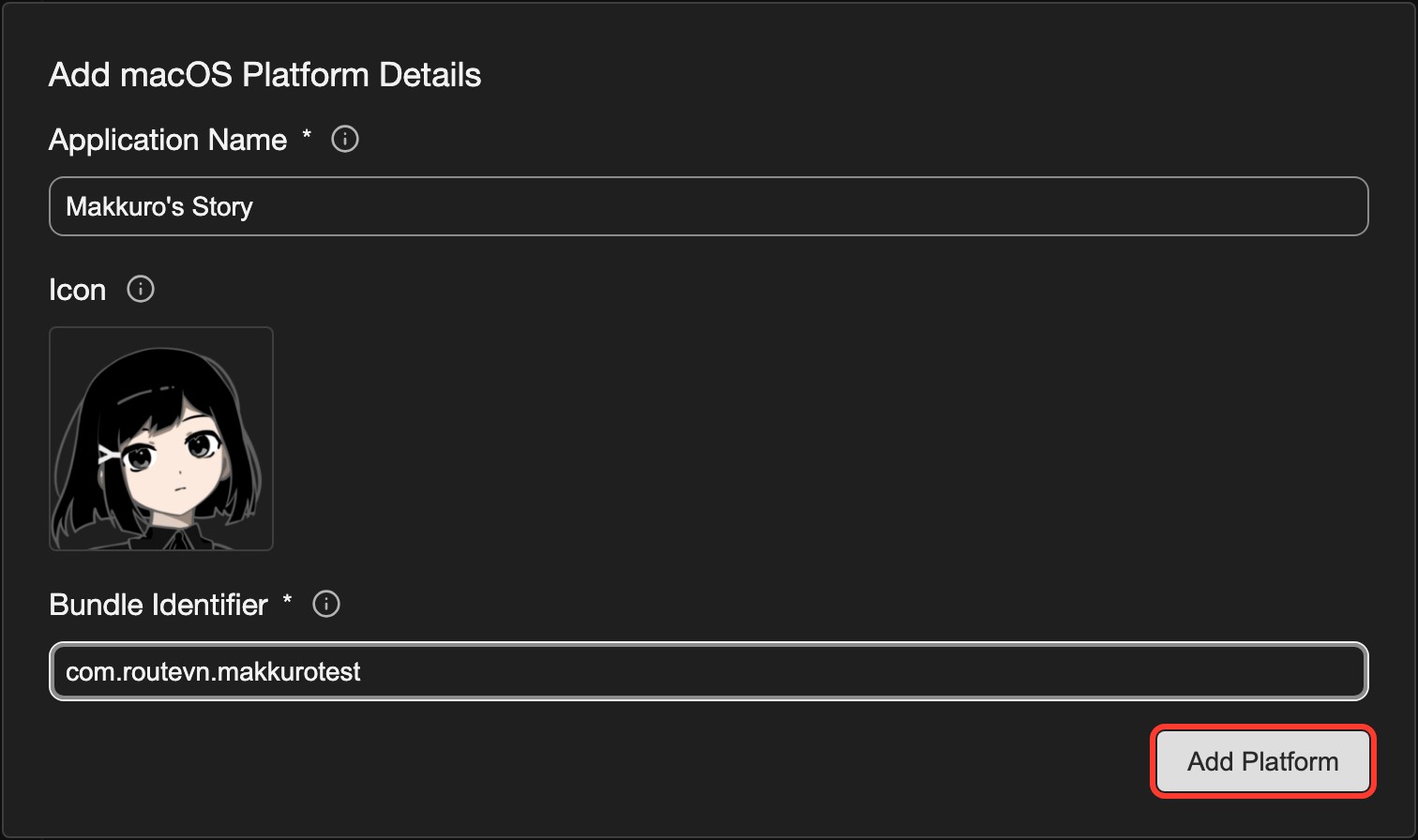
The Confirm macOS App Export box opens.
Confirm and save
The confirm box has 2 fields that you fill in for every export.
-
In the Confirm macOS App Export box, check the name, the icon, and the identifier.
-
In Version, type 3 numbers with periods between them, for example
1.0.0. If your version name already looks like this, the field is filled in. -
In Build Number, type a whole number above 0, for example
1. Use a higher number for each new export. -
In the box, click Export macOS App (Beta).
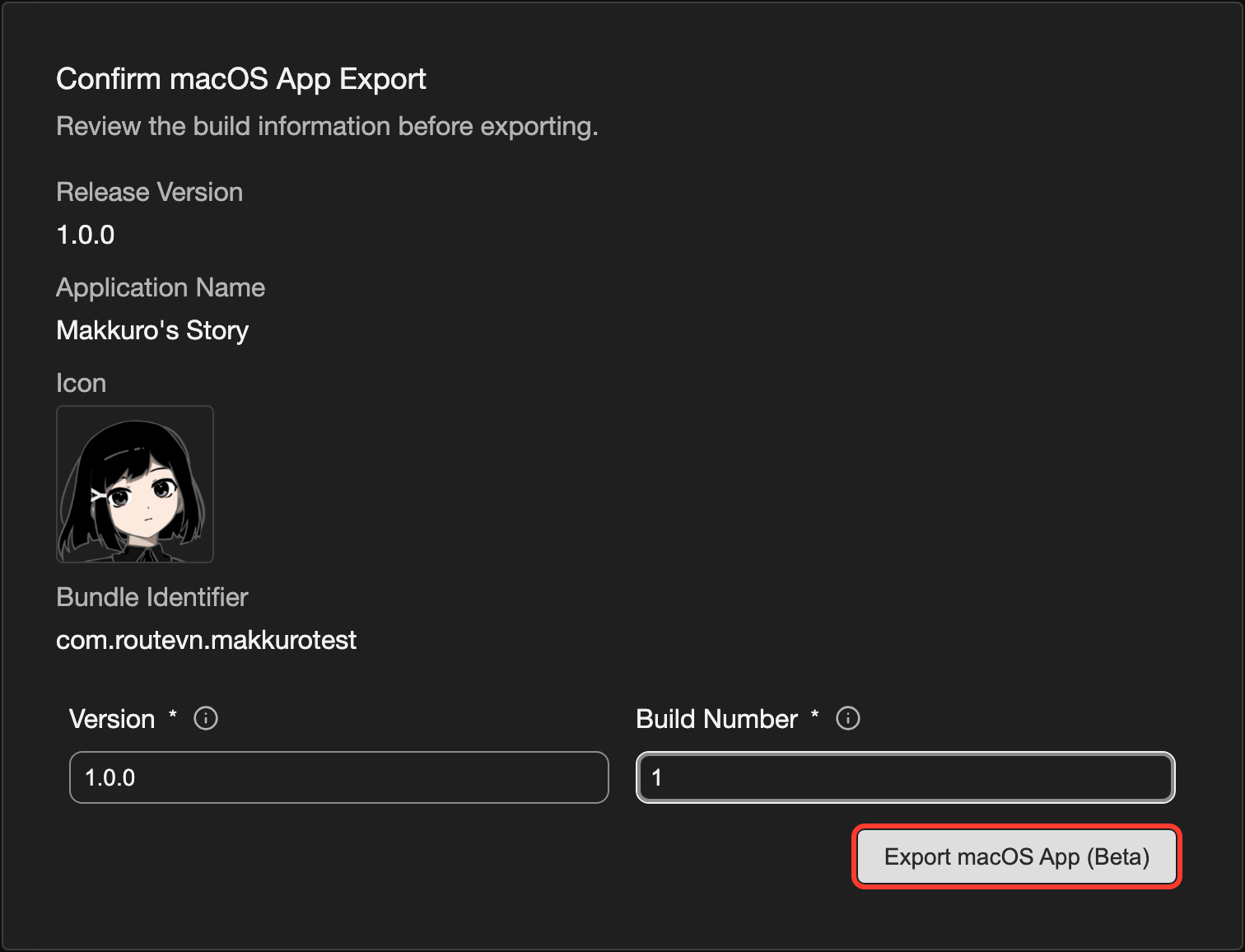
-
A save window opens. Choose a folder for the file.
-
Save the file.
A box shows the progress. Keep RouteVN Creator open. A large project can take several minutes.
When it is done, the Export completed box shows where the file is saved.
What you get
You get one ZIP file with the app inside.
- To read it, double-click the ZIP file. The Mac unpacks the app. Then double-click the app.
- The app runs on Macs with Apple chips and on Macs with Intel chips.
- To share your visual novel, send the ZIP file, or publish it. See Publish Overview.
Good to know
- Version is the number readers see, for example in Finder. Build Number counts your exports of that version.
- RouteVN Creator does not remember the build number. Write down the last one you used.
- The app is not signed with an Apple Developer ID, and it is not notarized. Notarized means Apple has checked the app. To learn about both, see Signing Mac Software with Developer ID from Apple.
- Because of this, macOS can stop the app the first time on another Mac. The reader opens System Settings, then Privacy & Security, and clicks Open Anyway.
- The identifier names the place where the app keeps a reader's saves. If you change it, readers lose their old saves. Choose it once and keep it.
- Use a different identifier for each visual novel you make.
- To change the name, icon, or identifier later, see Edit platform details.
Problems and fixes
- The macOS box is not in the Export for box. You are not on a Mac. A macOS app can only be made in the desktop app on a Mac.
- A Warning box says the version must contain three numeric components. In Version, type 3 numbers with periods between them, such as
1.0.0. Do not use letters. - A Warning box says the build number must be a positive integer. In Build Number, type a whole number above 0, such as
1. - A Warning box says to add a macOS bundle identifier. Go to Platform Details. Click the macOS tab. Click the pencil icon (the pencil-shaped button that opens editing). Type an identifier. Then export again.