Versions
A version is a saved copy of your visual novel at one moment. You must make a version before you can export.
Parts of the screen
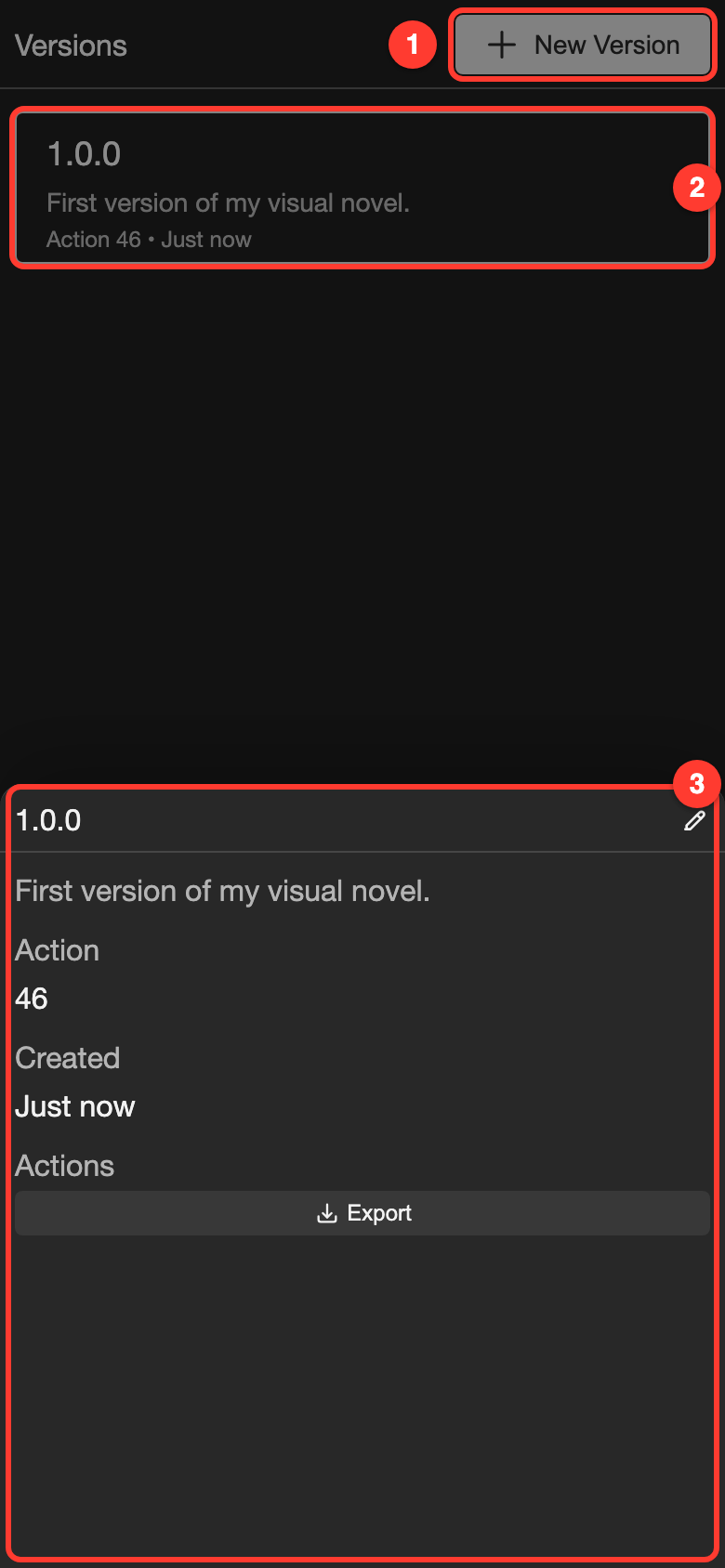
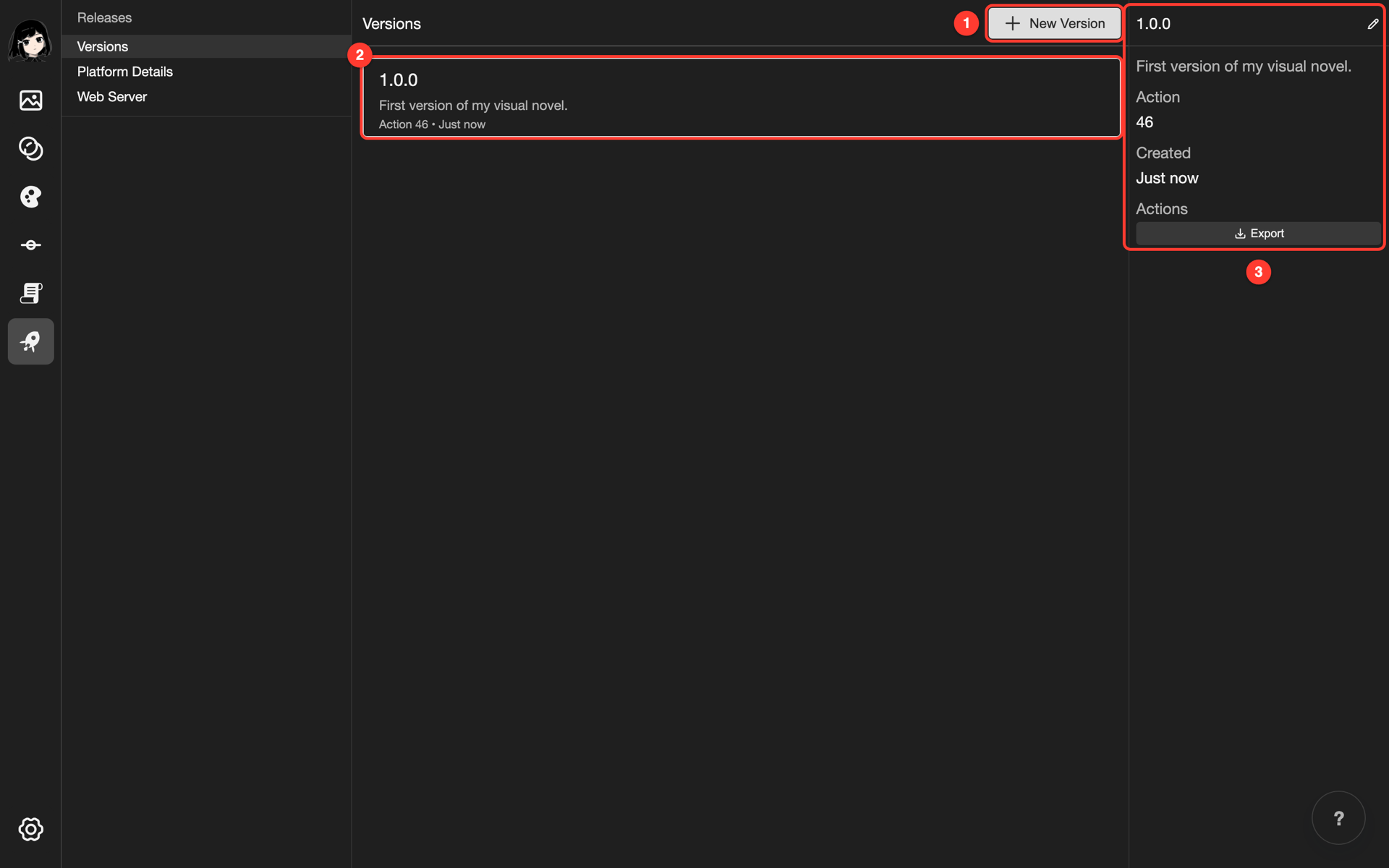
- New Version: the button that saves a new version.
- Version list: each row shows the name, the description, and when you made it.
- Details: the panel for the version you tapped. On a phone, it opens at the bottom. The Export button is here.
Open the Versions page
-
Open your project. See Projects.
-
Go to the Versions page.
- Phone or tablet: At the bottom, tap Release. Then tap Versions.
- Desktop: In the left bar, click the rocket button.
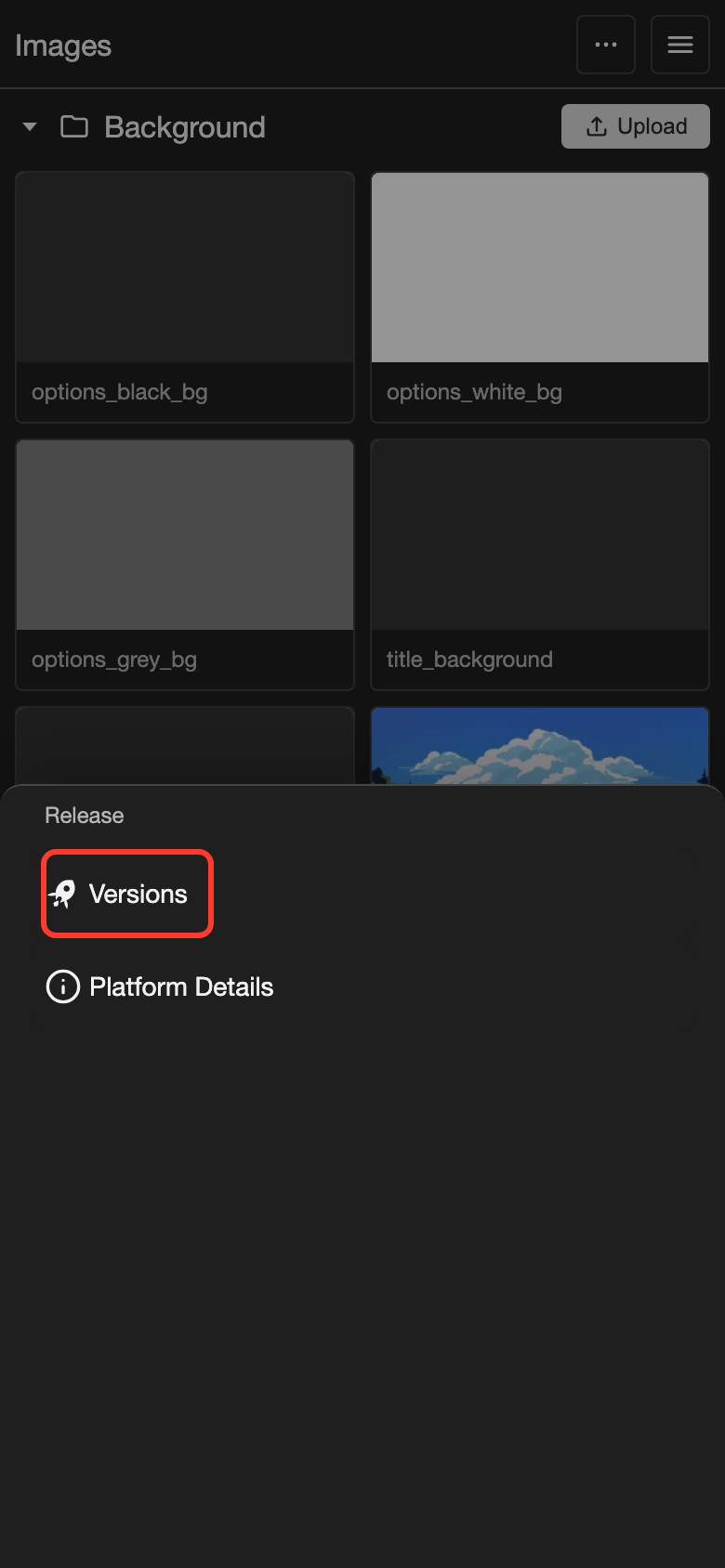
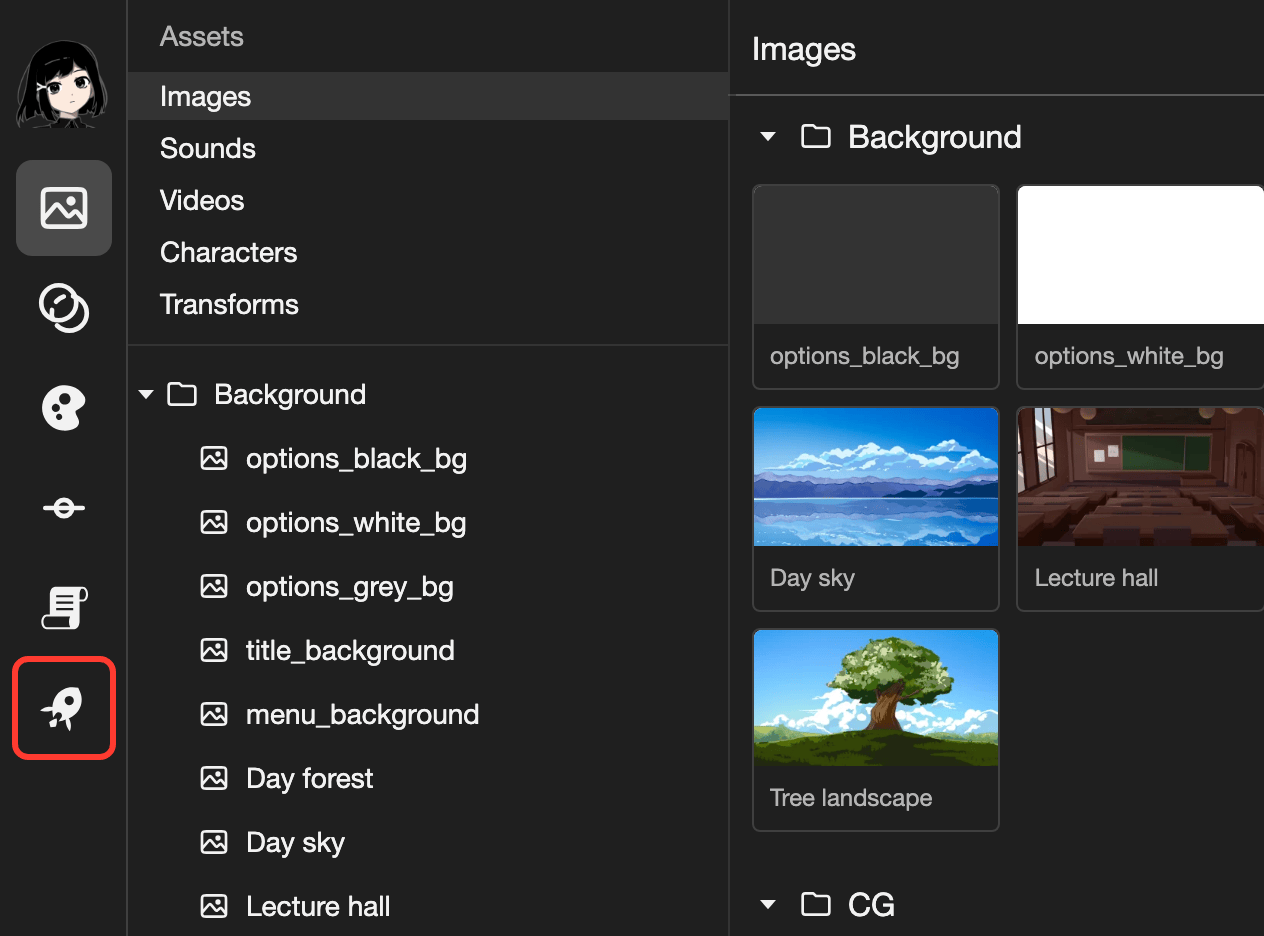
The Versions page opens.
Create a version
A version keeps your visual novel as it is now. Changes you make later are not in it.
-
At the top right, tap New Version. The New Version box opens.
-
In Name, type a name, for example
1.0.0. -
In Description, type a short note. This is optional.
-
In the box, tap New Version.
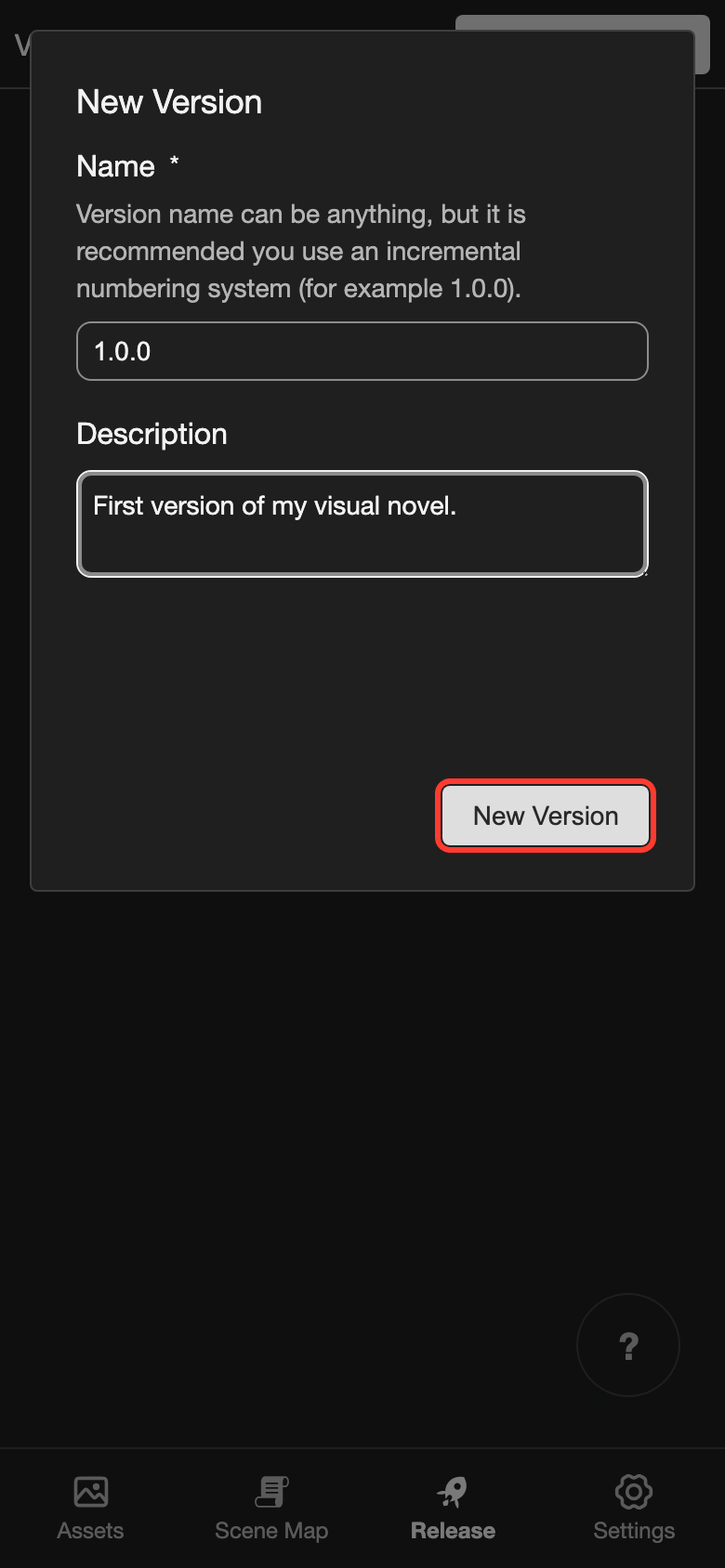
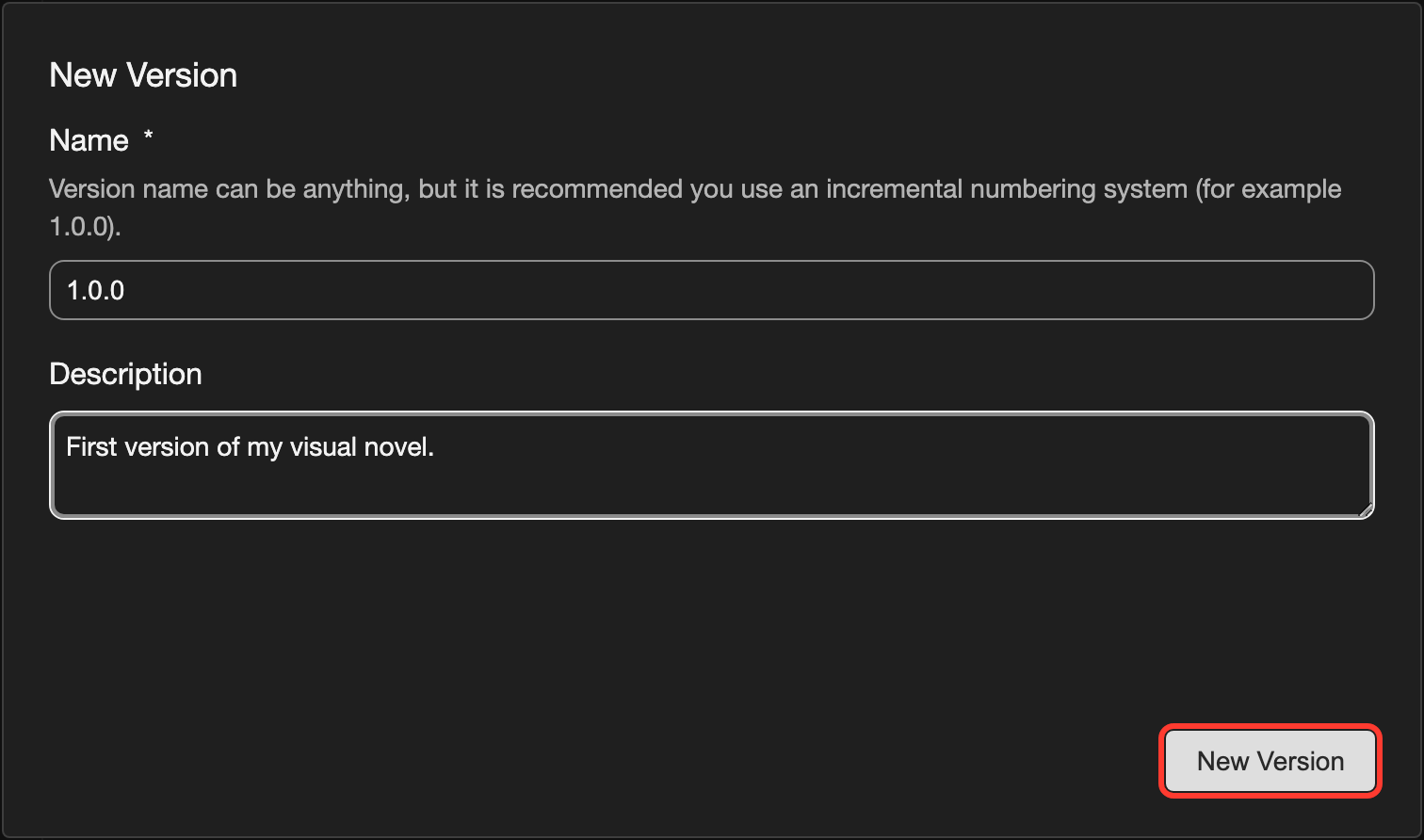
The new version appears in the list. Its details open.
Use a number that goes up each time, such as 1.0.0, then 1.1.0. This helps you tell your versions apart.
Edit or delete a version
-
Open the menu for the version.
- Phone or tablet: Long press (touch and hold) the version.
- Desktop: Right-click the version.
-
Tap Edit or Delete.
Edit opens the Edit Version box. Change the name or the description. Then tap Update.
Delete removes the version from the list at once. There is no confirm box. Your visual novel stays.
Export a version
Exporting turns a version into a visual novel that people can read. You choose a platform, such as Web or Android. A platform is the kind of device that a visual novel runs on.
-
In the list, tap the version you want to export. Its details open.
-
In the details, tap Export.
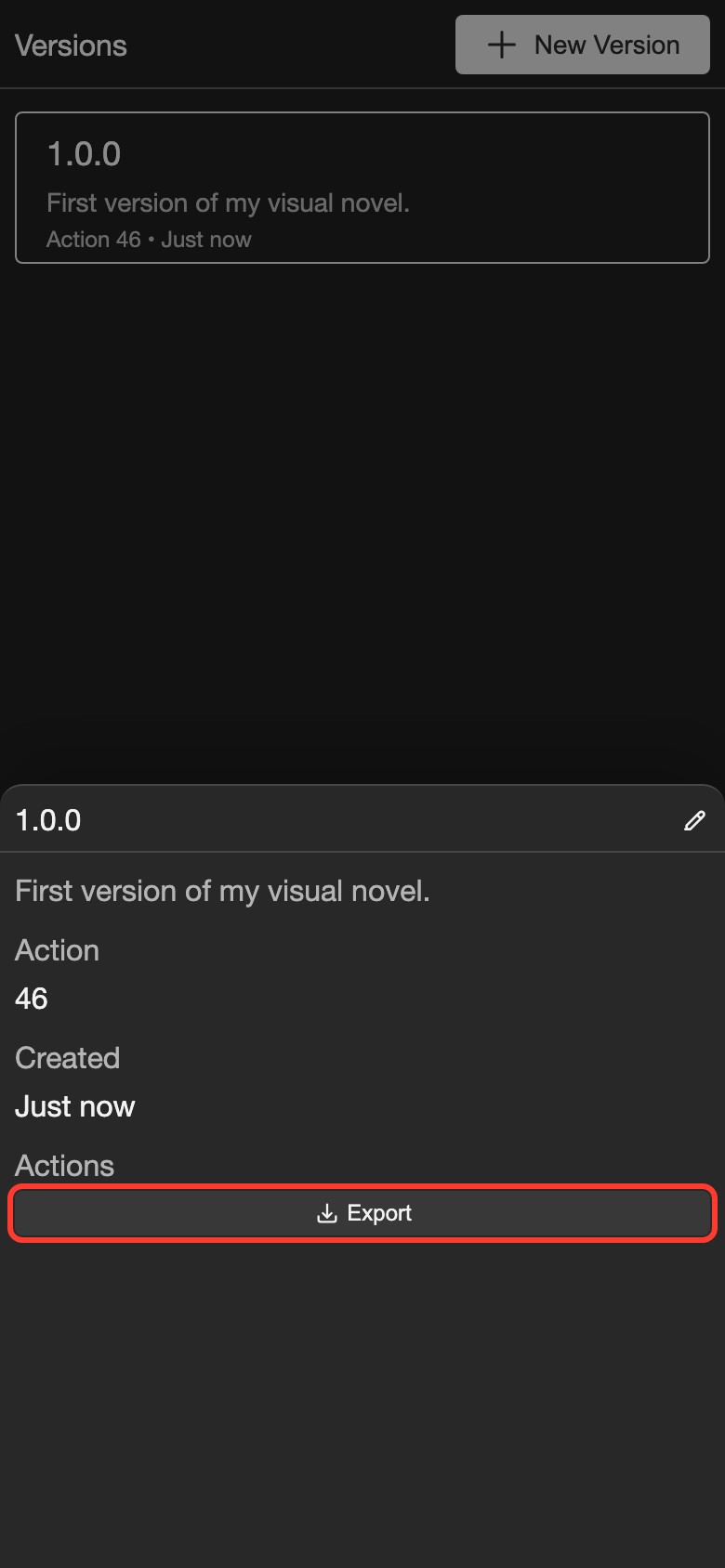
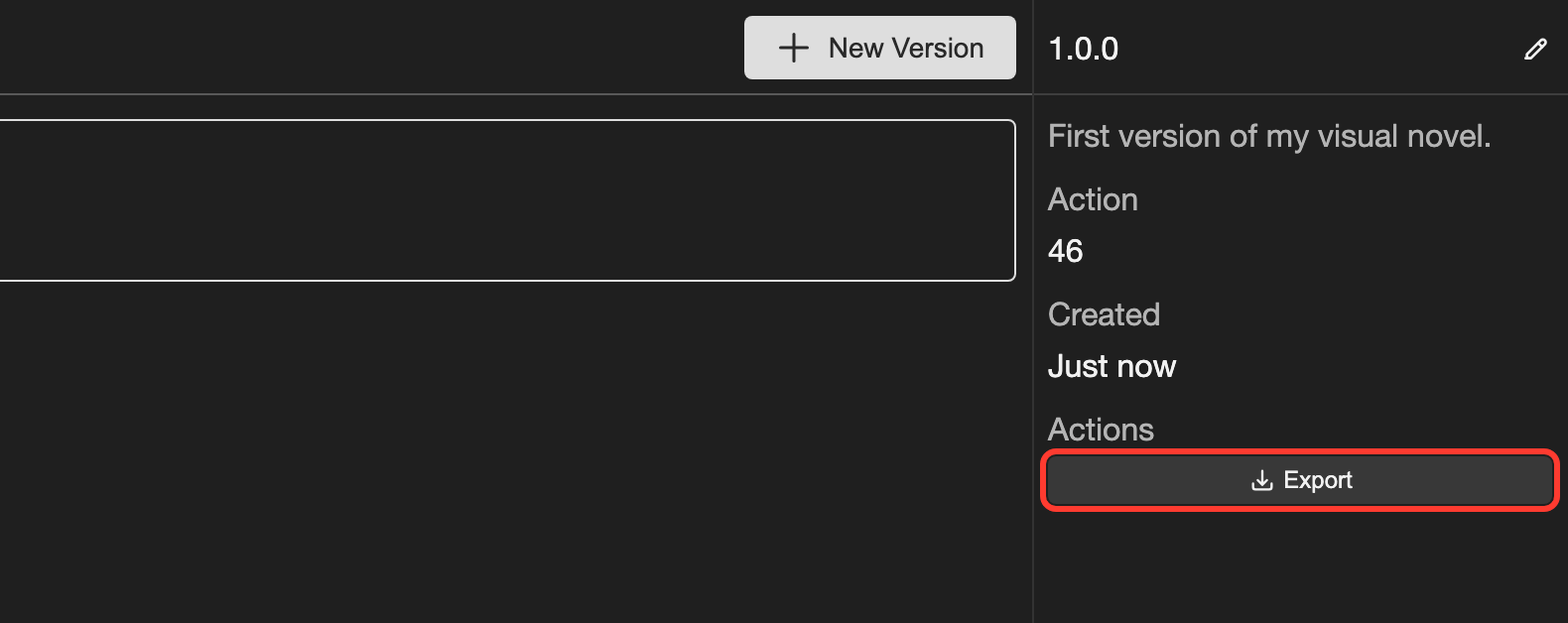
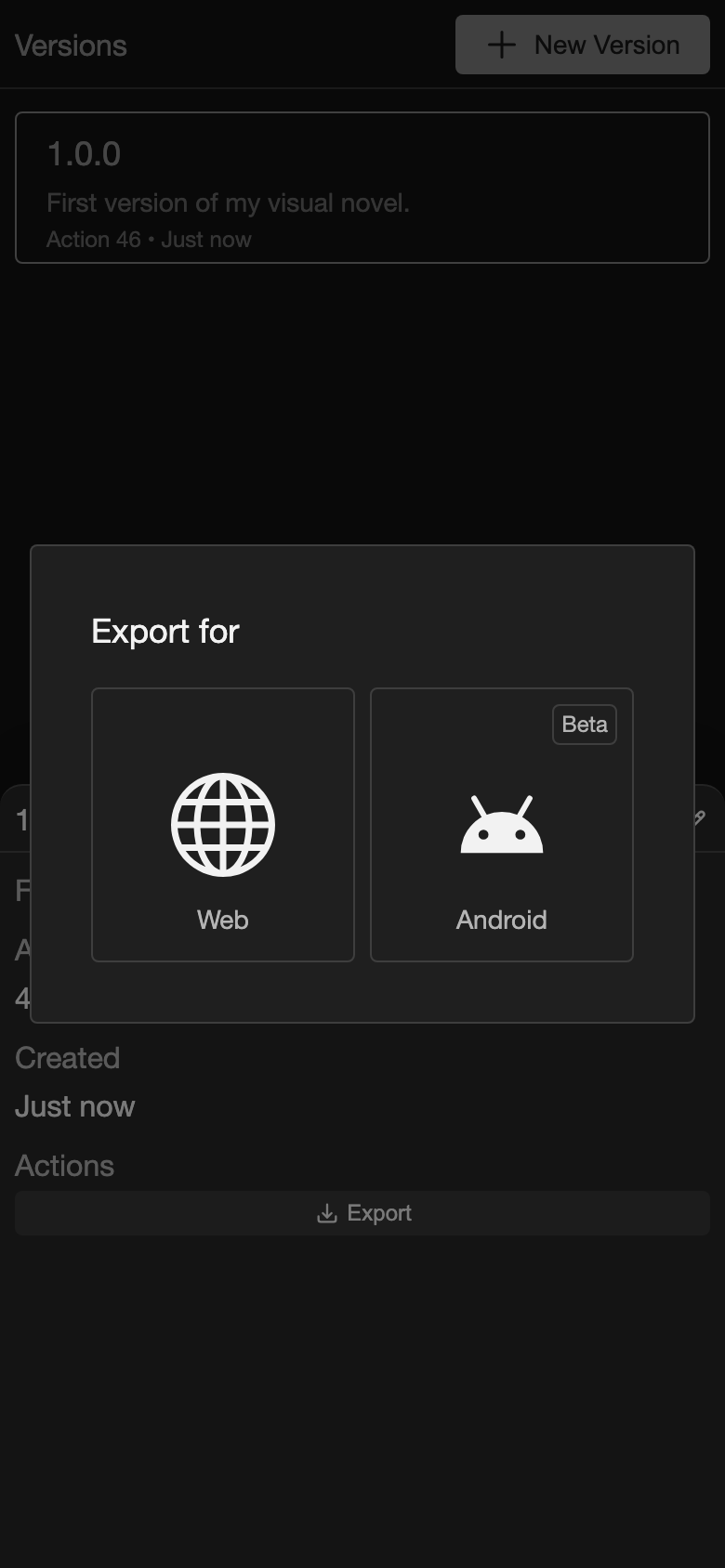
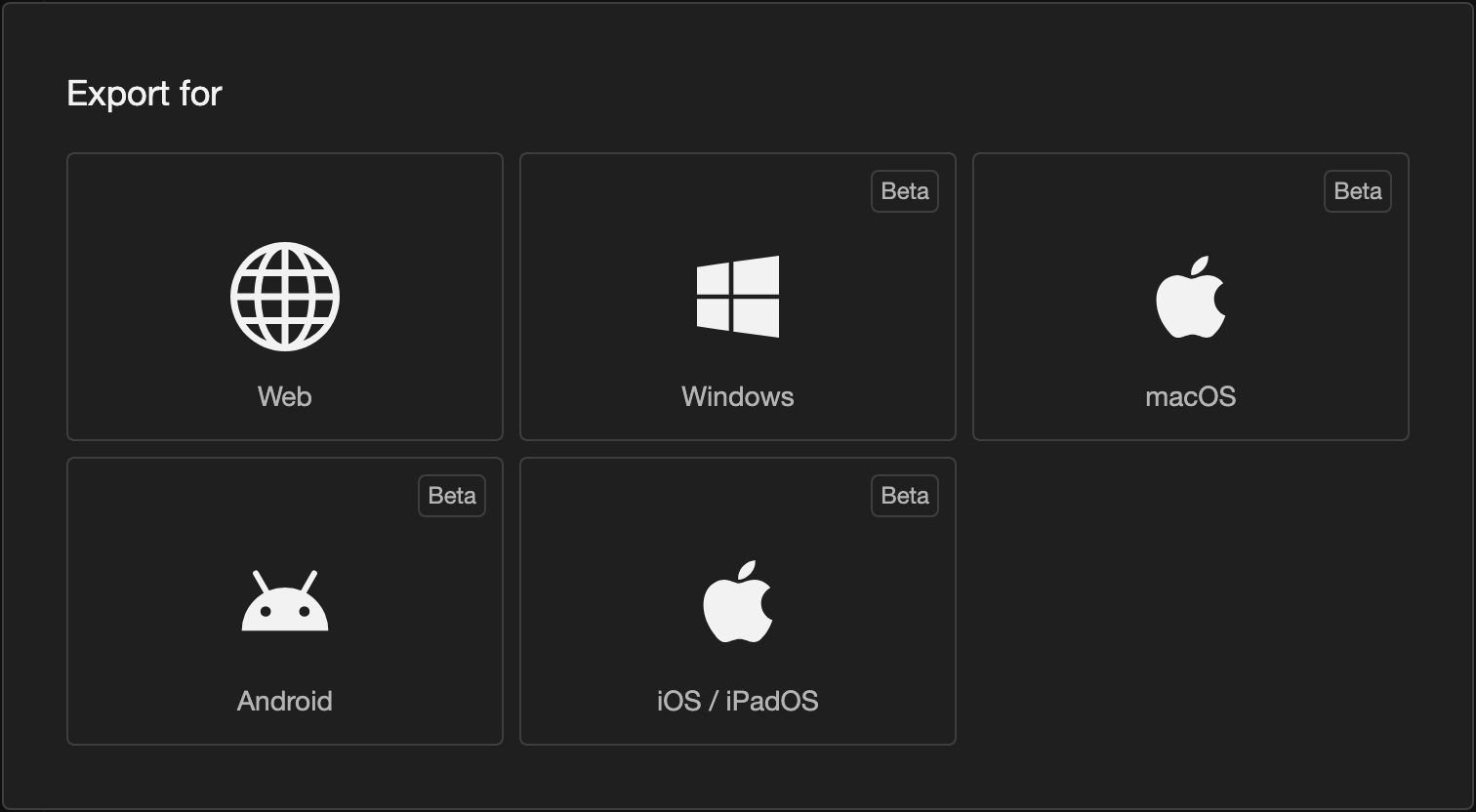
The Export for box opens. It shows one box for each platform your device can export.
-
Tap the platform you want.
The next steps are different for each platform. Go to the page for your platform:
To see which platforms your device can export, see Export Overview.
Good to know
- A box with a Beta label is a new export that is still being tested.
- Deleting a version does not delete the files you already exported.
- To close the Export for box without exporting, tap outside the box.
Problems and fixes
- A Warning box says to add something in Platform Details. Open Platform Details. Add the missing item, such as an icon. Then export again.
- The platform I want is not in the Export for box. Your device cannot export it. See What your device can export.