Confirm Dialog Layout
A Confirm Dialog layout asks the reader a question, with OK and Cancel. For example, it can ask "Go back to the title?" before the reader leaves.
A button in another layout opens it, with the Show Confirm Dialog action. The dialog shows on top of everything. The reader must tap OK or Cancel before they can tap anything else.
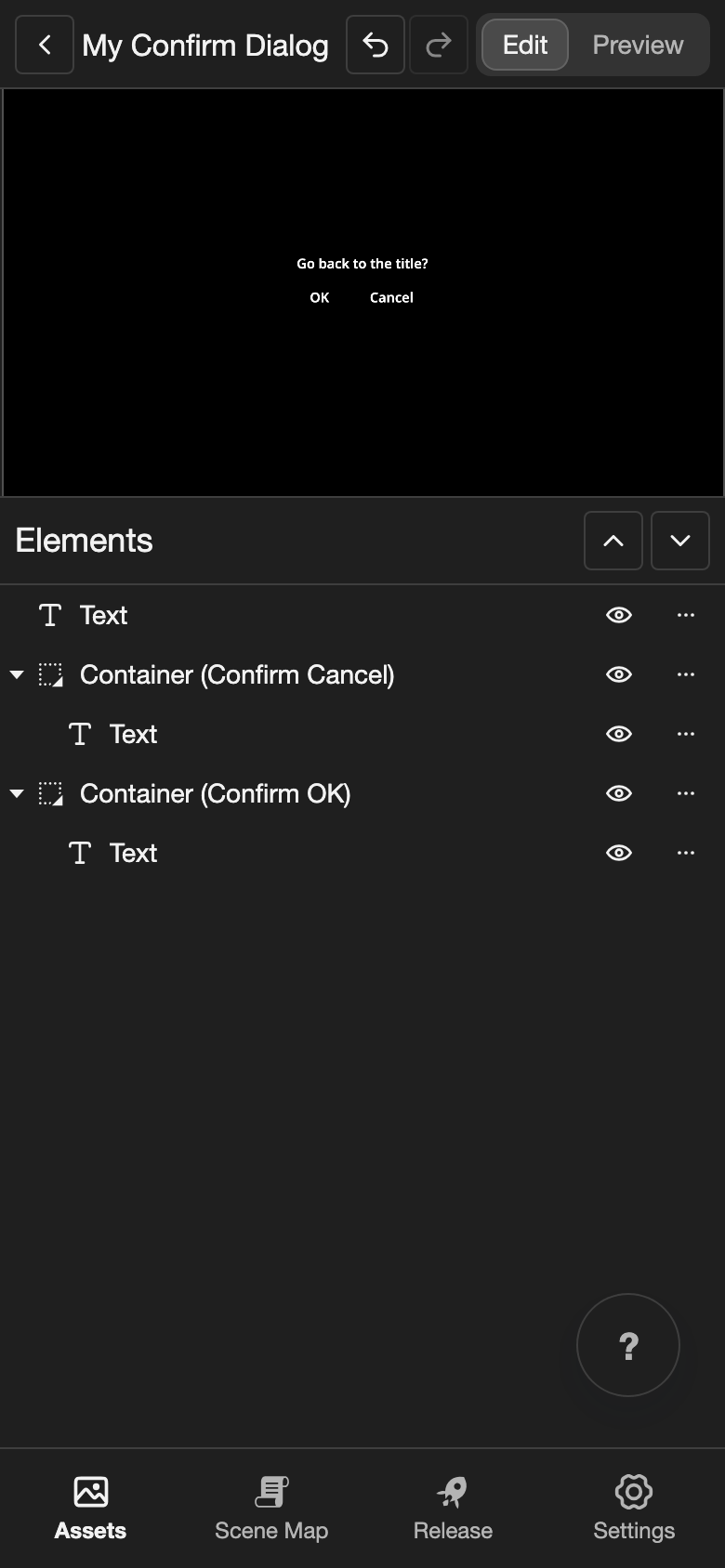
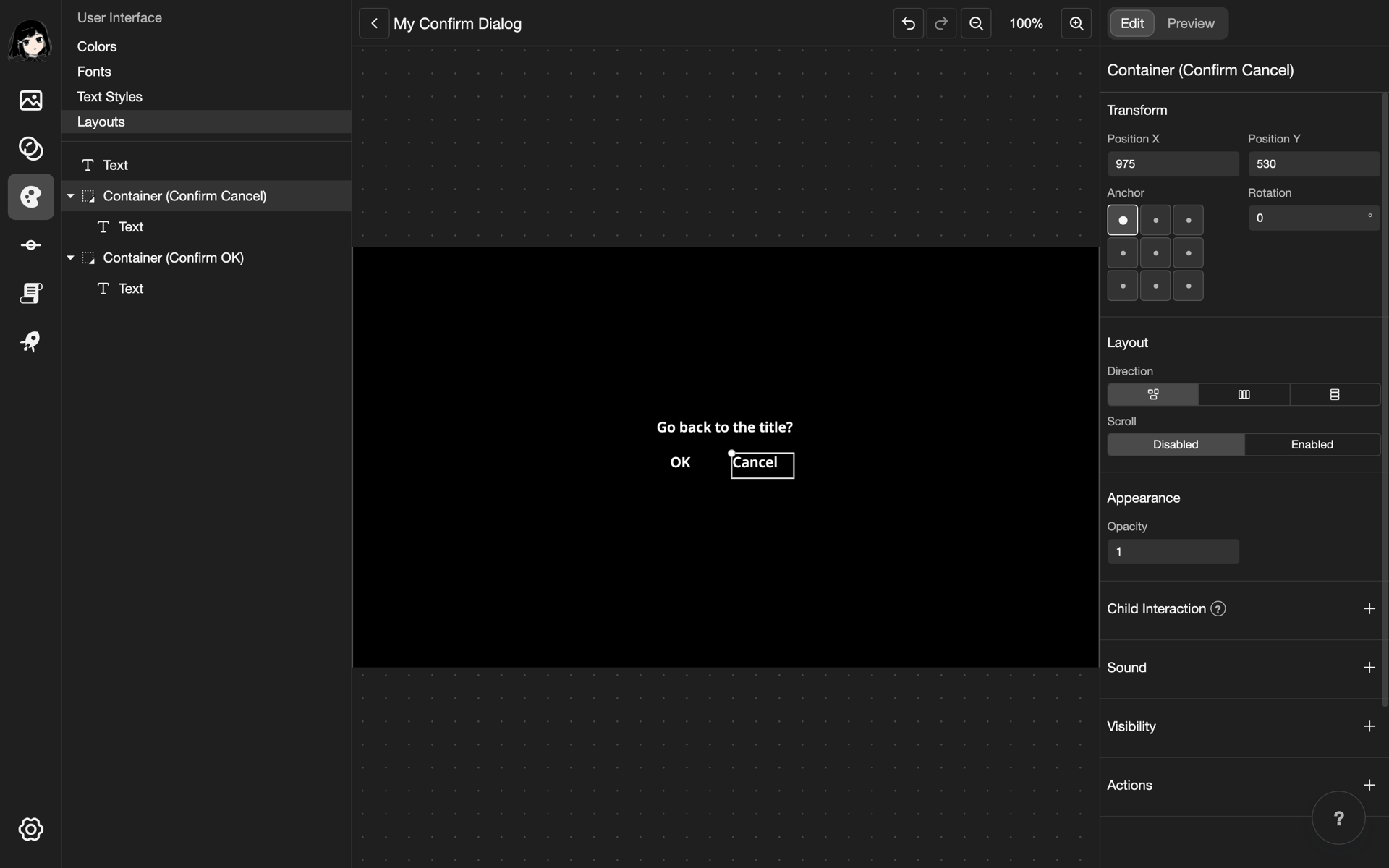
This example makes a dialog in a new layout called My Confirm Dialog.
Create the layout
- Create a layout. Under Layout Type, choose Confirm Dialog. See Create a layout.
- Open the new layout. The Elements list is empty.
Add OK and Cancel
-
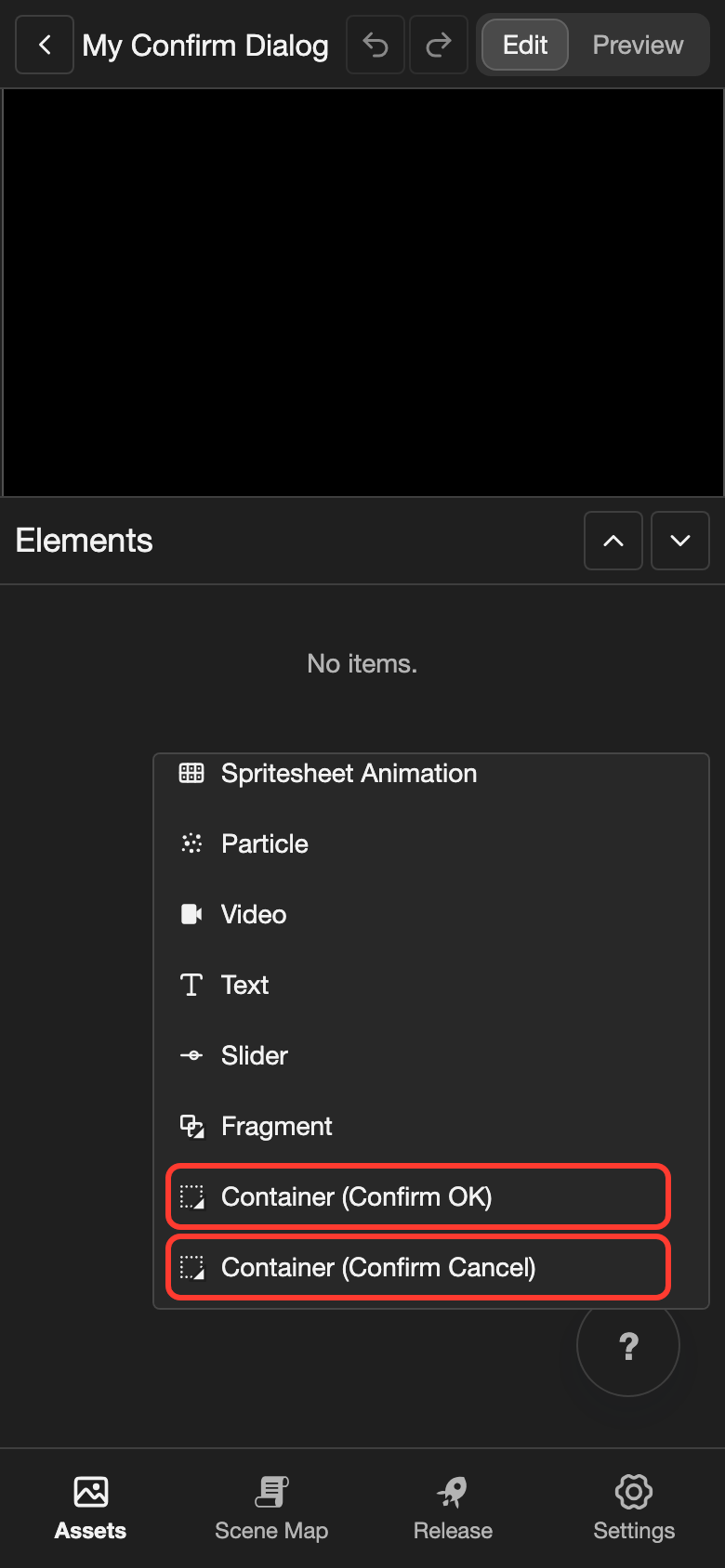
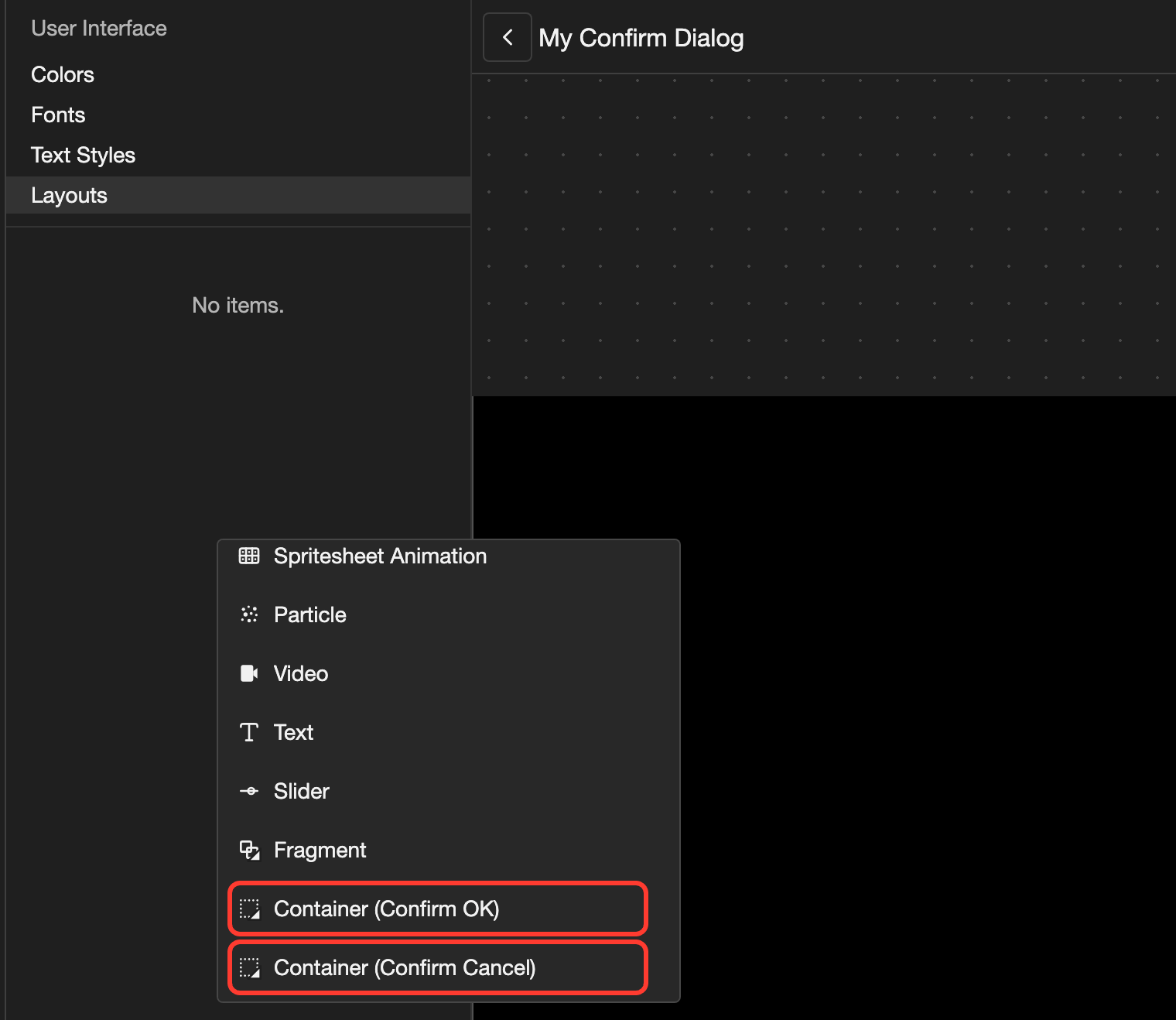
Open the Add Element menu.
- Phone or tablet: Long press (touch and hold) the empty space under the Elements list.
- Desktop: Right-click (click with the right mouse button) the empty space under the Elements list.
-
Scroll down the menu. Tap Container (Confirm OK).
-
Open the Add Element menu again. Scroll down, and tap Container (Confirm Cancel).
The 2 containers are invisible. To show the words OK and Cancel, put a Text in each one:
-
Open the menu of Container (Confirm OK).
- Phone or tablet: In the Elements list, tap the three dots button next to Container (Confirm OK).
- Desktop: In the Elements list, right-click Container (Confirm OK).
-
Tap Text.
-
Change the words of the new Text to
OK. See Change the words. -
Do steps 1 to 3 for Container (Confirm Cancel), with the words
Cancel.
Add the question
- Open the Add Element menu from the empty space under the Elements list. Tap Text.
- Change the words of the new Text to
Go back to the title?.
Place the parts
All parts start at the top left of the canvas. Move each one. In the Elements list, tap the part. Then change Position X and Position Y. To change a number, tap it, type the new number, and tap Submit.
| Element | Position X | Position Y |
|---|---|---|
| Text (the question) | 780 |
440 |
| Container (Confirm OK) | 815 |
530 |
| Container (Confirm Cancel) | 975 |
530 |
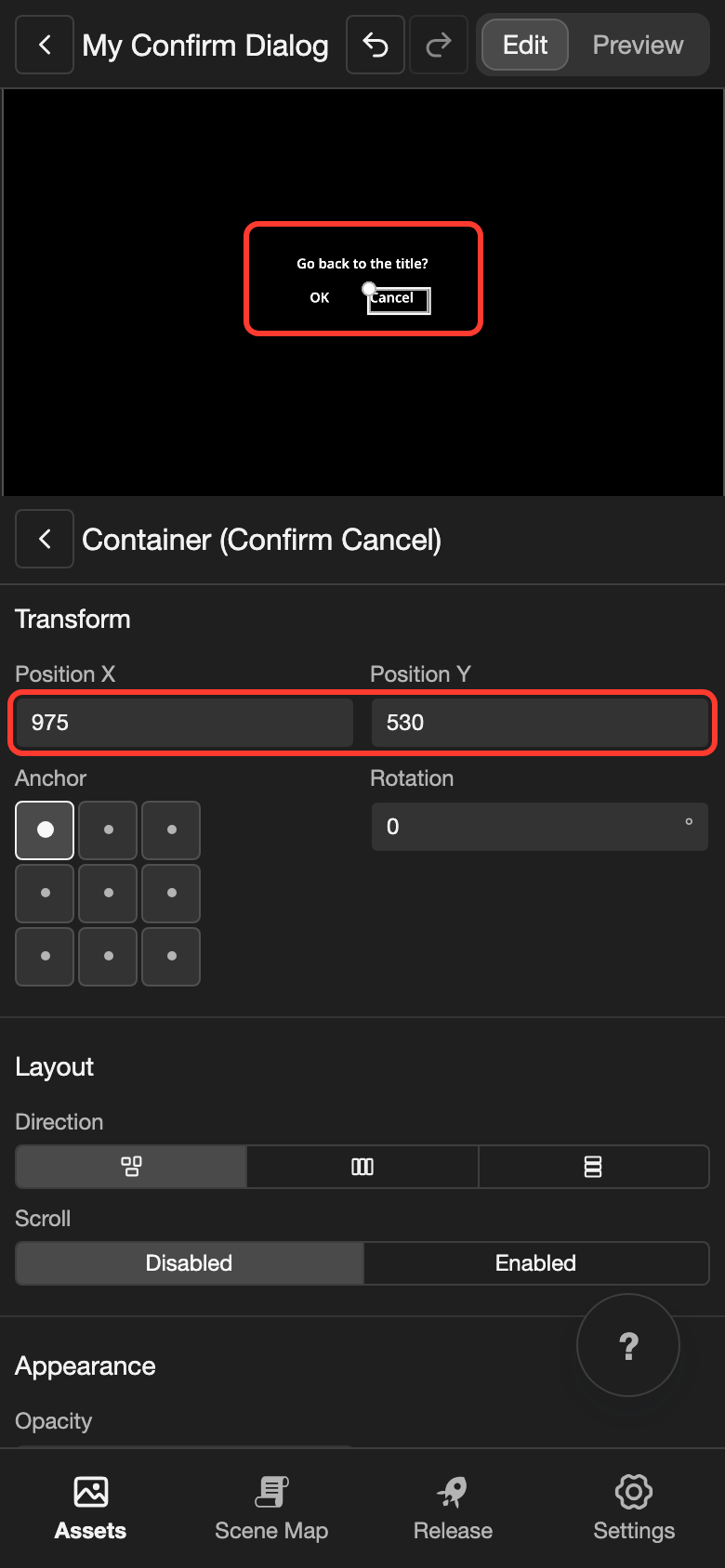
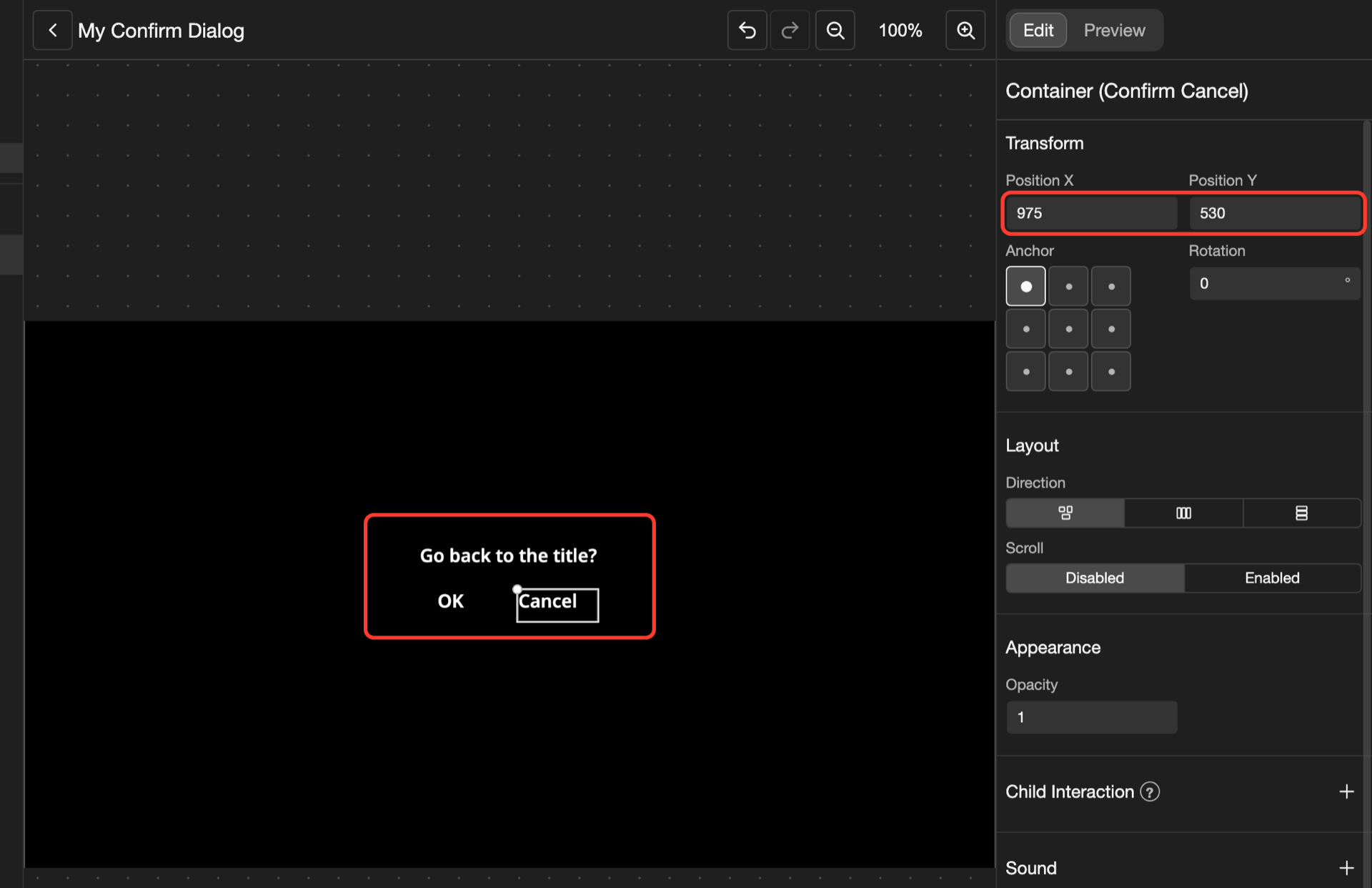
The question is now in the middle of the screen. OK and Cancel are under it.
Open the dialog from a button
Give a button in another layout, such as a menu, the Show Confirm Dialog action. To learn more about actions, see Change an element's settings.
-
Open the layout with the button. In the Elements list, tap the button. Its settings open.
-
Next to Actions, tap +. Then tap Click. The Actions box opens.
-
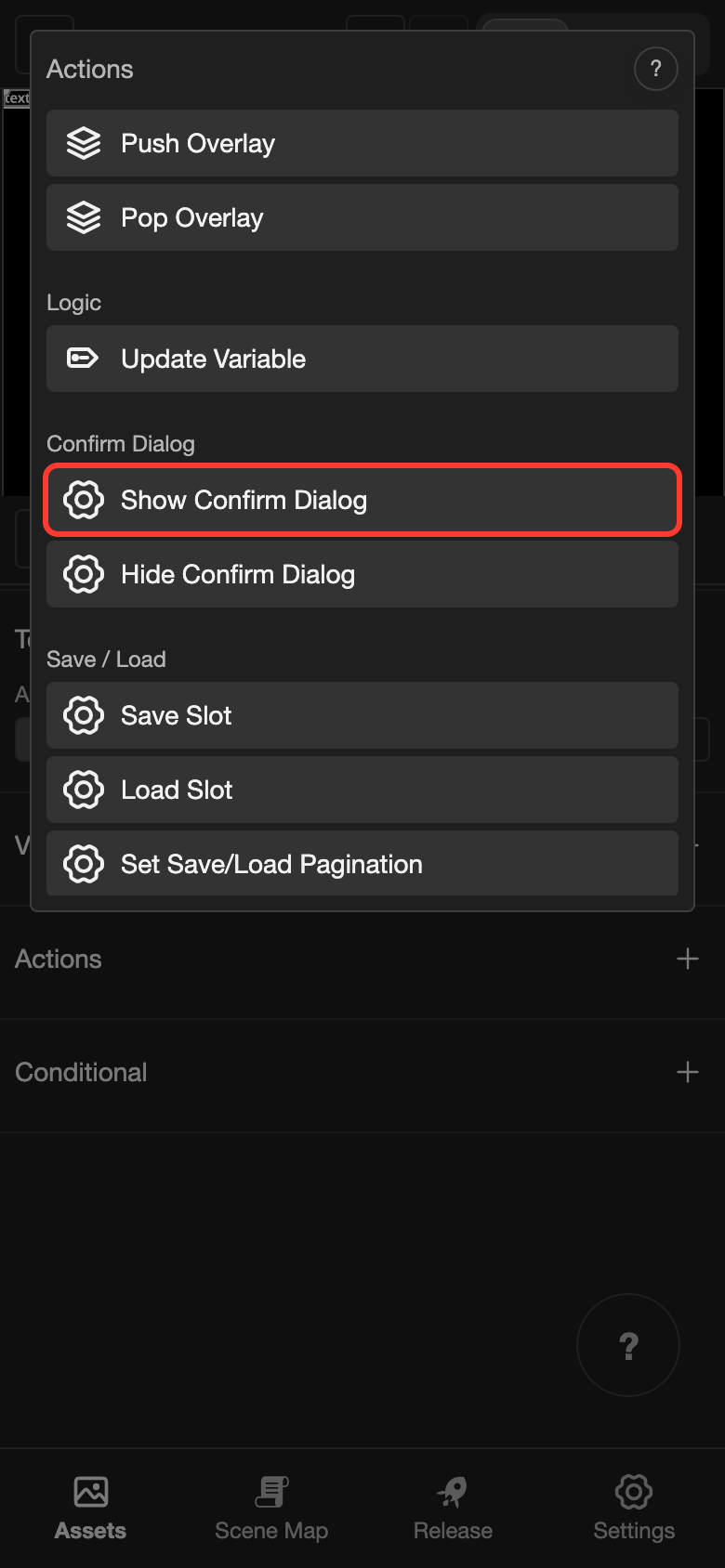
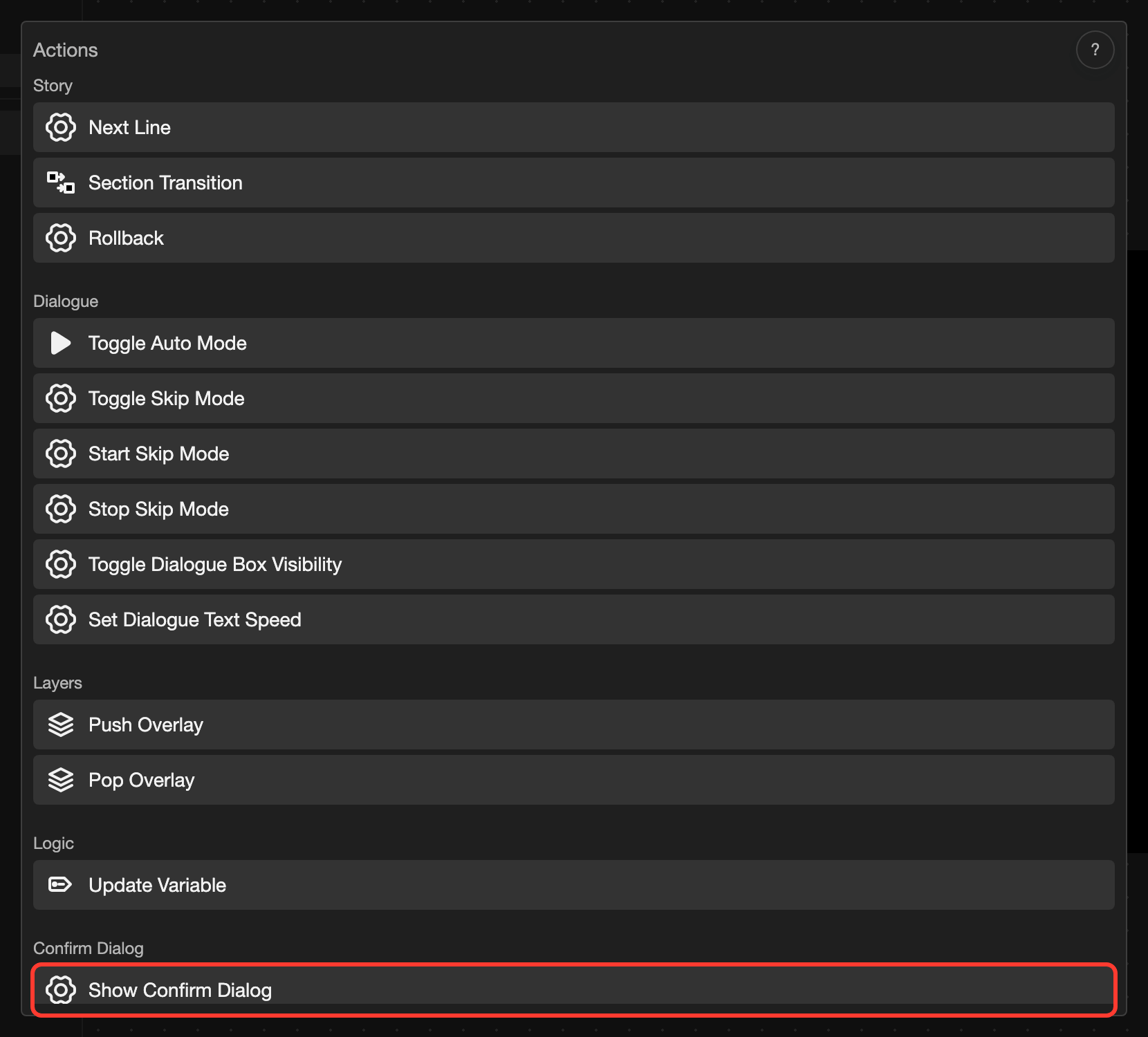
Scroll down. Under Confirm Dialog, tap Show Confirm Dialog.
-
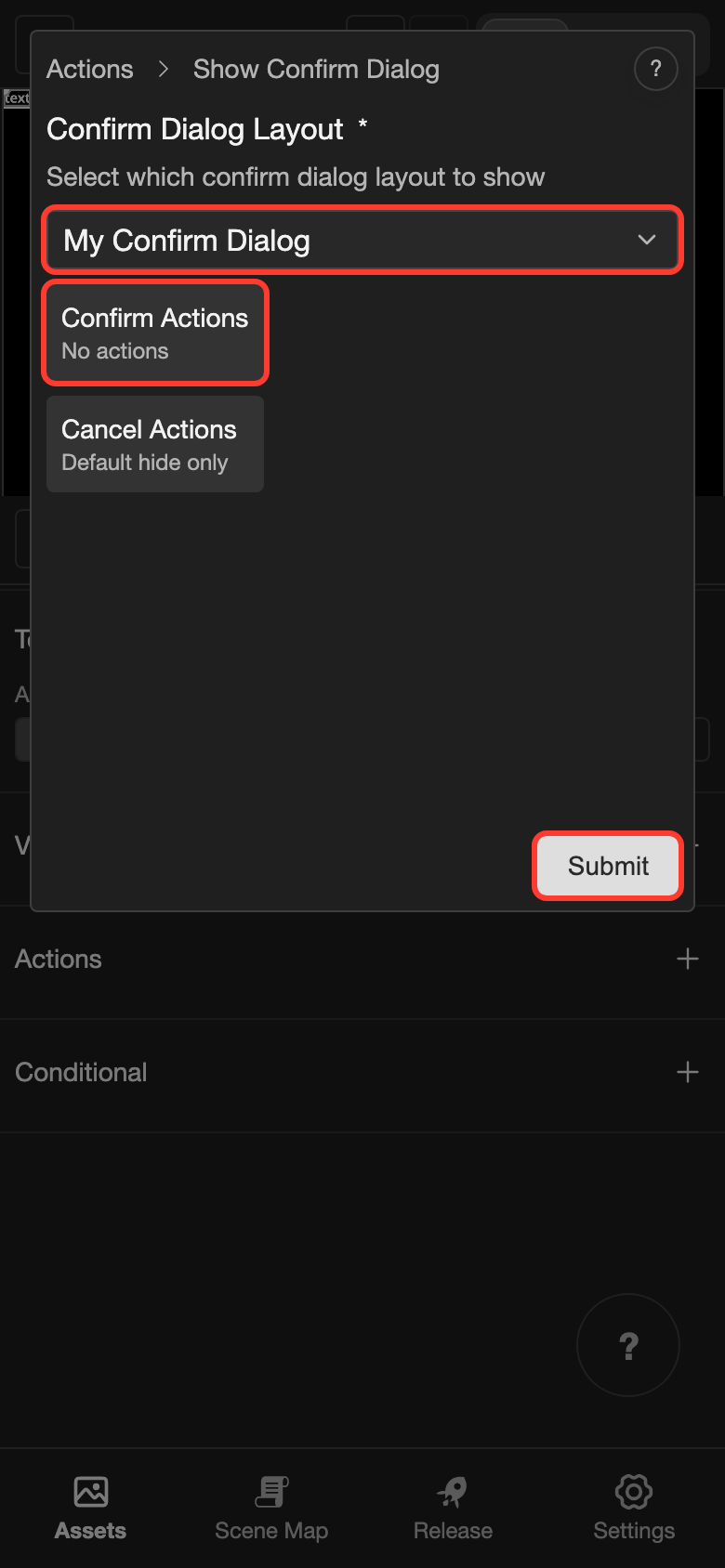
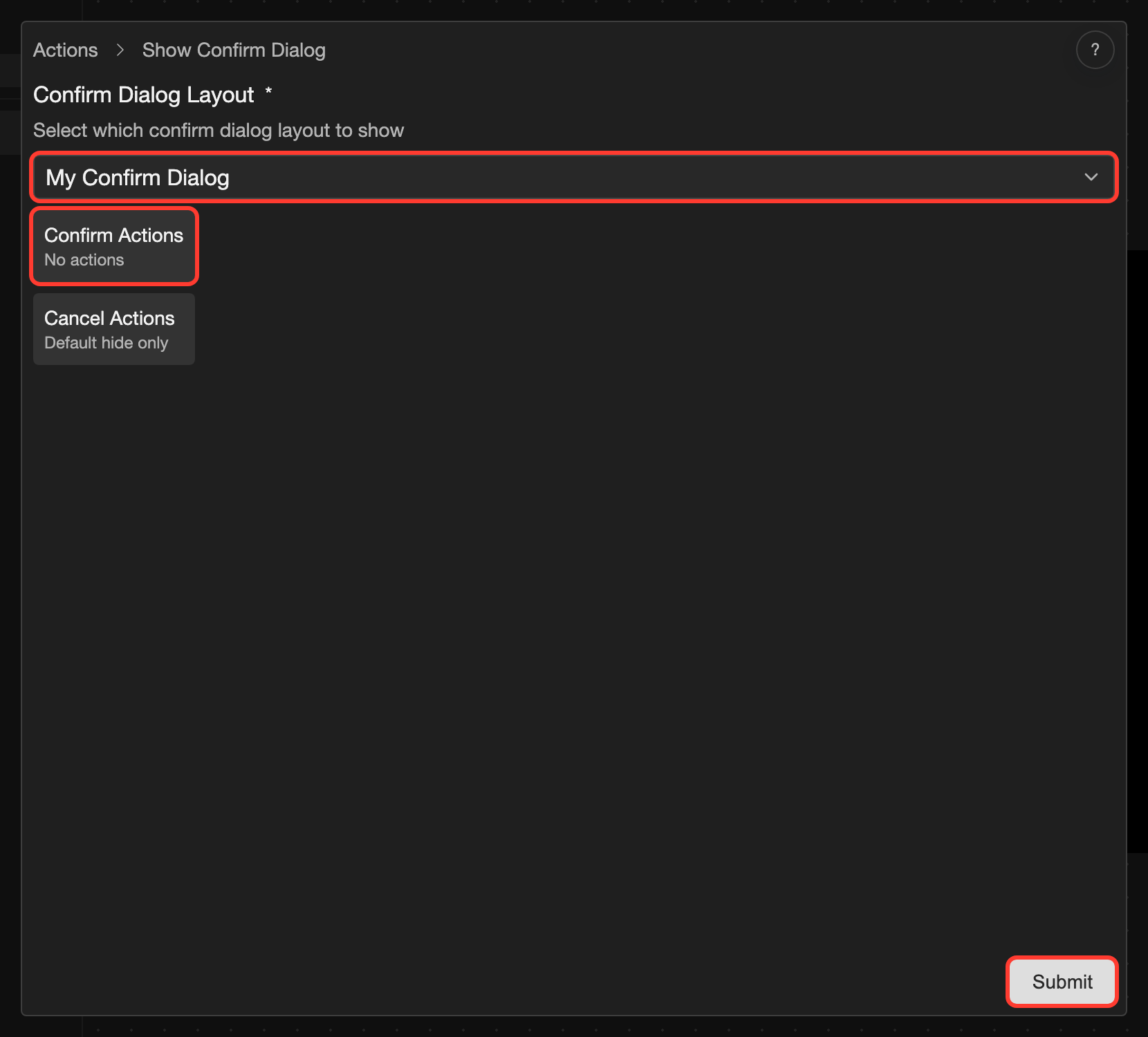
Under Confirm Dialog Layout, choose your layout, such as My Confirm Dialog.
-
Tap Confirm Actions. Tap +, and add what happens after OK. For example, Section Transition moves the story to another section. Then tap Confirm.
-
Tap Submit.
Special elements
| Element | What it does |
|---|---|
| Container (Confirm OK) | A tap on it closes the dialog. Then the Confirm Actions run. |
| Container (Confirm Cancel) | A tap on it closes the dialog. It also runs the Cancel Actions, if you add any. |
Both containers are invisible. Put a Text or an Image inside each one, so the reader can see it. Their other settings work like the settings of a Container.
Good to know
- Cancel Actions shows Default hide only. This means that Cancel only closes the dialog. You do not need to add anything.
- The dialog has no box by itself. In your visual novel, the screen behind it still shows. To give it a box, add an Image before you add the other parts. A new element goes first in the list, so the parts that you add later show in front of the picture.