Section Transition
Section Transition moves the visual novel to another section. The section can be in the same scene or in another scene. The visual novel starts at the first line of that section.
A scene has sections, and a section has lines. See Scene Editor. Choices can make the same move. There it is called Move to section. Conditional branches can make it too.
Add a section to move to
The action needs a section to move to. If your scene has only Section 1, add Section 2 first:
- Next to Section 1, tap the three dots button (the button with three dots that opens more options).
- Tap Add section below. The Create Section box opens. Section Name already shows Section 2.
- Tap Create.
Add a Section Transition
In this example, the visual novel moves from the last line of Section 1 to Section 2.
-
Tap the last line of Section 1.
-
Open the Actions menu.
- Phone or tablet: In the toolbar at the bottom, tap the + button.
- Desktop: On the right, under Presentation state, click the + button.
-
Under Navigation, tap Section Transition.
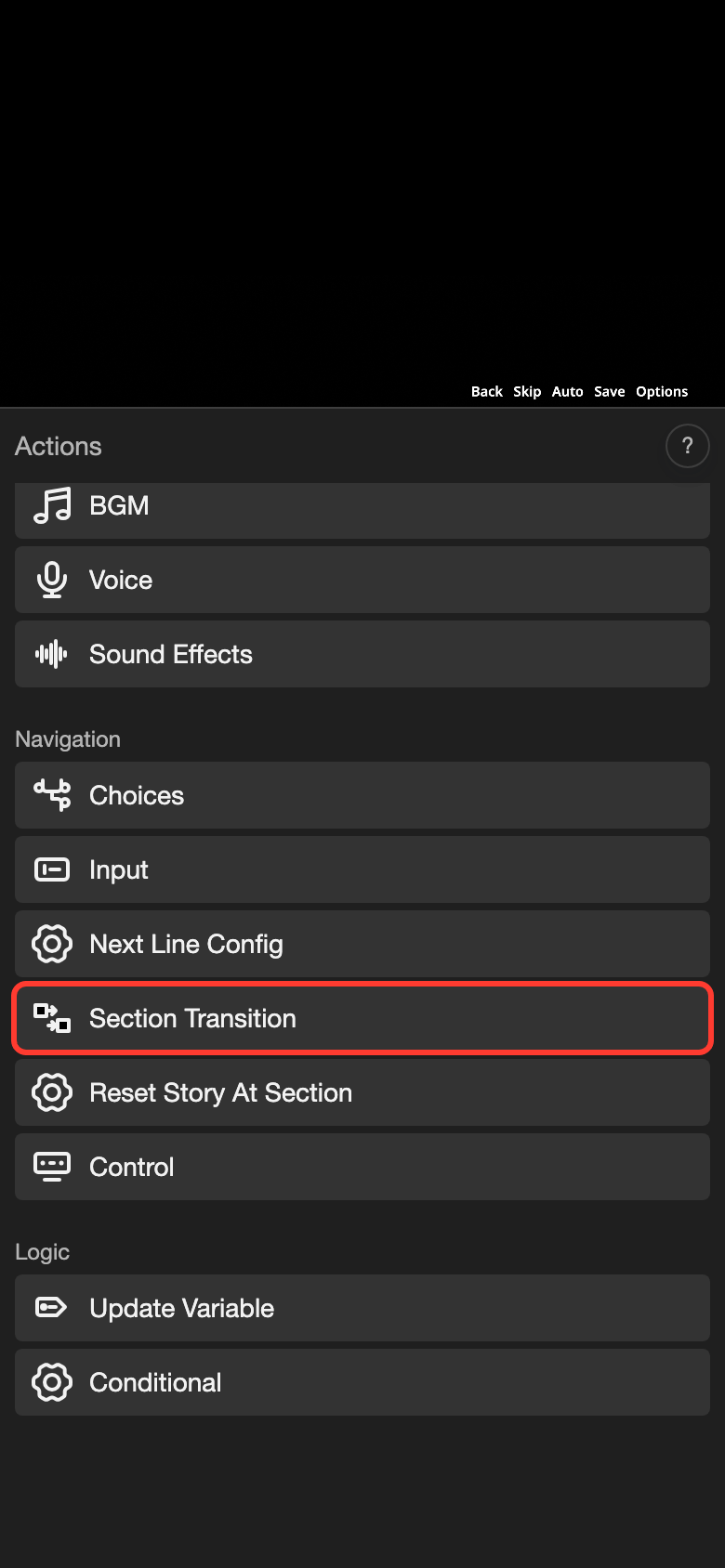
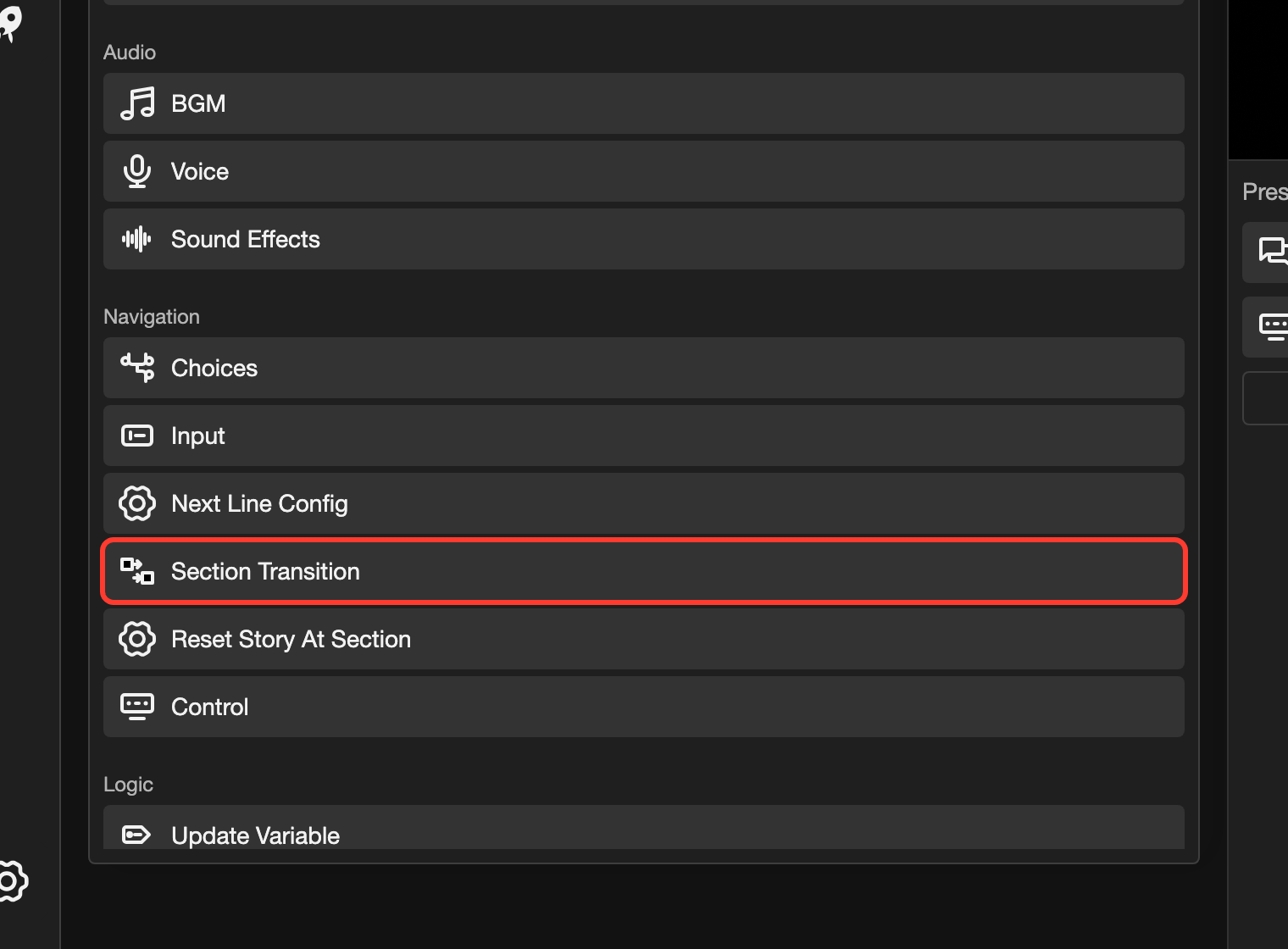
The Section Transition box opens.
-
Tap the Section field.
-
In the list, tap Section 2.
-
Tap Submit.
A small icon with two boxes and an arrow appears at the right end of the line.
Settings
The numbers match the picture.
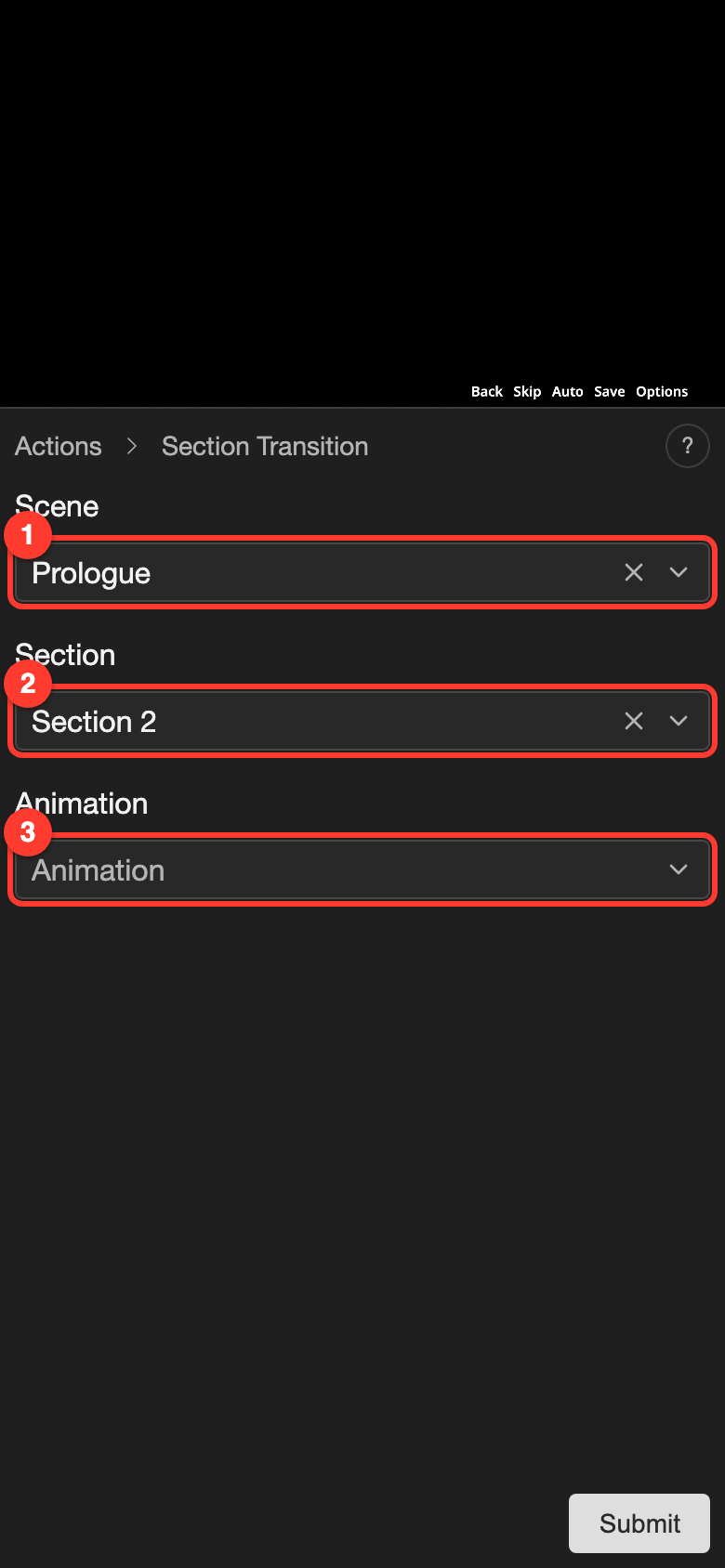
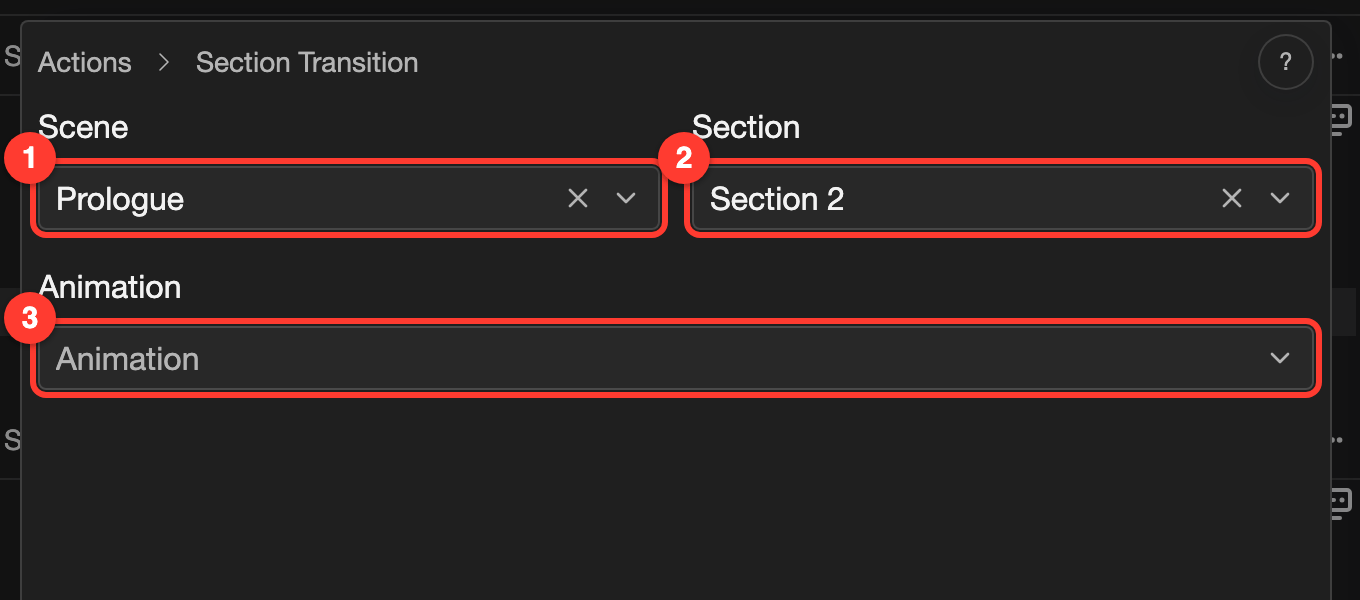
| Mark | Setting | What it does |
|---|---|---|
| 1 | Scene | The scene that has the target section. It starts on the scene you are in. |
| 2 | Section | The section to move to. The list shows the sections of the chosen scene. |
| 3 | Animation | An optional transition animation. After you choose one, Playback Speed (0.1 to 3) and Continuity (Single Line or Persistent) appear. |
To move to another scene, choose that scene in Scene first. Then choose the section. The Scene Map then shows an arrow between the two scenes.
What the reader sees
- The visual novel moves to the first line of the target section.
- The reader does not stop on the line with the transition. Its dialogue is not shown.
- Other actions on that line, such as Update Variable, run first.
- Variables keep their values. Reset Story At Section moves the same way, but it also resets the story, including variables.
- The new section does not carry over the old screen. Its own lines set the background and characters. When you create a section, Inherit is chosen at first. It copies the screen from the selected line into the first line of the new section.
Avoid loops
A section can move to itself. The reader then repeats the section. This works only if the reader has something to do first, such as reading a line.
If the transitions repeat with nothing for the reader to do, Preview stops. It shows "Transitions kept repeating without �1�." For example, line 1 of Section 2 moves to Section 2.
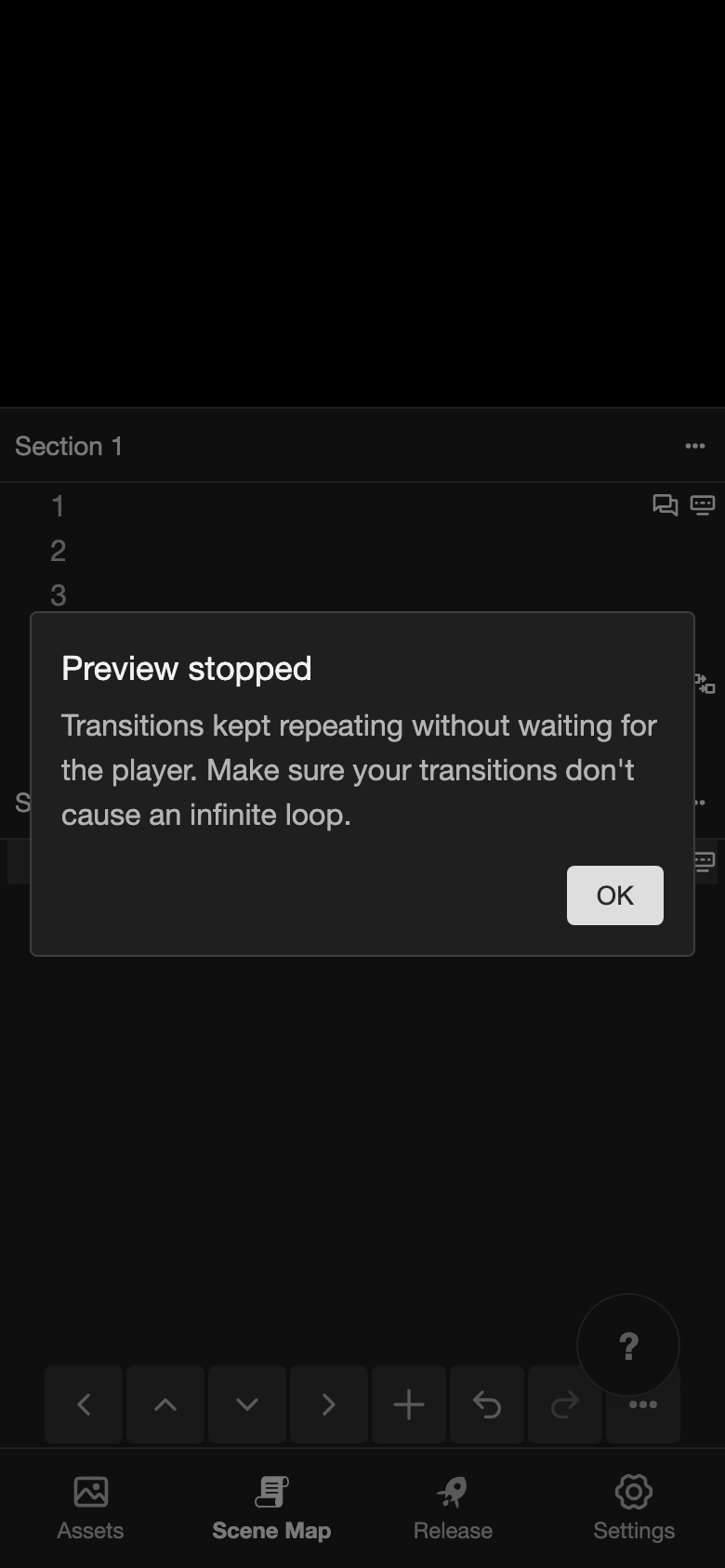
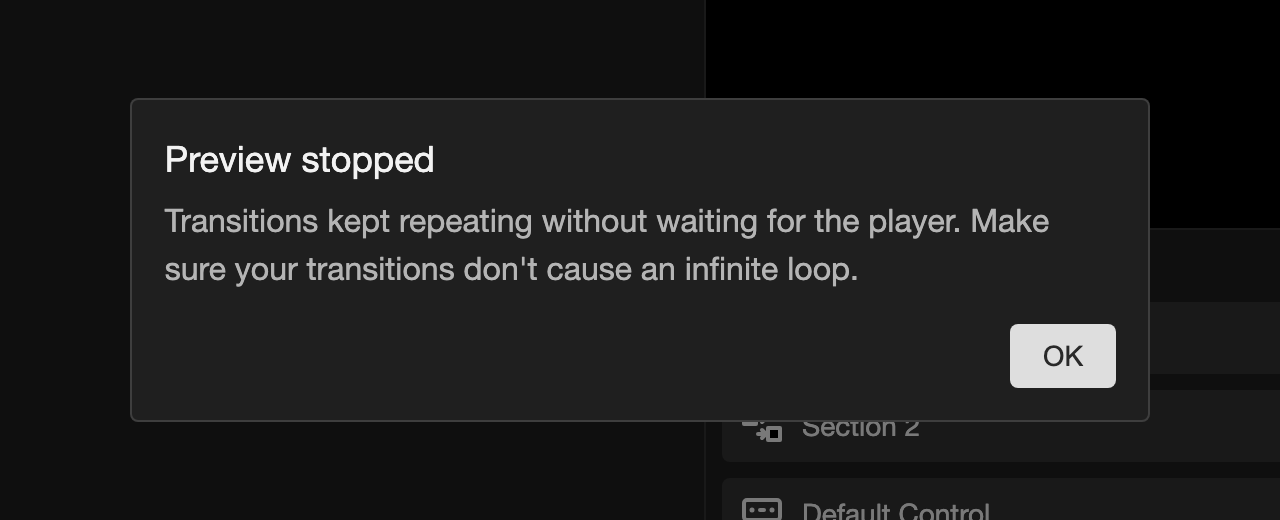
To fix this, give the reader a way out. Add a choice with Move to section, or move to a different section.