Text
A text shows words on the screen, such as a title or the words on a button. A text style sets how the words look, such as their font, size, and color.
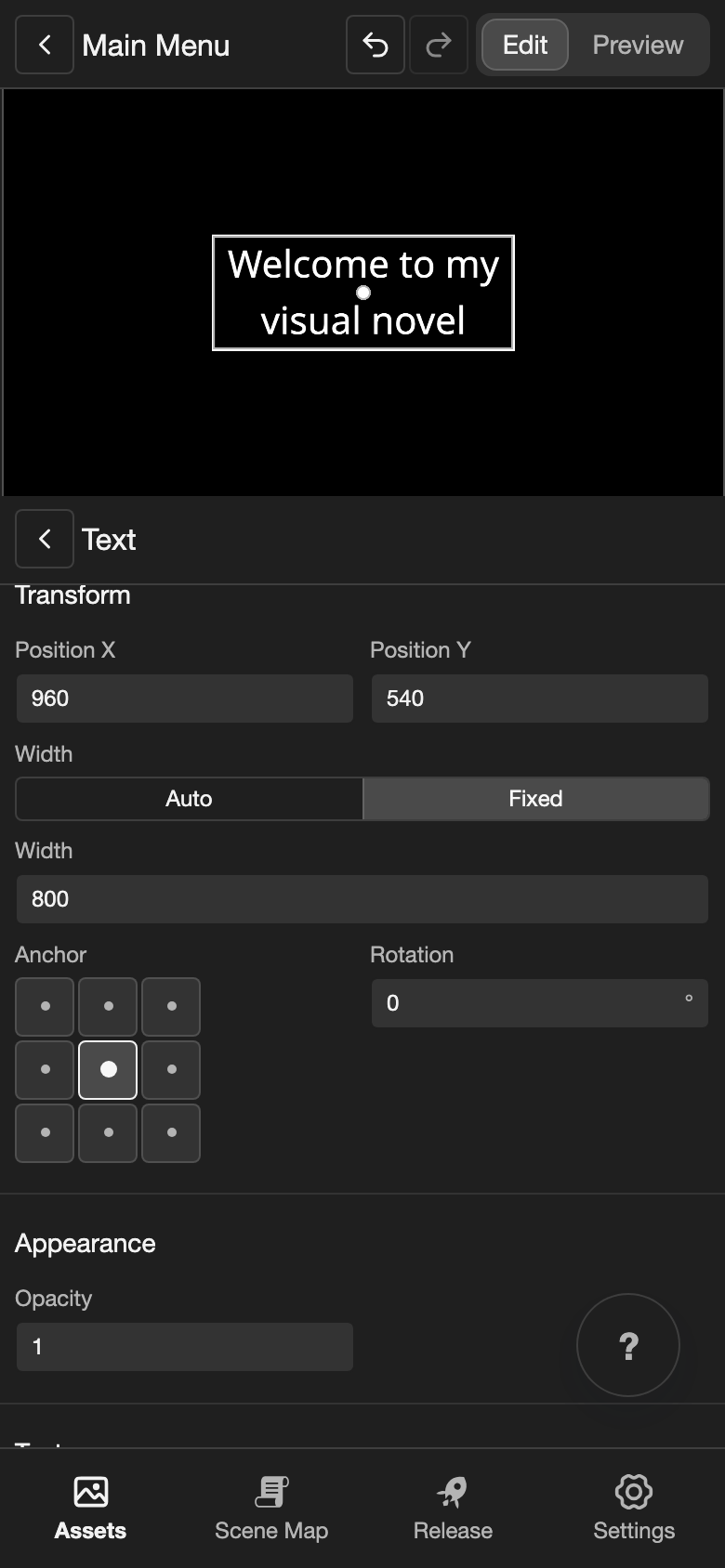
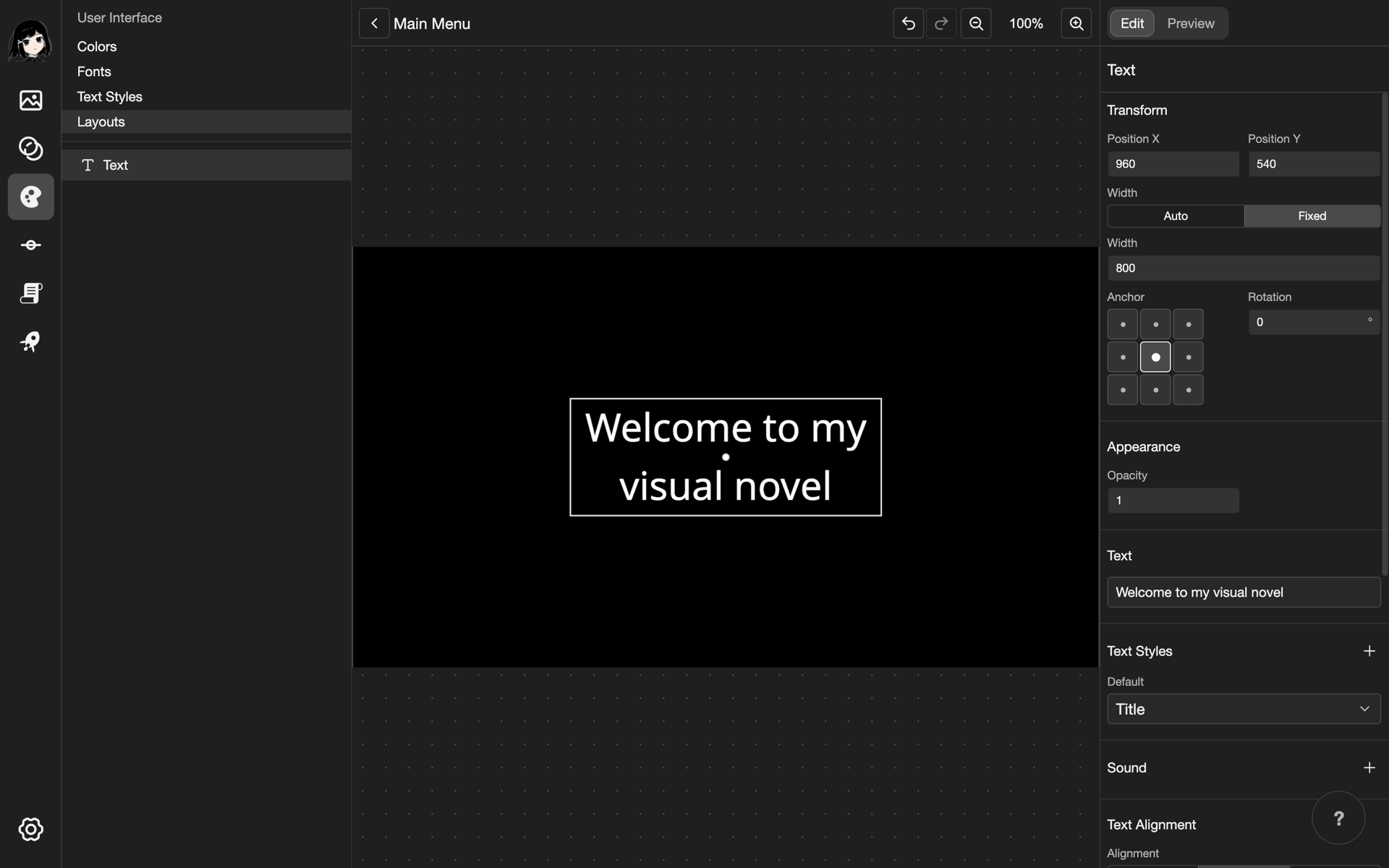
This example makes a title in the middle of the screen. It uses a text style with a big font size, called Title. To make a text style, see Text Styles.
Add a text
-
Open a layout in the layout editor. See Open a layout.
-
Open the Add Element menu.
- Phone or tablet: Long press (touch and hold) the empty space under the Elements list.
- Desktop: Right-click (click with the right mouse button) the empty space under the Elements list.
-
Tap Text.
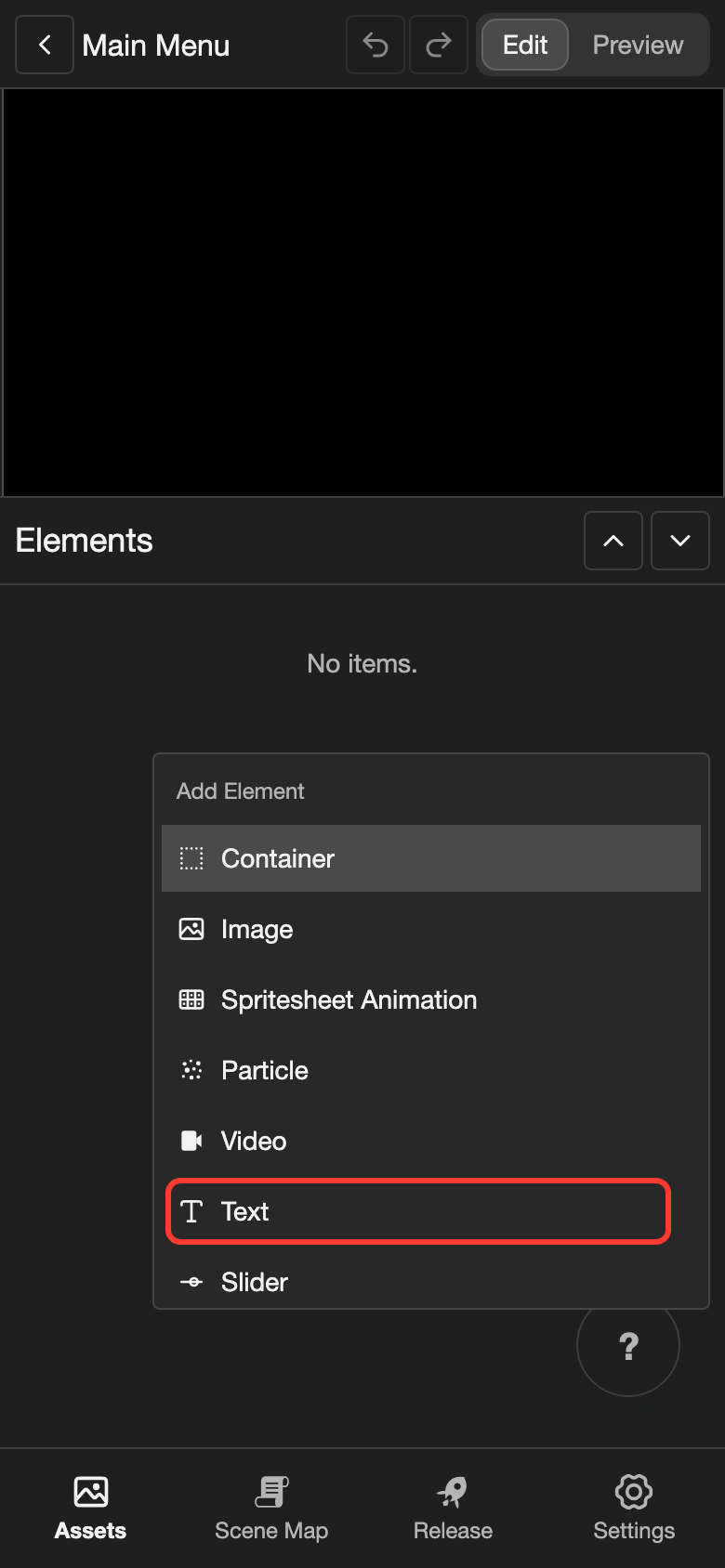
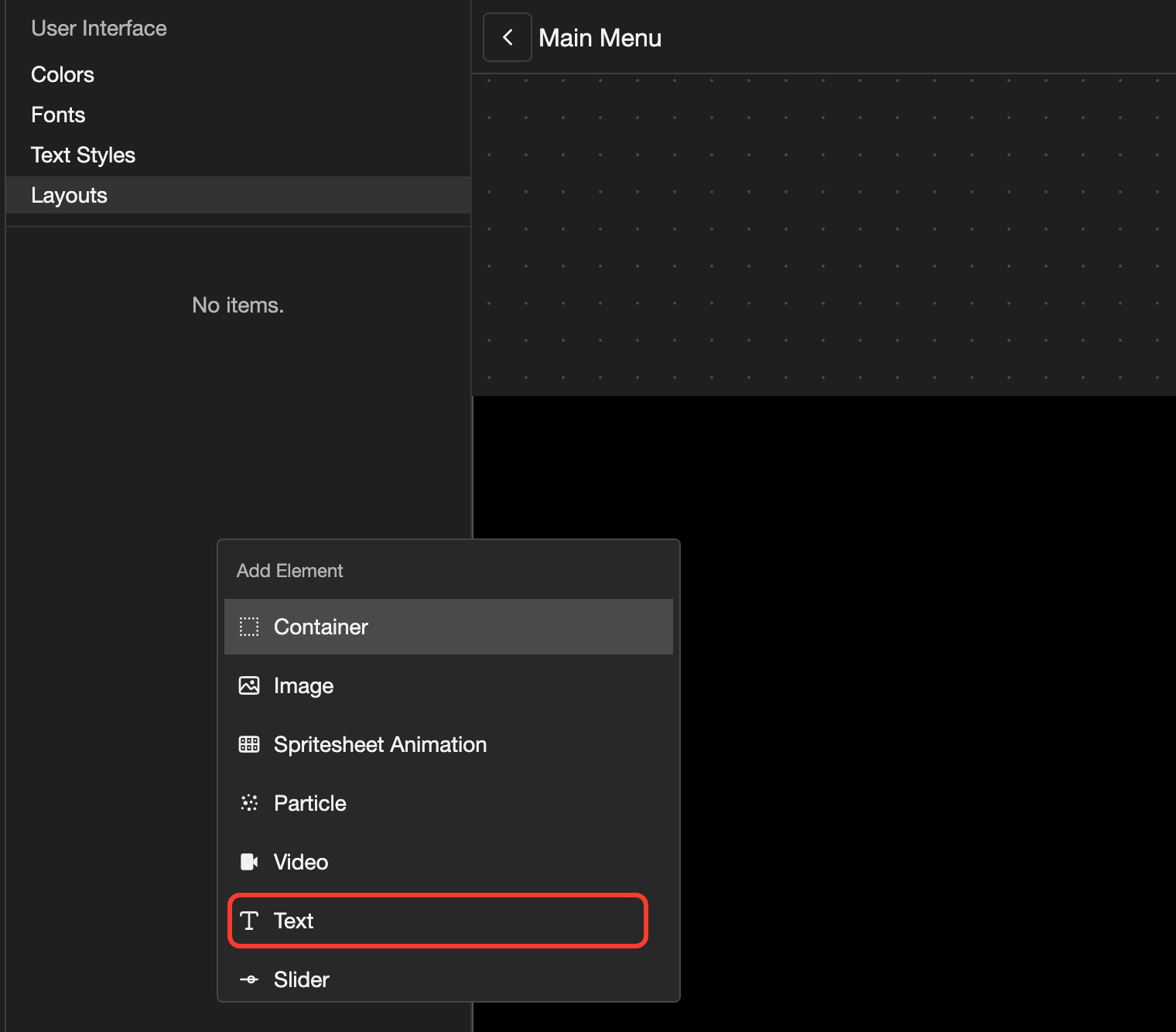
Text appears in the Elements list. The canvas shows the word "text" in the top left corner.
Change the words
-
In the Elements list, tap Text. Its settings open.
-
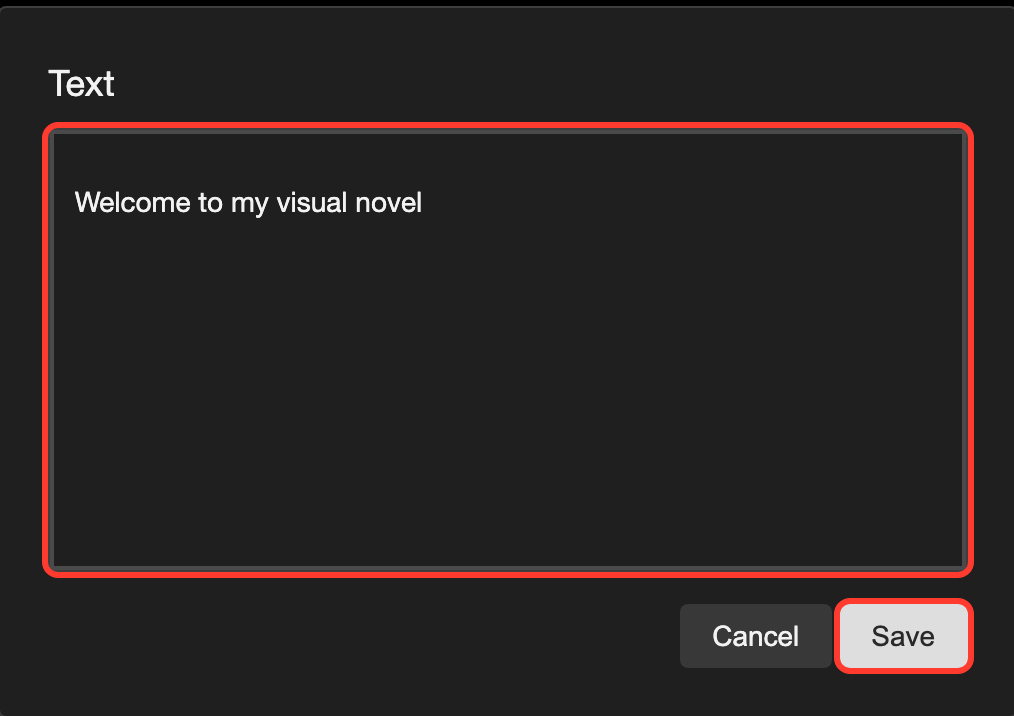
Under Text, tap the box with the words. The Text box opens.
-
Delete the old words. Then type the new words, such as
Welcome to my visual novel.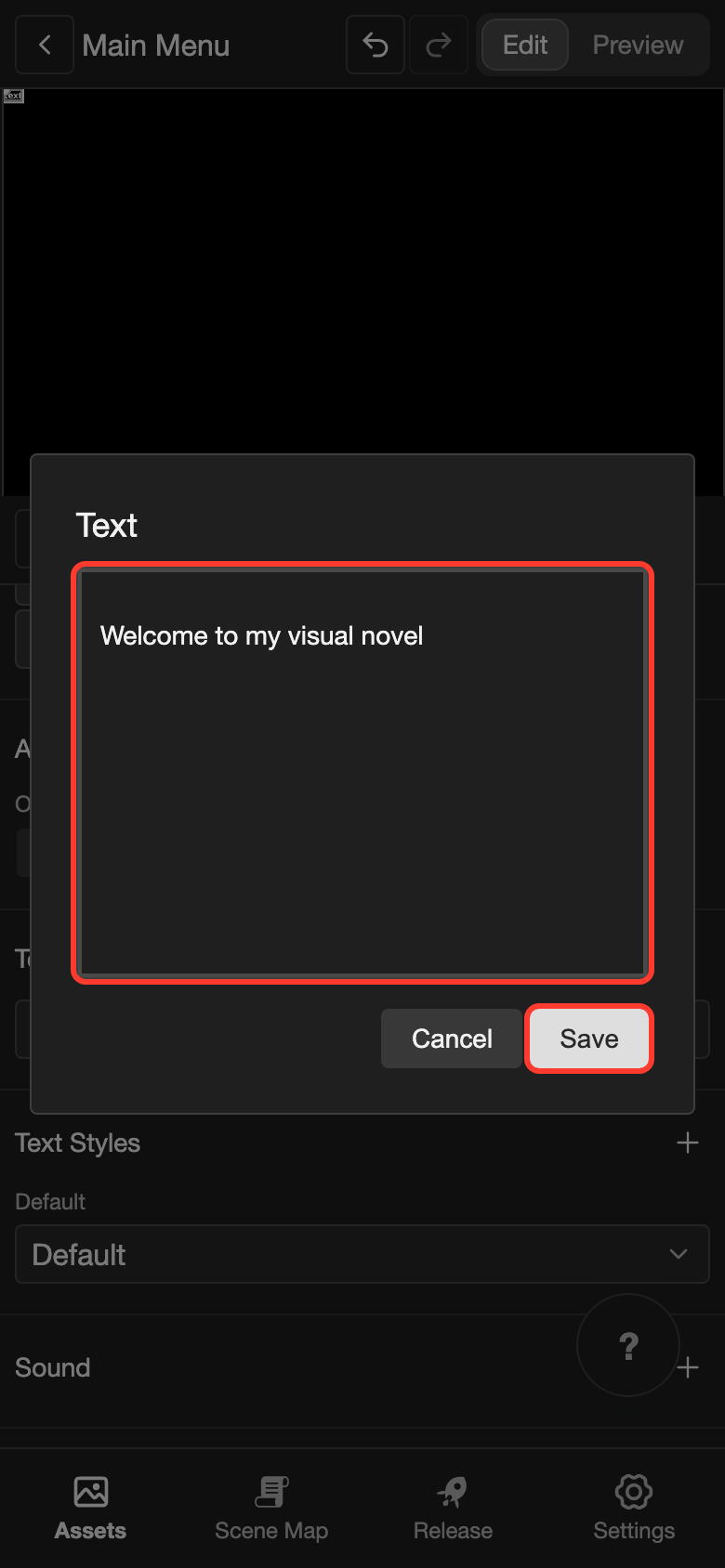
-
Tap Save.
To start a new line in the words, press Enter.
To show the value of a variable in the words, type /. Then choose the variable from the list.
Choose a text style
-
Under Text Styles, tap the list under Default.
-
Tap a text style, such as Title.
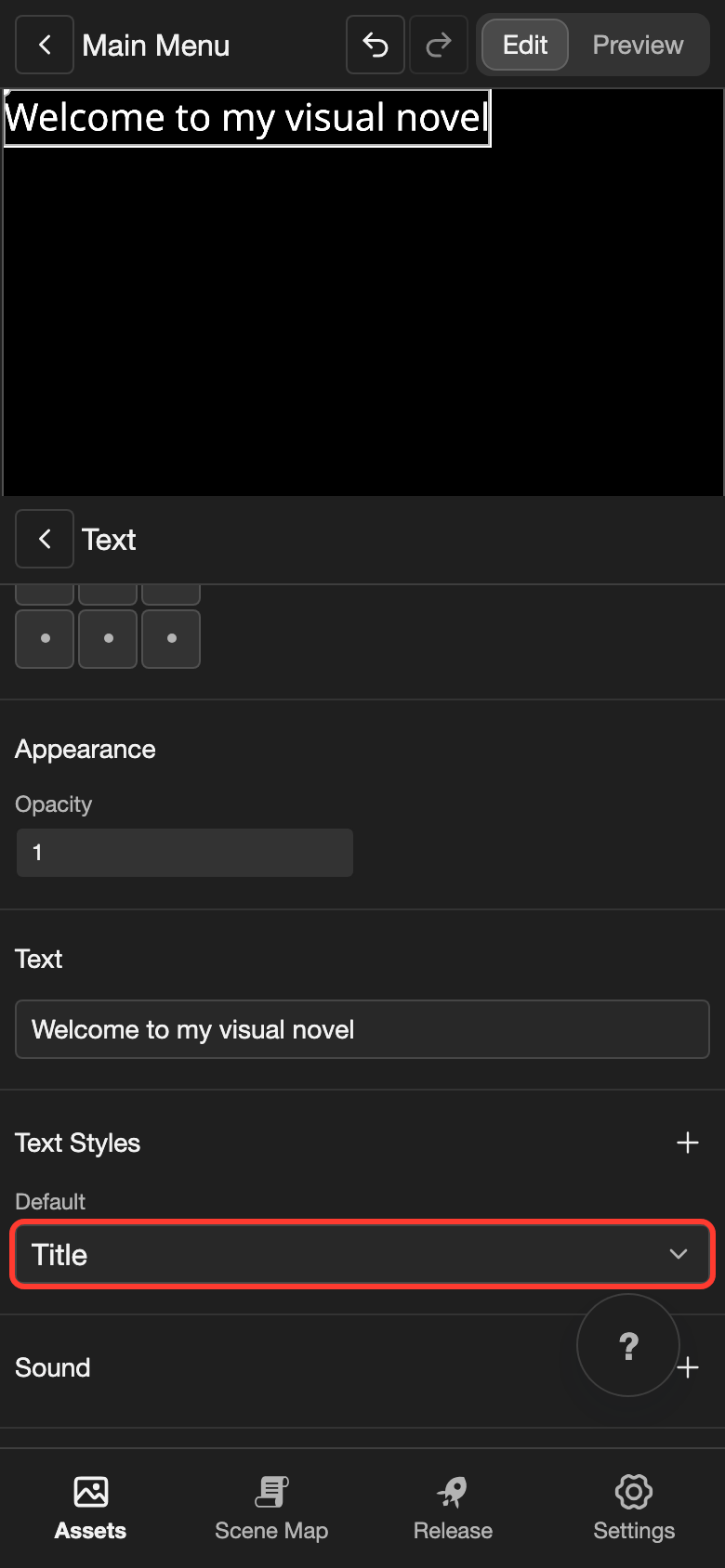
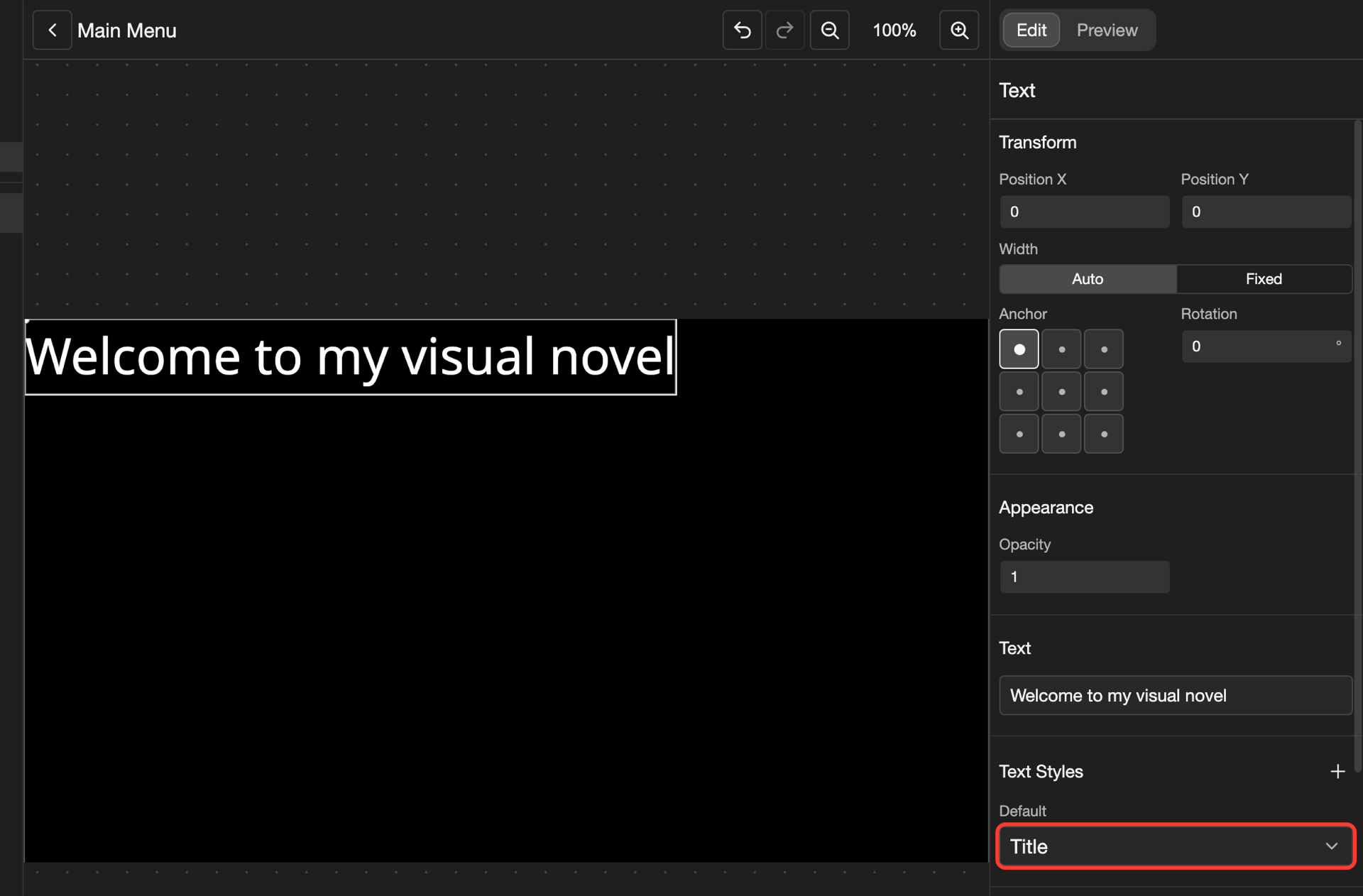
The words now use the font, size, and color of the text style.
A text can also change its look when the reader points at it, or presses it. Next to Text Styles, tap +. Tap Hover or Clicked. Then tap a text style.
Make long words wrap
A text is as wide as its words, on one line. To make the words wrap onto more lines, give the text a fixed width.
-
Under Transform, find Width. Tap Fixed.
-
Change the Width number to
800. To do this, tap the number, type800, and tap Submit.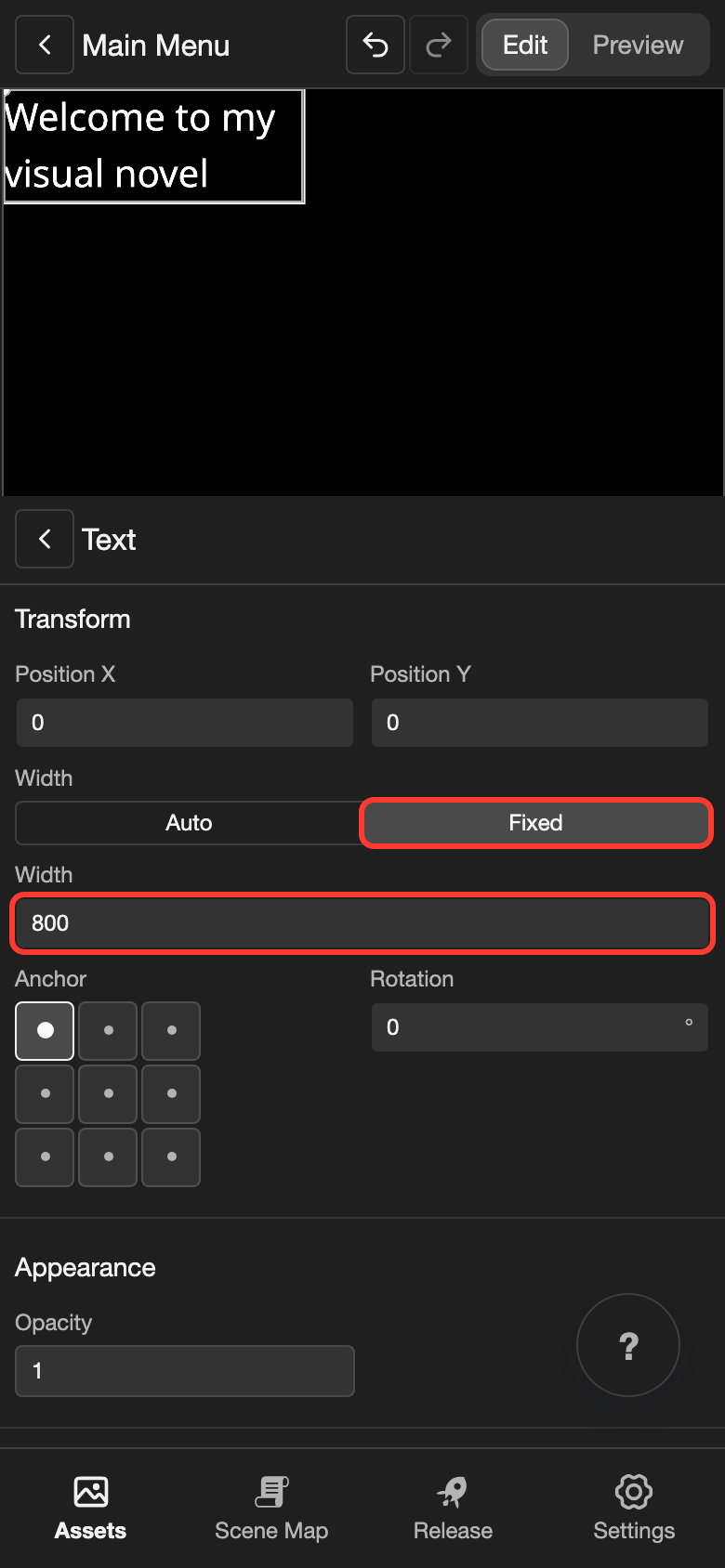
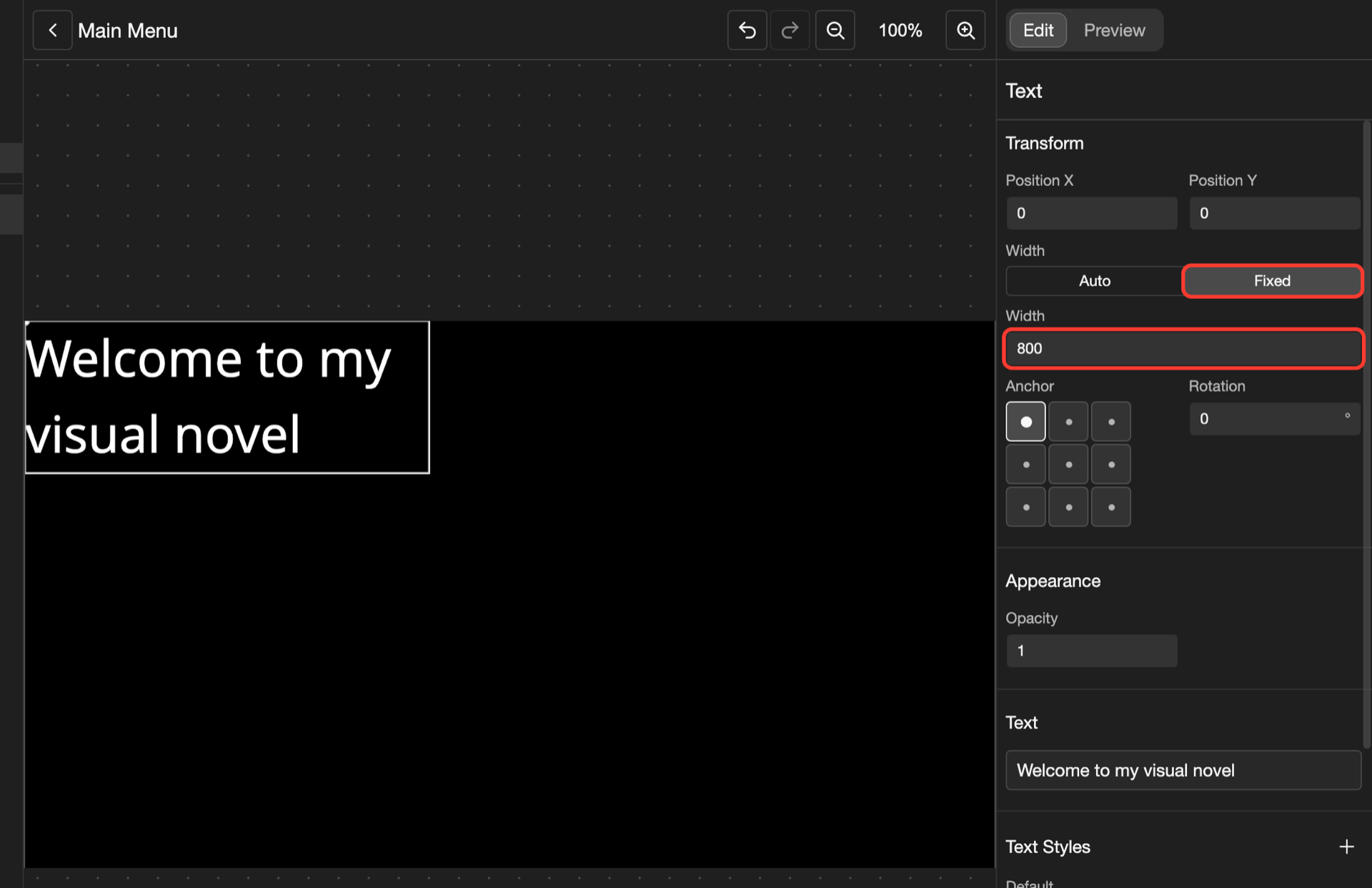
The words now wrap onto 2 lines. Words that do not fit go to the next line.
You can also drag the left or right edge of the outline on the canvas.
Line up the lines
-
Under Text Alignment, tap the middle button.
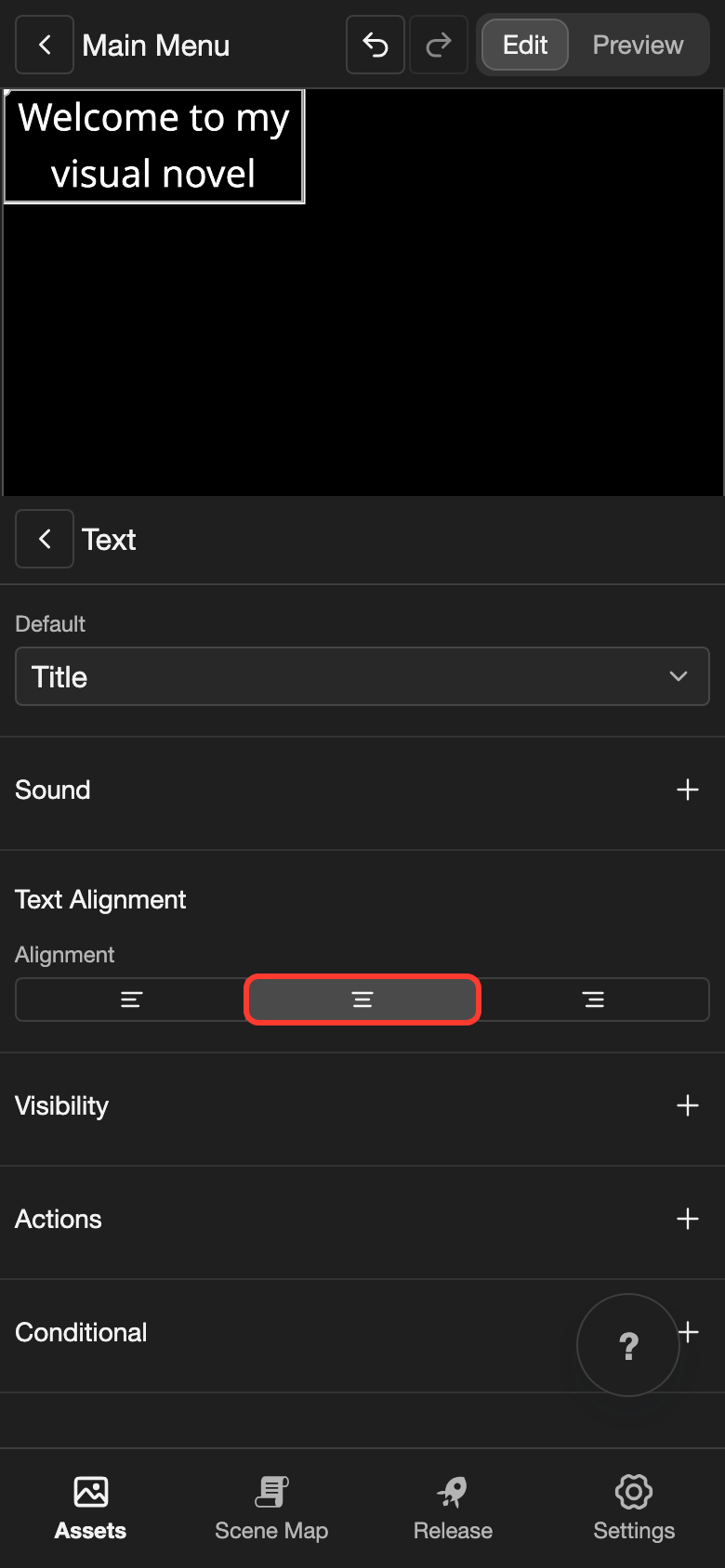
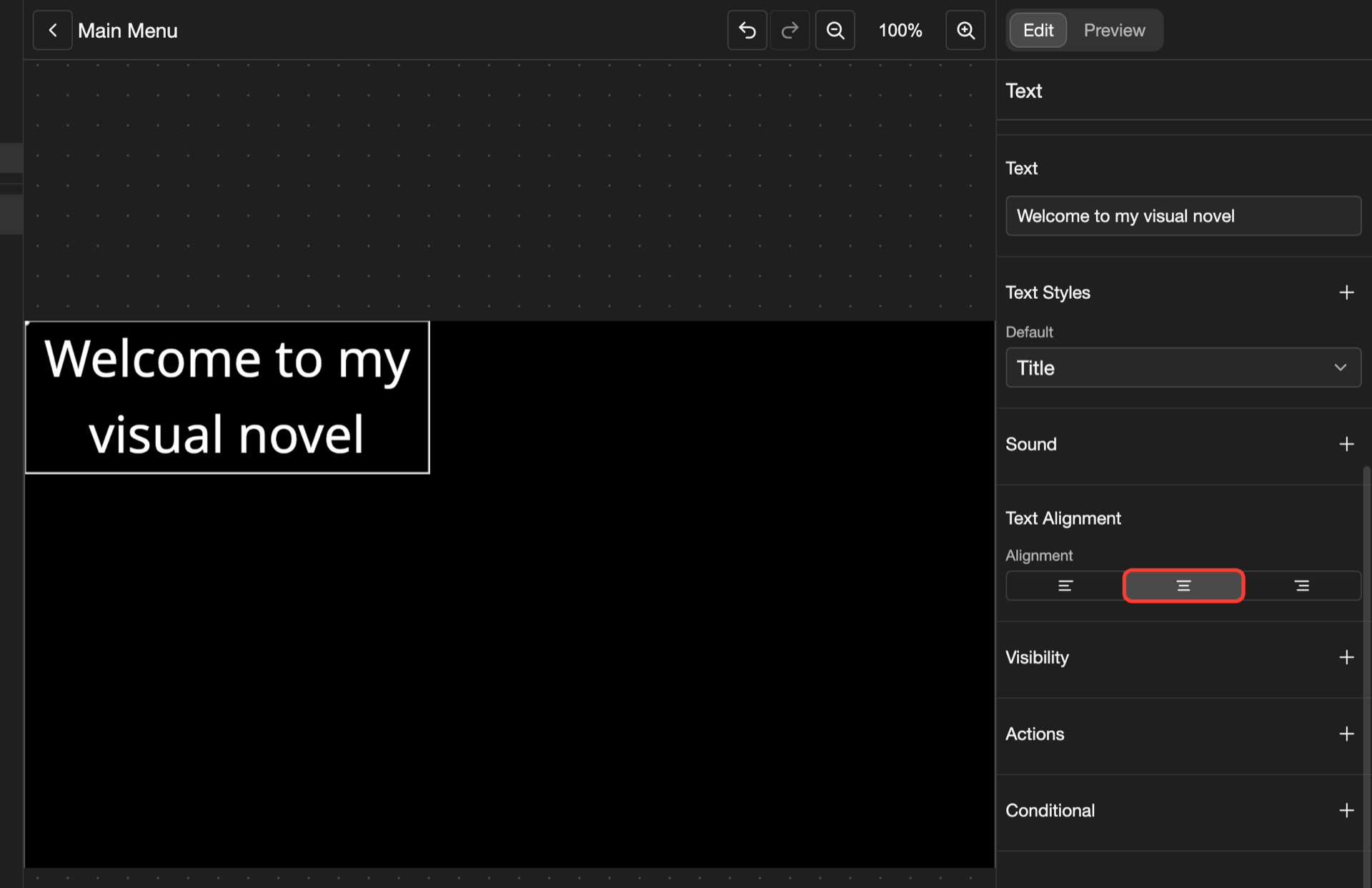
The lines are now in the middle of the text.
| Button | What it does |
|---|---|
| Left button (Left) | Each line starts at the left edge. A new text starts with this. |
| Middle button (Center) | Each line is in the middle. |
| Right button (Right) | Each line ends at the right edge. |
Put the text in the middle of the screen
- Under Transform, find Anchor. Tap the middle point.
- Change Position X to
960. - Change Position Y to
540.
The title is now in the middle of the screen, as in the first picture on this page. To learn more about Anchor, see Move and resize an element.
Text settings
| Setting | What it does |
|---|---|
| Width | Auto keeps the words on one line. Fixed wraps the words at the width you type. A text has no Height. It grows with its lines. |
| Text | The words. Tap them to open the Text box. |
| Text Styles | How the words look. Hover shows while the reader points at the text. Clicked shows while the reader presses it. |
| Text Alignment | Where each line sits: left, center, or right. |
The other settings, such as Sound, Visibility, and Actions, are the same for most elements. See Change an element's settings.
Good to know
- A new text uses the first text style on your Text Styles page.