Dialogue ADV Layout
A Dialogue ADV layout is a dialogue box that shows one line at a time. The Dialogue Box action shows it.
The layout has 2 special elements. Your visual novel fills them in with the name of the character and the words of each line.
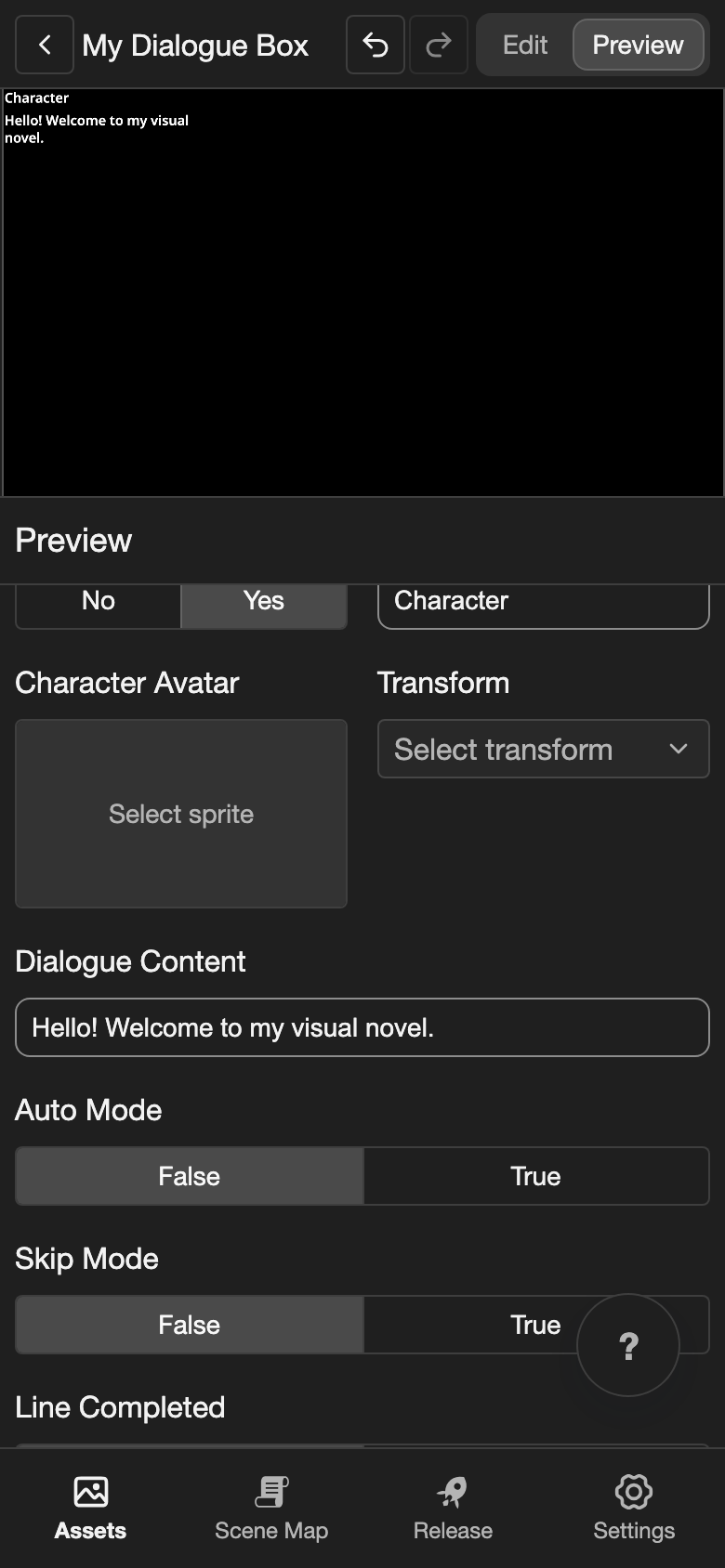
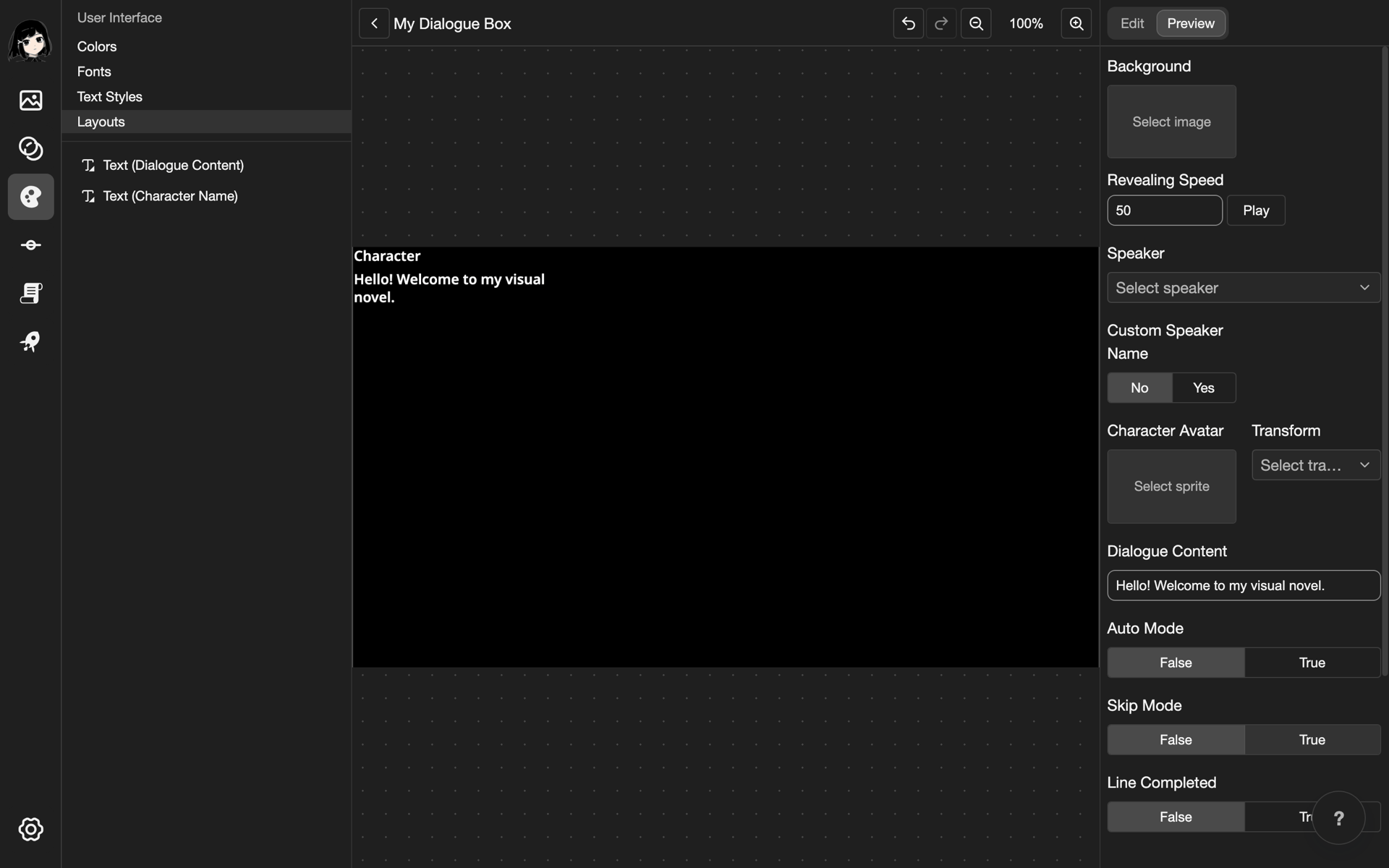
This example makes a simple dialogue box in a new layout called My Dialogue Box.
Create the layout
- Create a layout. Under Layout Type, choose Dialogue ADV. See Create a layout.
- Open the new layout. The Elements list is empty.
Add the name and the dialogue text
-
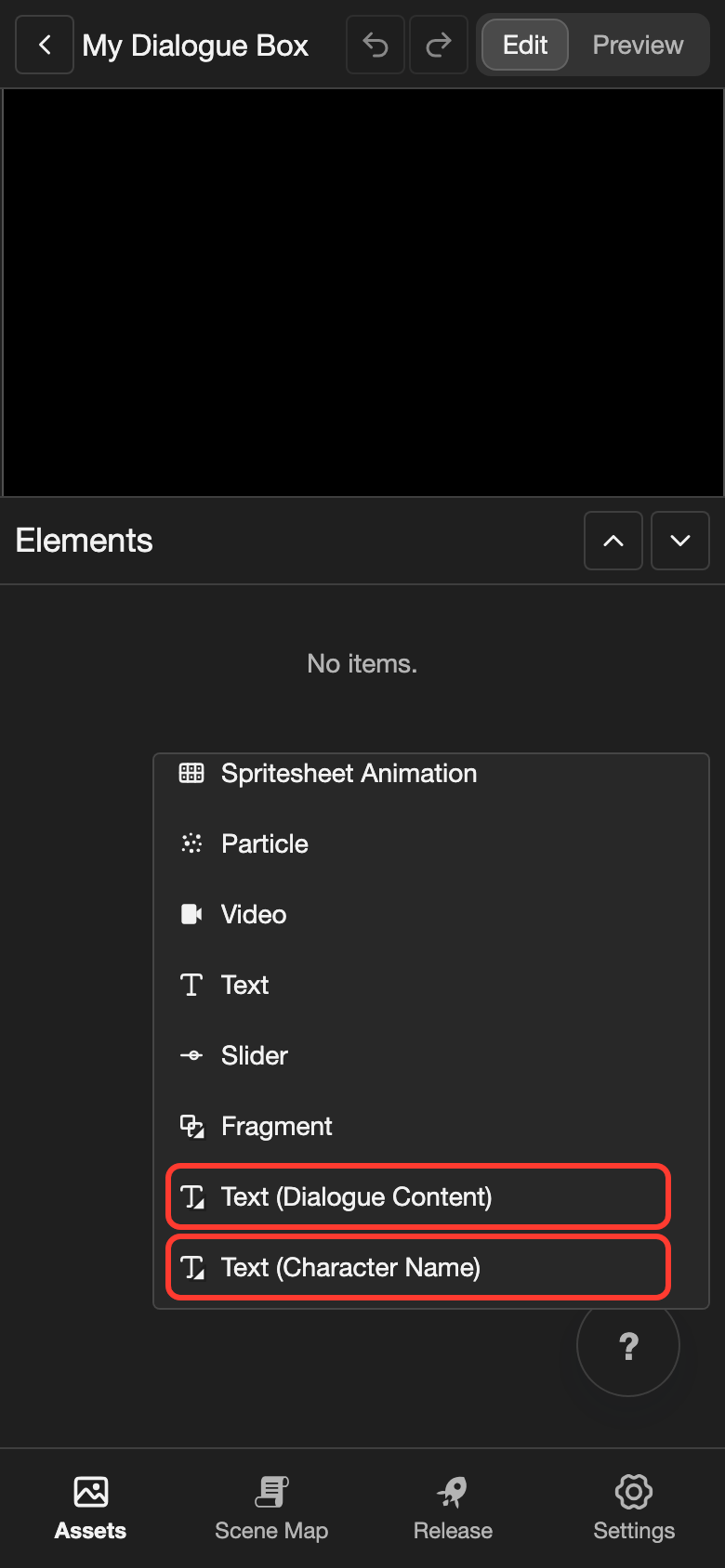
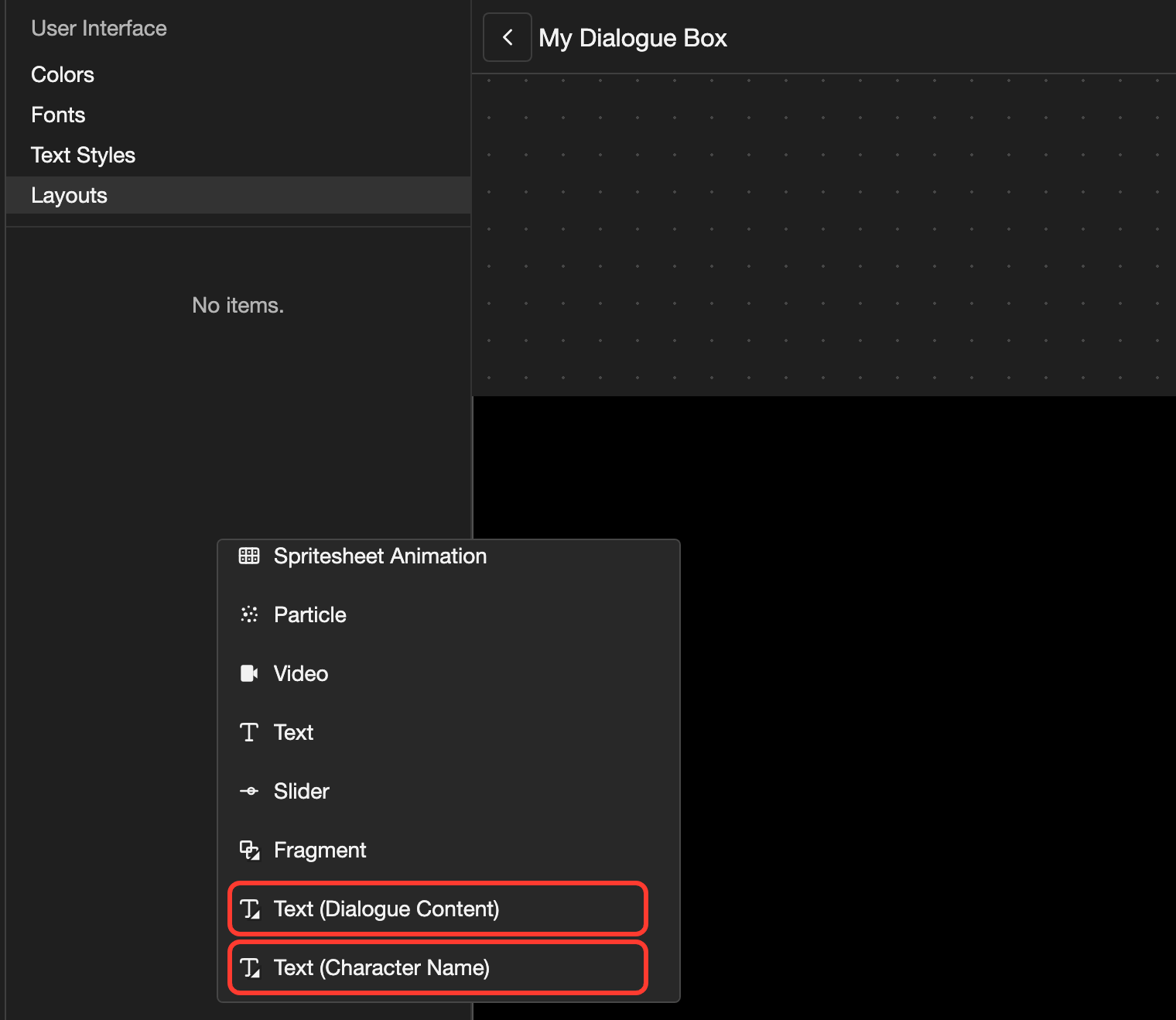
Open the Add Element menu.
- Phone or tablet: Long press (touch and hold) the empty space under the Elements list.
- Desktop: Right-click (click with the right mouse button) the empty space under the Elements list.
-
Scroll down the menu. Tap Text (Character Name).
-
Open the Add Element menu again. Scroll down, and tap Text (Dialogue Content).
Both texts show sample words at the top left of the canvas, one over the other. Move the dialogue text under the name:
-
In the Elements list, tap Text (Dialogue Content). Its settings open.
-
Change Position Y to
60. To do this, tap the number, type60, and tap Submit.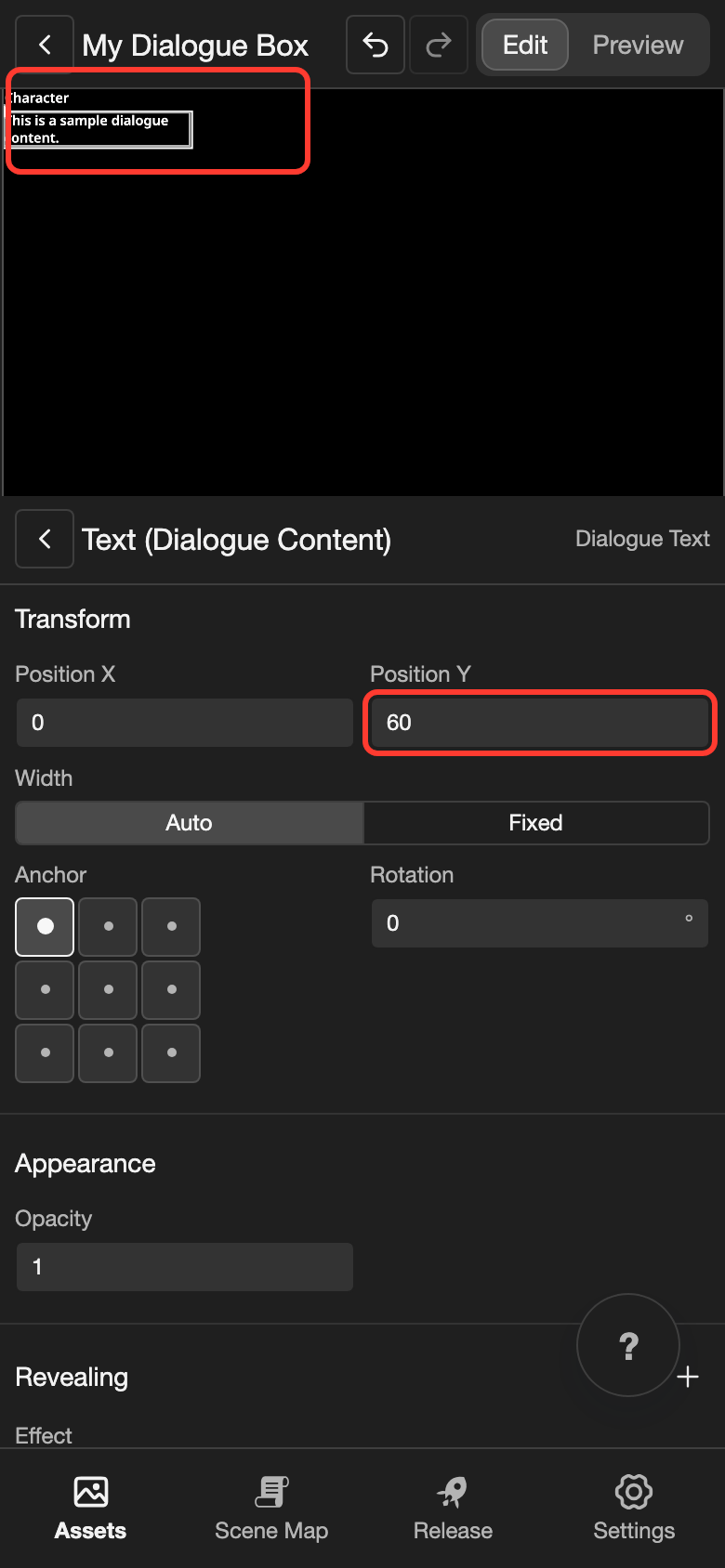
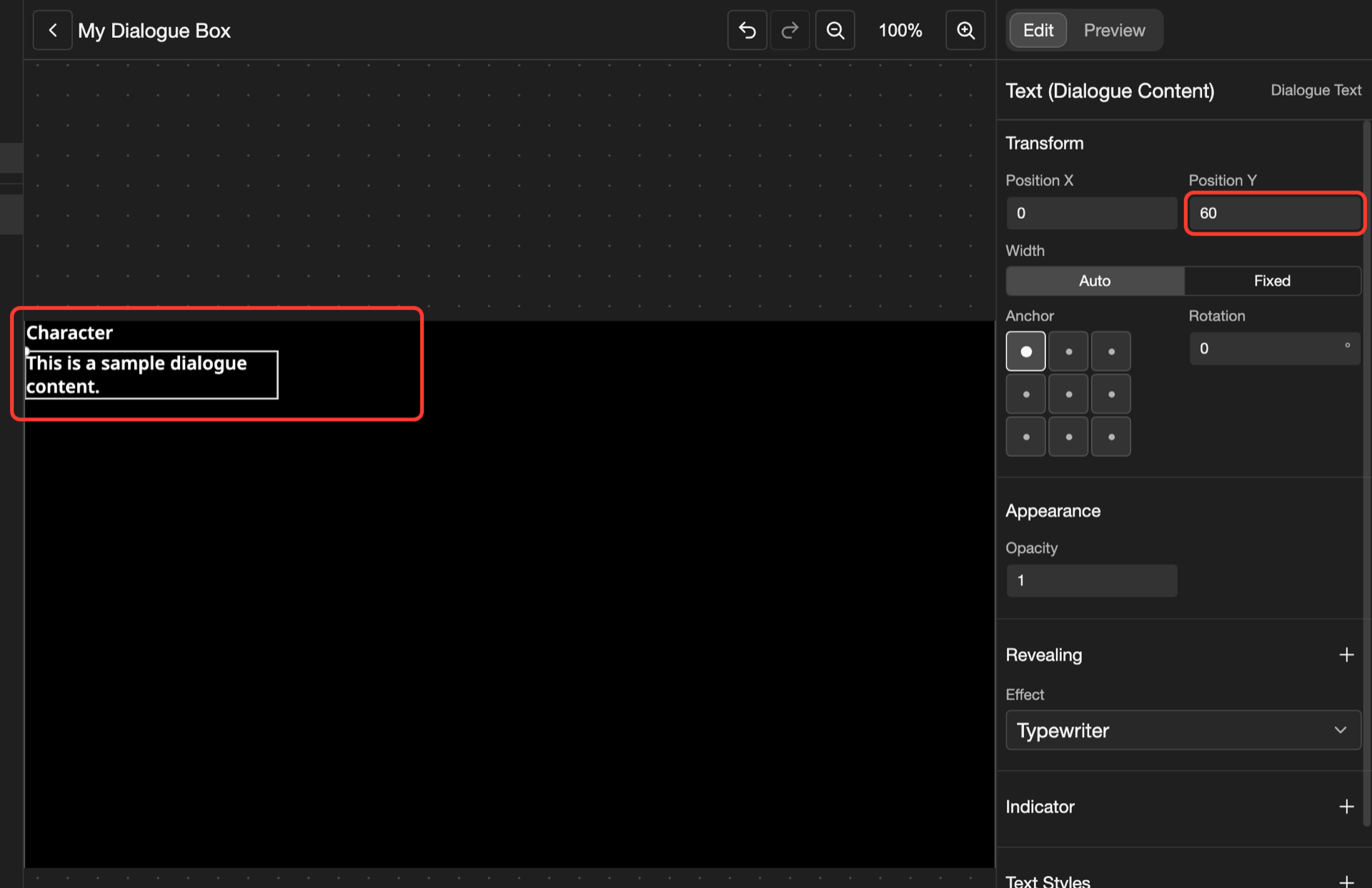
To change how the words look, choose a text style under Text Styles. See Text.
Test it in Preview
- At the top, tap Preview.
- Under Dialogue Content, type a line, such as
Hello! Welcome to my visual novel.
The canvas shows your line, letter by letter.
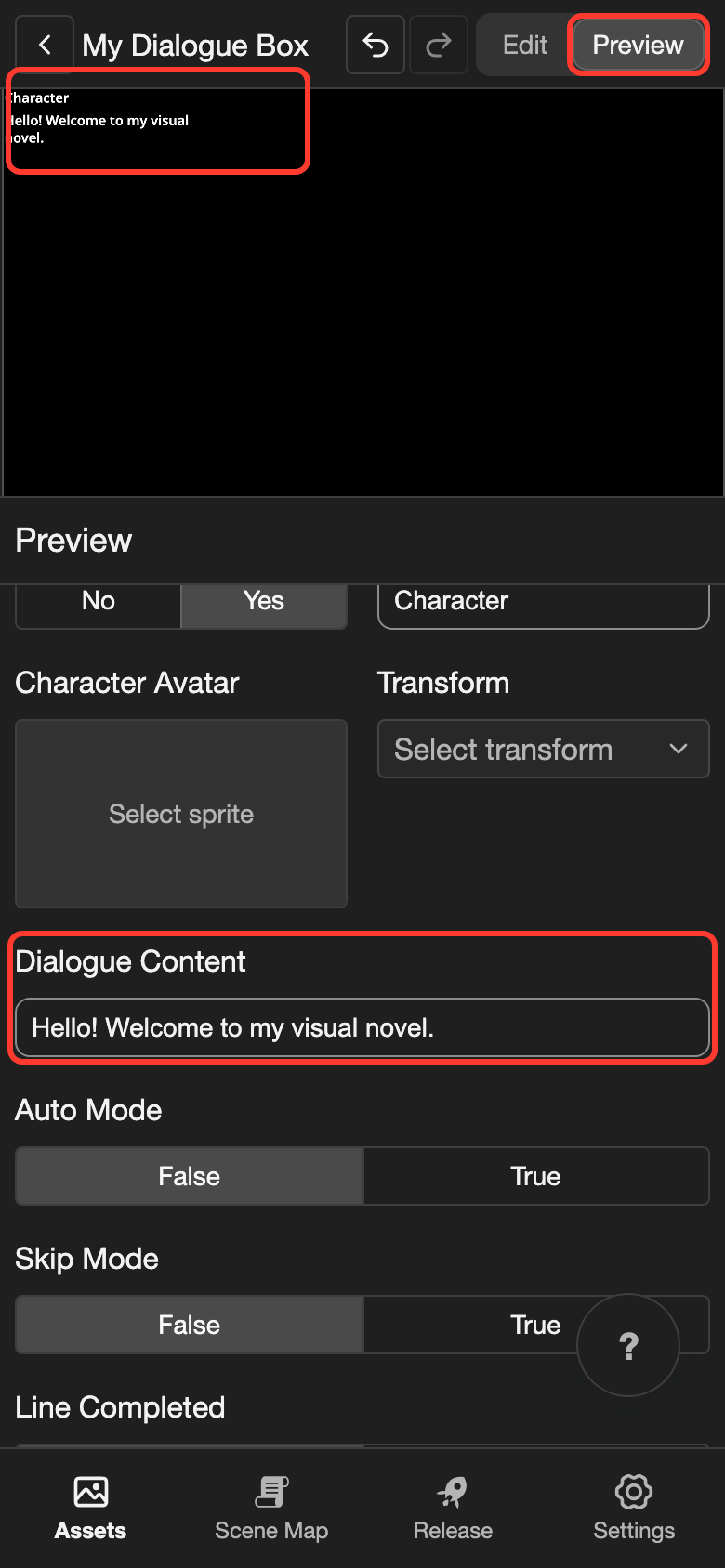
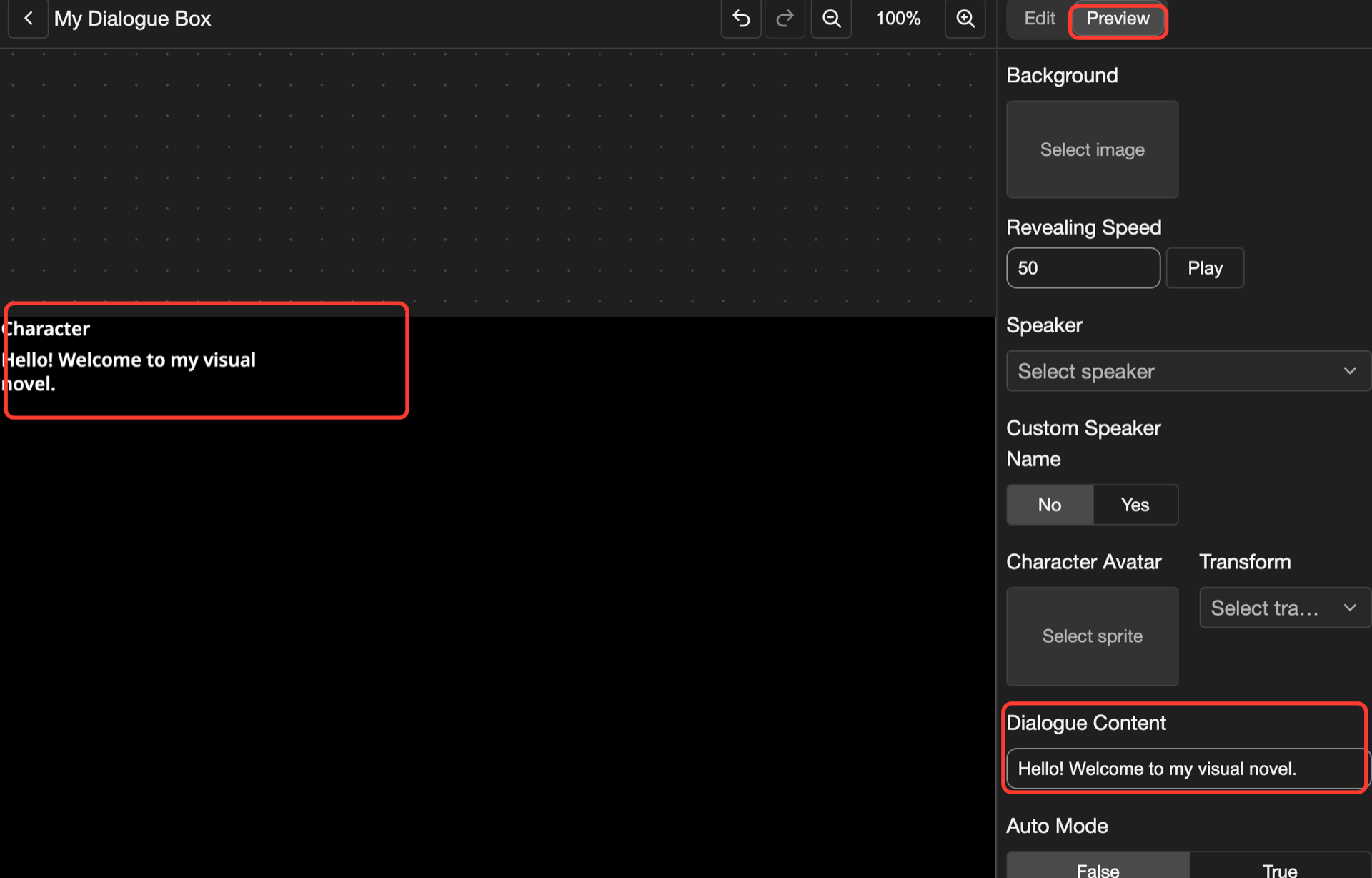
To try a real name, choose a character under Speaker. The sample content does not change your visual novel.
Special elements
| Element | What it does |
|---|---|
| Text (Character Name) | Shows the name of the character who speaks. It is empty when nobody speaks. |
| Text (Dialogue Content) | Shows the words of the line, letter by letter. Under Revealing, Effect sets how the letters appear: Typewriter, Soft Wipe, or None. |
You cannot type words in these 2 texts. Your visual novel fills them in. The other settings, such as Text Styles and Visibility, are the same as for a Text element.
Good to know
- The speed of the letters is not a layout setting. To change it for one line, use Custom text speed in the Dialogue Box action.
- To show a small picture at the end of the text, add an indicator to Text (Dialogue Content). See Click-to-continue indicator.