Fragment
A fragment is a layout that you put inside other layouts. Use it for parts that many layouts share, such as a row of buttons.
When you change the fragment, every layout that uses it changes too.
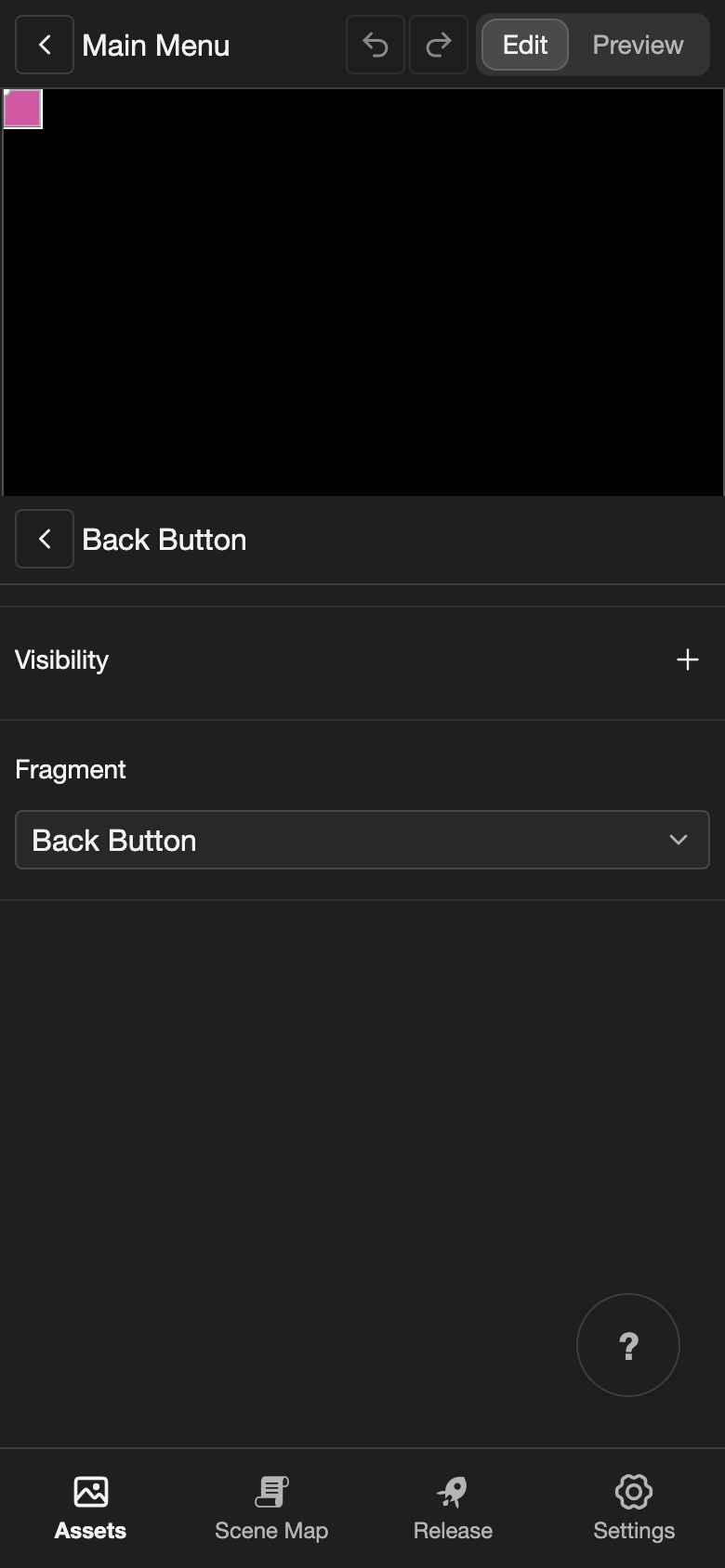
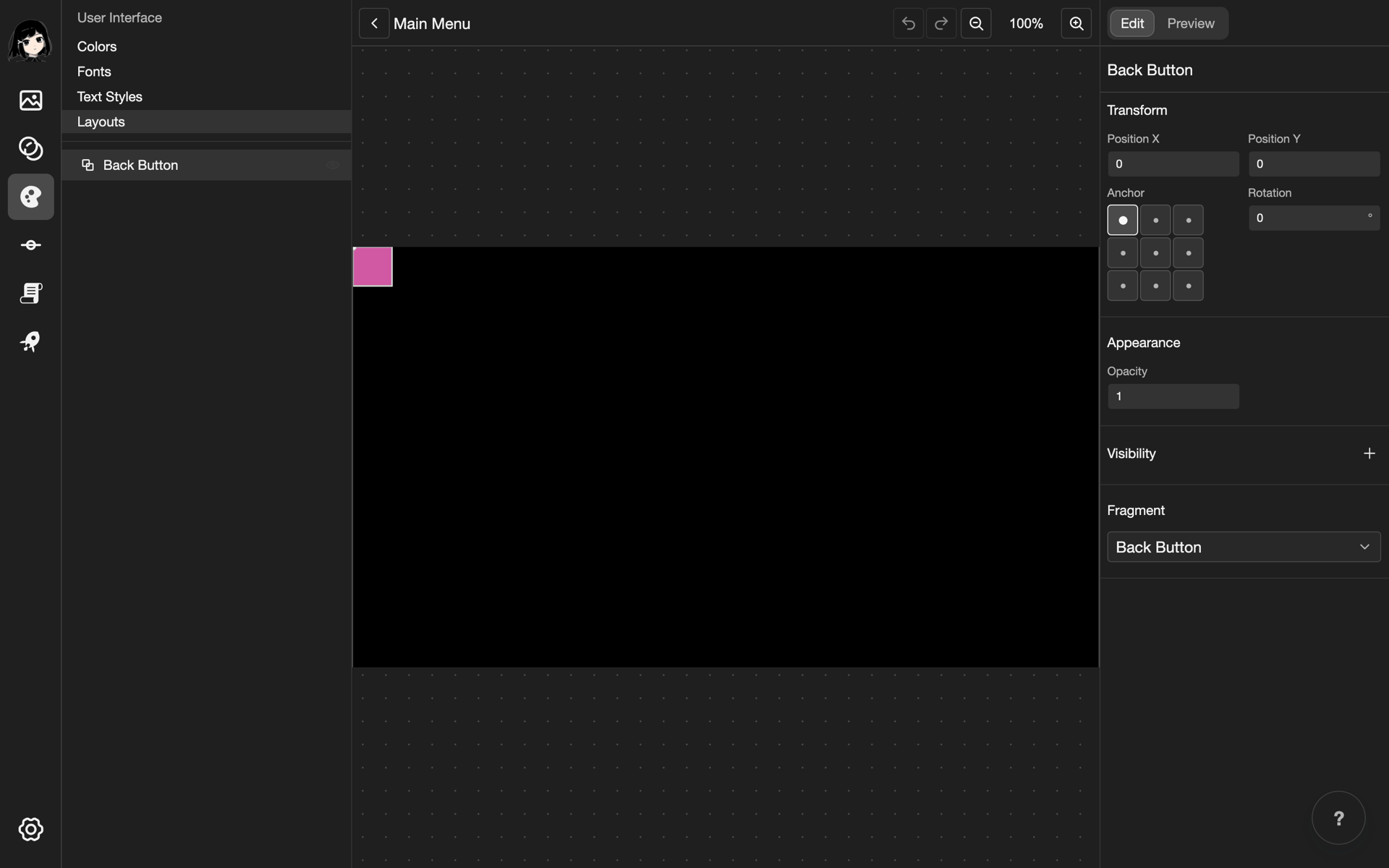
This example makes a fragment called Back Button, with one picture in it. Then it puts the fragment in a layout called Main Menu.
Make a fragment
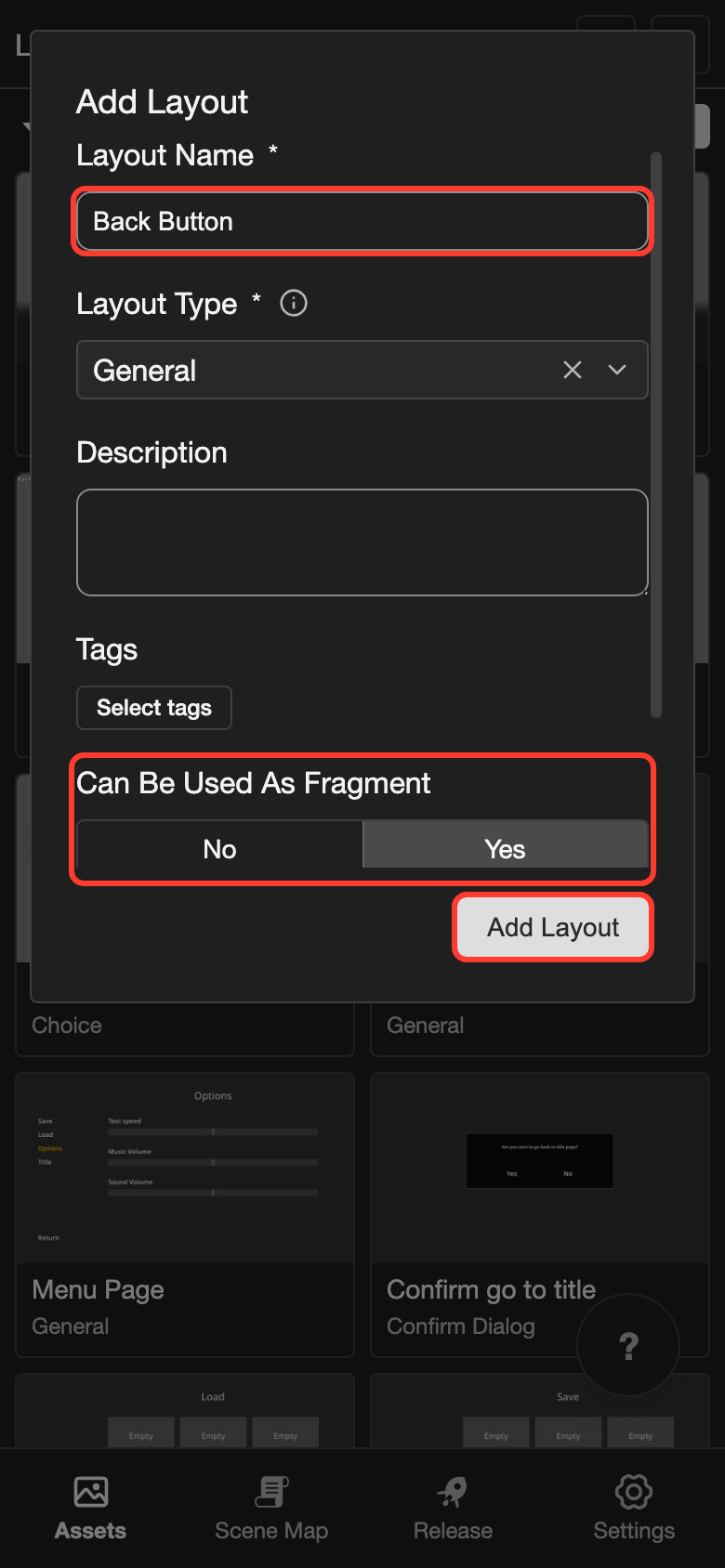
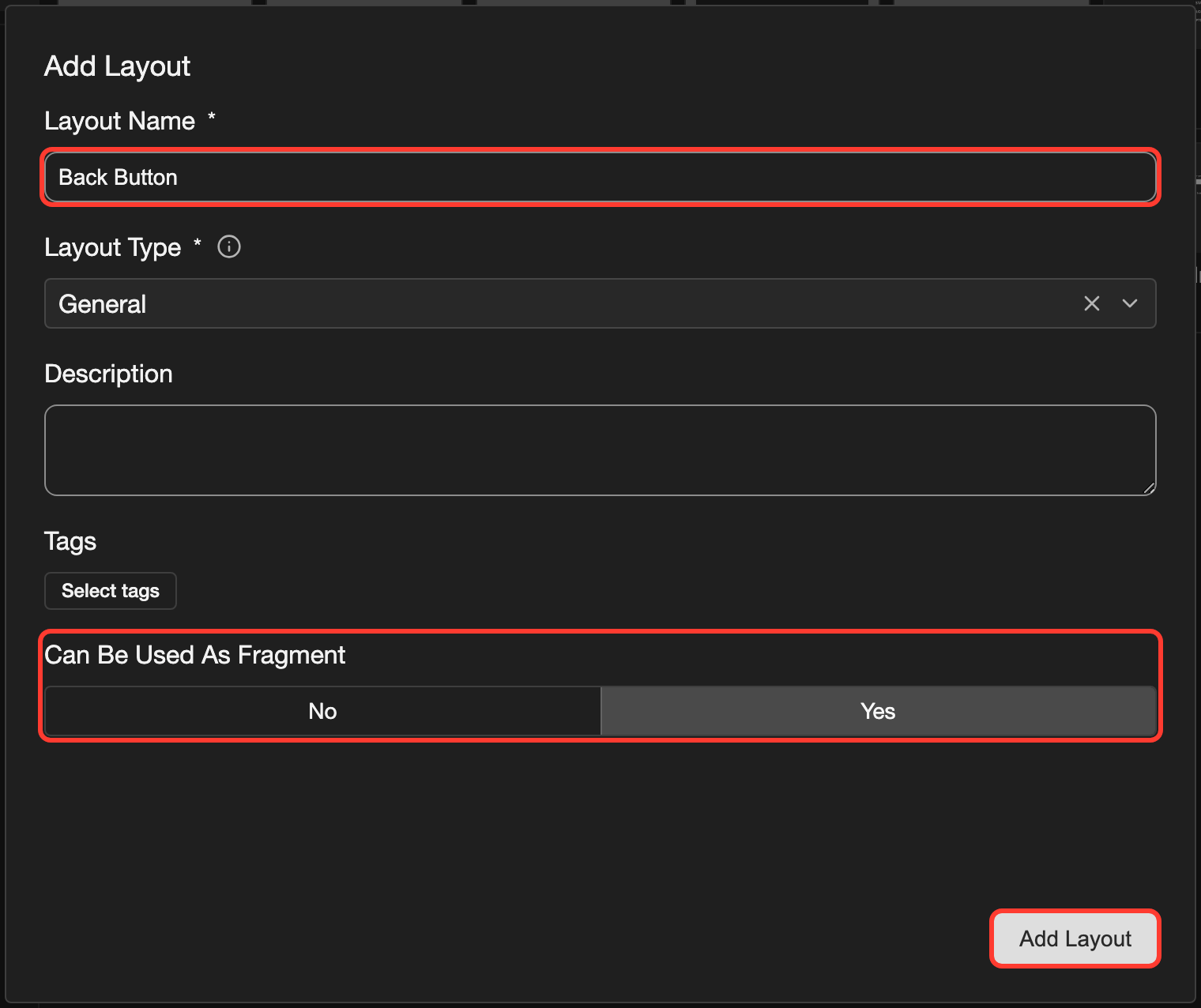
A fragment is a layout with Can Be Used As Fragment set to Yes.
-
Open the Layouts page. See Open the Layouts page.
-
Next to the Default folder, tap Add. The Add Layout box opens.
-
Under Layout Name, type a name, such as
Back Button. -
Under Layout Type, choose General.
-
Under Can Be Used As Fragment, tap Yes.
-
Tap Add Layout.
-
Open the new layout. Add the elements that you want to share. This example adds an image with the picture box-1. See Image.
To make a layout that you already have into a fragment, open its edit box. See Edit an item. Under Can Be Used As Fragment, tap Yes. Then tap Save.
Put the fragment in a layout
-
Open another layout, such as Main Menu.
-
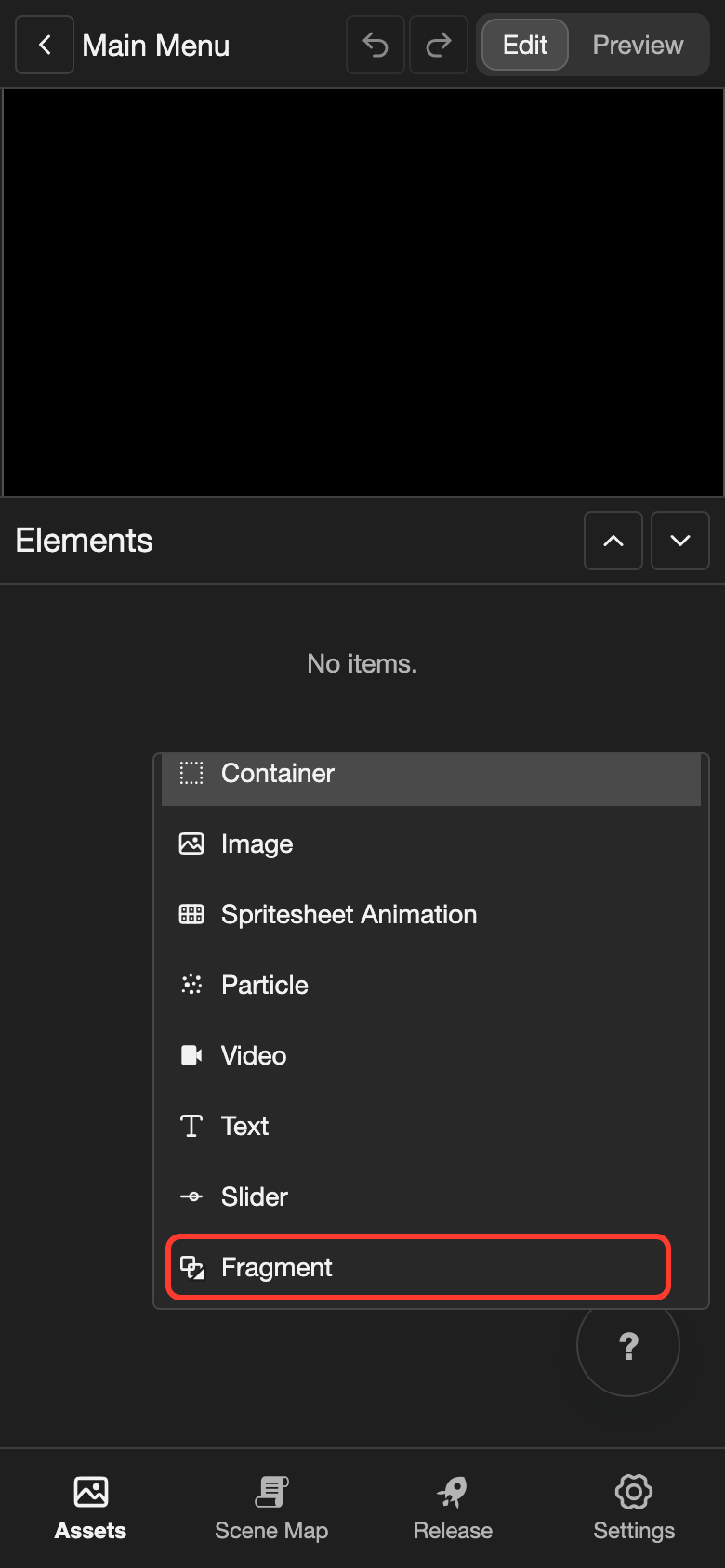
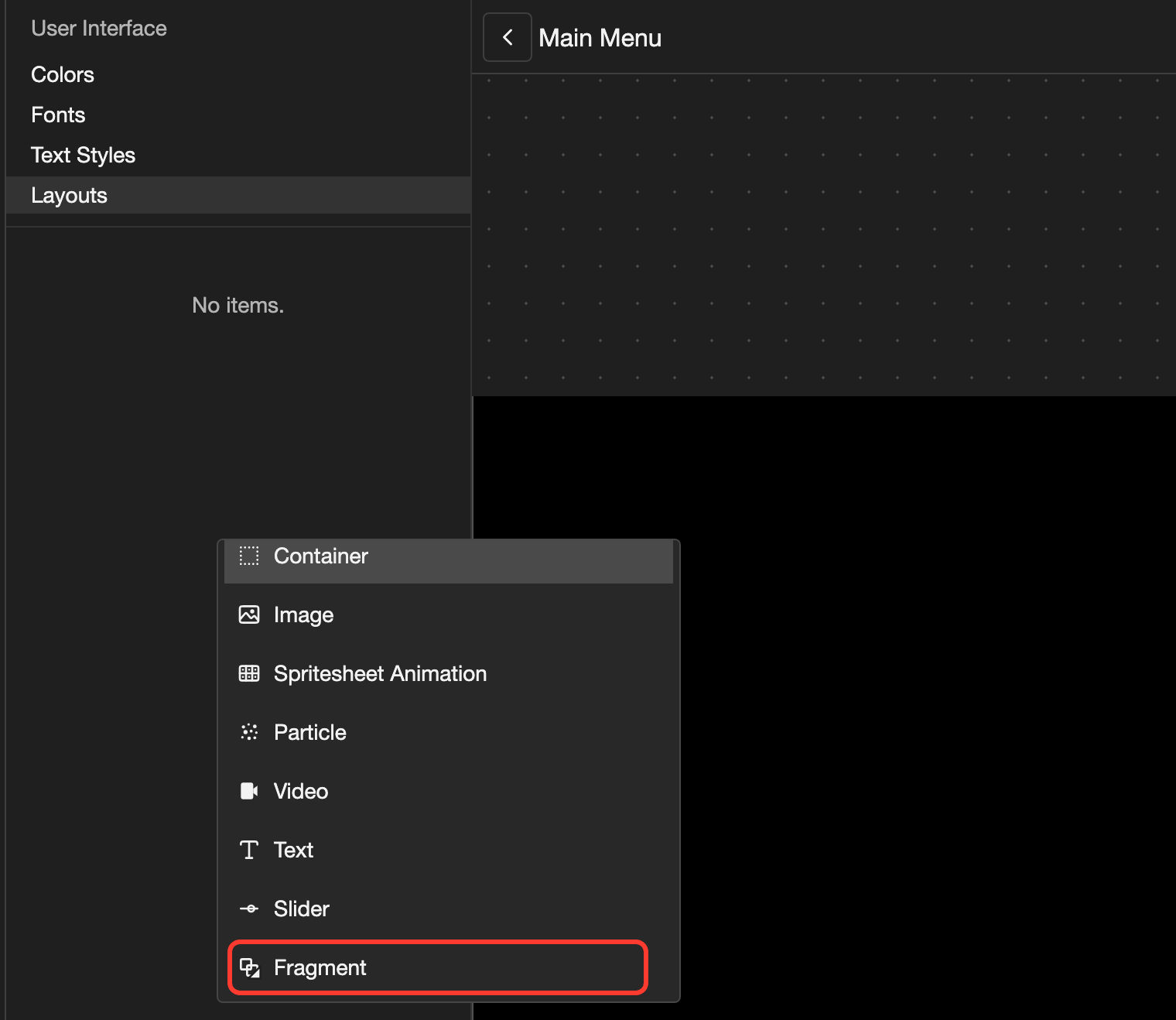
Open the Add Element menu.
- Phone or tablet: Long press (touch and hold) the empty space under the Elements list.
- Desktop: Right-click (click with the right mouse button) the empty space under the Elements list.
-
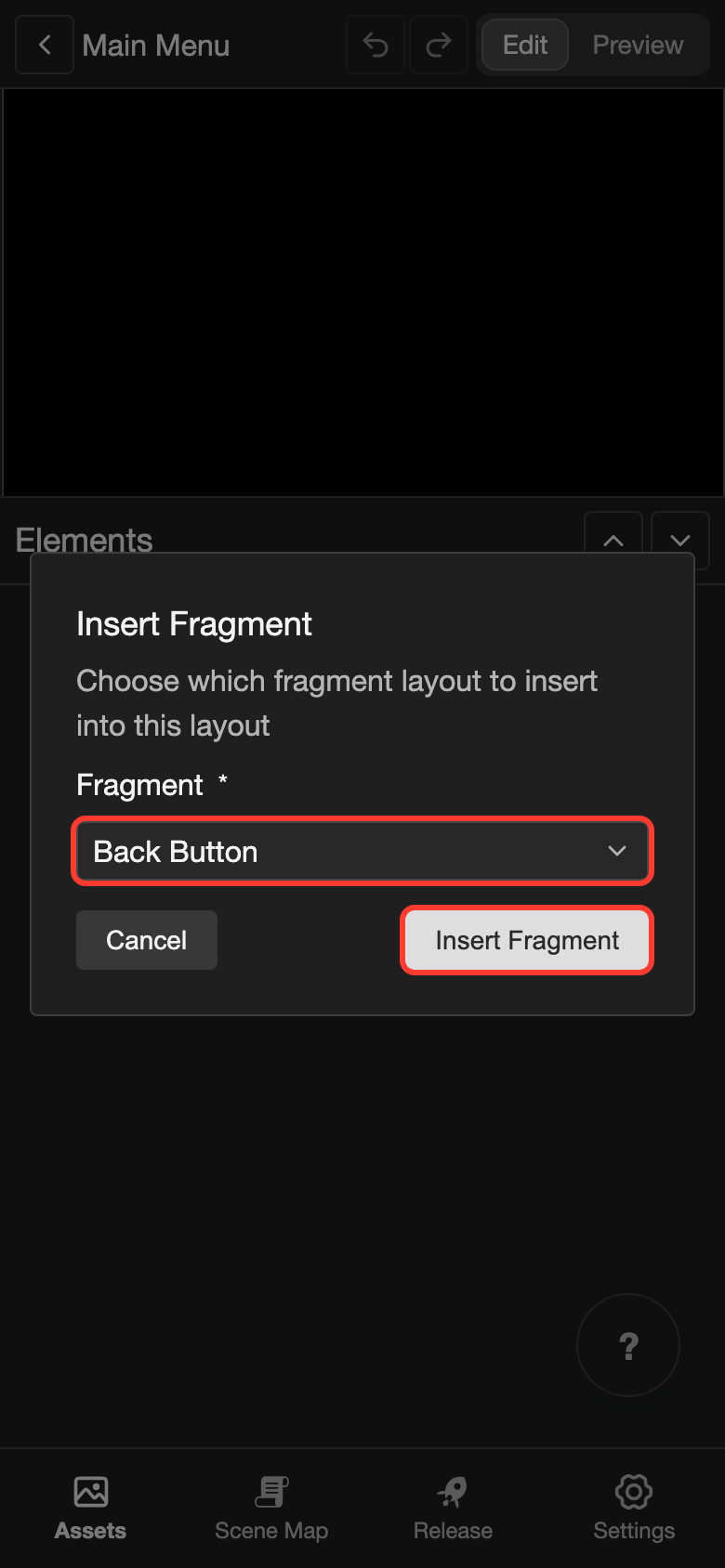
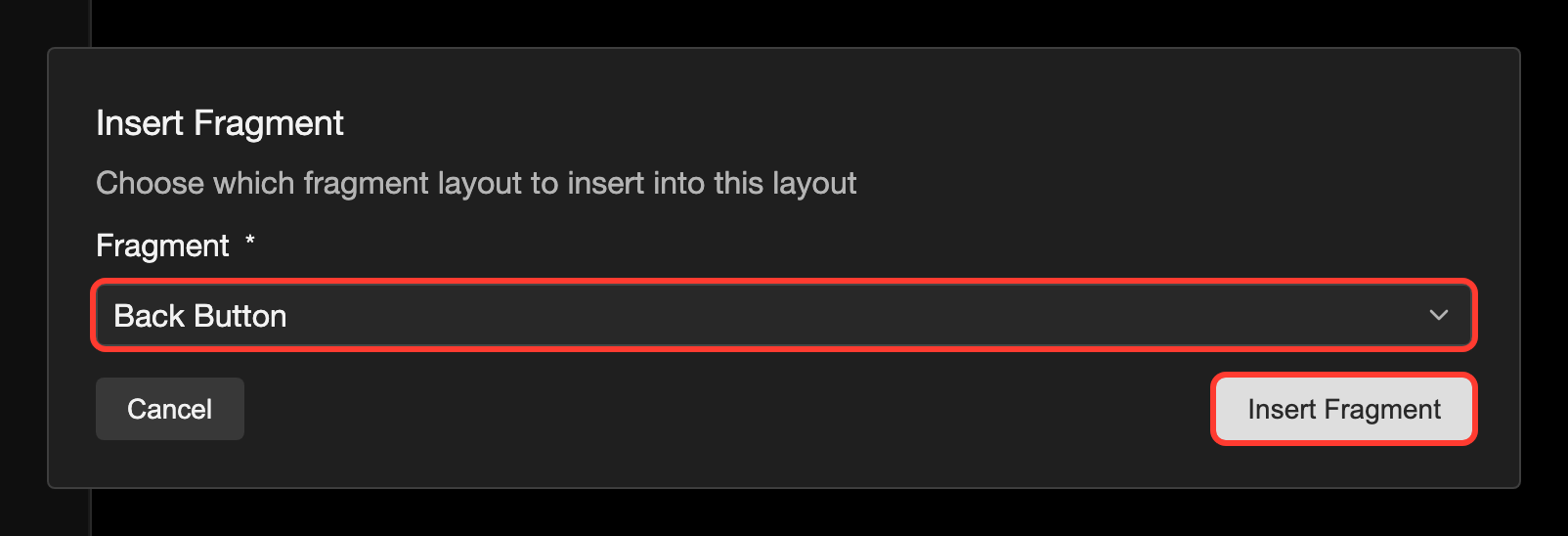
Scroll down the menu. Tap Fragment. The Insert Fragment box opens.
-
Under Fragment, choose the fragment, such as Back Button. The list shows only fragments.
-
Tap Insert Fragment.
The fragment appears in the Elements list, with the name of its layout. On the canvas, it shows everything in the fragment, in the top left corner.
To move the fragment, change Position X and Position Y, or drag it on the canvas. See Move and resize an element.
Change the fragment
You change a fragment in its own layout. Every layout that uses it then shows the change.
- Open the fragment layout, such as Back Button.
- Change what you need. For example, change the picture of the image to box-3. See Change the picture.
- Open Main Menu again.
The fragment now shows the new picture.
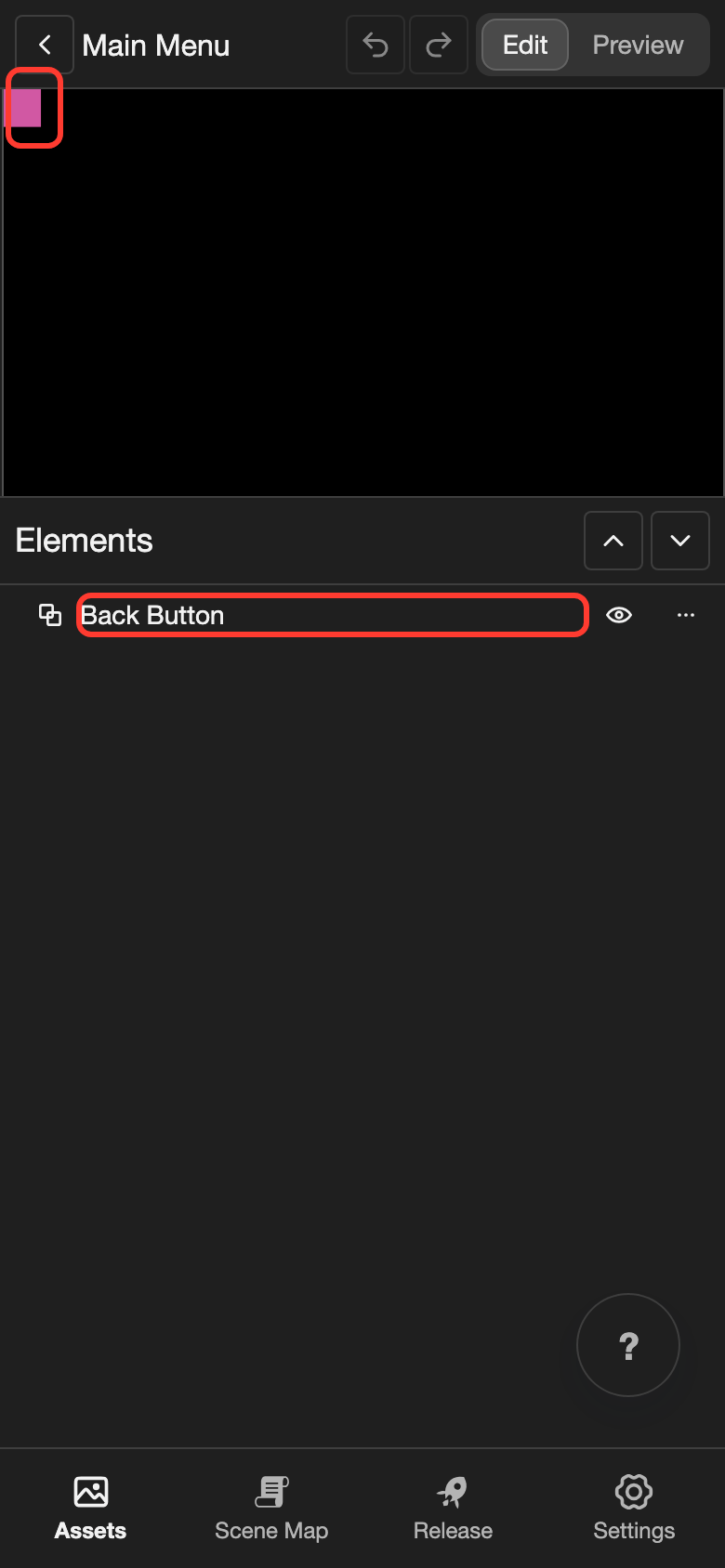
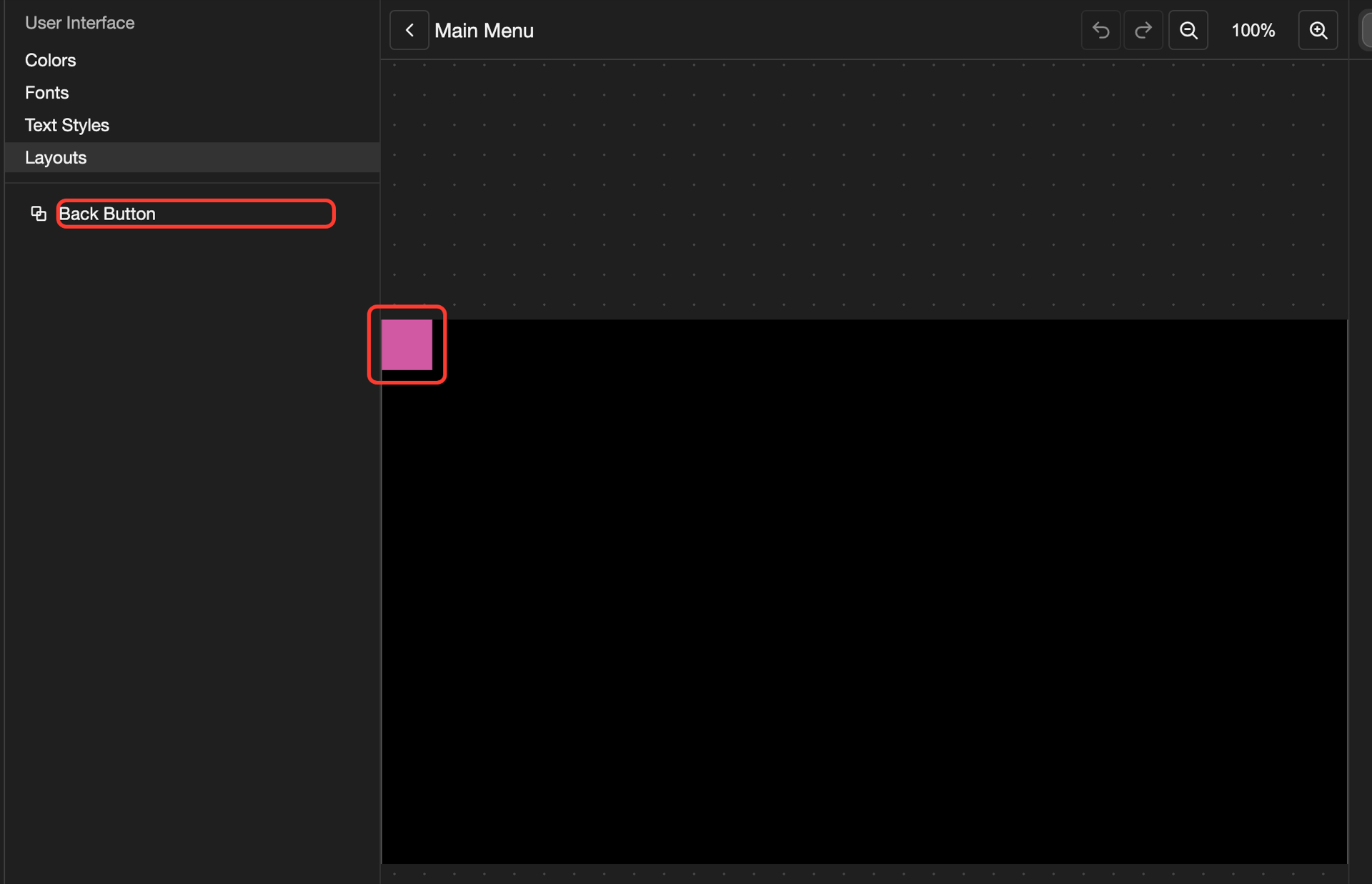
In Main Menu, you cannot select or change the elements inside the fragment. A tap on them selects the whole fragment.
Fragment settings
| Setting | What it does |
|---|---|
| Fragment | The fragment layout that it shows. To show another fragment, choose it from the list. |
| Position X, Position Y, and Anchor | Where the fragment is. A fragment has no Width or Height. |
The other settings, such as Opacity and Visibility, are the same for most elements. See Change an element's settings. A fragment has no Actions.
Good to know
- You cannot delete a fragment layout, or set it back to No, while a layout uses it. If you try, you see an error, such as Failed to update layout. First delete the Fragment elements that show it.