Image
An image shows a picture from your Images page. Use it for backgrounds, buttons, frames, and icons.
An image can change its picture when the reader points at it, or presses it. So it can work as a button.
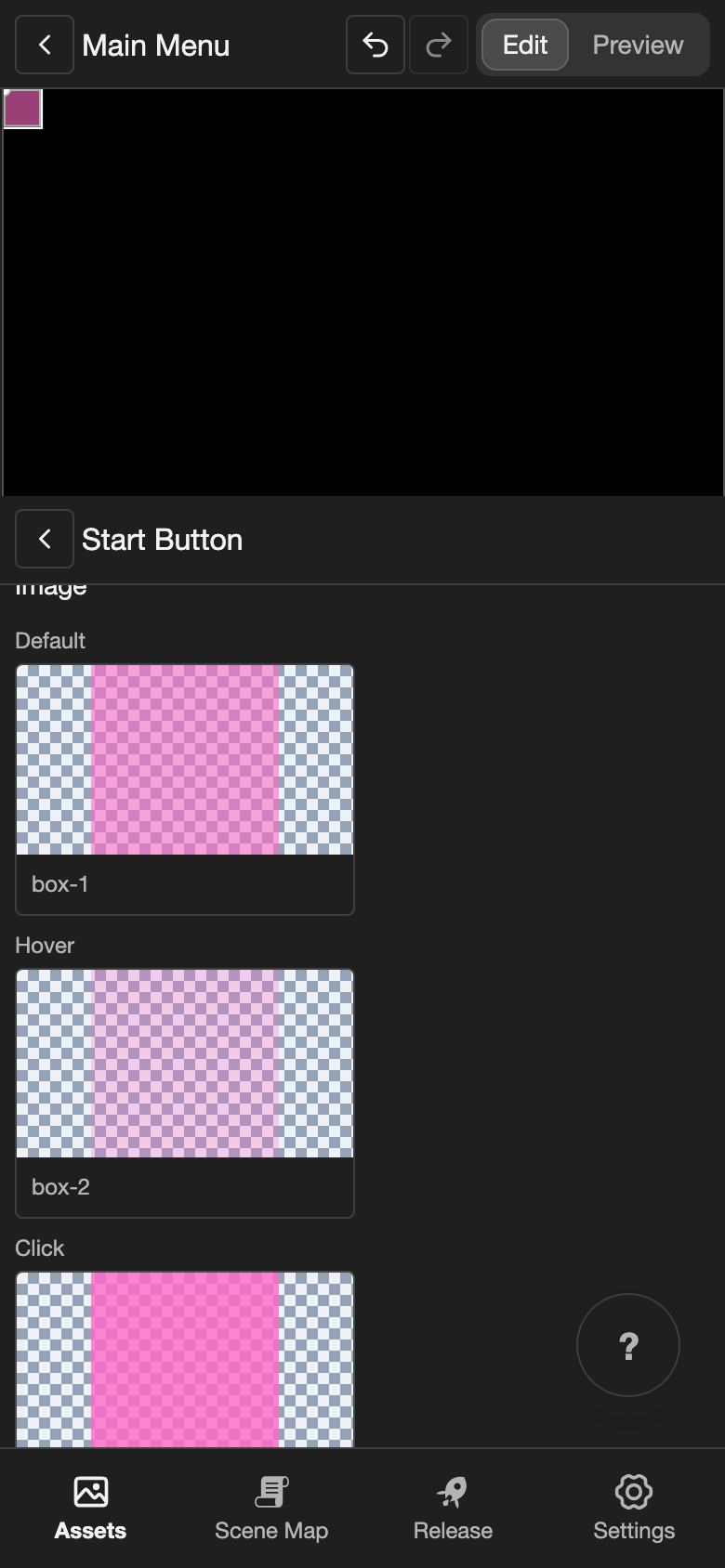
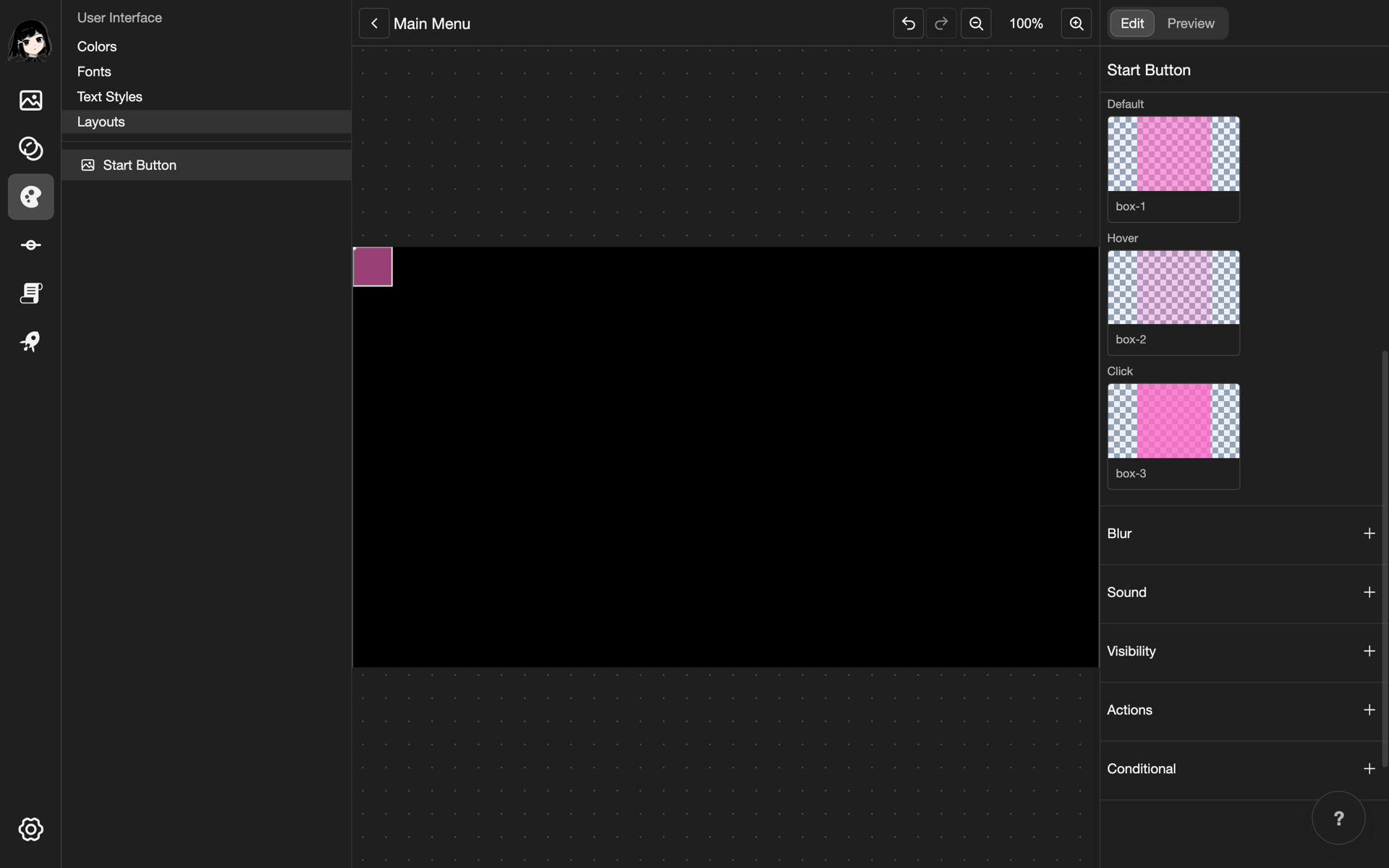
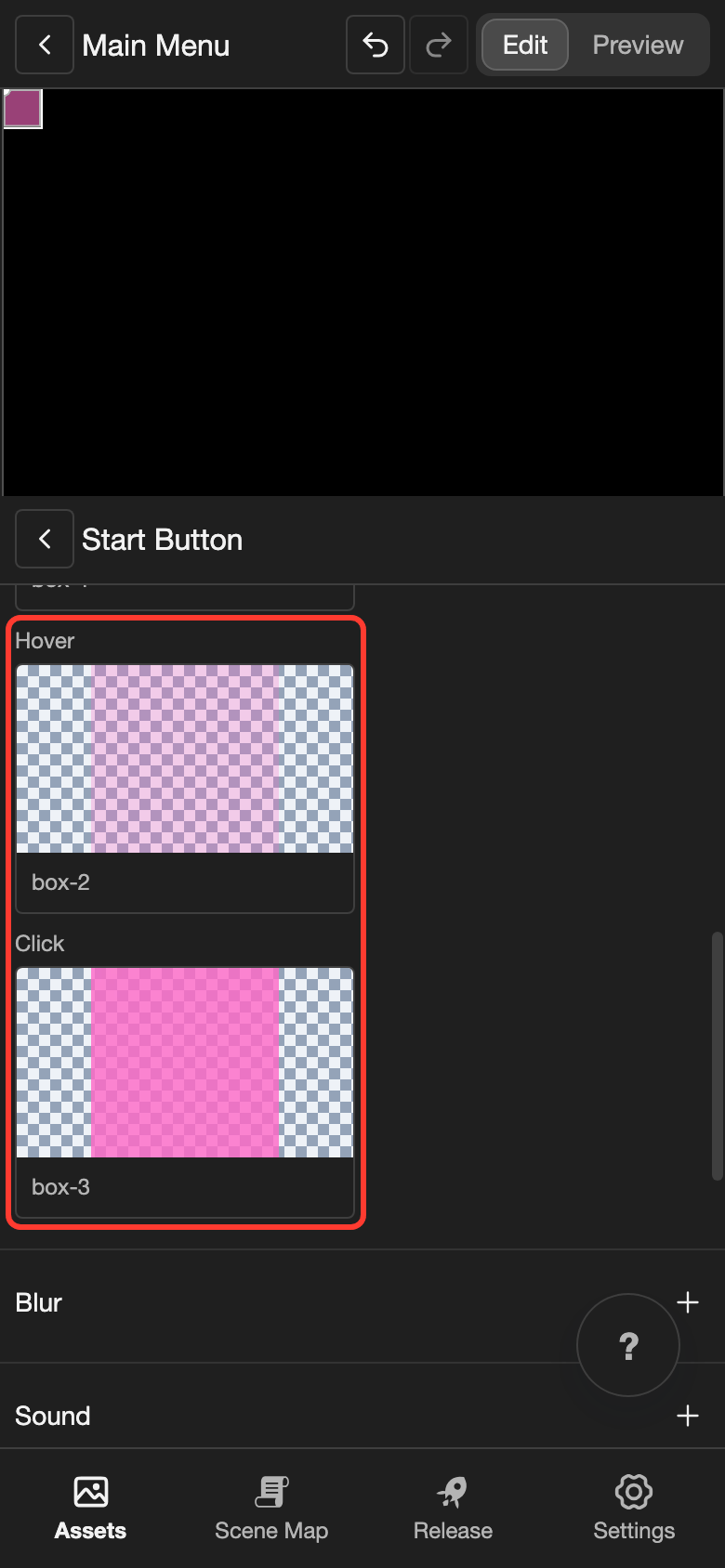
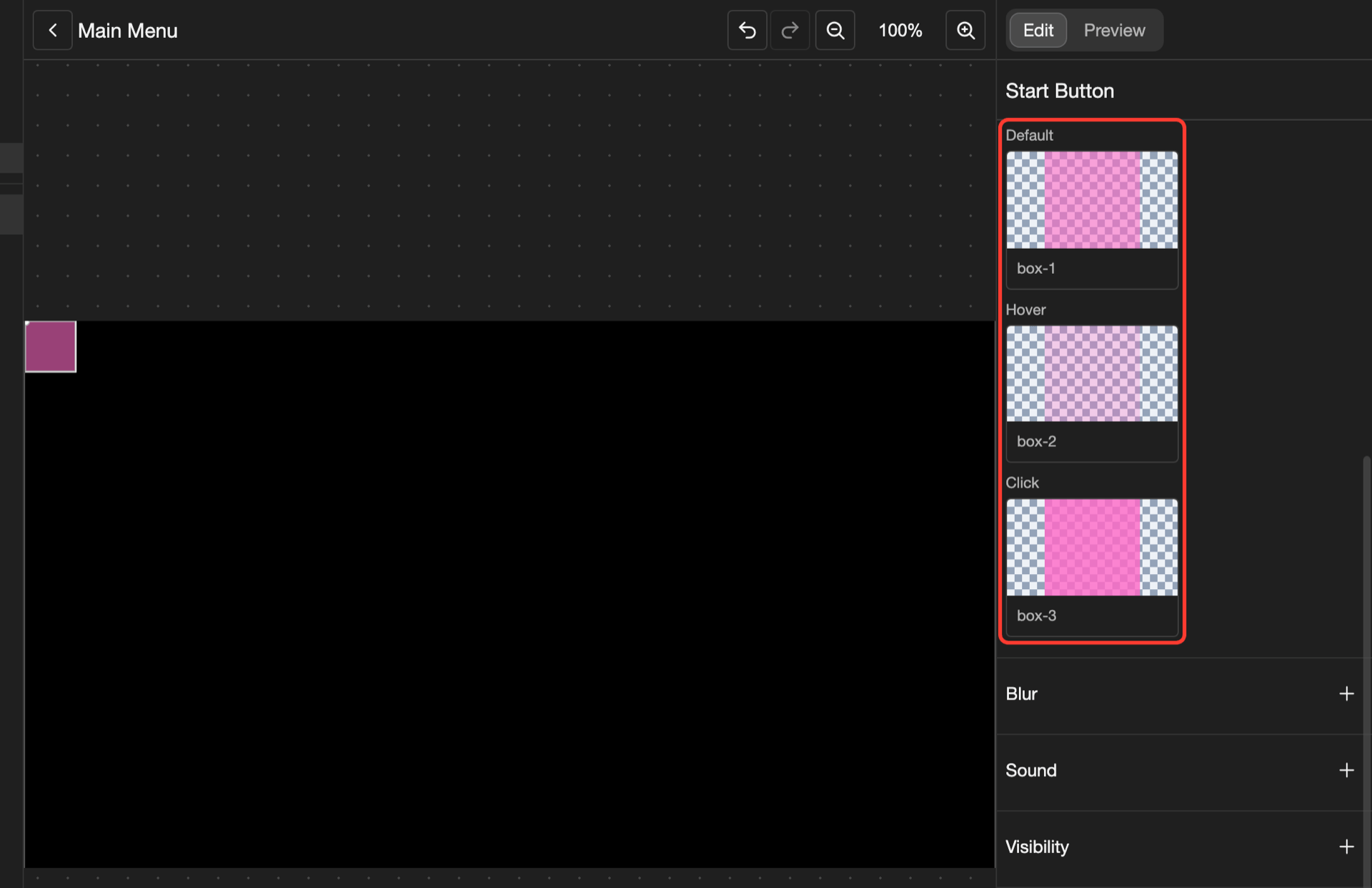
This example makes a button from 3 pictures: box-1, box-2, and box-3.
Add an image
-
Open a layout in the layout editor. See Open a layout.
-
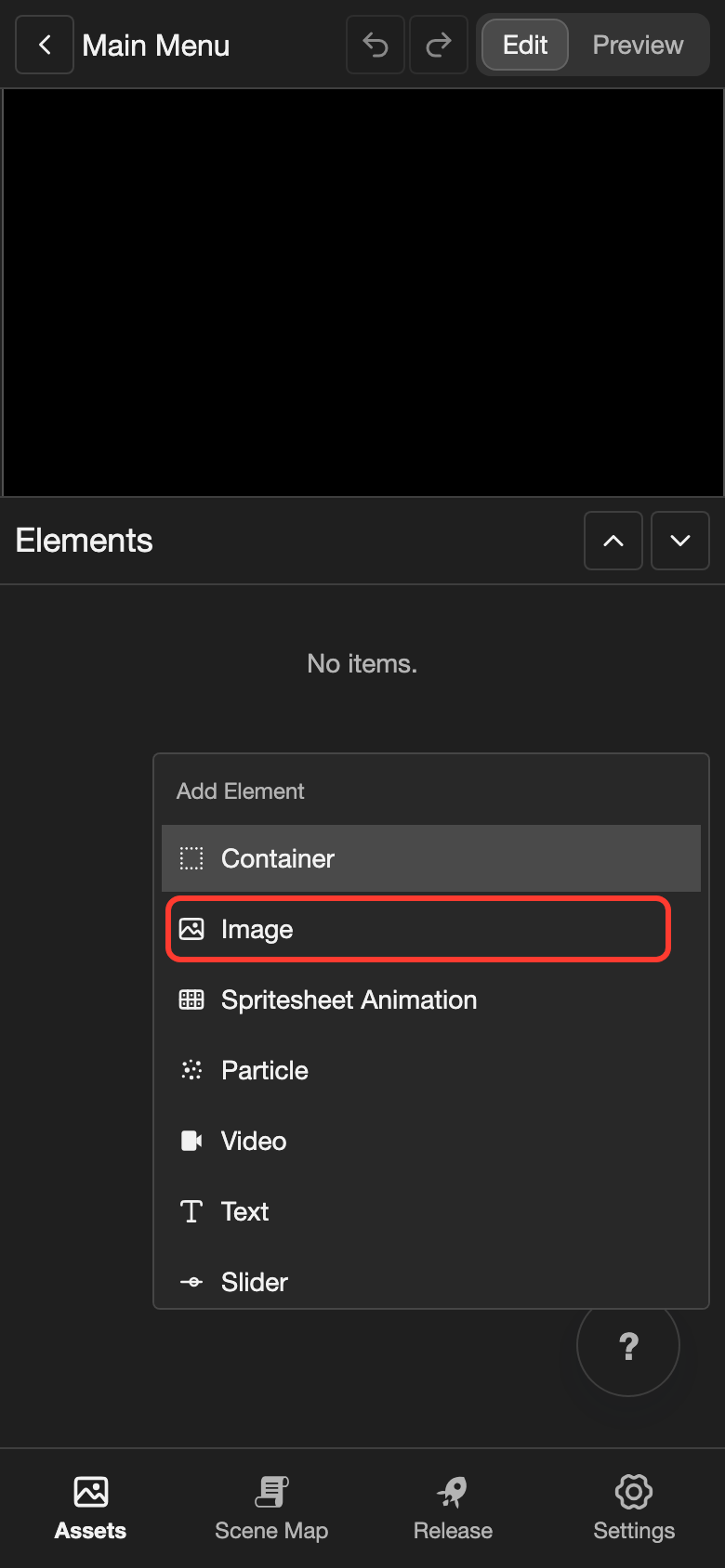
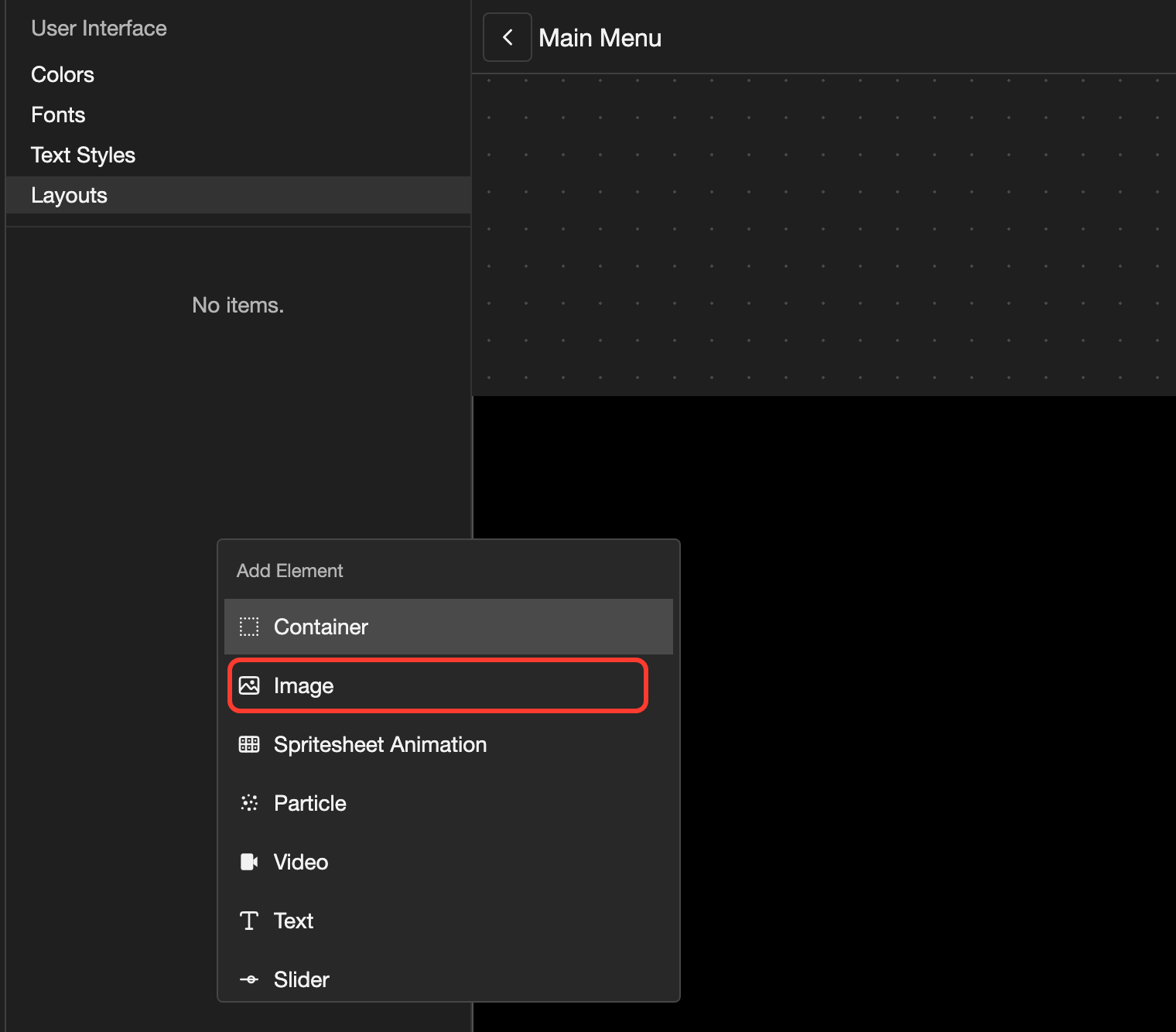
Open the Add Element menu.
- Phone or tablet: Long press (touch and hold) the empty space under the Elements list.
- Desktop: Right-click (click with the right mouse button) the empty space under the Elements list.
-
Tap Image. The Create Image box opens.
-
Under Name, type a name, such as
Start Button. The name shows in the Elements list. -
Tap Select image. Your images open.
-
Tap a picture, such as box-1. Then tap OK.
-
Tap Create Image.
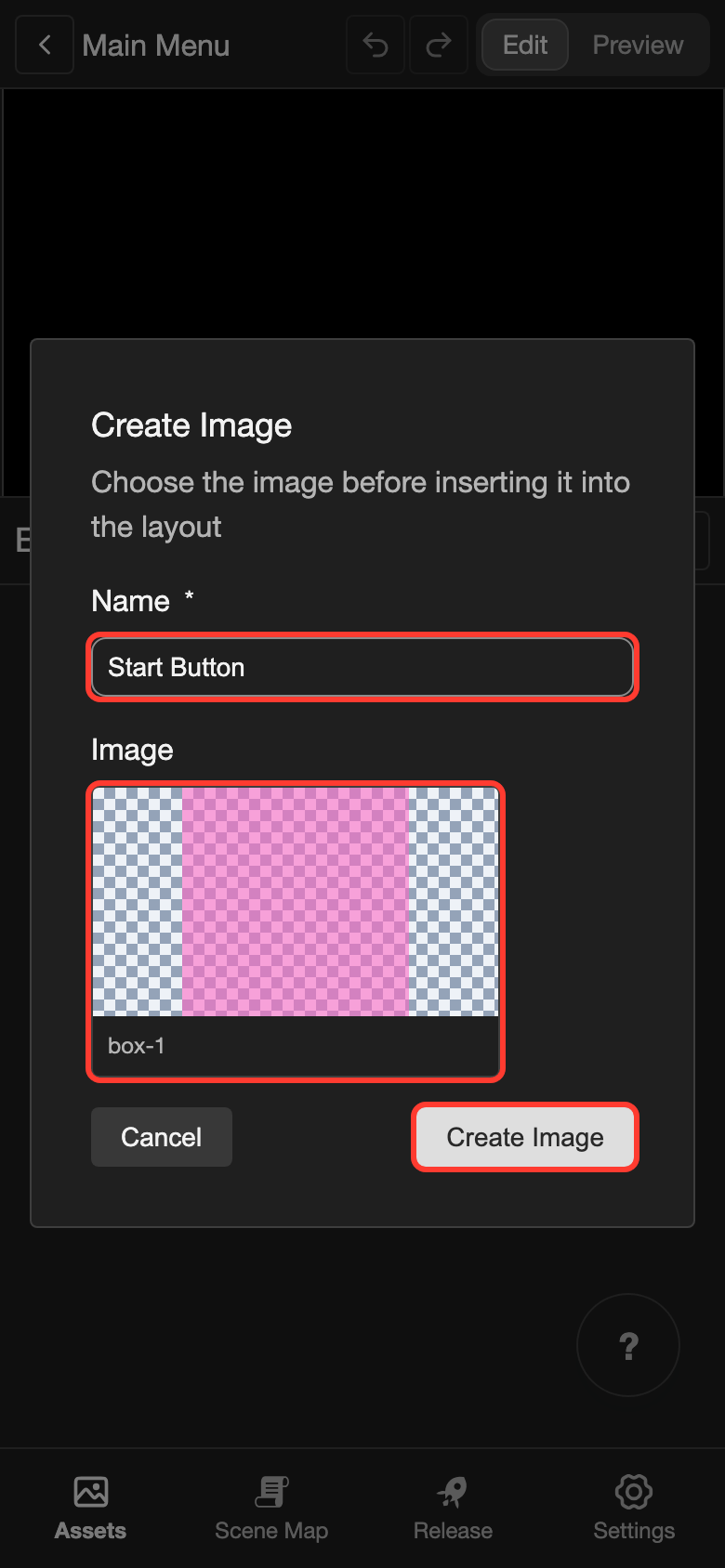
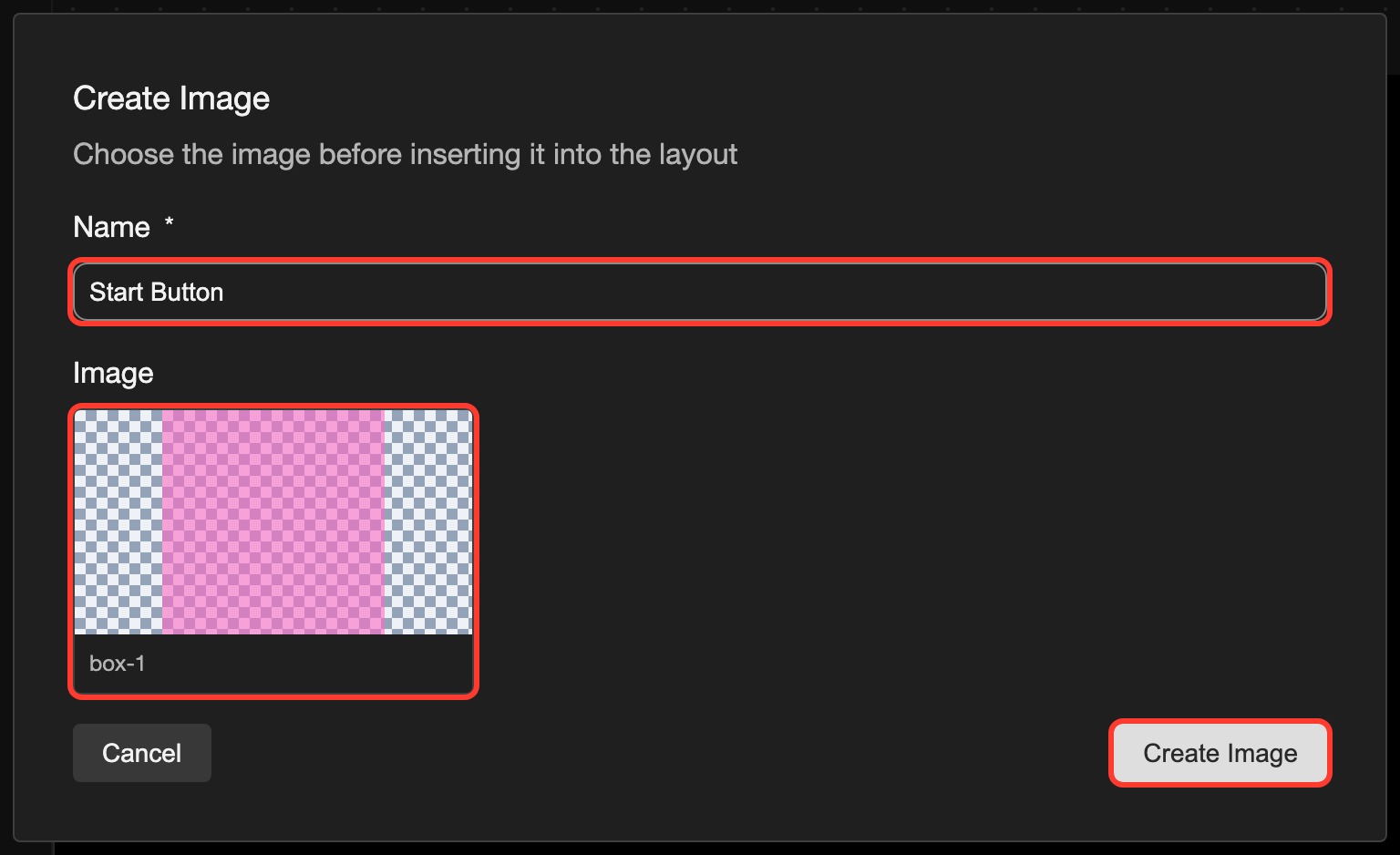
The picture shows in the top left corner of the canvas. The image has the same size as the picture.
Change the picture
- In the Elements list, tap the image. Its settings open.
- Under Image, tap the picture under Default. Your images open.
- Tap another picture. Then tap Select.
The image keeps its size. To fit the new picture, change Width and Height.
Add a Hover and a Click picture
A button can show another picture when the reader points at it, or presses it.
-
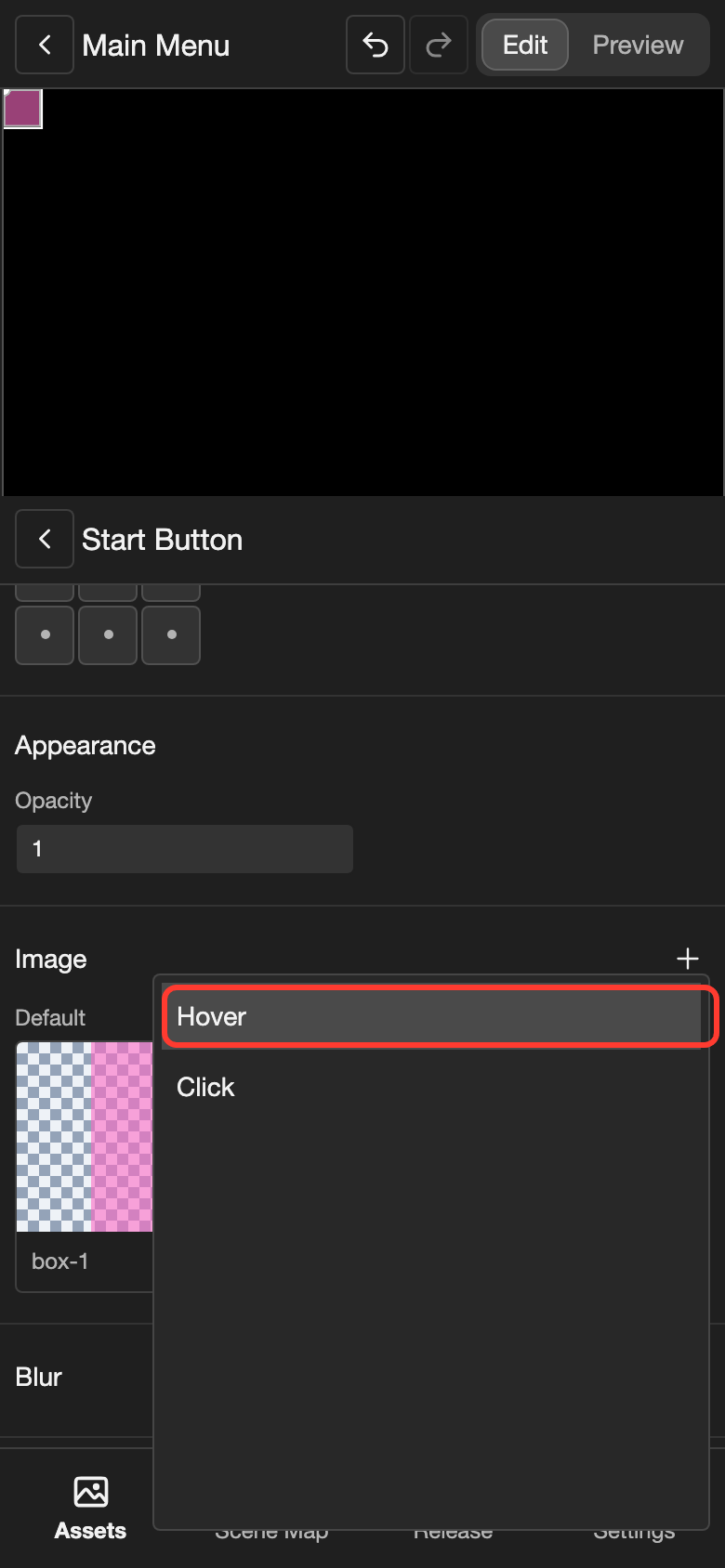
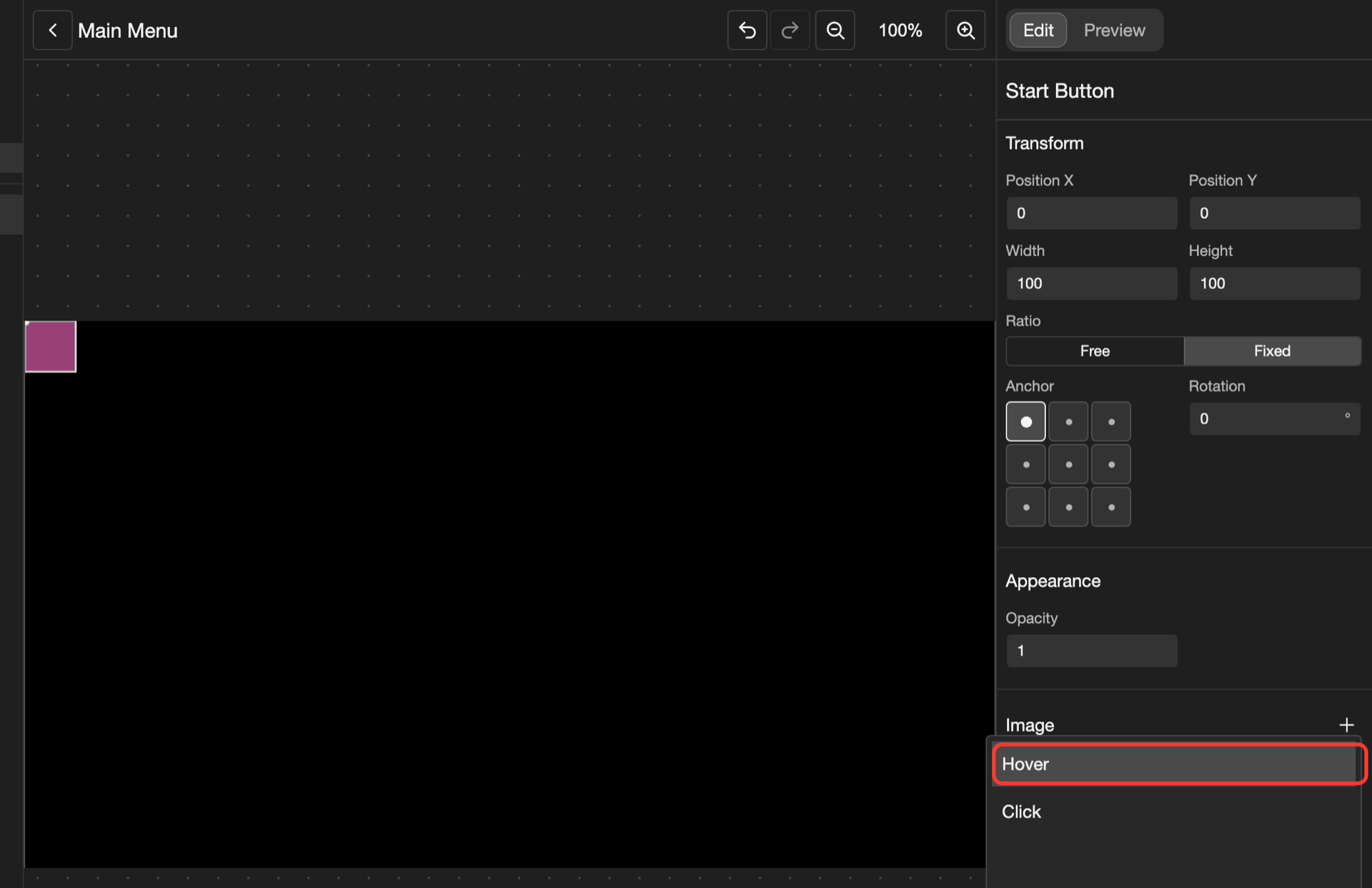
Next to Image, tap +.
-
Tap Hover. Your images open.
-
Tap a picture, such as box-2. Then tap Select.
-
Do steps 1 to 3 again. This time, tap Click, and choose box-3.
Under Image, the image now has 3 pictures.
| Picture | When it shows |
|---|---|
| Default | The rest of the time |
| Hover | While the reader points at the image with the mouse |
| Click | While the reader presses the image, until they let go |
To change a picture, tap it. To make the button do something when the reader taps it, add an action. See Change an element's settings.
Blur the picture
Blur makes the picture blurry. For example, blur a background behind a menu.
-
Next to Blur, tap +. The Blur box opens.
-
Change Blur X and Blur Y. Bigger numbers make the picture more blurry.
- Blur X blurs from side to side.
- Blur Y blurs up and down.
-
Tap Add Blur.
To change the blur later, tap it under Blur.
Image settings
| Setting | What it does |
|---|---|
| Width and Height | The size, in pixels. They start at the size of the picture. |
| Ratio | Fixed keeps the shape of the picture when you change Width or Height. Free lets you change them on their own. |
| Image | The pictures: Default, and also Hover and Click if you add them. |
| Blur | Makes the picture blurry. |
The other settings, such as Sound, Visibility, and Actions, are the same for most elements. See Change an element's settings.
Good to know
- To use a picture, upload it on the Images page first. See Upload images.