Slider
A slider is a bar with a handle that the reader drags. The handle is called the thumb. Use a slider for settings, such as the music volume.
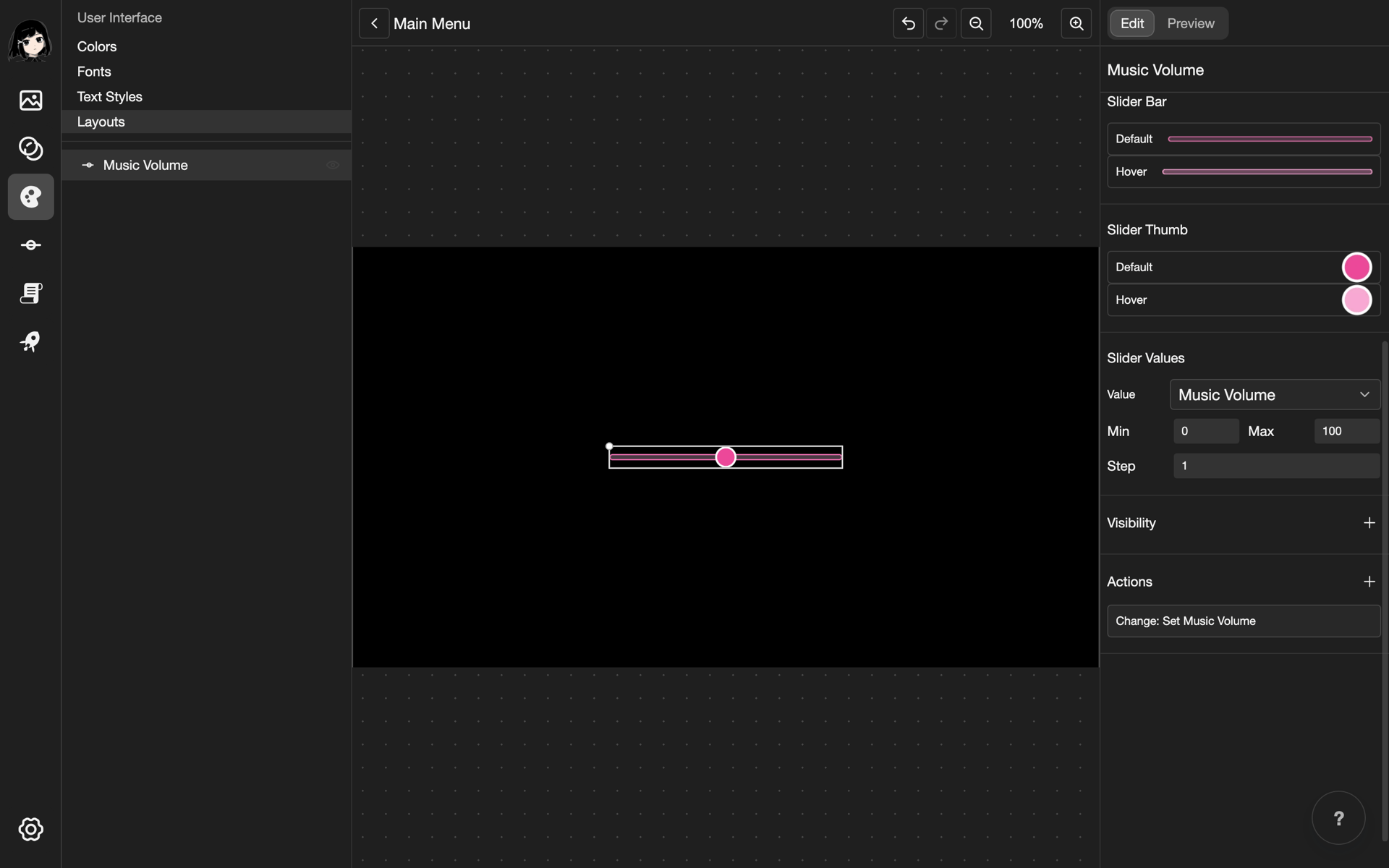
This example makes a music volume bar. It uses 4 pictures: volume-bar, volume-thumb, volume-bar-hover, and volume-thumb-hover. Upload your own pictures for the bar and the thumb first. See Upload images.
Add a slider
-
Open a layout in the layout editor. See Open a layout.
-
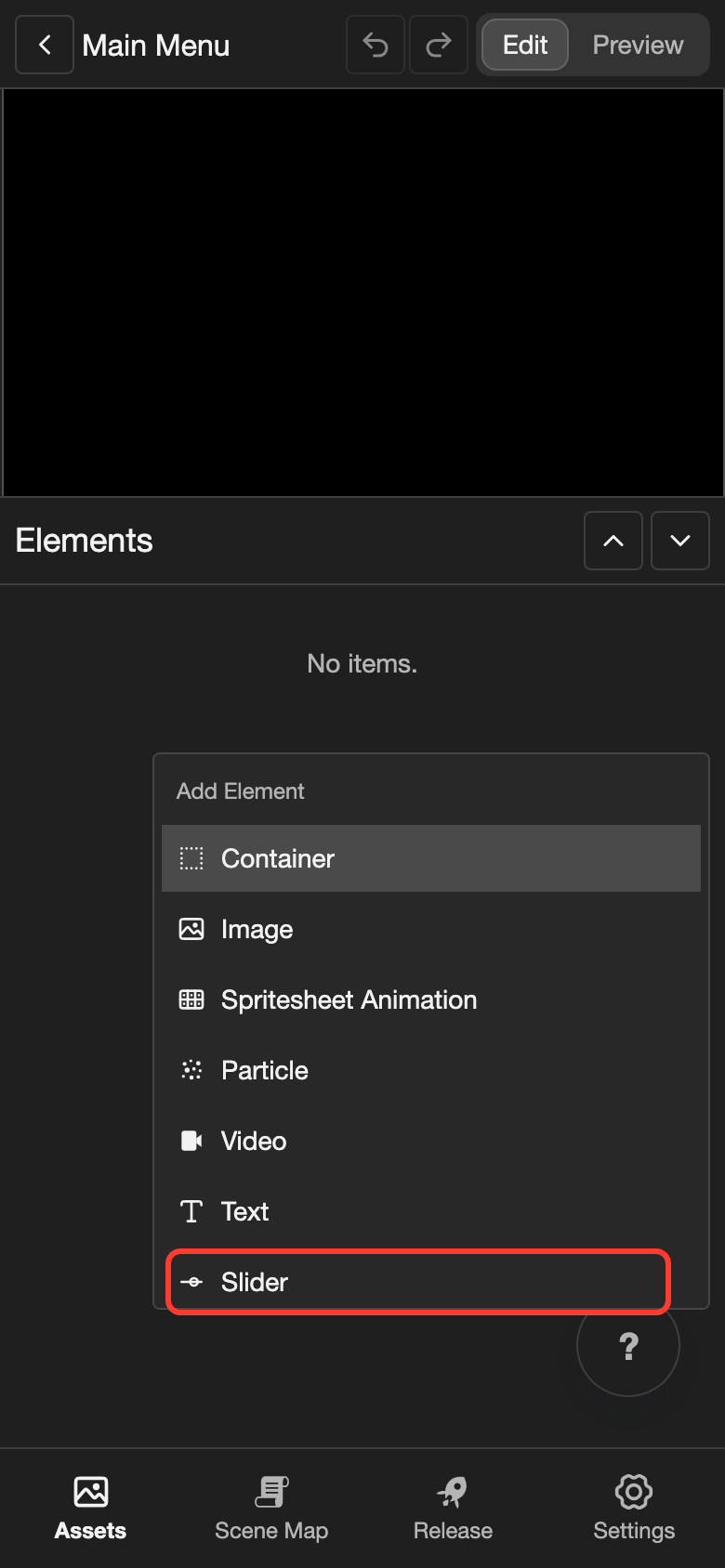
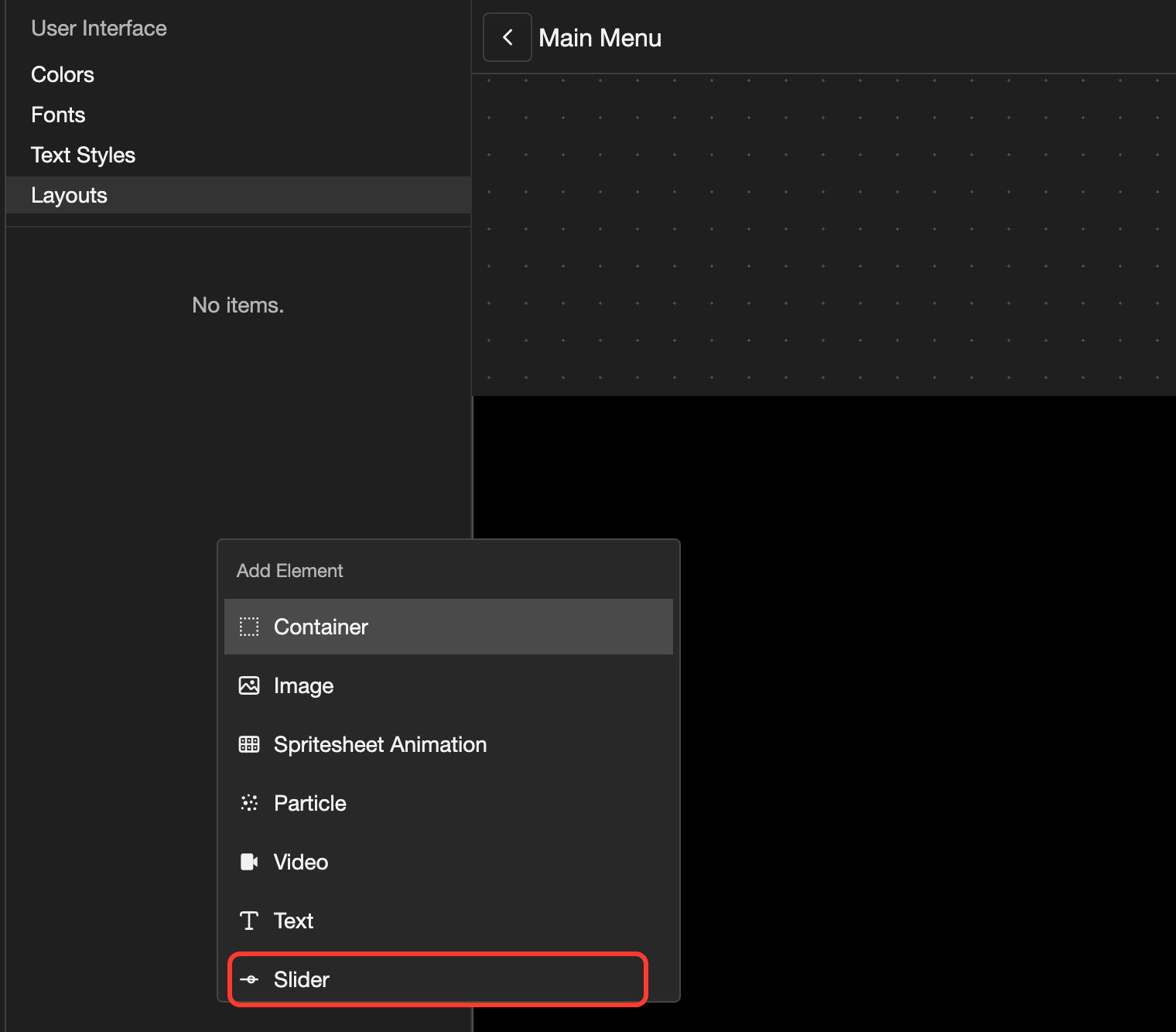
Open the Add Element menu.
- Phone or tablet: Long press (touch and hold) the empty space under the Elements list.
- Desktop: Right-click (click with the right mouse button) the empty space under the Elements list.
-
Tap Slider. The Create Slider box opens.
-
Under Name, type a name, such as
Music Volume. -
Under Direction, keep Horizontal. For a slider that goes up and down, choose Vertical.
-
Under Bar Image, tap Select bar image. Tap a picture, such as volume-bar. Then tap OK.
-
Under Thumb Image, tap Select thumb image. Tap a picture, such as volume-thumb. Then tap OK.
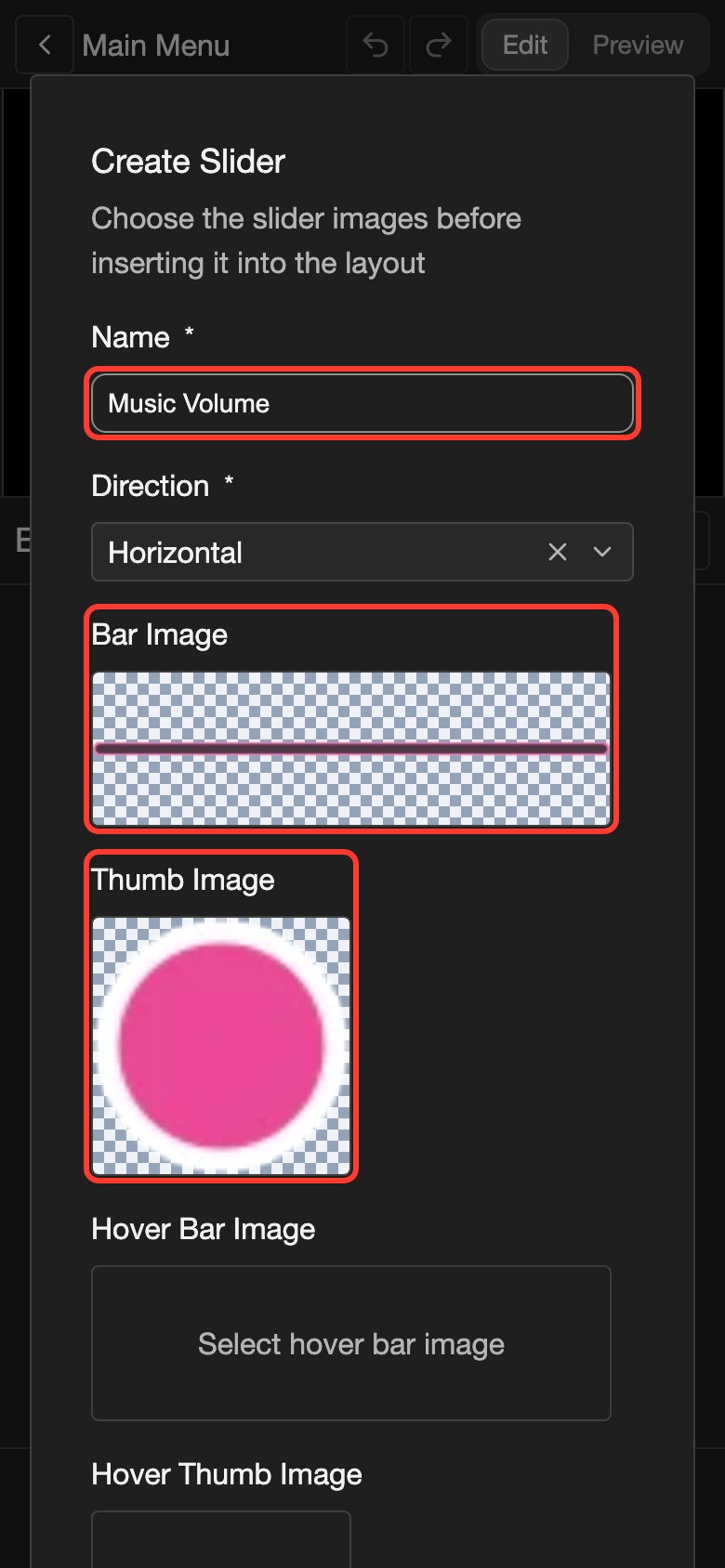
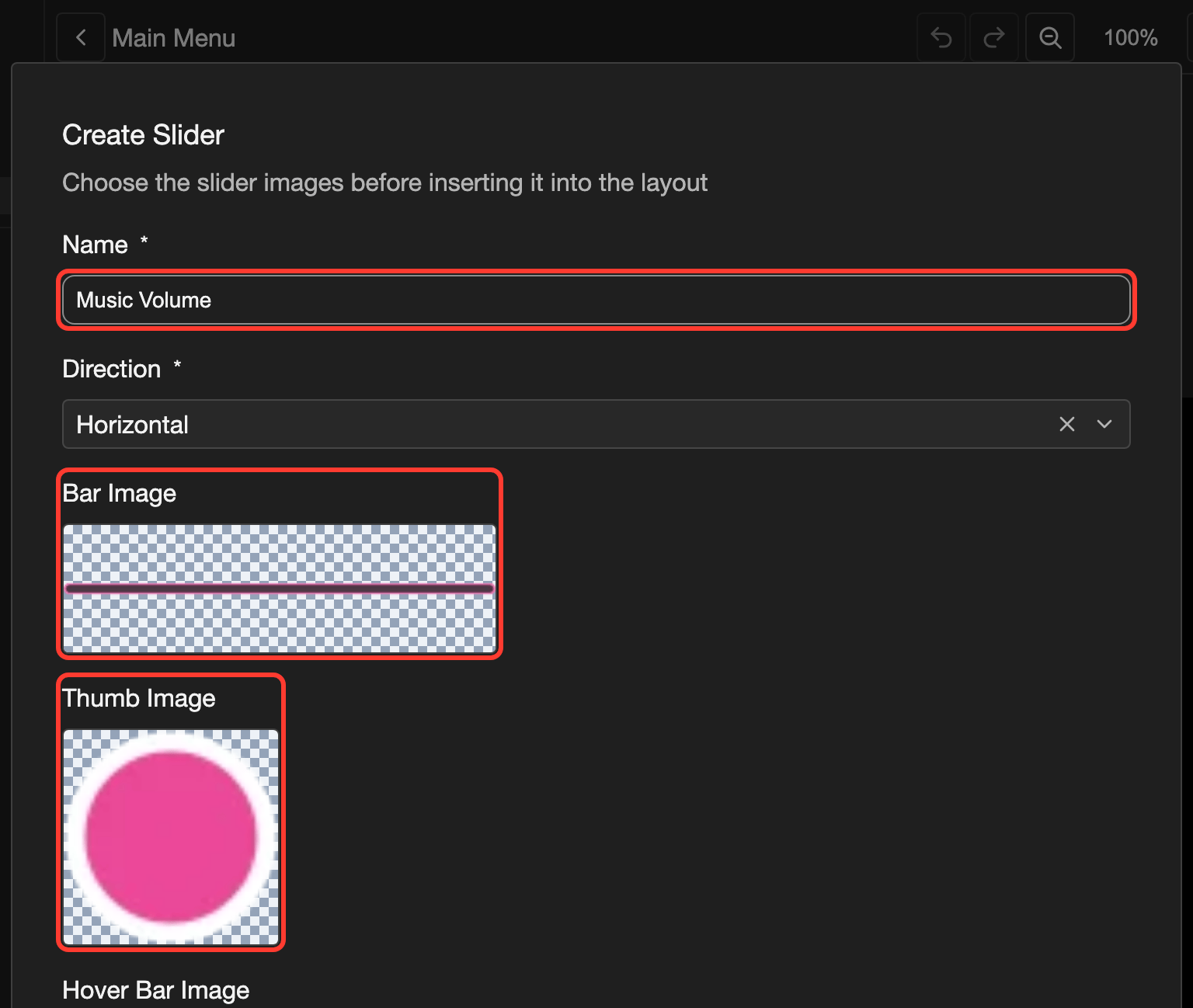
-
Optional: Under Hover Bar Image and Hover Thumb Image, choose pictures in the same way. They show while the reader points at the slider with the mouse.
-
Tap Create Slider.
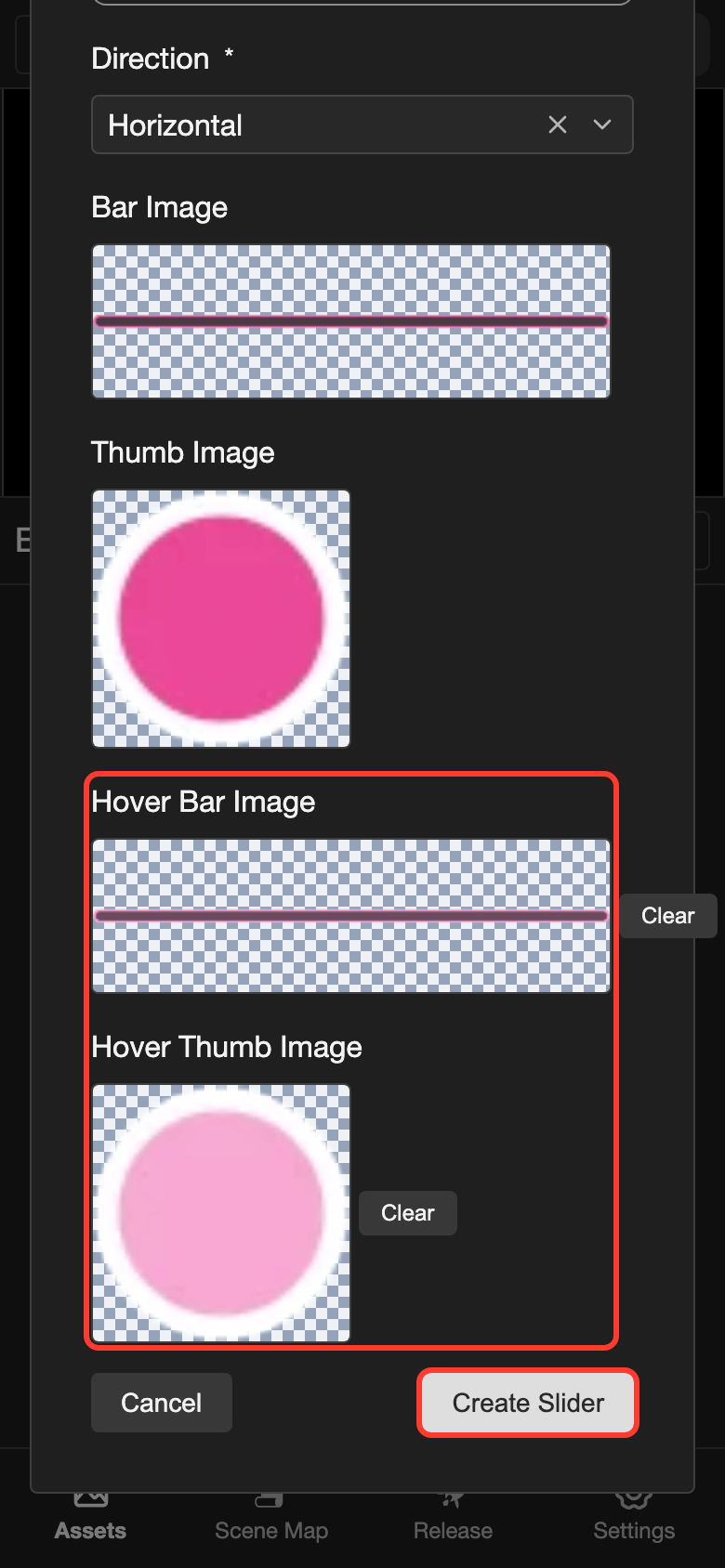
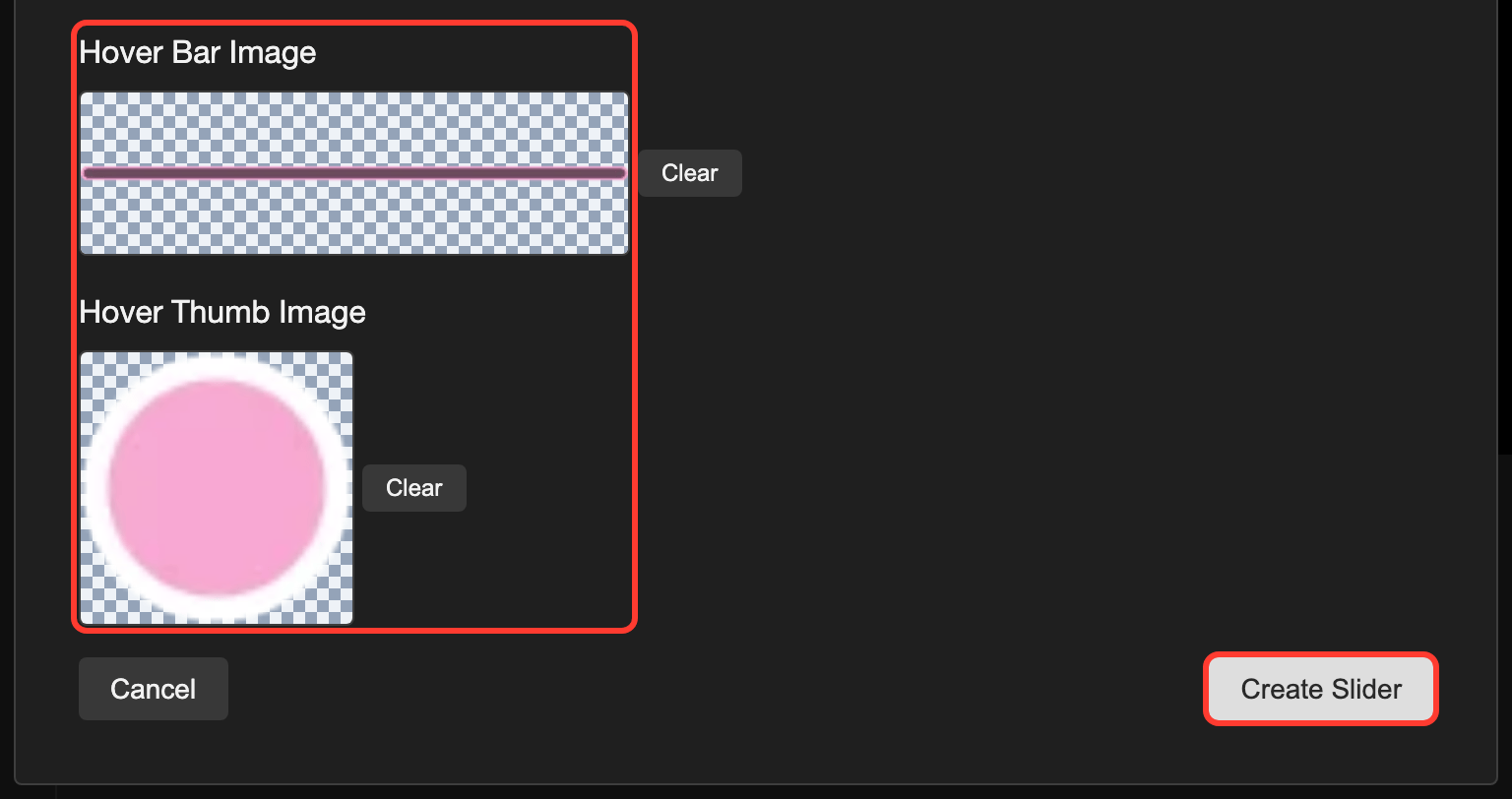
The slider shows in the top left corner of the canvas. It is 400 pixels wide and 20 pixels high. So the bar picture is squeezed to fit, and the thumb is small.
Change the size and the place
-
In the Elements list, tap the slider. Its settings open.
-
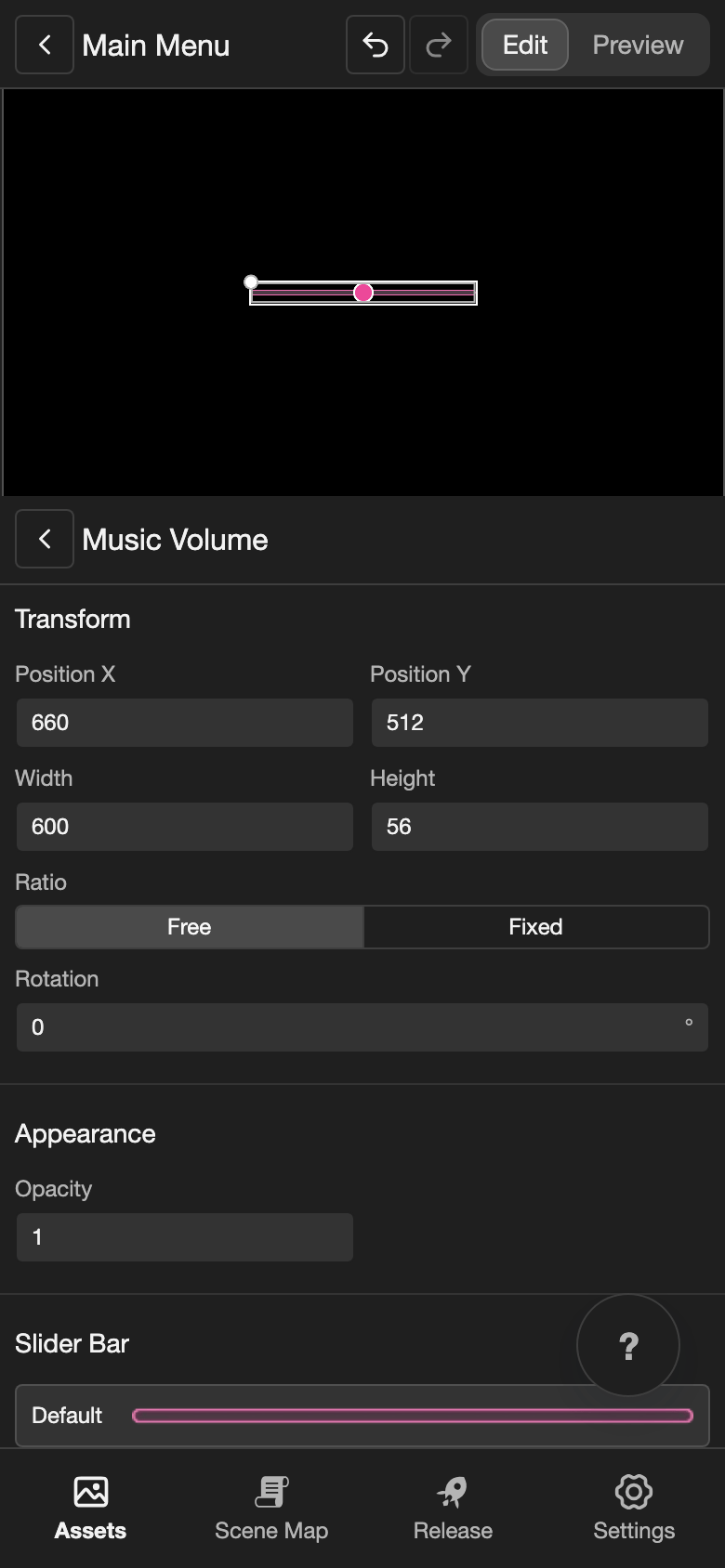
Under Transform, change Width to
600and Height to56. This is the size of the bar picture. To change a number, tap it, type the new number, and tap Submit. -
Change Position X to
660and Position Y to512.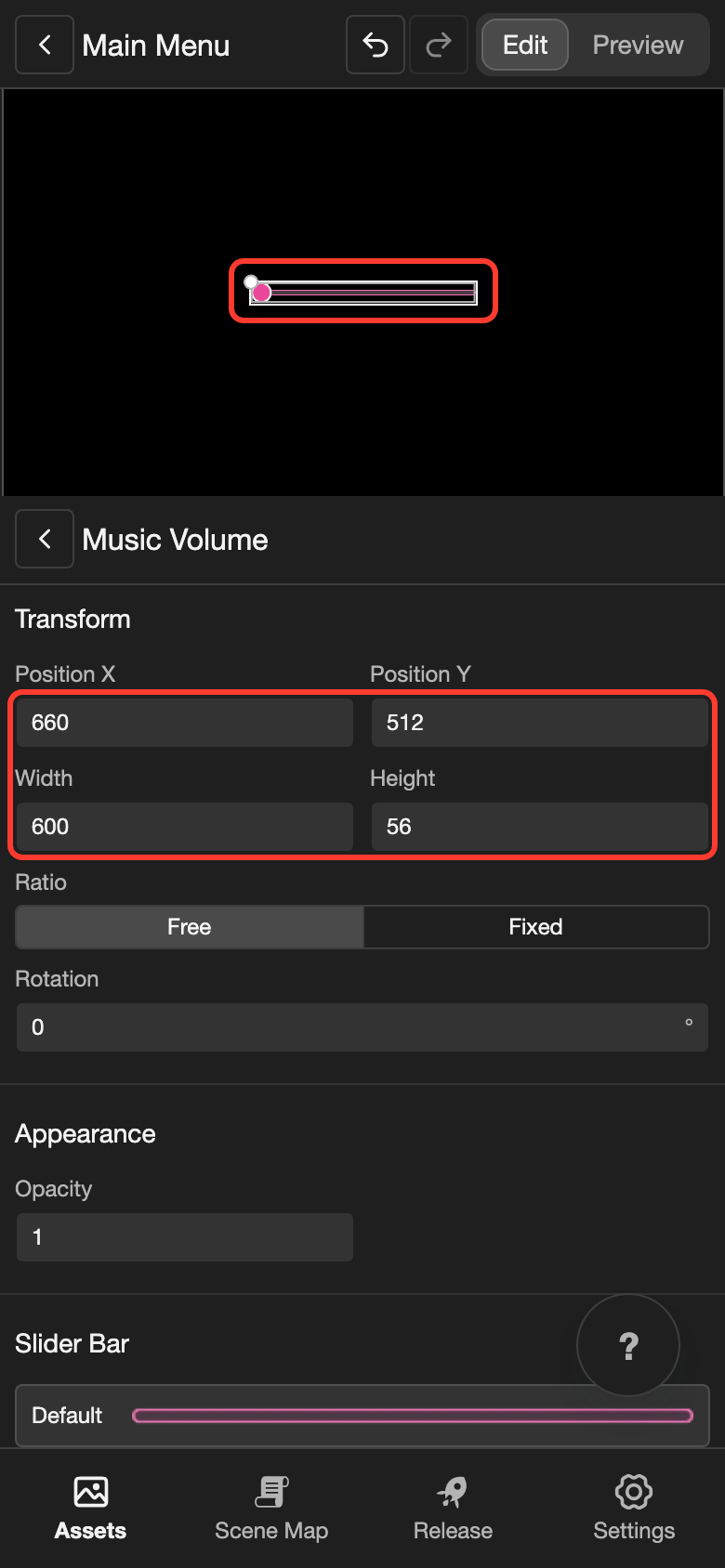
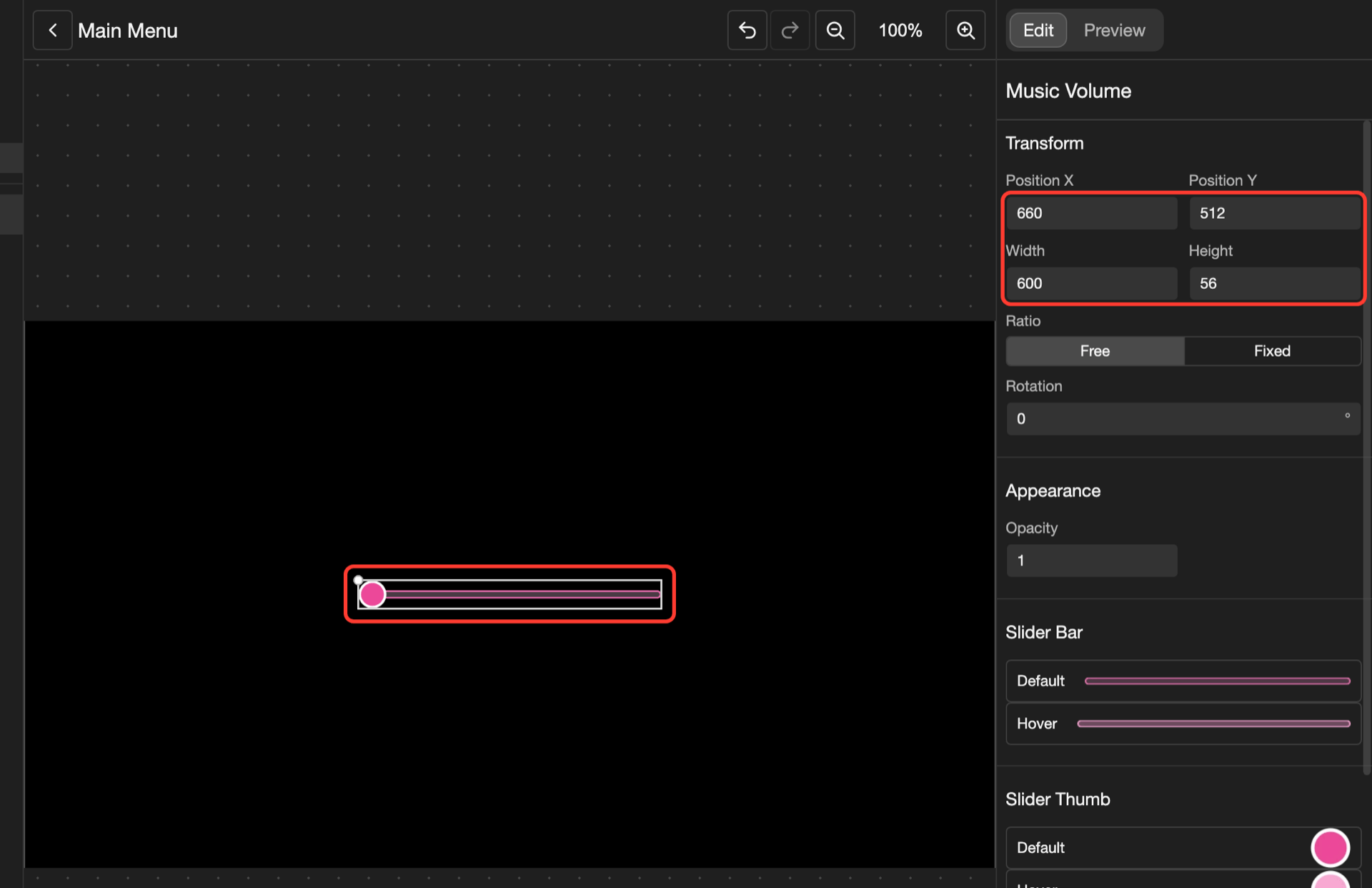
The slider is now in the middle of the screen. A slider has no Anchor. So Position X and Position Y set its top left corner. On a 1920 x 1080 screen, these numbers put the slider in the middle.
Change the music volume with the slider
A slider changes nothing by itself. To make it change the music volume, do both parts below.
Start at the music volume
-
Under Slider Values, tap the list next to Value.
-
Tap Music Volume.
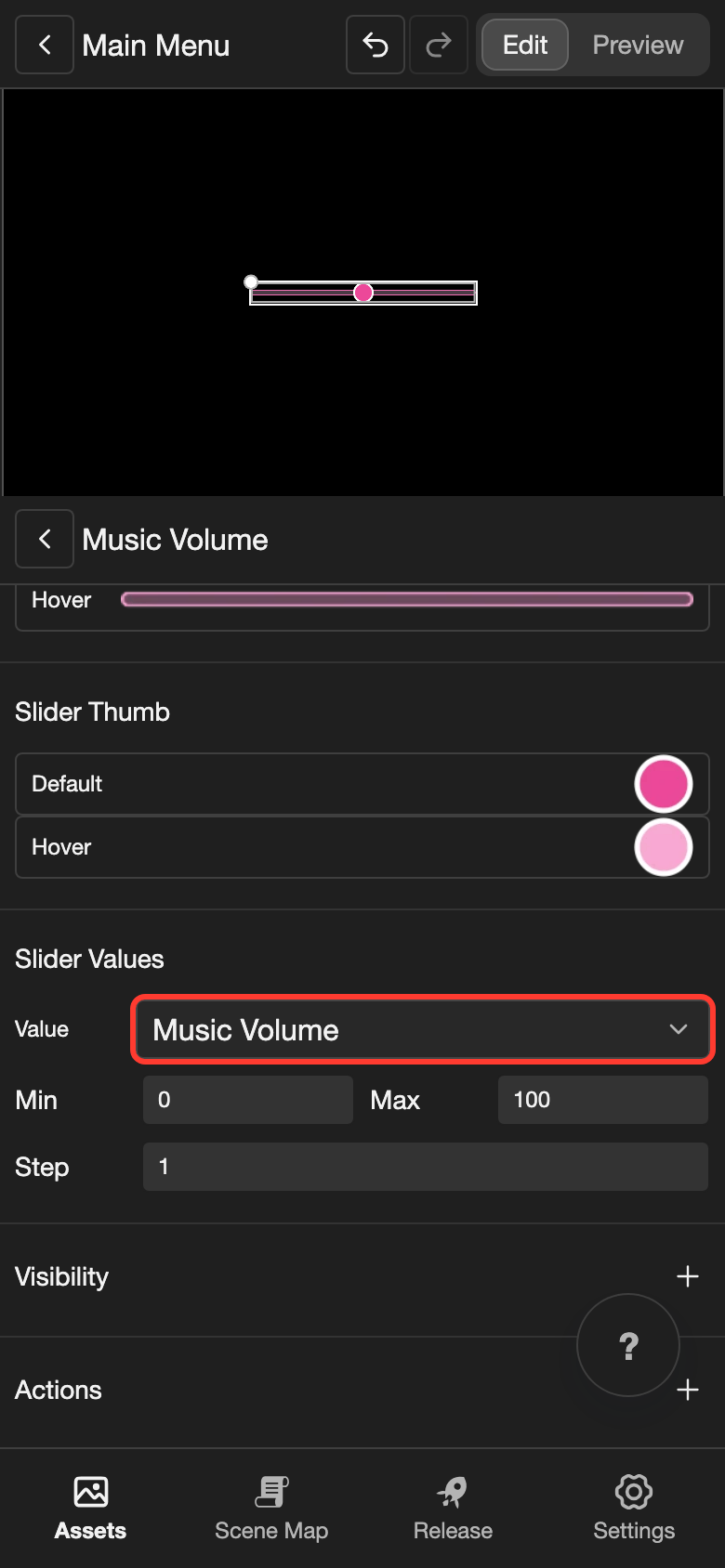
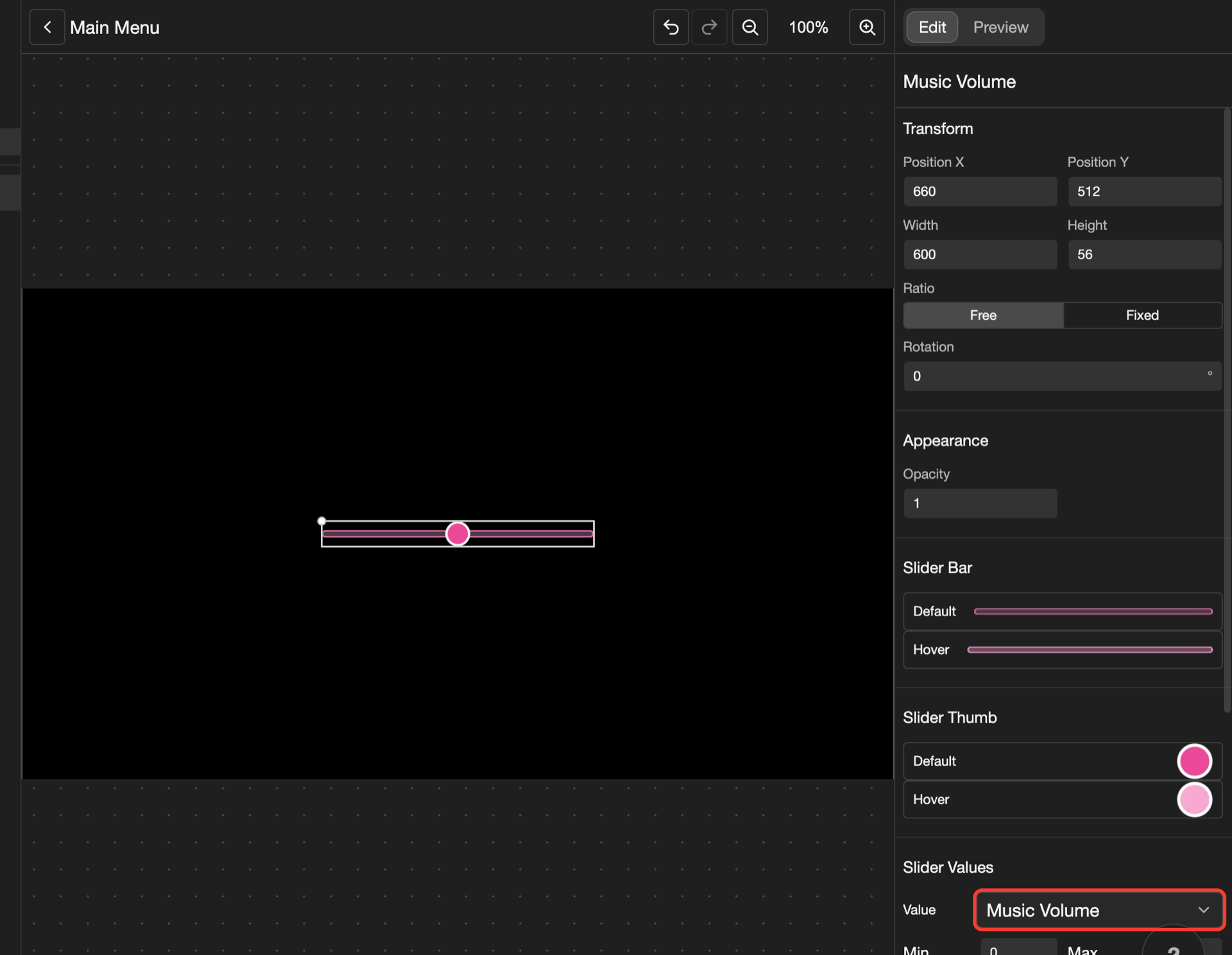
The thumb now starts at the music volume of the reader.
Set the music volume when the reader drags
-
Next to Actions, tap +. Then tap Change.
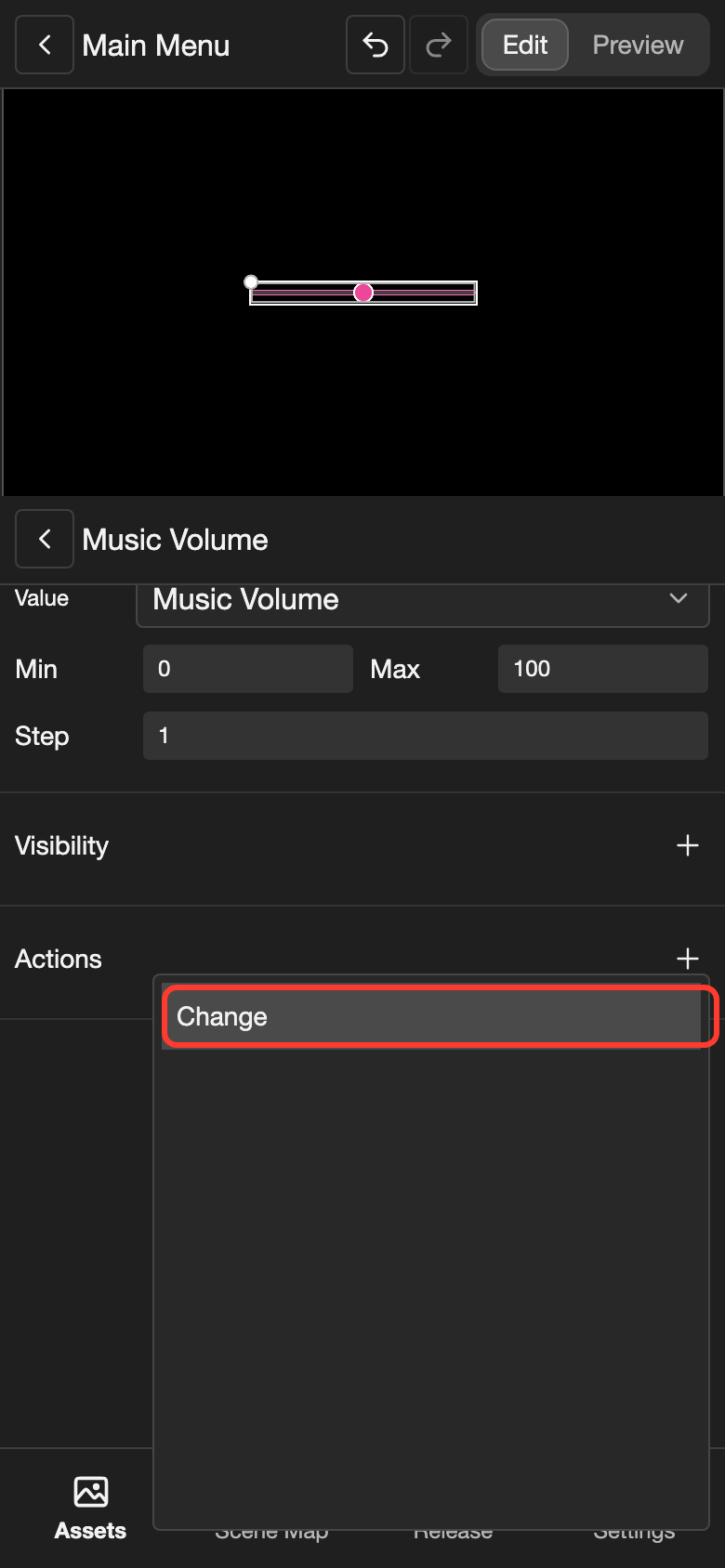
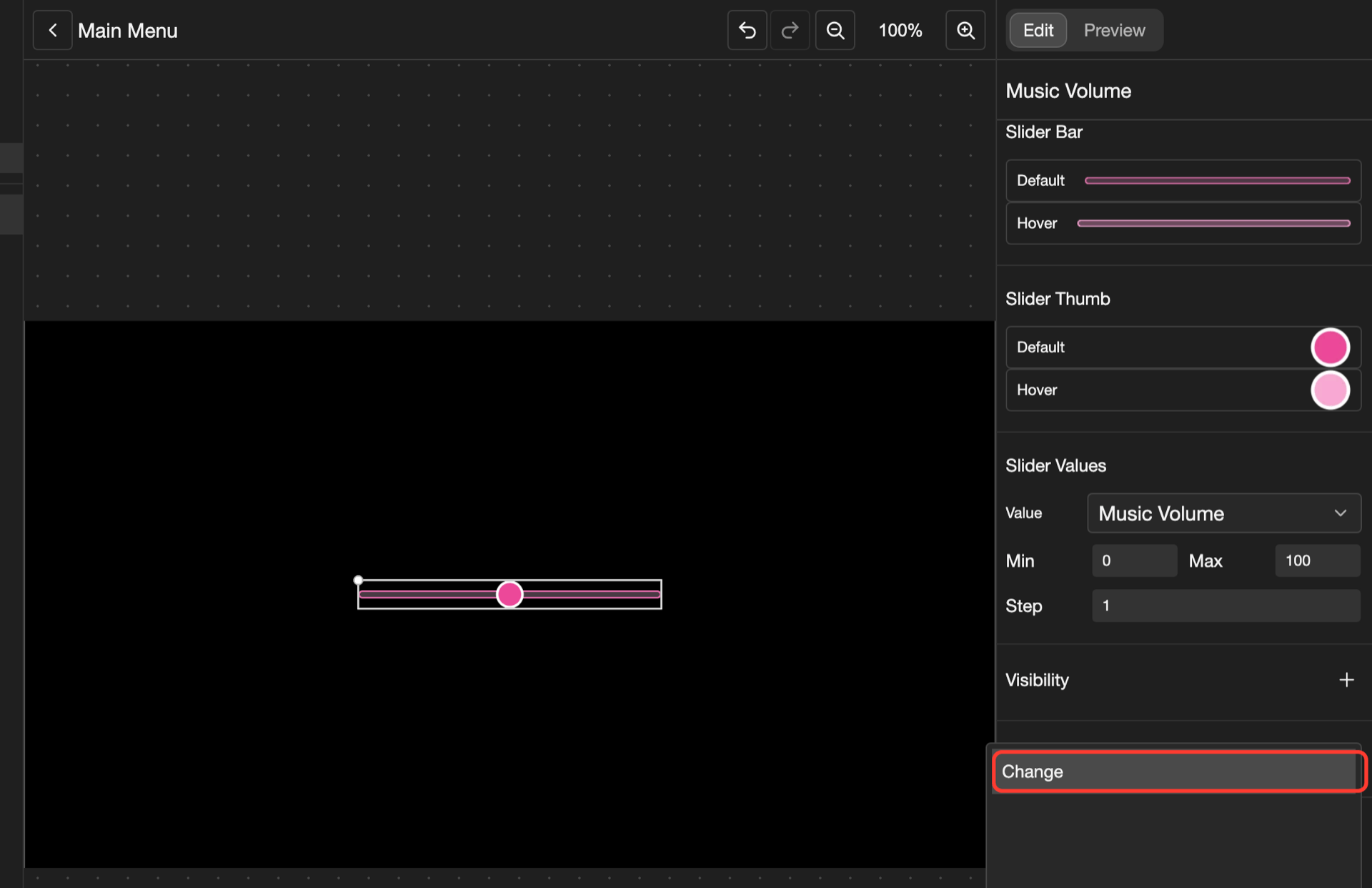
The Actions box opens.
-
Scroll down. Tap Set Music Volume.
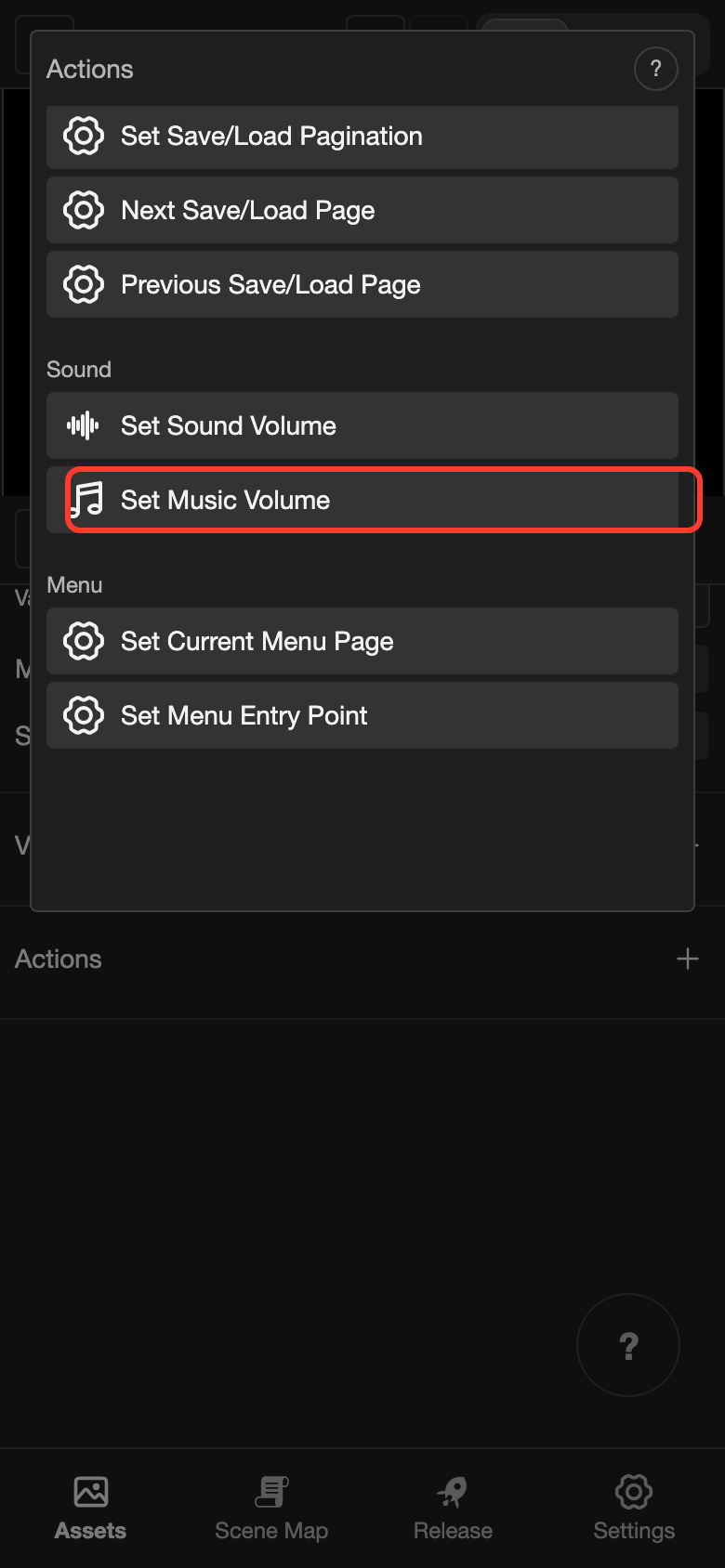
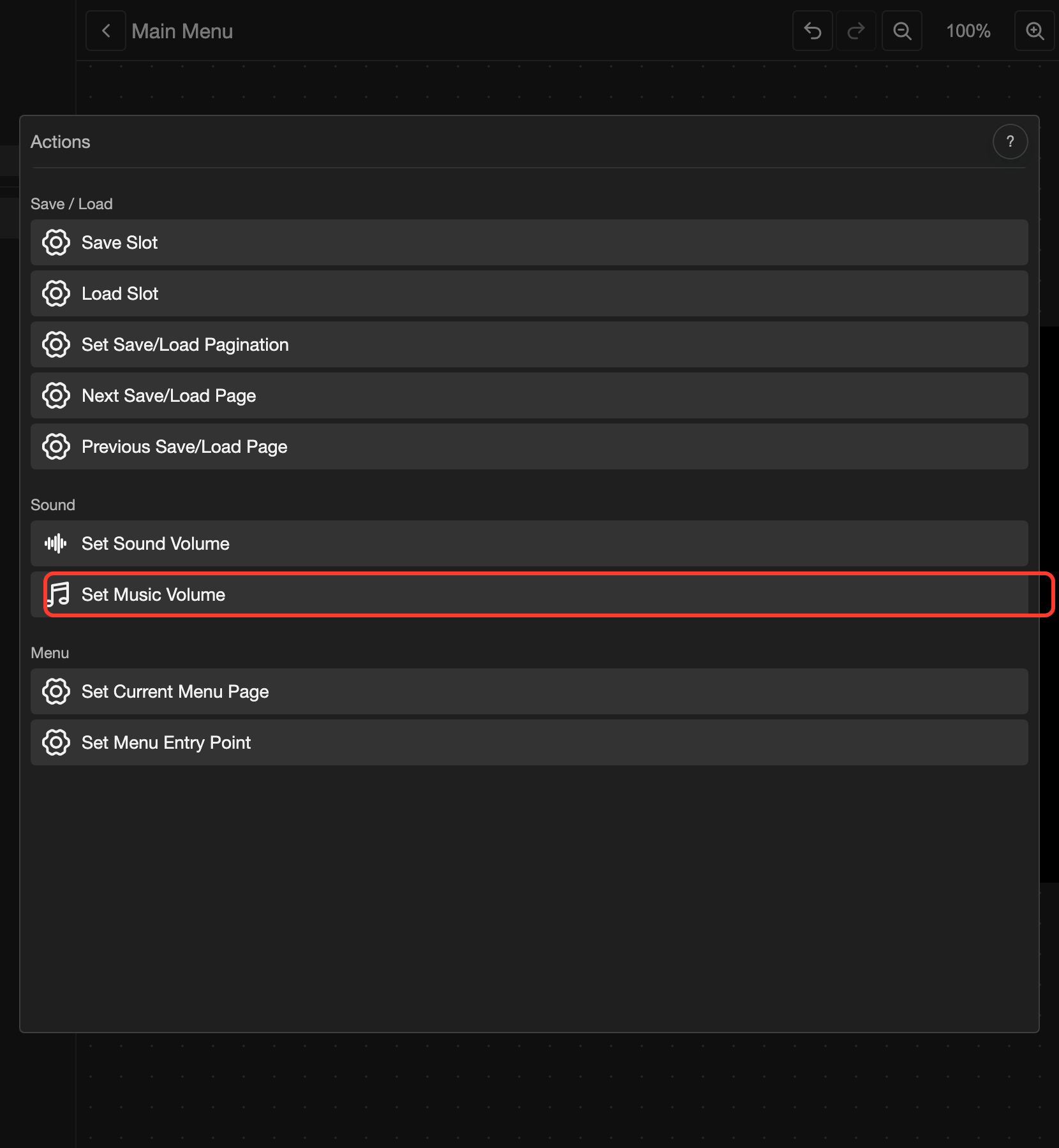
-
Under Set To, tap Current Value. Current Value is the value of the slider.
-
Tap Submit.
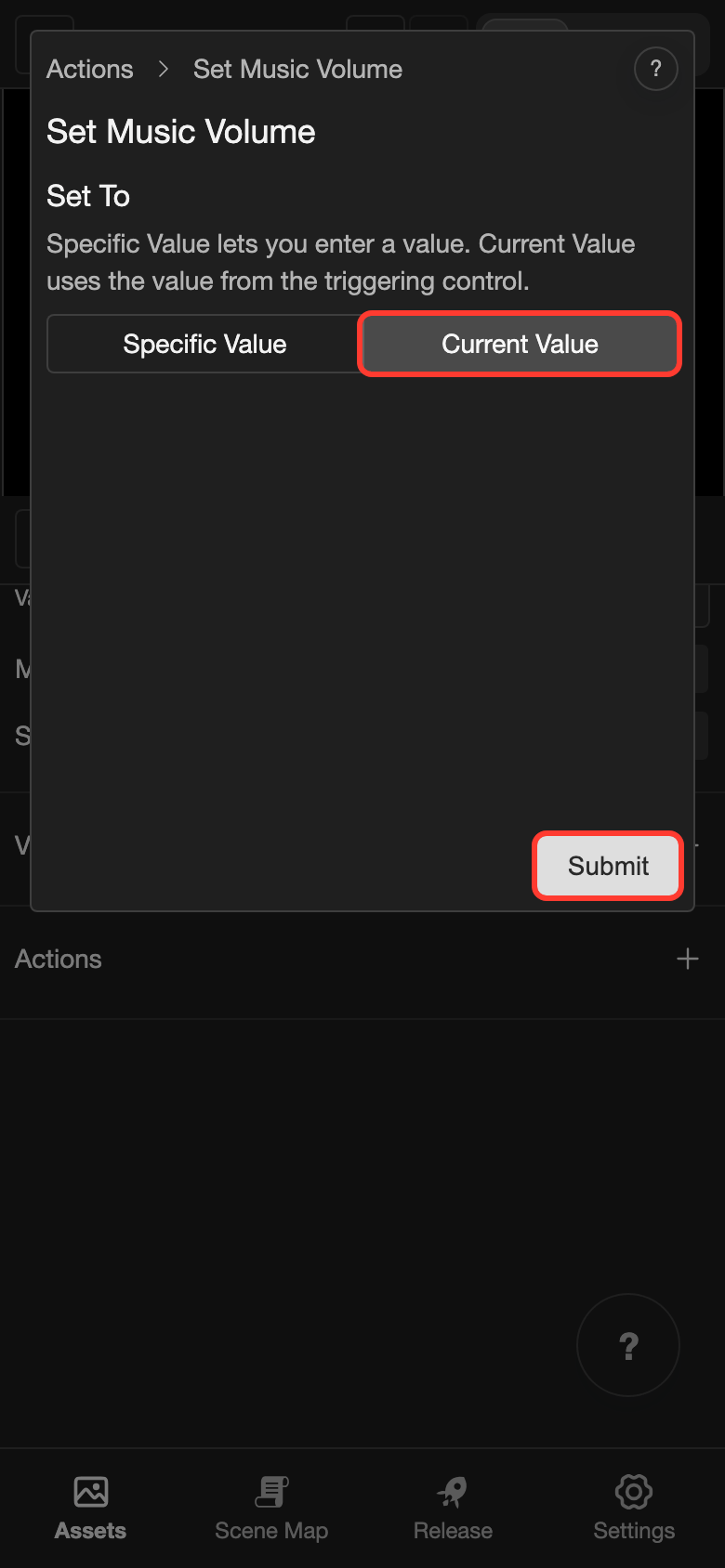
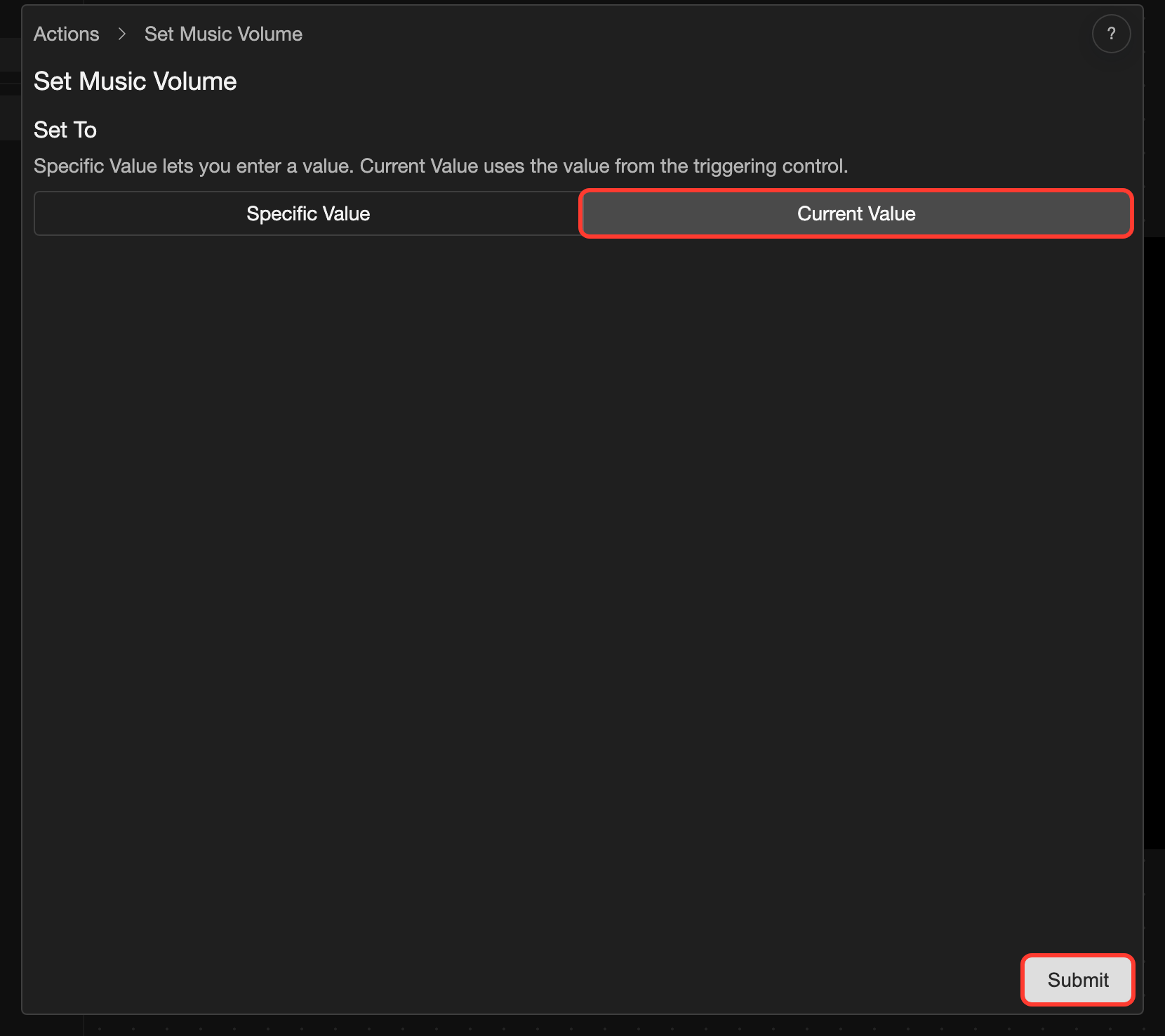
Now the music volume changes while the reader drags the thumb.
Slider settings
| Setting | What it does |
|---|---|
| Slider Bar | The pictures of the bar: Default, and Hover if you add one. |
| Slider Thumb | The pictures of the thumb: Default, and Hover if you add one. |
| Value | Manual, or a setting of the reader: Dialogue Text Speed, Auto Forward Delay, Sound Volume, Music Volume, or Save/Load Pagination. With a setting, the thumb starts at its value. |
| Initial | Where the thumb starts. Only with Manual. |
| Min and Max | The values at the two ends of the bar. |
| Step | How much the value changes at a time. For example, with a Step of 10, the value goes 0, 10, 20, and so on. |
To change a picture, tap it under Slider Bar or Slider Thumb.
The other settings, such as Visibility and Actions, are the same for most elements. See Change an element's settings.
Good to know
- The thumb is as tall as the slider. So make your bar picture as tall as the thumb. Draw a thin bar in the middle, with empty space above and below it.
- You cannot change the Direction of a slider after you create it. To change it, make a new slider.