Save / Load Layout
A Save / Load layout is a save screen or a load screen. It shows save slots. Each slot keeps one save of your visual novel.
The reader opens the screen with a button in another layout. That button uses the Push Overlay action.
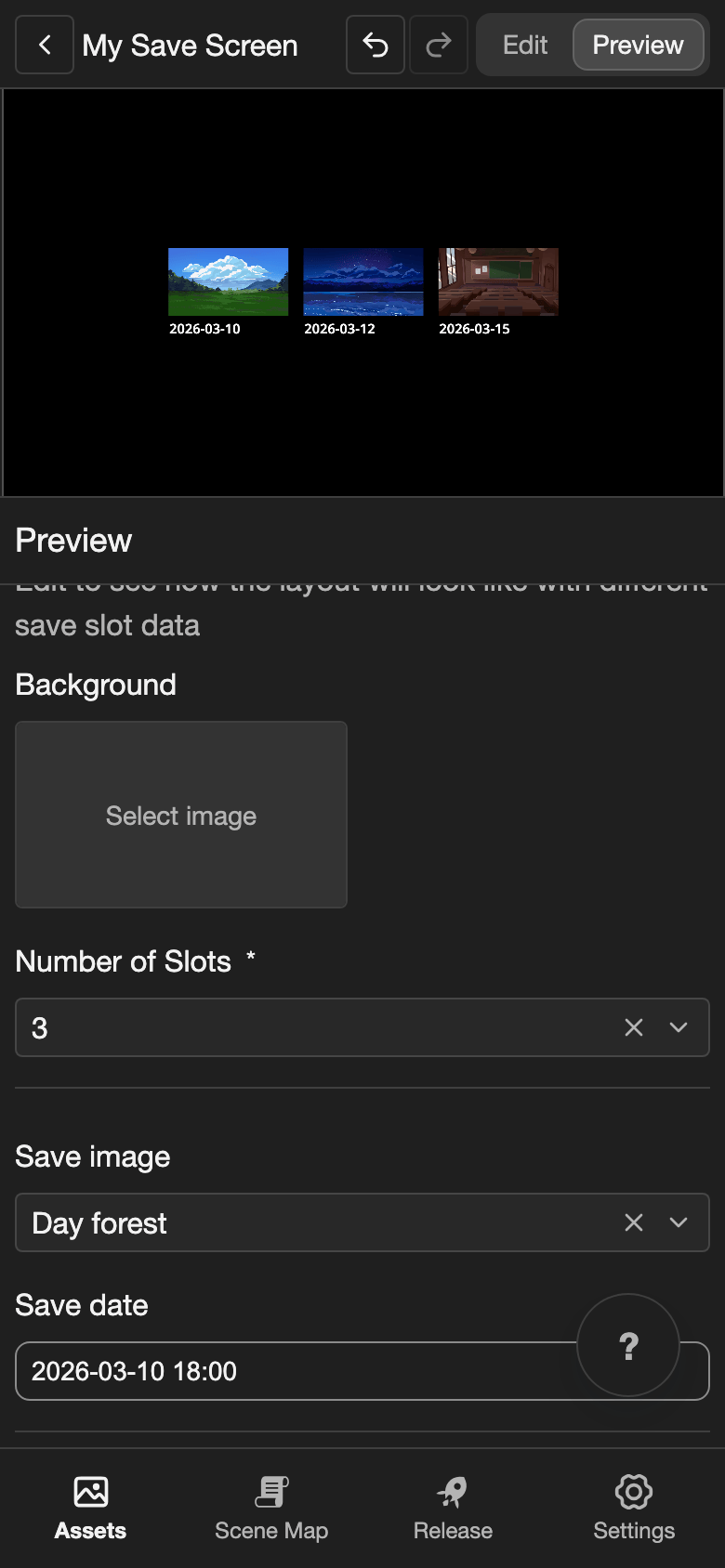
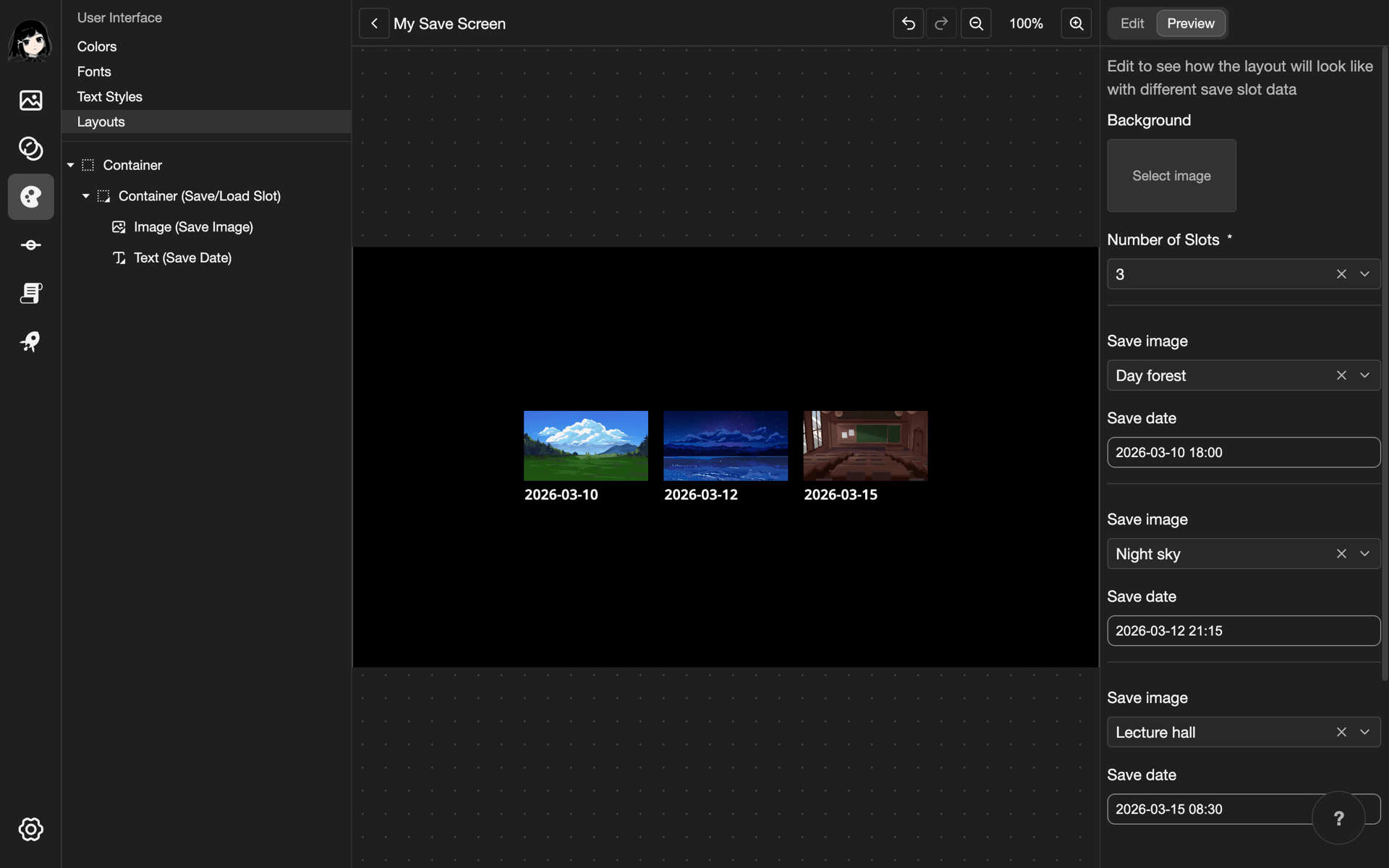
This example makes a save screen with a row of slots, in a new layout called My Save Screen.
Create the layout
- Create a layout. Under Layout Type, choose Save / Load. See Create a layout.
- Open the new layout. The Elements list is empty.
Add a row for the slots
The slots need a container that puts them in a row. Without it, all slots show in the same place.
-
Add a Container. See Container.
-
In the Elements list, tap Container. Its settings open.
-
Under Layout, find Direction. Tap the middle button.
-
Change Gap X to
40. To do this, tap the number, type40, and tap Submit.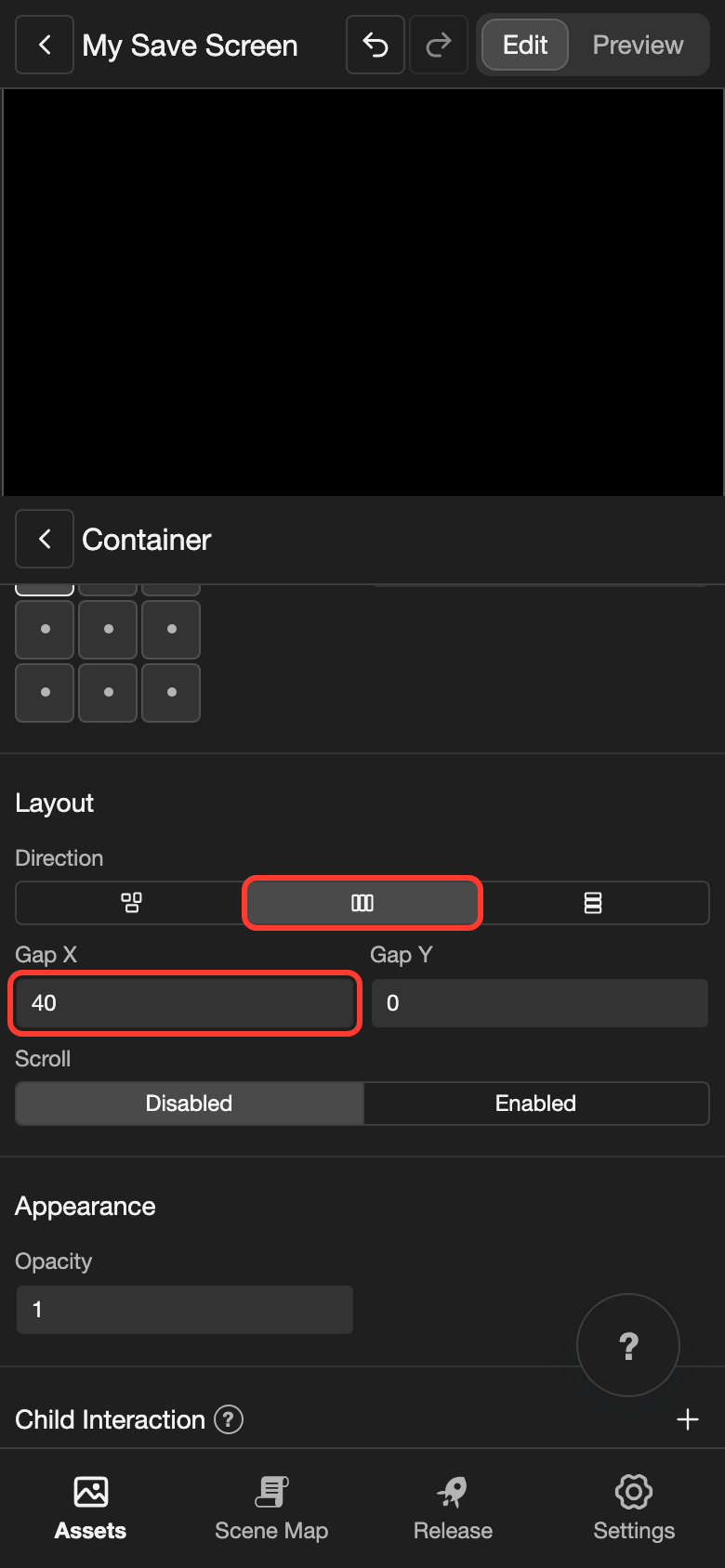
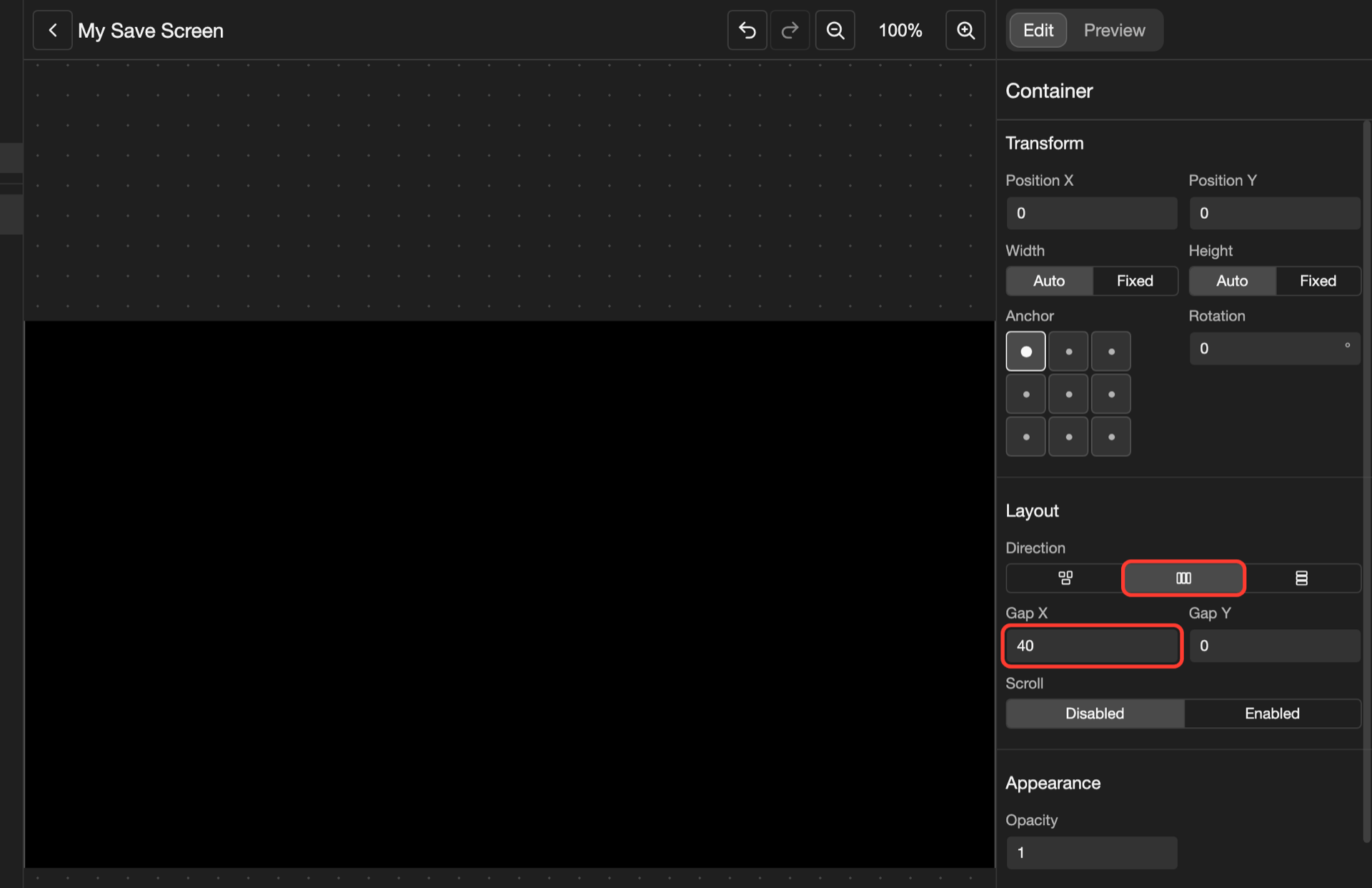
Gap X is the space between the slots, in pixels.
-
Put the container in the middle of the screen. See Put the container in the middle of the screen.
Add the slot
-
Open the menu of Container.
- Phone or tablet: In the Elements list, tap the three dots button next to Container.
- Desktop: In the Elements list, right-click Container.
-
Scroll down the menu. Tap Container (Save/Load Slot).
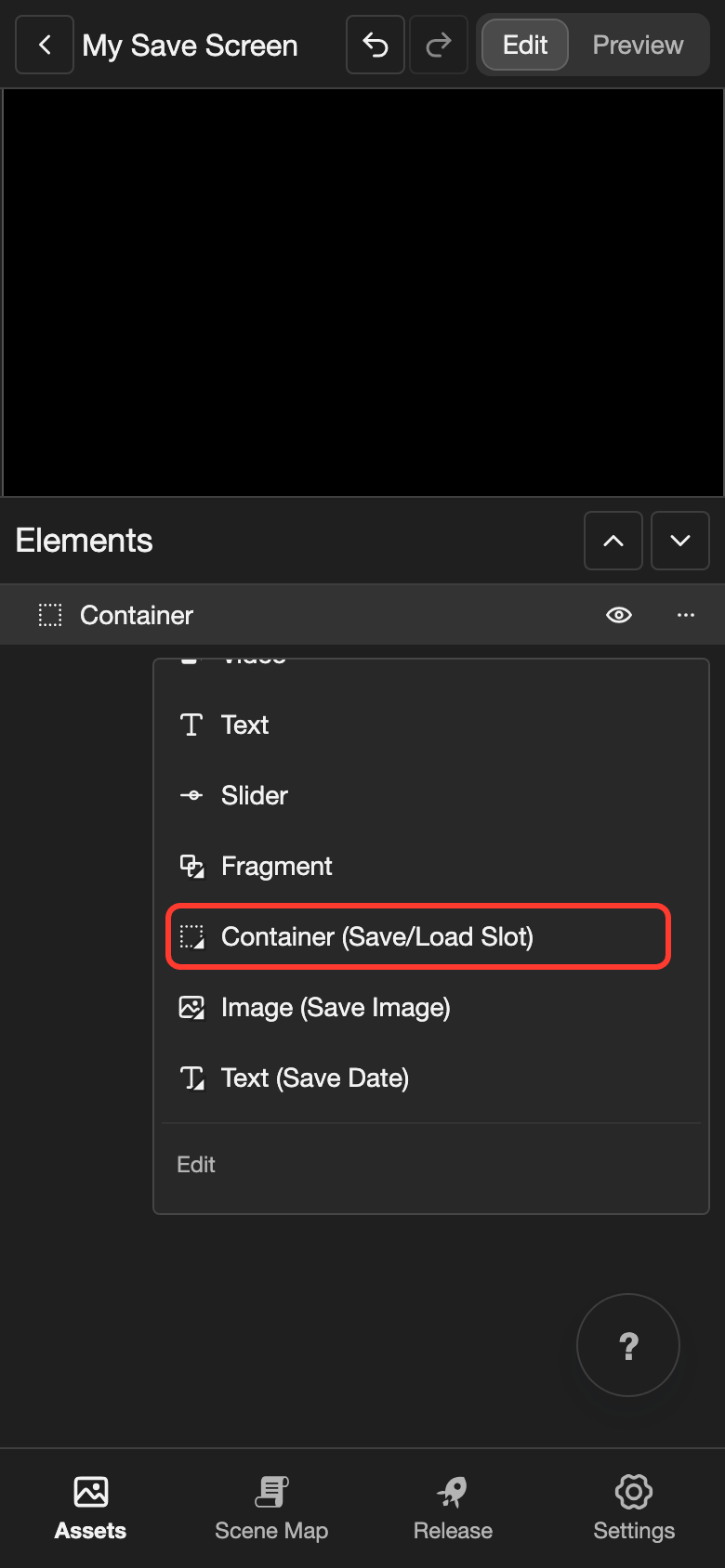
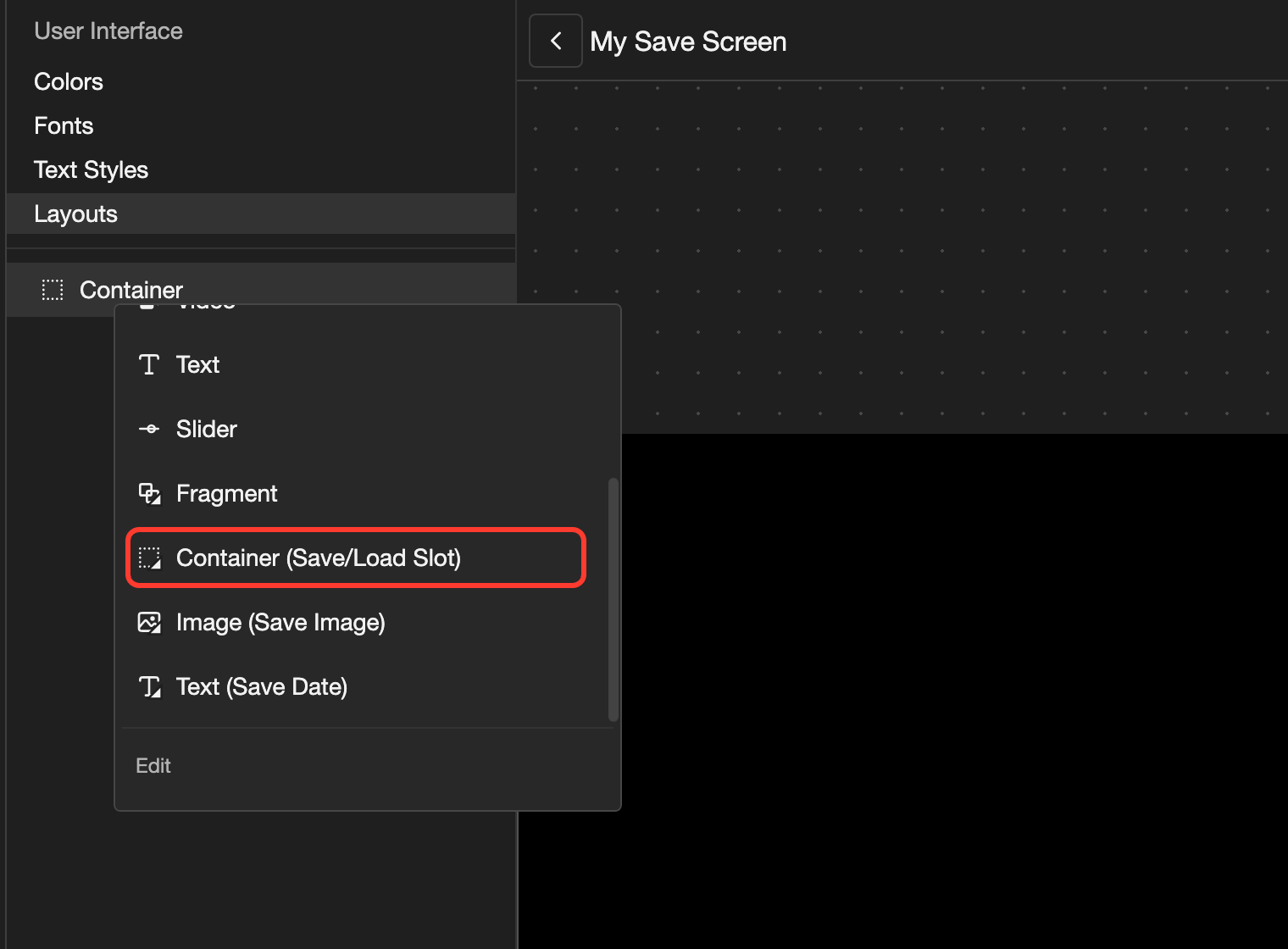
The slot appears in the Elements list. Image (Save Image) and Text (Save Date) are already inside it.
Make a tap save the visual novel
-
In the Elements list, tap Container (Save/Load Slot). Its settings open.
-
Next to Actions, tap the + button.
-
Tap Click. The Actions list opens.
-
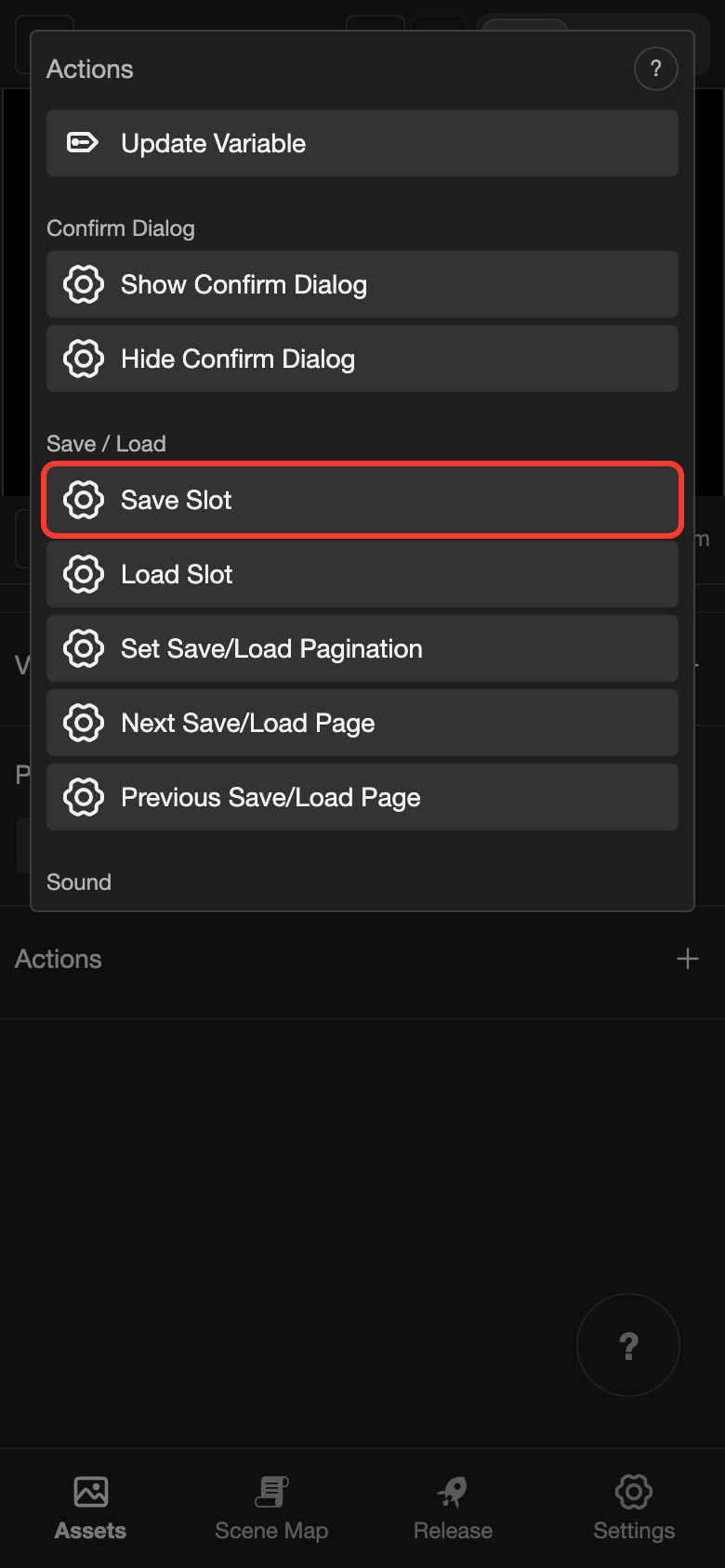
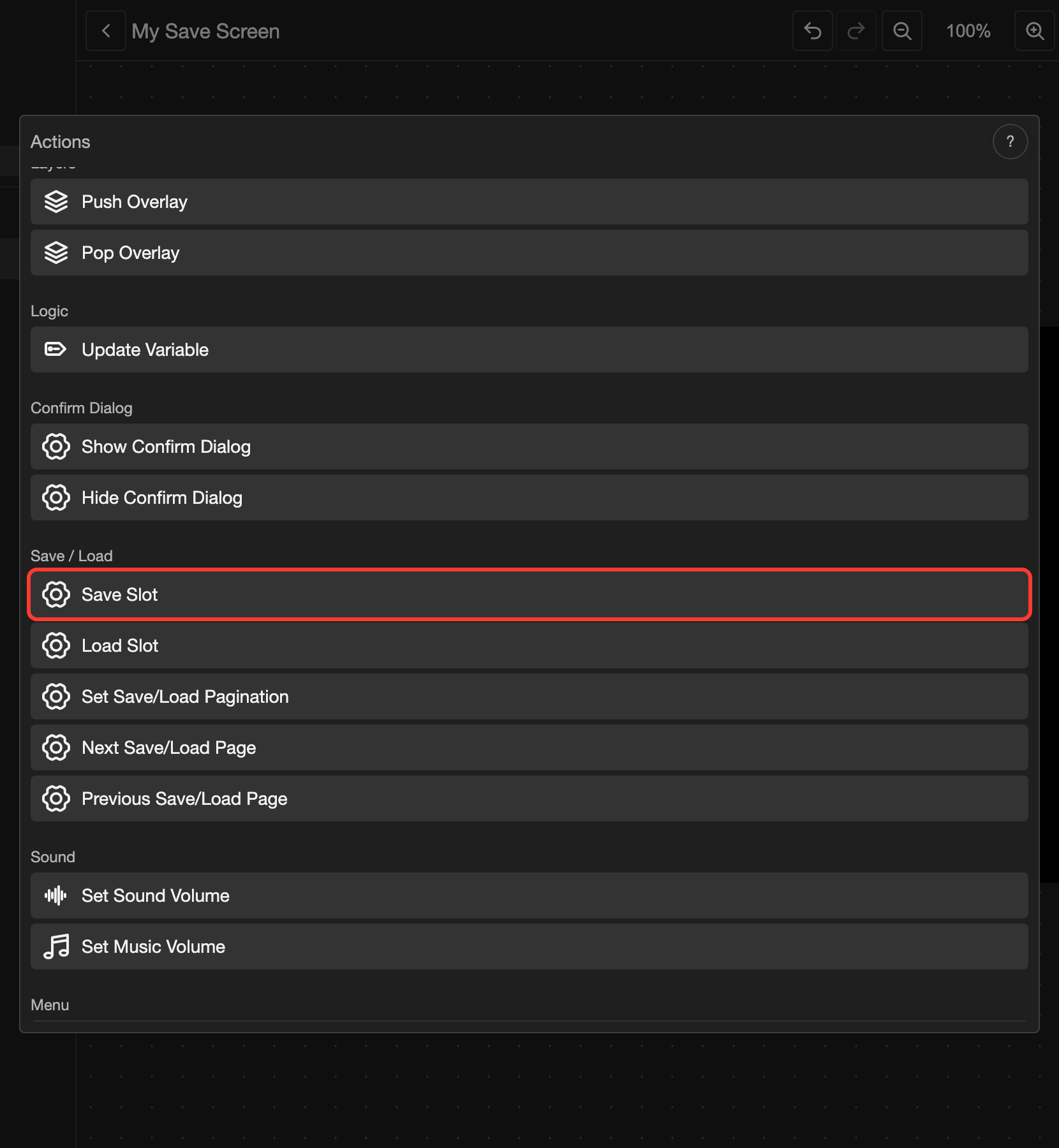
Under Save / Load, tap Save Slot. Scroll down if you do not see it.
-
Leave Slot Id empty. It shows Auto. Then the action uses the slot that the reader taps.
-
Tap Submit.
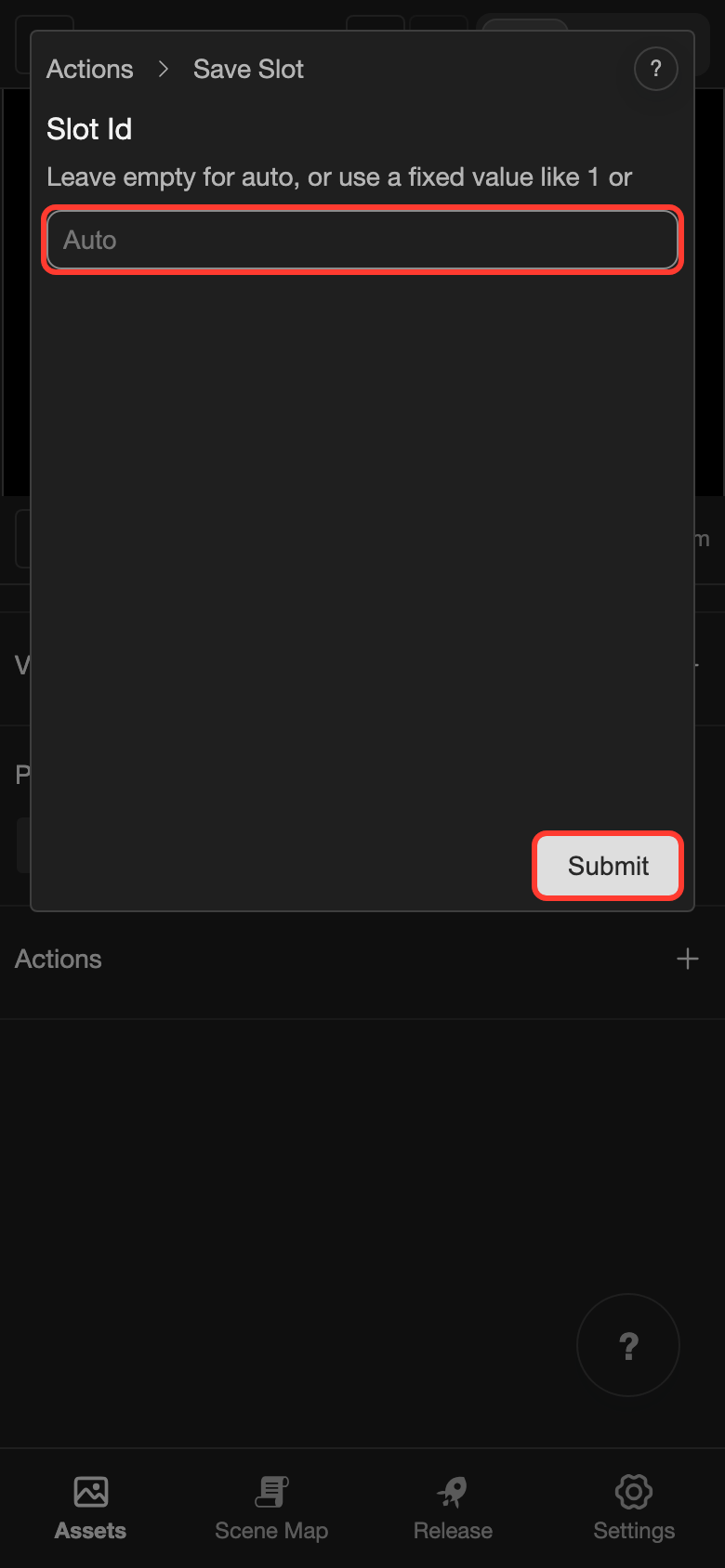
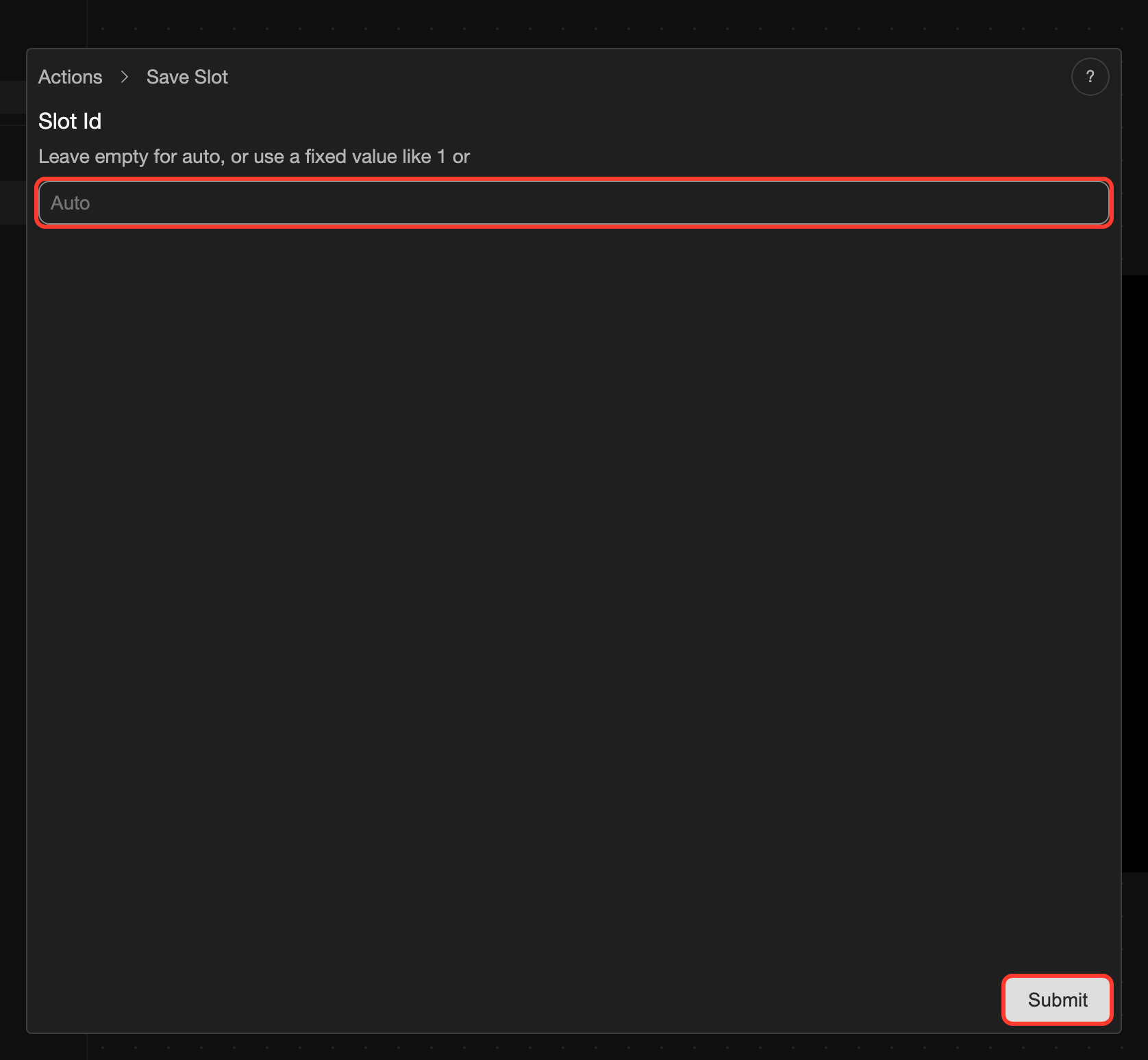
Click: Save Slot appears under Actions. Now a tap on a slot saves the visual novel in that slot.
To make a load screen, make the same layout. In step 4, tap Load Slot instead.
Test it in Preview
- At the top, tap Preview.
- Under Number of Slots, choose how many slots to show, from 1 to 6.
- Under each Save image, choose a picture, such as a background.
- Under each Save date, type a date, such as
2026-03-12 21:15.
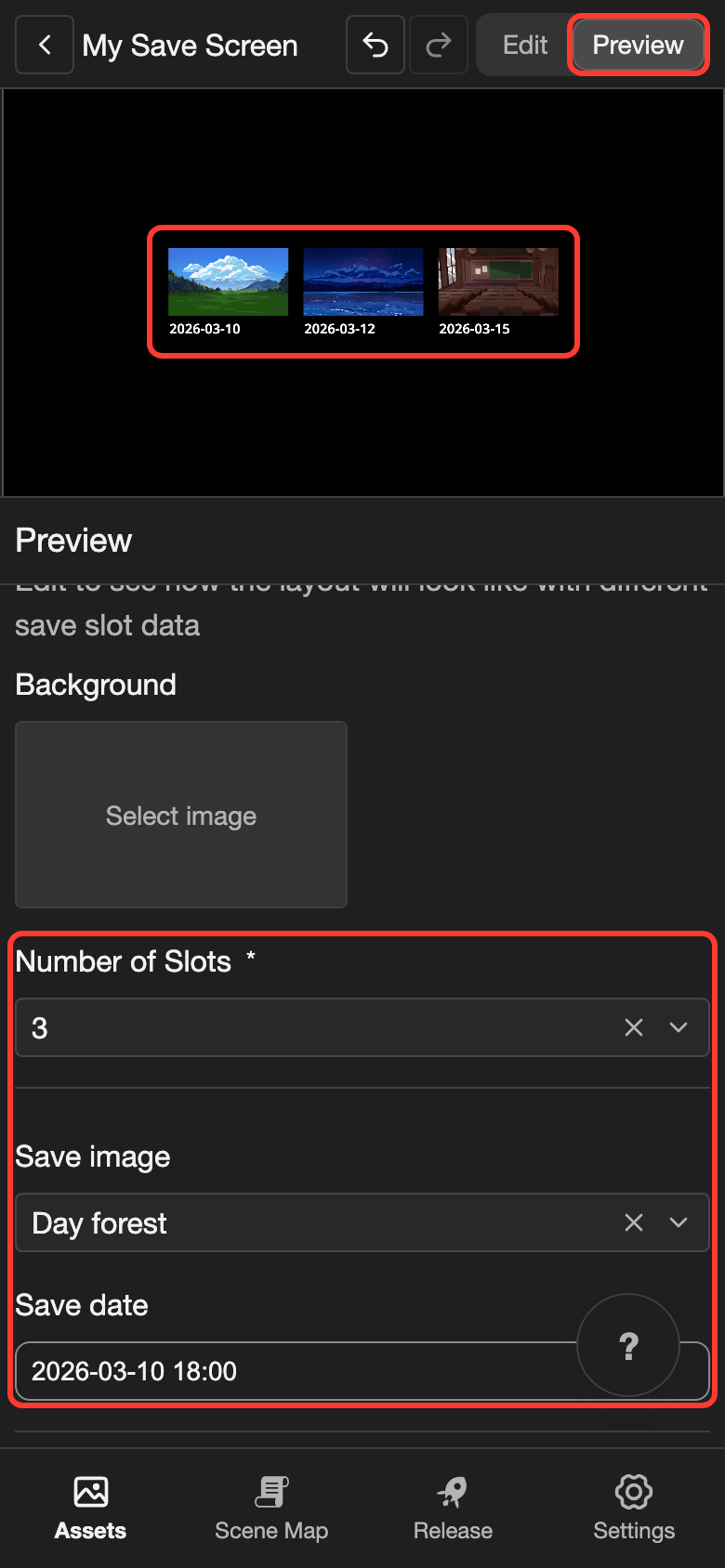
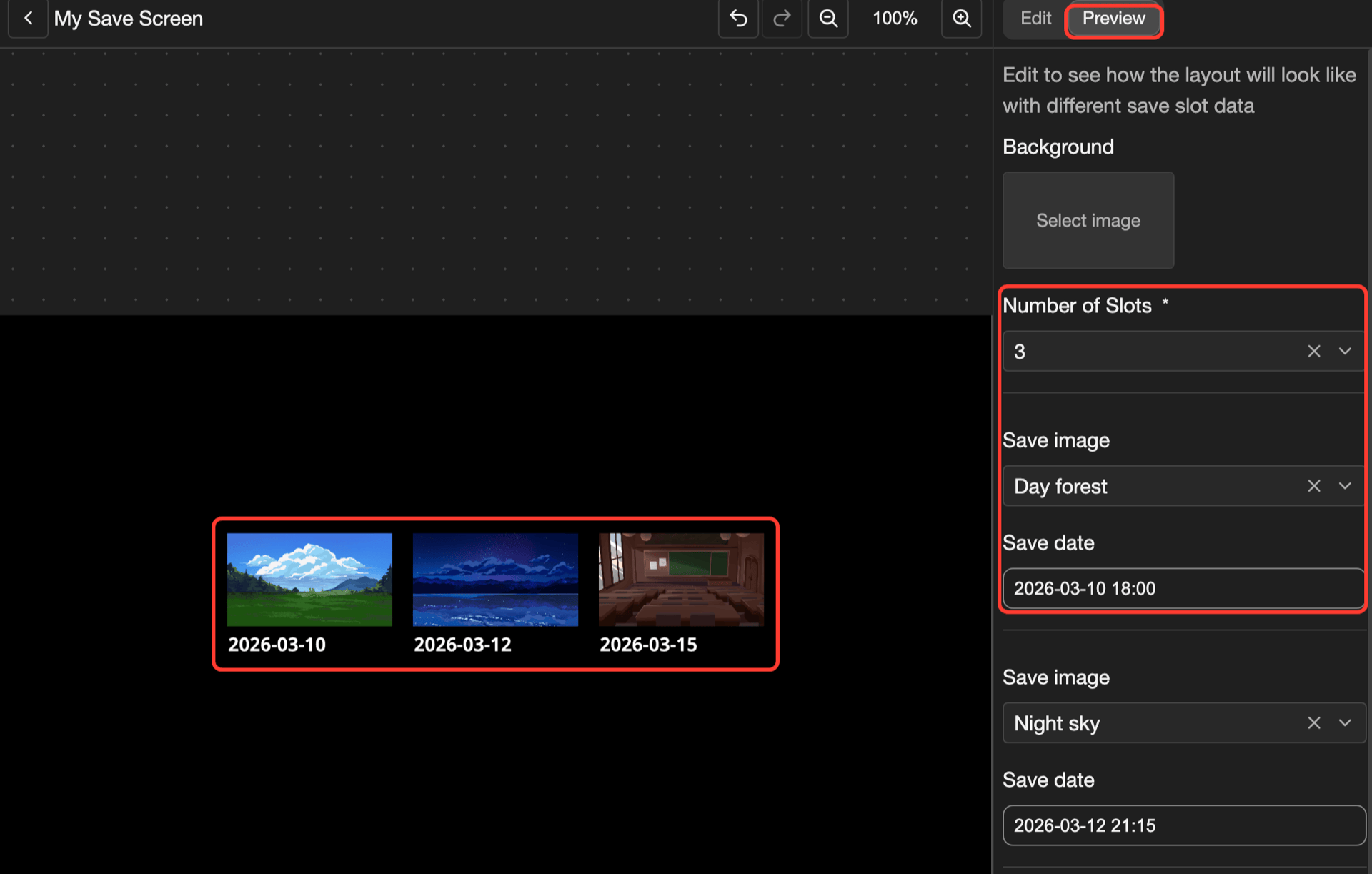
The canvas shows the slots in a row. Each slot shows its picture, with the date under it. The sample saves do not change your visual novel.
Special elements
| Element | What it does |
|---|---|
| Container (Save/Load Slot) | Repeats once for each save slot. Put it in a container whose Direction makes a row or a column. |
| Image (Save Image) | Shows a small picture of the screen at the moment of saving. It starts at 320 x 180 pixels. |
| Text (Save Date) | Shows when the slot was saved. Under Date, Format sets how the date looks, such as YYYY-MM-DD or DD/MM/YYYY. |
Your visual novel fills in the picture and the date of each slot.
An element inside a slot can have a Visibility condition with the target Save Data Available. This target tells if the slot already has a save.
Actions
These actions are under Save / Load in the Actions list.
| Action | What it does |
|---|---|
| Save Slot | Saves the visual novel in a slot. |
| Load Slot | Loads the save in a slot. On an empty slot, it does nothing. |
| Set Save/Load Pagination | Shows a page of slots. Under Value, type the page number, such as 2. |
| Next Save/Load Page | Shows the next page of slots. |
| Previous Save/Load Page | Shows the page of slots before. |
Save Slot and Load Slot have a Slot Id. Leave it empty only inside a Container (Save/Load Slot). Anywhere else, type a slot number, such as 1.
Good to know
- Your visual novel shows 6 slots on each page. To show more slots, add buttons with Next Save/Load Page and Previous Save/Load Page.
- No action opens this screen by itself. Give a button in another layout the Push Overlay action, and choose this layout.
- Give this screen a button with the Pop Overlay action. Then the reader can close the screen.