Input
Input shows a text box to the reader. The text that the reader types is saved in a variable.
Use it to ask for the reader's name or a short answer. Then you can show the text in dialogue.
What you need first
Make these 2 things before you add the action:
- A string variable. A string variable keeps text. Make one on the Variables page, with Type set to String. This page uses a variable called Player Name.
- An Input layout. This is a layout with Layout Type set to Input. To make one, see Input Layout. This page uses a layout called Name Input.
An Input layout needs 2 elements:
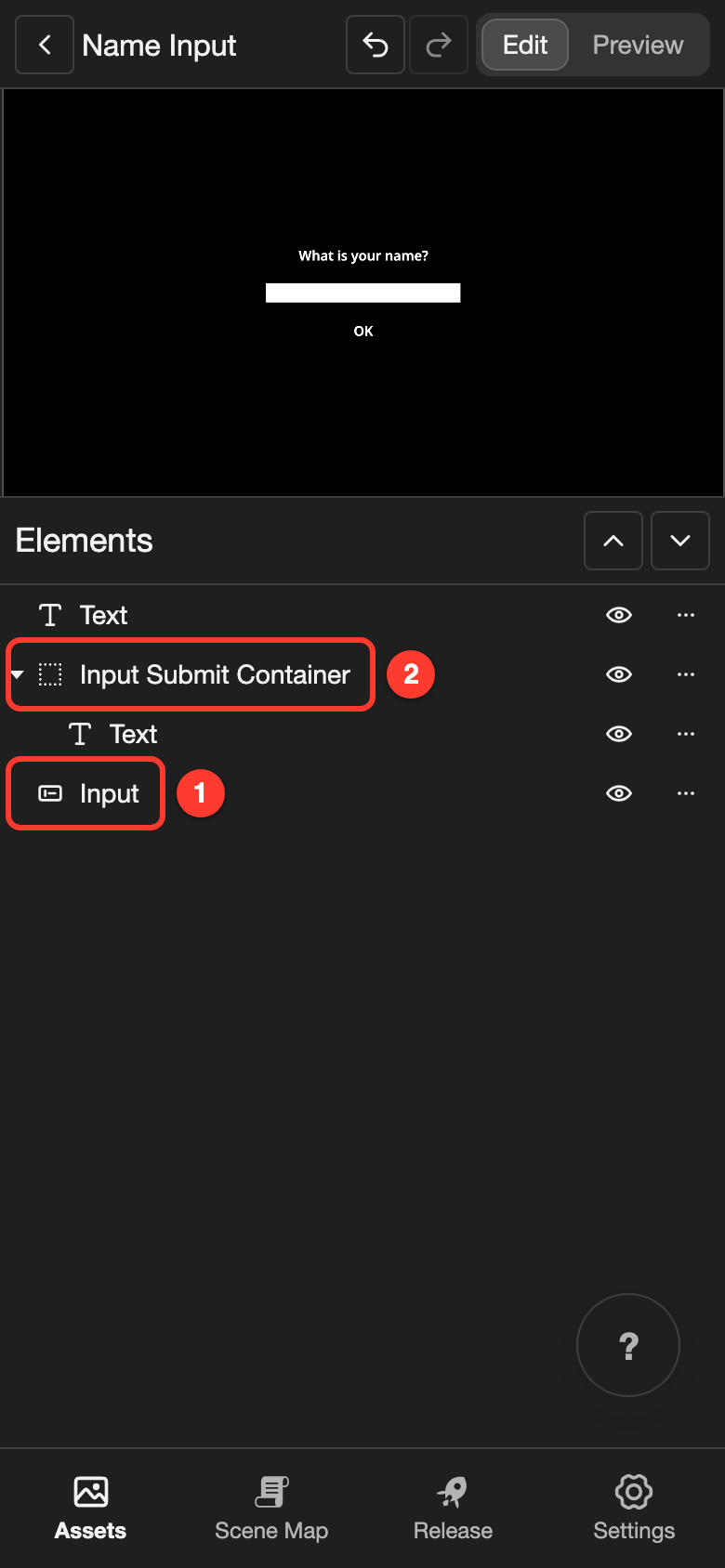
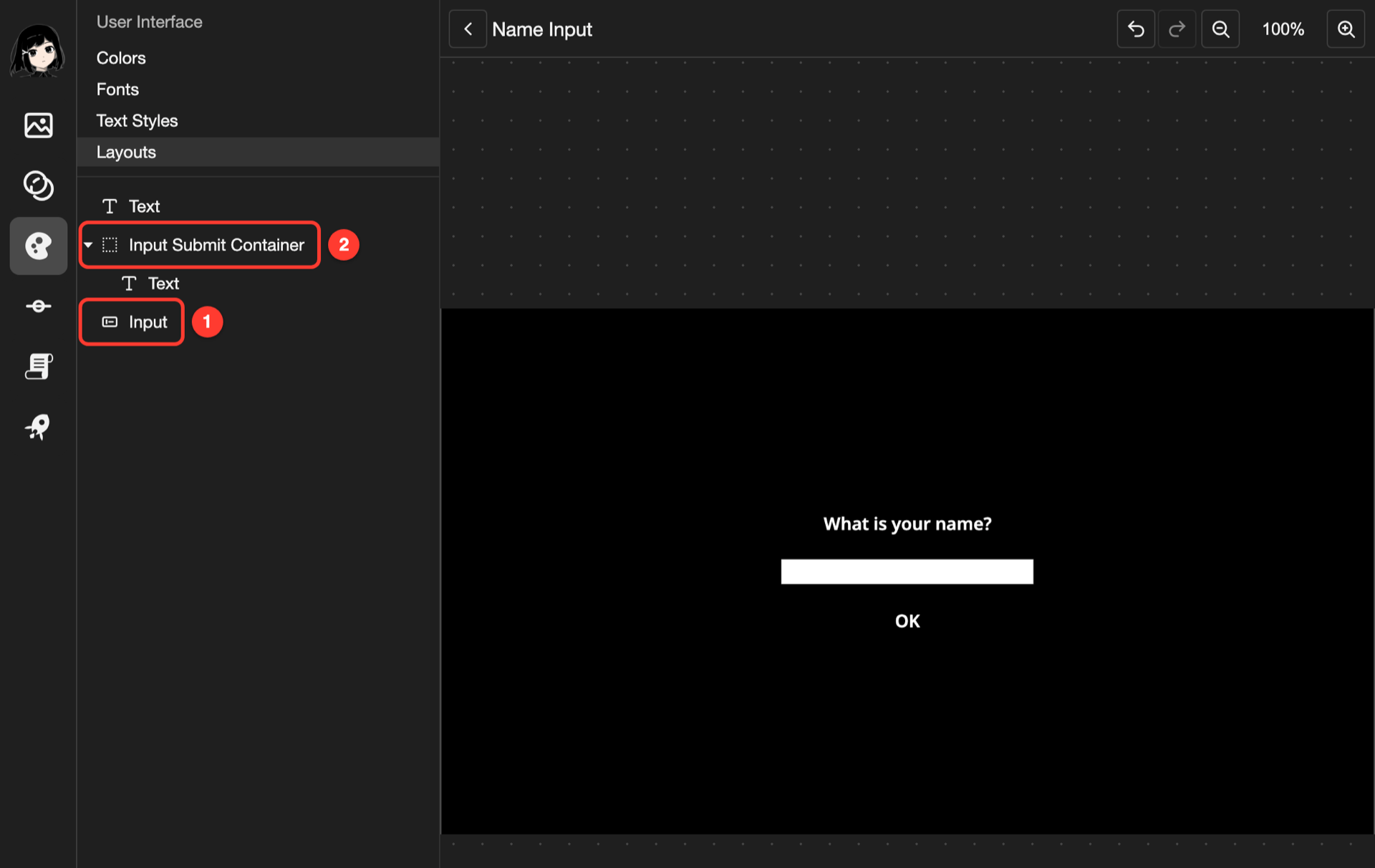
- Input: the text box where the reader types.
- Input Submit Container: the reader taps it to send the text. Put a Text in it, such as OK. Without a Text, the reader cannot see it.
Add the Input action
-
Open your scene in the Scene Editor.
-
Tap the line where the text box should appear.
-
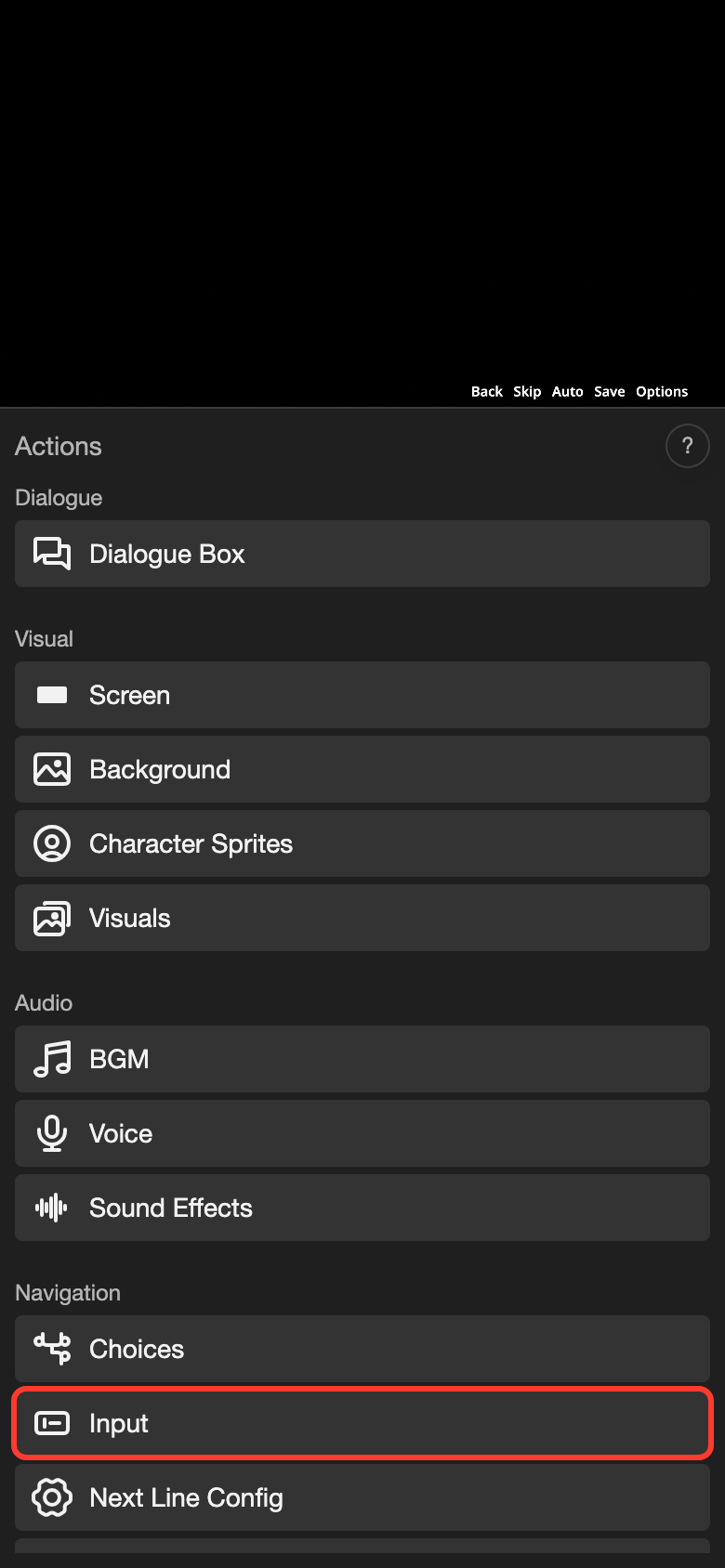
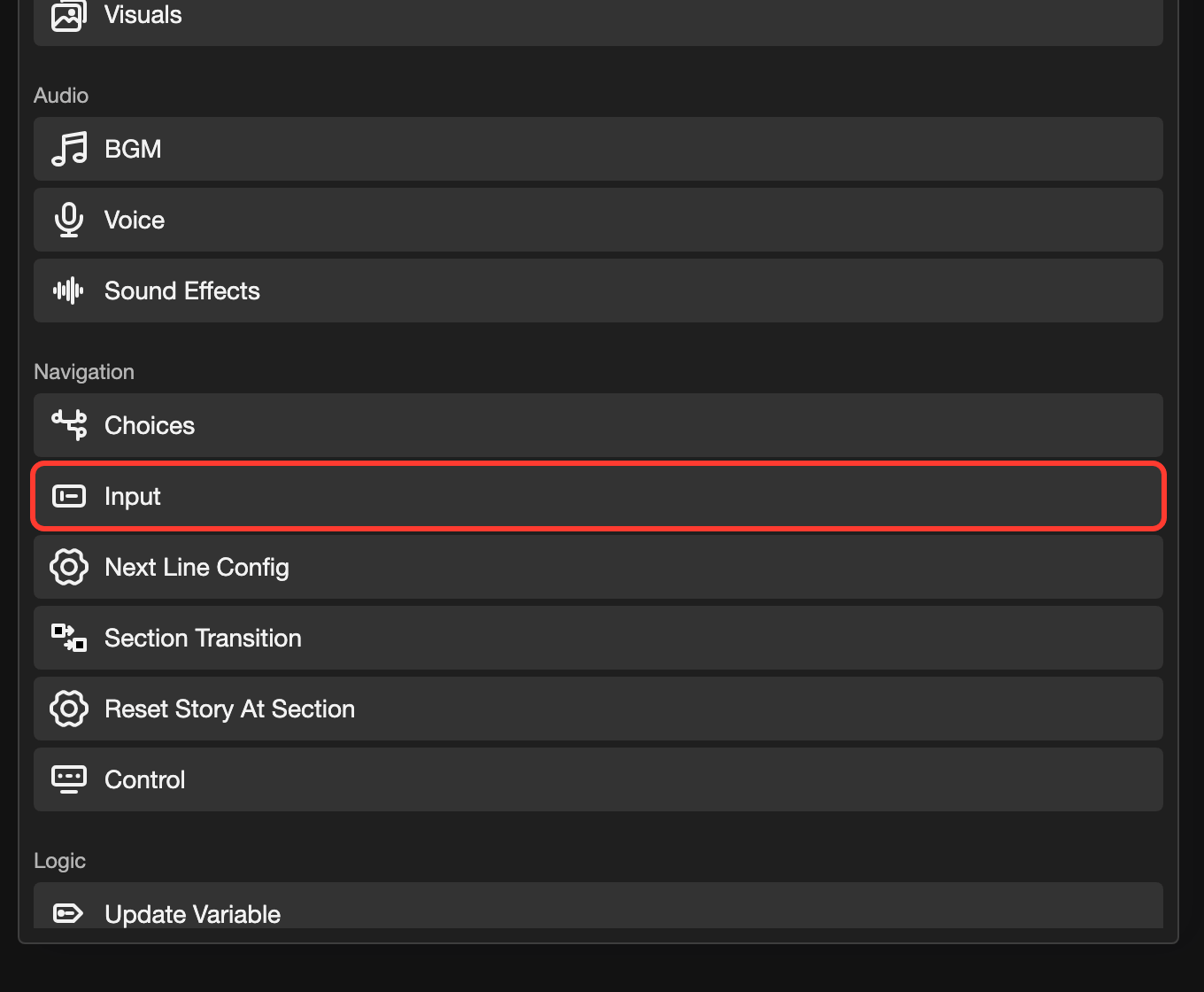
Open the Actions menu.
- Phone or tablet: Tap the + button in the bottom bar.
- Desktop: Click the + button under Presentation state.
-
Under Navigation, tap Input.
-
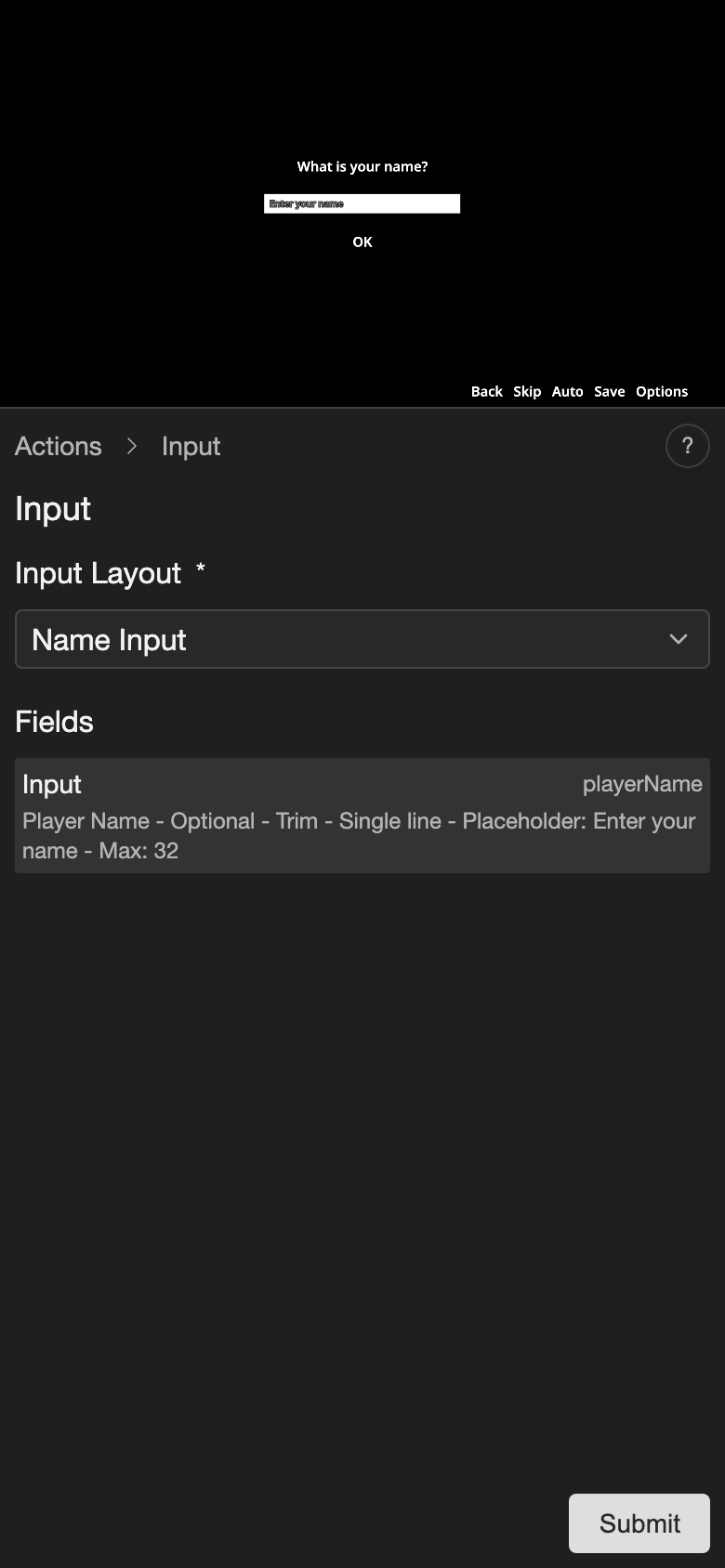
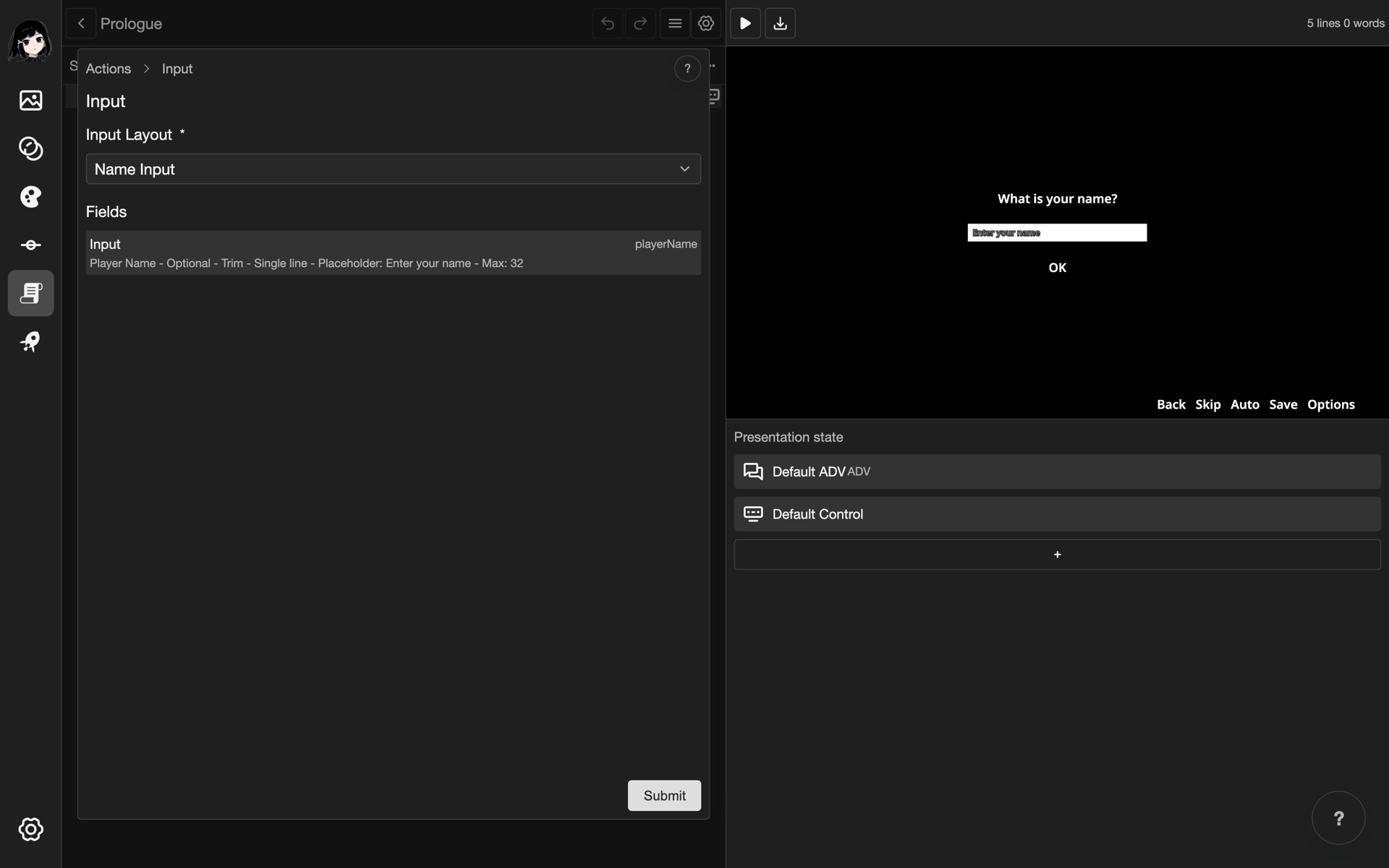
Under Input Layout, choose your layout, such as Name Input.
The preview shows your layout. Under Fields, there is 1 row for each Input element in the layout.
Save the text in a variable
Each row under Fields needs a variable.
-
Under Fields, tap the row.
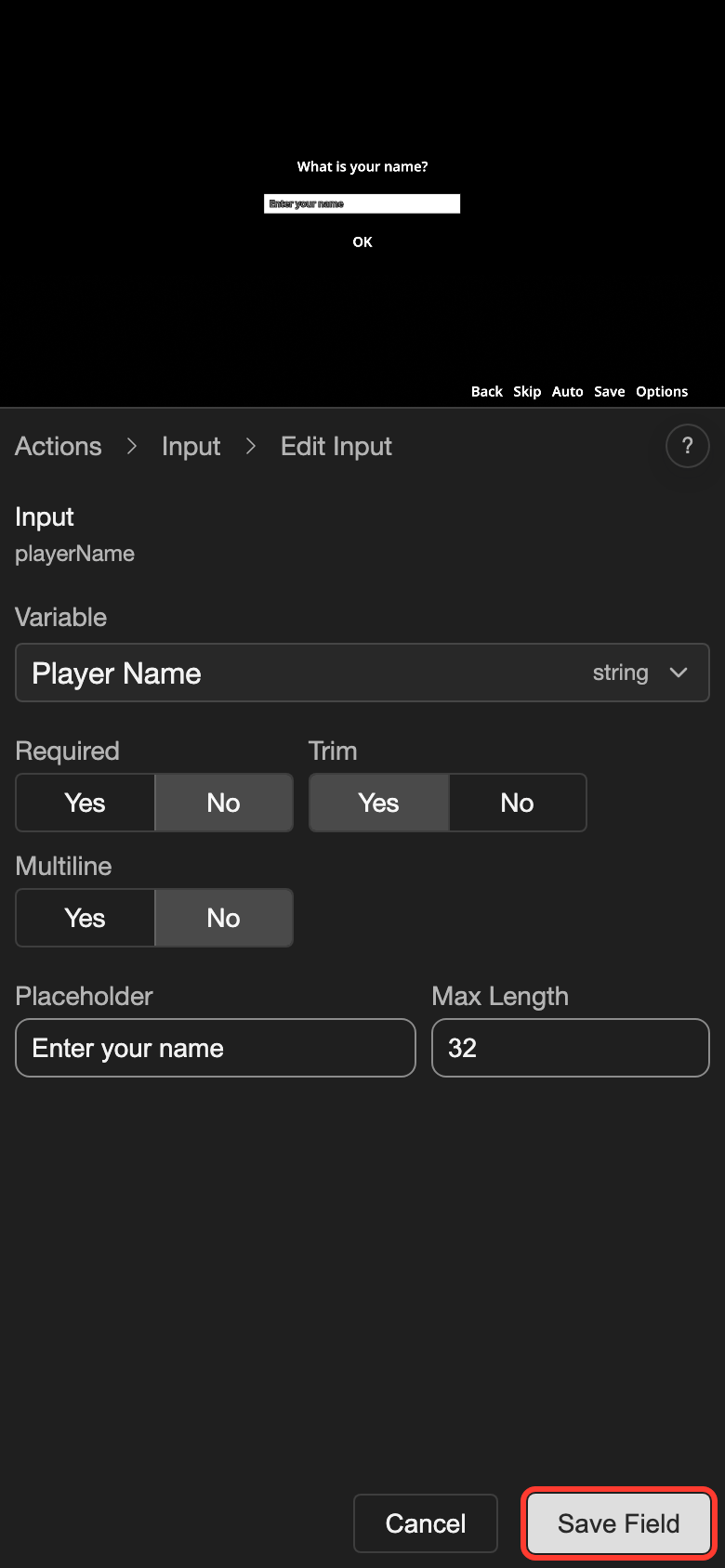
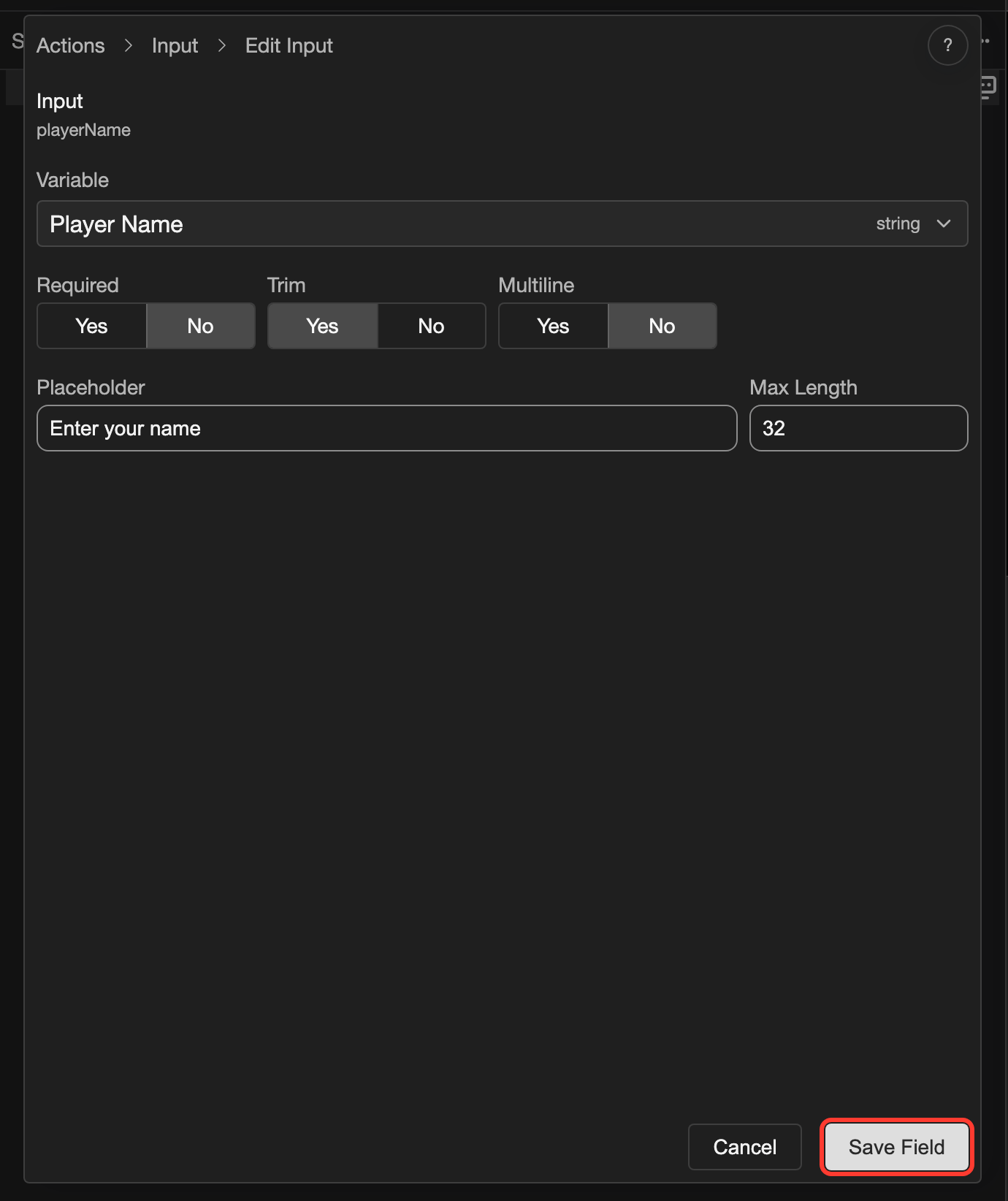
The settings of the field open.
-
Under Variable, choose your variable, such as Player Name.
-
Change the other settings if you need to. See Field settings.
-
Tap Save Field.
-
Do steps 1 to 4 for every other row under Fields.
-
Tap Submit.
The Input action is now on the line.
Field settings
| Setting | What it does |
|---|---|
| Variable | The variable that keeps the text. Only string variables are in the list. |
| Required | Yes means the reader must type something before the visual novel goes on. Default: No. |
| Trim | Yes removes spaces at the start and end of the text. Default: Yes. |
| Multiline | Yes lets the reader type more than 1 line. Default: No. |
| Placeholder | A hint in the empty text box, such as "Enter your name". |
| Max Length | The most characters the reader can type. Default: 32. |
What the reader sees
When the visual novel reaches the line, the reader sees your layout. The reader types in the text box. Then the reader taps the Input Submit Container, such as the OK text.
- The text is saved in the variable.
- The visual novel goes to the next line.
If a Required text box is empty, nothing is saved. The visual novel stays on the line until the reader types something.
Show the text in dialogue
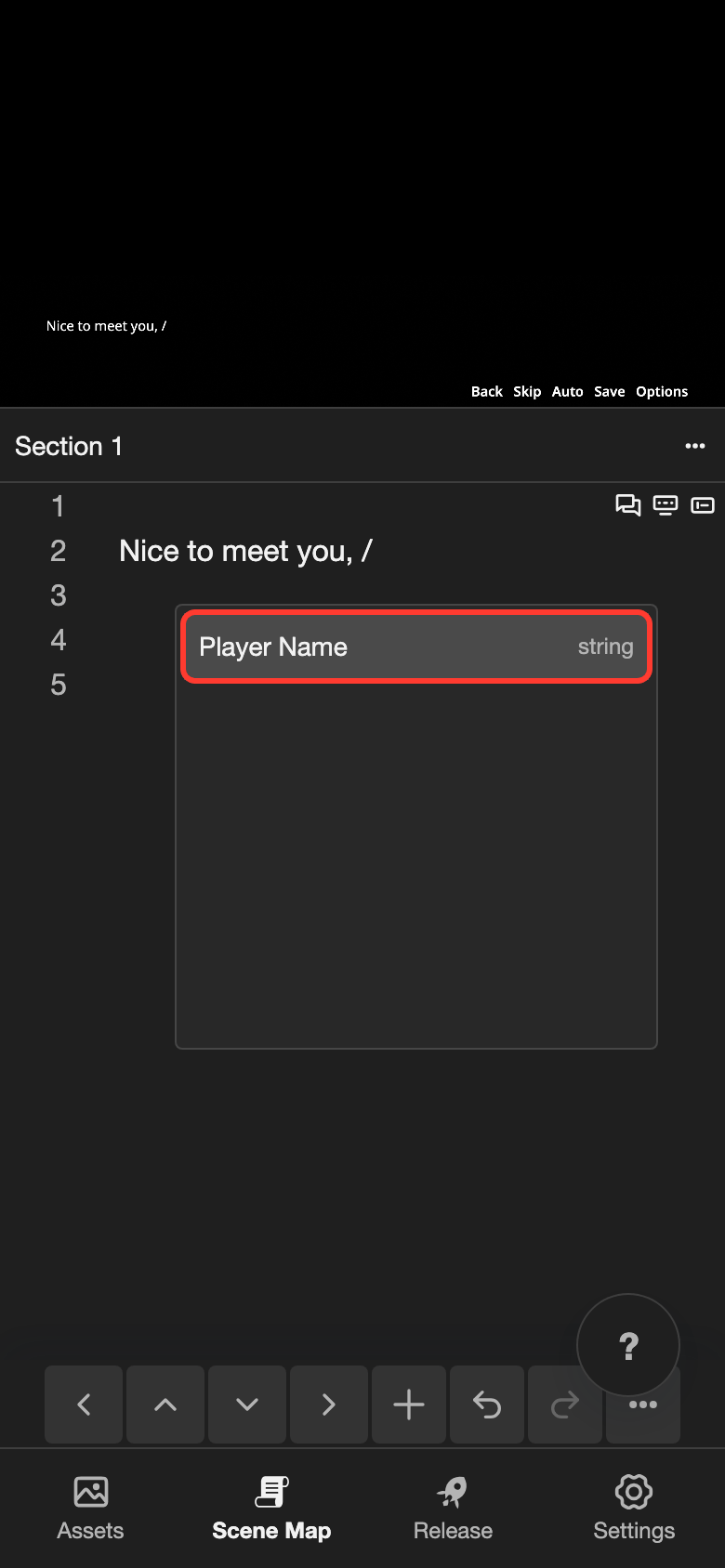
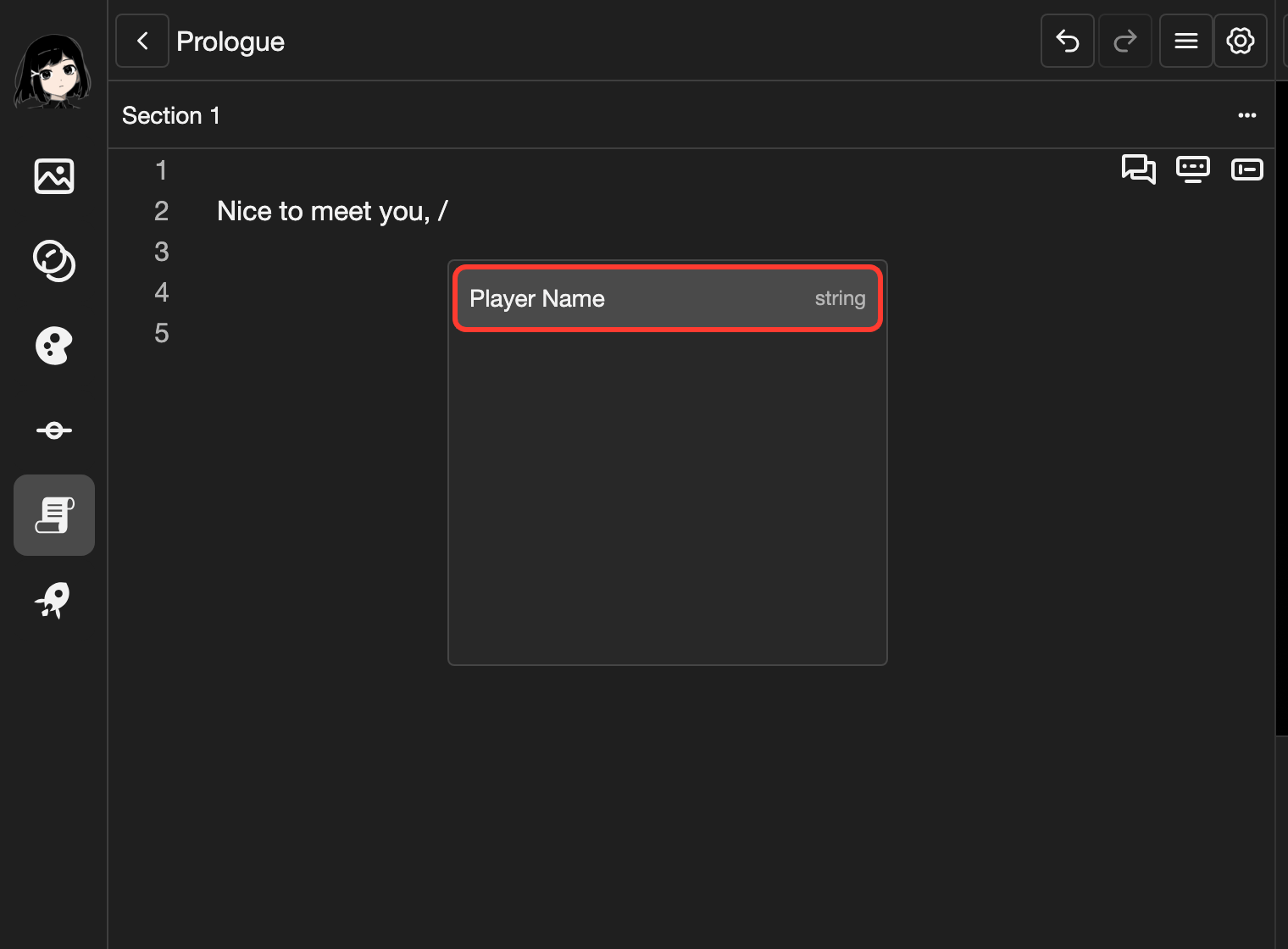
Put the variable in a dialogue line. The line then shows the text that the reader typed. For example, if the reader types Makkuro, the line can say "Nice to meet you, Makkuro."
-
Tap a line after the Input line.
-
Type your text, up to where the name goes.
-
Type
/.A list of variables opens.
-
Tap your variable, such as Player Name.
-
Type the rest of the line.
The variable appears in the line as a small box with its name. When the visual novel runs, the box shows the text that the reader typed.
Good to know
- If the variable has a Default value, the text box starts with that value. The reader can change it.
- A layout can have more than 1 Input element. In the layout editor, give each one a different Field. Each Field gets its own row under Fields.
Problems and fixes
- My layout is not in the list. Only layouts with Layout Type set to Input are in the list.
- My variable is not in the list. Only string variables are in the list. Make a variable with Type set to String.
- "No input fields found." shows under Fields. The layout has no Input element. Add one in the layout editor.
- I cannot tap Save Field or Submit. Choose a variable first. Submit works only when every row under Fields has a variable.