Variables
A variable remembers a value while someone reads your visual novel. For example, a variable called Has Key can remember if the reader has found a key. Its value is True or False.
Your visual novel can change the value and check it later. A variable can also hold a number, such as Friendship points, or text, such as Player Name.
Open the Variables page
-
Open your project. See Projects.
-
Go to the Variables page.
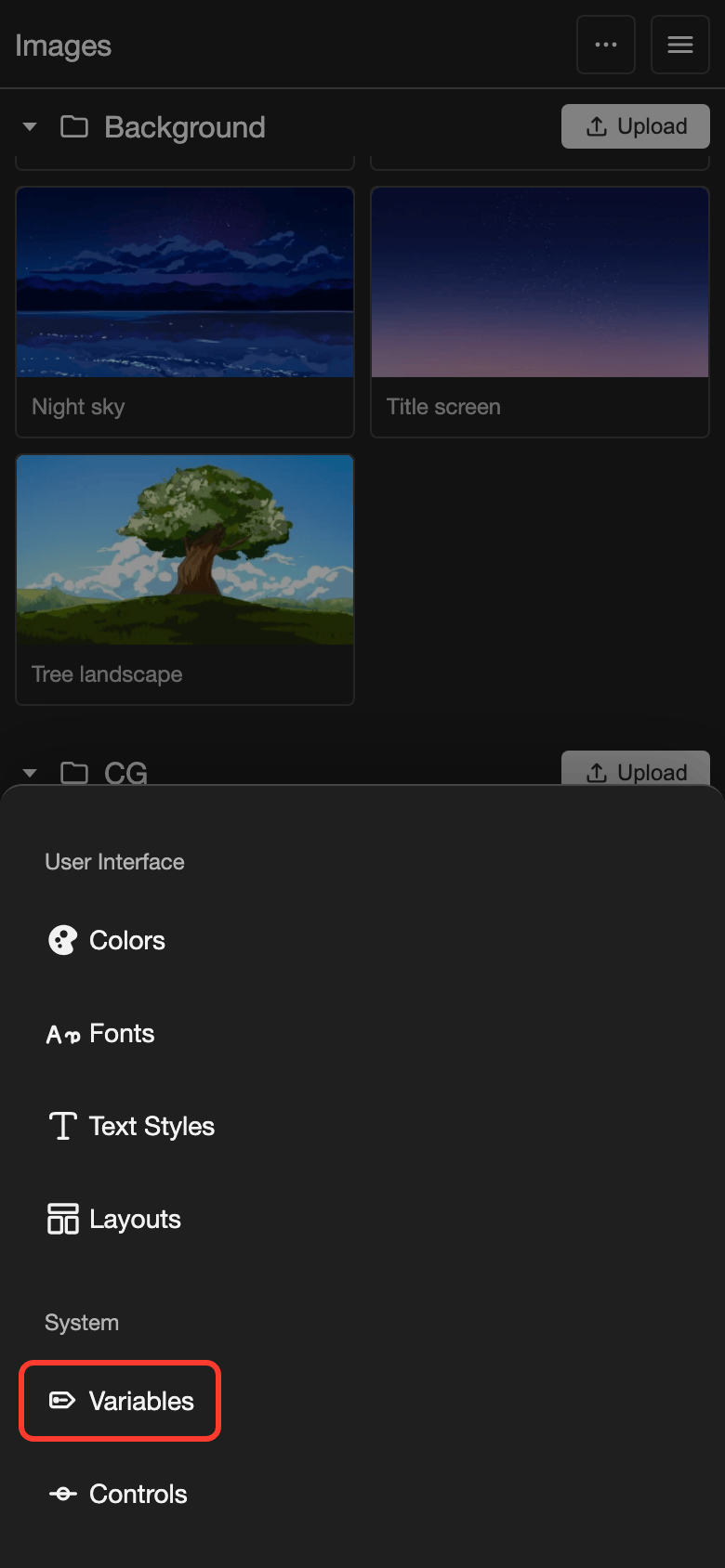
- Phone or tablet: Tap Assets in the bottom bar. Then tap Variables under System.
- Desktop: In the far left bar, click the System button. It looks like a slider.
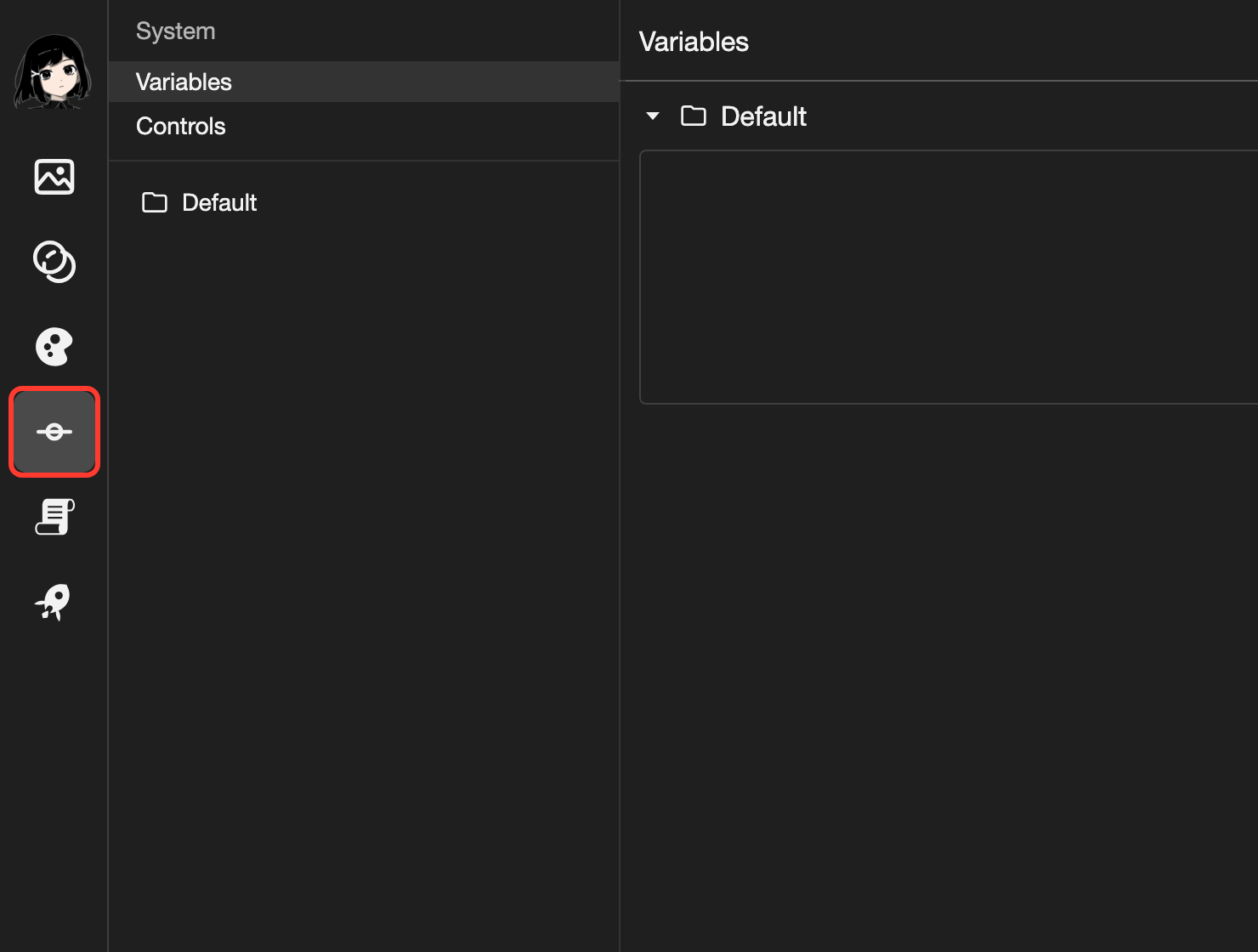
The Variables page opens.
Parts of the Variables page
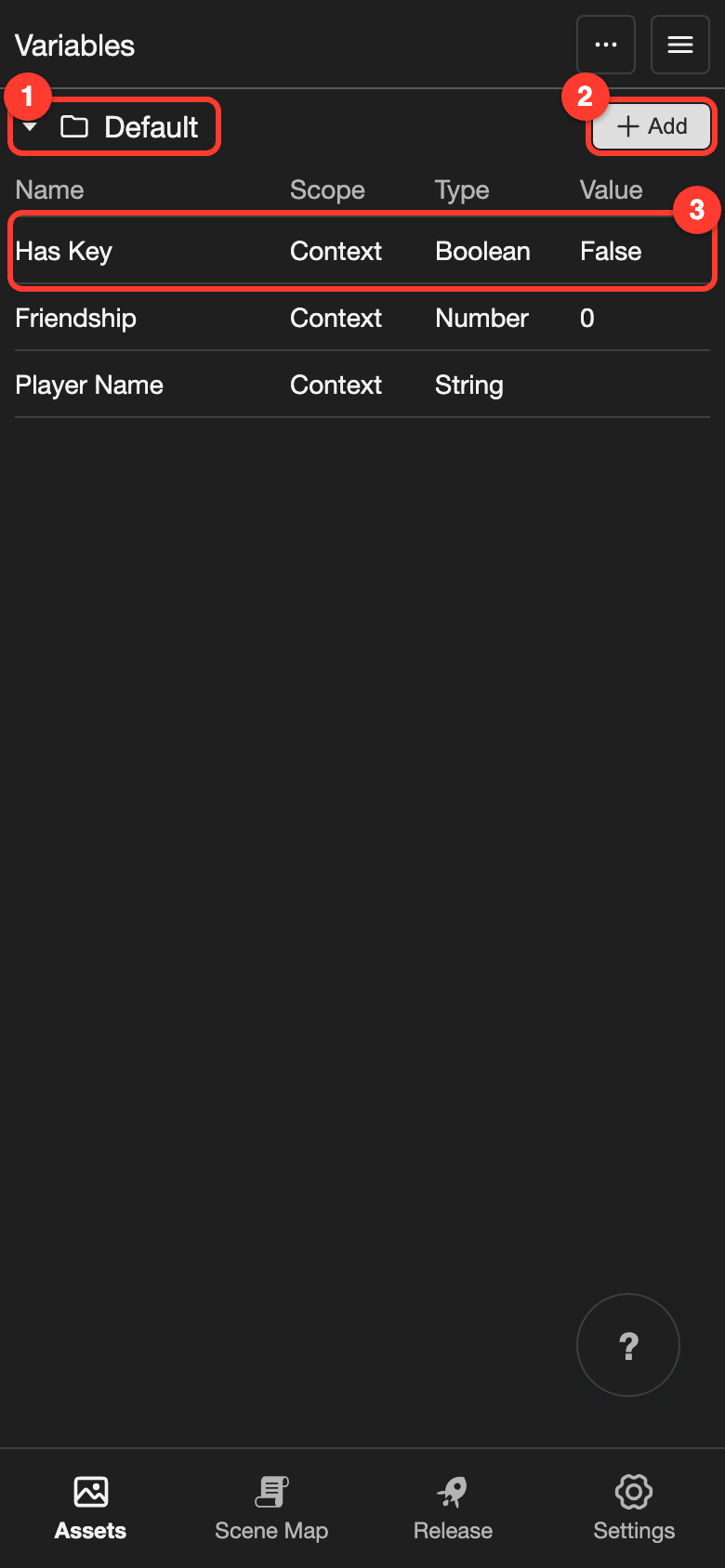
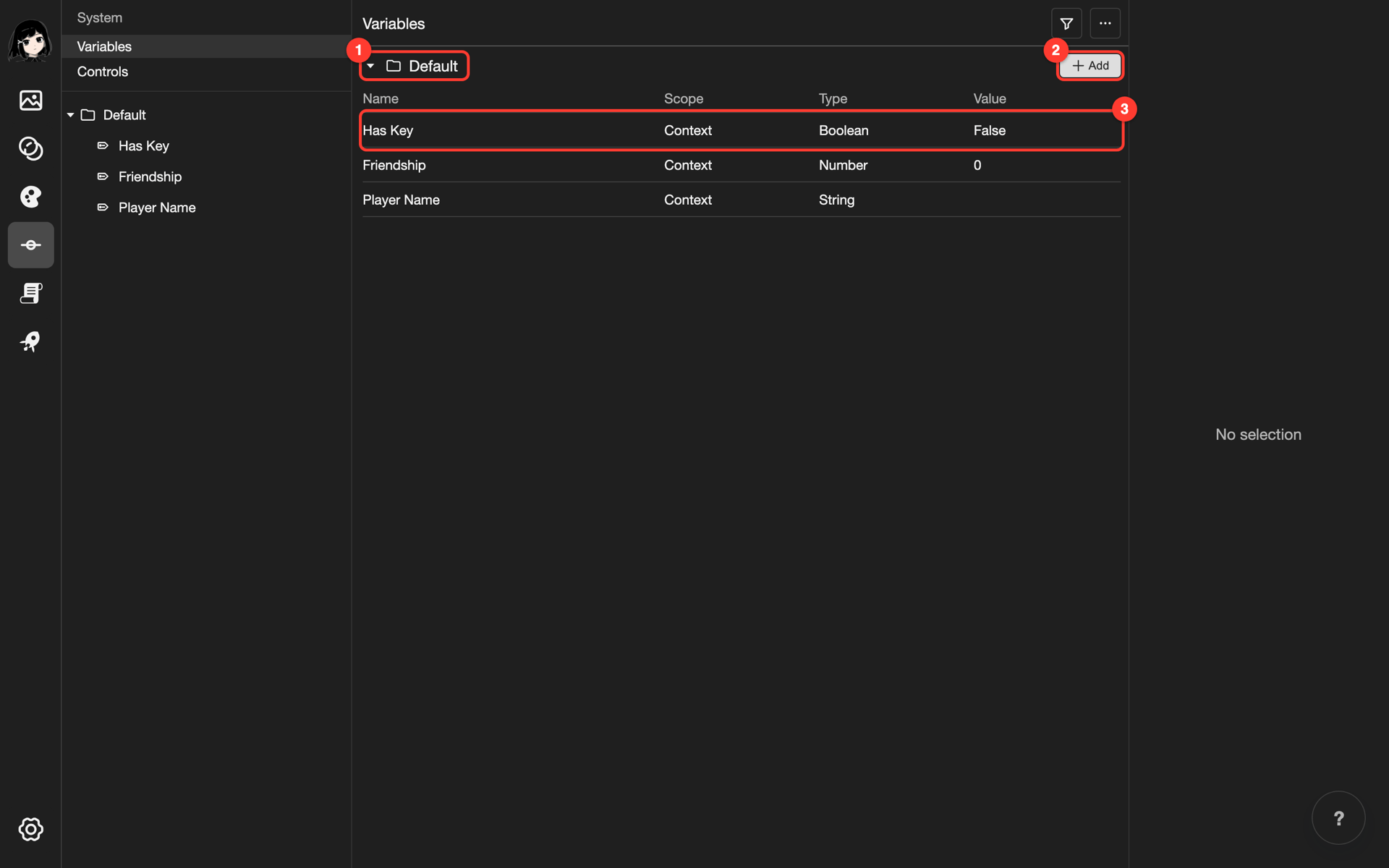
- Folder: a group of variables. The Default folder is there from the start. To make more folders, see File Explorer.
- Add: makes a new variable in this folder.
- Variable: one row for each variable. The row shows its Name, Scope, Type, and Value. Value is the starting value.
Create a variable
This example makes Has Key. It starts as False. Later, an Update Variable action can change it to True.
-
Next to the Default folder, tap Add. A menu opens.
-
Tap Variable. The Add Variable box opens.
-
In Name, type
Has Key. -
Under Type, choose Boolean. Default changes to False.
-
Tap Add.
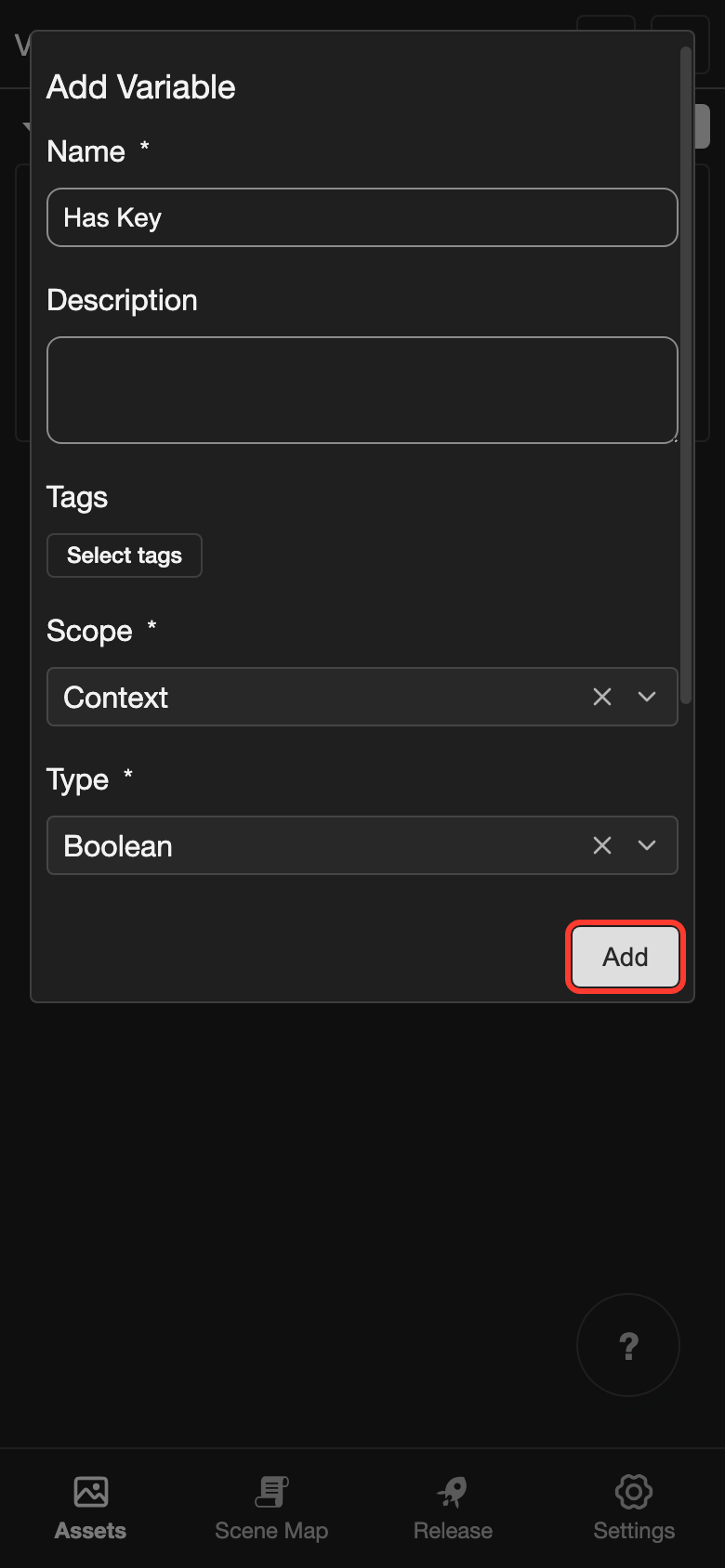
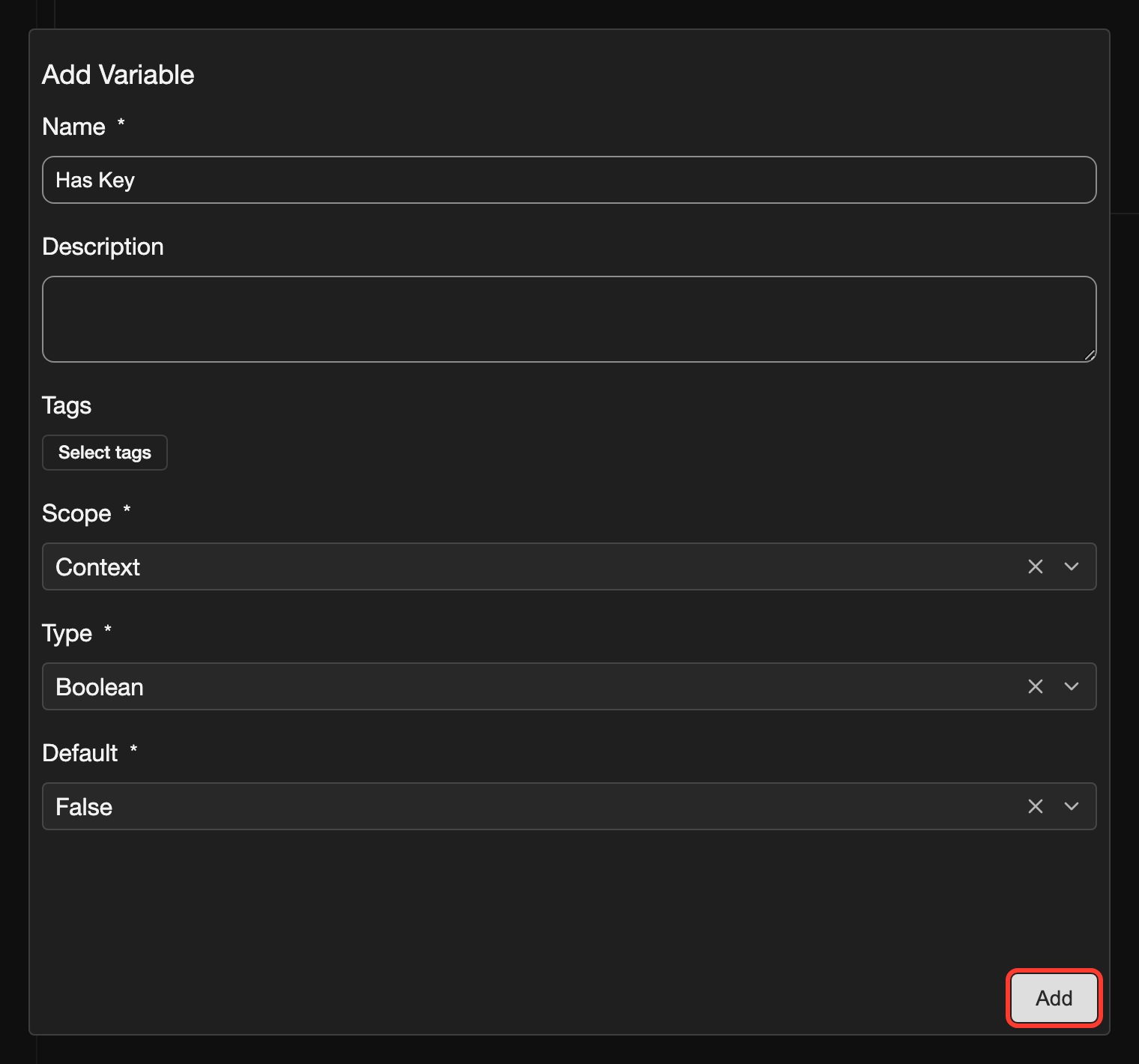
Has Key now shows in the Default folder.
The menu in step 1 also has Computed. See Computed variables.
Fields of the Add Variable box
| Field | What it does |
|---|---|
| Name | The name you see when you choose the variable in other places. You must fill it in. Give each variable a different name, because the app does not check this. |
| Description | A note for you about what the variable is for. |
| Tags | Labels that help you find variables. See Tags. |
| Scope | How long the value lasts. Context is chosen at first. See "Scope" below. |
| Type | The kind of value. See "Type" below. You cannot change the type later. |
| Enum | Only for String. The variable can only have a value from a list. See "Use a list of values" below. |
| Default | The starting value. |
Scope
| Scope | How long the value lasts | Use it for |
|---|---|---|
| Context | One read-through. Saves keep the value. A new read-through starts from Default. | Story values, such as Has Key |
| Device | All read-throughs on this device | Settings, such as text speed |
| Account | All read-throughs of this reader | Progress, such as unlocked endings |
Type
| Type | Holds | Default at first |
|---|---|---|
| String | Text, such as a name | Empty text |
| Number | A number, such as 10 | 0 |
| Boolean | True or False | False |
Use a list of values
A String variable can have a fixed list of values. For example, Weather can only be Sunny or Rainy. Then you choose a value from the list in actions such as Update Variable and Conditional. You do not need to type it.
-
Open the Add Variable box, as in steps 1 and 2 above.
-
In Name, type
Weather. Leave Type on String. -
Below Type, tap the Enum checkbox. On a phone, scroll down in the box to see it.
-
Under Values, tap Add Value. A small Add Value box opens.
-
In Value, type
Sunny. Then tap Add Value. -
Add
Rainythe same way.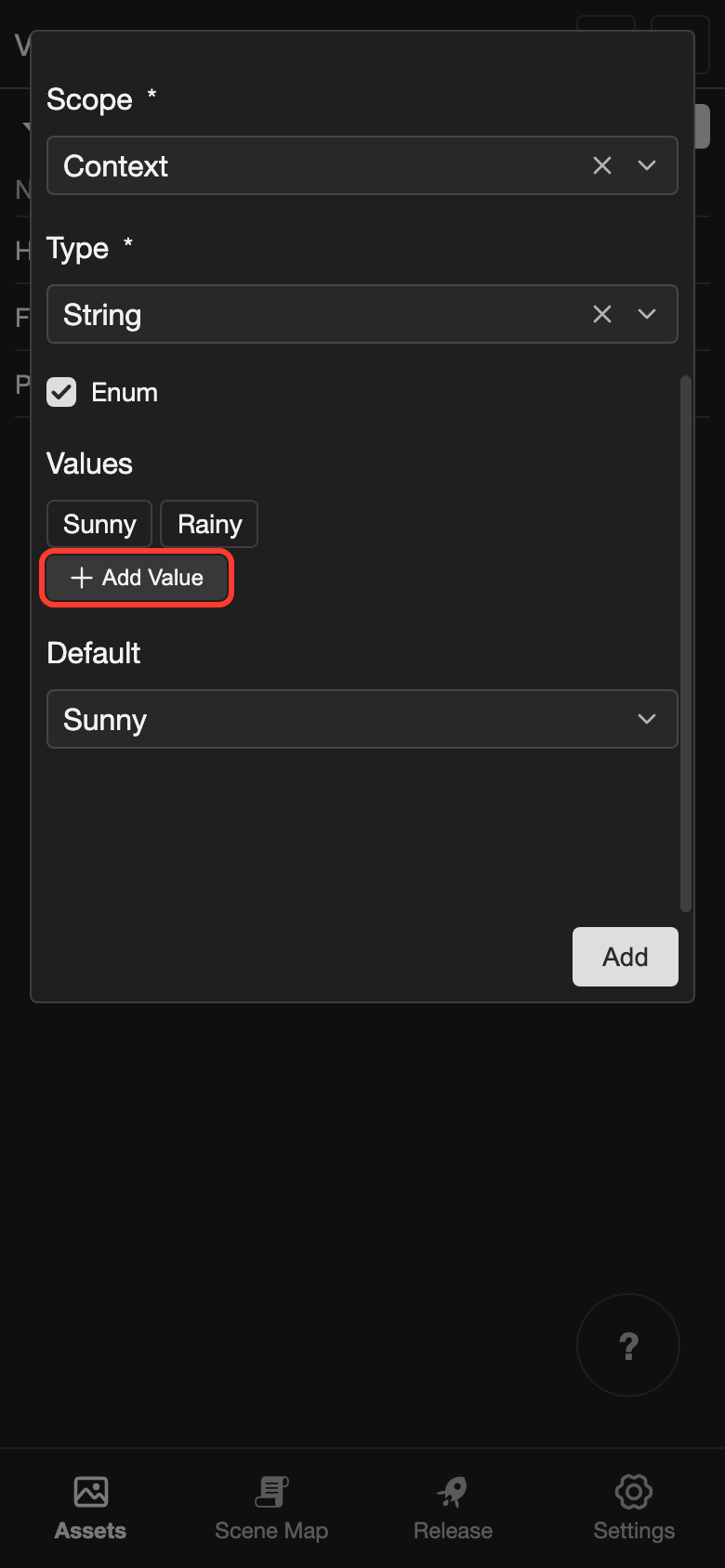
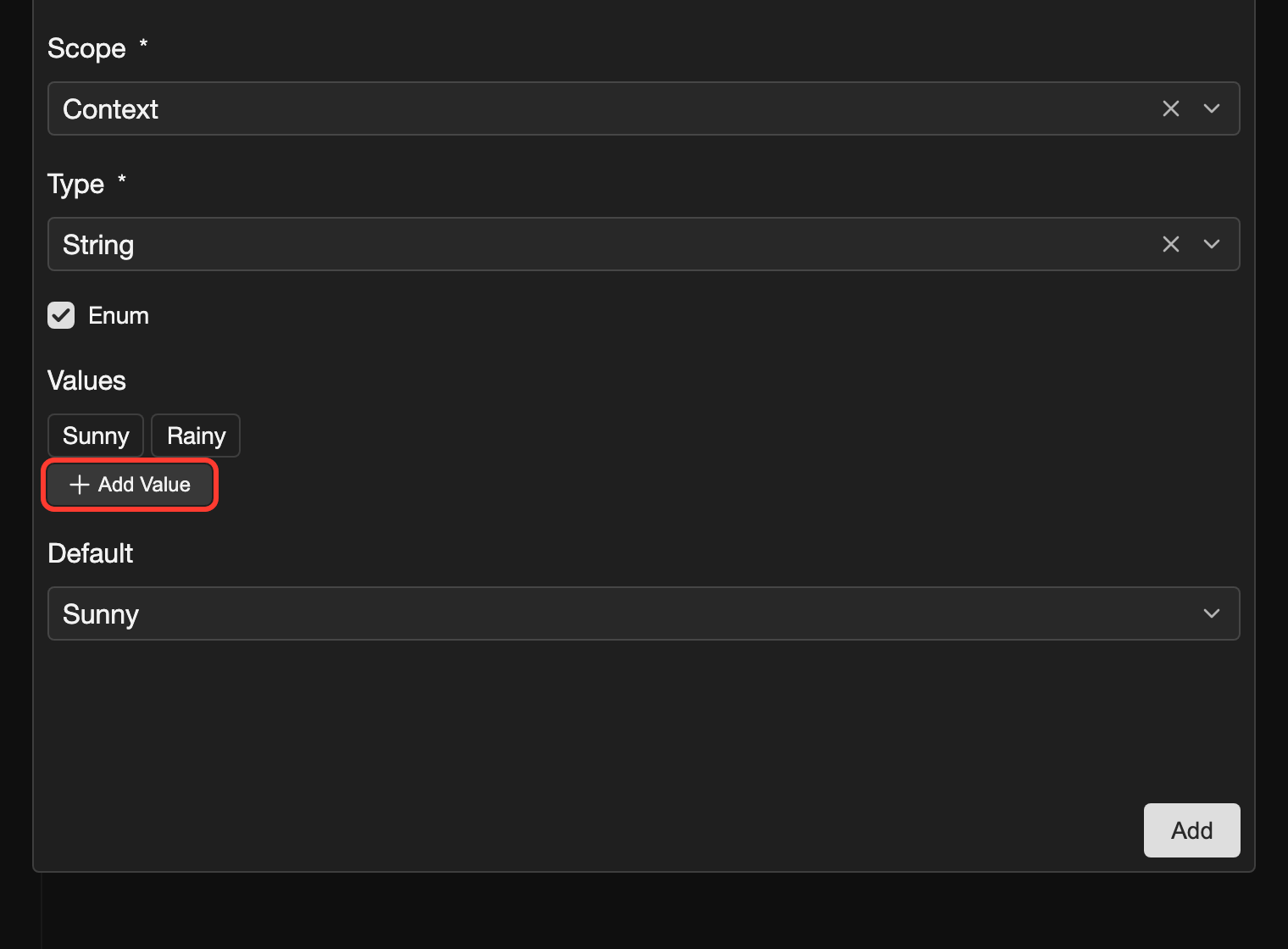
-
Under Default, choose the starting value. At first, it is the first value in the list.
-
Tap Add.
If you tap Add while the list is empty, the app shows "Enum variables need at least one value."
Change a variable
-
Tap the variable, such as Friendship.
- Phone or tablet: A panel opens at the bottom of the screen.
- Desktop: Its details show on the right.
-
To the right of its name, tap the pencil icon (the pencil-shaped button that opens editing).
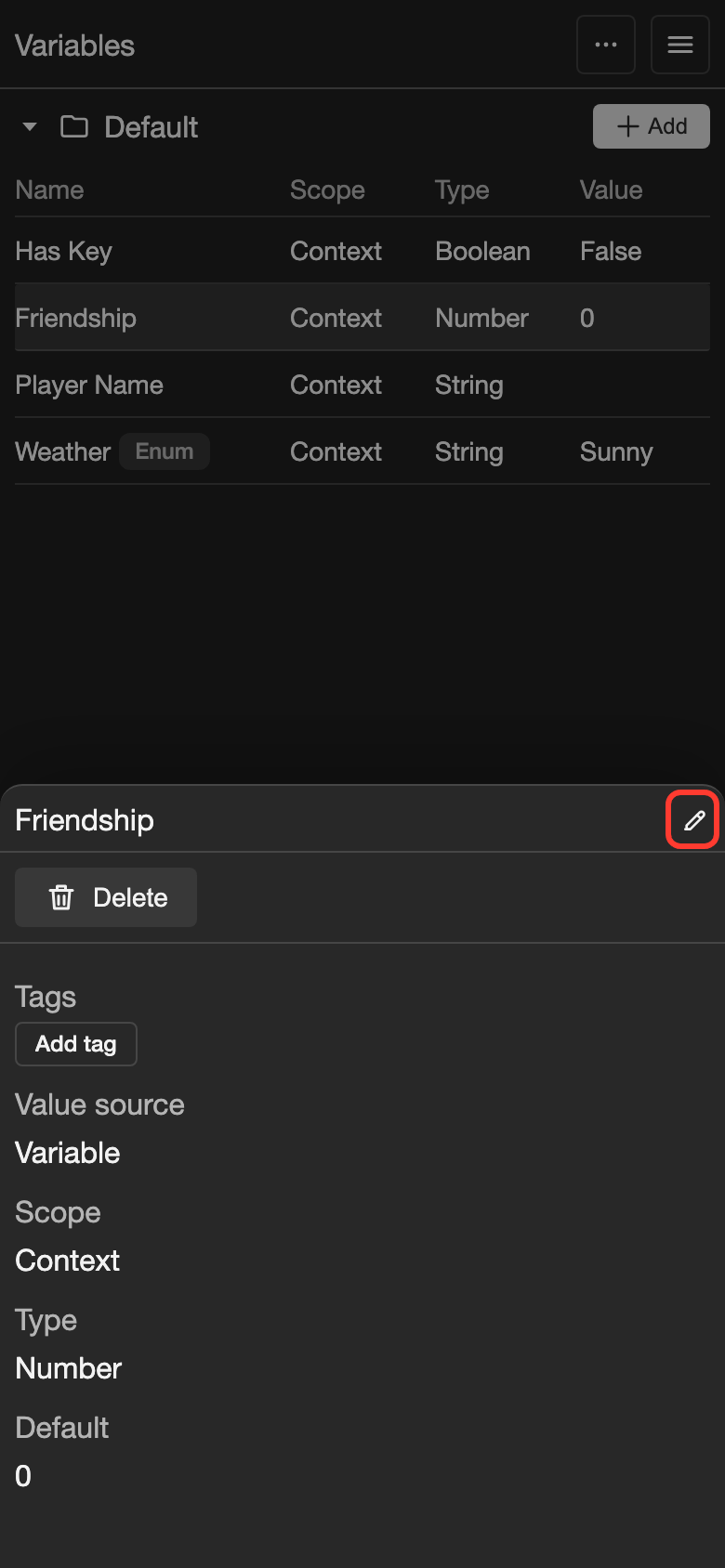
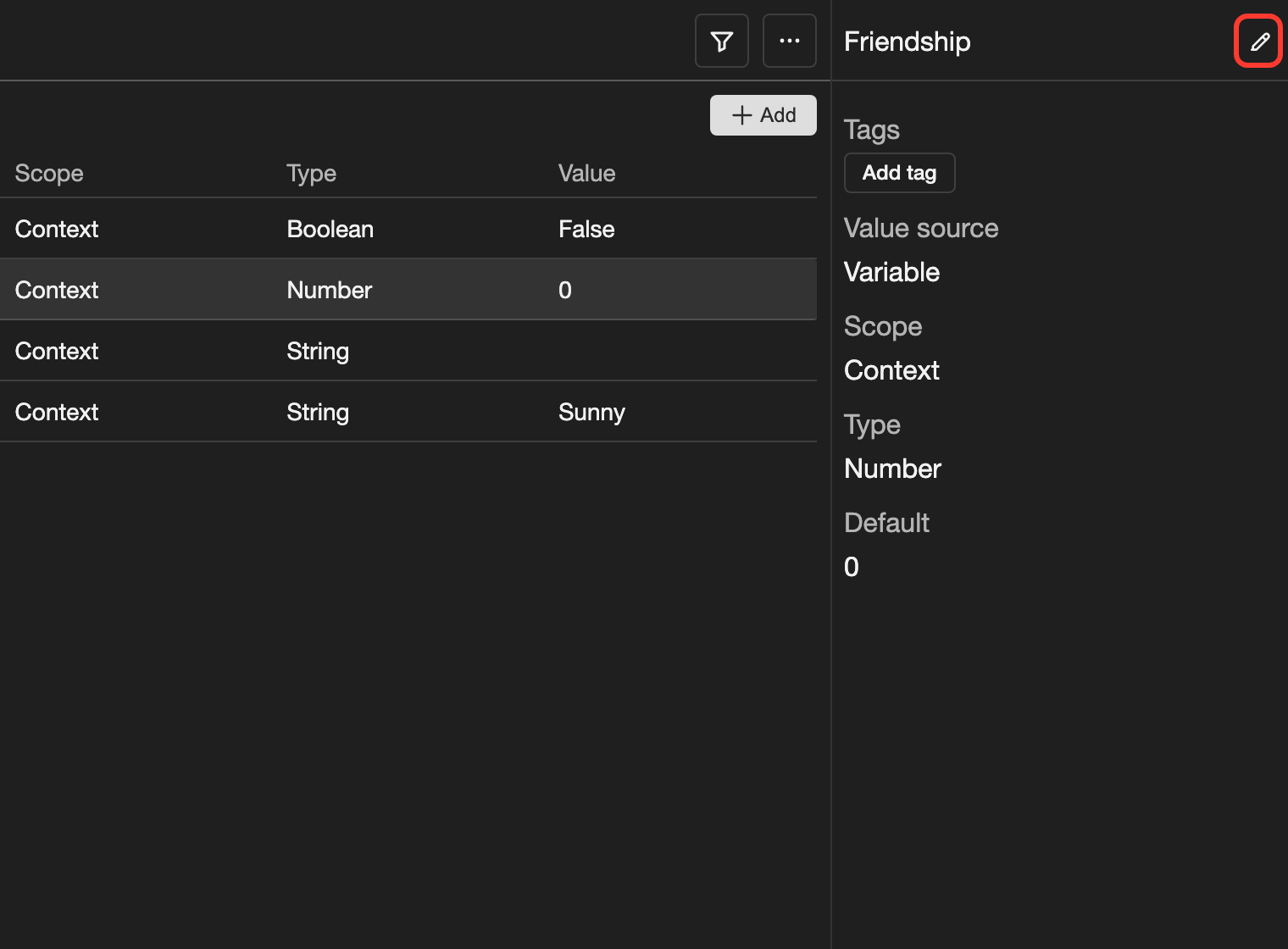
The Edit Variable box opens.
-
Change the fields. For example, change Default to
10. -
Tap Update.
To open the box faster on desktop, double-click (click twice quickly) the variable.
You cannot change the Type. To use another type, create a new variable.
Delete a variable
You cannot undo a delete. The app does not ask you to confirm.
-
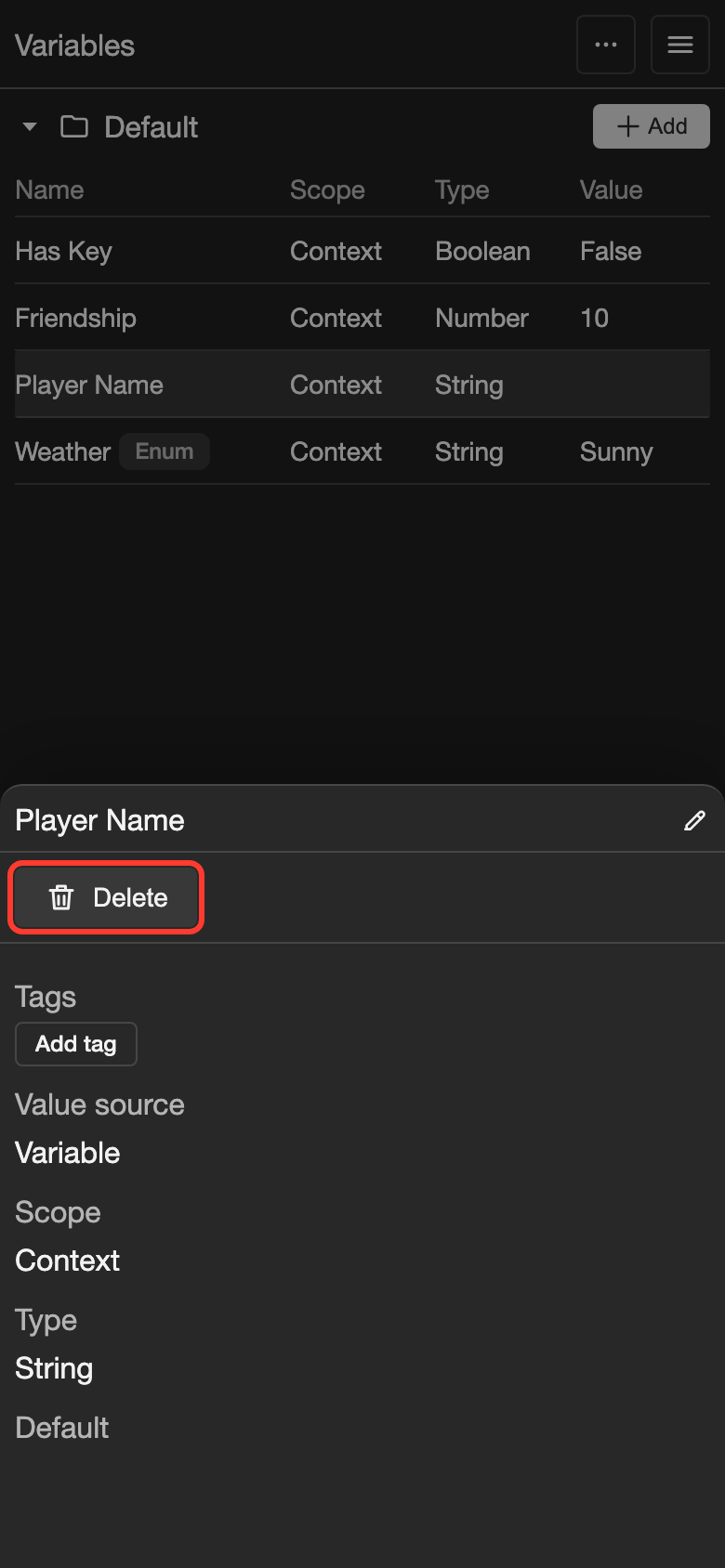
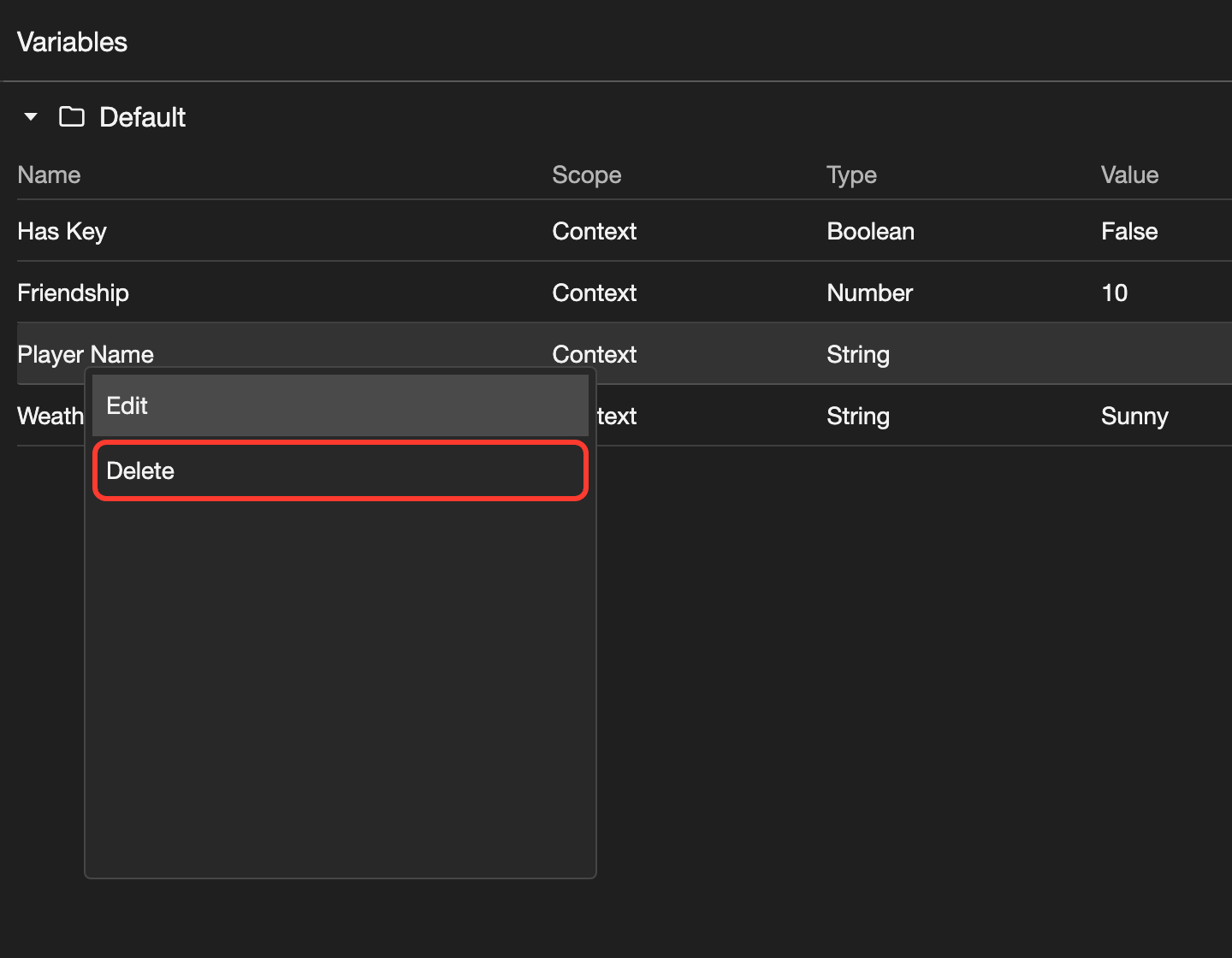
Open the options for the variable.
- Phone or tablet: Tap the variable. A panel opens at the bottom of the screen.
- Desktop: Right-click (click with the right mouse button) the variable. A menu opens.
-
Tap Delete.
If a scene, layout, or control uses the variable, the app does not delete it. It shows "Cannot delete resource, it is currently in use." Remove the variable from those places first.
Computed variables
A computed variable works out its value from other variables. You do not set its value. The app works it out again each time it is needed.
For example, Close Friend can be True when Friendship is 10 or more. Then you can check Close Friend in a Conditional.
Create a computed variable
This example needs a Number variable called Friendship. Create it first.
-
Next to the Default folder, tap Add. Then tap Computed. The Add Computed Variable box opens. On a phone, the fields scroll in the top half of the box.
-
In Name, type
Close Friend. -
Under Type, choose Boolean.
-
Tap Add an Operation. Then tap Greater or equal.
-
Tap Add operand. Tap Variable. Then tap Friendship.
-
Tap Add operand again. Tap Value. In Value, type
10. Then tap Add Value. -
Tap Add.
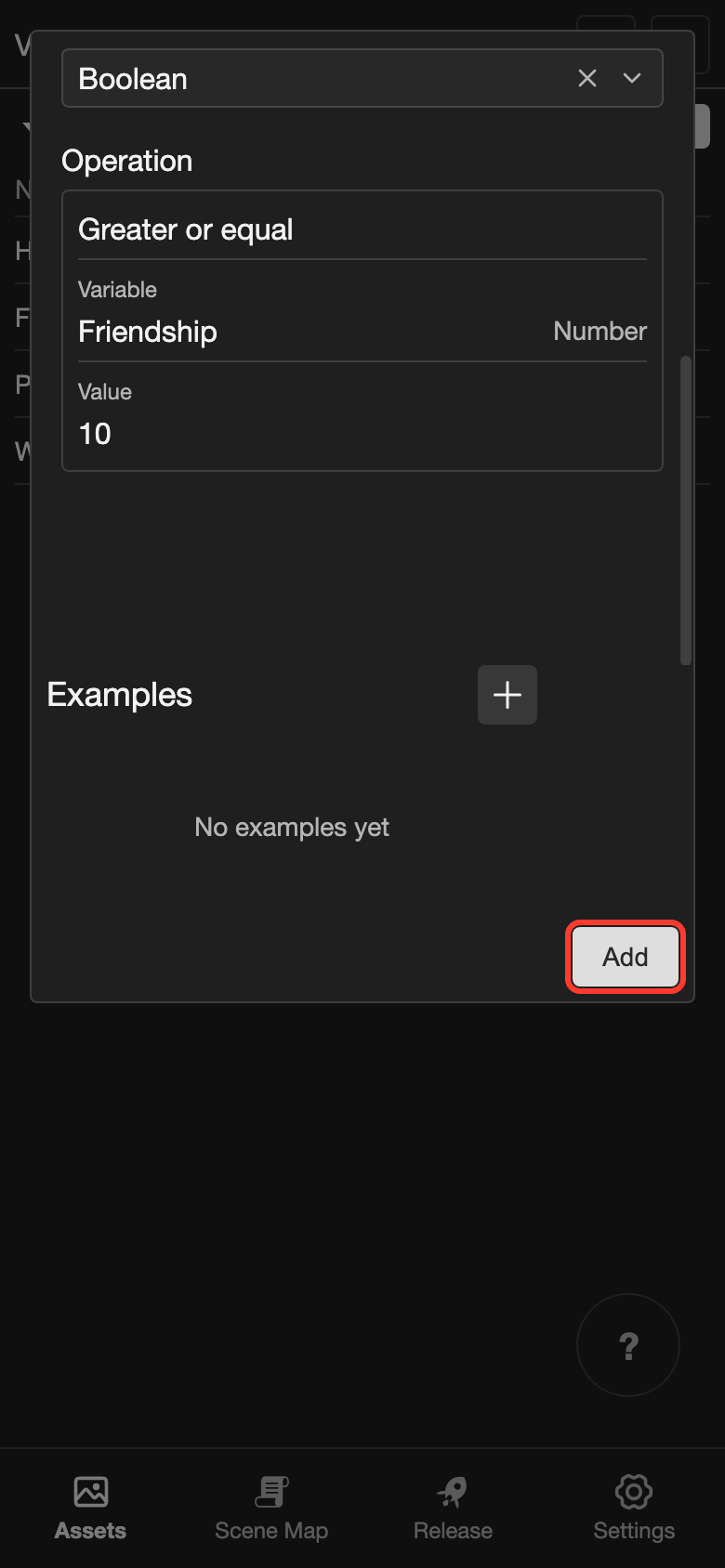
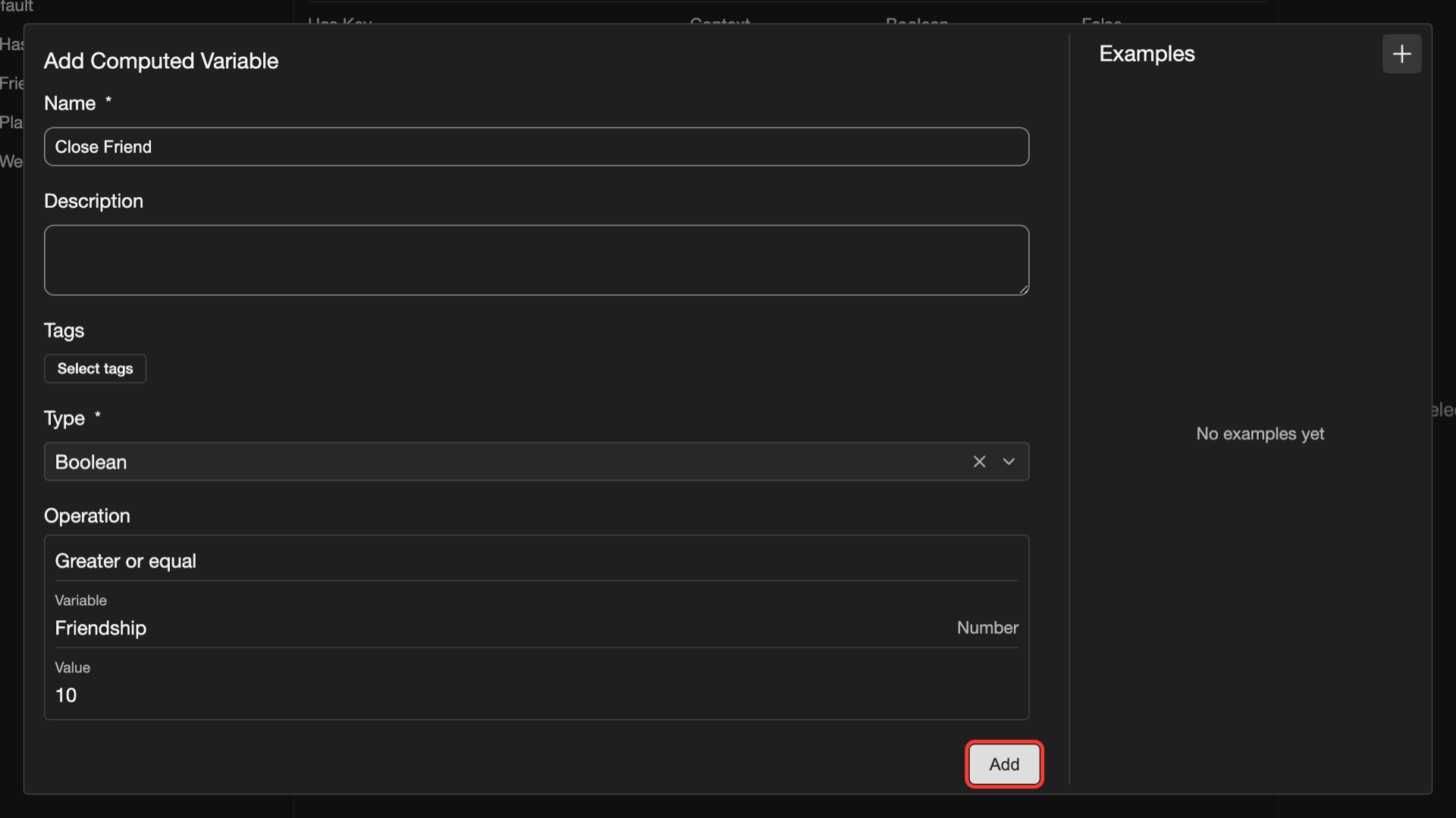
Close Friend now shows in the folder with a Computed tag.
Operations
The operations that you can choose depend on the Type.
| Type | Operations |
|---|---|
| Number | Add, Subtract, Multiply, Divide, Minimum, Maximum |
| Boolean | Equal, Not equal, Greater than, Greater or equal, Less than, Less or equal, And, Or, Not |
| Every type | If: gives a different result for each condition. Use Otherwise for the result when no condition matches. |
An operand can be a variable, a value, or another operation.
Good to know
- A computed variable has no Scope and no Default.
- Update Variable and Input cannot change a computed variable.
- You cannot delete a variable while a computed variable uses it.
- You cannot change the Type later.
- To test the operation, tap + next to Examples. Type values for the variables, and see the Result. Examples do not change your visual novel.
Where variables are used
- Update Variable: changes a variable when its line plays.
- Input: saves the text that the reader types in a String variable.
- Conditional: checks a variable and runs actions only when the check matches.
- Controls: can change a variable when the reader clicks or presses a key.
- Layouts: shows the value of a variable in a text. An element can also show only when a variable has a value you choose.