Input Layout
An Input layout is a form where the reader types words, such as their name. The Input action shows it, and saves the words in a variable.
The layout has 2 special elements: a box to type in and a Submit button.
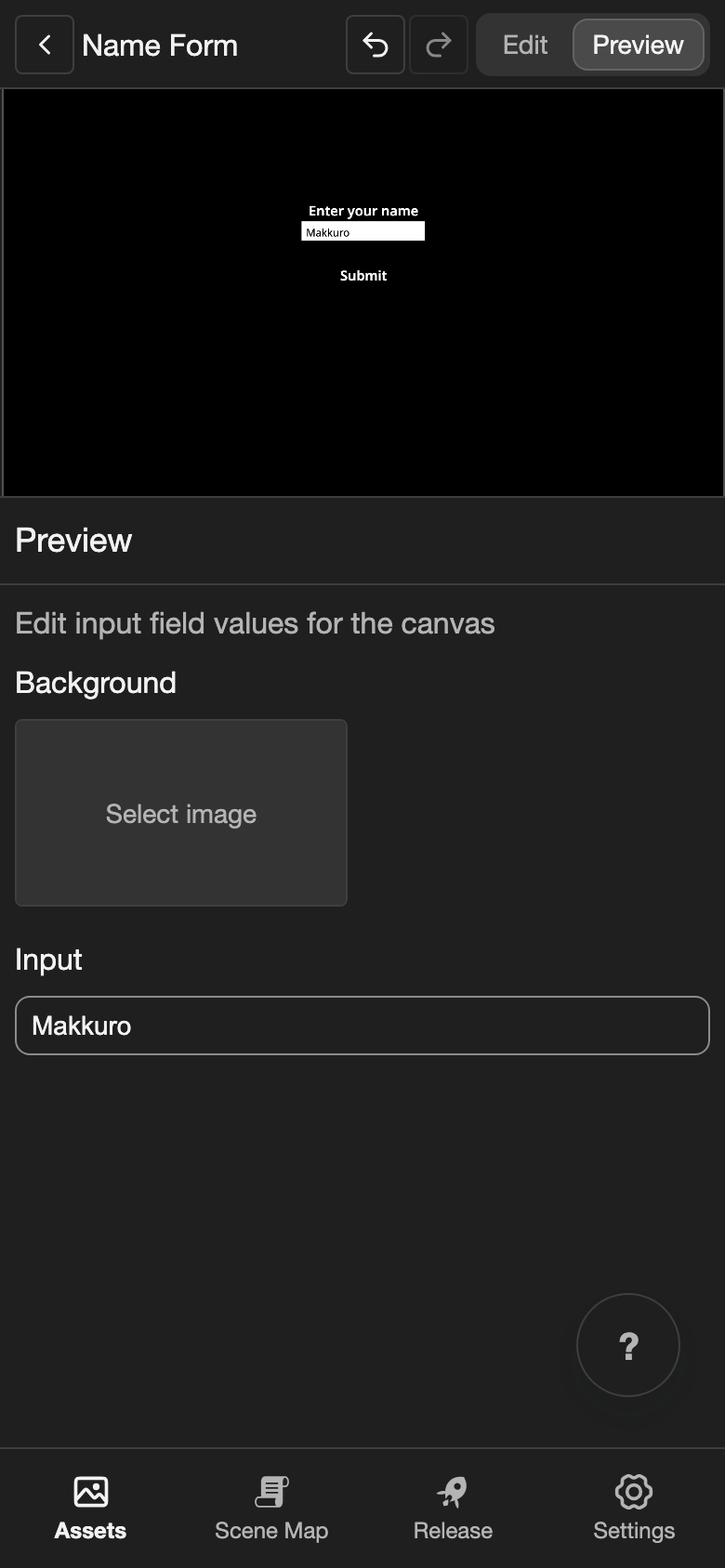
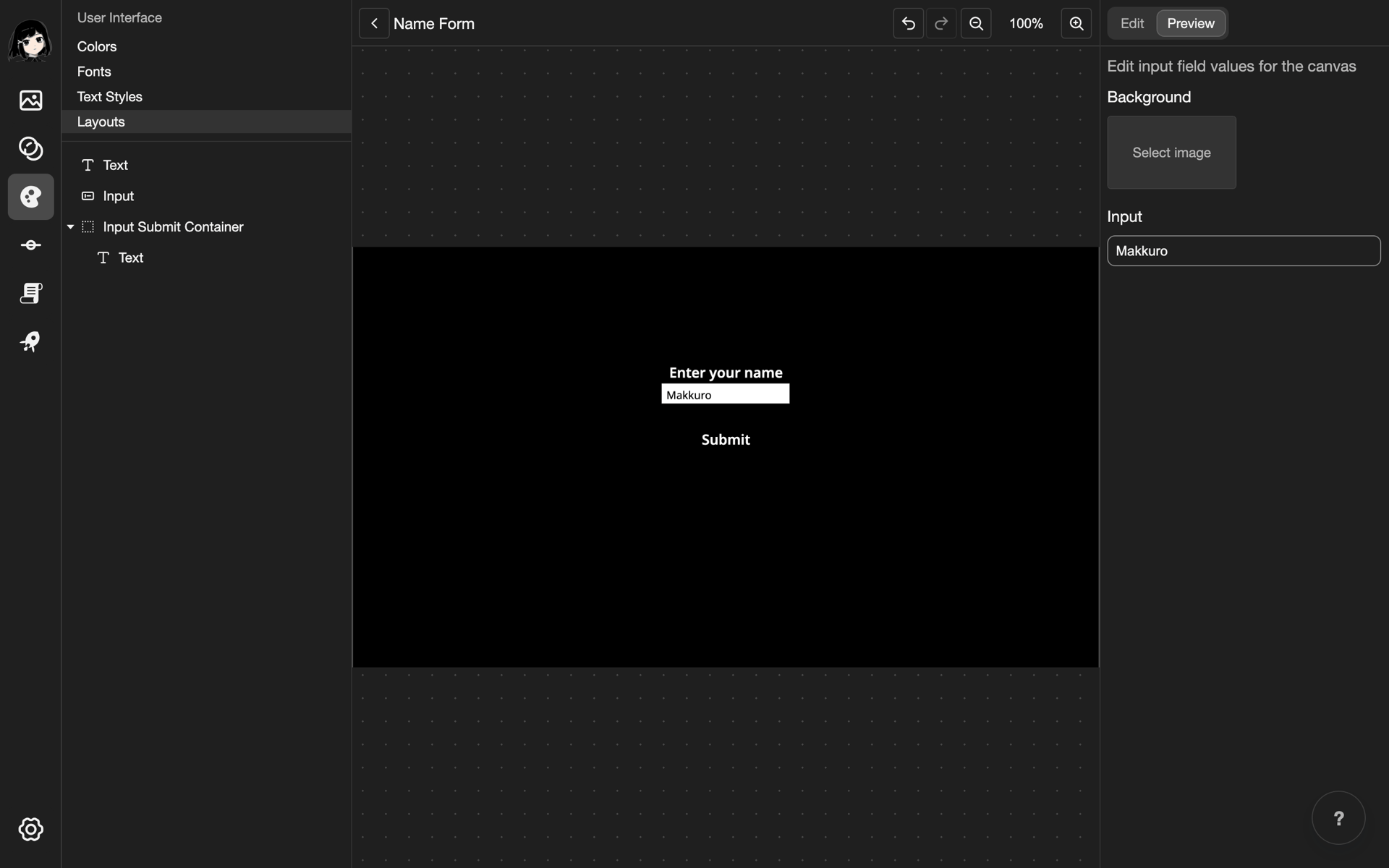
This example makes a name form in a new layout called Name Form. It uses a text style with a dark color, called Dark. To make one, see Text Styles.
Create the layout
- Create a layout. Under Layout Type, choose Input. See Create a layout.
- Open the new layout.
A new Input layout already has a box to type in and a Submit button.
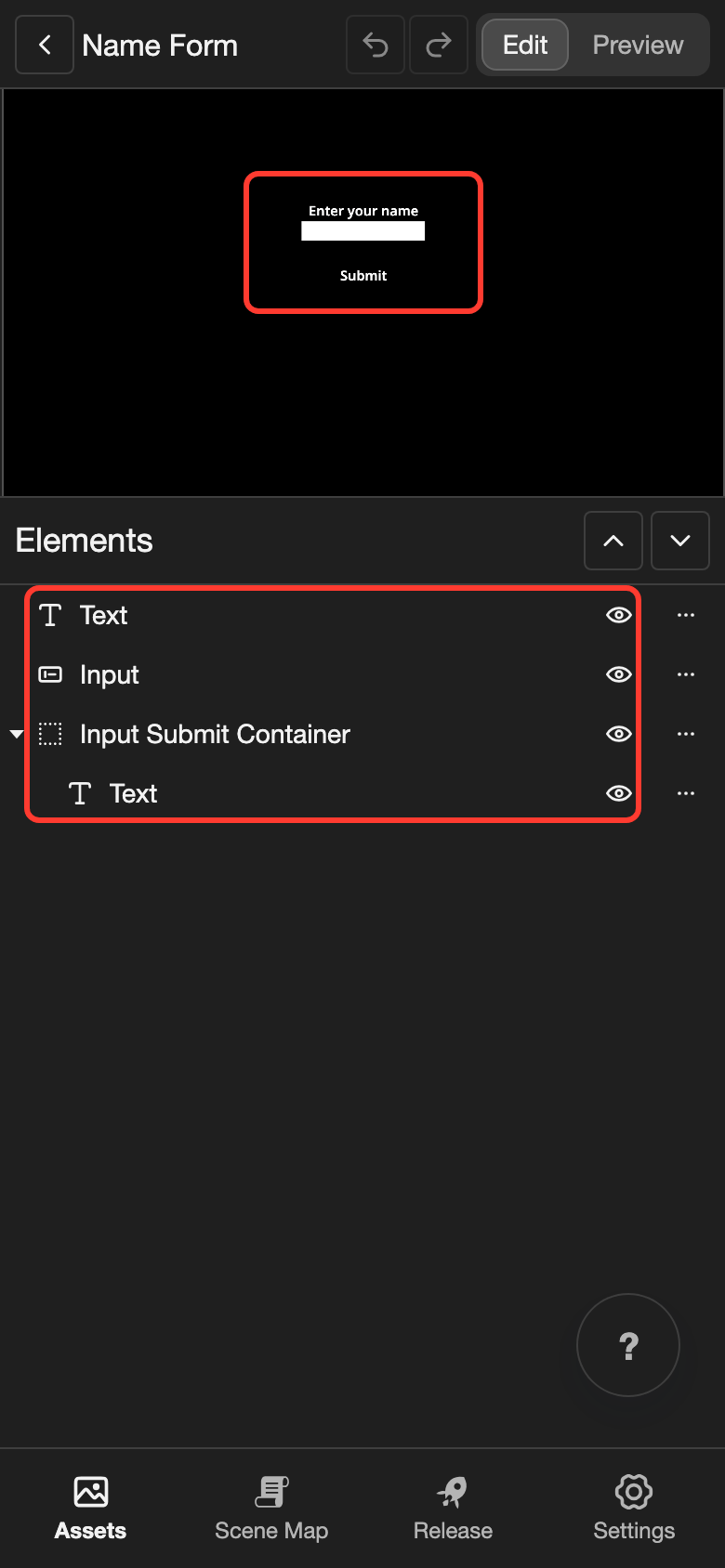
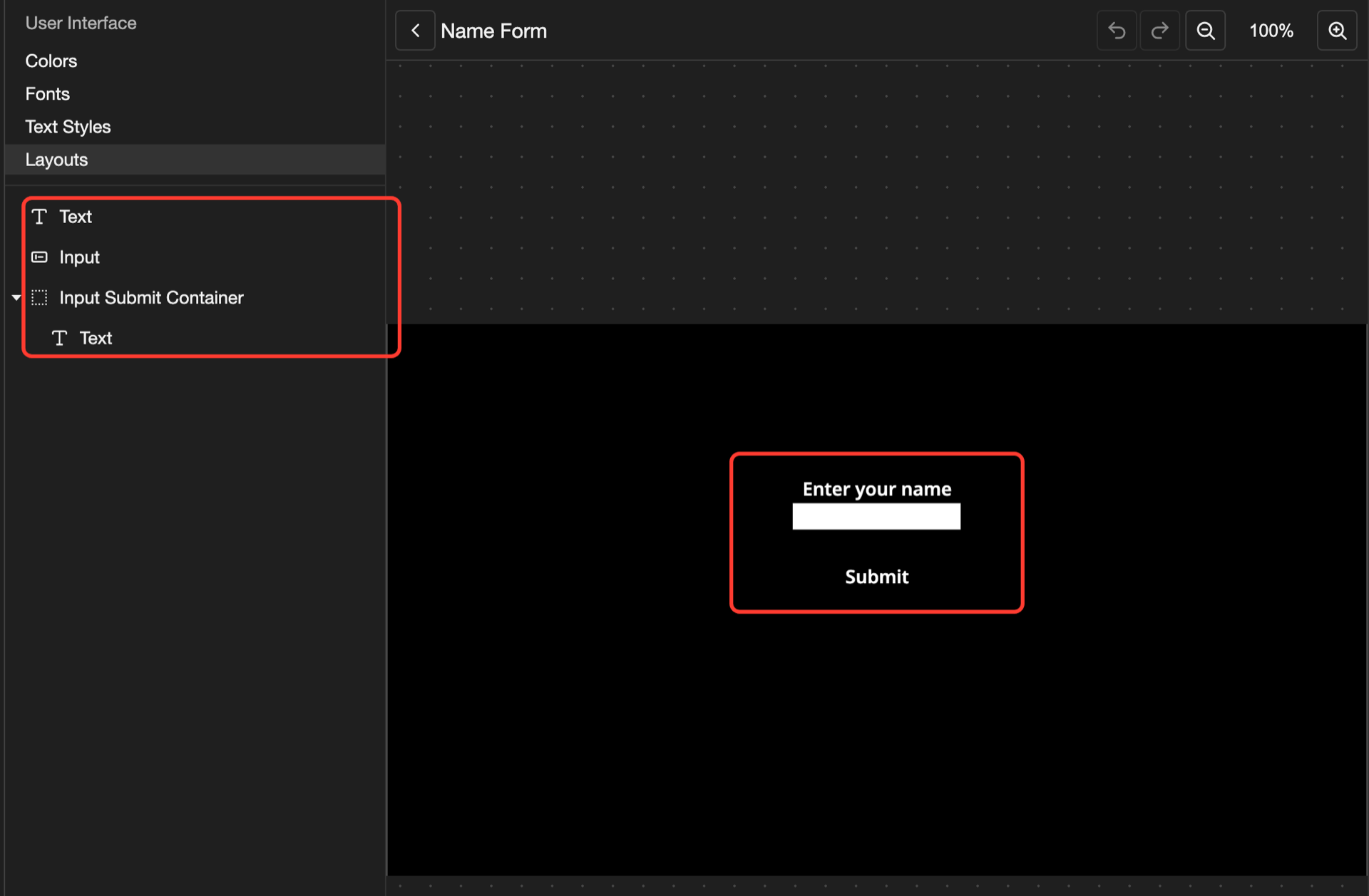
In the Elements list, the box is Input, and the button is Input Submit Container. The words on the canvas are Text elements. To change them, see Change the words.
Make the typed words easy to read
The box is white. The words that the reader types use the text style of the Input. Light words are hard to read on white, so choose a dark text style.
-
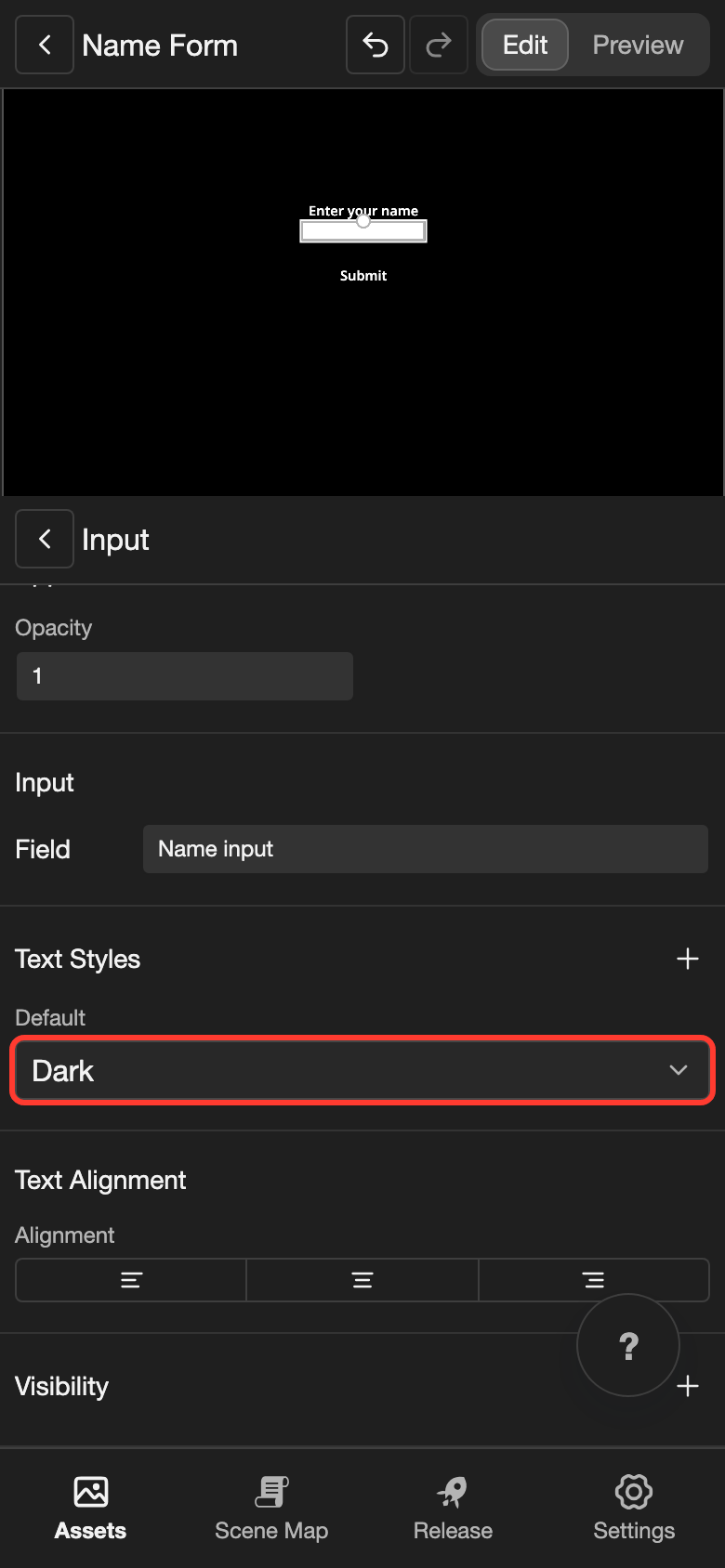
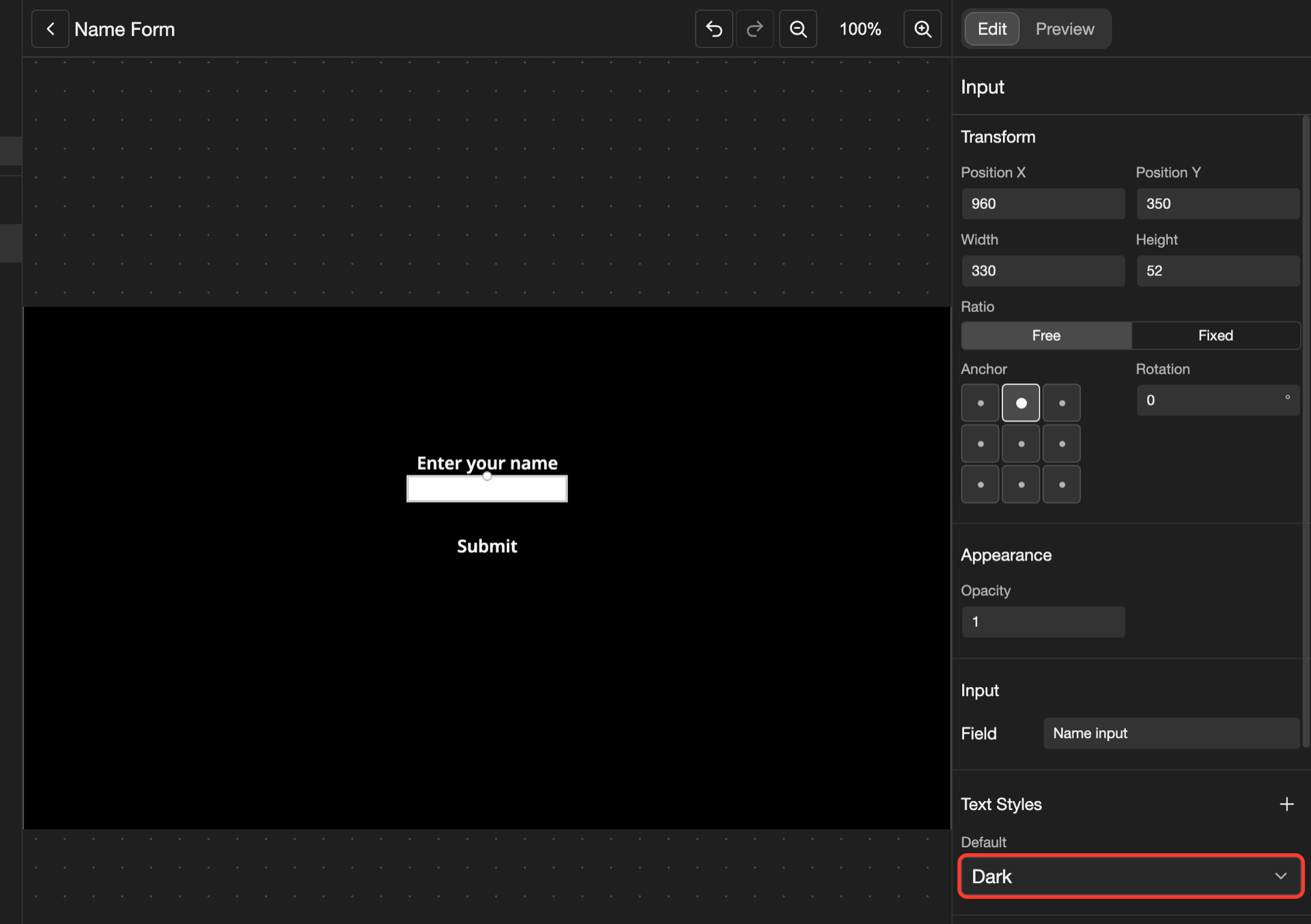
In the Elements list, tap Input. Its settings open.
-
Under Text Styles, tap the list under Default.
-
Tap a dark text style, such as Dark.
Test it in Preview
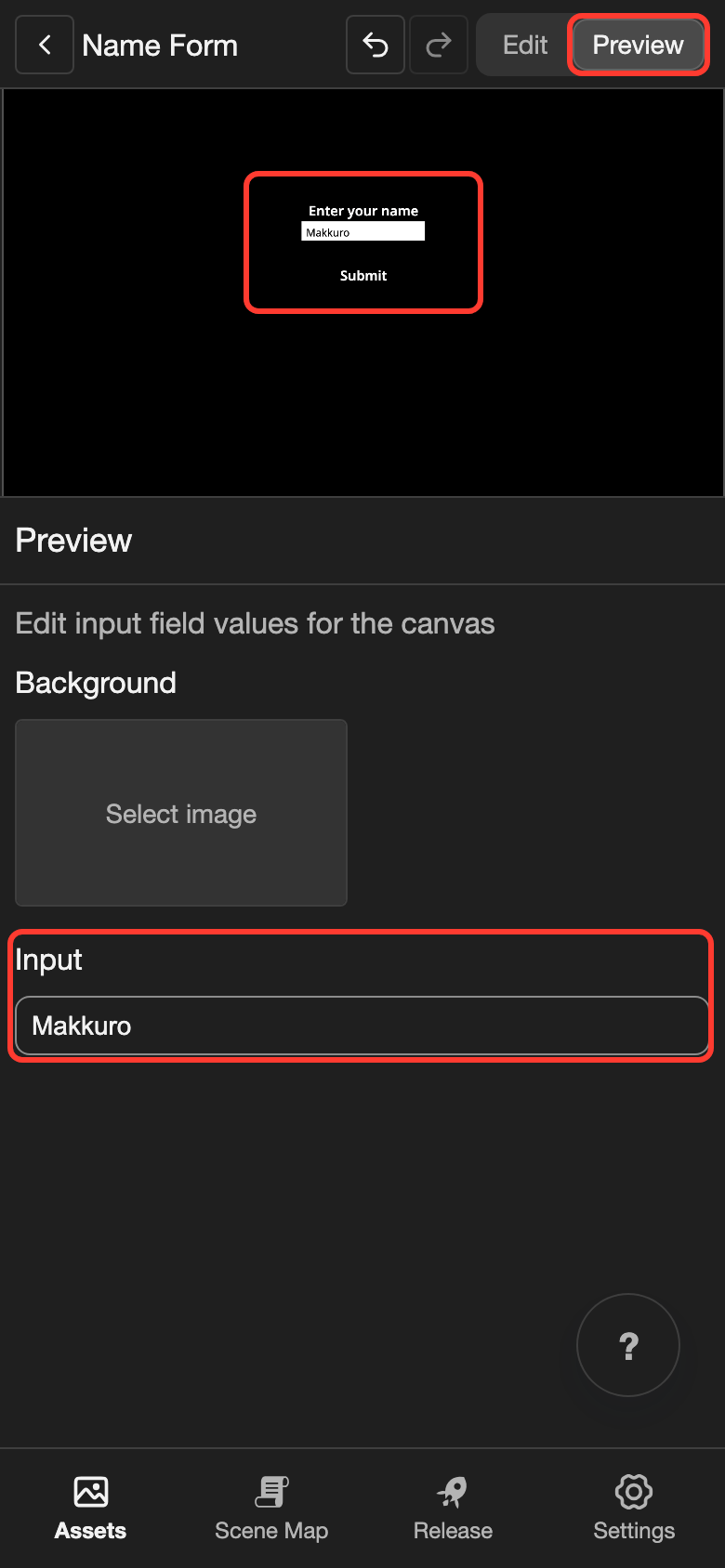
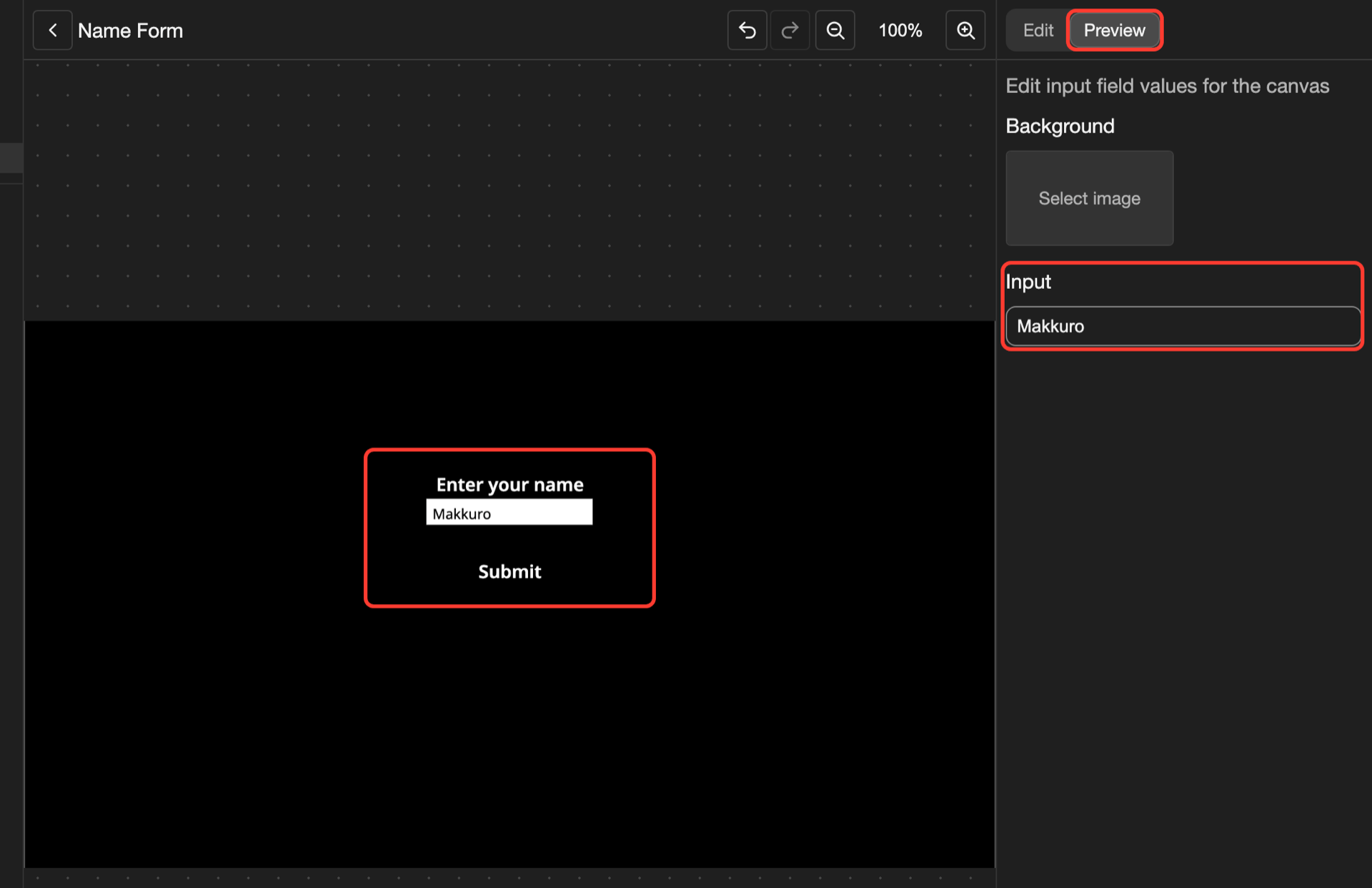
- At the top, tap Preview.
- Under Input, type a name, such as
Makkuro. Input is the name of the element.
The canvas shows the name in the box.
The sample name does not change your visual novel.
Special elements
| Element | What it does |
|---|---|
| Input | A box where the reader types. Under Input in its settings, Field is the name of the box. The Input action shows 1 row for each Field. Each row saves the words in a variable. |
| Input Submit Container | A button that sends the words. When the reader taps it, the words are saved. Then the story goes to the next line. Put a Text inside it, so the reader can see it. |
To add one more, open the Add Element menu. Both are under Slider. See Add an element.
Good to know
- To ask for a first name and a last name, add a second Input. Give each Input a different Field.
- The hint in an empty box, such as "Your name", is not a layout setting. Set it under Placeholder in the Input action.