Toggle Skip Mode
Toggle Skip Mode turns skip mode on or off. In skip mode, the visual novel moves through lines very fast. The reader starts it, for example by tapping a Skip button.
Toggle Skip Mode is a system action. A system action runs when the reader does something. So it is not in the Actions menu of the scene editor. You add it in these places:
The skip mode actions
The Actions list of a key or a click has three skip mode actions under Dialogue. None of them has settings.
| Action | What it does |
|---|---|
| Toggle Skip Mode | Turns skip mode on if it is off. Turns it off if it is on. |
| Start Skip Mode | Turns skip mode on. |
| Stop Skip Mode | Turns skip mode off. |
Use Toggle Skip Mode for a button. Use Start Skip Mode and Stop Skip Mode for a key that the reader holds.
How skip mode works
- Skip mode skips only lines that the reader has seen before. It stops at the first new line.
- If choices are on the screen, skip mode does not move on. The reader must pick a choice. See Choices.
- Skip mode stops at the end of a section.
- Skip mode and auto mode cannot run together. Starting one turns off the other.
- To show an element only while skip mode is on, add a Visibility condition with the target Skip Mode.
Add Toggle Skip Mode to a click
You can add it to an element of a layout or of a control. Both editors work the same way.
-
Select the element that the reader should click.
-
Next to Actions, tap the + button.
-
Tap Click. The Actions list opens.
-
Under Dialogue, tap Toggle Skip Mode.
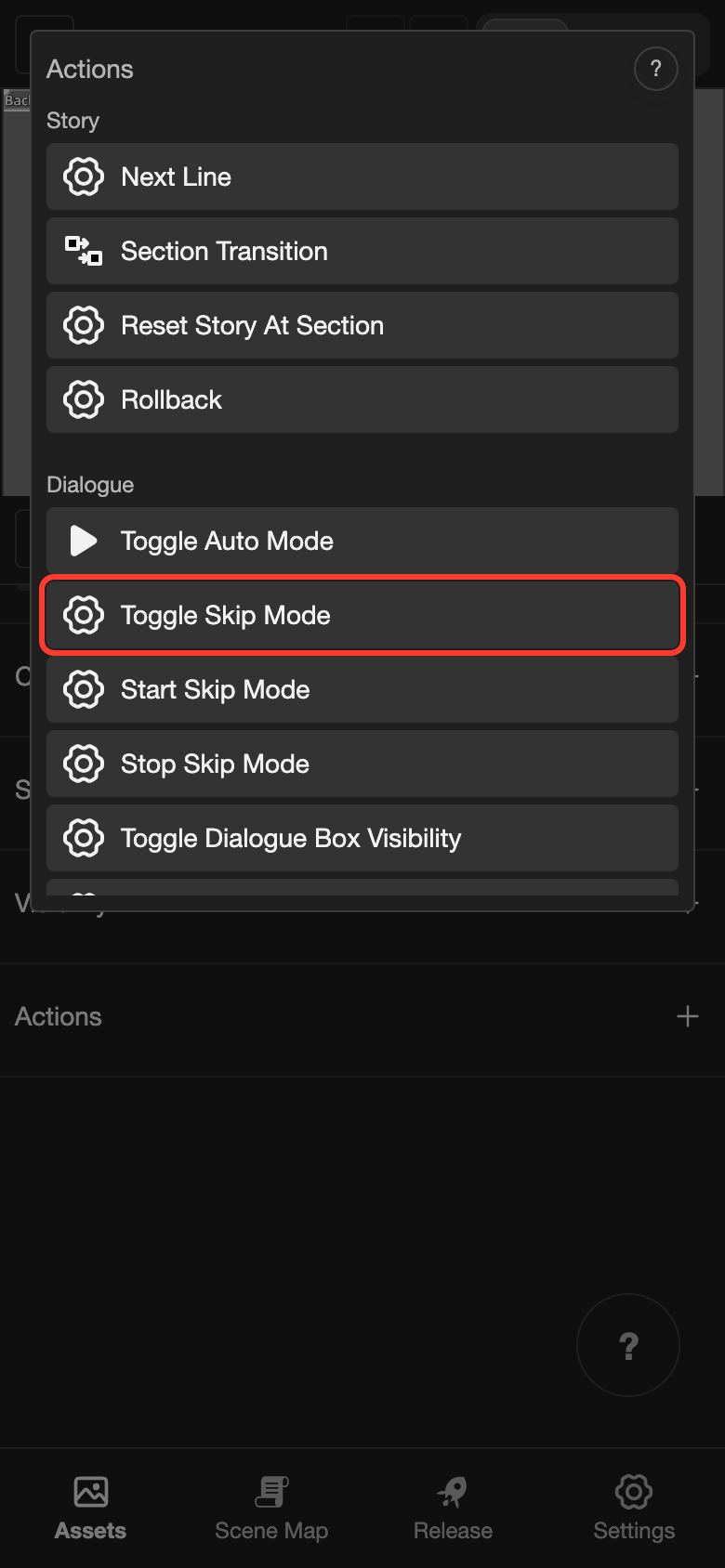
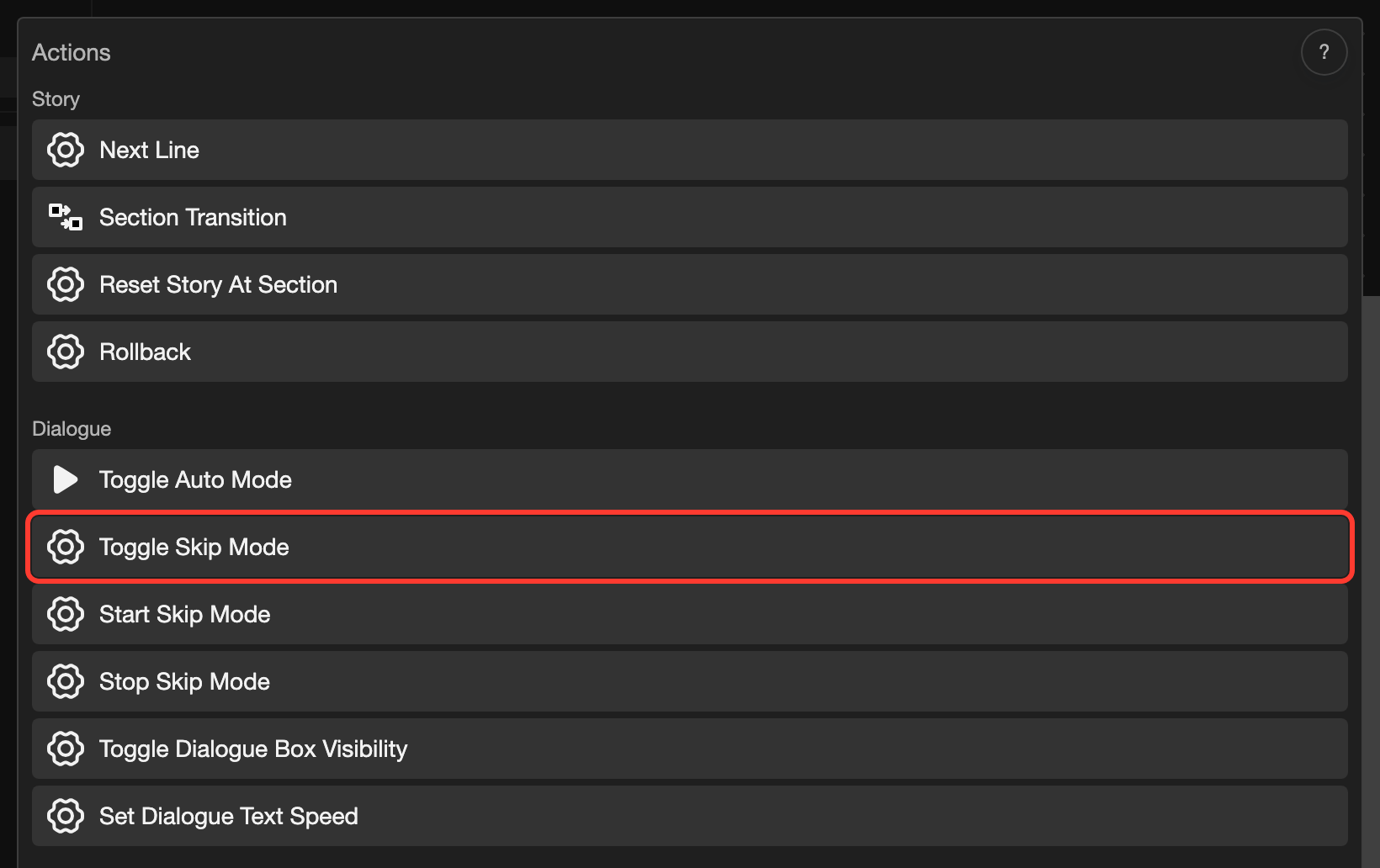
-
Tap Submit.
Skip while the reader holds a key
This works only on desktop. Use 2 keyboard actions in a control, for the same key:
- Under Keydown, add the key with Start Skip Mode.
- Under Keyup, add the key with Stop Skip Mode.
Then skip mode runs only while the reader holds the key. To add a keyboard action, see Add a keyboard action.