Toggle Auto Mode
Toggle Auto Mode turns auto mode on or off. In auto mode, the visual novel moves to the next line by itself after a short wait. The reader starts it, for example by tapping an Auto button. Toggle Auto Mode has no settings.
Toggle Auto Mode is a system action. A system action runs when the reader does something. So it is not in the Actions menu of the scene editor. You add it in these places:
Add Toggle Auto Mode to a click
You can add it to an element of a layout or of a control. Both editors work the same way.
-
Select the element that the reader should click.
-
Next to Actions, tap the + button.
-
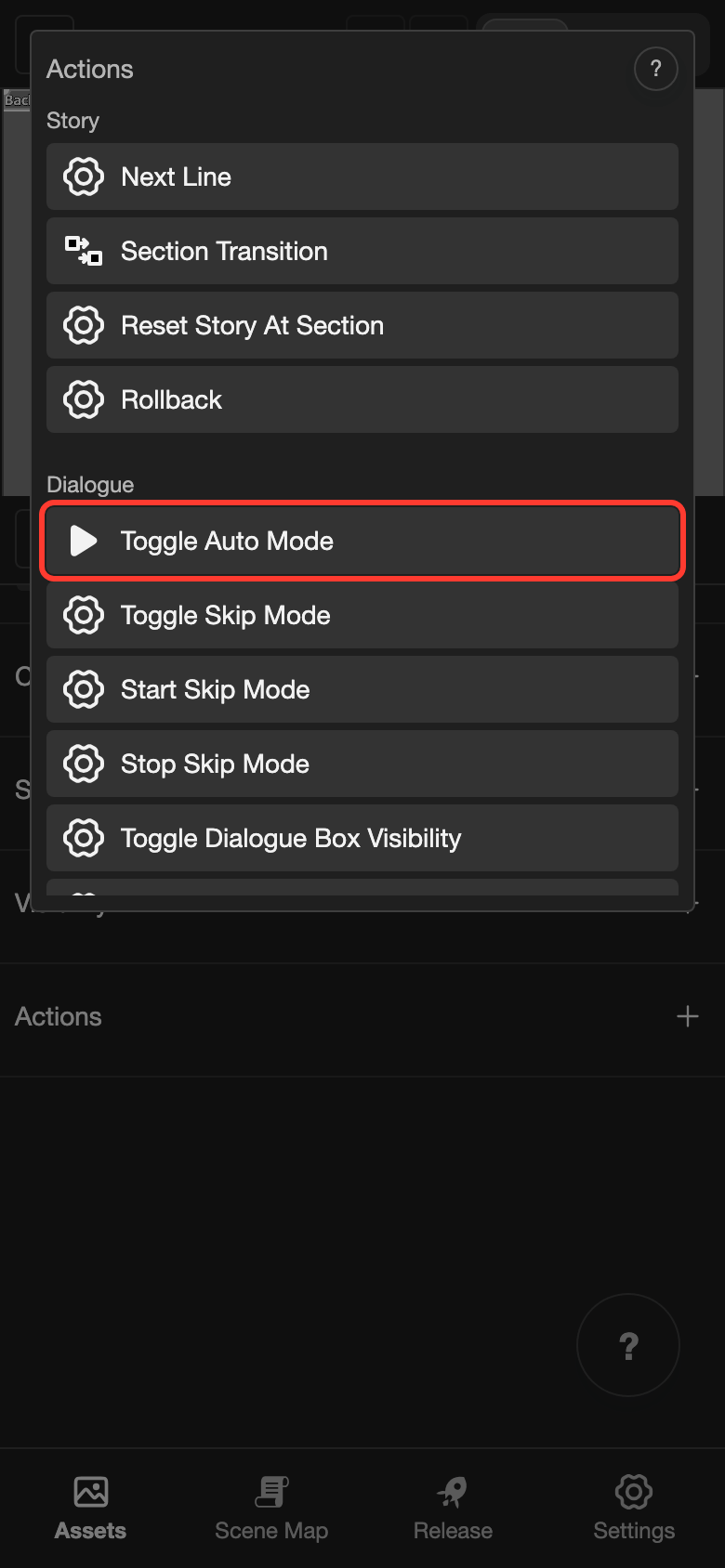
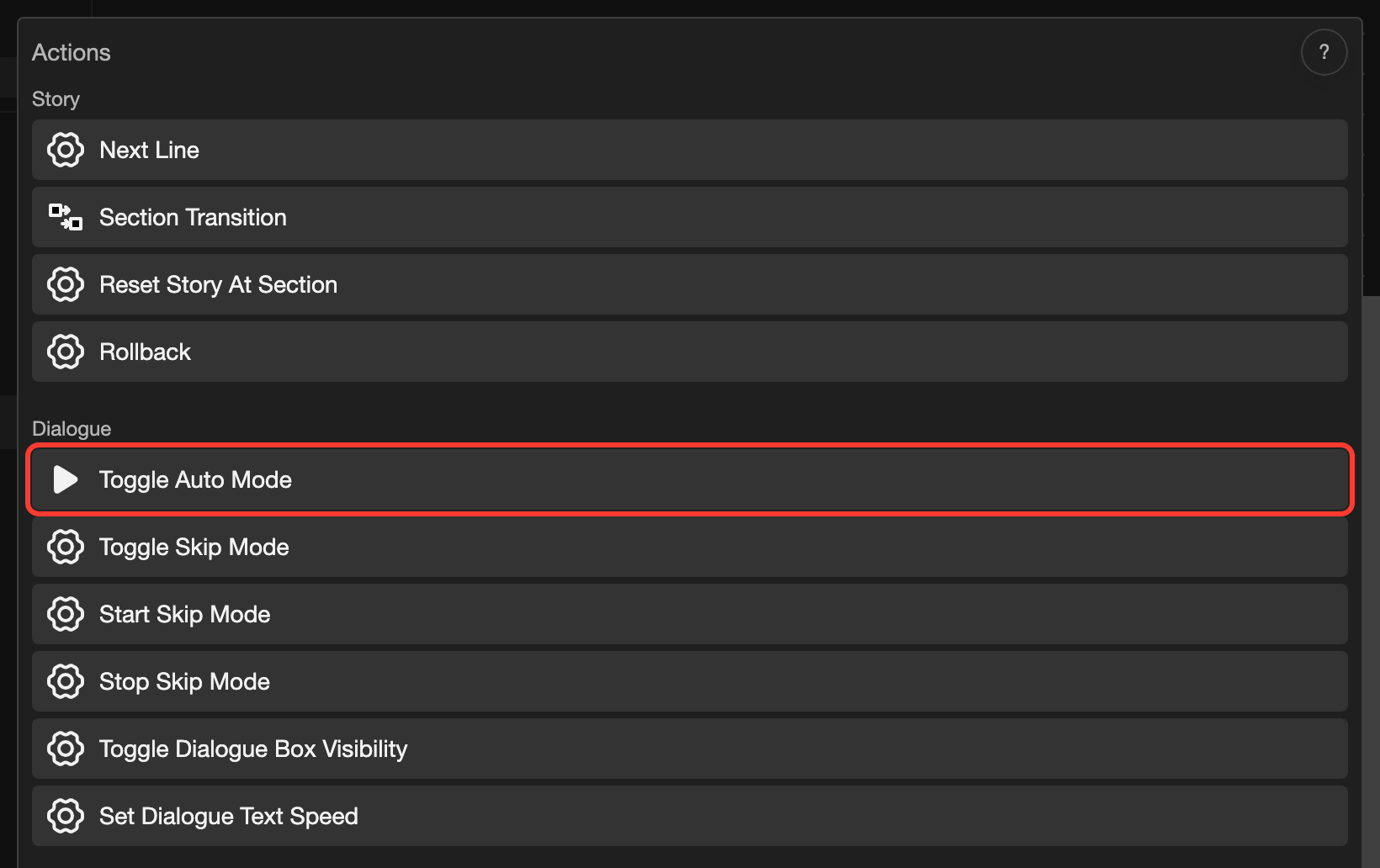
Tap Click. The Actions list opens.
-
Under Dialogue, tap Toggle Auto Mode.
-
Tap Submit.
Good to know
- The wait starts when the line has finished showing. It is 1 second, plus about 0.06 second for each letter.
- If choices are on the screen, auto mode waits. The reader must pick a choice. See Choices.
- Auto mode and skip mode cannot be on together. Turning one on turns the other off. See Toggle Skip Mode.
- Auto mode turns off when the reader loads a save. It also turns off when there is no next line in the section.
- Auto mode still works when Click to Advance is No. See Next Line Config.
- To show an element only while auto mode is on, add a Visibility condition with the target Auto Mode.