Export for Android
An Android export is an app that runs your visual novel on Android phones and tablets. Readers do not need RouteVN Creator.
You can make it in the desktop app and in the phone and tablet apps. The web version cannot make it. This export is in beta. Beta means it is new and still being tested.
APK or App Bundle
An Android export comes in 2 formats. You choose one each time you export.
| Format | What it is for |
|---|---|
| APK | A file that installs straight on a device. Use it to test your visual novel, or to share the file yourself. |
| App Bundle (AAB) | A file for the Google Play store. You cannot install it straight on a device. |
If you are not sure, choose APK first and test your visual novel.
Before you start
- Create a version of your visual novel. See Versions.
- Check your project icon. The Android icon starts as this picture. To change it, see Projects.
Start the export
-
On the Versions page, tap the version you want to export. Its details open.
-
In the details, tap Export. The Export for box opens.
-
Tap Android.
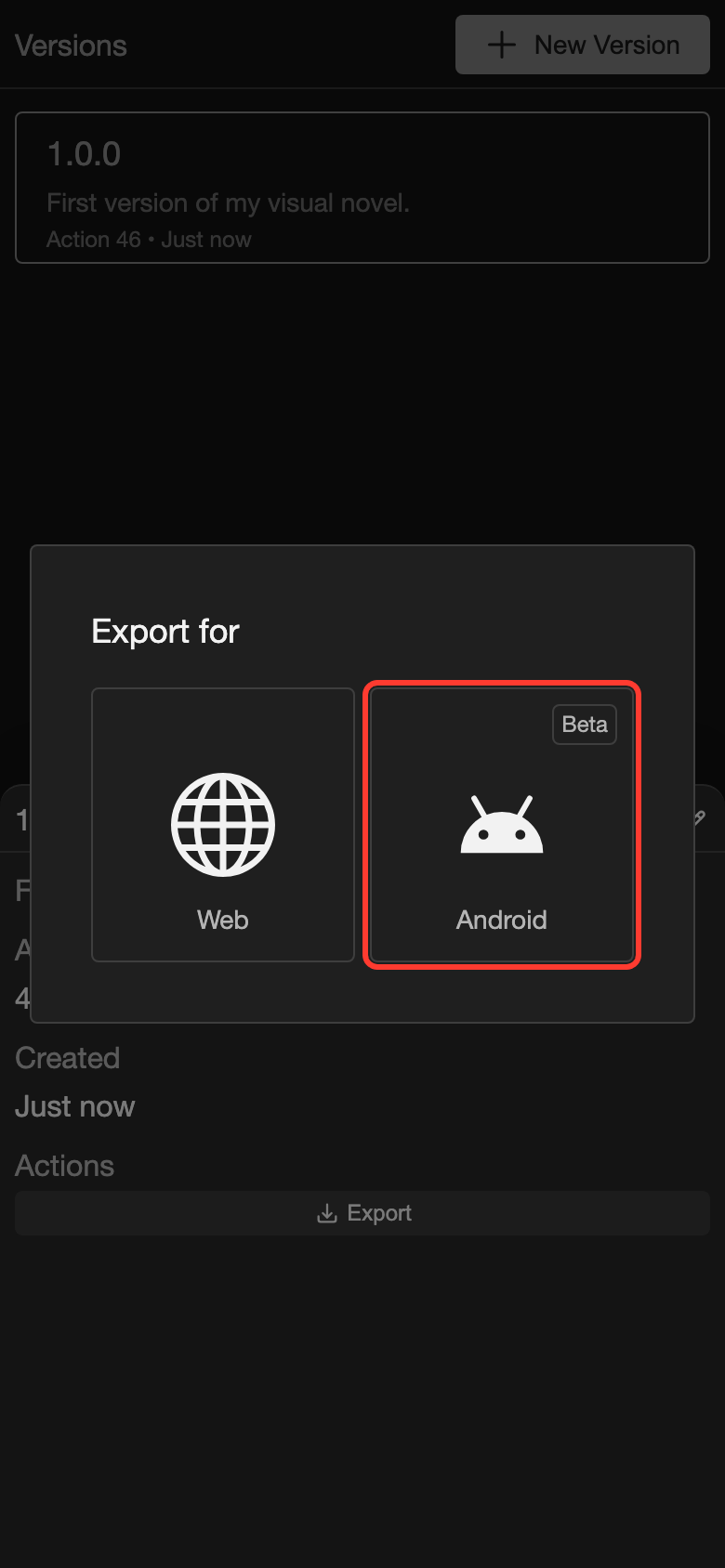
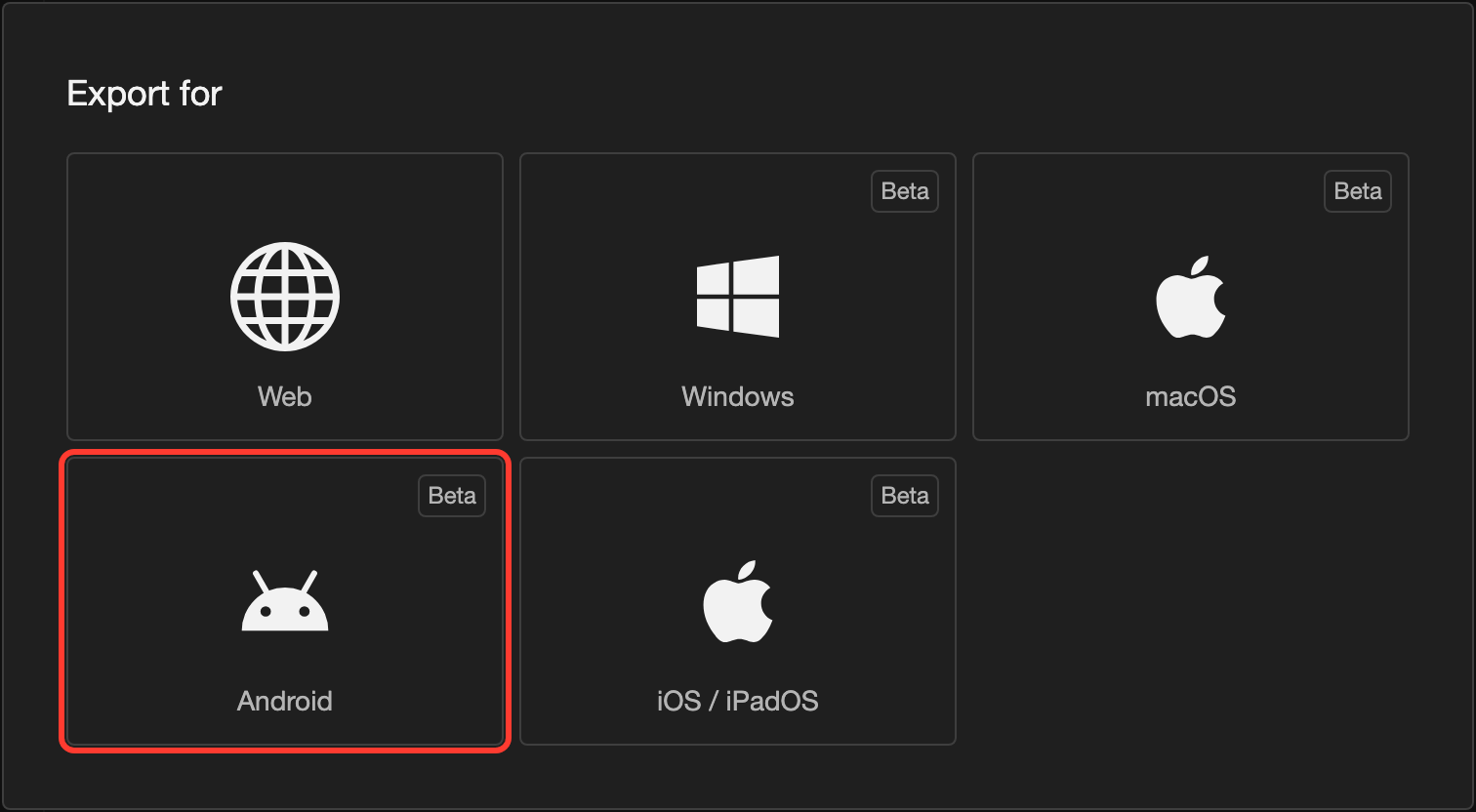
The first time, the Add Platform Details First box opens. Go on with Fill in the Android details.
After the first time, the Confirm Android Export box opens. Go to Confirm and save.
Fill in the Android details
You do this once. RouteVN Creator remembers the details for the next export.
-
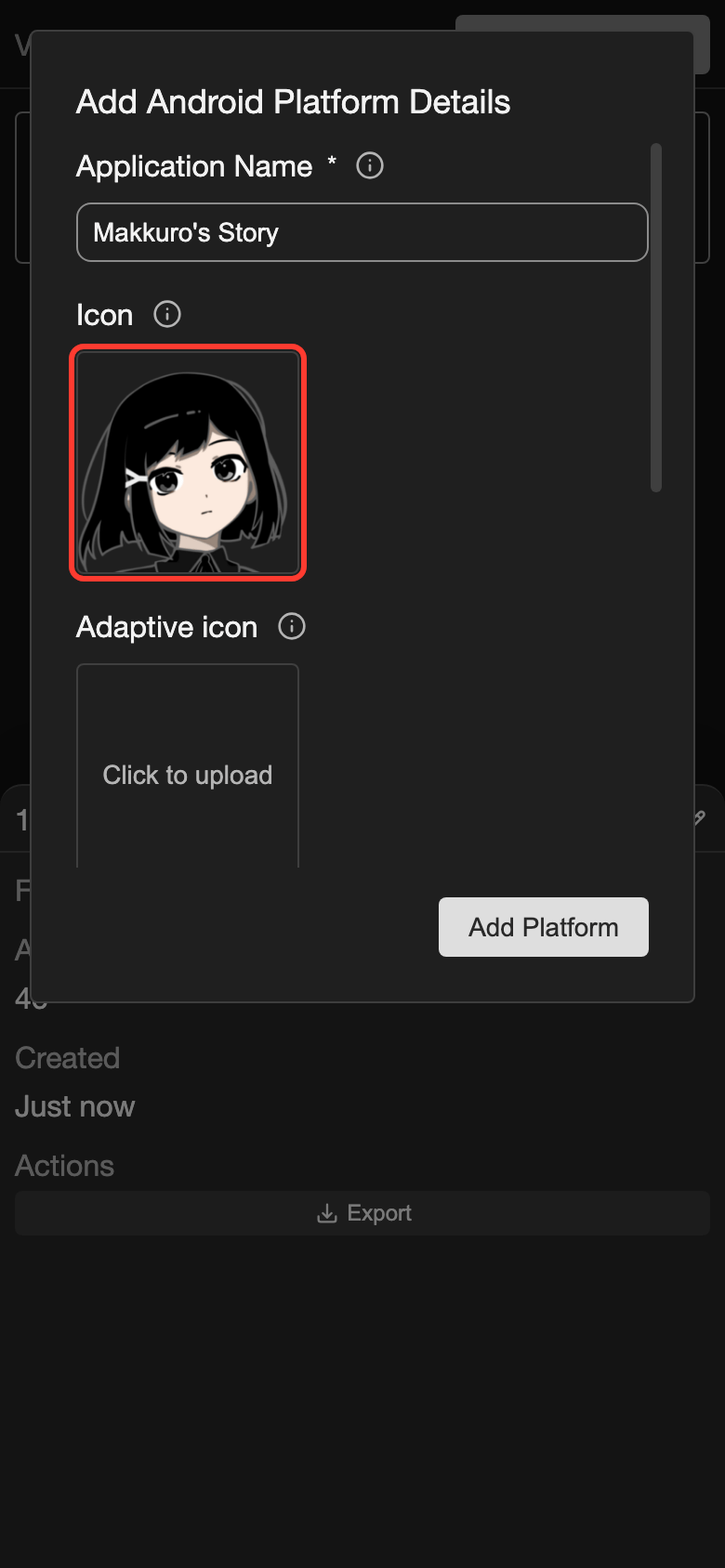
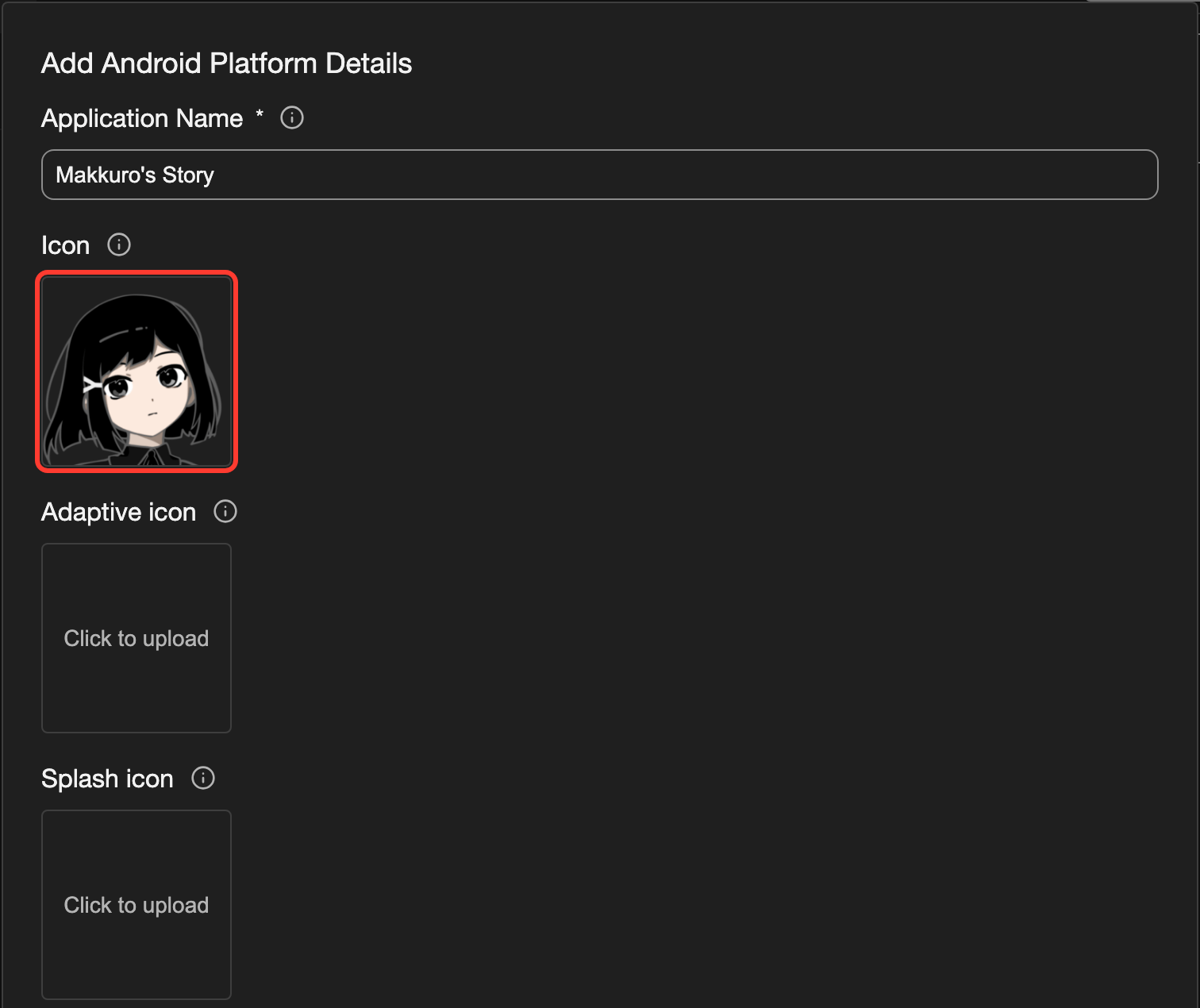
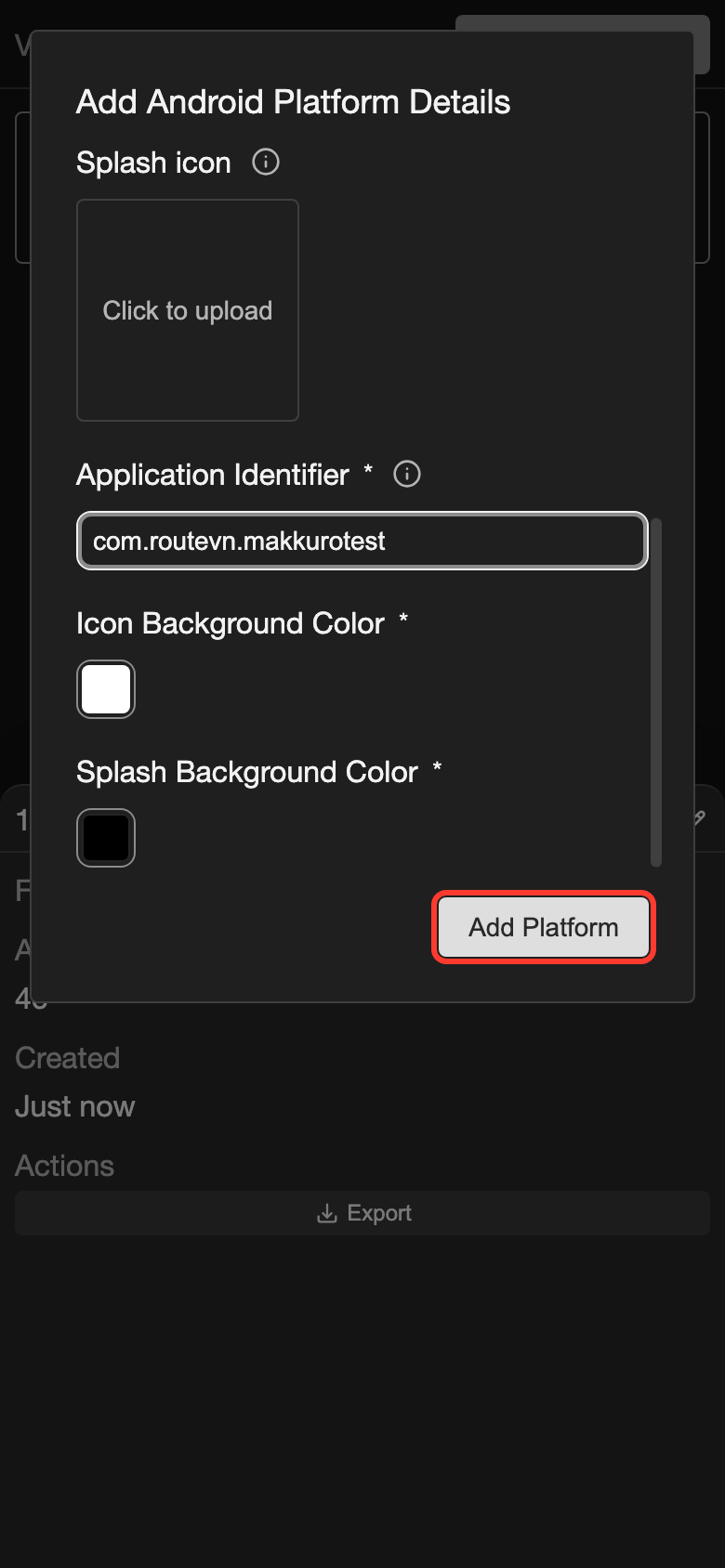
In the Add Platform Details First box, tap Continue. The Add Android Platform Details box opens.
-
In Application Name, check the name. It starts as your project name. Android shows it under the app icon.
-
Under Icon, check the picture. It starts as your project icon. To use another picture, tap it. See Choose an icon.
-
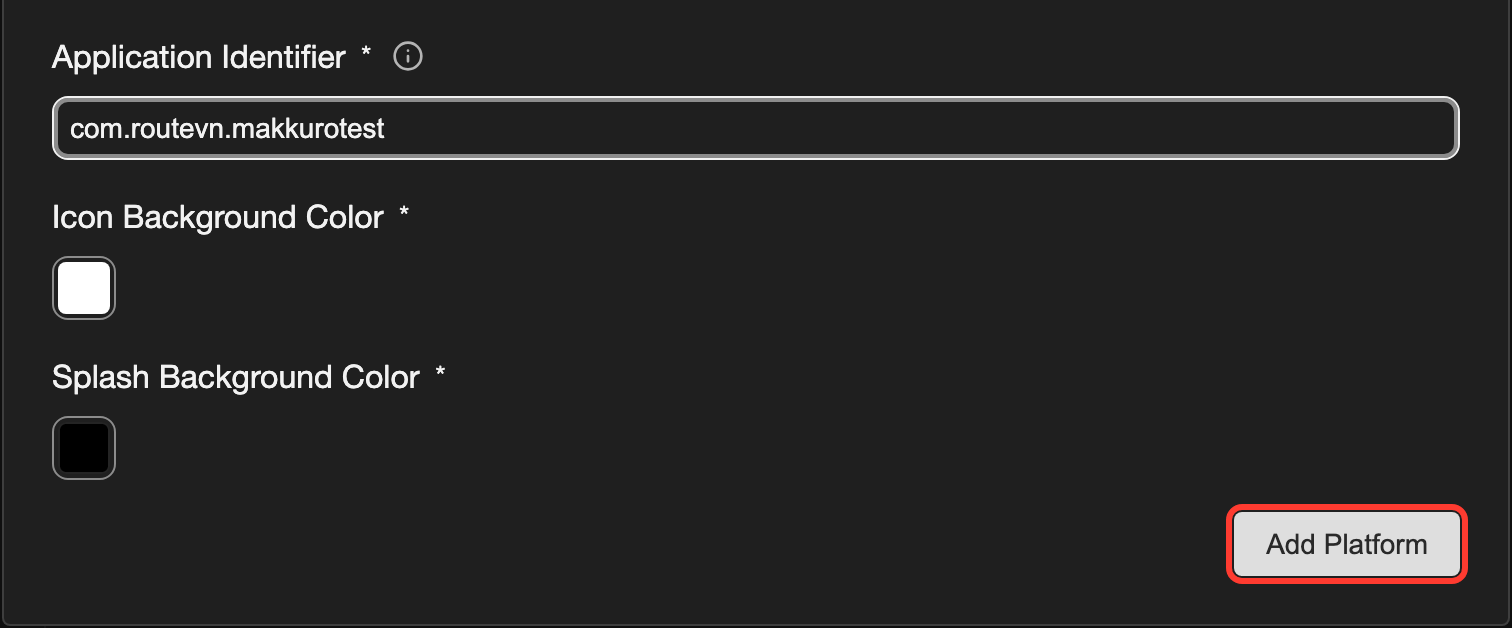
In Application Identifier, type an identifier, for example
com.routevn.makkurotest. See the rules below. -
Leave the other fields as they are. They are optional, or they already have a value.
-
In the box, tap Add Platform.
The Confirm Android Export box opens.
Rules for the identifier:
- Write at least 2 words with a period between them, such as
com.routevn.makkurotest. - Start each word with a letter.
- Use only English letters, numbers, and underscores (
_). Do not use hyphens or spaces. - Use a different identifier for each visual novel you make.
The identifier is how Android tells apps apart. Do not change it after you share your visual novel.
The optional fields
| Field | What it does |
|---|---|
| Adaptive icon | A second icon picture for home screens that cut icons into a shape, such as a circle. Keep the important part inside the guide circle. |
| Splash icon | A picture that shows while the app starts. Only the part inside the guide circle shows. |
| Icon Background Color | The color behind your icon on the home screen. It starts as white. |
| Splash Background Color | The color of the screen that shows while the app starts. It starts as black. |
After you add the platform, the Android tab on the Platform Details page shows a Preview. It shows your icon as a circle and as a rounded square. It also shows the screen that readers see while the app starts.
Confirm and save
-
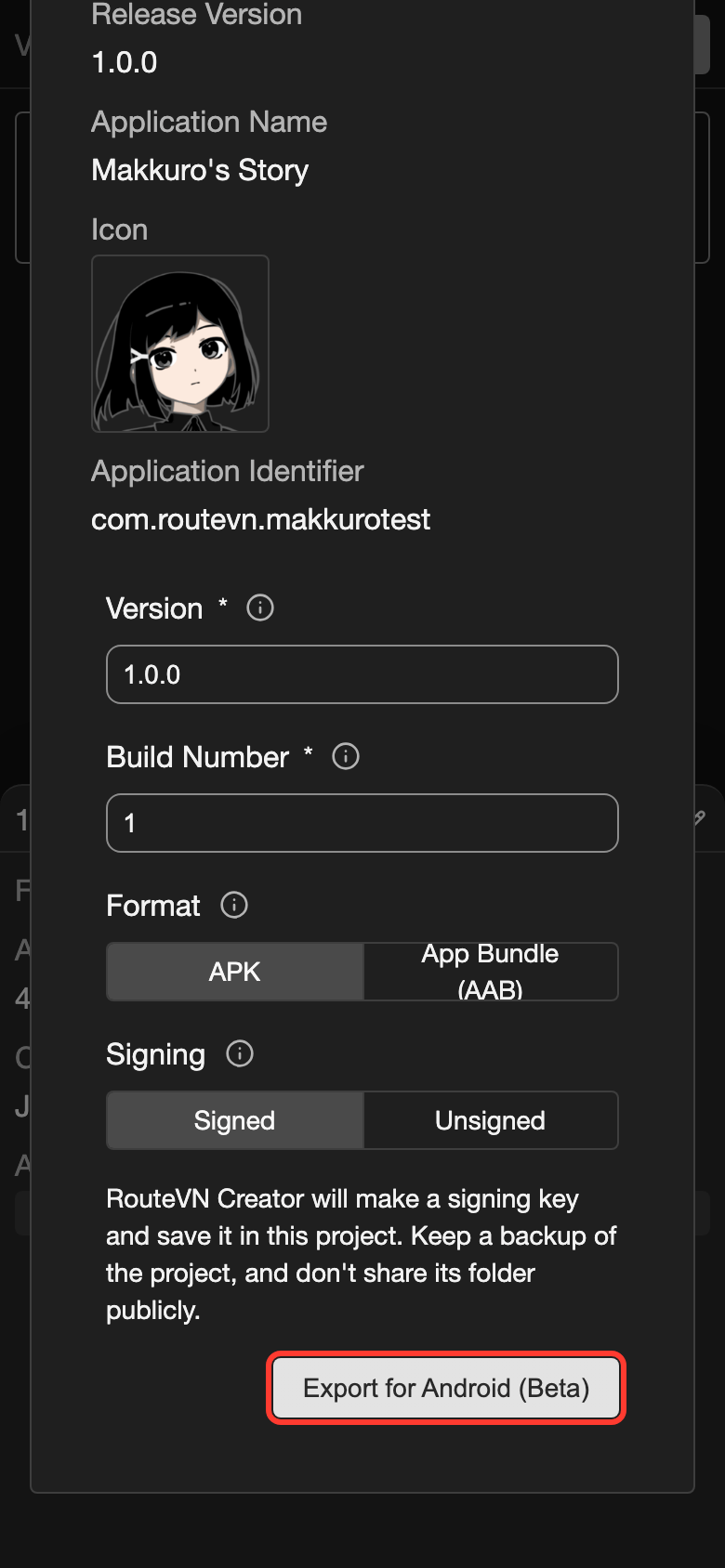
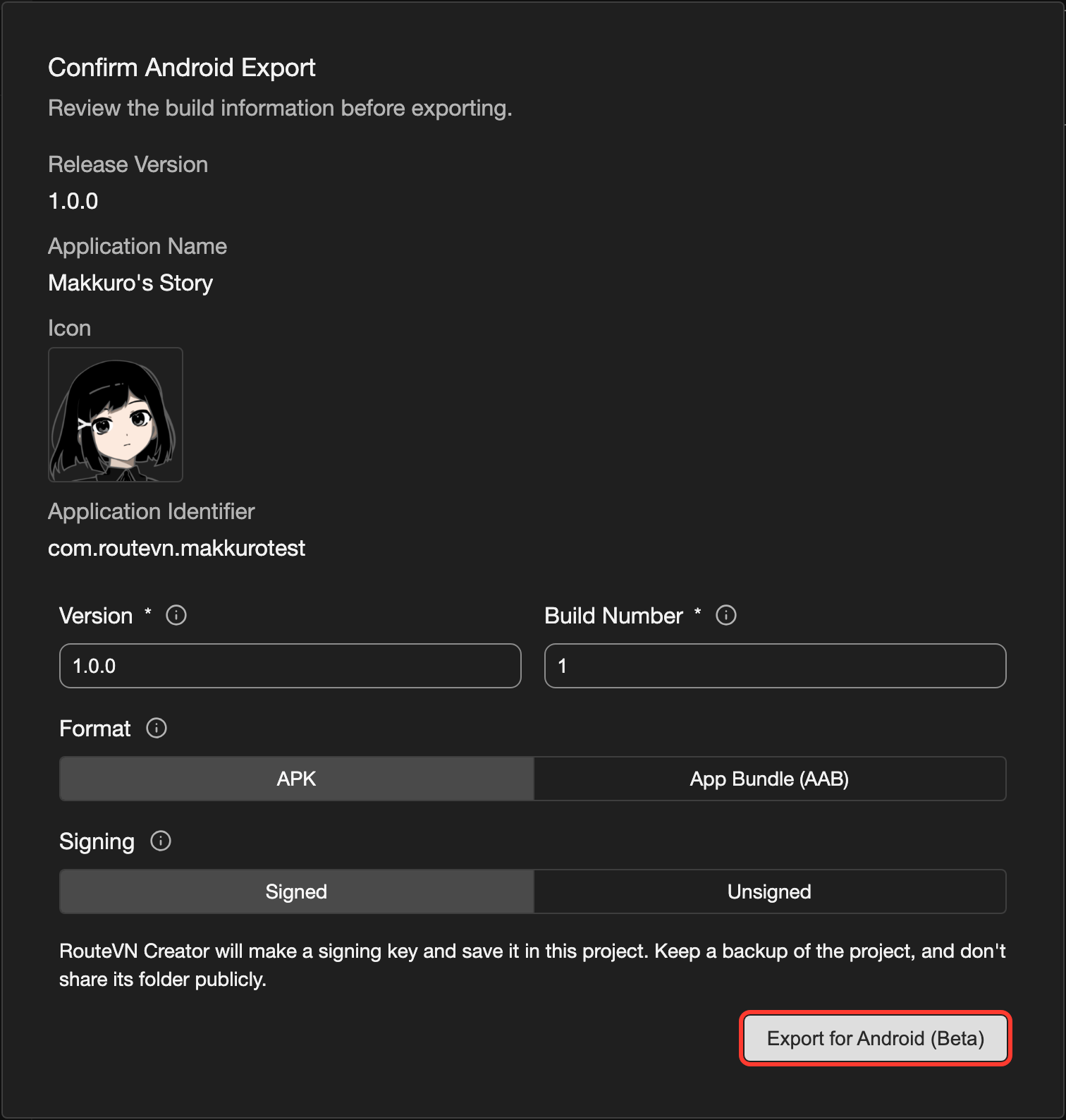
In the Confirm Android Export box, check the name, the icon, and the identifier.
-
In Version, type 3 numbers with periods between them, for example
1.0.0. If your version name already looks like this, the field is filled in. -
In Build Number, type a whole number, for example
1. After the first export, the field is filled in with the next number. -
In Format, tap APK.
-
In Signing, tap Signed.
-
In the box, tap Export for Android (Beta).
-
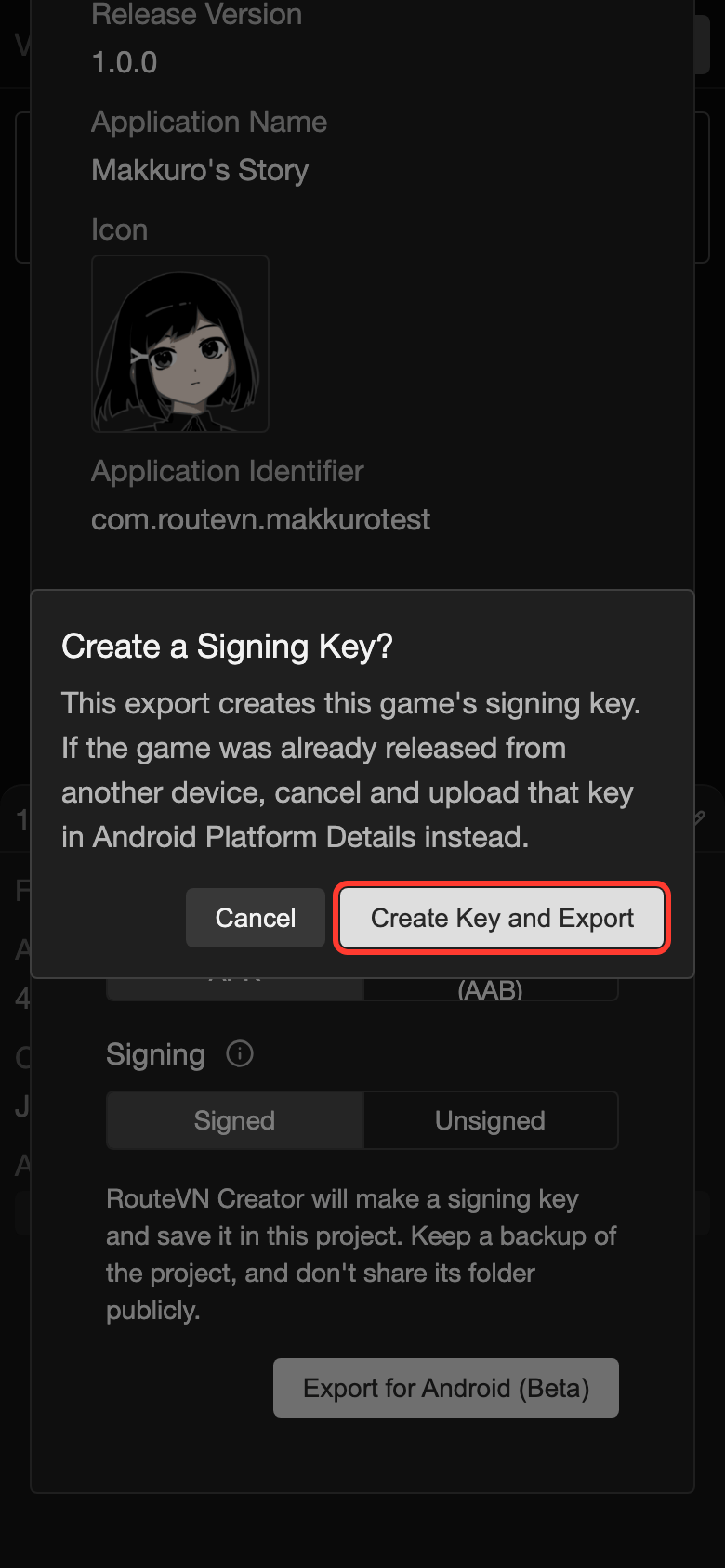
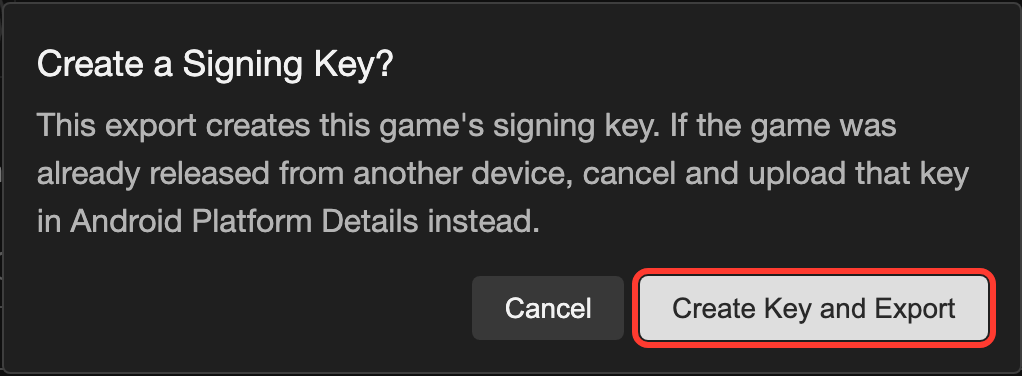
The first time, the Create a Signing Key? box opens. Tap Create Key and Export. See Your signing key.
-
A save window opens. Choose a folder for the APK file.
-
Save the file.
A box shows each step of the export, such as Build APK. Keep RouteVN Creator open.
When it is done, the Export completed box shows where the file is saved.
What you get
You get one APK file. Its name is your application name and the version.
- The app runs on Android 7.0 and later.
- The app always shows sideways (landscape) when the screen of your visual novel is wider than it is tall.
- The app does not ask the reader for any permission.
Install the APK on a device
Test the APK before you share it.
- Copy the APK file to an Android phone or tablet. If you exported on that device, the file is already there.
- On the device, open a file app, such as Files.
- Tap the APK file.
- Android may ask if the file app can install apps. Follow the steps on the screen to allow it.
- Tap Install.
Your visual novel appears with your other apps. Tap it to read.
The words on the screen can be different on each device.
Export an App Bundle for Google Play
Google Play needs an App Bundle, not an APK.
- Start an Android export. See Start the export.
- In the Confirm Android Export box, fill in Version and Build Number.
- In Format, tap App Bundle (AAB). The Signing choice goes away, because an App Bundle is always signed.
- In the box, tap Export for Android (Beta).
- A save window opens. Choose a folder for the file.
- Save the file.
You get one AAB file. To upload it, see Google Play.
- Use a higher Build Number for every file you upload to Google Play.
- An APK that you export cannot update an app that readers installed from Google Play.
Your signing key
A signing key is a secret that proves an app comes from you. Android installs an update only when it has the same signing key as the app it updates.
RouteVN Creator makes the key for you. It does this the first time you export a signed APK or an App Bundle. The key is saved inside your project. Every later export uses it.
If you lose the key, you cannot update an APK that readers installed. Readers must uninstall it and install it again. This deletes their saves.
To keep the key safe:
- Keep a backup of your project. See Storage and Backups.
- Do not share your project folder in public. Anyone with the key can pretend to be you.
- Save a copy of the key. See the steps below.
Save a copy of the key
-
Go to the Platform Details page. See Platform Details.
-
Tap the Android tab.
-
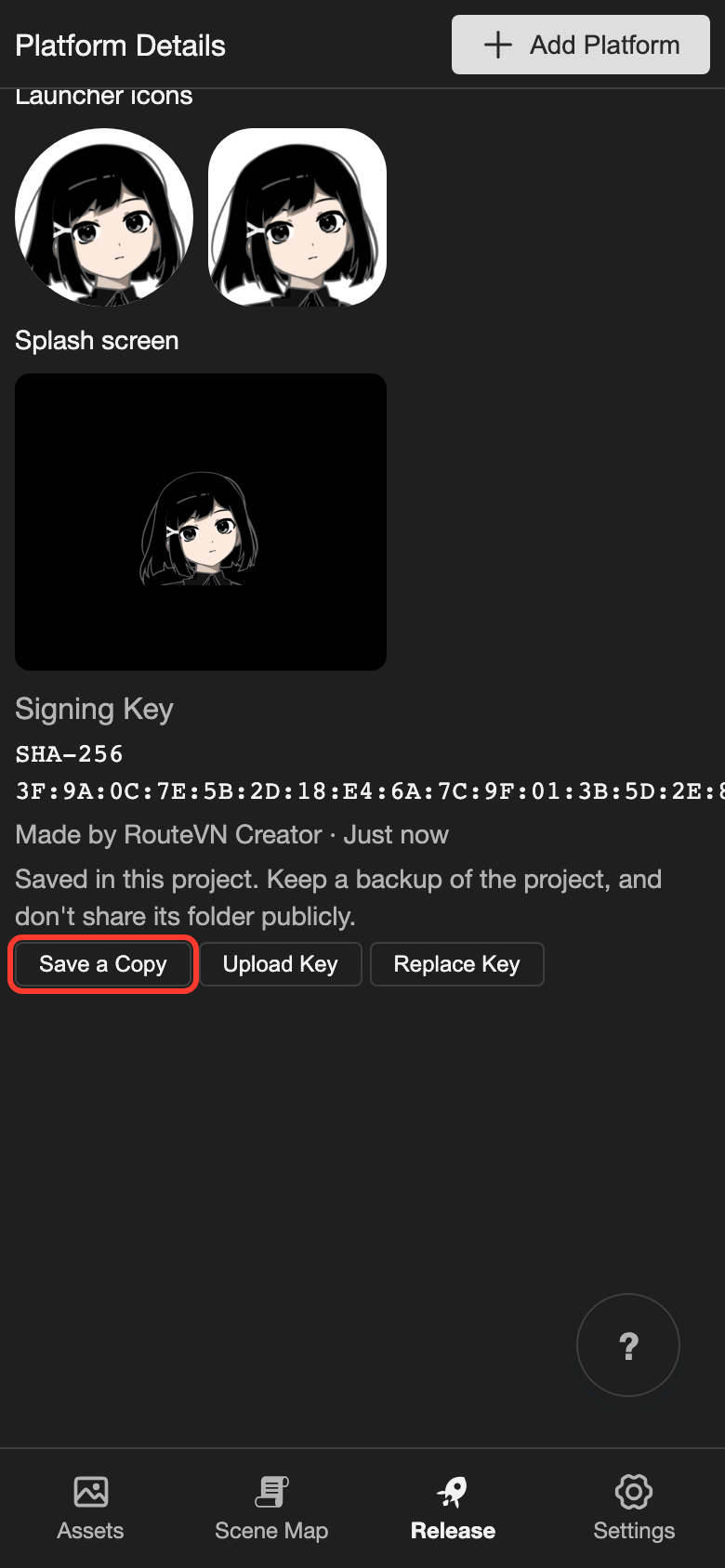
Scroll down to Signing Key.
-
Tap Save a Copy. The Save a Copy of the Signing Key box opens.

-
In Password, type a password with at least 6 characters.
-
In Confirm Password, type the same password again.
-
In the box, tap Save a Copy.
-
A save window opens. Choose a safe folder.
-
Save the file.
You get a key file. Keep the file and the password somewhere safe. Nobody can get the password back if you forget it.
Use a key from another device
Do this when you already shared your visual novel from another device. This device then has no key for it.
- On the other device, save a copy of the key. See Save a copy of the key.
- Move the key file to this device.
- On this device, go to the Platform Details page.
- Tap the Android tab.
- Under Signing Key, tap Upload Key.
- Choose the key file. The Upload Signing Key box opens.
- In Password, type the password of the key file.
- In the box, tap Upload Key.
New exports on this device now use that key.
Leave Key Alias empty. You need it only when a key file holds more than one key.
Replace the key
Replace Key makes a new key. The old key stays in the list under Previous Signing Keys.
Do not replace the key of an app that people already installed. They cannot update to an export that uses the new key. They must uninstall the app first, and this deletes their saves.
- Tap Replace Key. The Replace Signing Key? box opens.
- In the box, tap Replace Key.
To go back to an old key:
- Next to the old key, tap Use Again. The Use This Key Again? box opens.
- In the box, tap Use Key.
Good to know
- Version is the number readers see. Build Number is how Android knows which export is newer.
- Each update needs a higher Build Number than the one readers have. If you type a number that is not higher, a Warning box asks first.
- Build Number can be 1 to 2100000000.
- Unsigned makes an APK without a signing key. It cannot be installed. Choose it only if you sign APK files with your own tools.
- If you change the identifier, Android sees a new app. It installs next to the old one, without the reader's saves.
- The key is saved with the project. When you copy or back up the project folder, the key is copied too.
- To change the name, icons, or colors later, see Edit platform details.
Problems and fixes
- The Android box is not in the Export for box. You are using the web version. Use the desktop app, or the app on a phone or tablet.
- A Warning box says the version must contain three numeric components. In Version, type 3 numbers with periods between them, such as
1.0.0. Do not use letters. - A Warning box says the Build Number is not higher than the last export. Tap Cancel. Type a higher number. Then export again.
- A message says to use at least two period-separated segments. The identifier breaks a rule. Follow the rules in Fill in the Android details. Hyphens are not allowed.
- A message says the signing key can't be used on this device. Go to Platform Details. Tap the Android tab. Under Signing Key, tap Upload Key and choose your saved key file.
- A message says there is not enough free storage space. Delete files you do not need on your device. Then export again.
- A device refuses to install an update. The update must have the same identifier, the same signing key, and a higher build number.