Update Variable
Update Variable changes the value of a variable when a line plays. For example, you can add 1 to a number variable called Friendship. Or you can set a true or false variable called Has Key to true when the reader finds a key. One action can make many changes. Each change is called an operation.
What you need first
Create your variables on the Variables page first. This page uses Friendship, a Number variable, and Has Key, a Boolean variable.
Add the action to a line
-
Open a scene in the scene editor, and select a line. See Scene Editor.
-
Tap the + button.
- Phone or tablet: The + button is in the toolbar at the bottom of the screen.
- Desktop: The + button is under Presentation state, on the right.
The Actions menu opens.
-
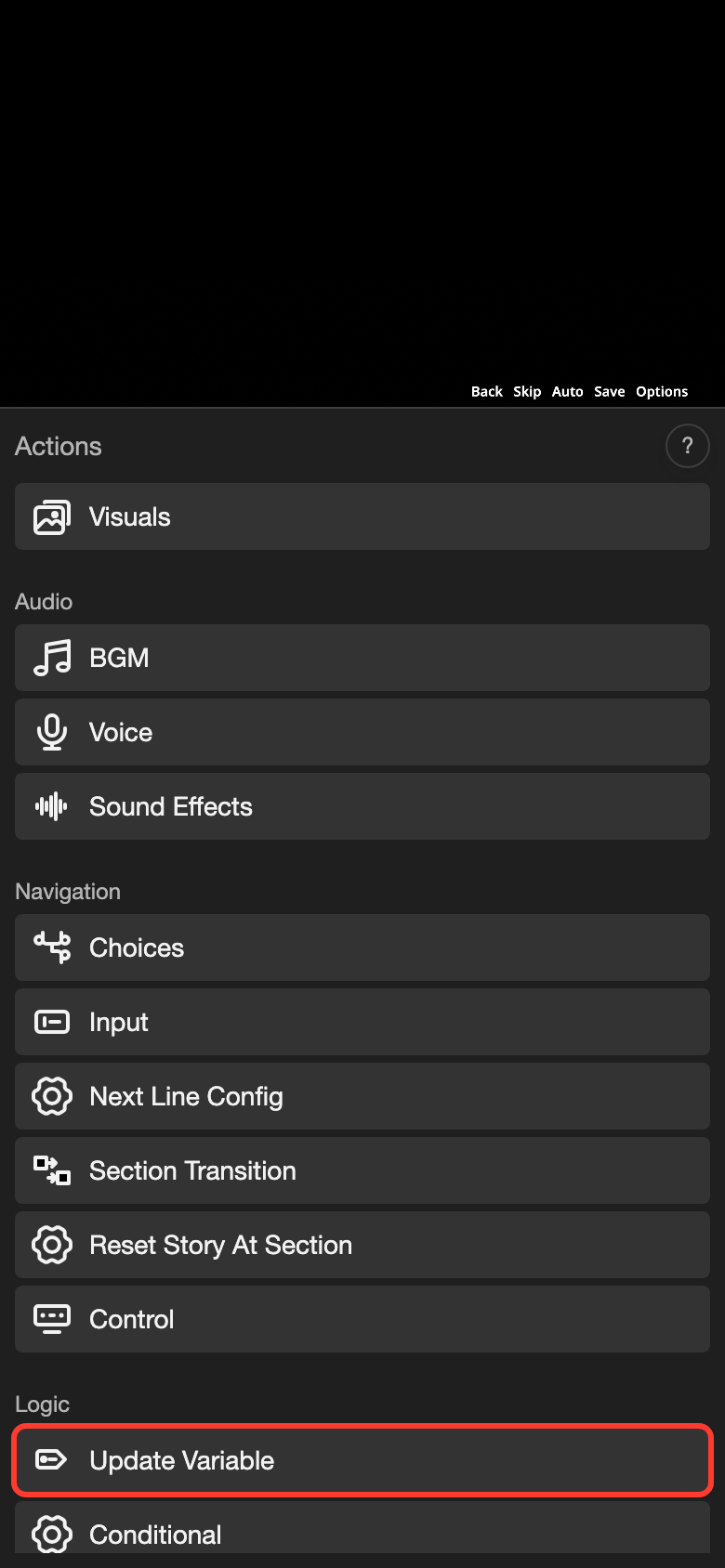
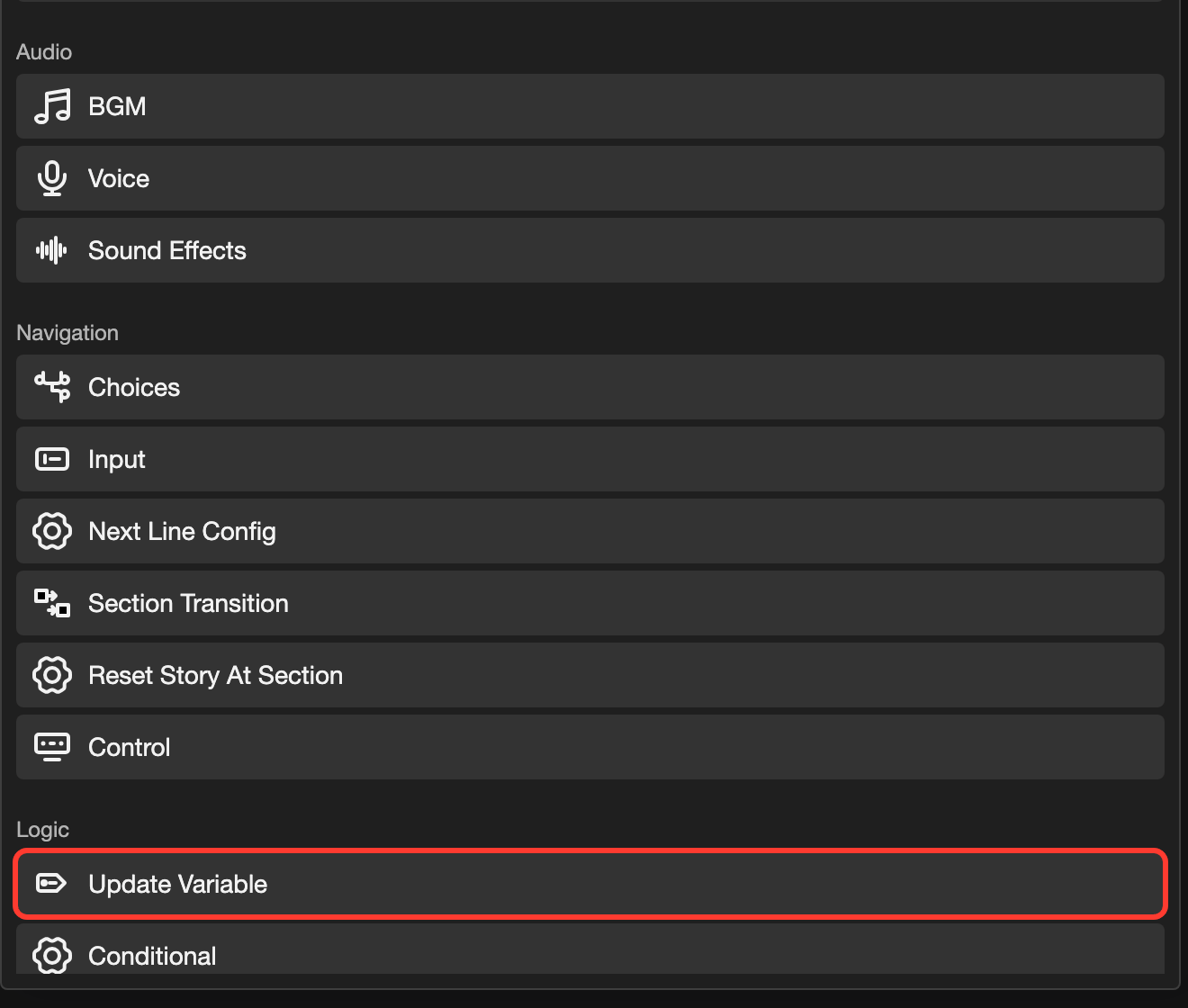
Scroll down to the Logic group.
-
Tap Update Variable. The Update Variable screen opens. It has no operations yet.
Add an operation
-
Tap + Add Operation. The Edit Operation screen opens.
-
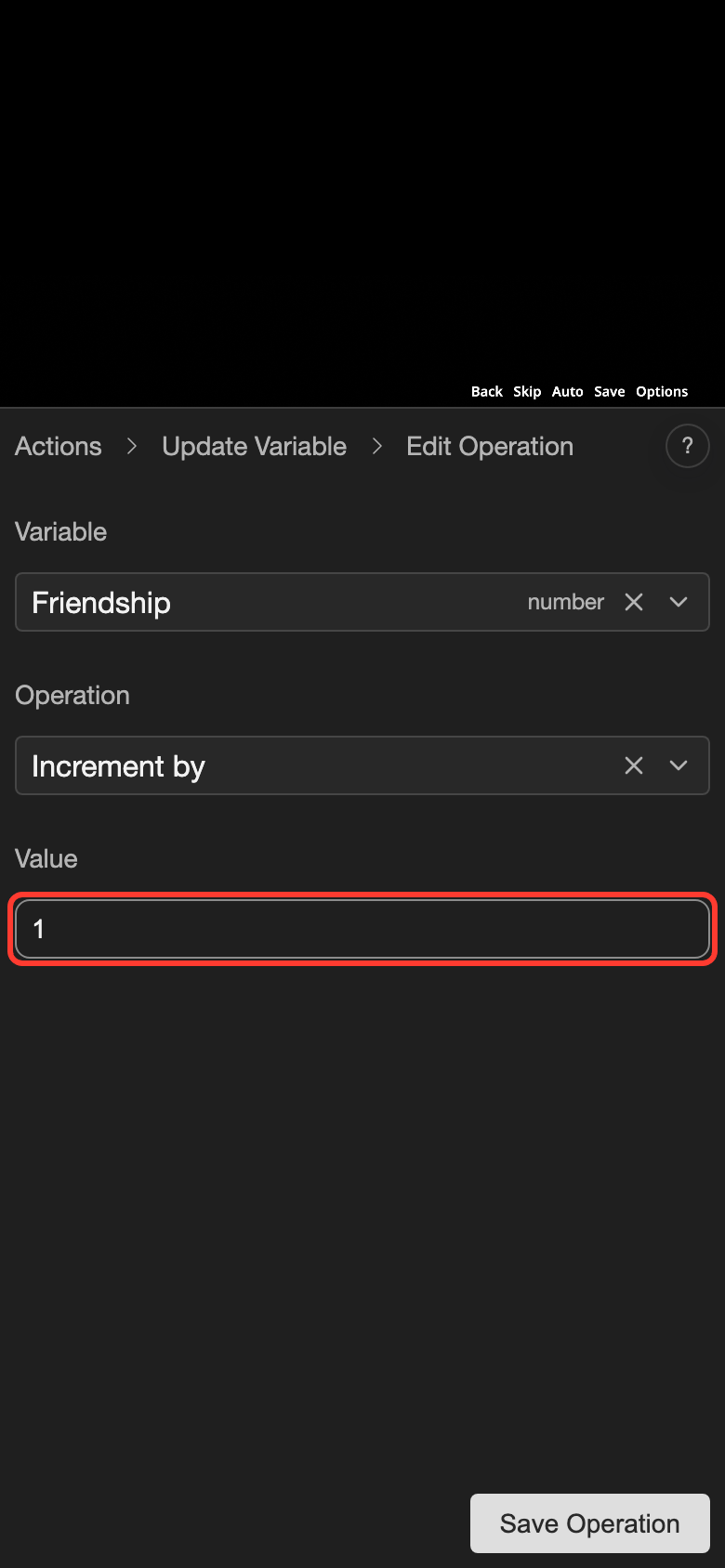
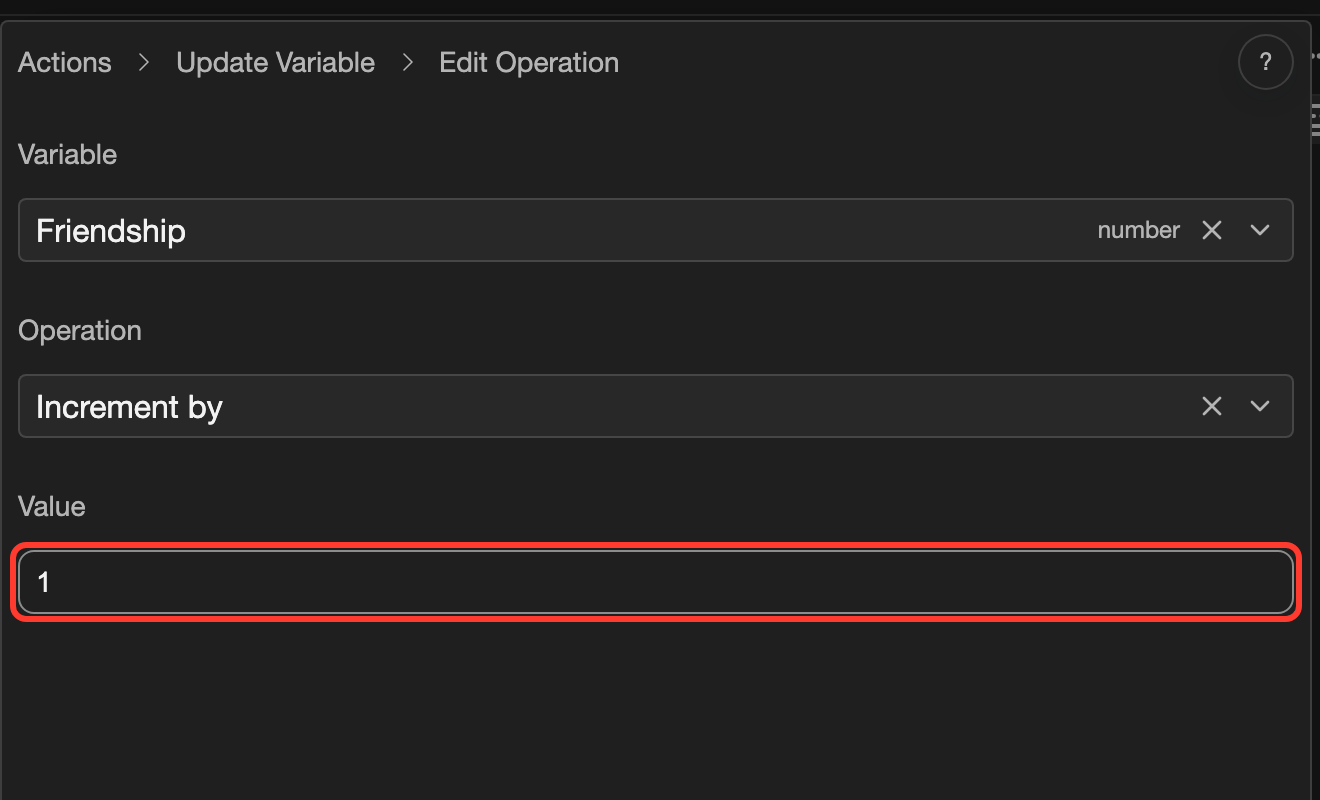
Tap the Variable box, and choose a variable. For example, choose Friendship.
-
Tap the Operation box, and choose an operation. For example, choose Increment by.
-
In the Value box, type the number to use. It starts as
1.
-
Tap Save Operation. The operation shows in the list, for example Friendship: Increment by 1.
-
To add another operation, repeat steps 1 to 5. For example, choose Has Key and Set to. Then choose True in the Value box.
-
Tap Submit to save the action on the line.
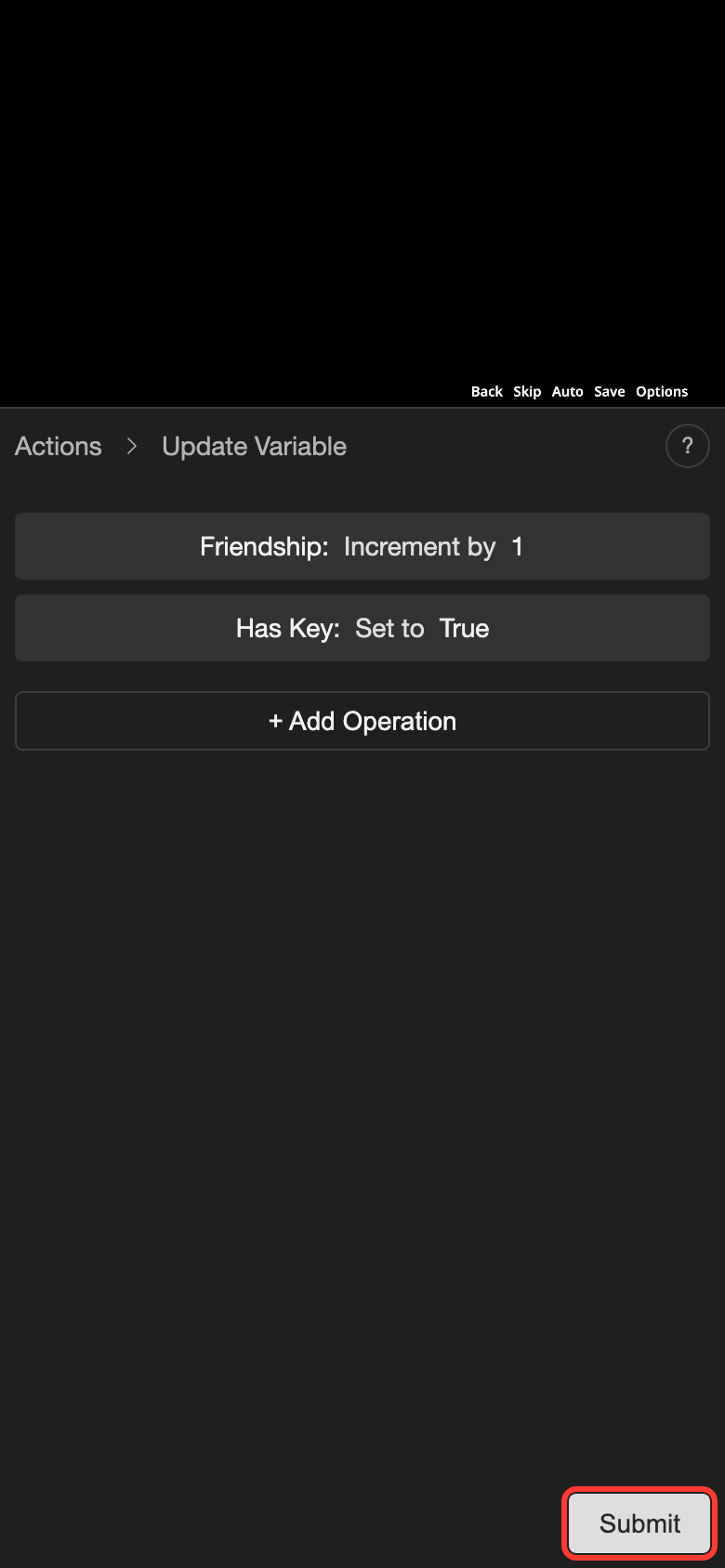
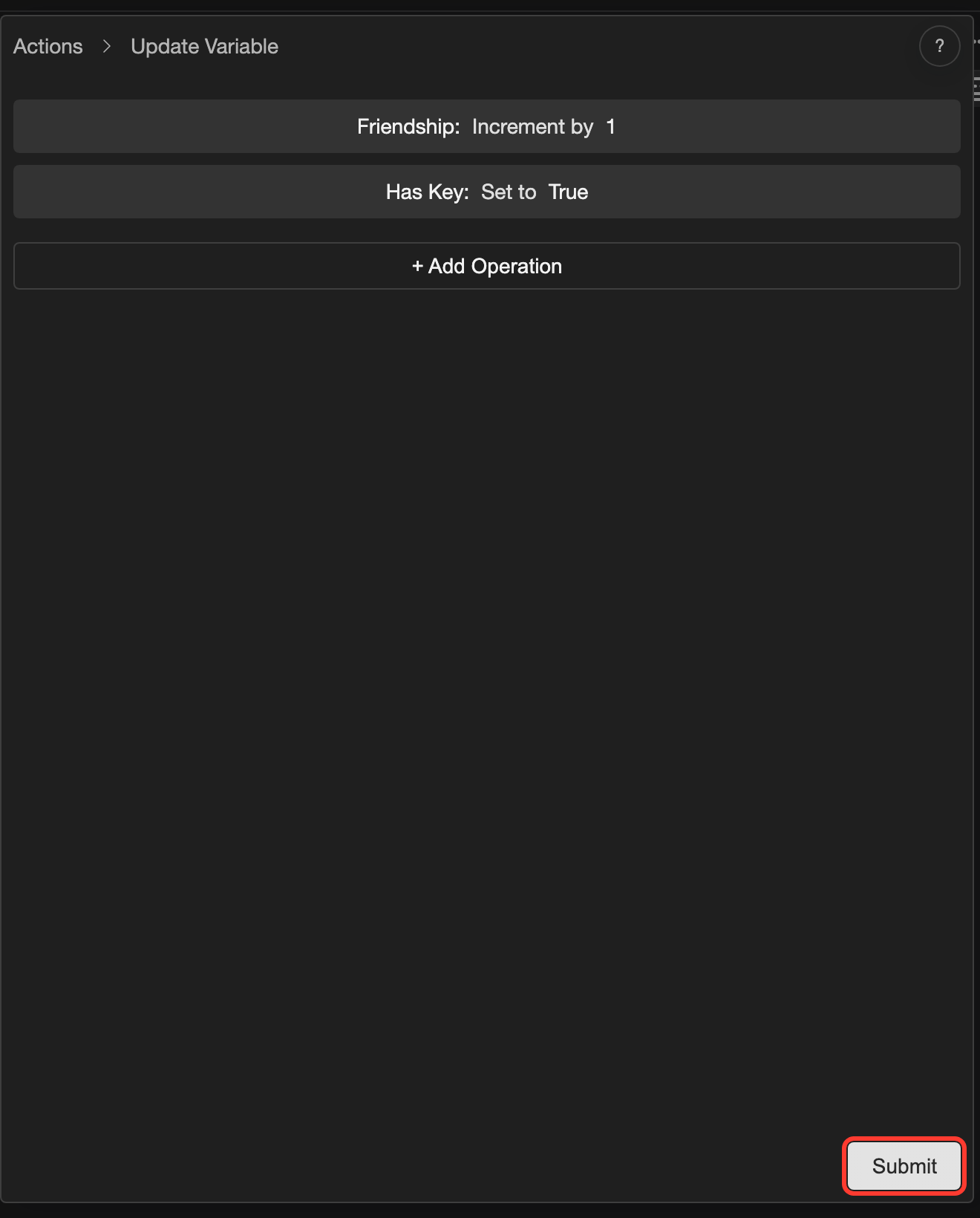
Operations
The operations you can choose depend on the type of the variable.
| Variable type | Operation | What it does |
|---|---|---|
| Number | Set to | Replaces the value with your number. |
| Number | Increment by | Adds your number. |
| Number | Decrement by | Subtracts your number. |
| Number | Multiply by | Multiplies the value by your number. |
| Number | Divide by | Divides the value by your number. Decimal Places sets how many digits to keep after the point. It starts at 2. |
| Boolean | Set to | Sets the value to True or False. |
| Boolean | Toggle | Switches True to False, or False to True. It has no value box. |
| String | Set to | Replaces the text. For an enum variable, you choose a value from a list. |
Change an operation
- Tap the line with the action.
- Tap the + button. Then tap Update Variable. The screen shows the operations of this line.
- Tap the operation.
- Change Variable, Operation, or Value.
- Tap Save Operation.
- Tap Submit.
Delete an operation
-
Open the Update Variable screen of the line. Do steps 1 and 2 of "Change an operation".
-
Open the menu of the operation.
- Phone or tablet: Long press (touch and hold) the operation.
- Desktop: Right-click the operation.
-
Tap Delete.
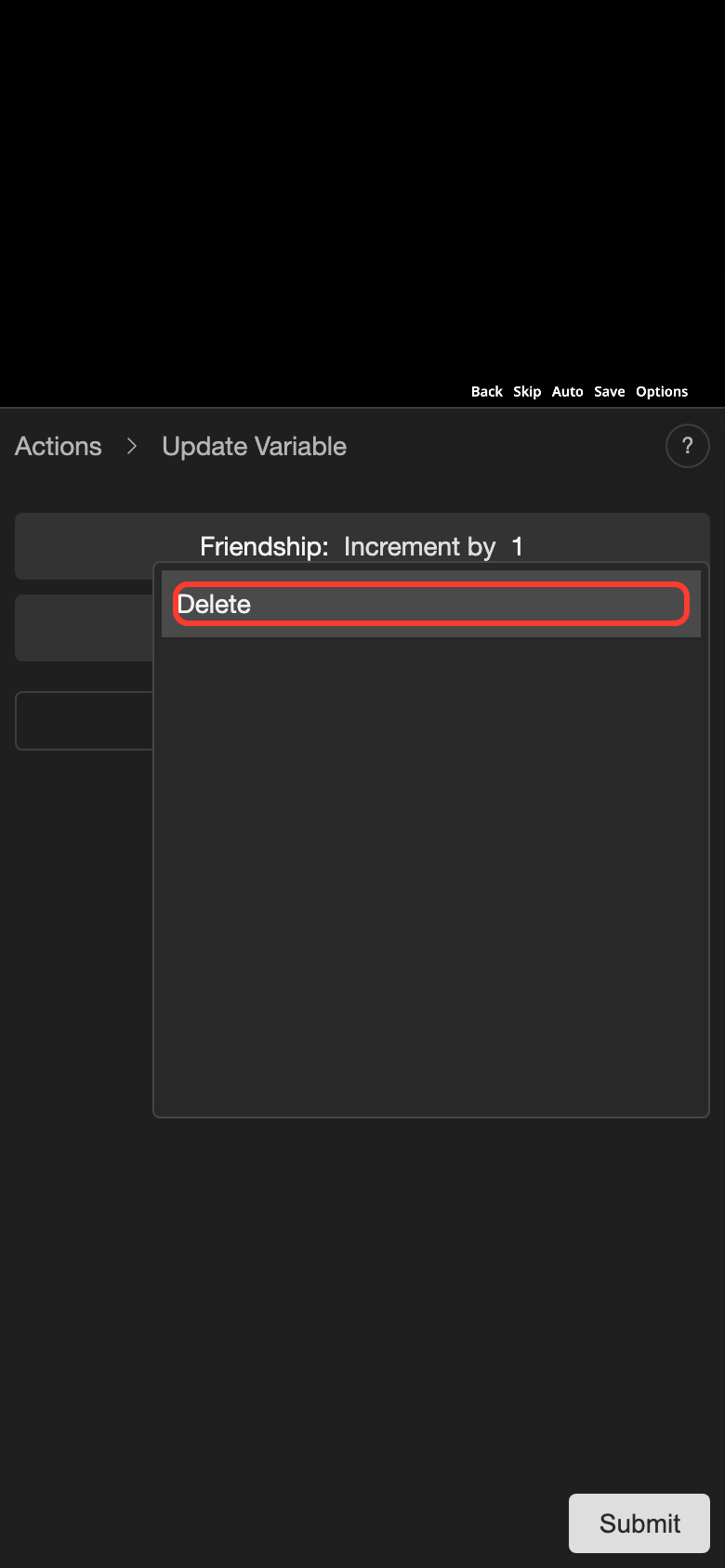
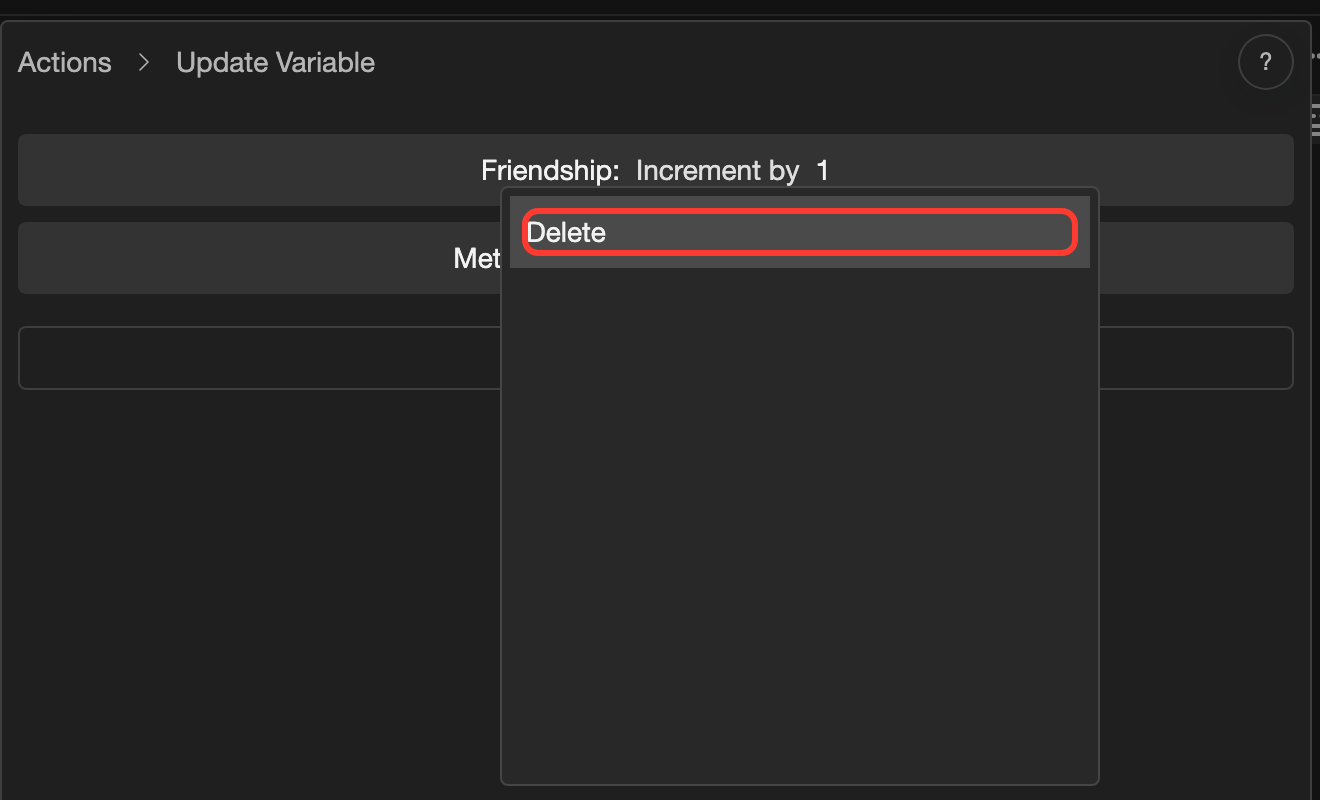
-
Tap Submit.
Other places that run Update Variable
Update Variable also runs when the reader does something. It works the same way. Choose Update Variable in the Logic group.
| Place | When it runs |
|---|---|
| Controls | The reader presses or releases a key. Add it under Keydown or Keyup of a control. |
| Layouts | The reader clicks an element. Add it in the Actions of the element in the layout editor. |
| Choices | The reader picks a choice. Add it in Update Variables on the Edit Choice screen. |
| Conditional | The condition of a branch matches. Add it to the actions of the branch. |
Good to know
- Computed variables are not in the Variable list. They work out their value from other variables, so you cannot update them.
- When you choose another variable, Operation goes back to Set to.