Spritesheets
A spritesheet is one picture that holds many small pictures, called frames. RouteVN Creator shows the frames one after another, so they move. Use spritesheets for small animations, such as a blinking arrow or a waving flag.
You can make a spritesheet in the app from your own pictures. You can also add spritesheet files: one PNG file and one JSON file.
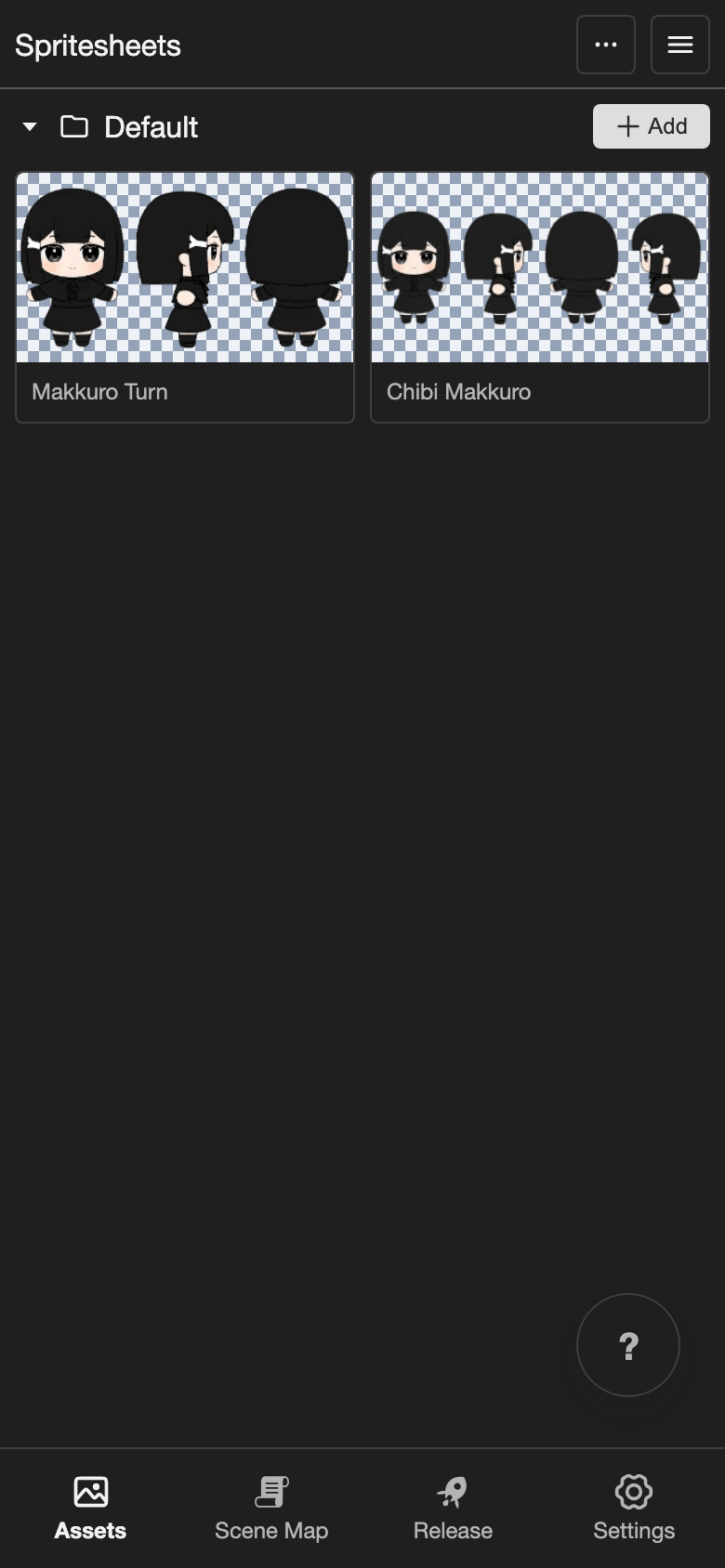
Words to know
- Frame: One small picture in the spritesheet.
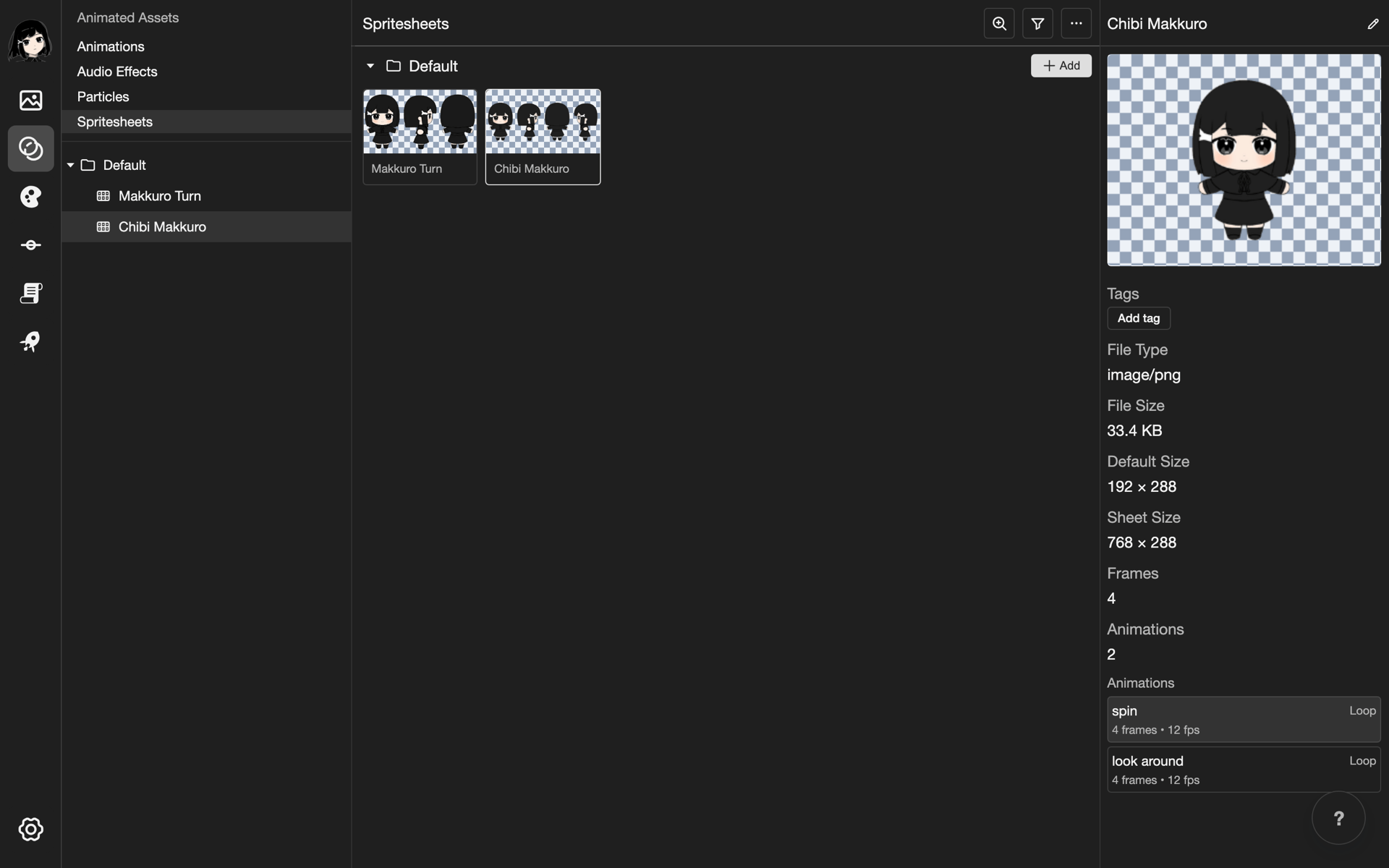
- Clip: One animation in the spritesheet, such as spin. A spritesheet can have many clips. Some places in the app call clips Animations.
- FPS: Frames per second. It is the speed of a clip. A bigger number plays faster.
- Spritesheet JSON: A file that says where each frame is, and which frames make each clip. It goes together with the PNG file.
Open the Spritesheets page
-
Open your project. See Projects.
-
Go to the Spritesheets page.
- Phone or tablet: Tap Assets in the bottom bar. Then tap Spritesheets under Animated Assets.
- Desktop: In the far left bar, click the Animated Assets button, below the Assets button. Then click Spritesheets.
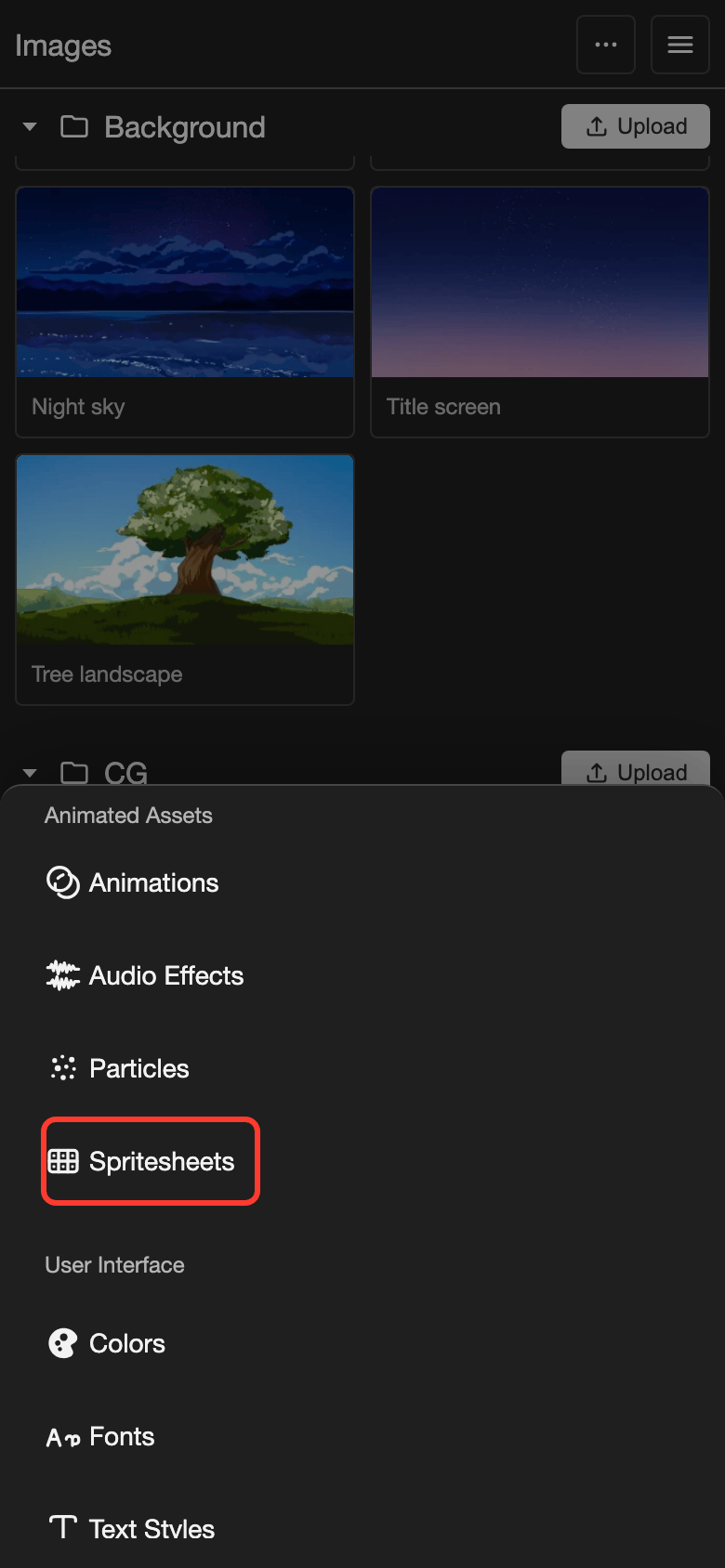
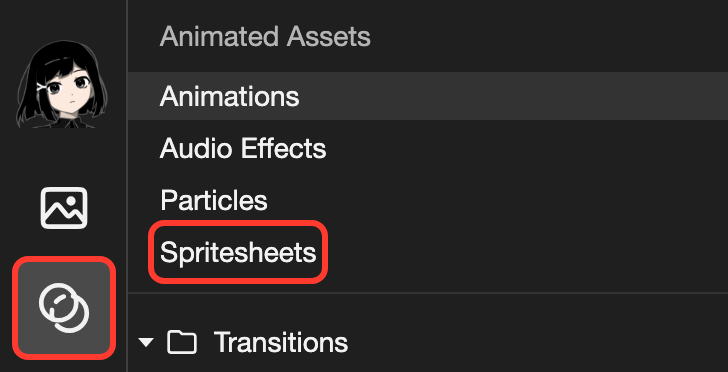
The Spritesheets page opens. New spritesheets go in the Default folder. To make more folders, see File Explorer.
Make a spritesheet from pictures
You need one picture for each frame. PNG, WebP, and JPEG pictures work. This example makes Makkuro Turn from 3 pictures of a small character.
-
Next to the Default folder, tap Add. The Add Spritesheet box opens.
-
In Name, type
Makkuro Turn. -
Check that Source says Empty.
-
Tap Add Spritesheet, at the bottom right of the box.
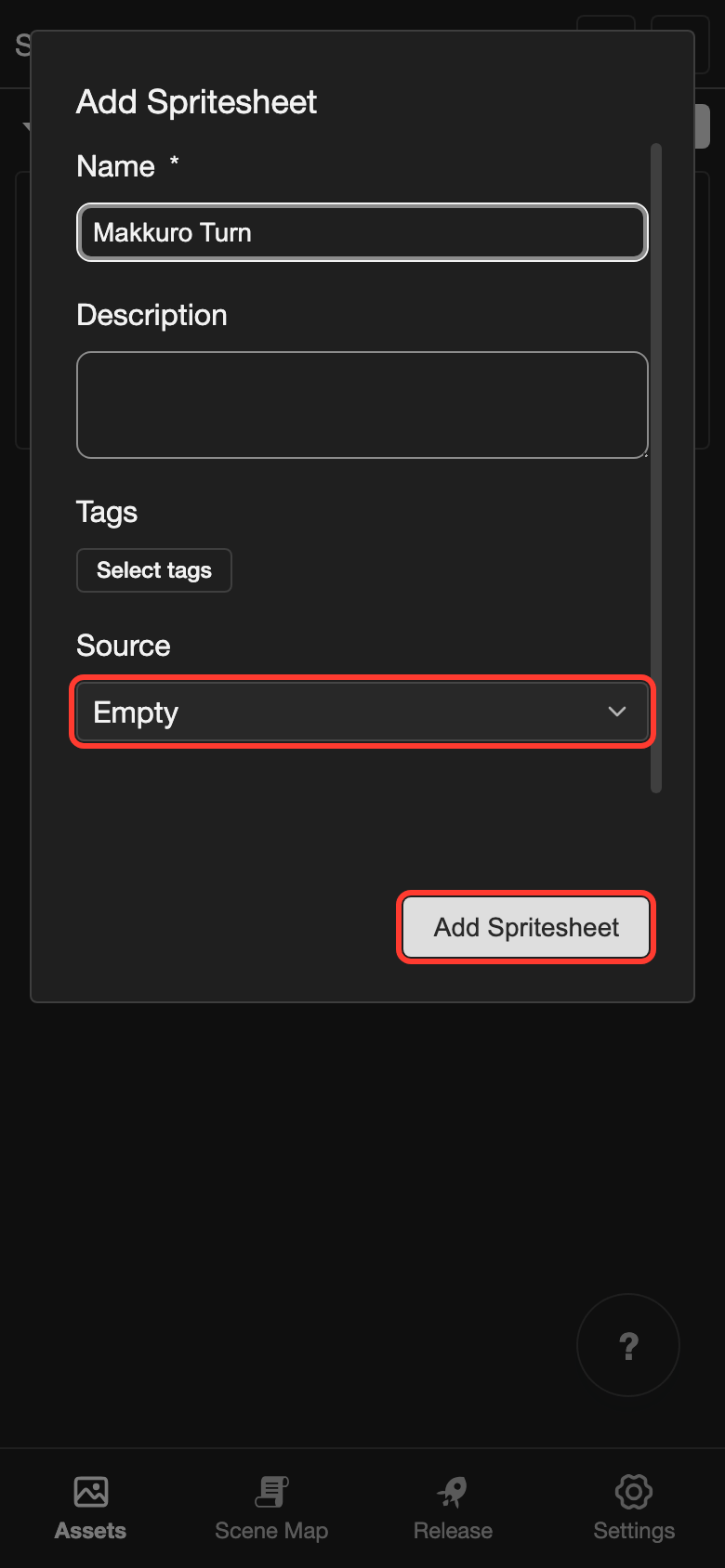
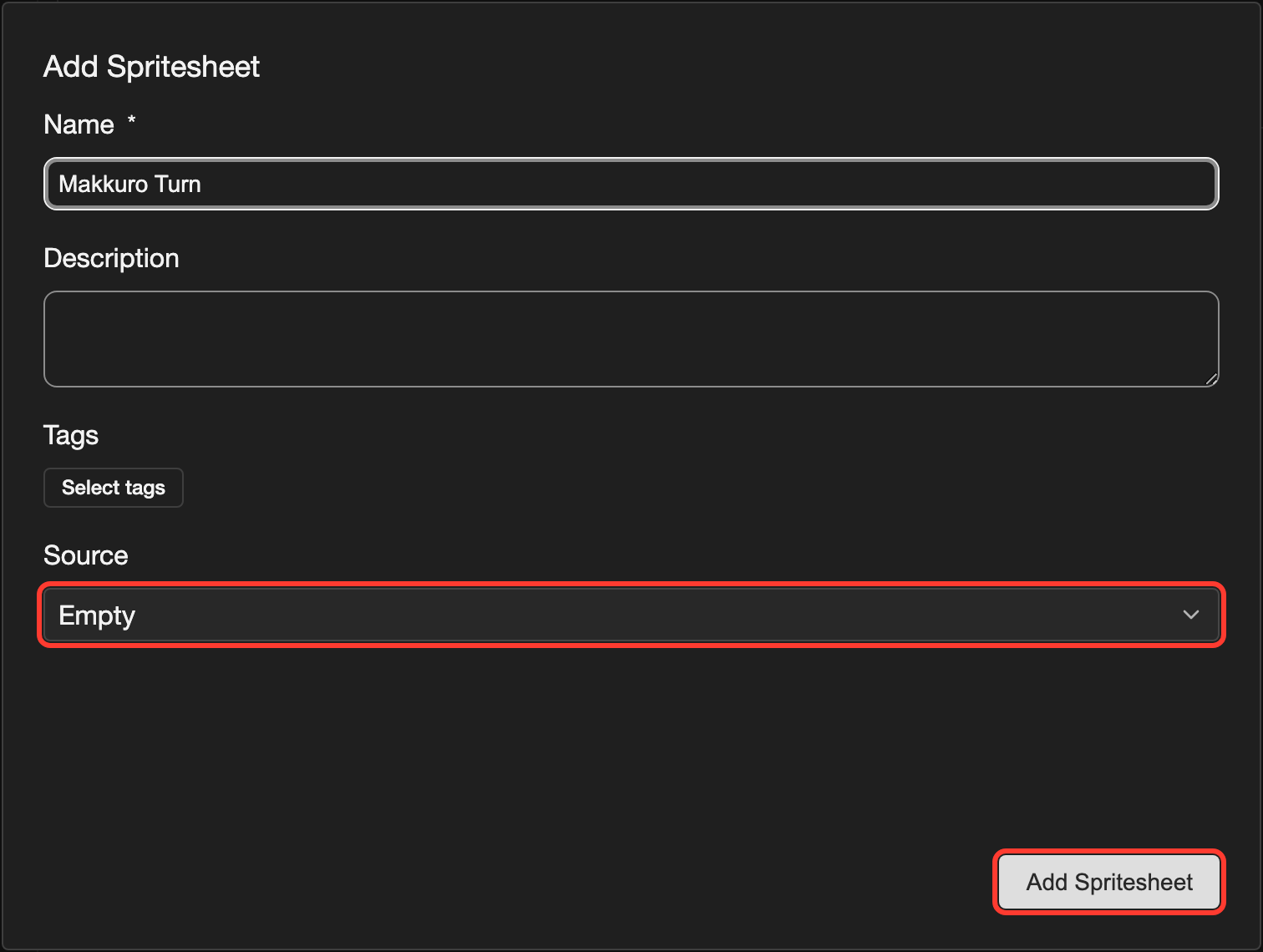
The empty spritesheet appears in the Default folder. Next, open it in the spritesheet editor.
Open the spritesheet editor
Open the spritesheet in the editor.
- Phone or tablet: Tap the spritesheet. A panel opens at the bottom of the screen. Tap Open.
- Desktop: Double-click (click twice quickly) the spritesheet. You can also right-click (click with the right mouse button) it, and then click Open.
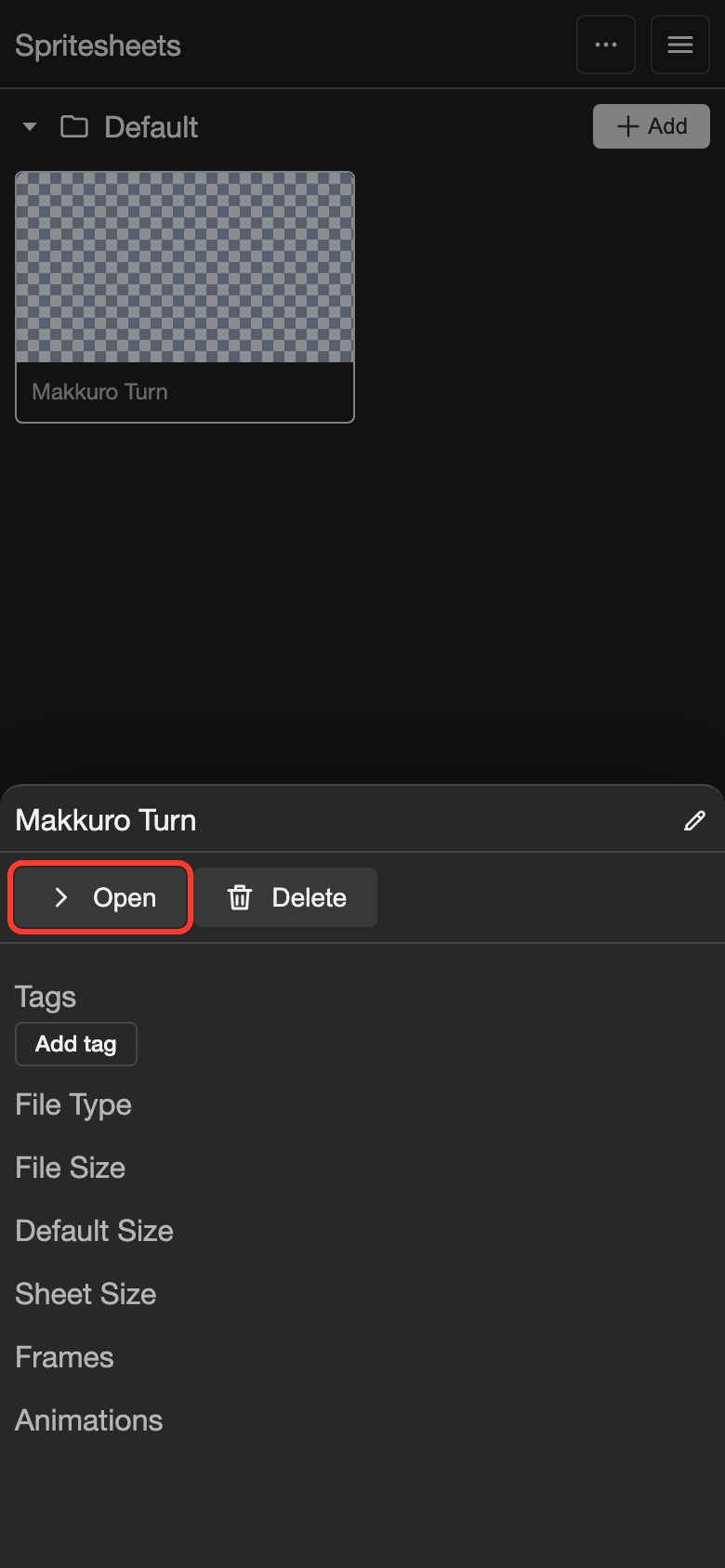
The spritesheet editor opens.
Parts of the spritesheet editor
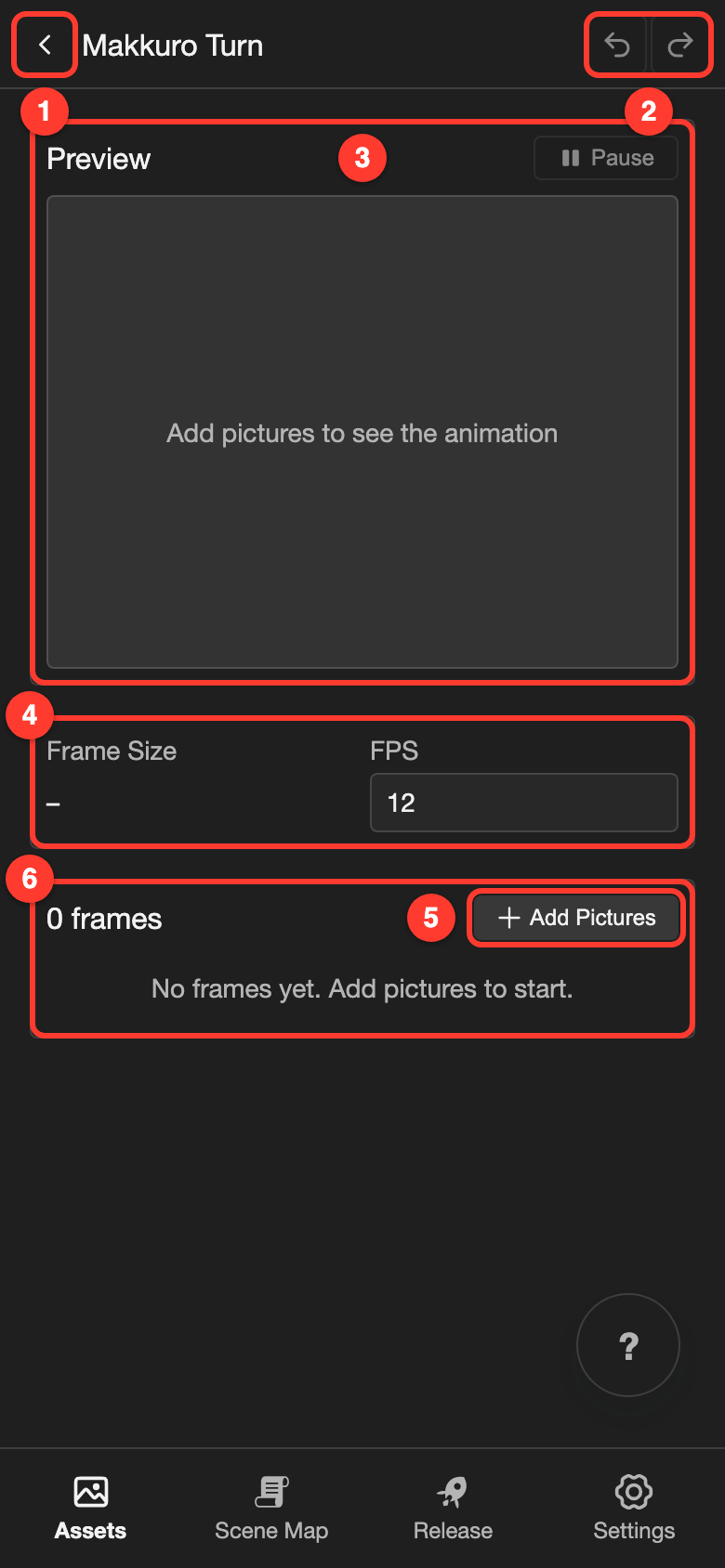
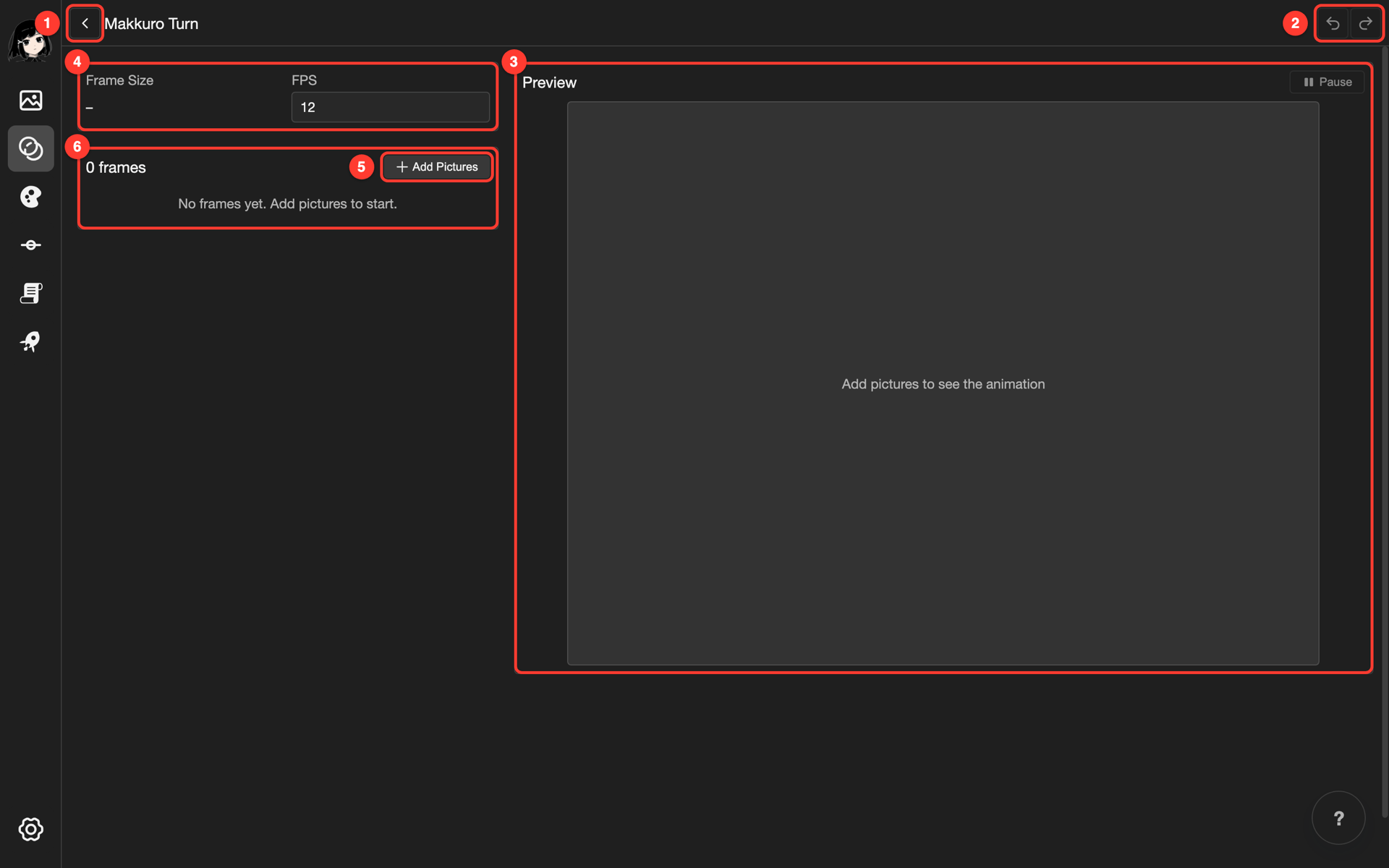
- Back button: Goes back to the Spritesheets page. Your changes save by themselves.
- Undo and redo: Undo the last change, or bring it back.
- Preview: Plays the clip again and again. Tap Pause to stop it. Tap Play to start it again.
- Frame Size and FPS: The size of the frames, and the speed of the clip.
- Add Pictures: Adds pictures as frames.
- Frames: The list of frames. The clip plays them from top to bottom.
Add frames
- Tap Add Pictures. A window opens, so you can choose files.
- Choose your pictures. You can choose many pictures at once.
The pictures appear at the end of the list, one frame for each picture. The preview plays them.
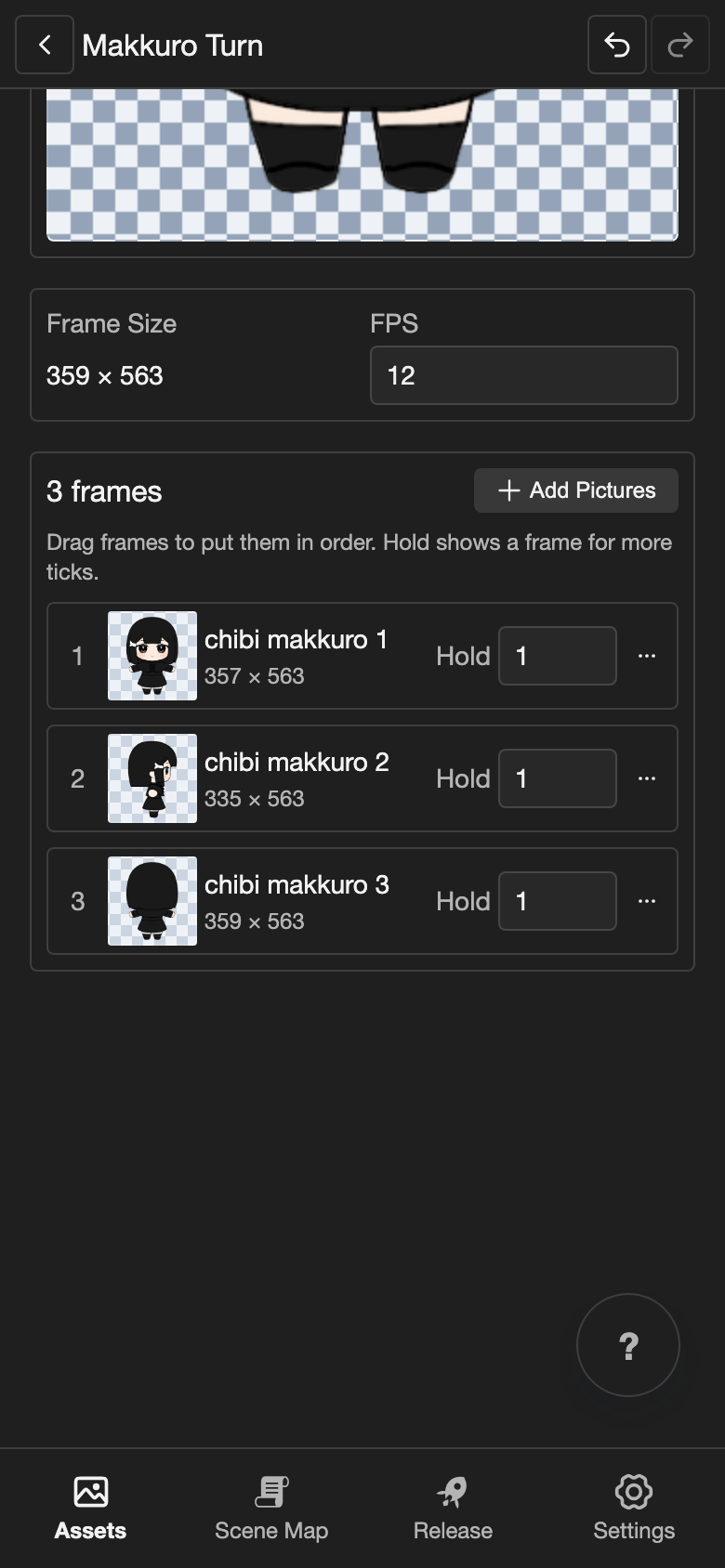
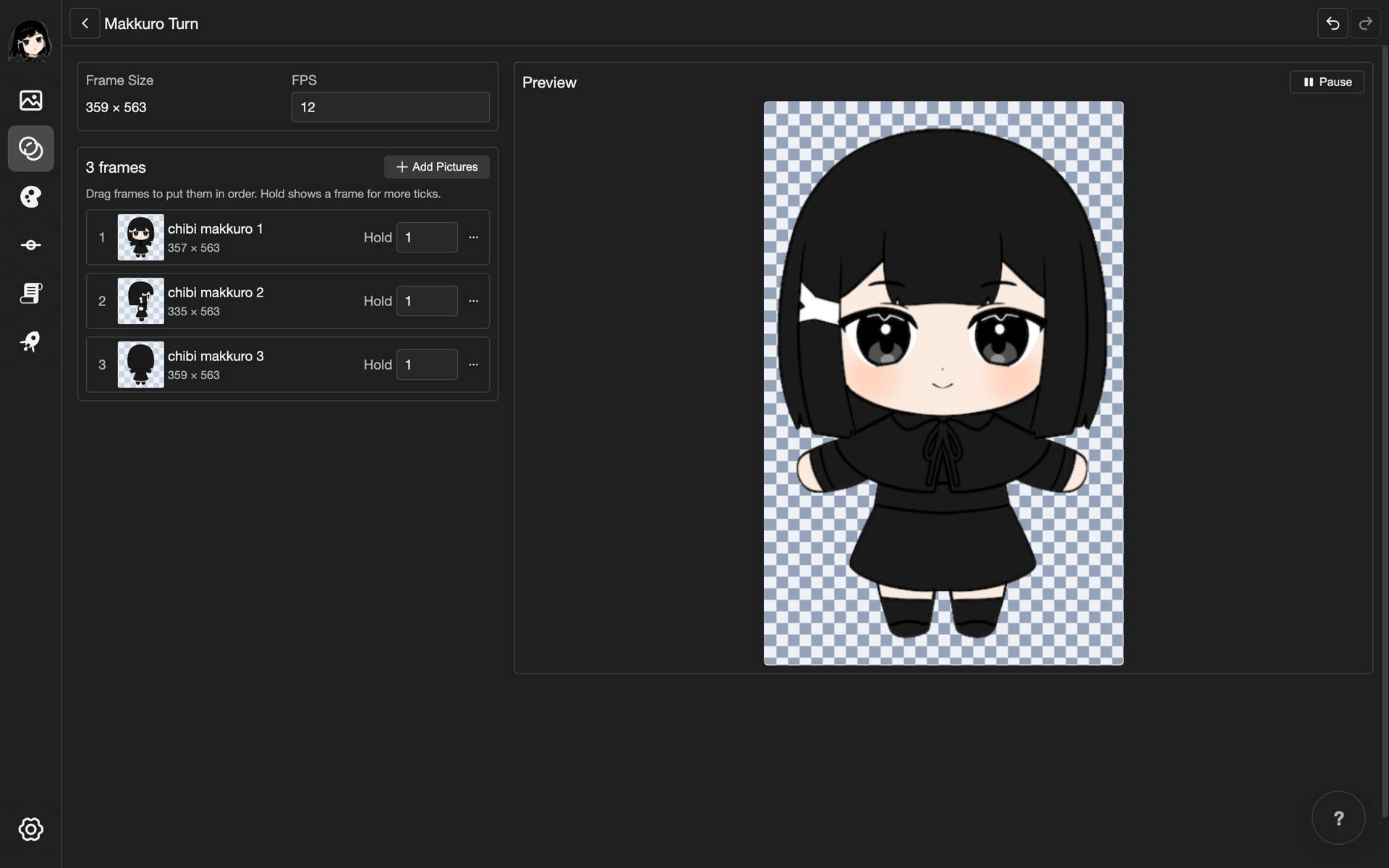
On desktop, you can also drag picture files onto the list of frames.
Put the frames in order
-
Next to a frame, tap the three dots button (the button with three dots that opens more options). A menu opens.
-
Tap Move Up or Move Down.
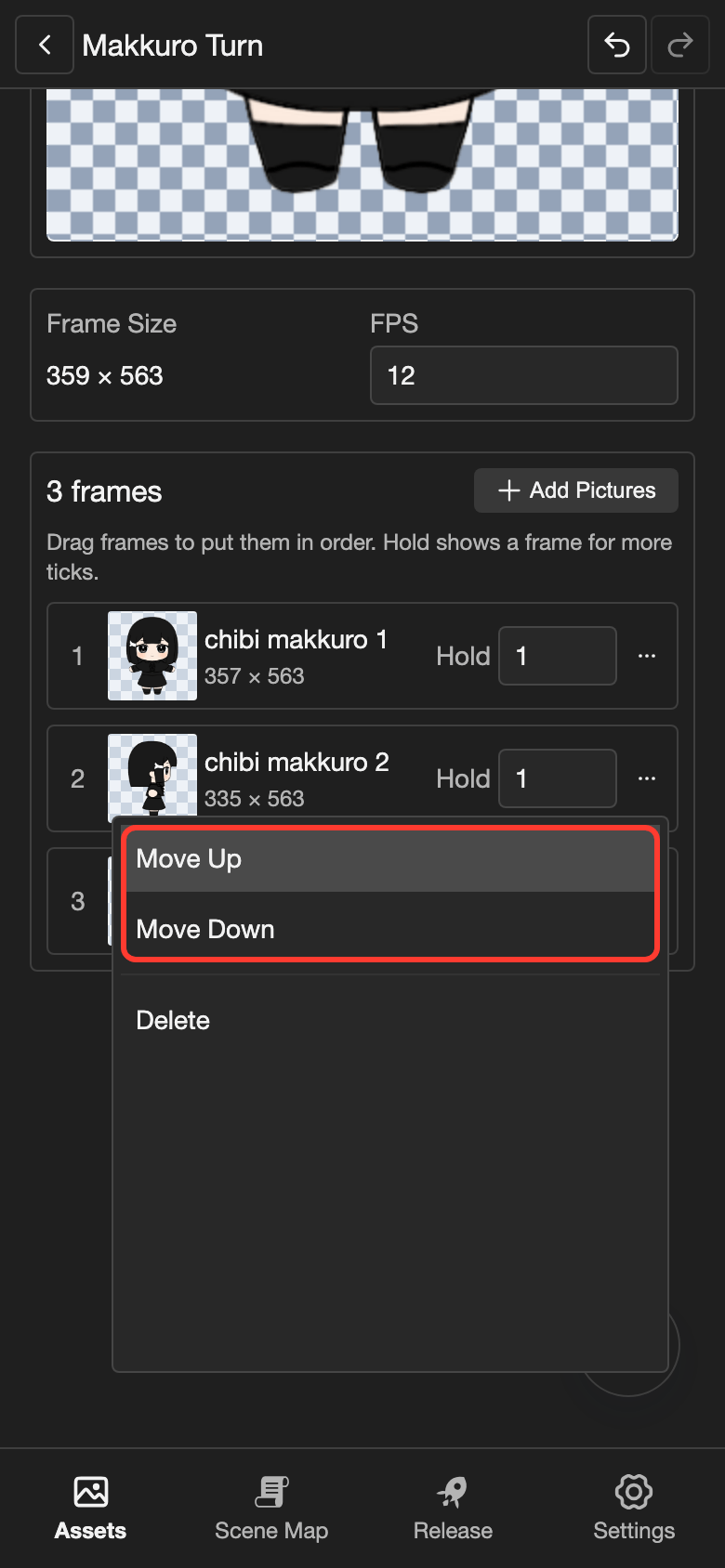
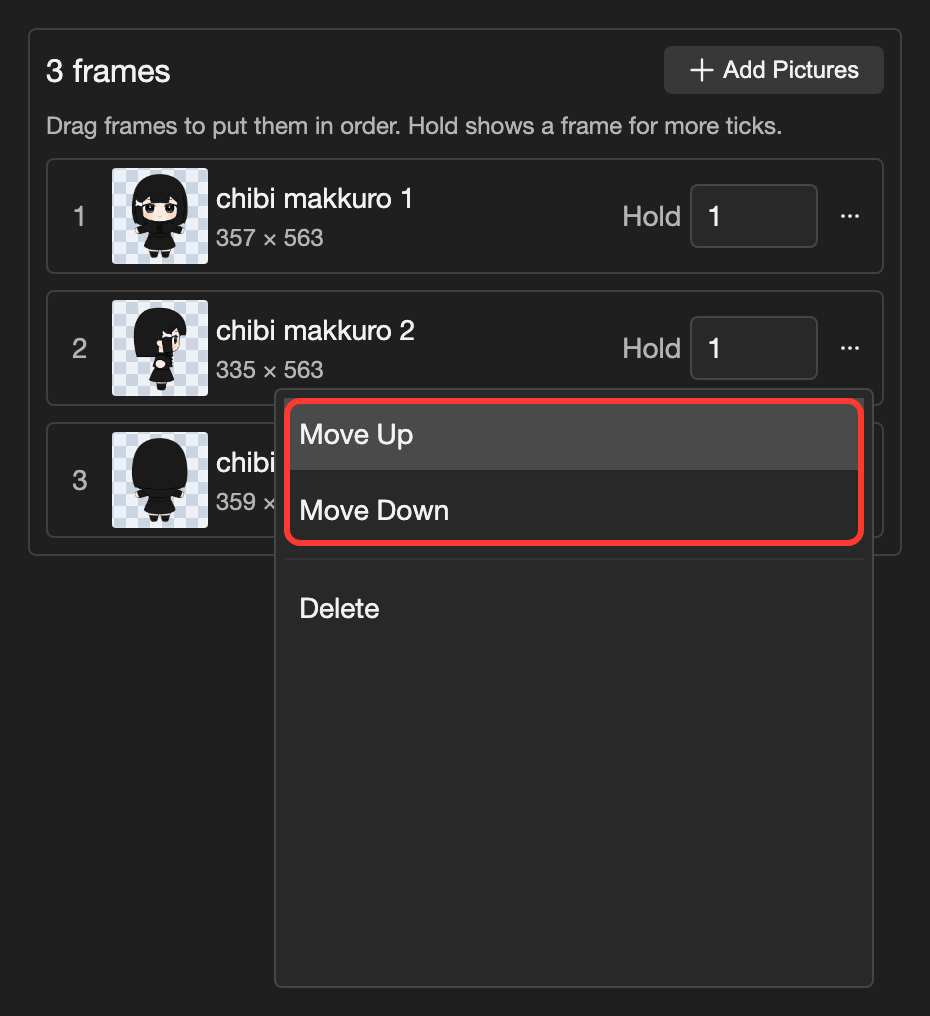
On desktop, you can also drag (hold, then move) a frame up or down the list.
Change the speed
FPS is the speed of the whole clip. A new clip plays at 12 FPS.
-
Tap the box under FPS. A small box opens, with a slider.
-
Type a number from 1 to 120, such as
8. You can also drag the slider. -
Tap Submit.
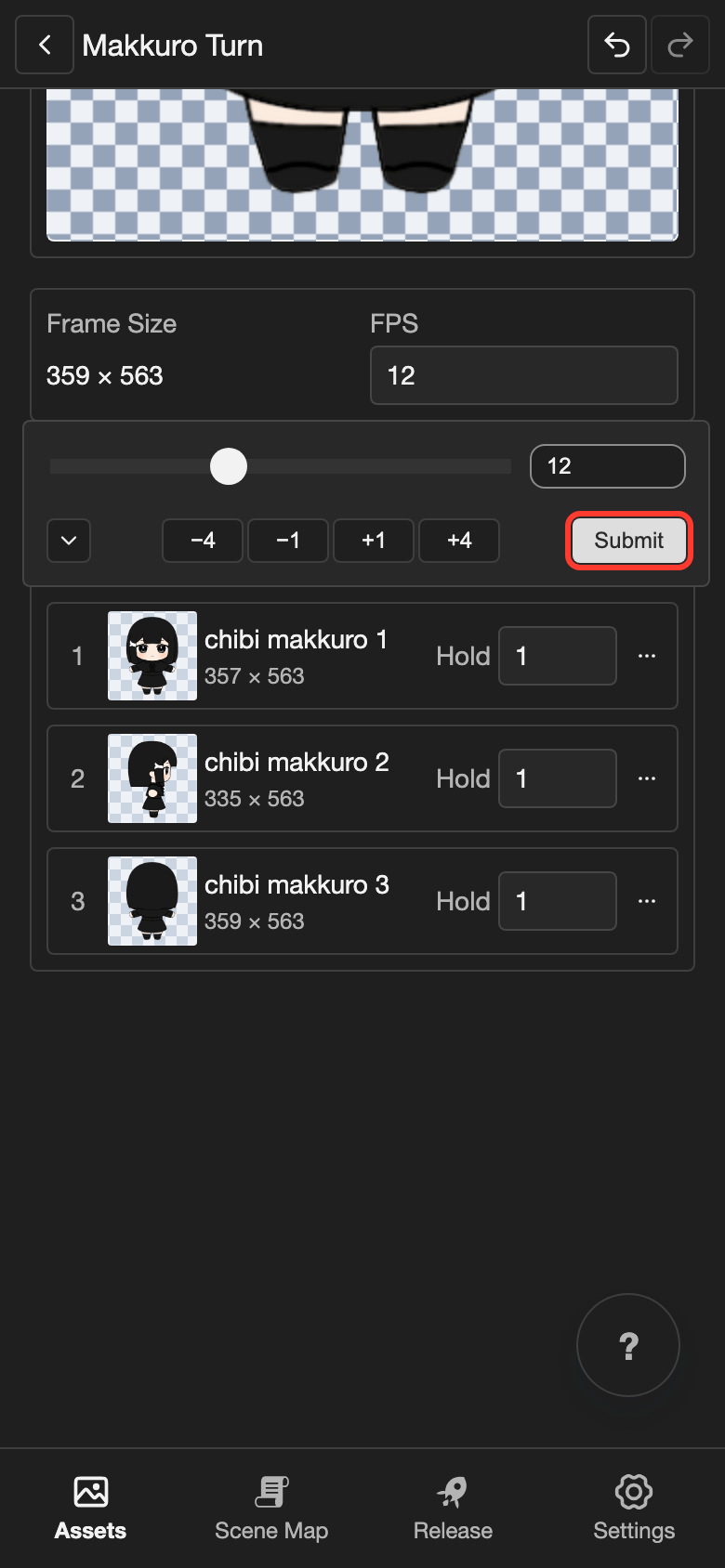
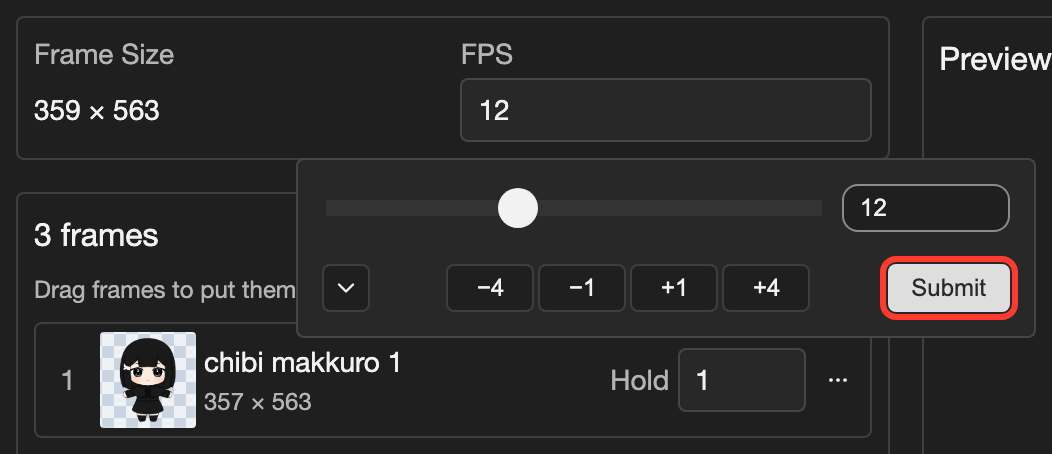
To show one frame longer, change its Hold the same way. Hold can be 1 to 99. For example, Hold 2 shows the frame twice as long as Hold 1.
Delete a frame
- Next to the frame, tap the three dots button.
- Tap Delete.
To get the frame back, tap the undo button. A spritesheet needs at least one frame. The editor cannot save an empty list.
Add spritesheet files
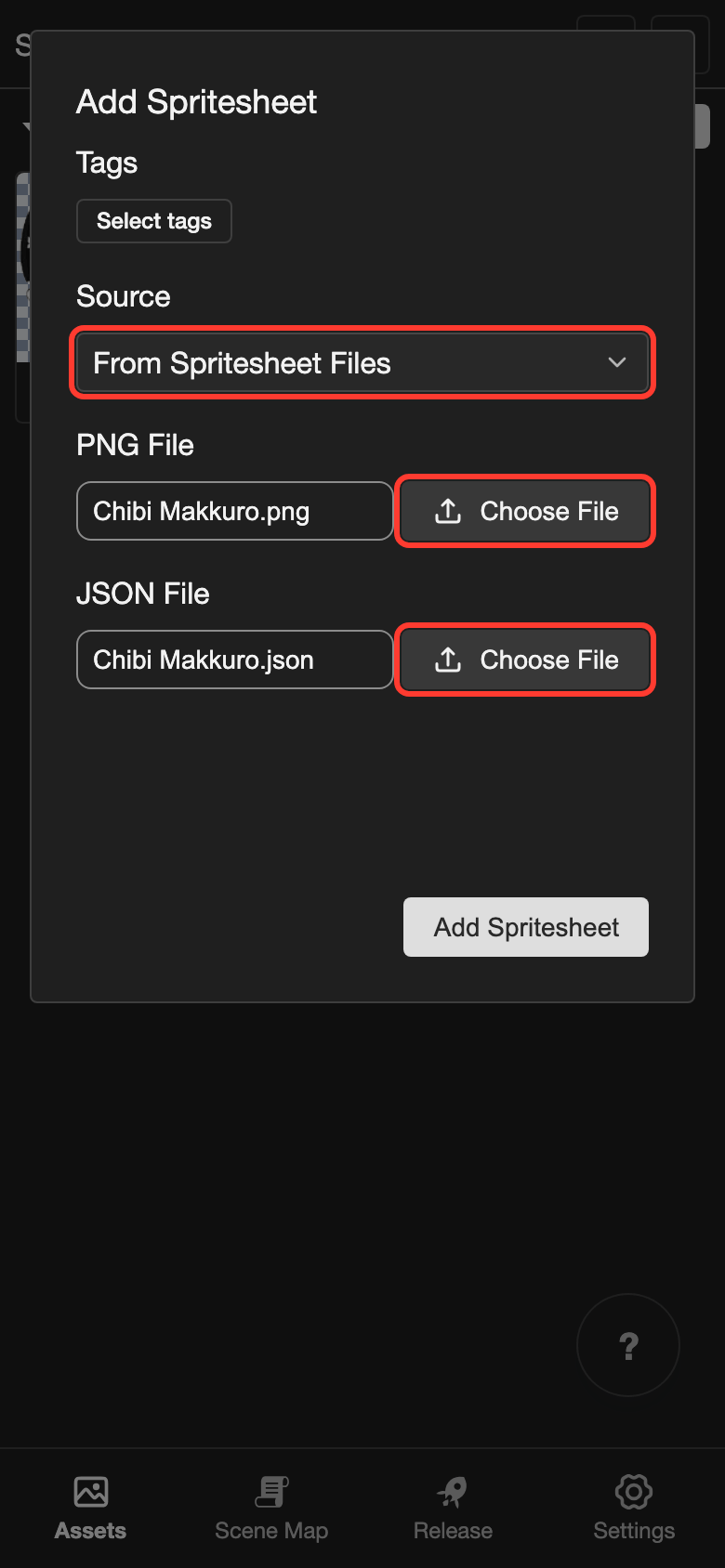
Use this when you already have a PNG file and a JSON file. This example uses Chibi Makkuro, a small character with 4 frames and 2 clips.
-
Next to the Default folder, tap Add. The Add Spritesheet box opens.
-
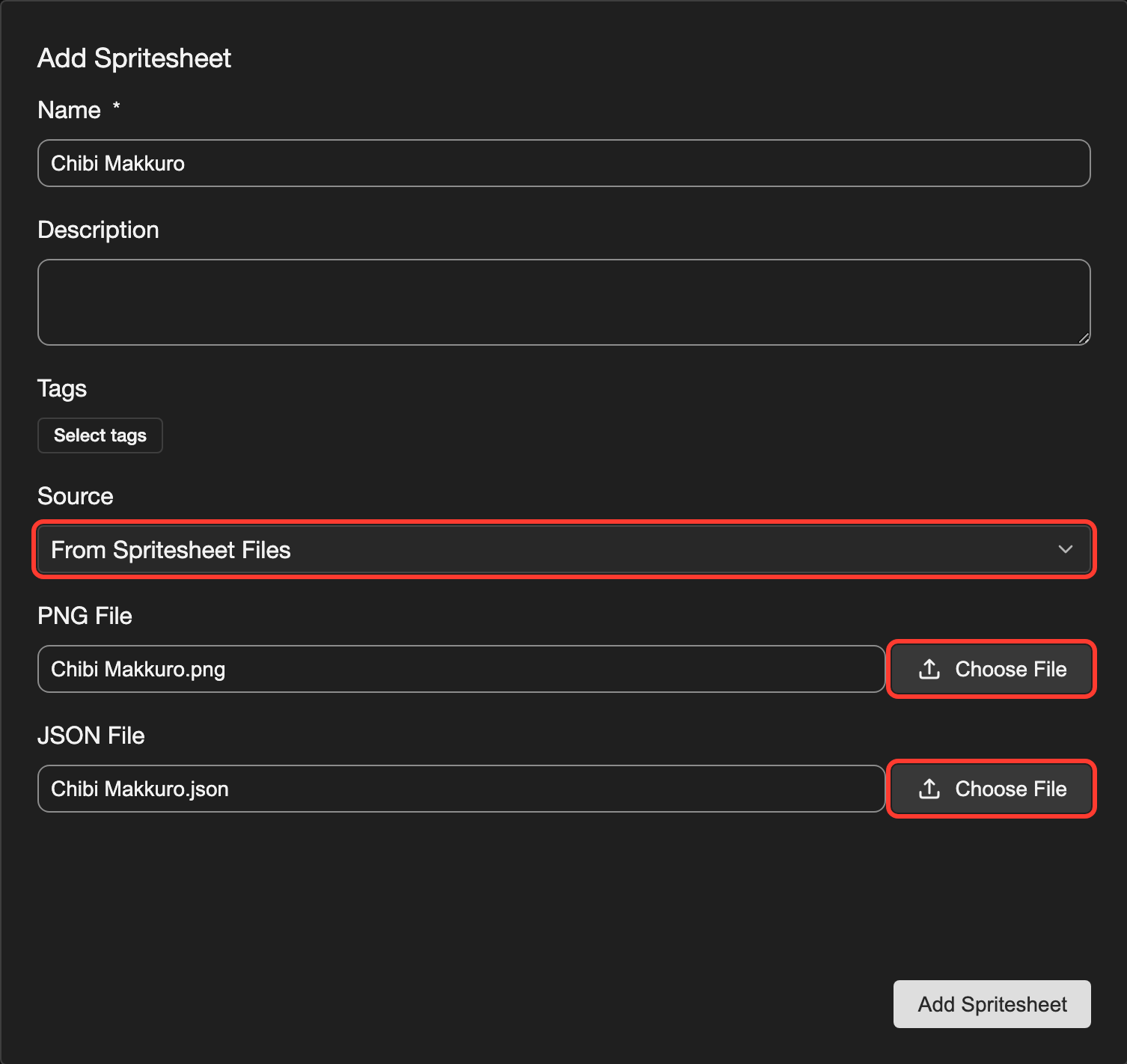
Tap the box under Source. Then tap From Spritesheet Files. PNG File and JSON File appear.
-
Next to PNG File, tap Choose File. Choose the PNG file.
-
Next to JSON File, tap Choose File. Choose the JSON file.
If Name is empty, the app fills it in with the file name.
-
Tap Add Spritesheet.
The spritesheet appears in the Default folder.
Change a spritesheet from files
You can open these spritesheets in the editor too. A spritesheet from files can have many clips. The editor shows one clip at a time.
-
Open the spritesheet in the editor. See Open the spritesheet editor.
-
Tap the box under Clip. Then tap a clip, such as look around.
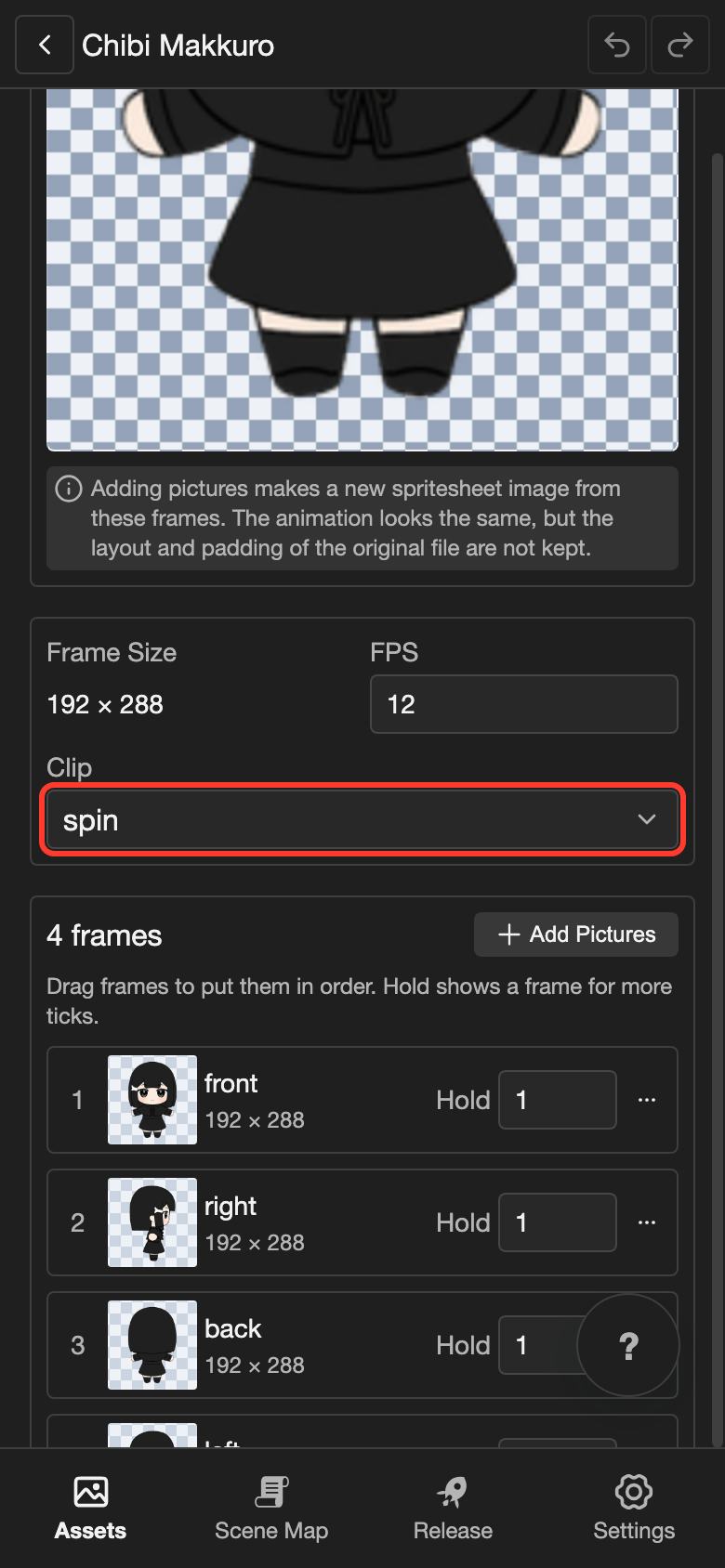
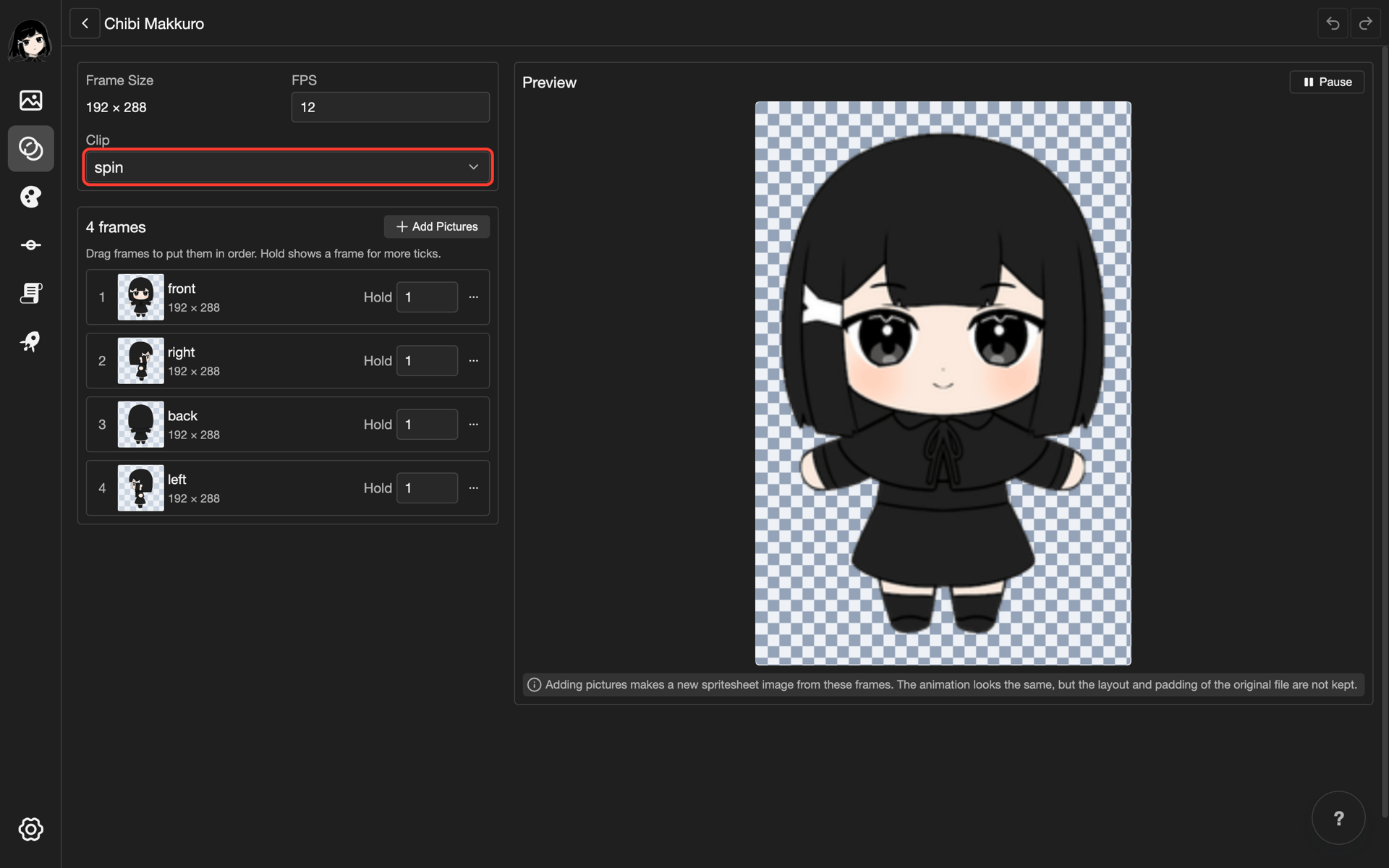
The frames, FPS, and preview change to that clip.
When you only change the order, Hold, or FPS, the app keeps your PNG and JSON files. When you add pictures, the app makes a new spritesheet picture from the frames. The animation looks the same.
Change the details of a spritesheet
-
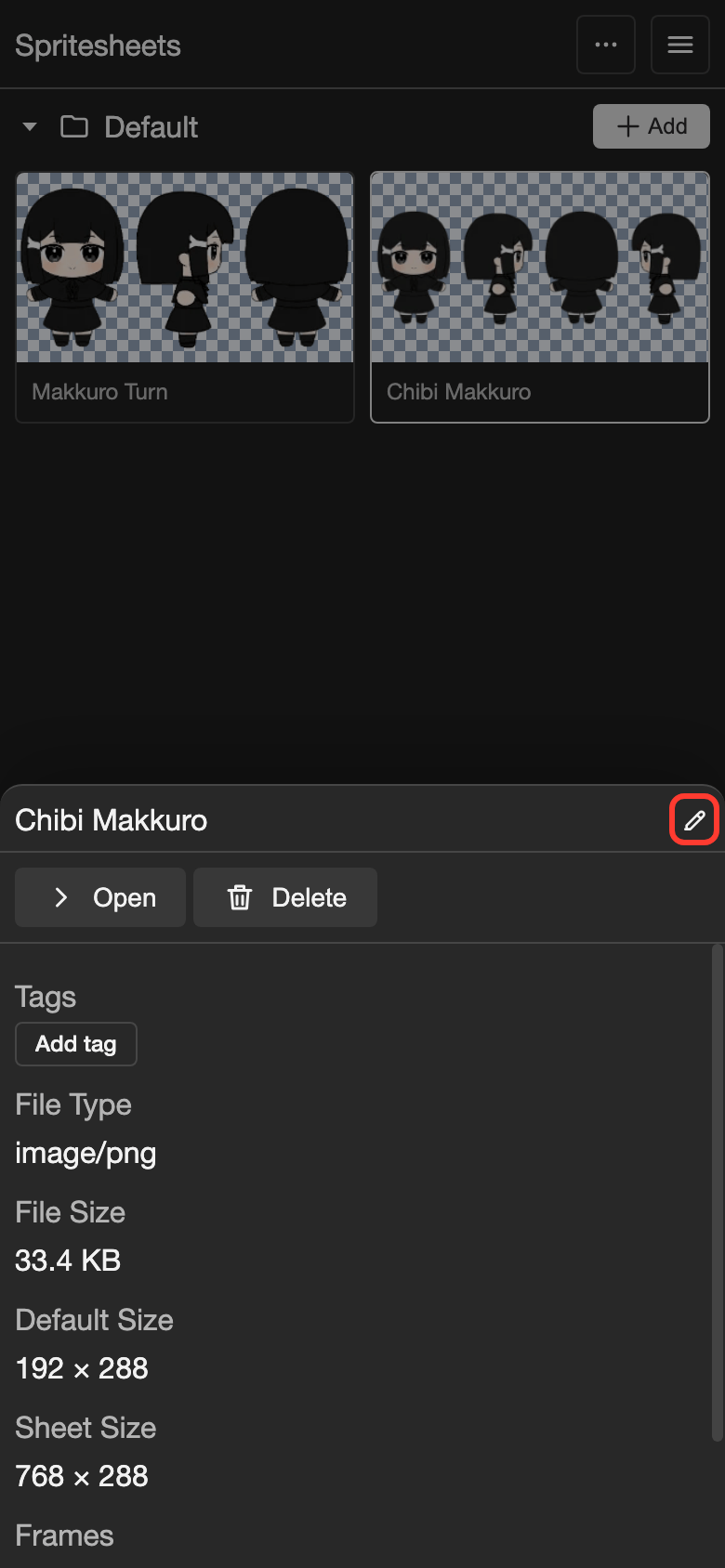
Tap the spritesheet.
-
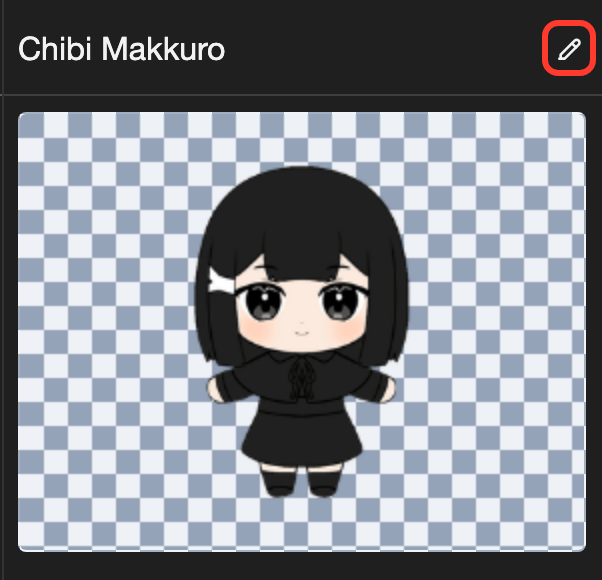
Tap the pencil icon next to its name. The Edit Spritesheet box opens.
-
Change what you need, such as the name or the files.
-
Tap Update.
If you choose a new JSON file, keep the same clip names. Layouts find their clip by its name.
Where you use spritesheets
- Layouts: Add a Spritesheet Animation element. See Spritesheet Animation.
- Background and Visuals actions: Tap the Spritesheets tab. See Line action: Background and Line action: Visuals.
Good to know
- Delete removes a spritesheet right away. The app does not ask first.
Problems and fixes
- The app says "Leave without saving?" The editor could not save. Tap Stay, and do what the message says. For example, add a picture.
- The app says "Cannot delete resource, it is currently in use." Remove the spritesheet from every layout, scene, and control first.