Visuals
The Visuals action puts extra pictures, videos, or layouts on the screen. For example, use it for falling petals, a big event picture (CG), or a UI picture.
You can show many visuals at the same time. A visual stays on the following lines until a later line changes or removes it. A line has only one Background, but it can have many visuals.
To blur, fade, or flip a visual, see Image Effects.
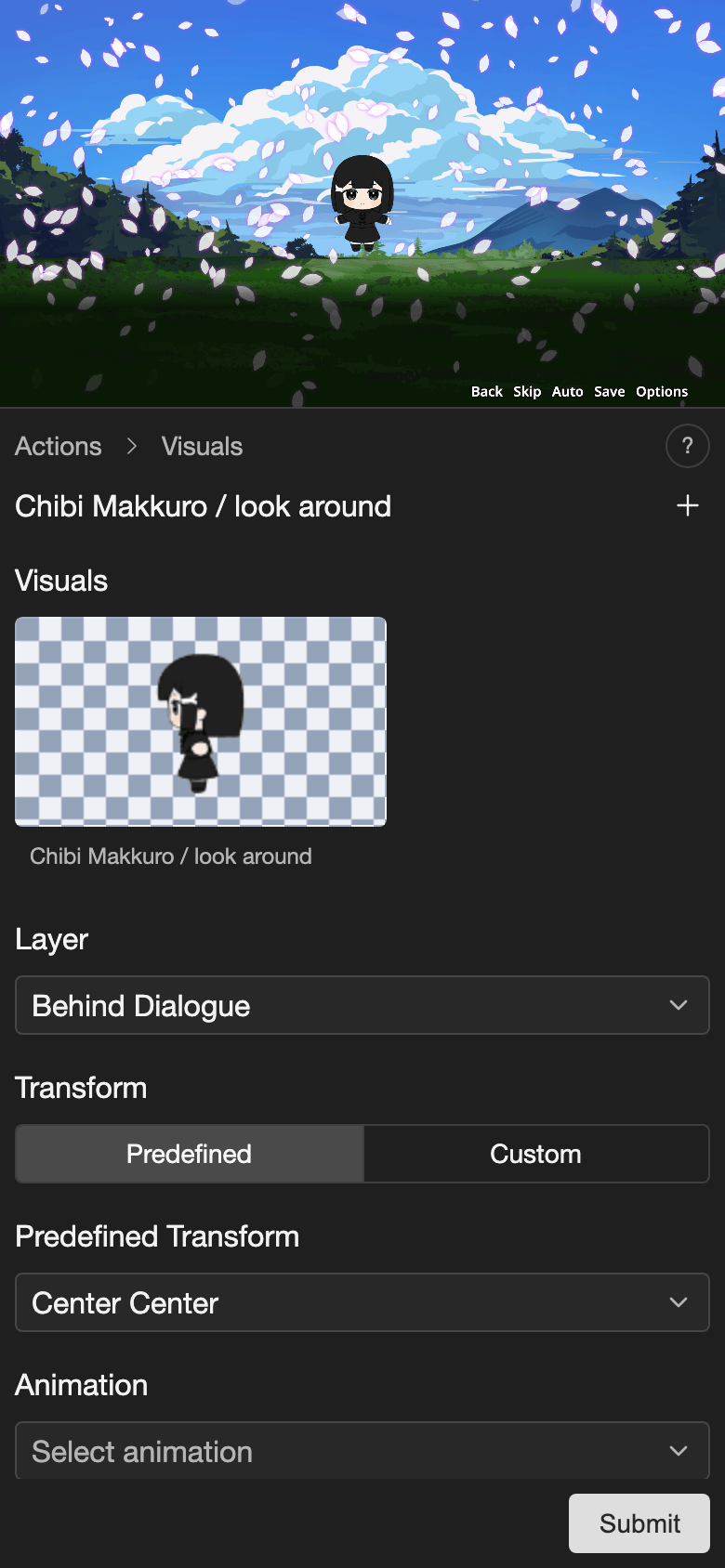
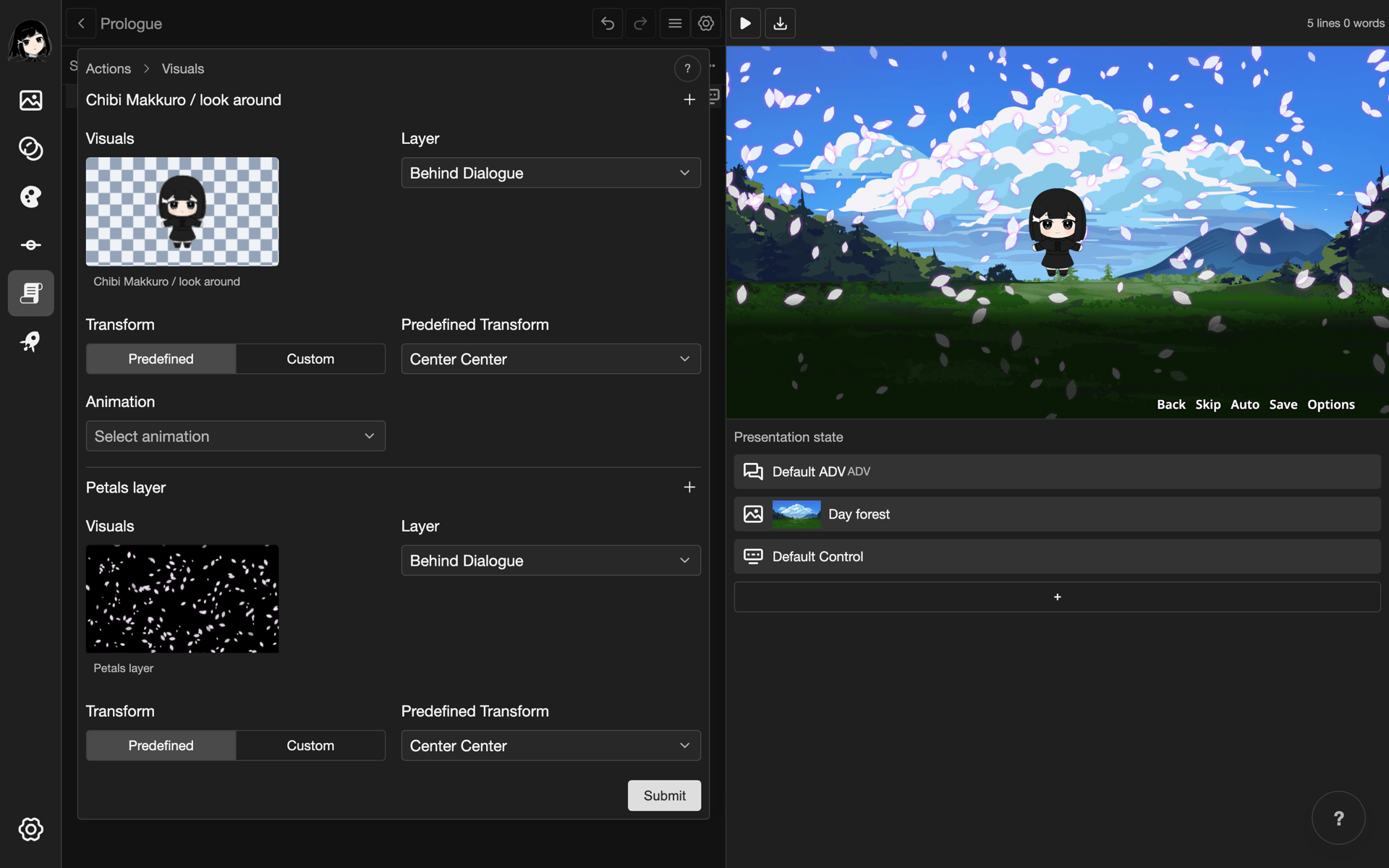
Add a visual
Before you start, add the picture, video, or layout to your project. See Images, Videos, and Layouts. The steps below show falling petals over a forest. They use a layout called Petals layer, which holds a particle effect. To make one, see Use particles in a scene. Line 1 of the scene already has a forest Background.
-
Open a scene, for example Prologue. See Scene Editor.
-
Tap the number of line 1.
-
Open the Actions menu.
- Phone or tablet: Tap the + button in the bottom bar.
- Desktop: Click the + button under Presentation state.
-
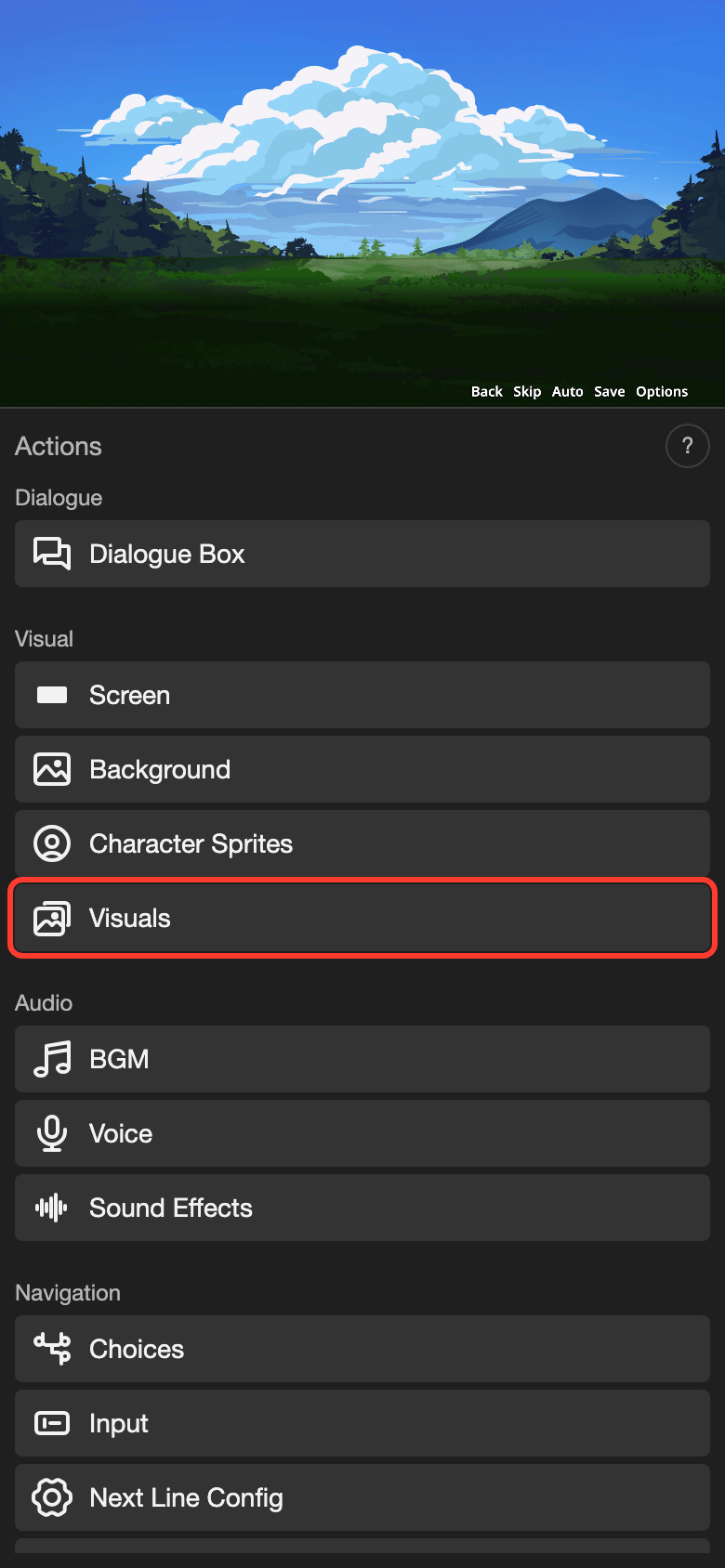
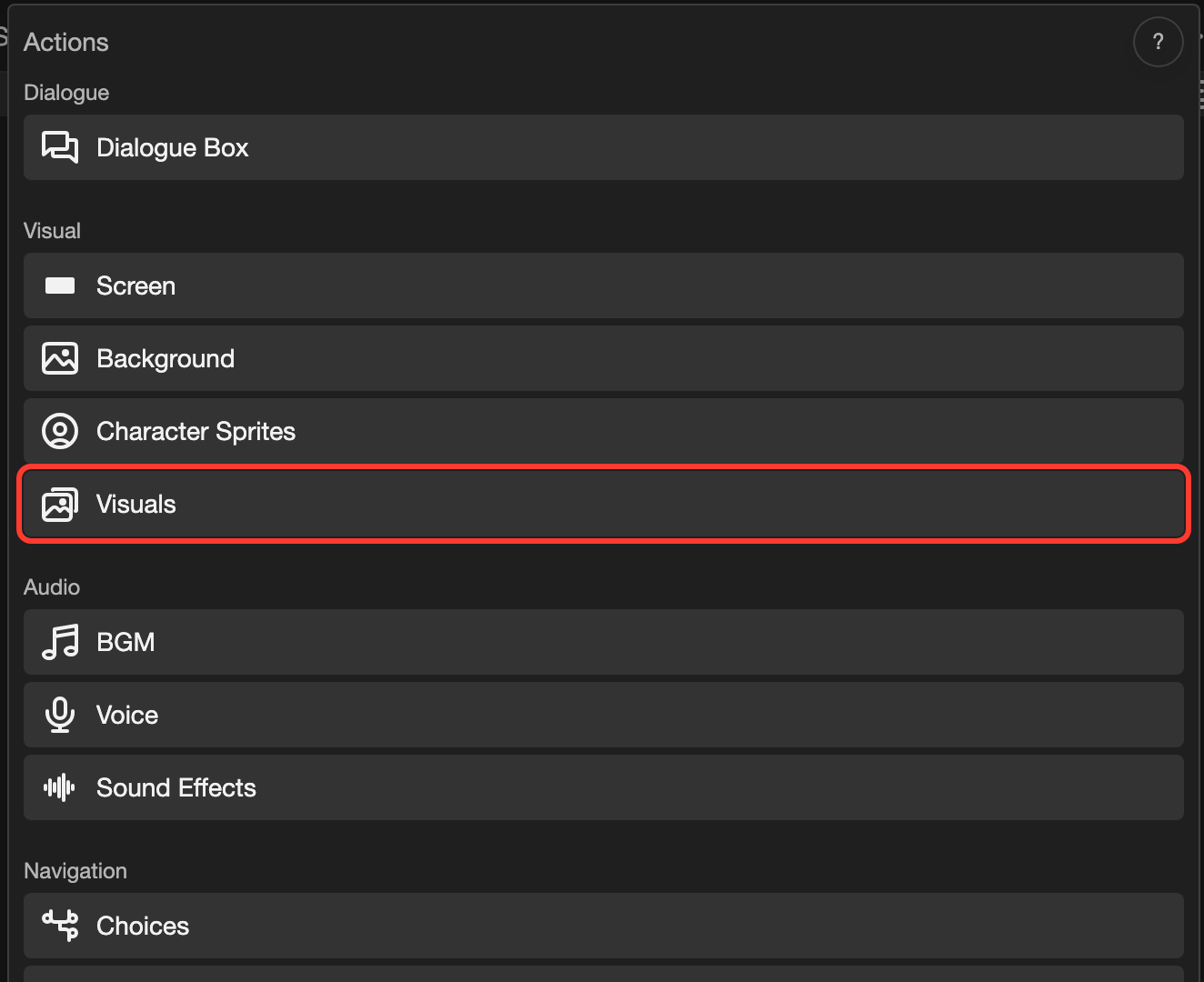
Under Visual, tap Visuals.
The Visuals form opens. It lists the visuals that are on the screen on this line.
-
Tap + Add Visual.
A small Add Visual box opens.
-
Next to Transform, choose a transform, for example Center Center.
Center Center puts the visual in the middle of the screen, so a full-screen layout covers the whole screen. Leave Layer as it is. See Choose a layer.
-
Tap Select Resource.
The Select Resource page opens. Its tabs are Images, Spritesheets, Videos, and Layouts. The Layouts tab shows only layouts with the General type.
-
Tap Layouts.
-
Tap Petals layer.
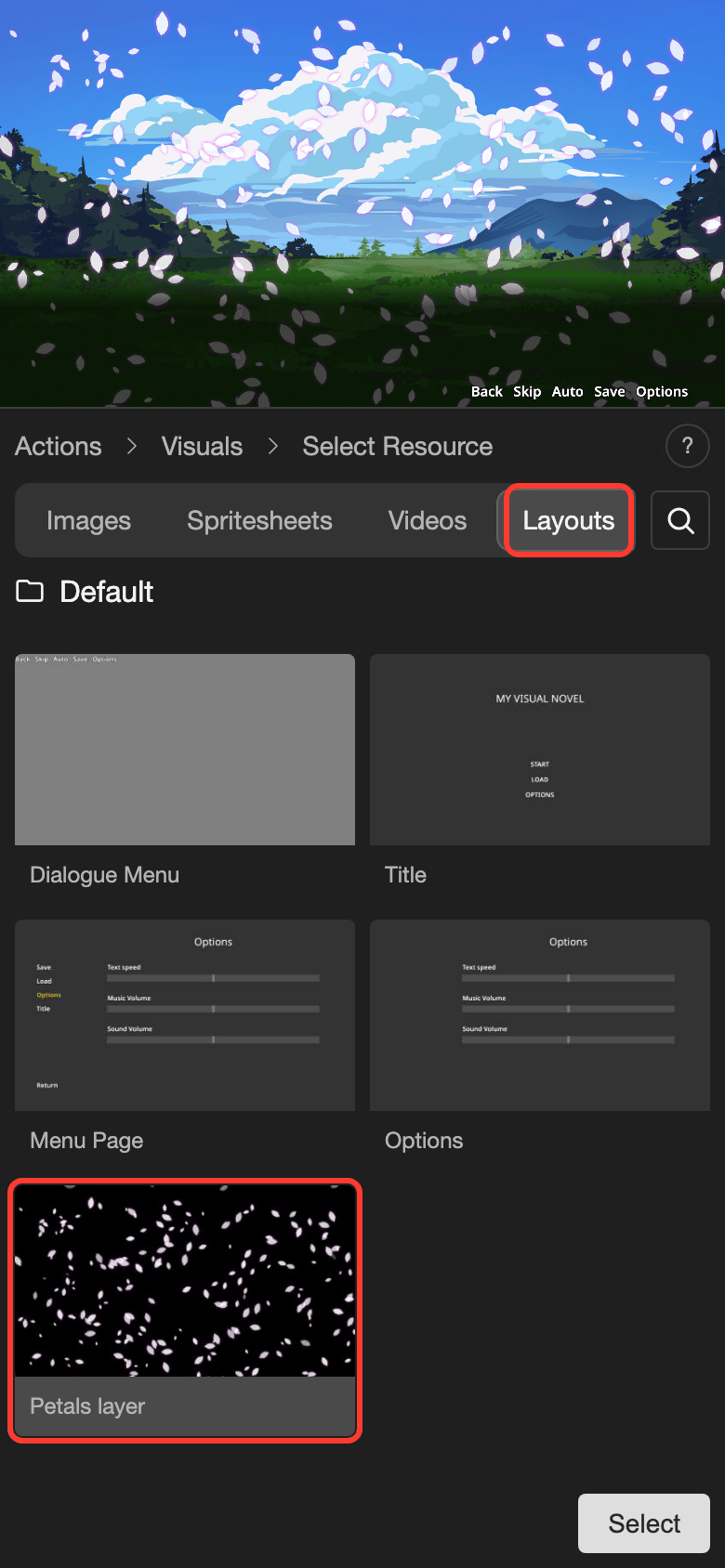
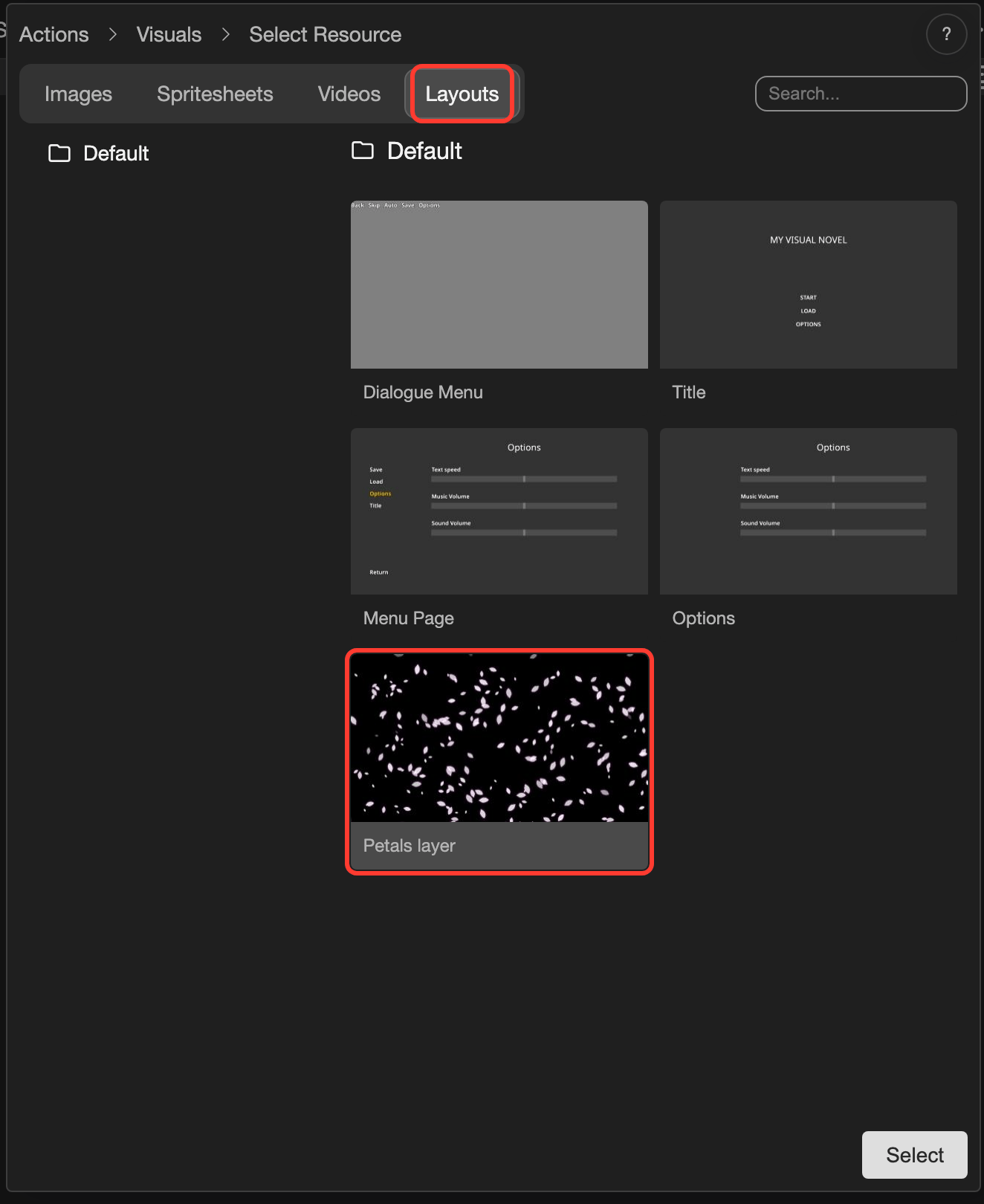
-
Tap Select.
The visual shows in the form. The preview shows the petals over the forest.
-
Tap Submit to save the action.
To add another visual, tap + Add Visual again and repeat steps 6 to 10. For example, add Chibi Makkuro / look around from the Spritesheets tab. That tab lists each clip of a spritesheet on its own. The new visual goes in front of the others in its layer.
Settings of a visual
Each visual has its own card in the form.
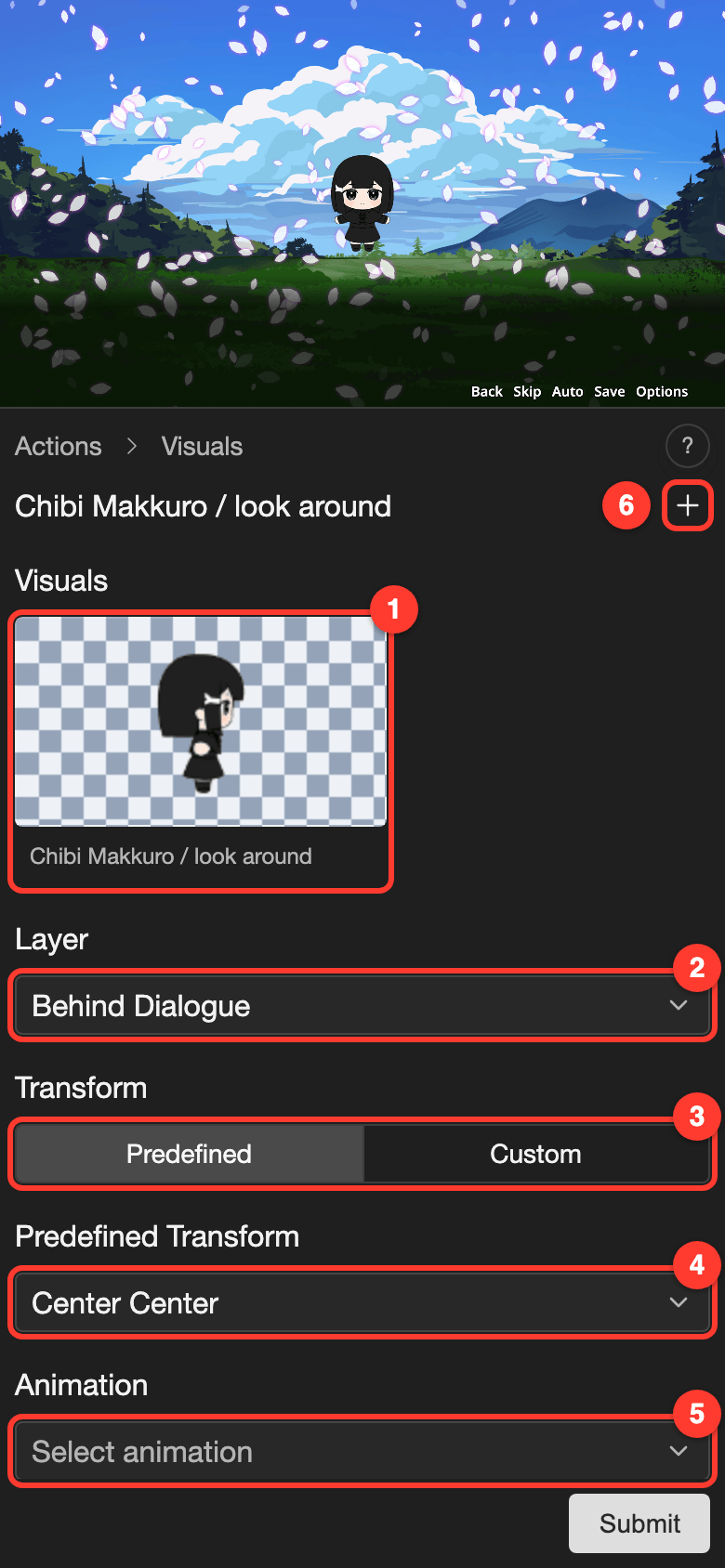
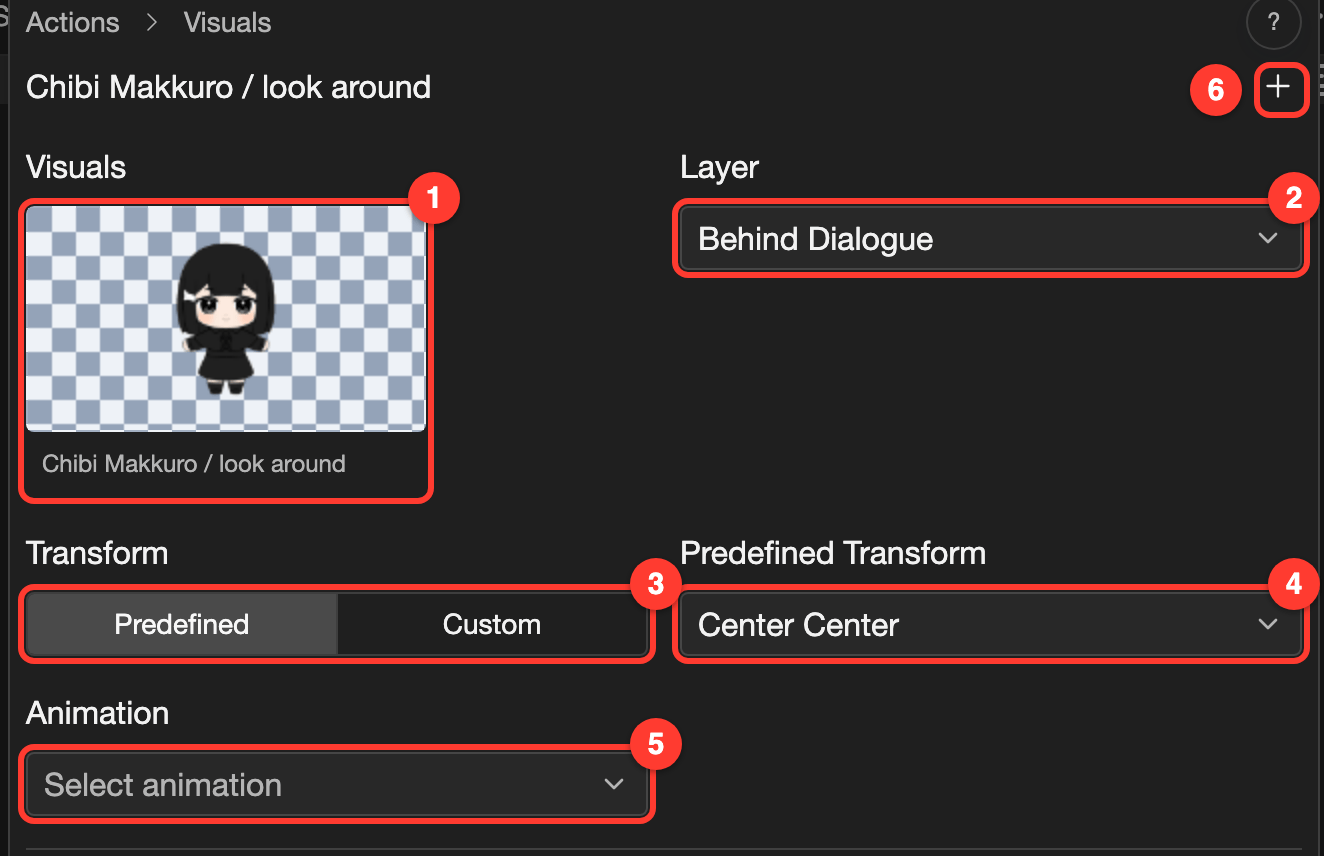
| Number | Setting | What it does |
|---|---|---|
| 1 | Visuals picture | Shows the picture, video, or layout. Tap it to choose another one. |
| 2 | Layer | Sets what the visual is in front of. See Choose a layer. |
| 3 | Transform | Predefined uses a saved transform. Custom sets a transform for this visual only. |
| 4 | Predefined Transform | The saved transform to use, such as Center Center. See Transforms. |
| 5 | Animation | Plays an animation. Each animation shows its type, Update or Transition. See Animations. |
| Playback Speed, Continuity, and Loop | More animation settings. They show after you choose an animation. Loop shows only for Update animations. | |
| 6 | + button | Adds an effect, such as Opacity, Blur, or Flip X. See Image Effects. |
Choose a layer
A layer sets what a visual is in front of. Choose it in the Add Visual box, or later in the card. The list goes from the front to the back.
| Layer | The visual is |
|---|---|
| Foreground | In front of everything. |
| Behind Choice | In front of the dialogue box, and behind the choices. |
| Behind Dialogue | In front of the characters, and behind the dialogue box. This is the default. |
| Behind Character | In front of the background, and behind the characters. |
| Behind Background | Behind the background. |
Change the order of visuals
Visuals in the same layer can cover each other. The visual at the top of the list is in front. A new visual goes in front of the others in its layer.
-
Open the menu of the visual you want to move.
- Phone or tablet: Long press (touch and hold) the picture of the visual.
- Desktop: Right-click the picture of the visual.
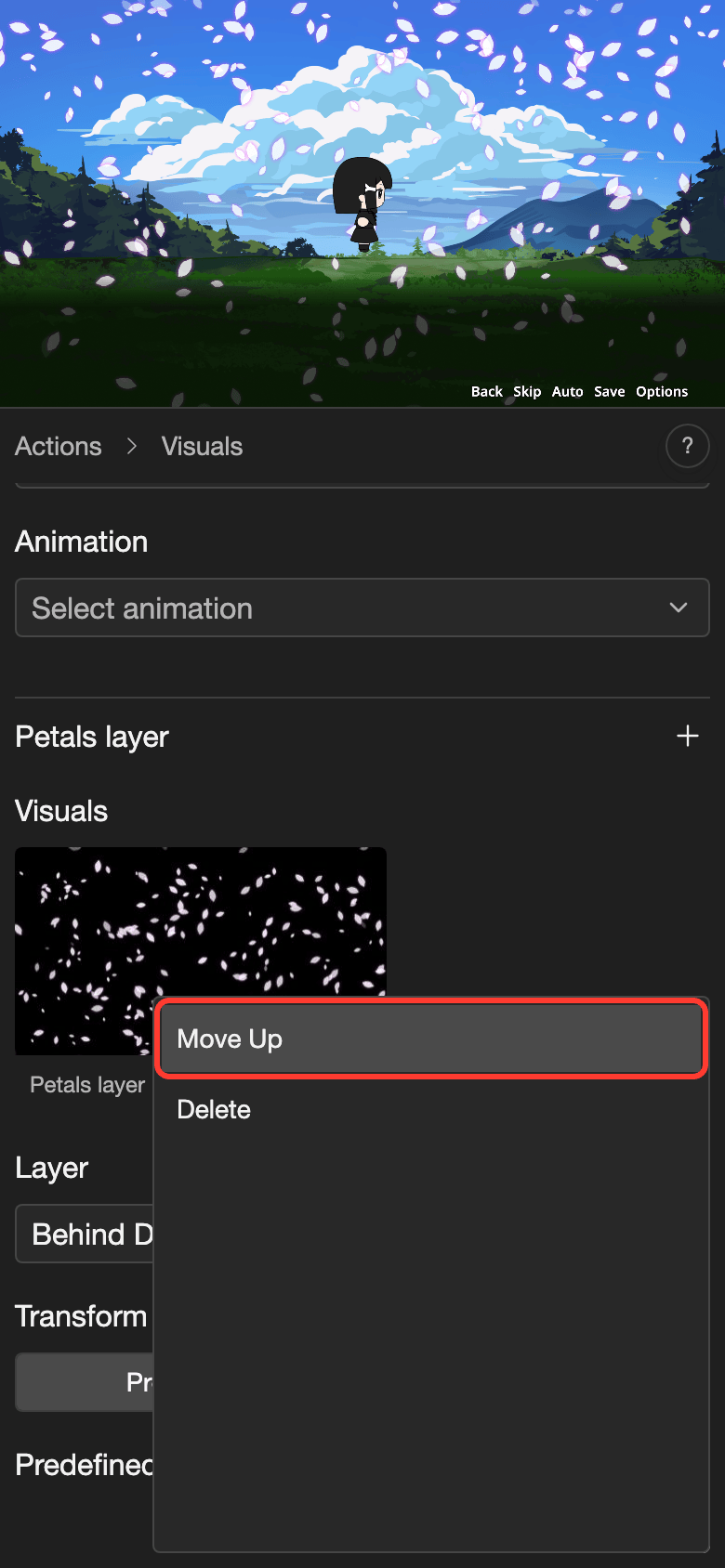
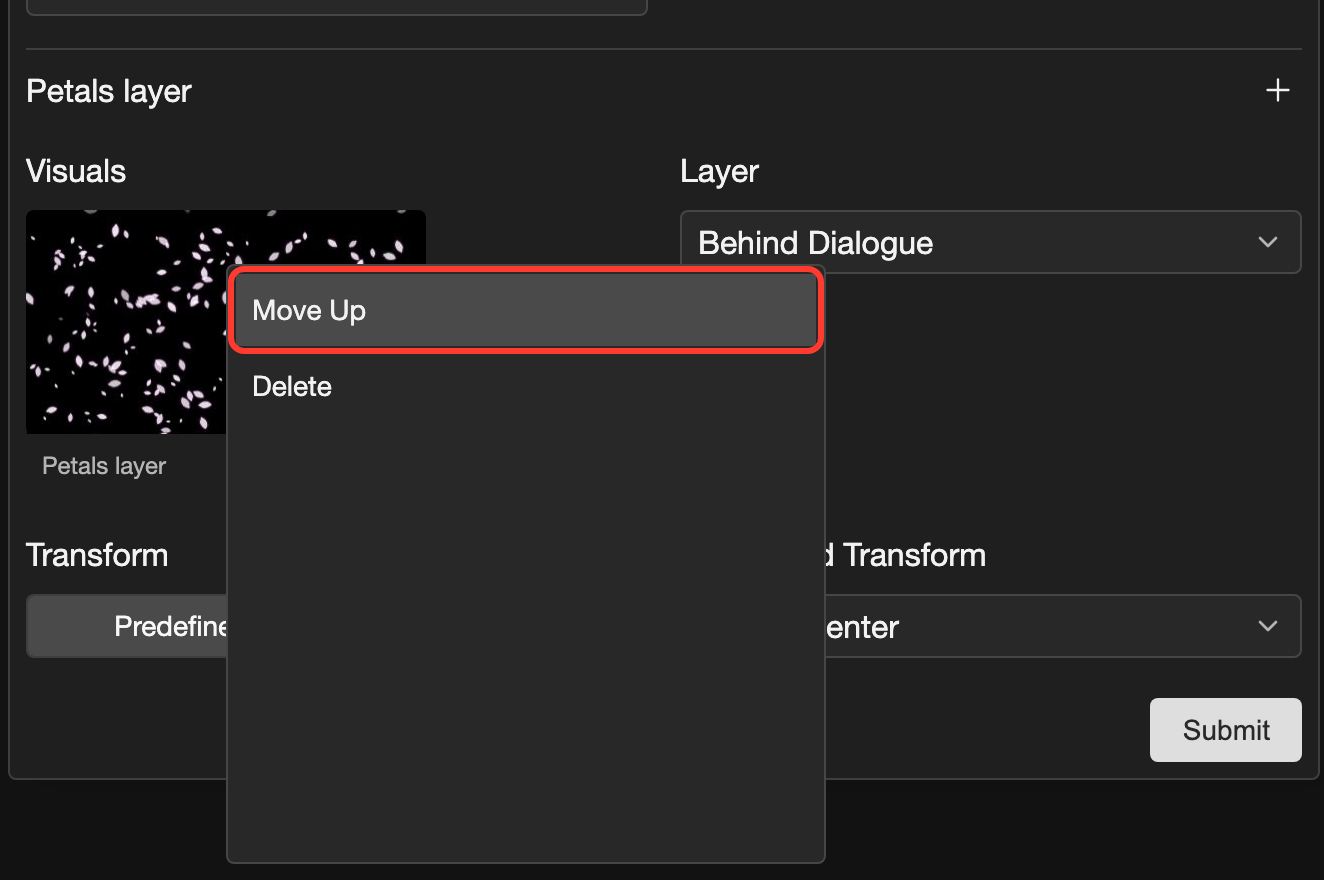
A menu appears.
-
Tap Move Up to bring the visual forward, or Move Down to send it back.
-
Tap Submit.
The menu shows only the moves that are possible. Move Up and Move Down work inside one layer. To move a visual to another layer, change its Layer.
Change or remove a visual
First, open the Visuals form on the line you want. Use steps 1 to 4 of Add a visual, and tap the number of that line in step 2.
To change a visual:
-
Tap the picture of the visual.
The Select Resource page opens.
-
Tap the new picture, video, or layout.
-
Tap Select.
-
Tap Submit.
To change Layer, Transform, or Animation, change it in the card. Then tap Submit.
To remove a visual:
- Open the menu of the visual, like in Change the order of visuals.
- Tap Delete.
- Tap Submit.
On a later line, a change or a removal starts on that line. The lines before it do not change.
Problems and fixes
- A message says "A resource is required." Tap a picture, video, or layout first. Then tap Select.
- I cannot see my visual. Check Layer. A visual in Behind Background is behind the background. A visual in front of it can also cover it.