Background
The Background action sets the picture behind everything else on the screen, such as a forest or a classroom. It is in the Visual group of the Actions menu.
A background stays on the screen on later lines until a later line changes it or removes it.
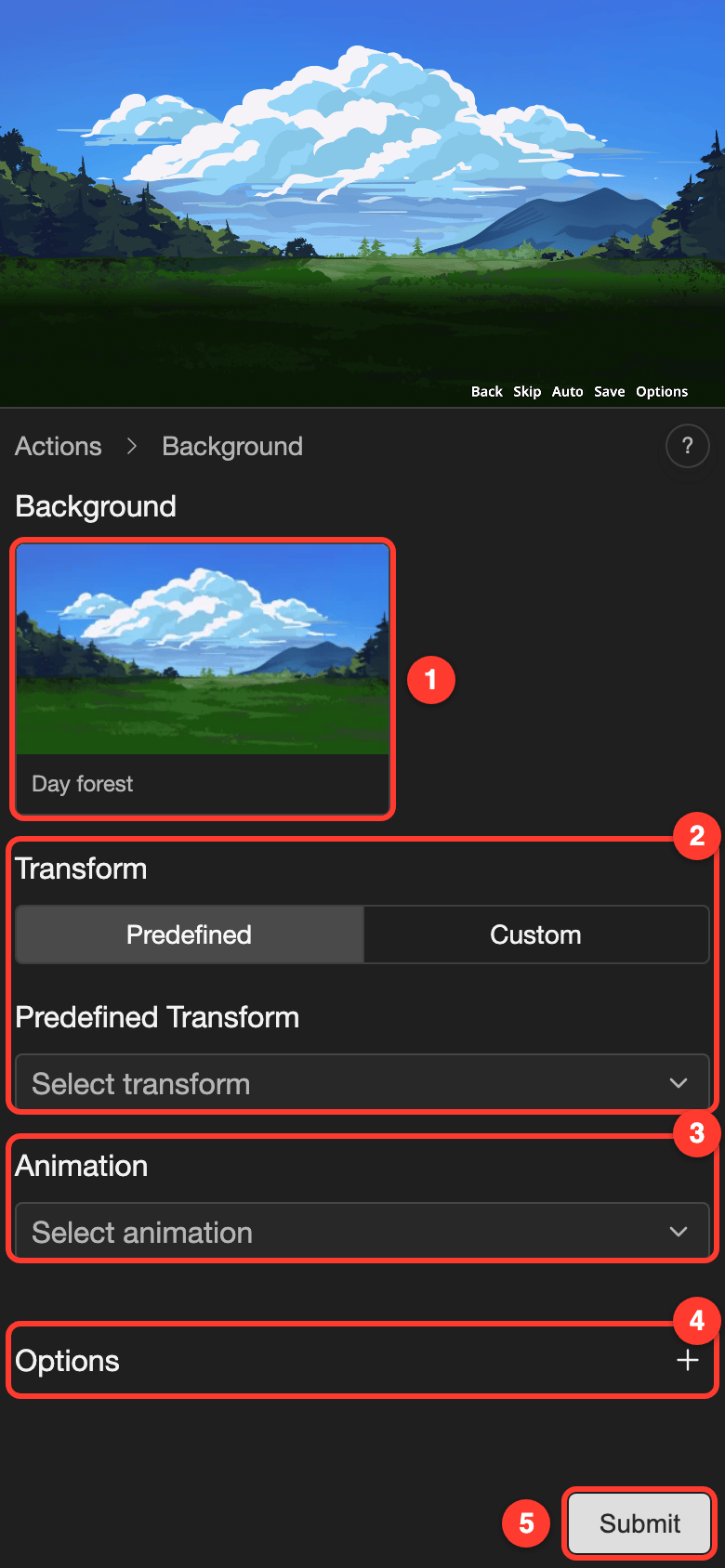
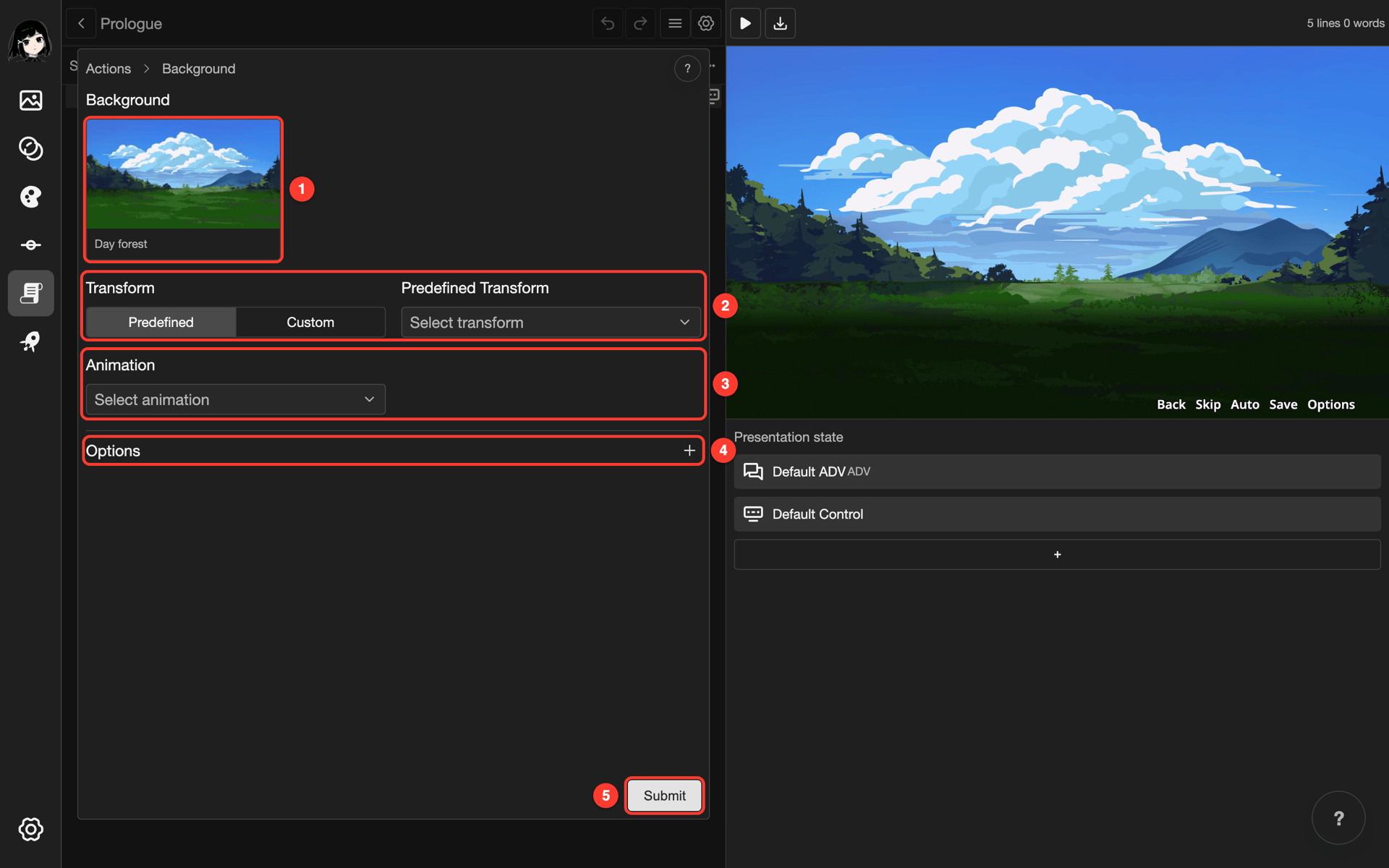
Parts of the Background form
- Background: the picture, video, or layout. Tap it to choose another one.
- Transform: where the background sits on the screen, and how big it is.
- Animation: how the background appears or changes.
- Options: effects, such as blur and fade.
- Submit: saves the action.
Add a background to a line
-
Open a scene in the scene editor. See Scene Editor.
-
Tap the line where the background should start, for example line 1.
-
Open the Actions menu.
- Phone or tablet: Tap the + button in the bottom bar.
- Desktop: Click the + button under Presentation state.
-
Under Visual, tap Background.
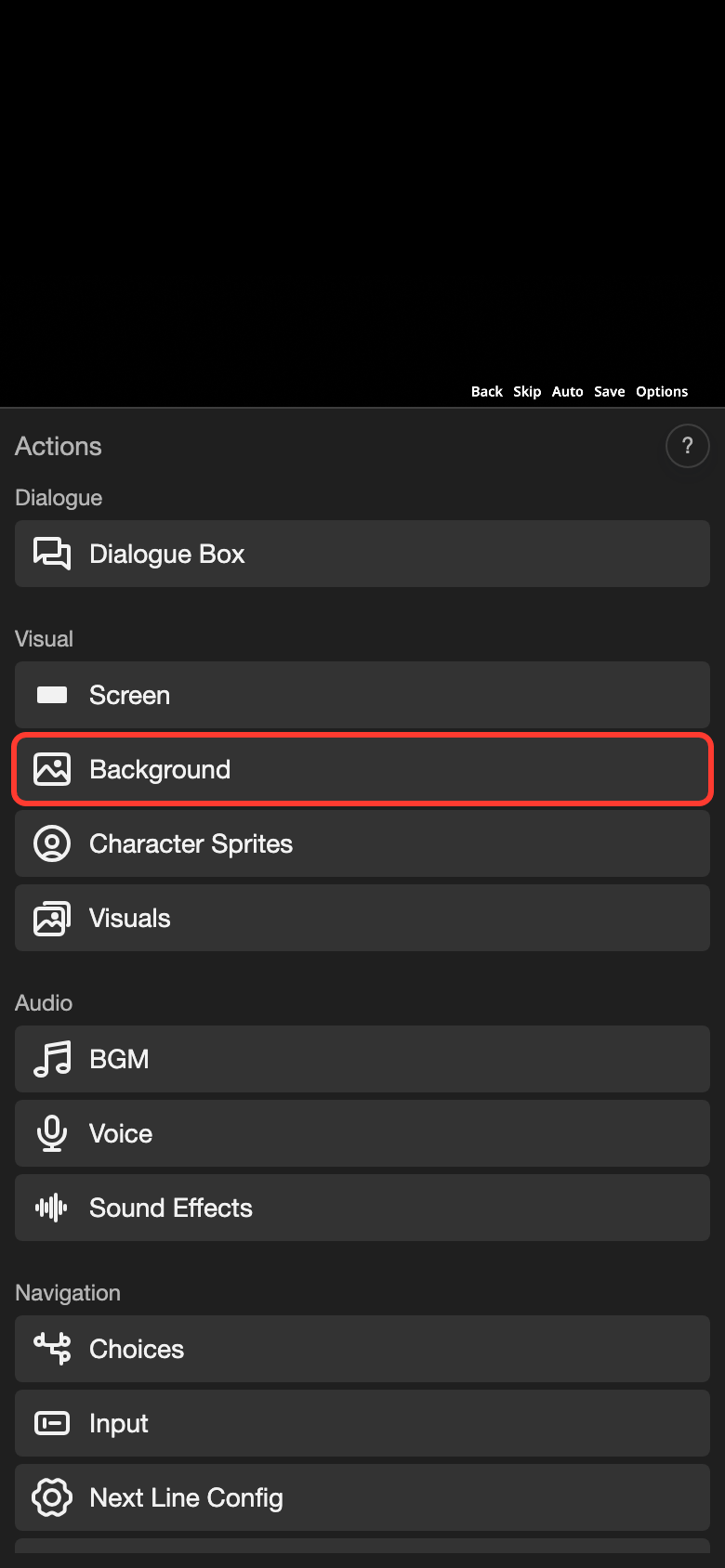
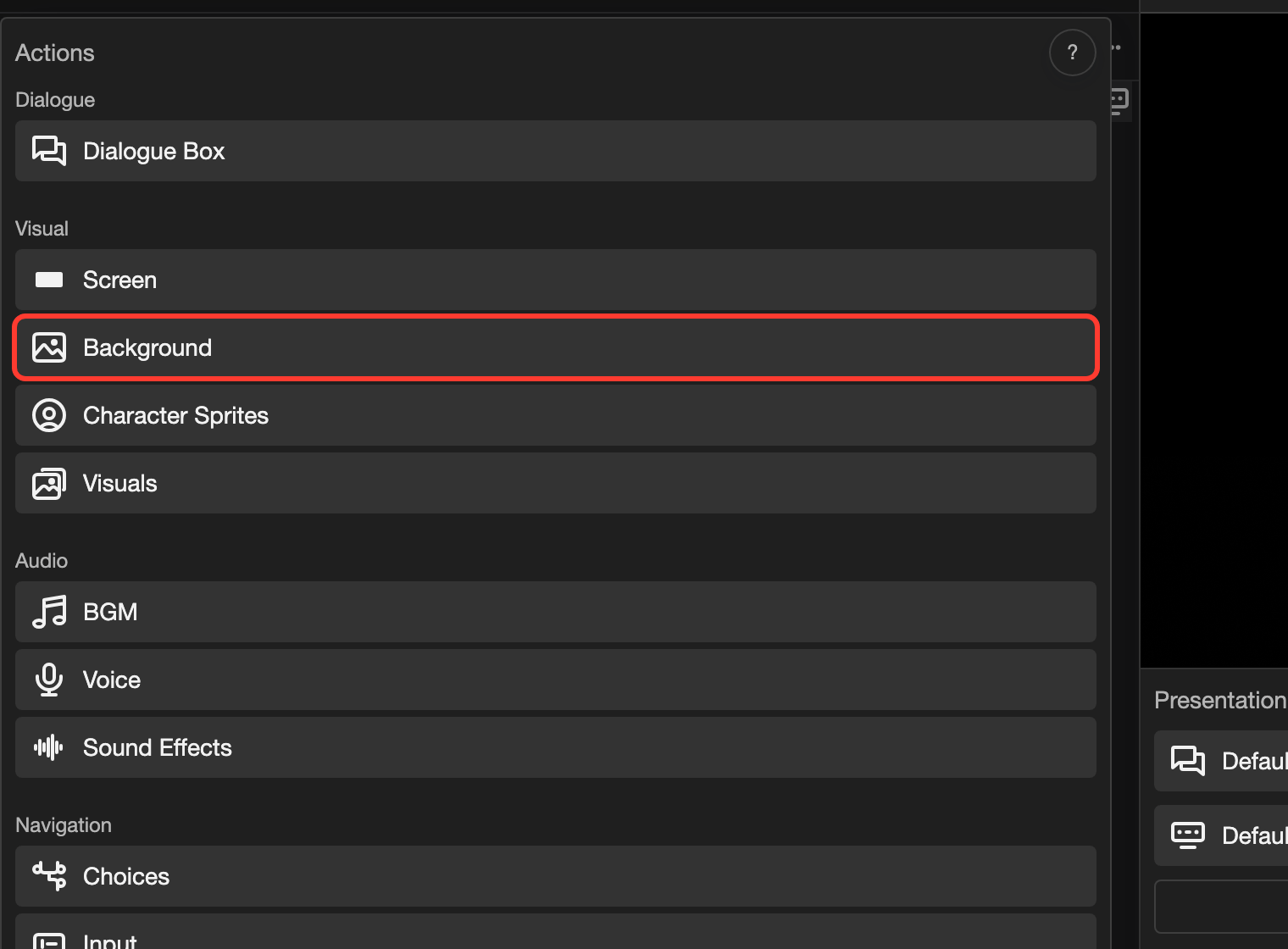
The Background form opens.
-
Tap Select Background.
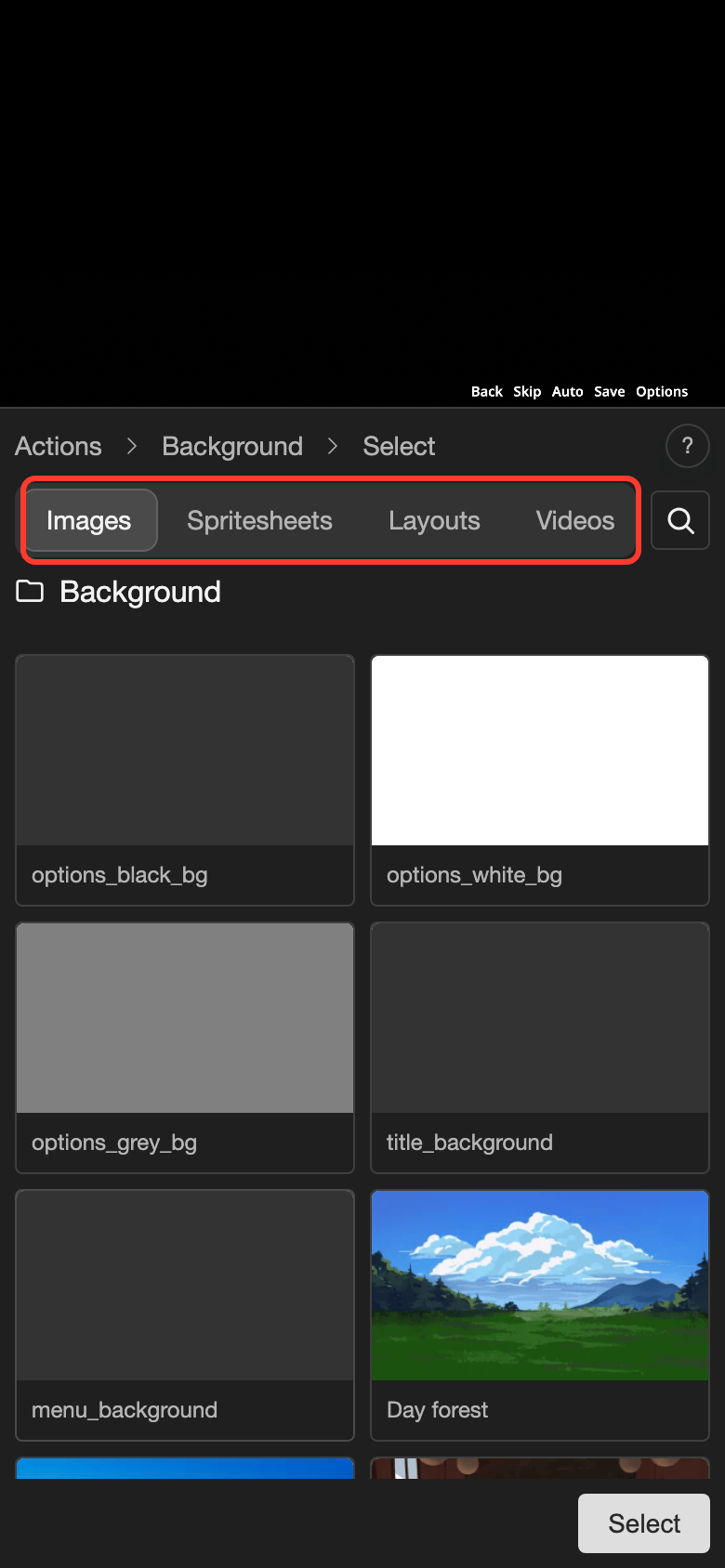
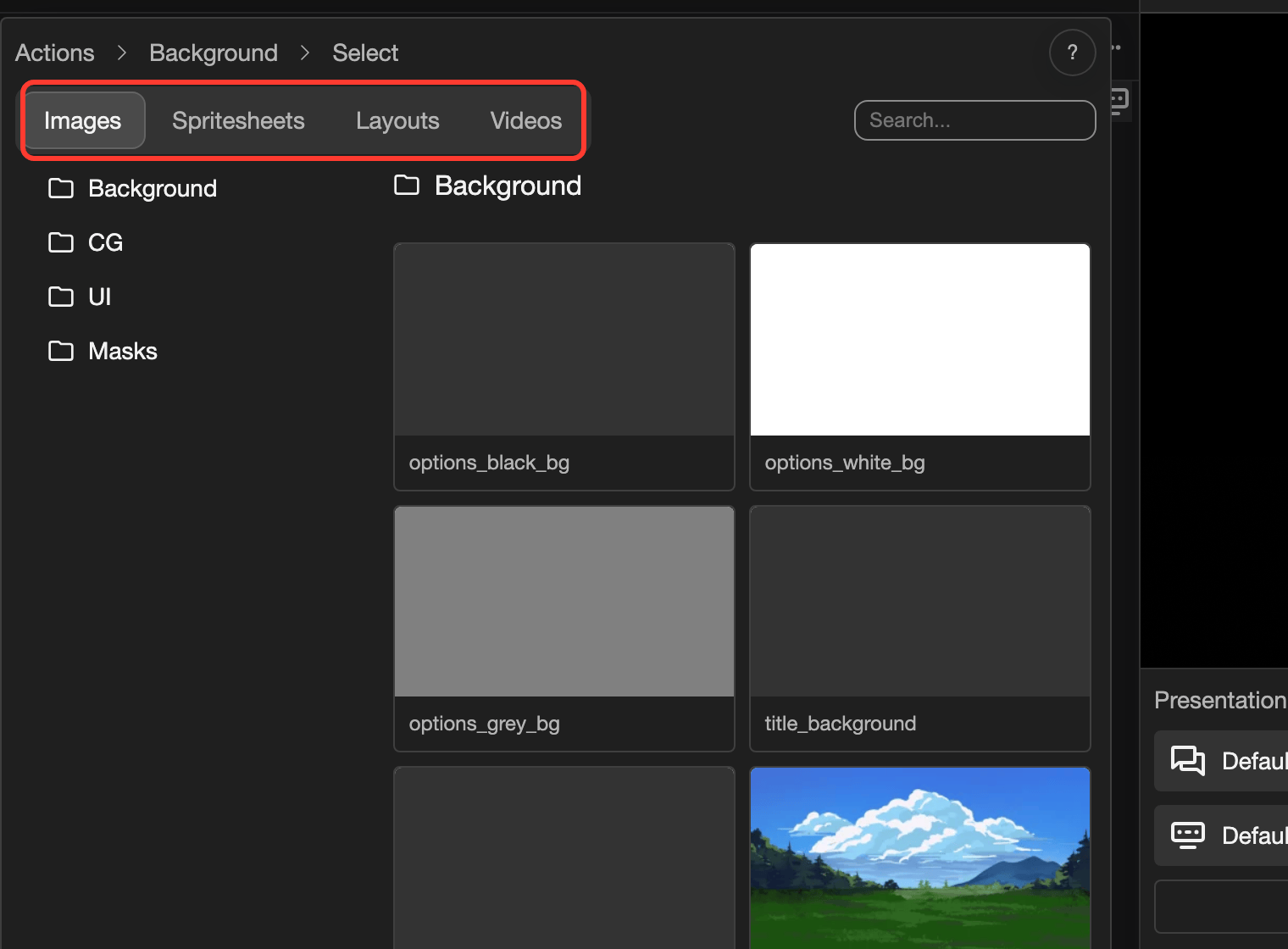
The tabs at the top show what you can choose. -
Tap the picture you want, for example Day forest.
-
Tap Select.
-
Tap Submit.
The preview shows the background. A small picture appears on the right of the line.
What you can choose
| Tab | What it shows |
|---|---|
| Images | Pictures from the Images page. |
| Spritesheets | Animated pictures from the Spritesheets page. |
| Layouts | Layouts of the General type only. |
| Videos | Videos from the Videos page. |
Settings
| Setting | What it does |
|---|---|
| Transform | Predefined: pick a transform from the list, such as Center Center. Custom: tap the box to set the position, scale, anchor, and rotation for this action only. |
| Animation | Pick an animation, such as Crossfade. A Transition plays when the background changes. An Update moves or changes the background while it shows. |
| Playback Speed | How fast the animation plays. 1 is normal speed. It shows after you pick an animation. |
| Continuity | Single Line plays the animation on this line only. Persistent keeps it on the next lines too. The default is Single Line. It shows after you pick an animation. |
| Loop | Loop plays an Update animation again and again. It needs keyframes with a total duration above 0. |
| Loop Video | It shows when the background is a video. Loop plays the video again and again. Don't Loop plays it once. |
| Options | Effects, such as blur and fade. See Image Effects. |
Change the background on a later line
A new Background action changes the background from its line onward. Earlier lines keep the old background.
-
Tap the later line, for example line 3.
-
Open the Background form, as in steps 3 and 4 above. It shows the current background.
-
Tap the picture in the form.
-
Tap the new picture, for example Night forest.
-
Tap Select.
-
Tap Submit.
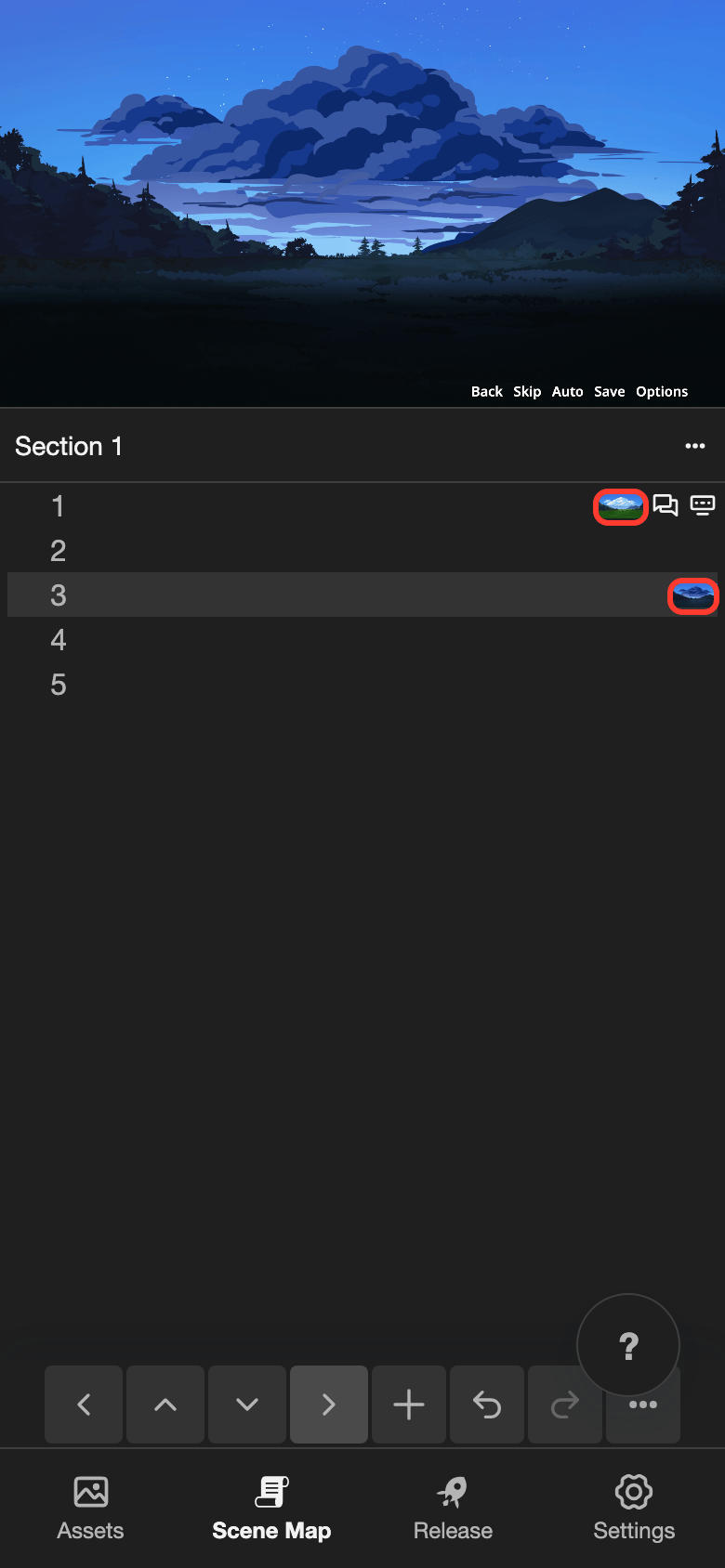
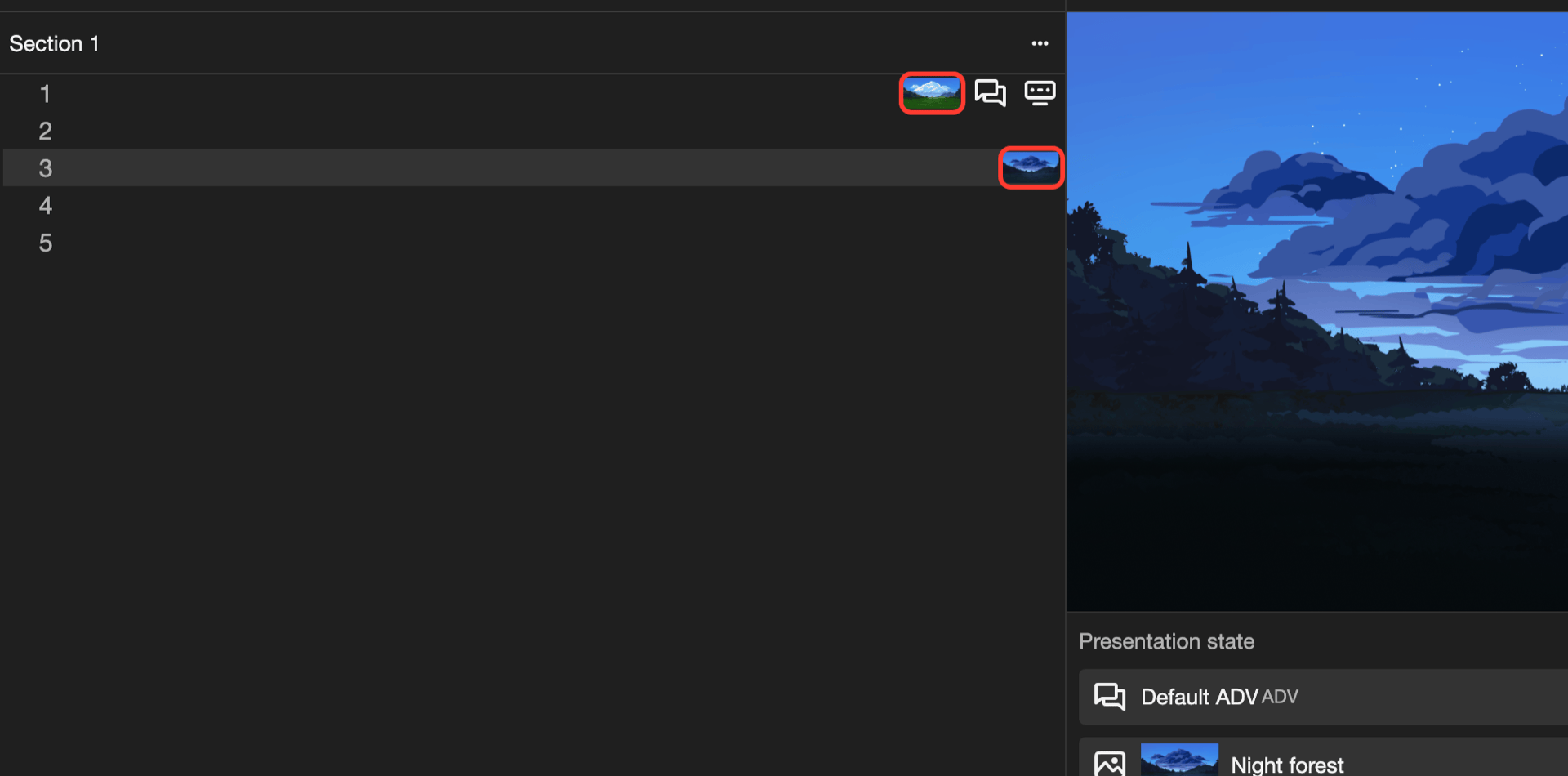
Line 3 now has its own small picture.
Lines 1 and 2 still show Day forest. Line 3 and the lines after it show Night forest.
Remove the background
-
Tap the line where the background should go away.
-
Open the Background form, as in steps 3 and 4 above.
-
Open the menu for the picture.
- Phone or tablet: Long press (touch and hold) the picture.
- Desktop: Right-click the picture.
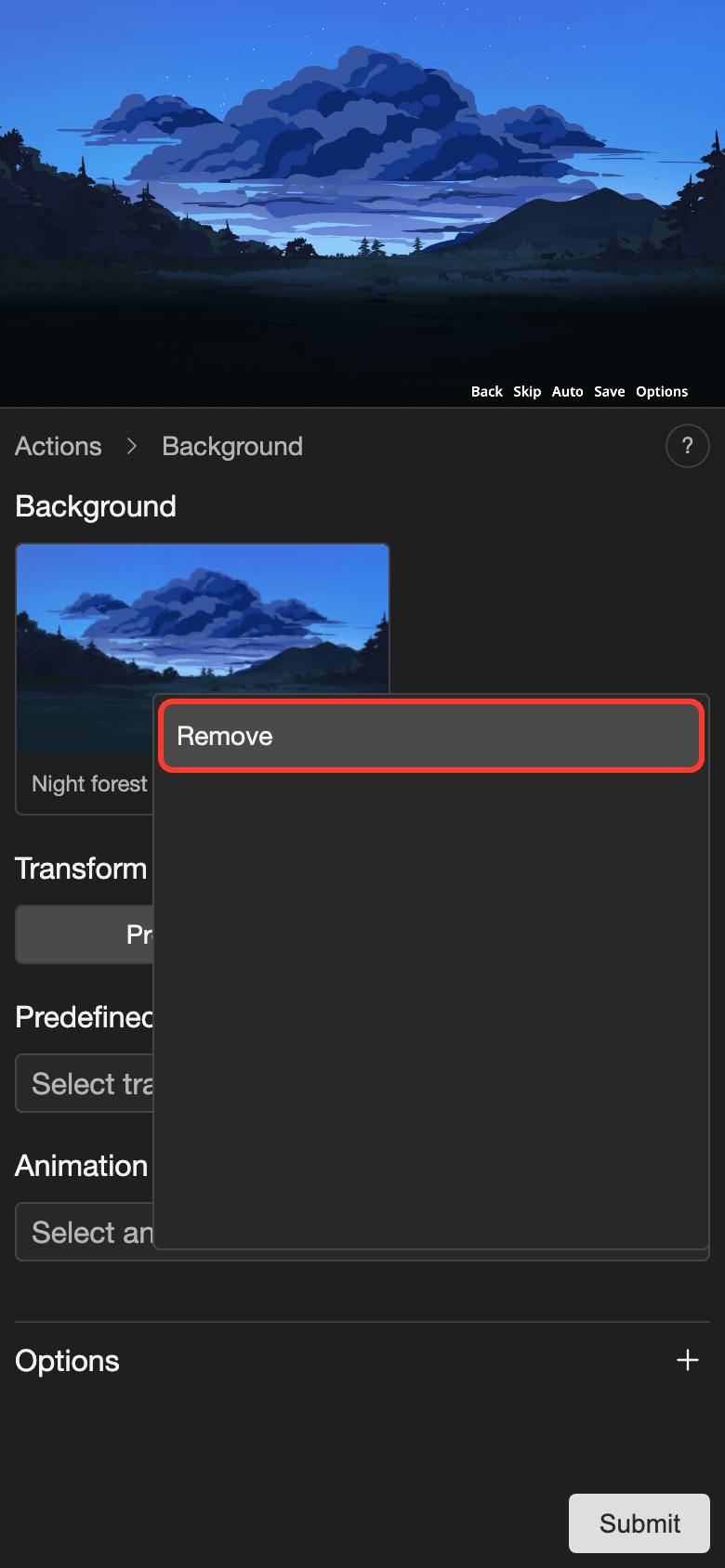
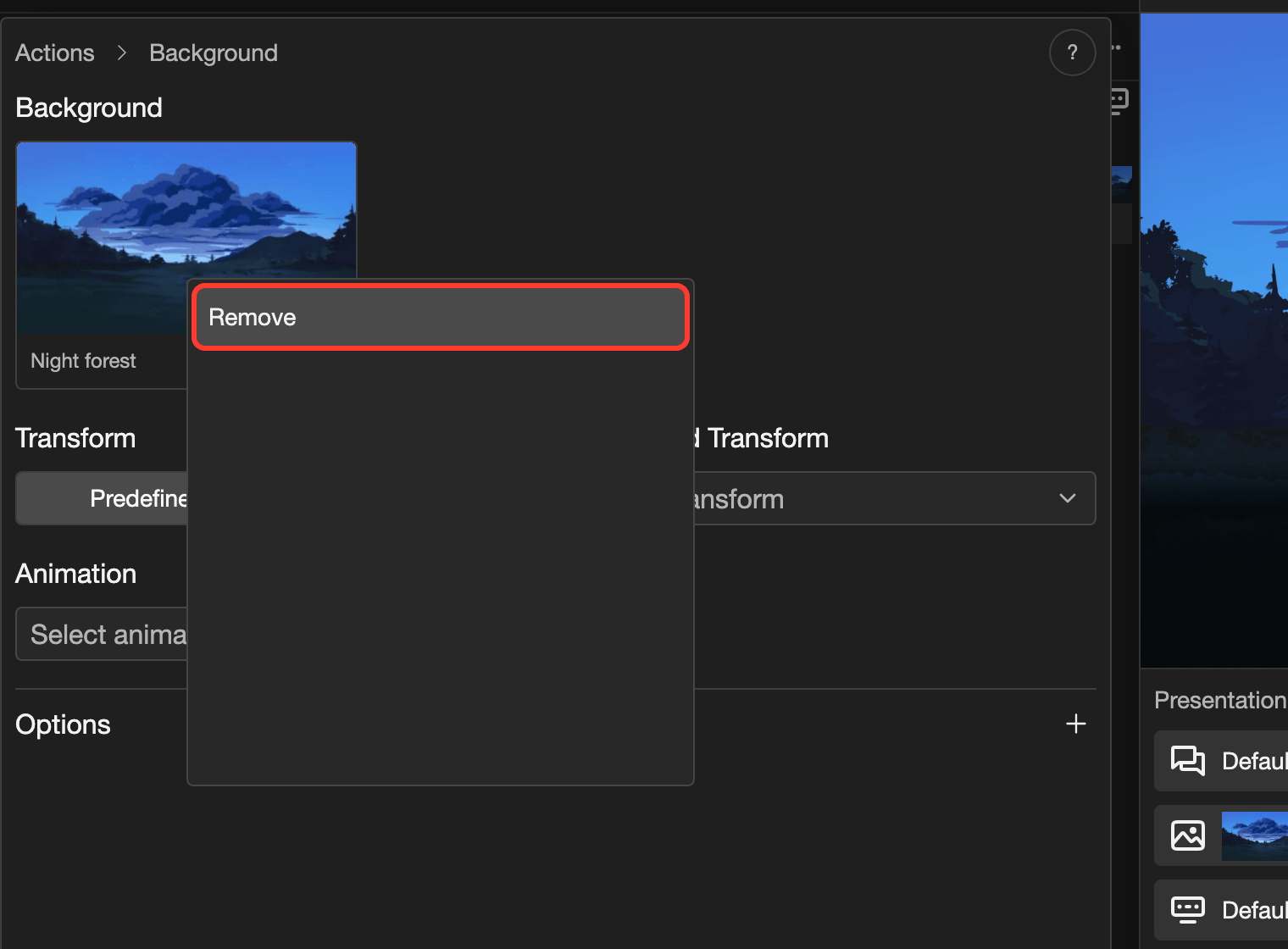
A menu appears.
-
Tap Remove.
-
Tap Submit.
The preview is empty on this line. It stays empty on later lines until a line adds a new background.